

Who this is for: Accountants who want to add a professional narrative summary to a draft financial report.
What you’ll learn: How to use the AI commentary generator to create an accountant narrative for the Executive Summary section of a report.
Before you begin #
- You must have a draft financial report open on the report detail page.
- Live data from QuickBooks must be loaded (the report must be in draft status with a connected company).
Step-by-step instructions #
Step 1: Locate the Accountant Commentary panel #
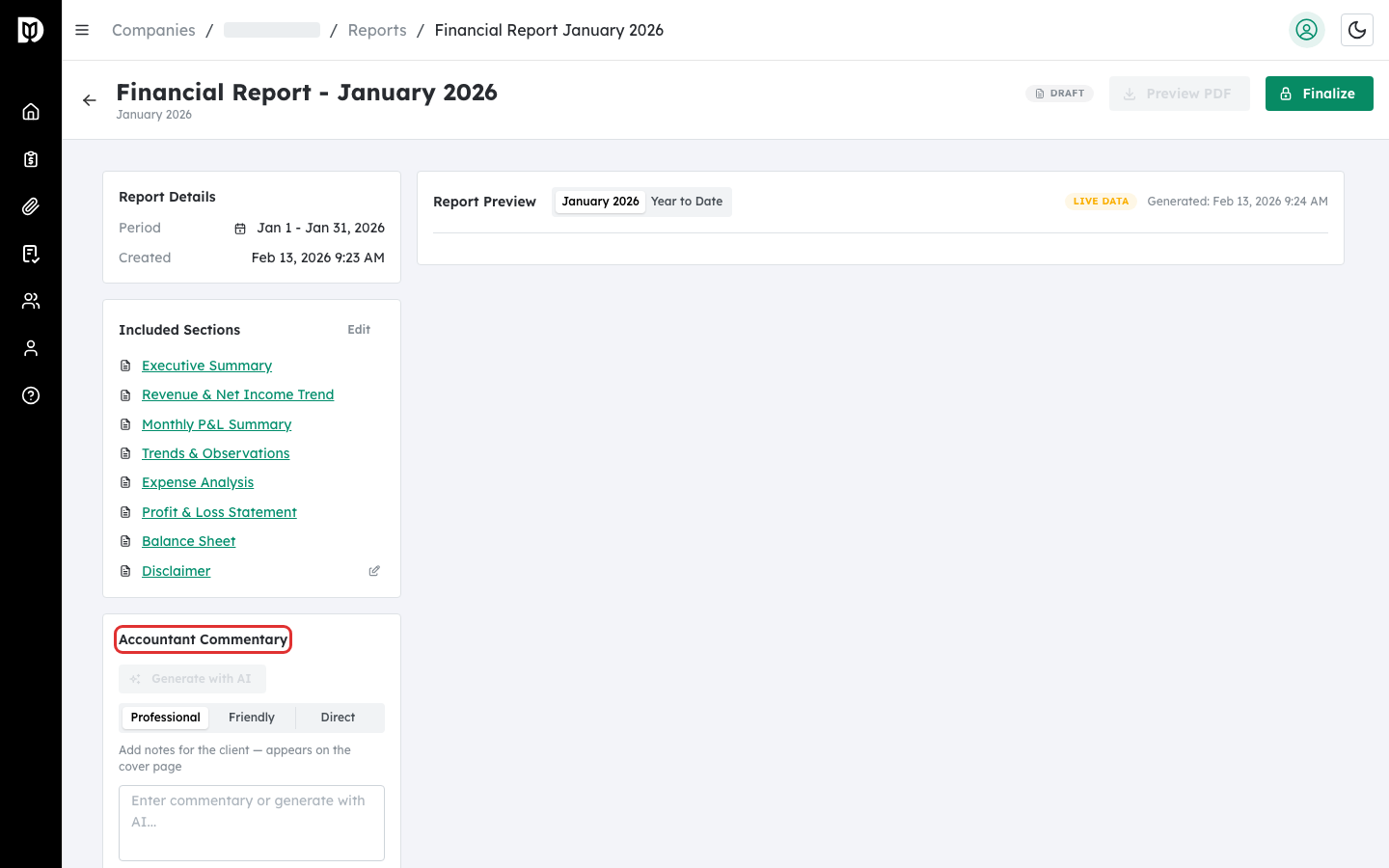
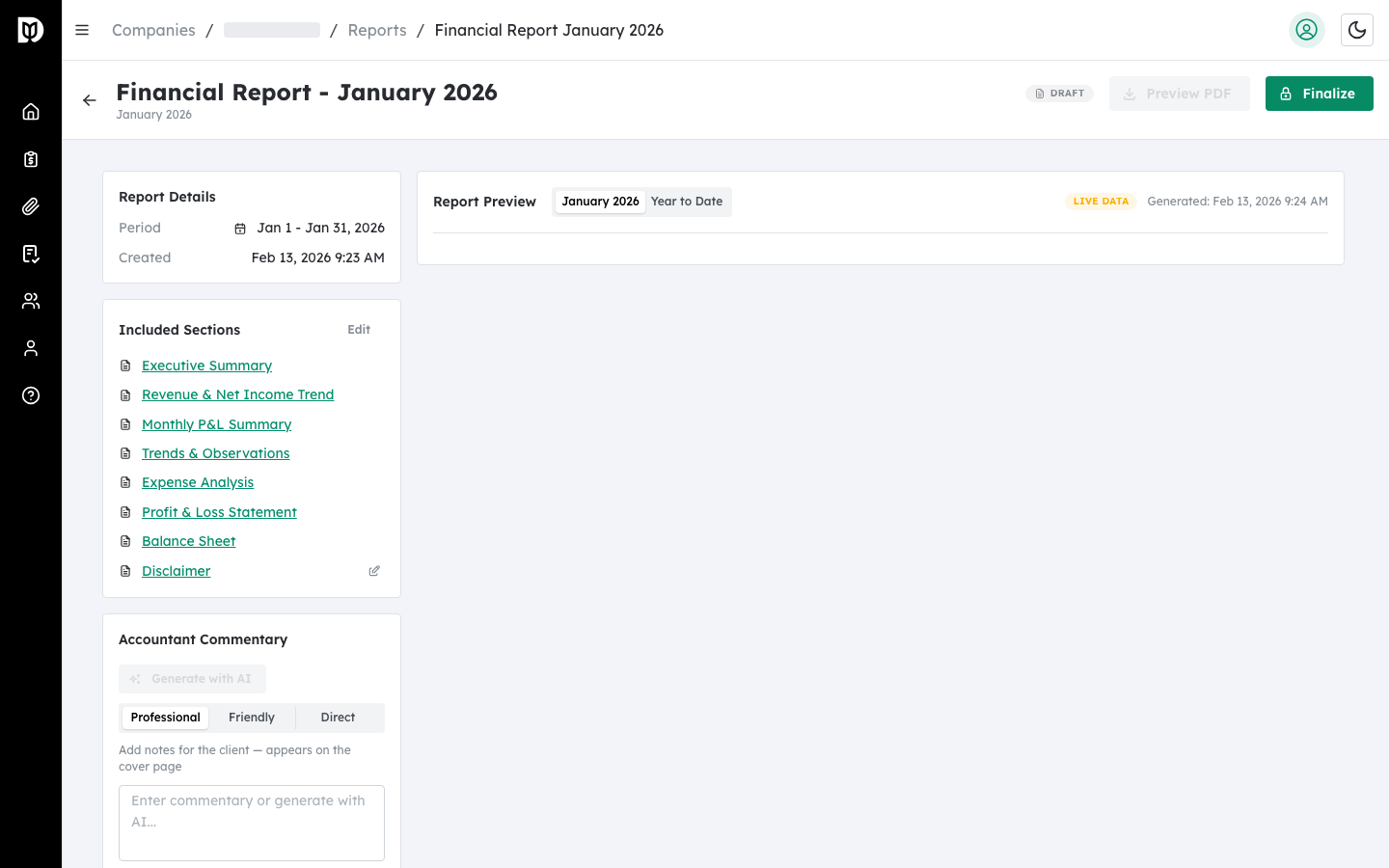
On the report detail page, scroll down in the sidebar (or expand the collapsible panel on mobile) until you see the Accountant Commentary section. This panel includes a text area for your notes and an AI generation button.
Step 2: Select a tone #
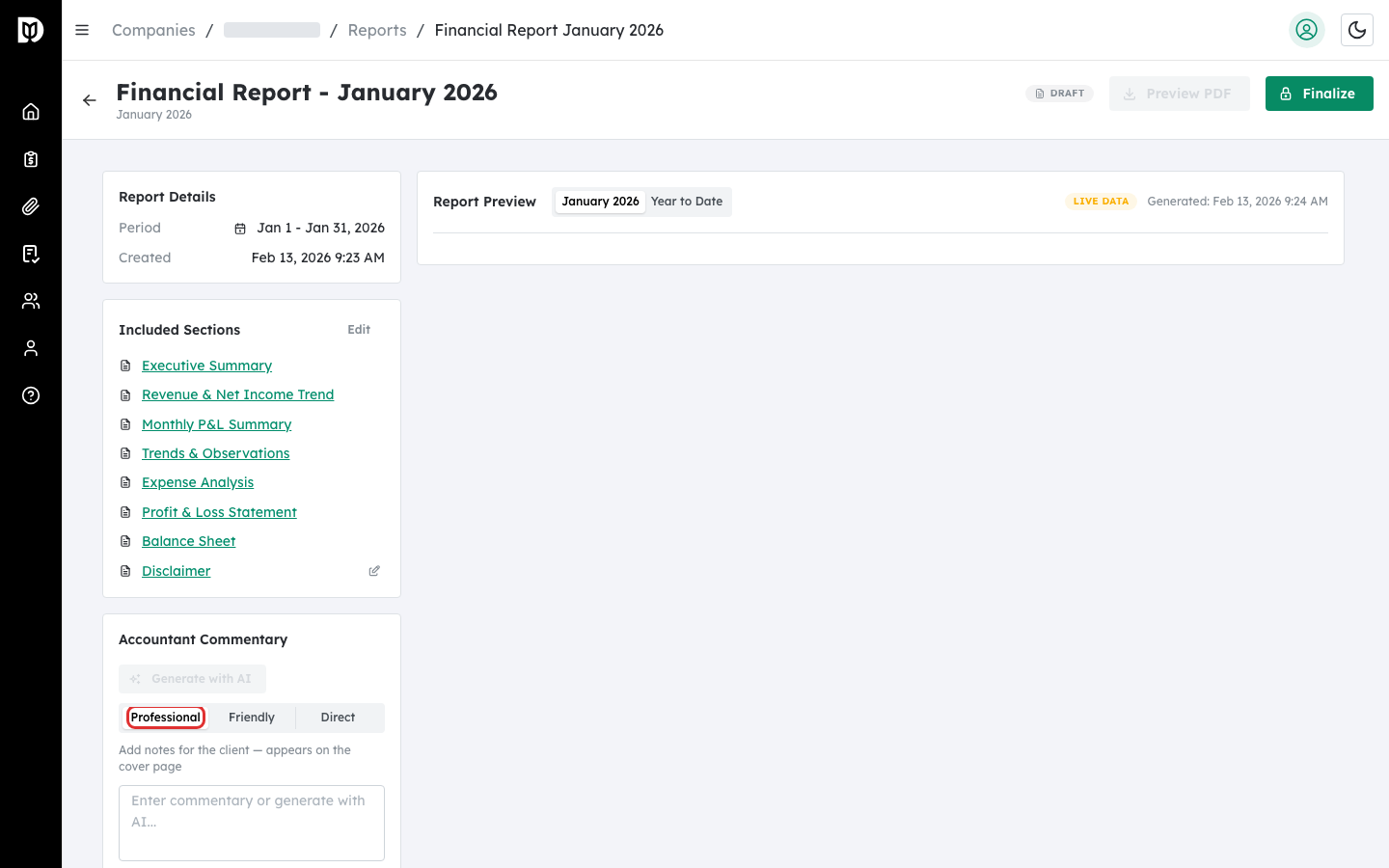
Below the section header, you will see a segmented control with three tone options: Professional, Friendly, and Direct. Select the tone that best matches how you communicate with your client. The default is Professional.
Step 3: Click Generate with AI #
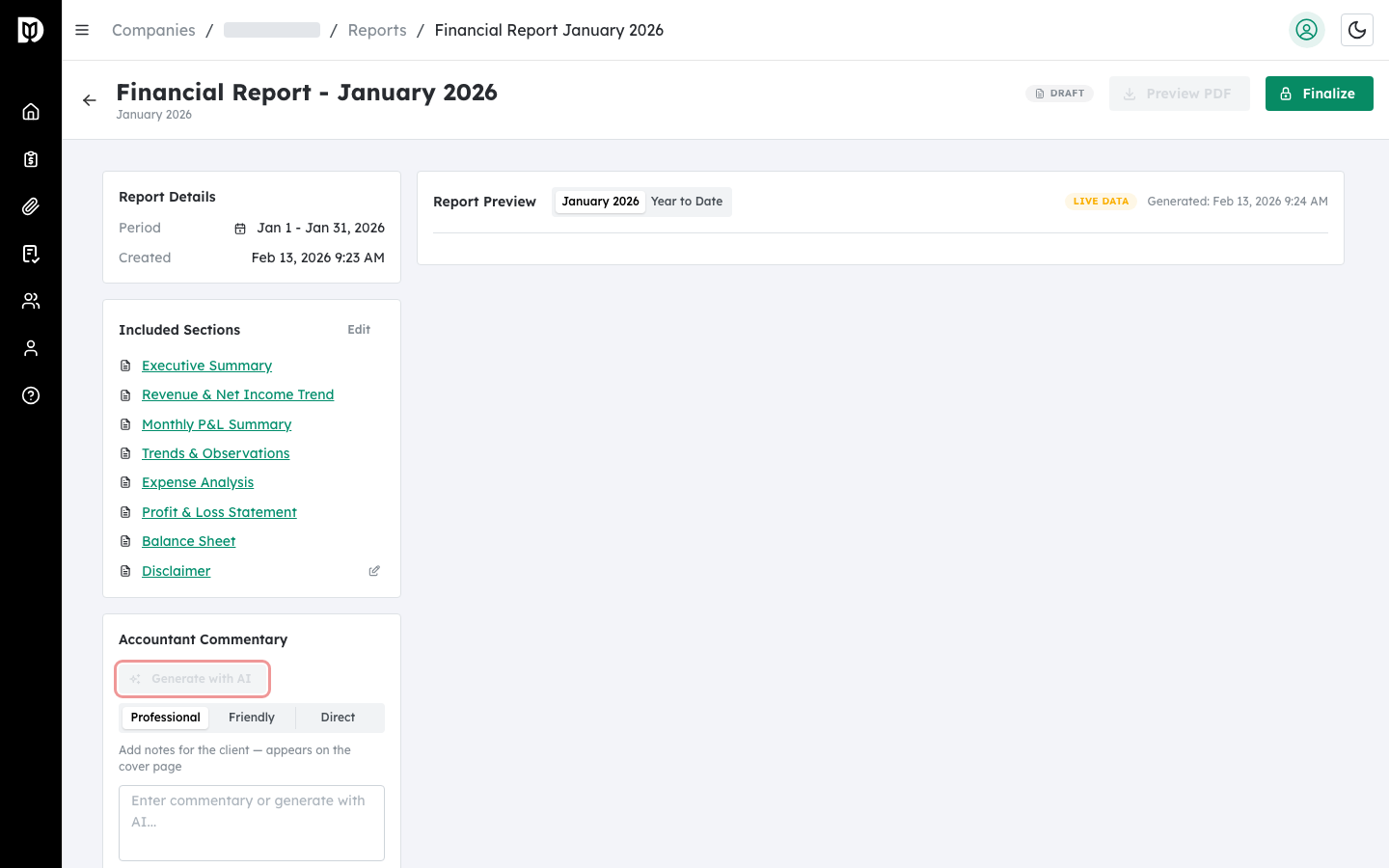
Click the Generate with AI button (marked with a sparkle icon). The system sends the report’s financial metrics, monthly data, and your selected tone to the AI engine. After a few seconds, the generated commentary appears in the text area below.
Step 4: Review and edit the commentary #
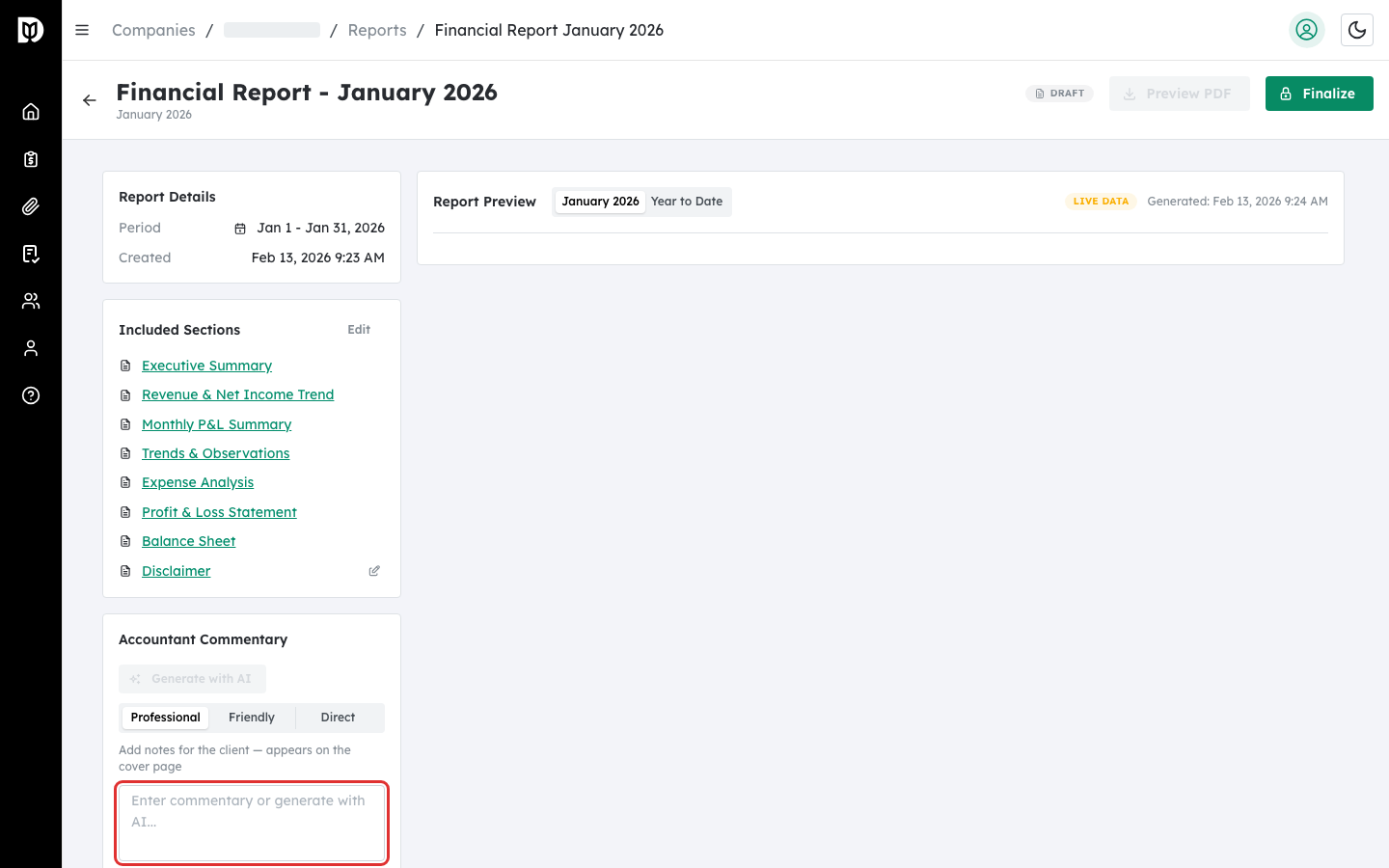
Read through the generated text. You can freely edit, add to, or rewrite any portion of the commentary in the text area. The commentary appears in the Executive Summary section of the report preview.
Step 5: Save your commentary #
After making your edits, click the Save button that appears below the text area (it only shows when the commentary has changed from the last saved version). The commentary is saved to the report and will be included when the report is finalized.
What happens next #
The saved commentary appears in the Executive Summary section of the report preview. When you finalize the report, this commentary is included in the permanent PDF snapshot. Recipients will see it when they view or download the report.
Troubleshooting #
- Generate with AI button is disabled: Live data must be loaded before the AI can generate commentary. Wait for the report to finish loading QuickBooks data.
- “Generation Failed” error: The AI service may be temporarily unavailable. Wait a moment and try again.
- Commentary does not appear in the preview: Make sure the Executive Summary section is enabled. Commentary is displayed within the Executive Summary. If you have disabled it and enabled the standalone Accountant Commentary section instead, make sure that section is enabled.


