

Who this is for: Accountants tailoring which sections appear in a report and in what order.
What you’ll learn: How to add, remove, and reorder the sections that make up a report.
Before you begin #
- Open a draft report. Sections can only be changed while the report is a draft.
- A report is built from selectable sections — from a simple P&L to a full CFO board pack. See the section catalog article for what each one shows.
Step-by-step instructions #
Step 1: Open Edit Report Sections #
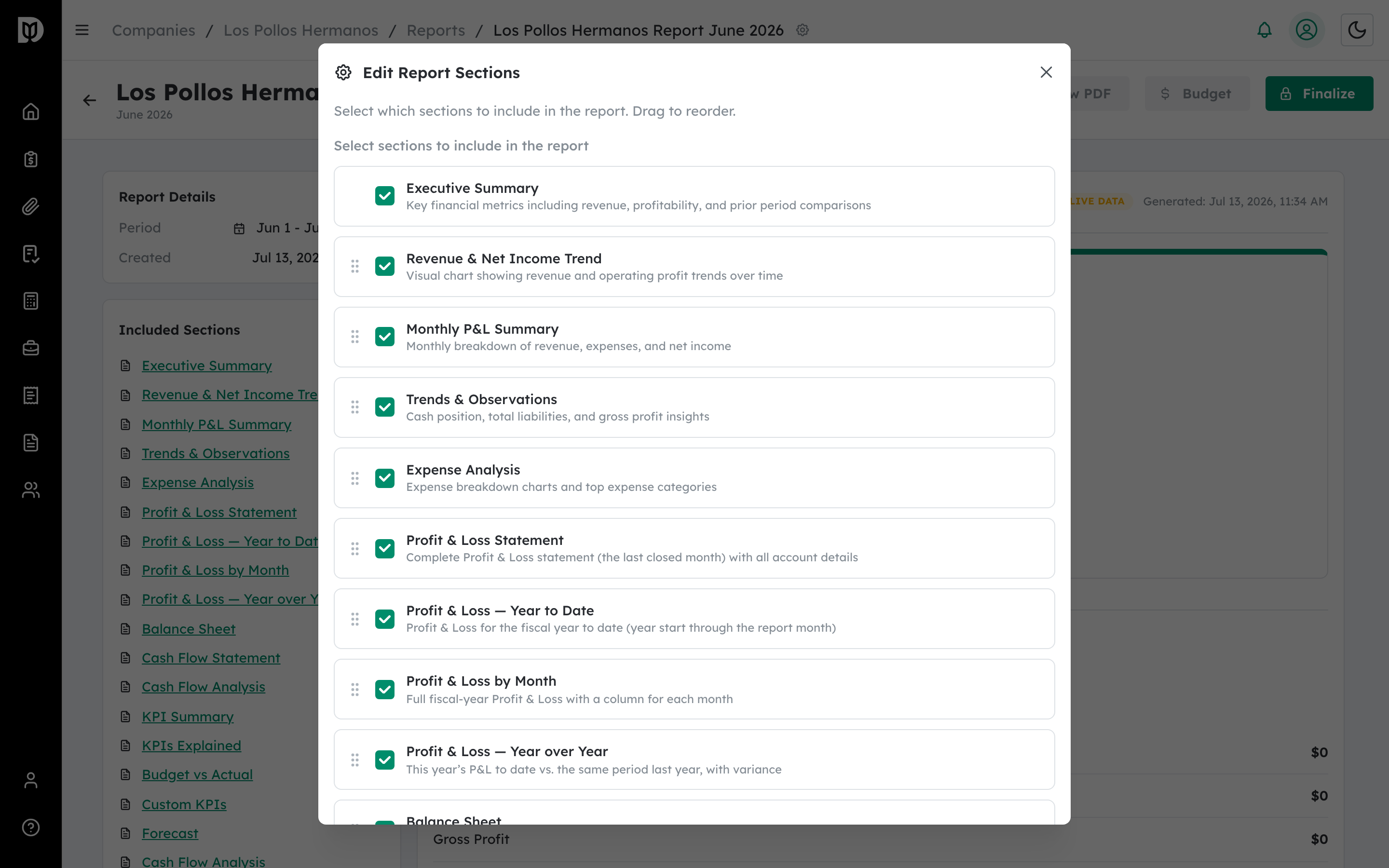
In the workspace, select Edit beside Included Sections. The Edit Report Sections window opens.
Step 2: Turn sections on or off #
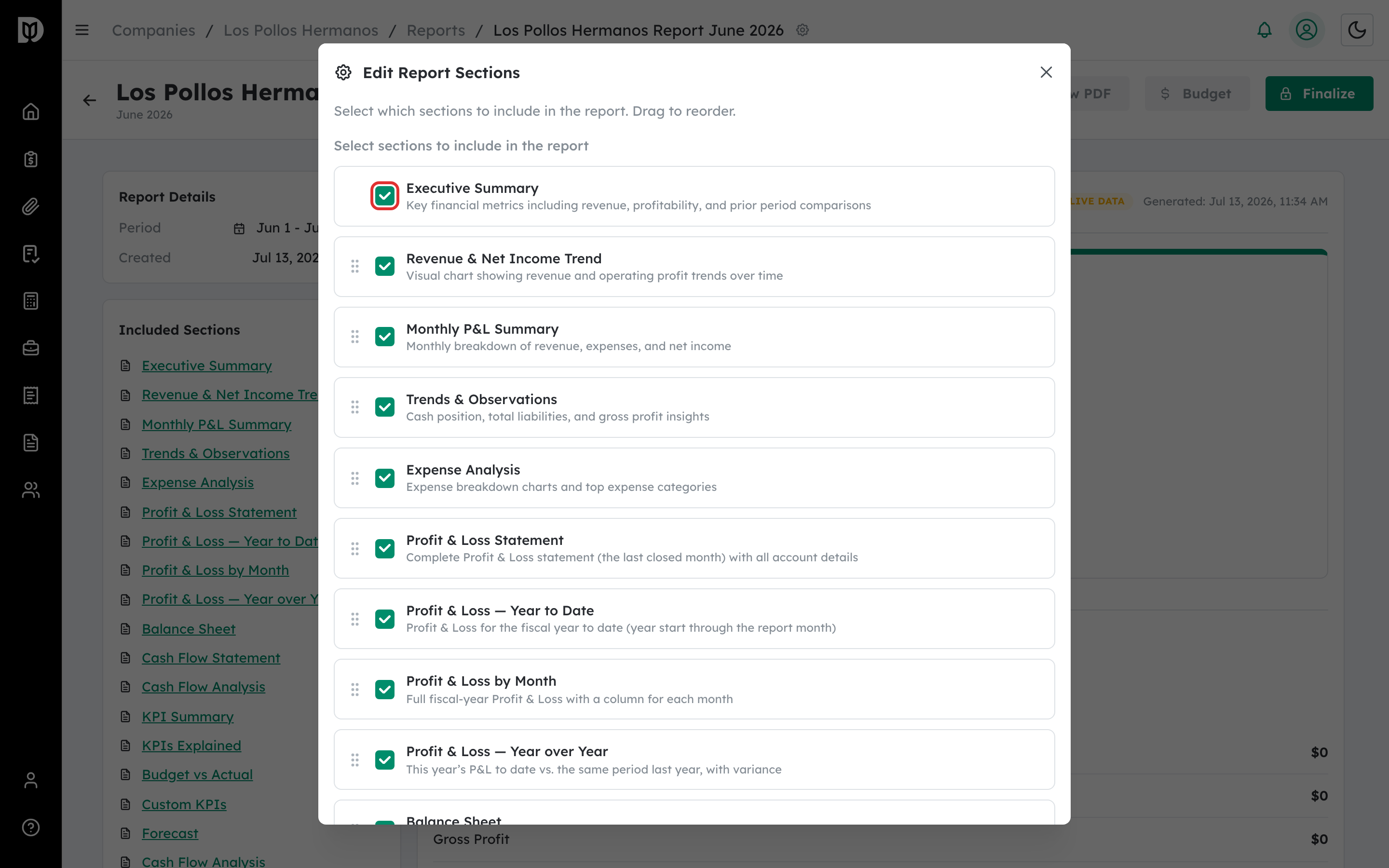
Use each checkbox to include or exclude a section. Every section shows a short description of what it adds to the report.
Step 3: Reorder sections #
Drag a section by its handle to change where it appears in the report. The order here is the order in the preview and the PDF.
Step 4: Add a custom section #
Some sections carry their own settings — for example Custom KPIs, Forecast, and Narrative / Text. Enable them here, then configure them in the same window.
Step 5: Save your changes #
Select Save Changes. The preview updates immediately.
What happens next #
Your section choices are saved to the draft. They’re captured when you finalize, so the delivered report matches what you set up here.
Troubleshooting #
- Problem: Save is disabled. If you added a custom KPI, fix any highlighted formula first.
- Problem: A statement section shows no data. That statement may be empty for the period in QuickBooks (for example, no cash-flow activity).


