

Who this is for: Accountants who want to review the progress and details of a specific tax return.
What you’ll learn: How to navigate the tax return detail page and understand the status workflow.
Before you begin #
- You must have at least one tax return created.
Step-by-step instructions #
Step 1: Open the tax return detail page #
From the Tax Returns list, click on the client or entity name, or use the View (eye) icon on any row to open the detail page.
Step 2: Check the current status #
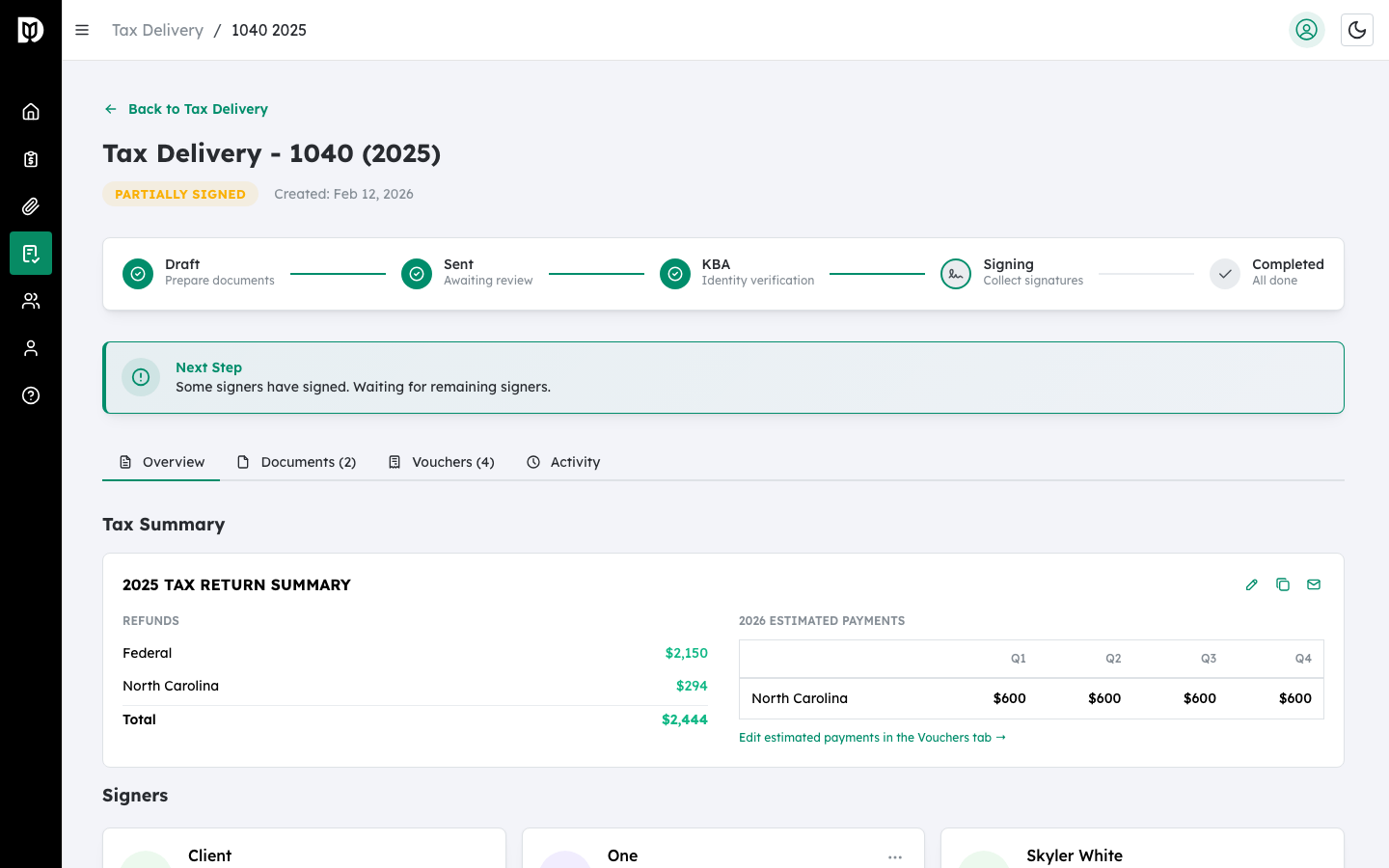
The status badge is displayed below the page title. Possible statuses are:
- Draft (gray) — Still being prepared.
- Pending Review (blue) — Sent to client, waiting for review.
- Pending KBA (orange) — Waiting for identity verification.
- Pending Signature (orange) — Waiting for signature.
- Partially Signed (yellow) — Some signers have signed.
- Completed (green) — All signatures collected.
- Rejected (red) — Client has rejected the document.
Step 3: Follow the progress stepper #
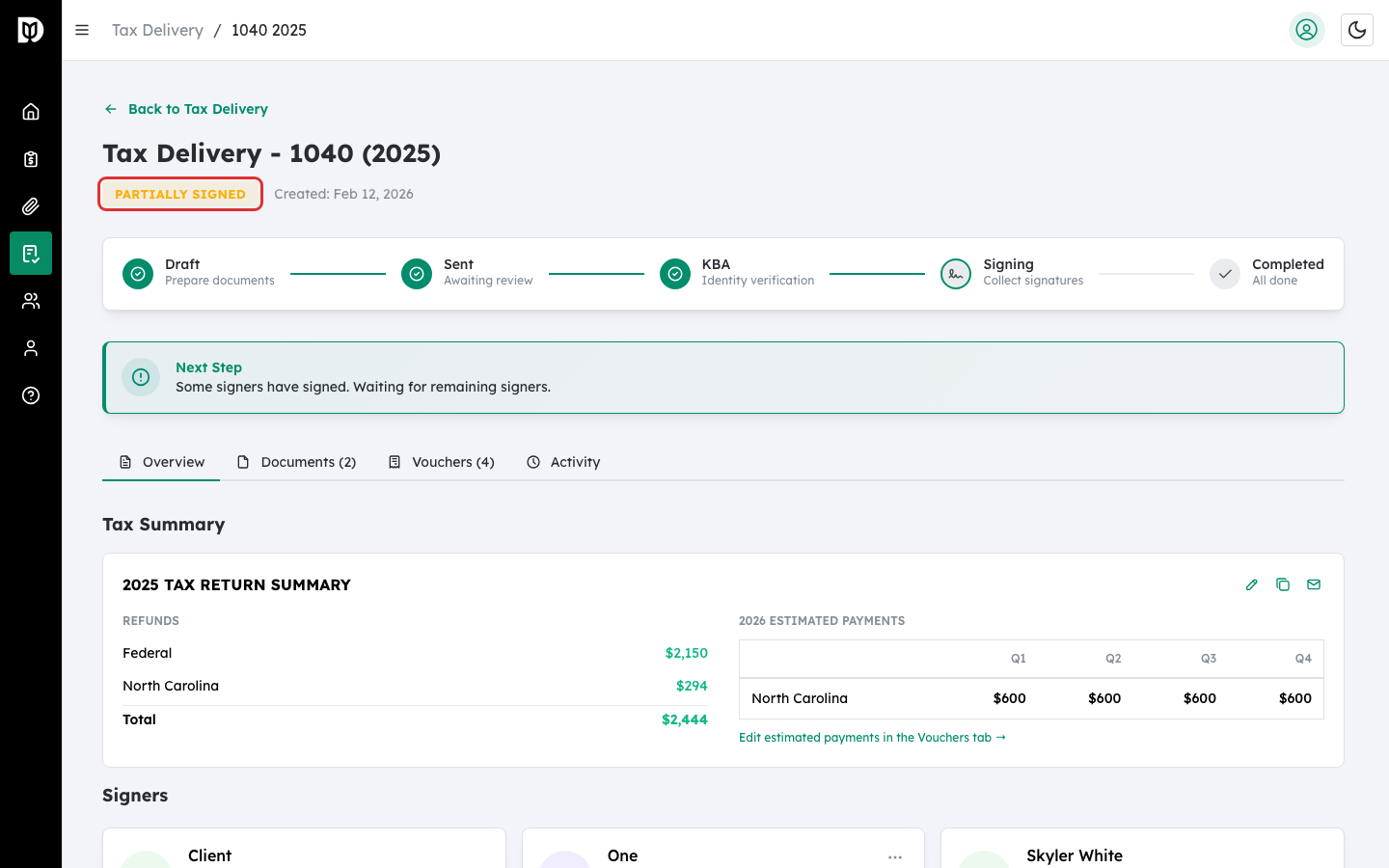
Once a tax return has been sent, a progress stepper appears showing the five stages: Draft, Sent, KBA, Signing, and Completed. The current stage is highlighted.
Step 4: Read the Next Step guidance #
A guidance card below the stepper tells you what to do next. For example:
- “Upload the tax return documents to proceed.”
- “Configure signature fields on your documents.”
- “Ready to send! Click Send for Signature.”
Step 5: Navigate between tabs #
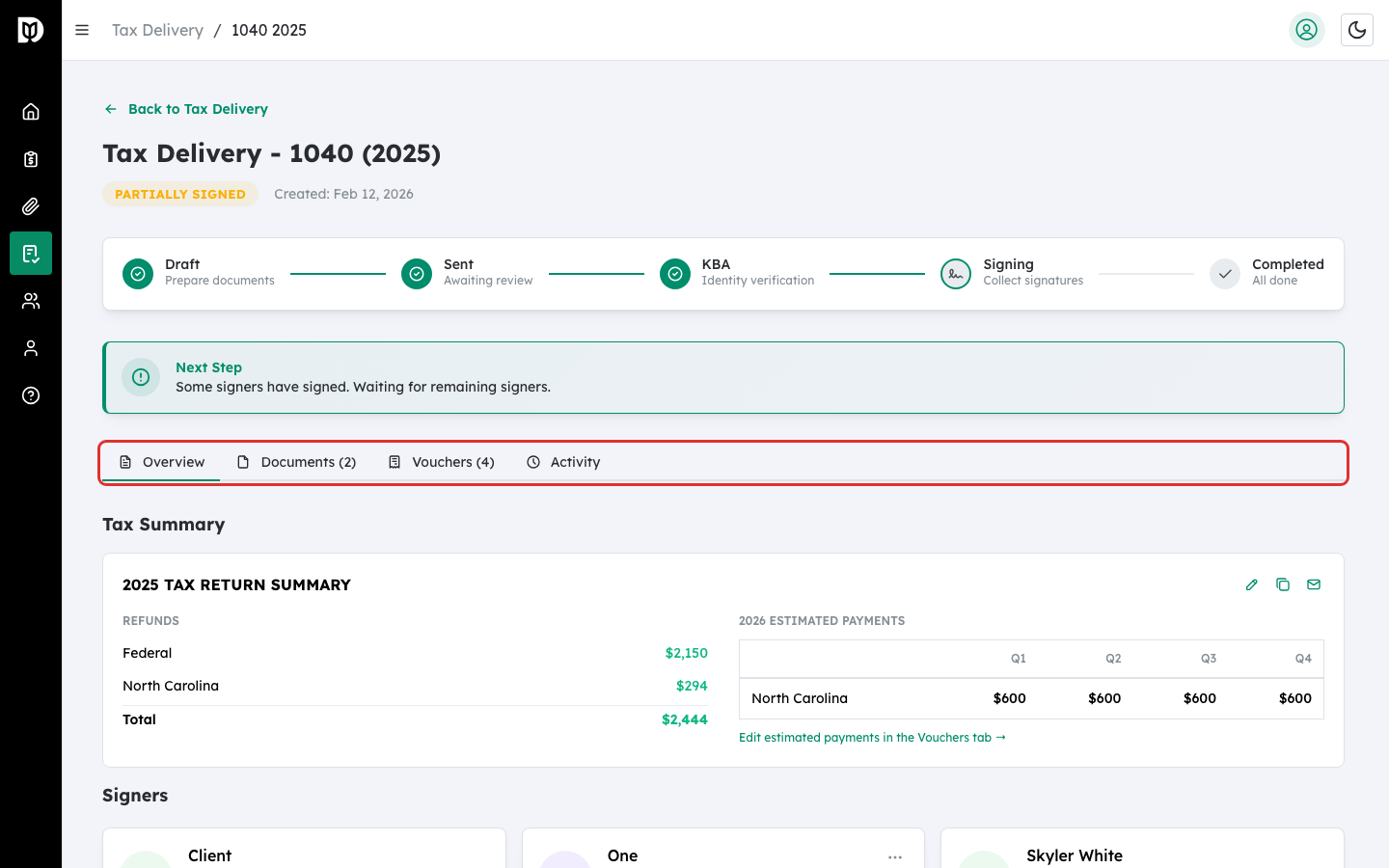
Use the tabs to view different sections of the tax return:
- Overview — Signers, summary, and next steps.
- Documents — Uploaded tax documents.
- Vouchers — Estimated tax payment vouchers.
- K-1s — K-1 distributions (for 1065 and 1120S returns only).
- Activity — Full audit trail of events.
What happens next #
Depending on the current status, you can add signers, upload documents, configure signatures, send for signature, or download the completed signed document.
Troubleshooting #
- “Failed to load tax return” error: The tax return may have been deleted or you may not have permission to view it. Go back to the Tax Returns list.


