


Navigate to Tax Organizers #
- From your main dashboard or home screen, locate the menu option labeled “Tax Organizers”
- Click Tax Organizers to open the list of existing organizers.
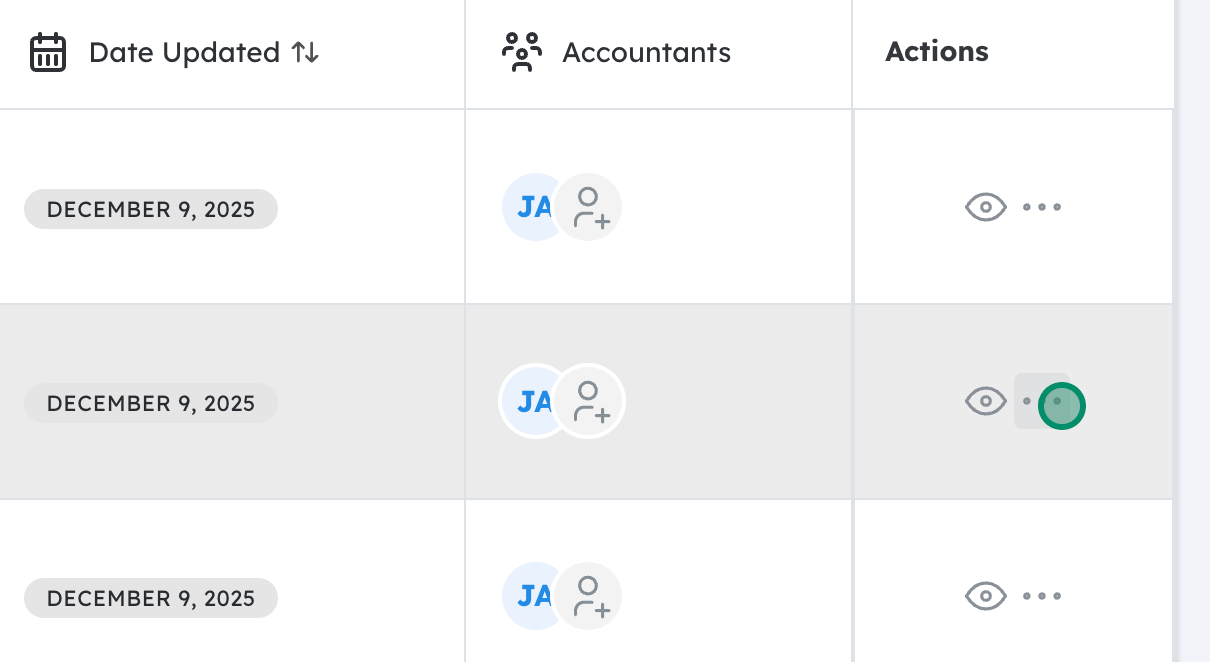
Open the Actions menu for the organizer you want to remove #
- Find the specific organizer you wish to delete in the list.
- On that organizer’s row, look for an “Actions” button or an icon (three dots).
- Click this Actions menu to see available options.

Select “Delete Organizer” #
- From the Actions dropdown, click “Delete Organizer.”
- A confirmation prompt or pop‑up window should appear, warning that you’re about to permanently delete this organizer (and possibly any associated data).

Confirm the deletion #
- Review the confirmation message to ensure you’re deleting the correct organizer.
- Click “Confirm” (or “Yes, Delete”, depending on the wording) to complete the deletion.
- The organizer should now be removed from your Tax Organizers list.


