

Who this is for: Accountants who want to project a client’s revenue and expenses forward.
What you’ll learn: How to add a Forecast section and set its growth scenarios.
Before you begin #
- Open a draft report and add the Forecast section in Edit Report Sections.
- The forecast projects forward from the current period’s actuals.
Step-by-step instructions #
Step 1: Open the forecast settings #
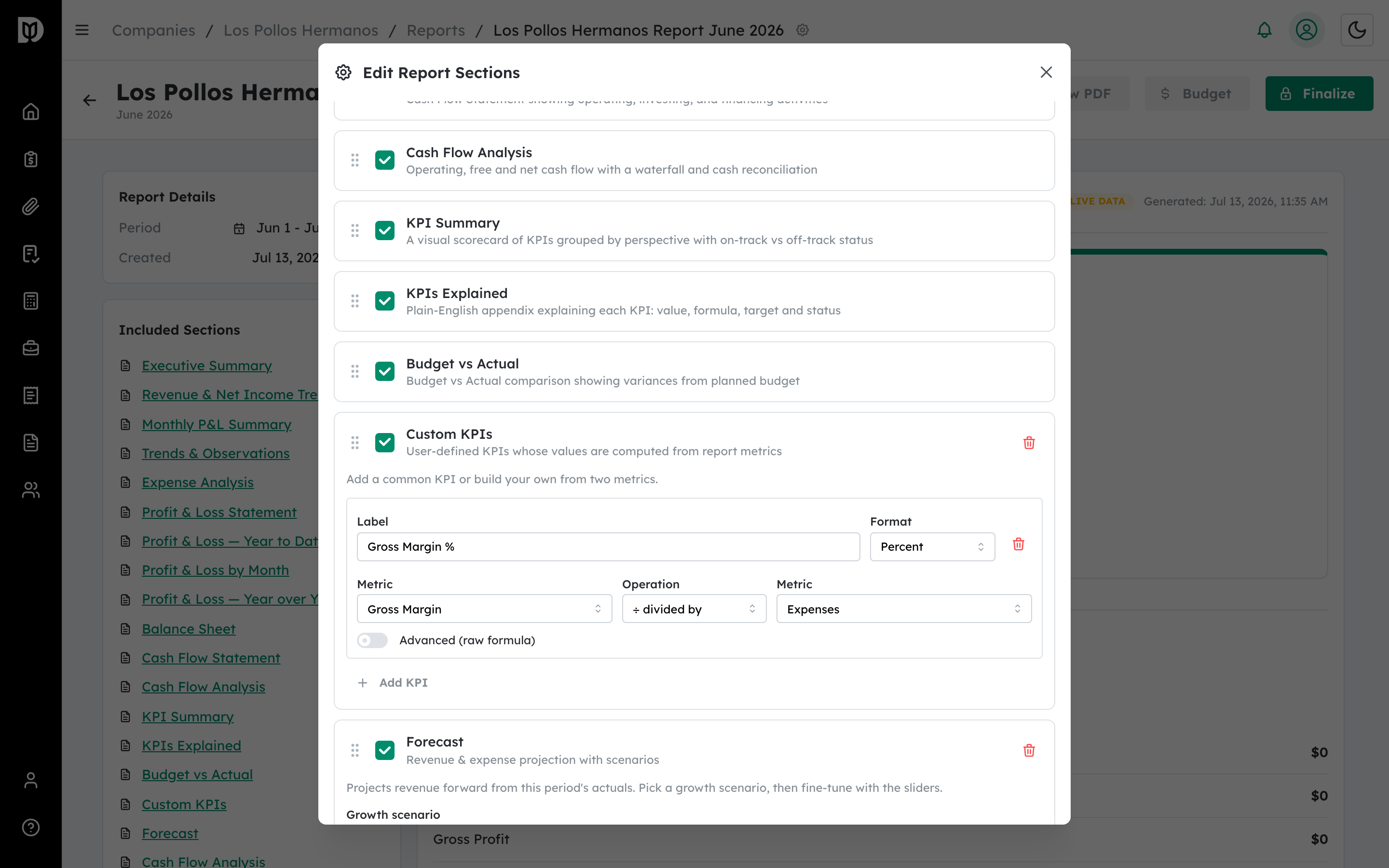
Expand the Forecast section in Edit Report Sections.
Step 2: Pick a growth scenario #
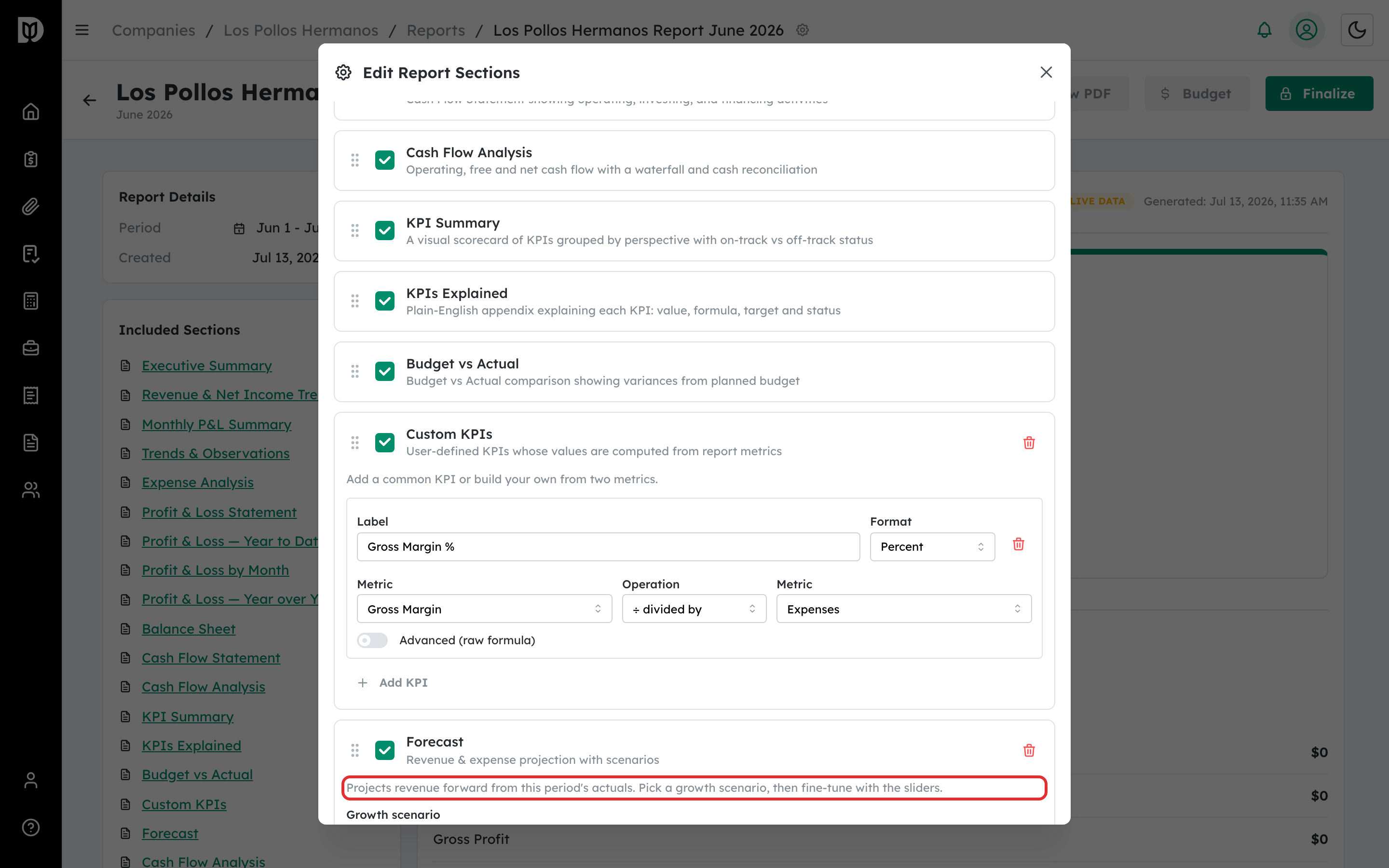
Choose a growth scenario, then fine-tune the revenue and expense growth with the sliders.
Step 3: Review the projection #
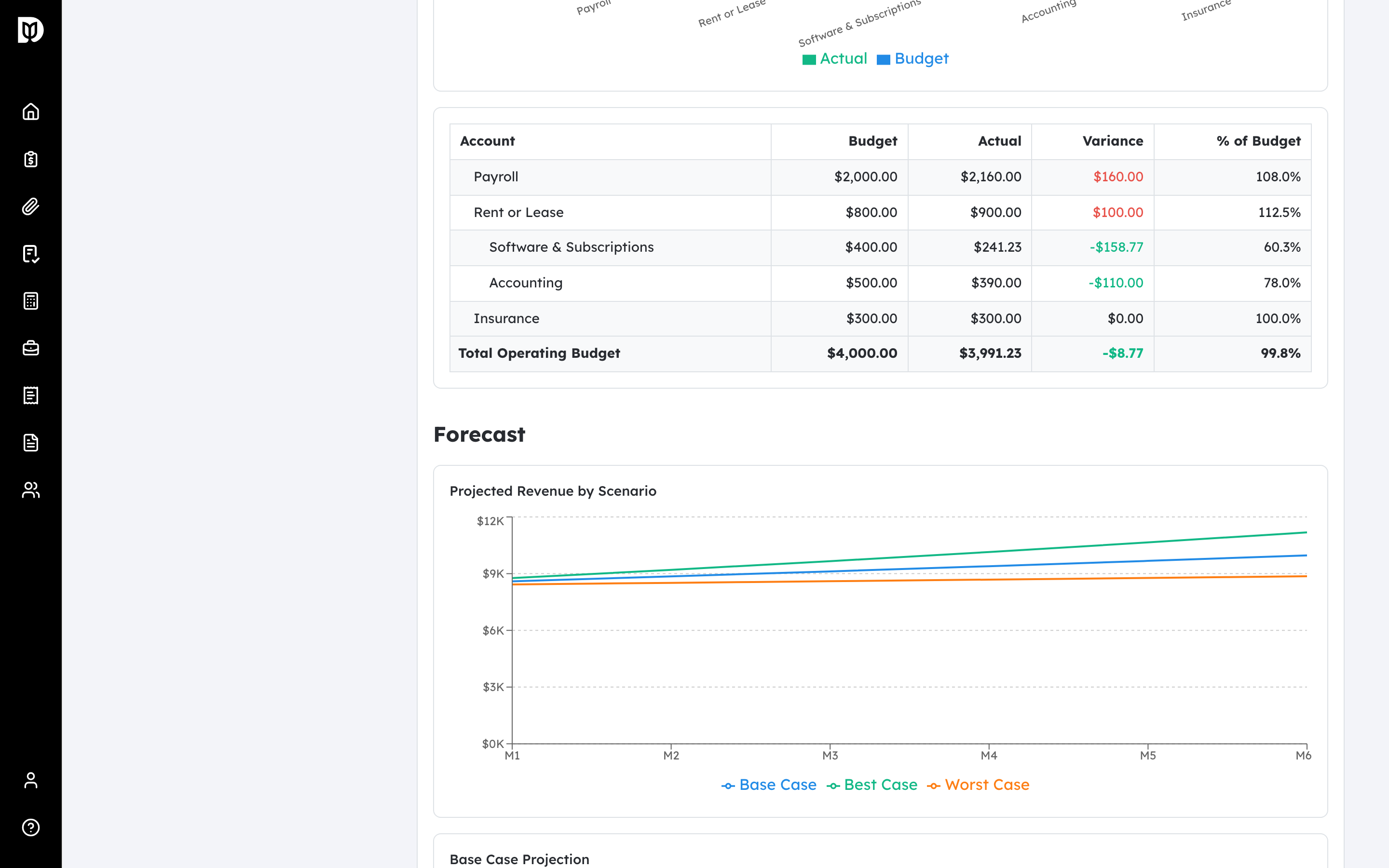
The Forecast section projects three scenarios — Base Case, Best Case, and Worst Case — so the client can see a confidence range, along with a base-case projection table.
What happens next #
The forecast is captured in the snapshot when you finalize and renders as a chart and table in the report and PDF.
Troubleshooting #
- Problem: The projection looks flat. Set non-zero growth assumptions, or confirm the period has revenue to project from.


