

Who this is for: Clients who have received an email asking them to confirm that they have made an estimated tax payment.
What you’ll learn: How the voucher payment confirmation process works.
Before you begin #
- You must have received a voucher payment confirmation email from your accountant.
Step-by-step instructions #
Step 1: Click the confirmation link #
Open the email and click the payment confirmation link. The page automatically confirms your payment.
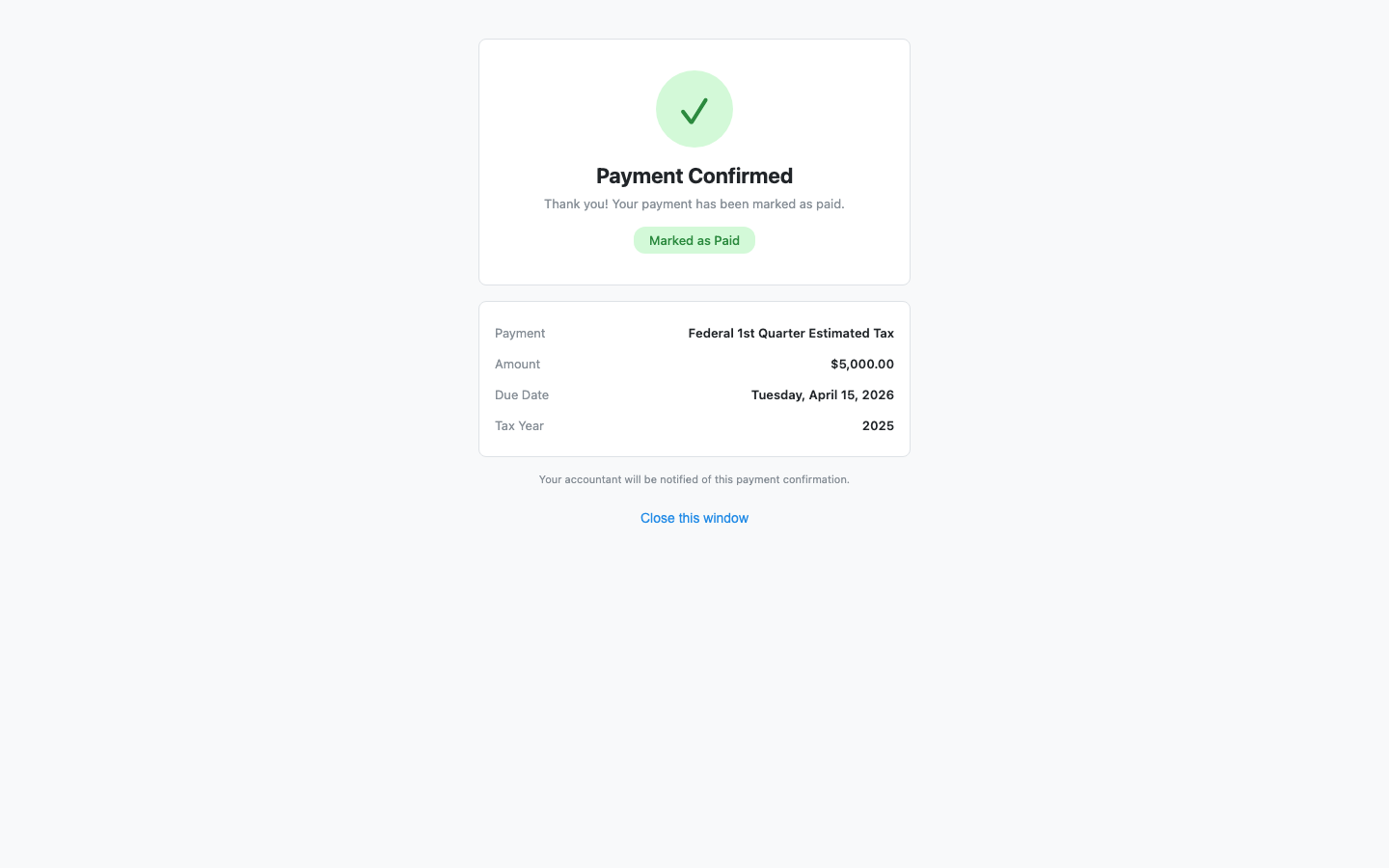
Step 2: Review the confirmation details #
The page displays:
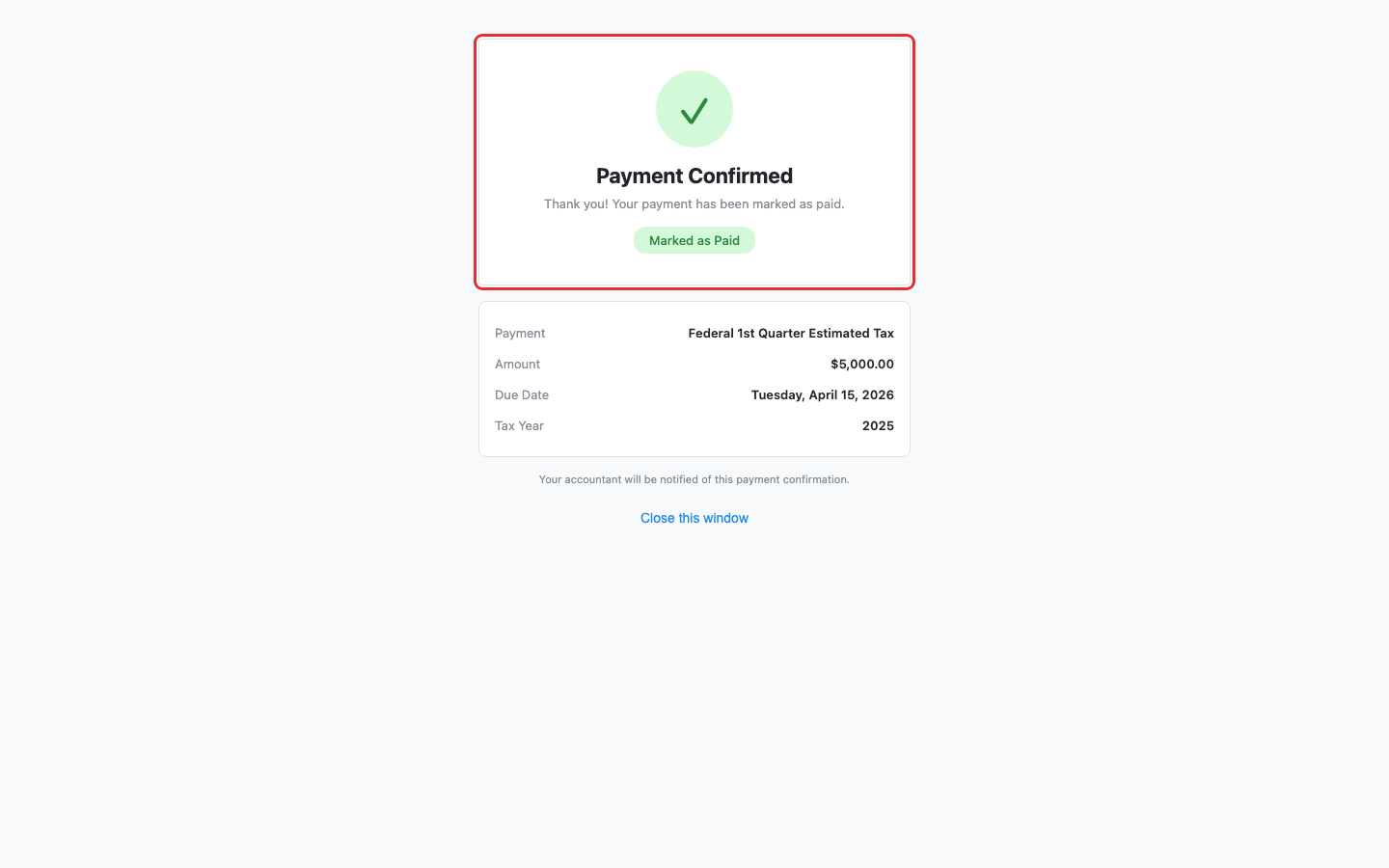
- A green Payment Confirmed header with a “Marked as Paid” badge.
- Payment type — For example, “Federal 1st Quarter Estimated Tax.”
- Amount — The payment amount.
- Due Date — The original due date.
- Tax Year — The associated tax year.
Step 3: Close the window #
Click Close this window or simply close the browser tab. No further action is needed.
What happens next #
Your accountant will be notified that you confirmed the payment. The voucher status on their end updates to Paid automatically.
Troubleshooting #
- “Unable to Confirm Payment” error: The confirmation link may be invalid or already used. Contact your accountant if you need to re-confirm.


