

Who this is for: Bookkeepers and reviewers who need to track open questions and review the full history of a close.
What you’ll learn: How to log follow-ups with due-date reminders and how to view and export the period’s activity log.
Before you begin #
- Open the client’s Month End tab and select the period you are working on.
Step-by-step instructions #
Step 1: Open Follow-ups #
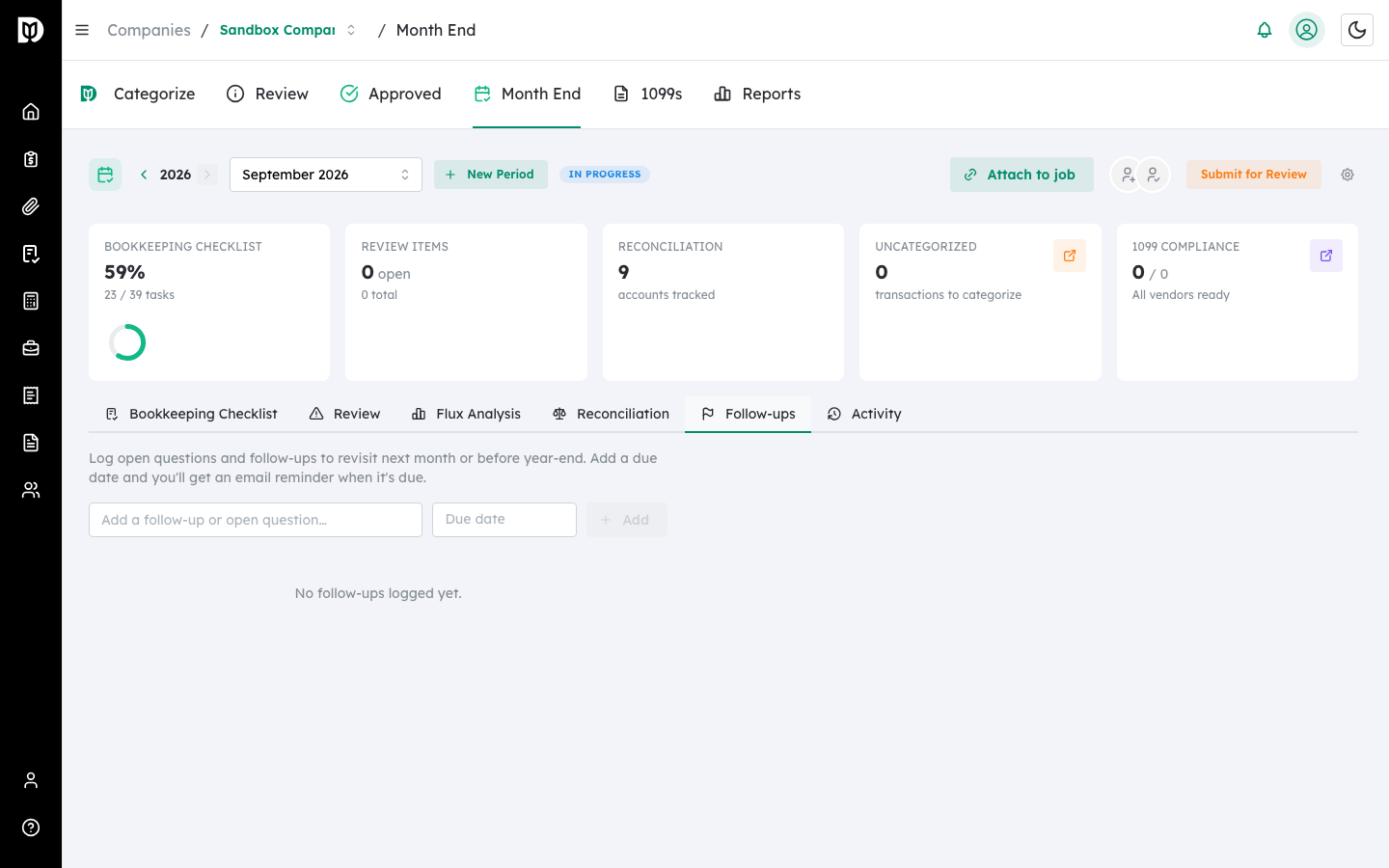
Select the Follow-ups tab. Use this to log open questions to revisit next month or before year-end.
Step 2: Add a follow-up #
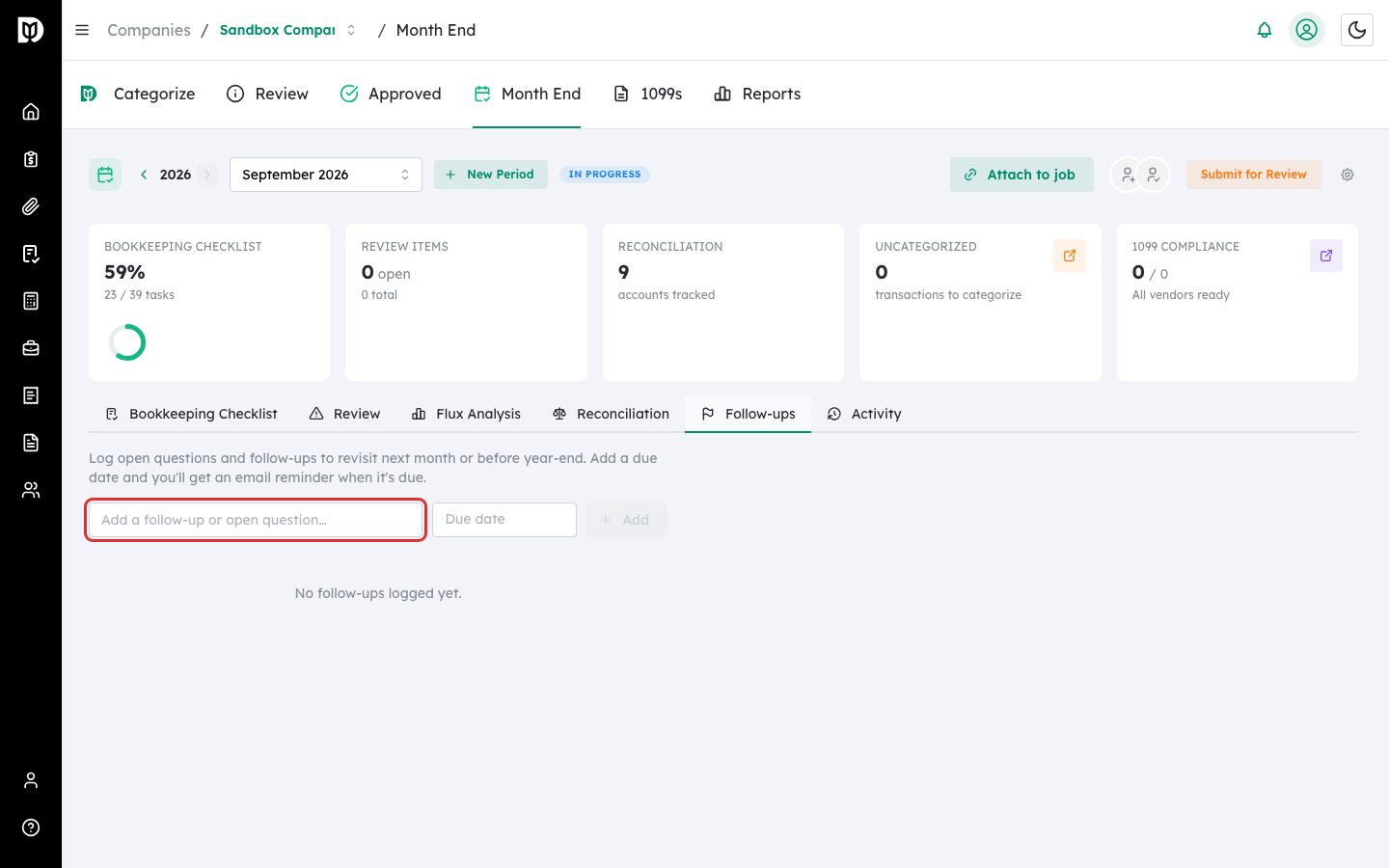
Type your question in the Add a follow-up or open question field, set an optional due date, then select Add. With a due date, you get an email reminder when it is due.
Step 3: Review the activity log #
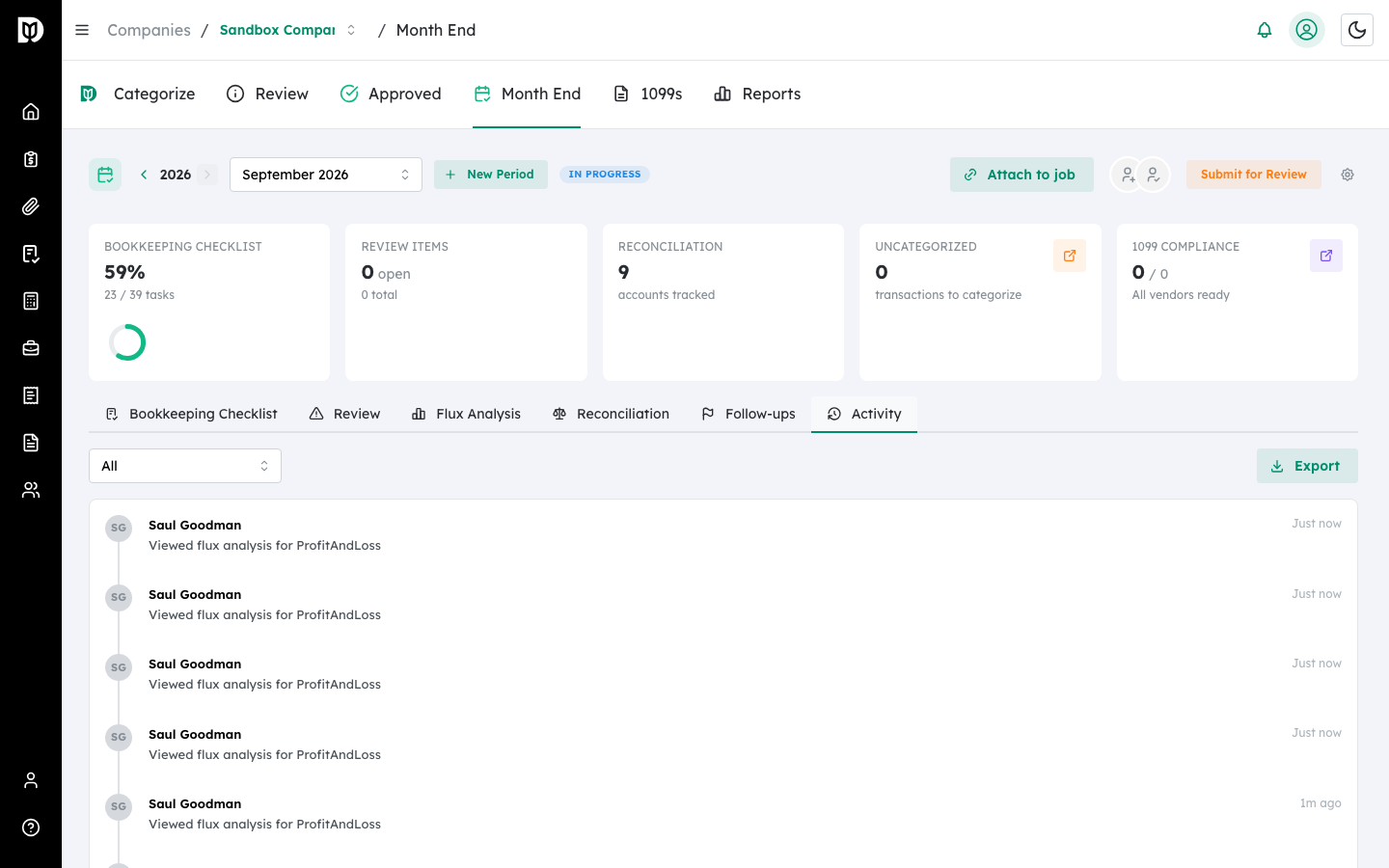
Select the Activity tab to see a timeline of everything that happened in the close, including scans, sign-offs, checklist changes, and comments. Use the filter to narrow by type.
Step 4: Export the activity log #
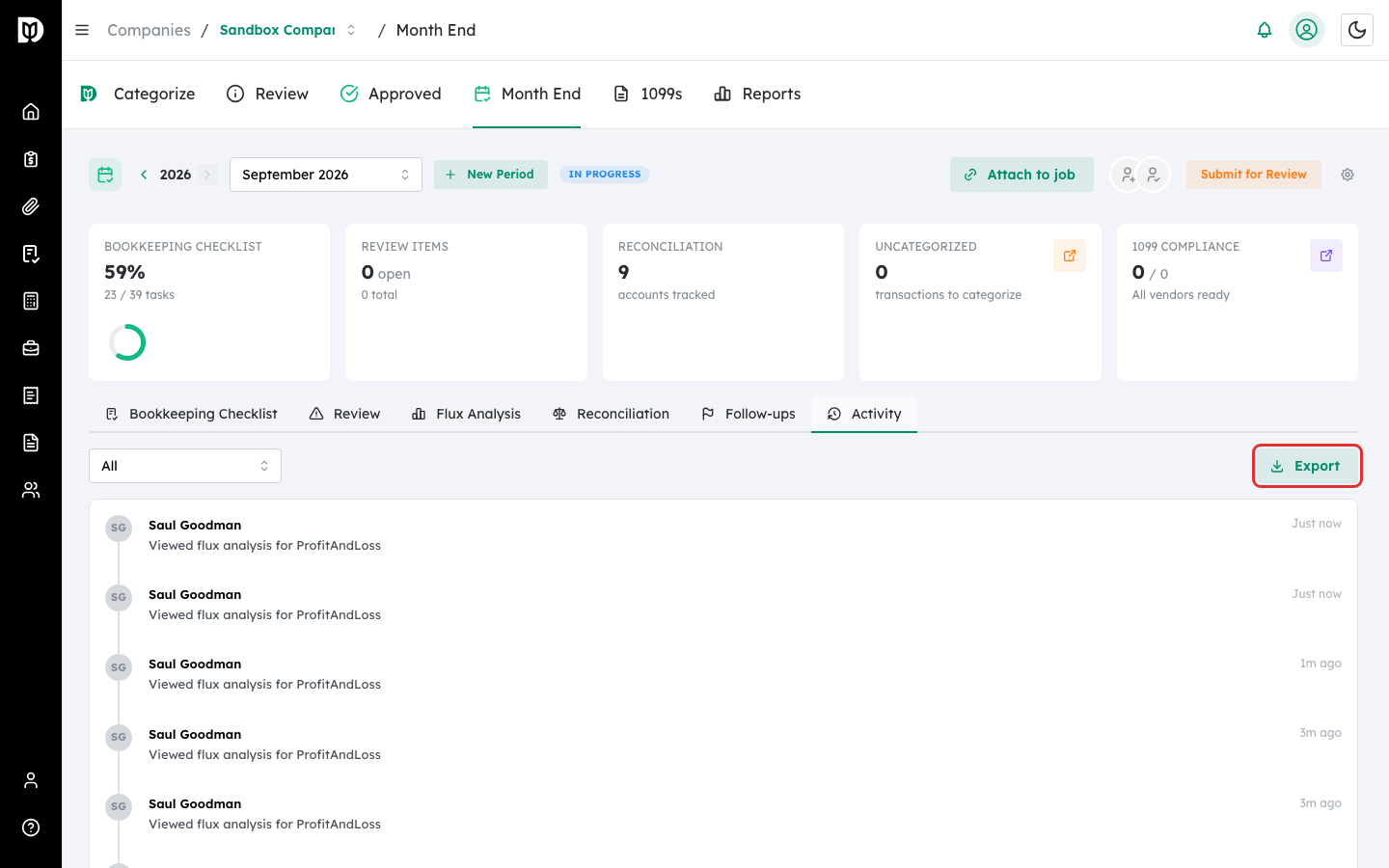
Select Export to download the activity log for your records or the client file.
What happens next #
Open follow-ups are marked overdue or due today so nothing slips. Resolve a follow-up by checking it off. The activity log is a complete audit trail of the close.
Troubleshooting #
- Problem: You did not get a reminder email. Reminders only send for follow-ups that have a due date. Add or update the due date.


