

Steps to Request a W-9 #
Before you can file a 1099 for a vendor, you need their W-9 information including their Tax Identification Number (TIN) and legal name. Debits makes it easy to request W-9 forms directly from vendors via email.
Step 1: Navigate to the 1099s Tab #
Go to Transactions and click the 1099s tab to view your vendor list.
Step 2: Find the Vendor #
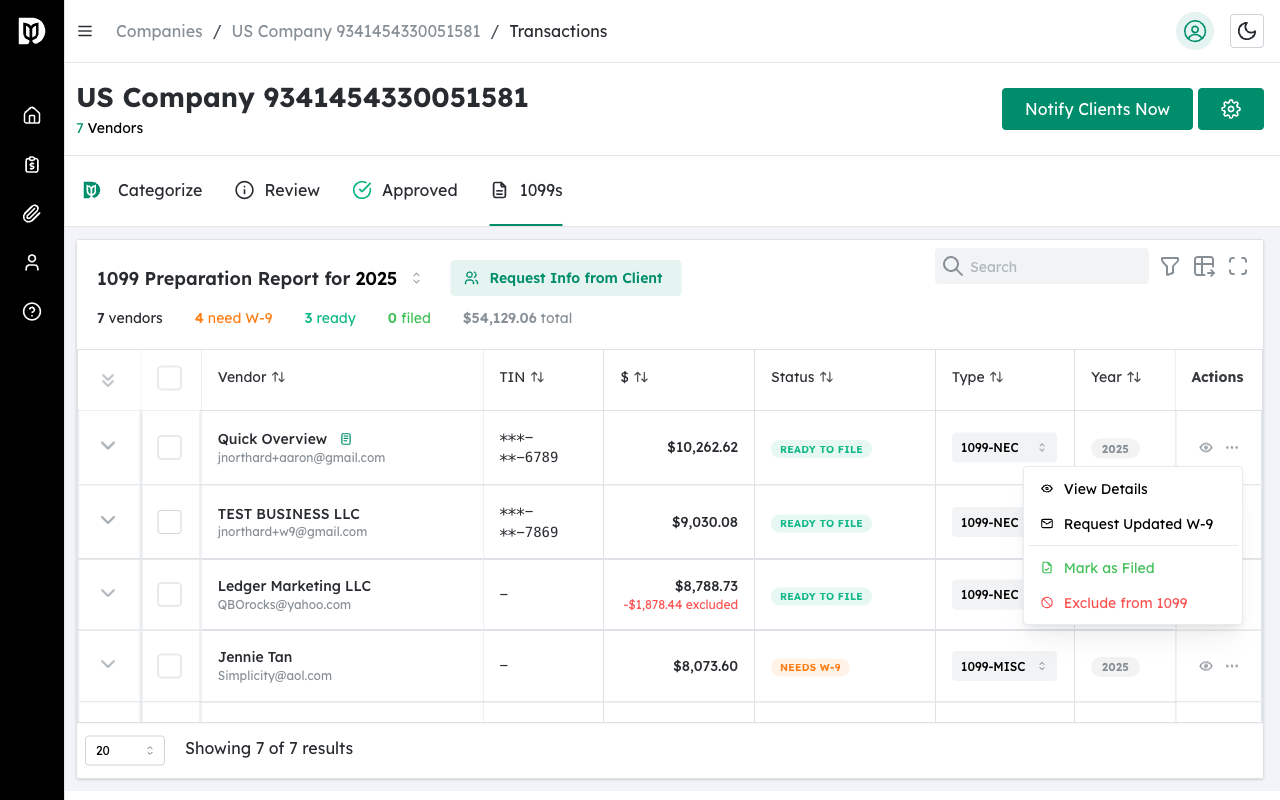
Locate the vendor who needs a W-9. Vendors without W-9 information will show a Needs W-9 badge in the status column.

Step 3: Open Vendor Details #
Click the eye icon on the vendor row to open the Vendor Details modal.
Step 4: Go to 1099 Info Tab #
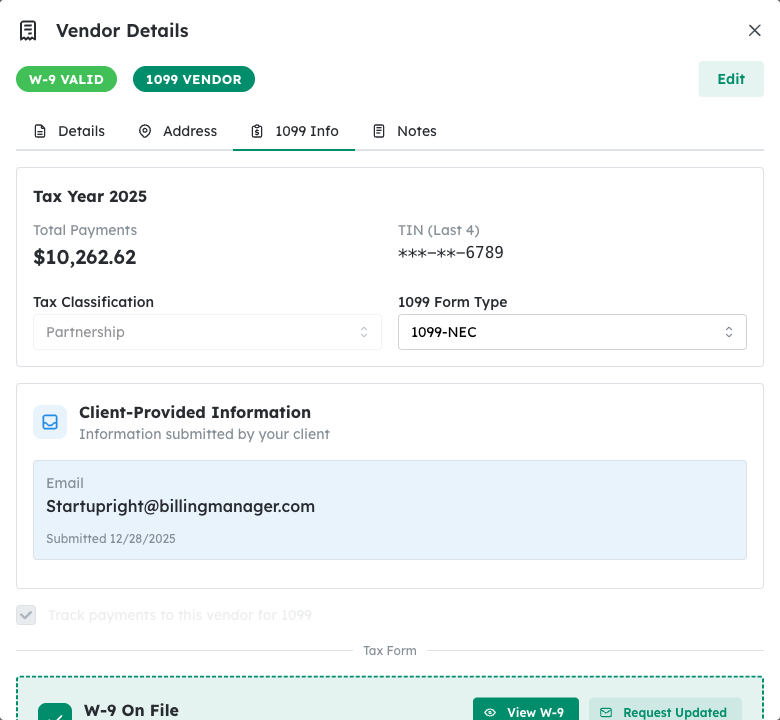
Click the 1099 Info tab to view the vendor’s tax information and W-9 status.
Step 5: Click Request W-9 #
In the W-9 section, click the Request W-9 button. This opens the W-9 Request modal.
Step 6: Review and Send #
Review the vendor’s email address and customize the message if needed. Click Send Request to email the W-9 request to the vendor.
What Happens Next: The vendor receives an email with a secure link to complete their W-9 form electronically. Once submitted, the information is automatically added to their vendor record and the status updates to W-9 Received.
Alternative Method: Quick Request from Table #
You can also request a W-9 directly from the vendor table without opening the details modal:
Step 1: Hover Over the Vendor Row #
Move your mouse over the vendor row to reveal the action buttons.
Step 2: Click the Three-Dot Menu #
Click the more options button (three dots) to open the actions menu.
Step 3: Select Request W-9 #
Click Request W-9 from the dropdown menu to open the request modal.
Tip: If you need to request W-9s from multiple vendors at once, see Send Bulk W-9 Requests to save time.


