Who this is for: The firm owner, when a subscription payment has failed.
What you’ll learn: How to tell that billing has failed, what stops working, and how to get your firm back to normal.
Before you begin
- A failed payment blocks features. It does not delete anything, and it does not sign your staff out.
- The Subscription & Billing page and the billing portal stay reachable on purpose, so you can always fix the problem.
- Only the firm owner can update the payment method.
Step-by-step instructions
Step 1: Check the subscription status
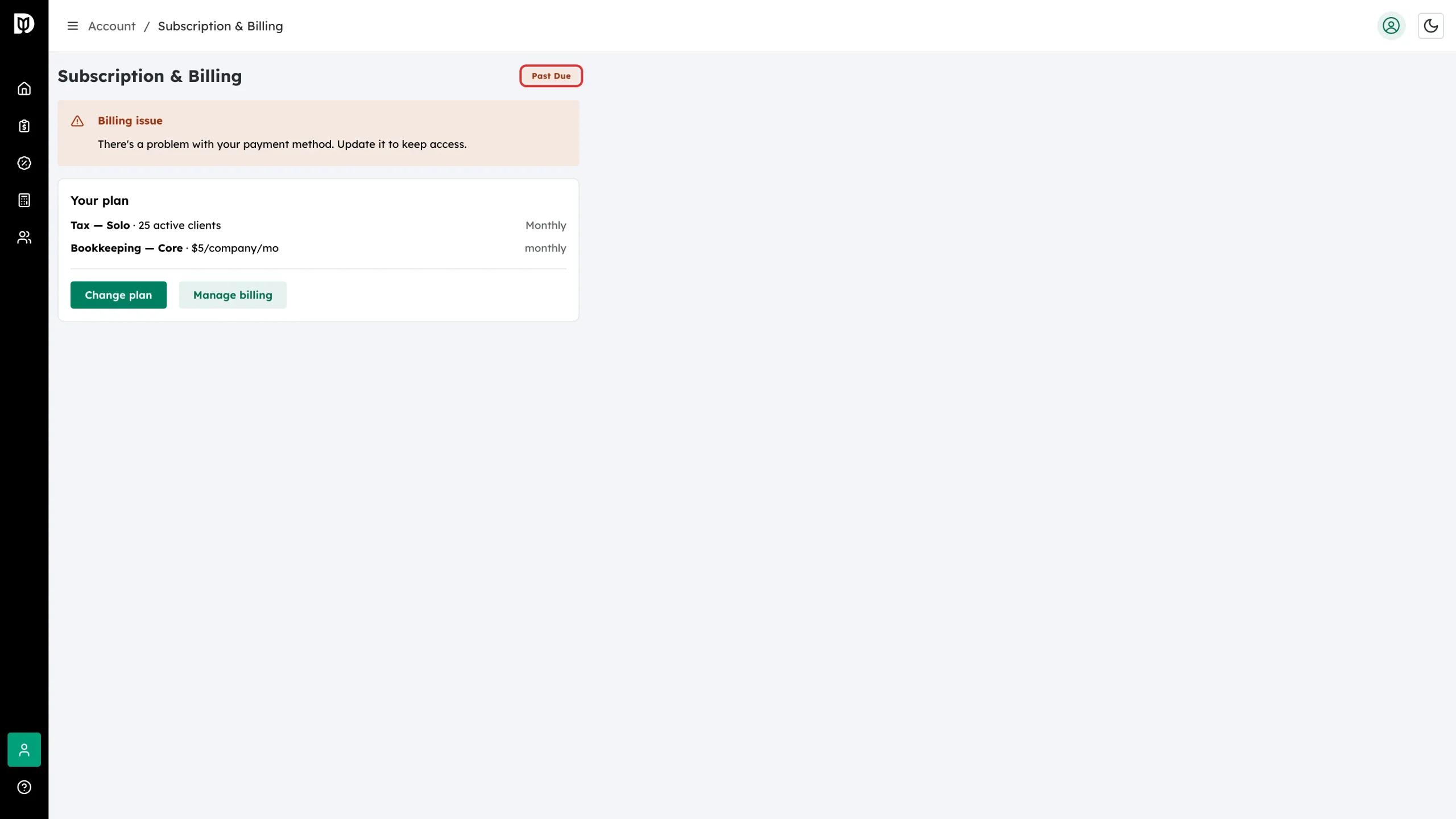
Open Subscription & Billing. The badge beside the page title reads Past Due when a payment has failed. Unpaid and Incomplete are treated the same way.
Step 2: Read the billing warning
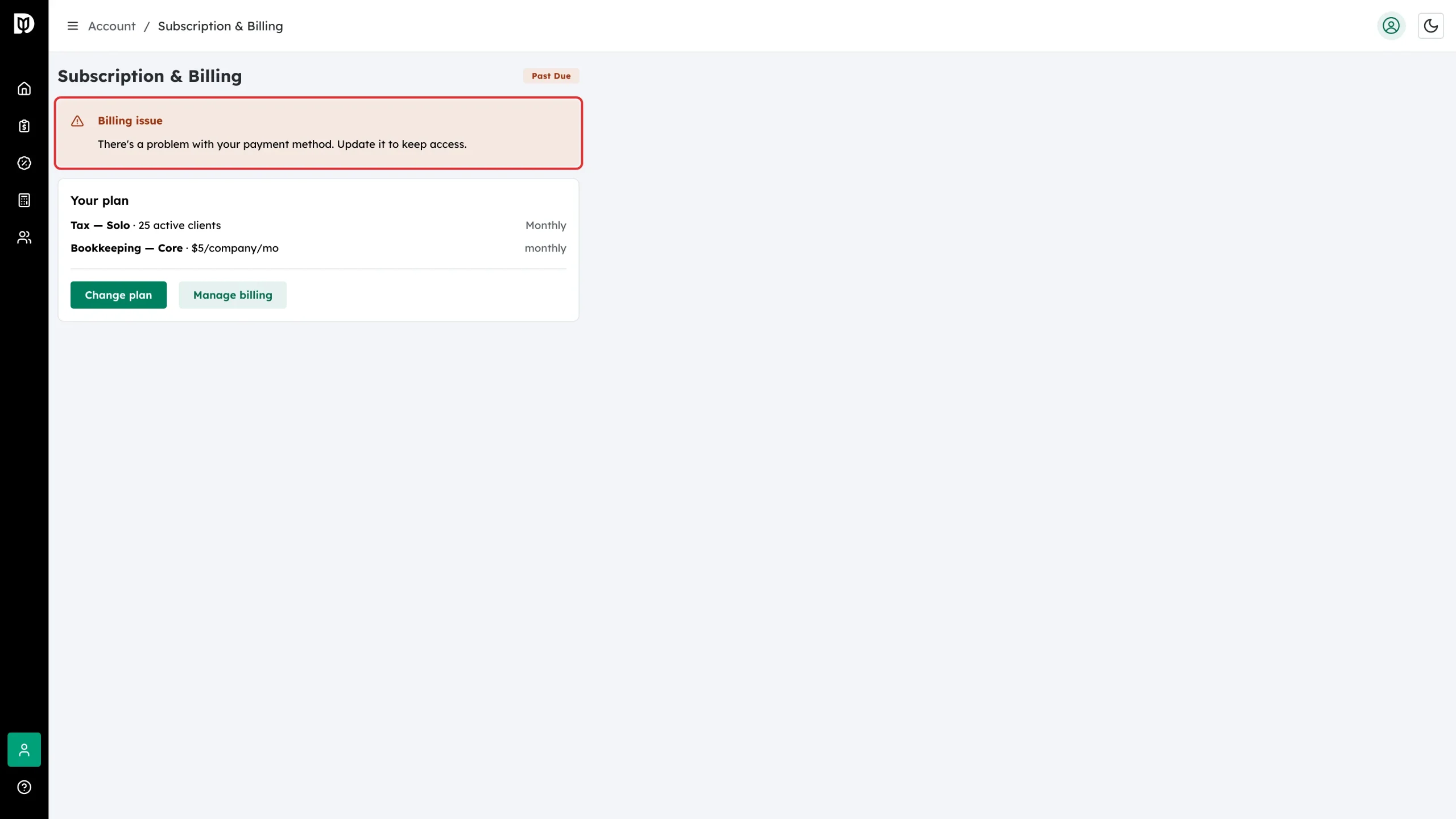
A Billing issue panel appears above your plan: “There’s a problem with your payment method. Update it to keep access.”
Step 3: Expect features to be blocked
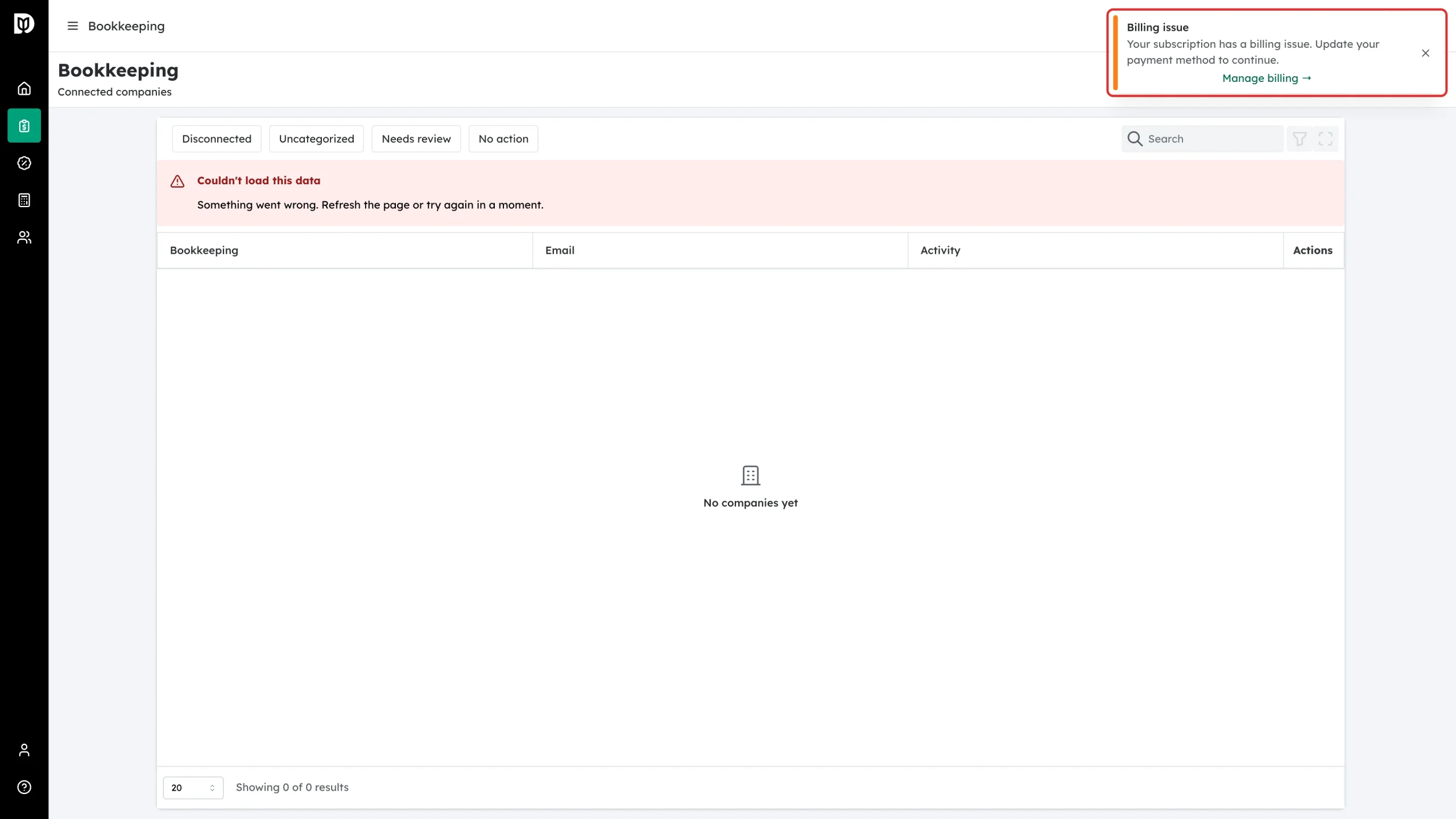
While the subscription is past due, the paid areas stop loading and show a Billing issue message with a Manage billing link. This applies to both products — tax and bookkeeping — for every user in the firm, not only the owner.
Step 4: Open the billing portal
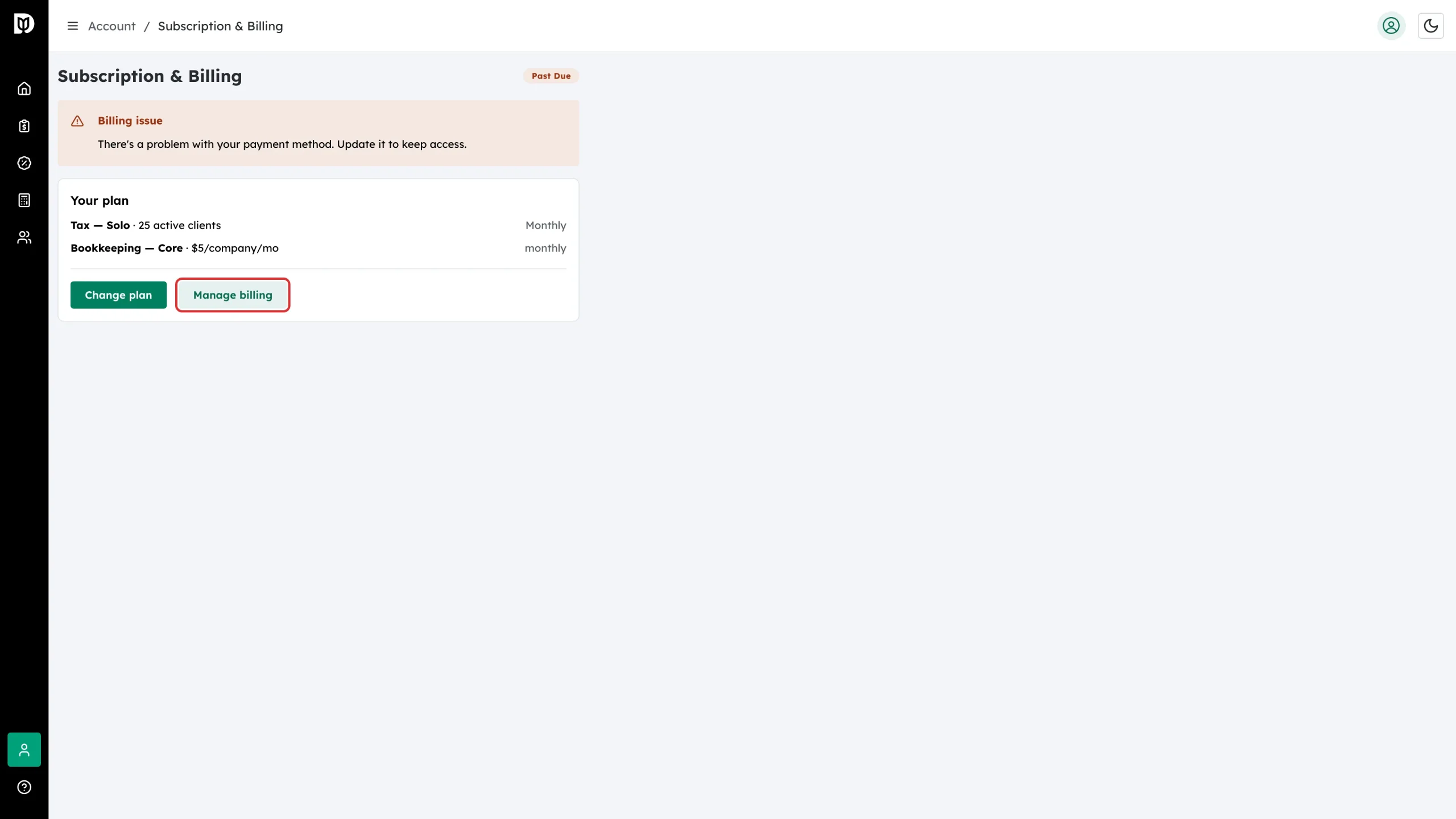
Back on Subscription & Billing, select Manage billing. This button keeps working while the subscription is past due.
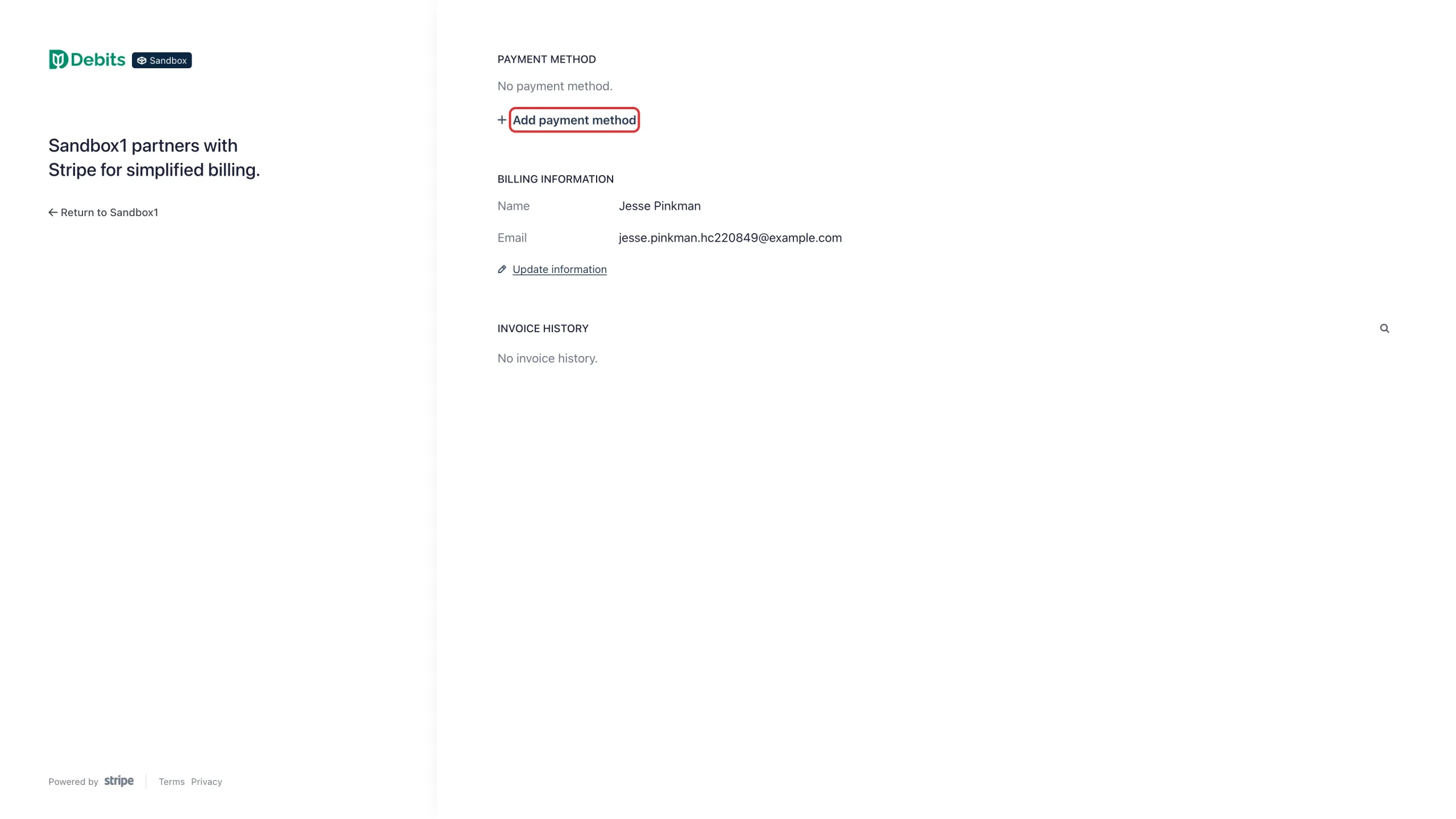
Step 5: Add a working payment method
In the portal, select Add payment method and enter a card that your bank will accept. If the old card is still on file, remove it once the new one is saved.
What happens next
Once the outstanding invoice is paid, Stripe moves the subscription back to active and Debits unlocks your features again within a moment or two. Reload the page if a screen still shows the warning. Nothing you created while the account was past due is lost.
Troubleshooting
- The card was declined again: the decline comes from your bank, not from Debits. Ask them to approve the charge, or use a different card.
- Your trial ended and nothing works: a trial that ends with no payment method on file is cancelled rather than left past due. Choose a plan again from the plan page.
- Your staff are asking why a page is broken: the block is firm-wide. They will keep seeing the billing message until the payment goes through.
- A client says their billing is suspended: that is a different thing — it is about invoices your firm sends to that client, not your Debits subscription.