Who this is for: Owners, admins, managers and staff who re-upload corrected files.
What you’ll learn: How to replace a file instead of ending up with two copies, how to use a file’s version history, and how your firm controls how much history is kept.
Before you begin
- Replacing a file saves the upload as a new version of the same file. Earlier versions are kept, and any workpaper binder that uses the file keeps pointing to it.
- Debits matches on the file name, including the name a file was first uploaded under, so it still matches after Debits has renamed it.
- Excel files are not edited inside Debits. Edit the workbook in Excel and upload it again over the old one. Saving from the Debits Desktop app does the same thing.
- Deleting old versions is for owners, admins and managers.
Step-by-step instructions
Step 1: Upload the file with the same name
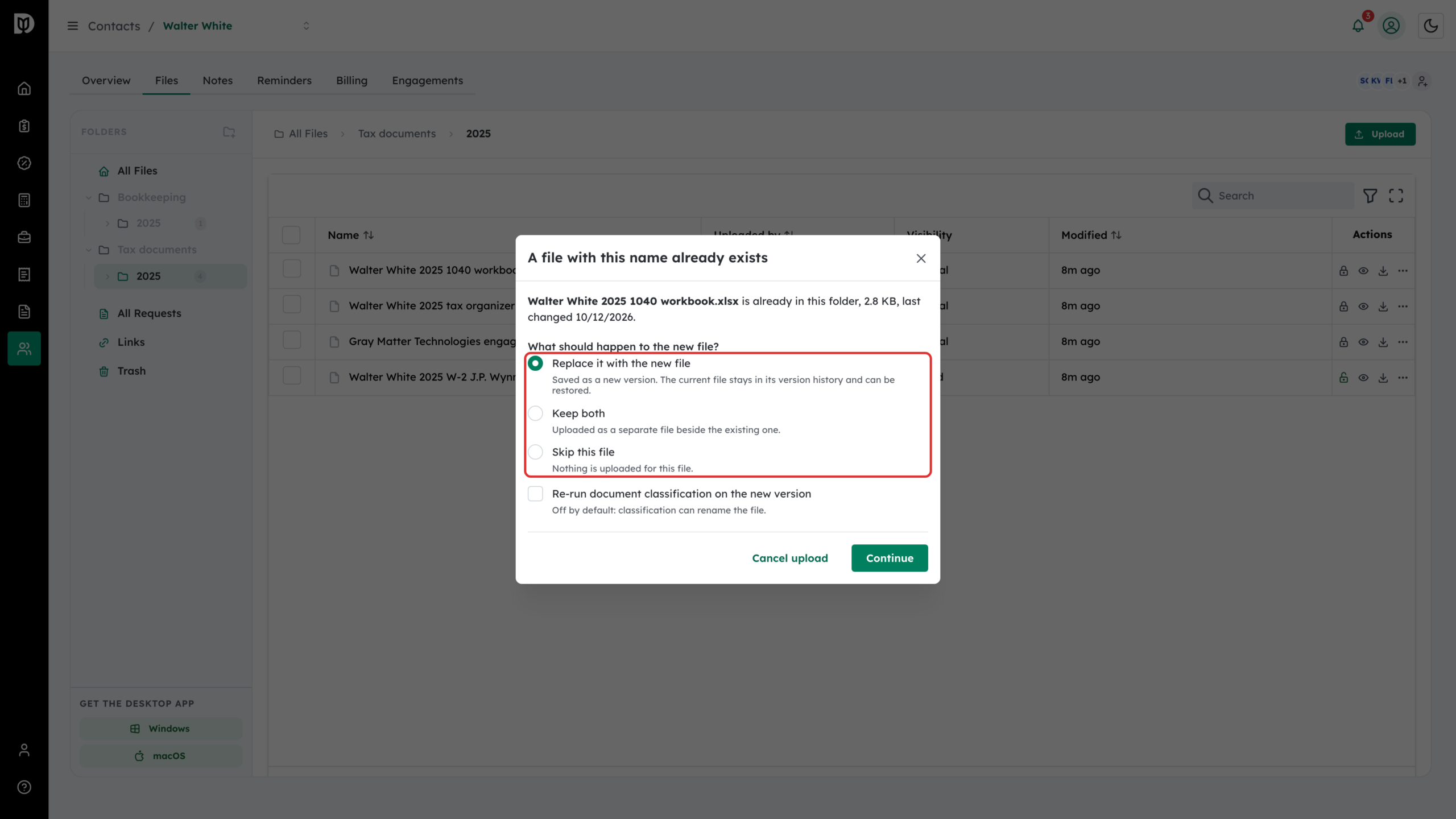
Open the folder that holds the file and upload the corrected copy with the same name. A file with this name already exists opens and shows the size and date of the file already there. Choose what to do:
- Replace it with the new file (the default): saved as a new version. The current file stays in its version history and can be restored.
- Keep both: uploaded as a separate file beside the existing one.
- Skip this file: nothing is uploaded for this file.
Step 2: Continue
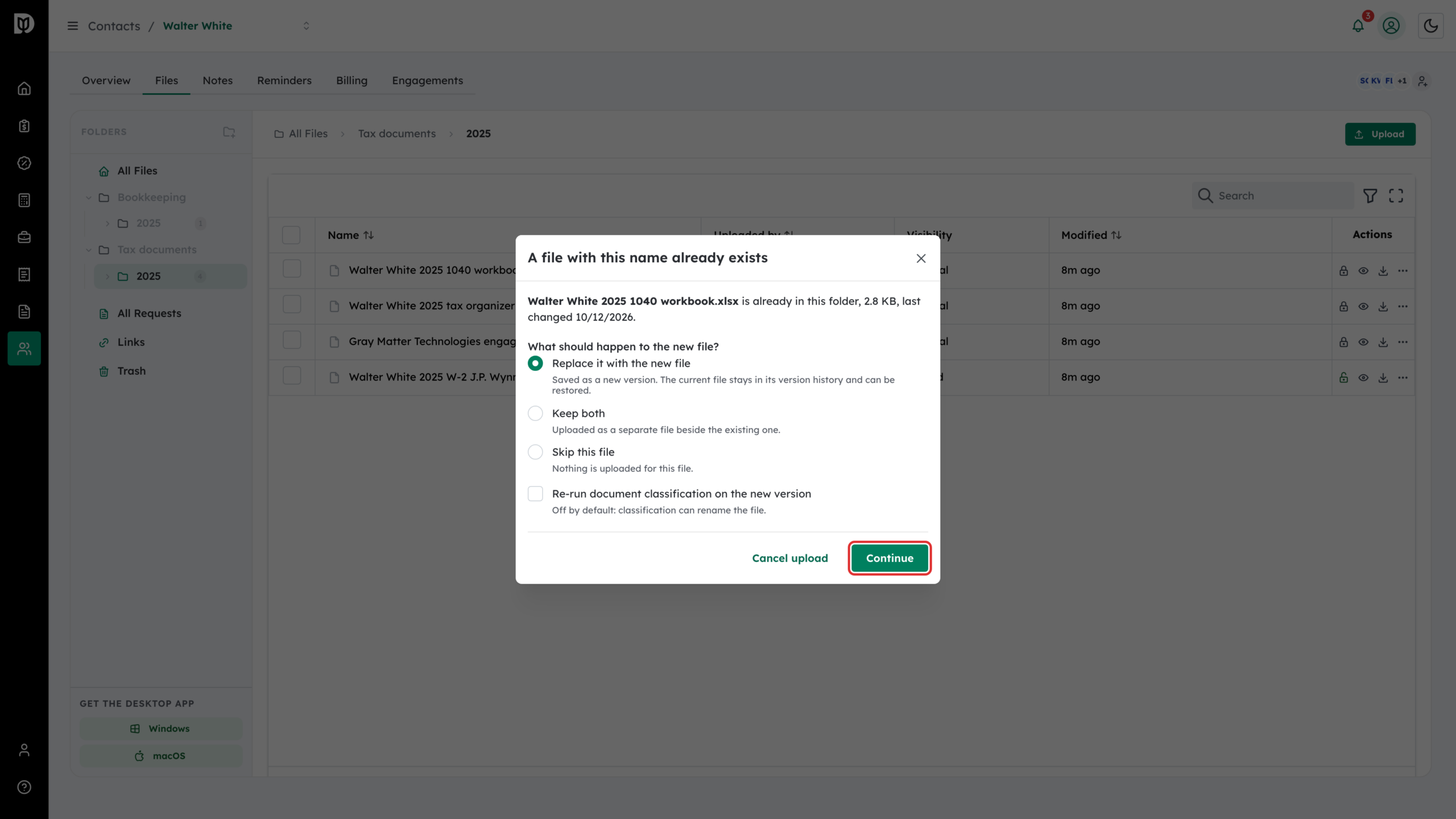
Leave Re-run document classification on the new version off unless you want Debits to sort the file again. It is off by default because classification can rename the file. If you upload several files with existing names, tick Do the same for the other … files with existing names to answer once for all of them. Then select Continue.
Step 3: Open the file’s version history
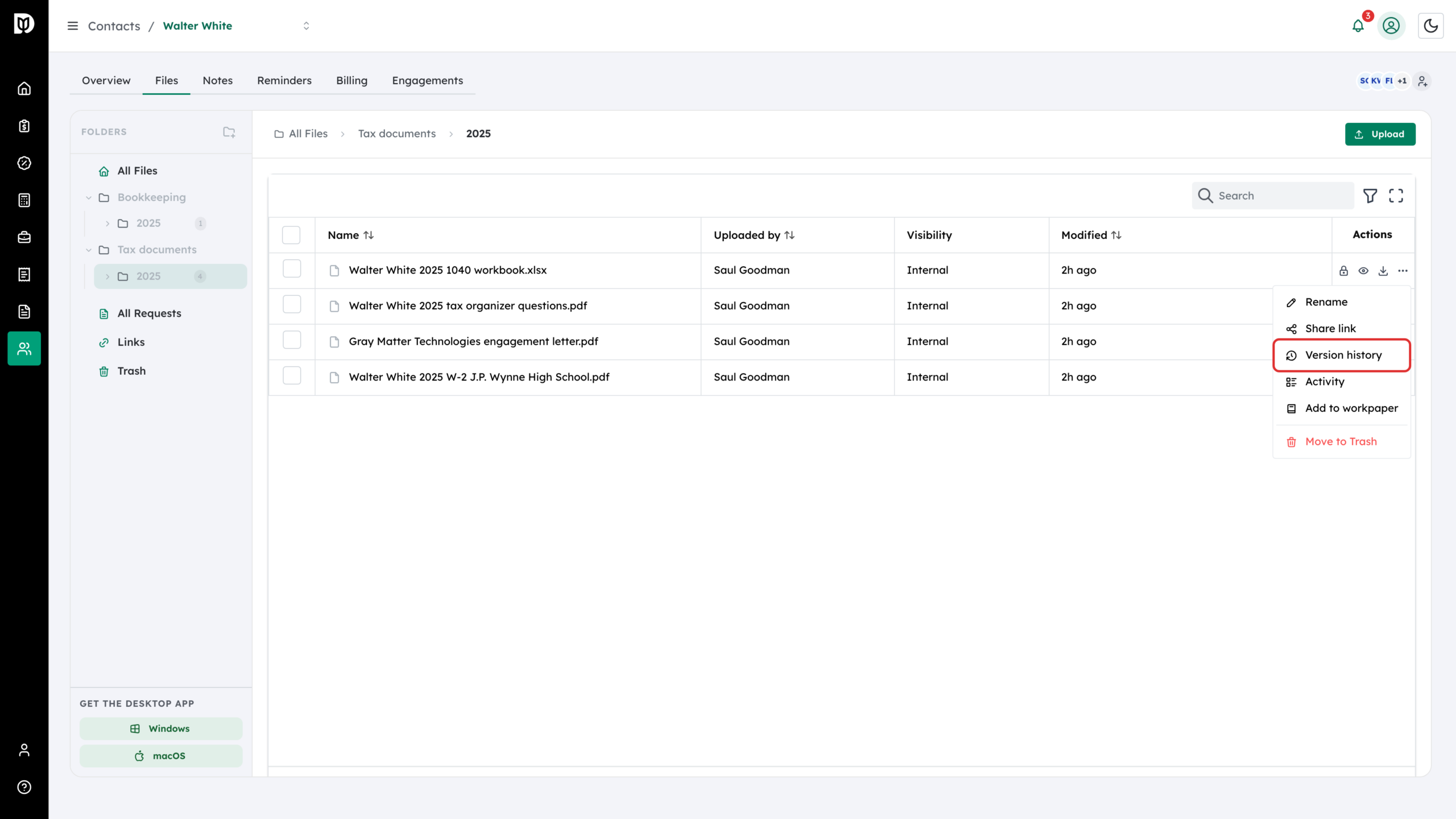
Select the three dots on the file’s row and choose Version history.
Step 4: Review the versions
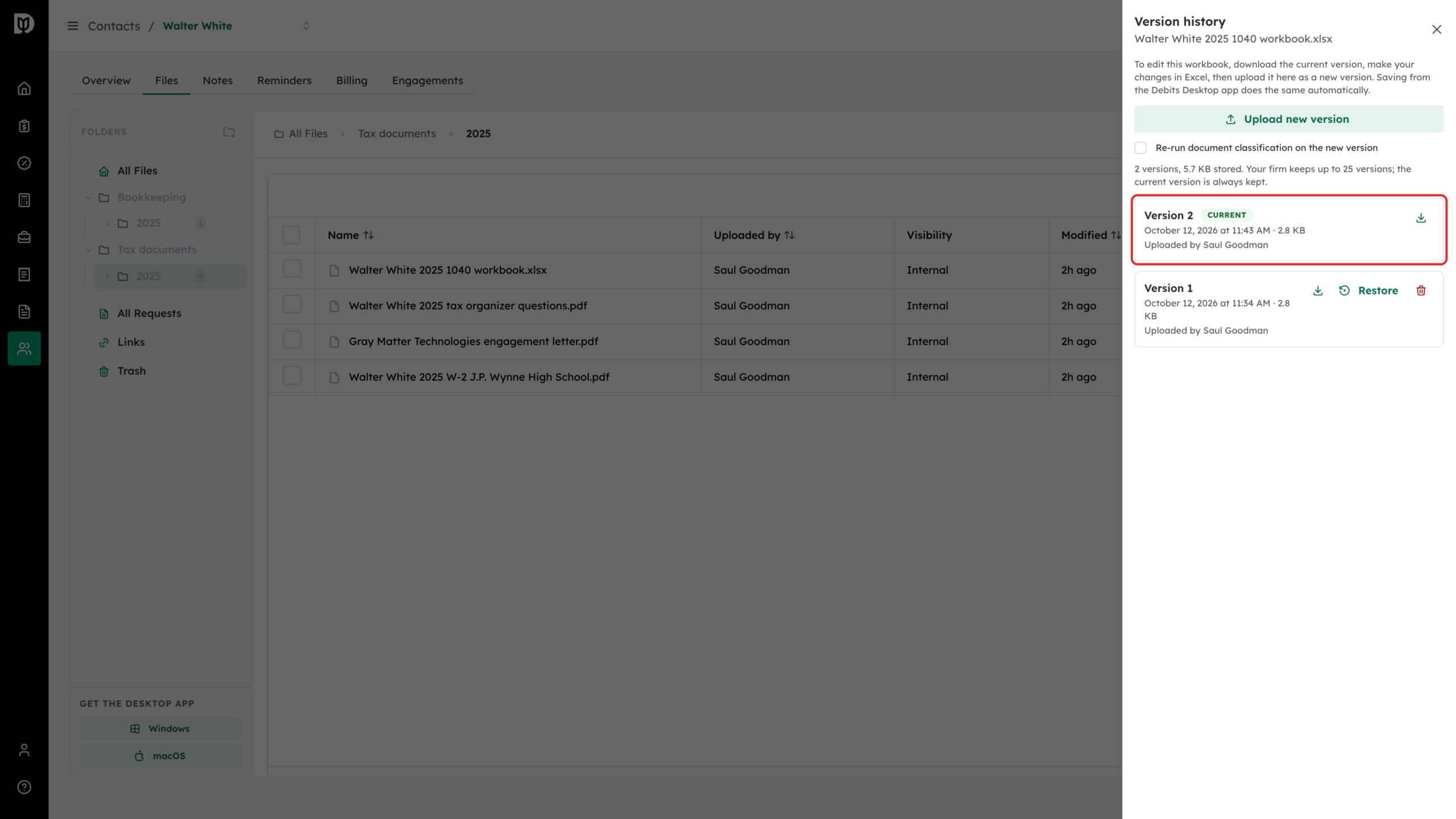
The Version history drawer lists every version, newest first, with its date, size and who uploaded it. The version marked Current is the one everyone sees. Use the download icon to get any version. You can also add a version here with Upload new version.
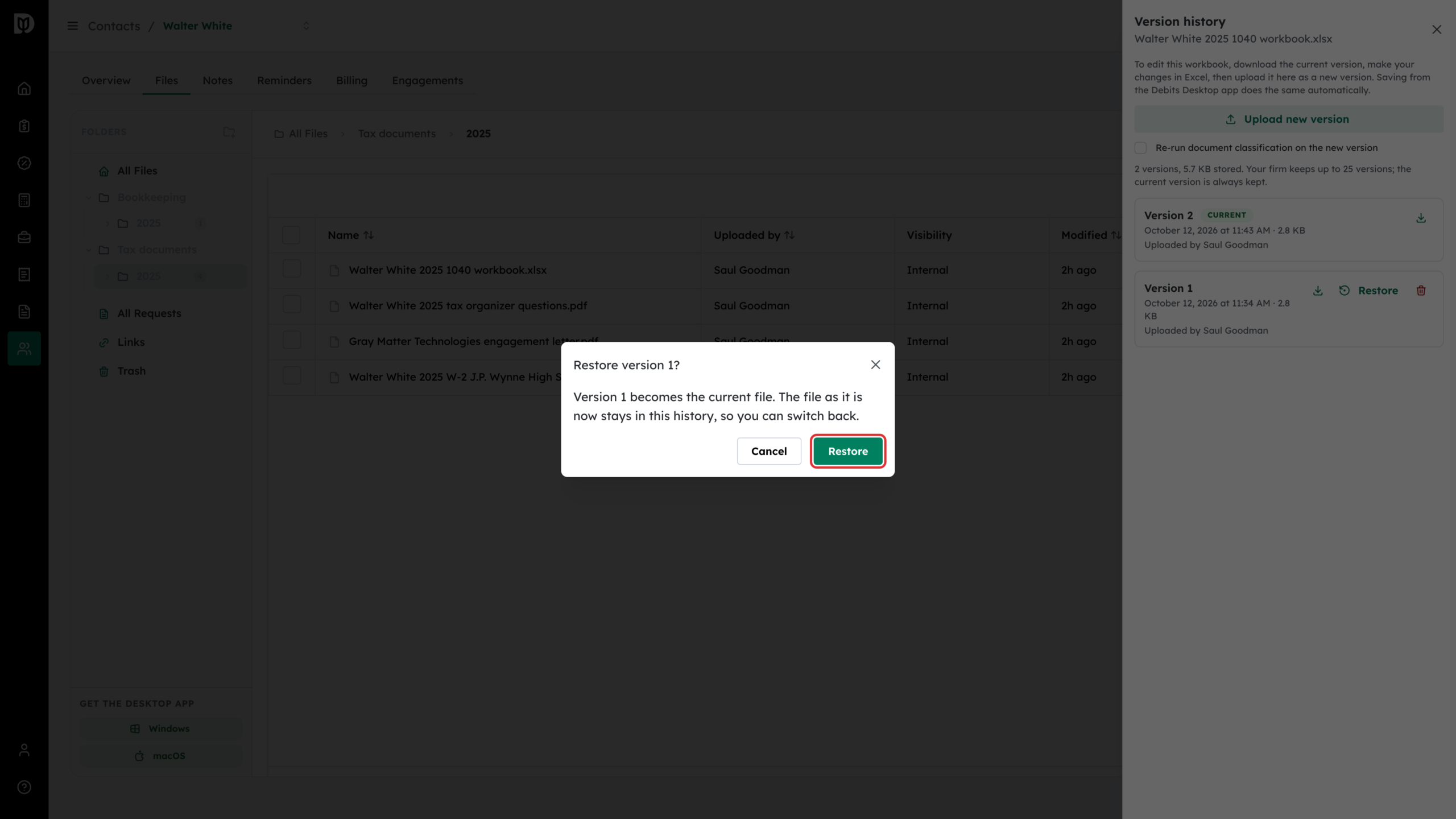
Step 5: Restore an earlier version
Select Restore on the version you want back, then Restore to confirm. That version becomes the current file. The file as it was stays in the history, so you can switch back.
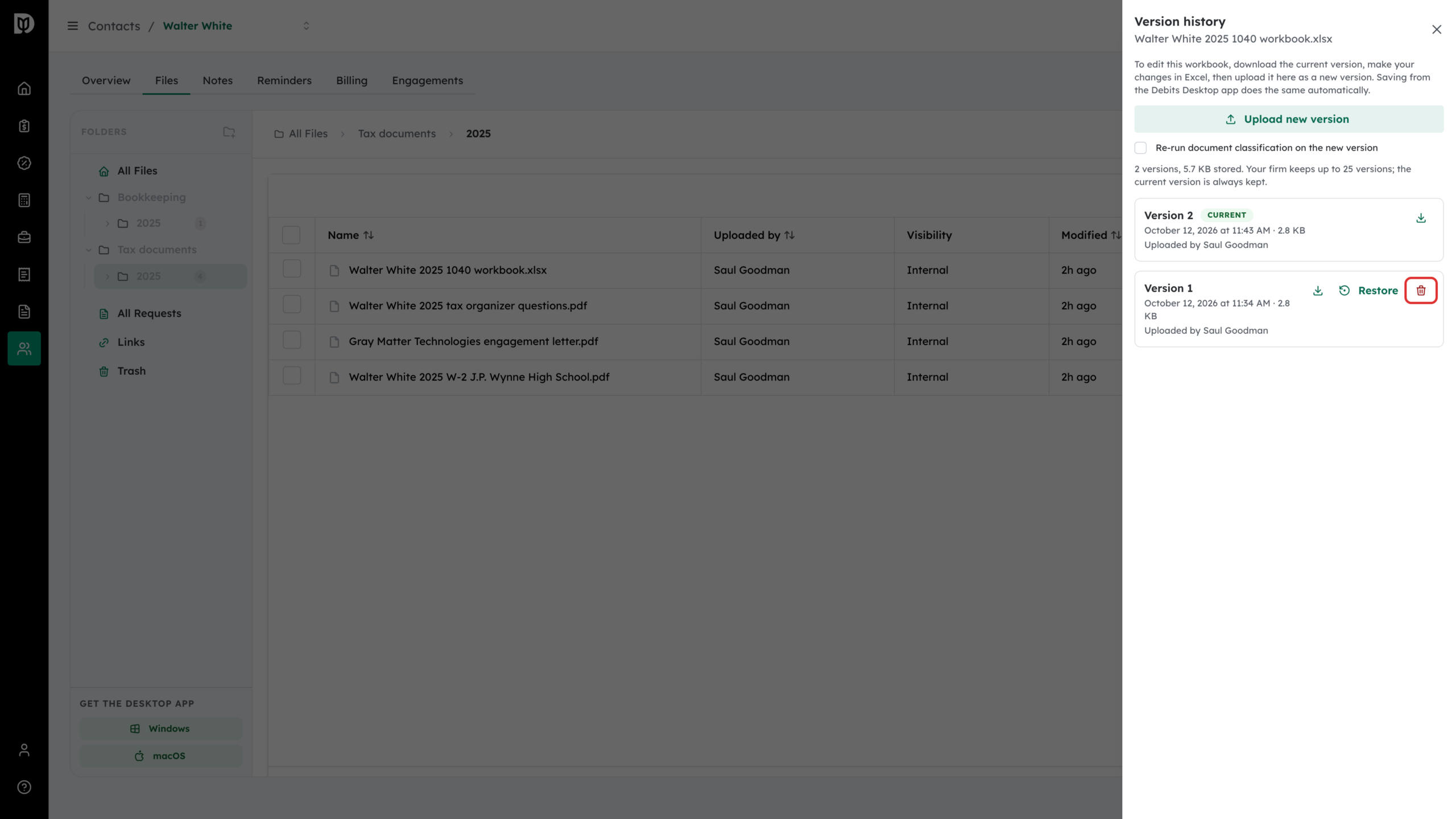
Step 6: Delete an old version
Select the delete icon on an older version, then Delete version. This is permanent: the version does not go to Trash and cannot be restored. You cannot delete the current version, or a version marked In finalized binder.
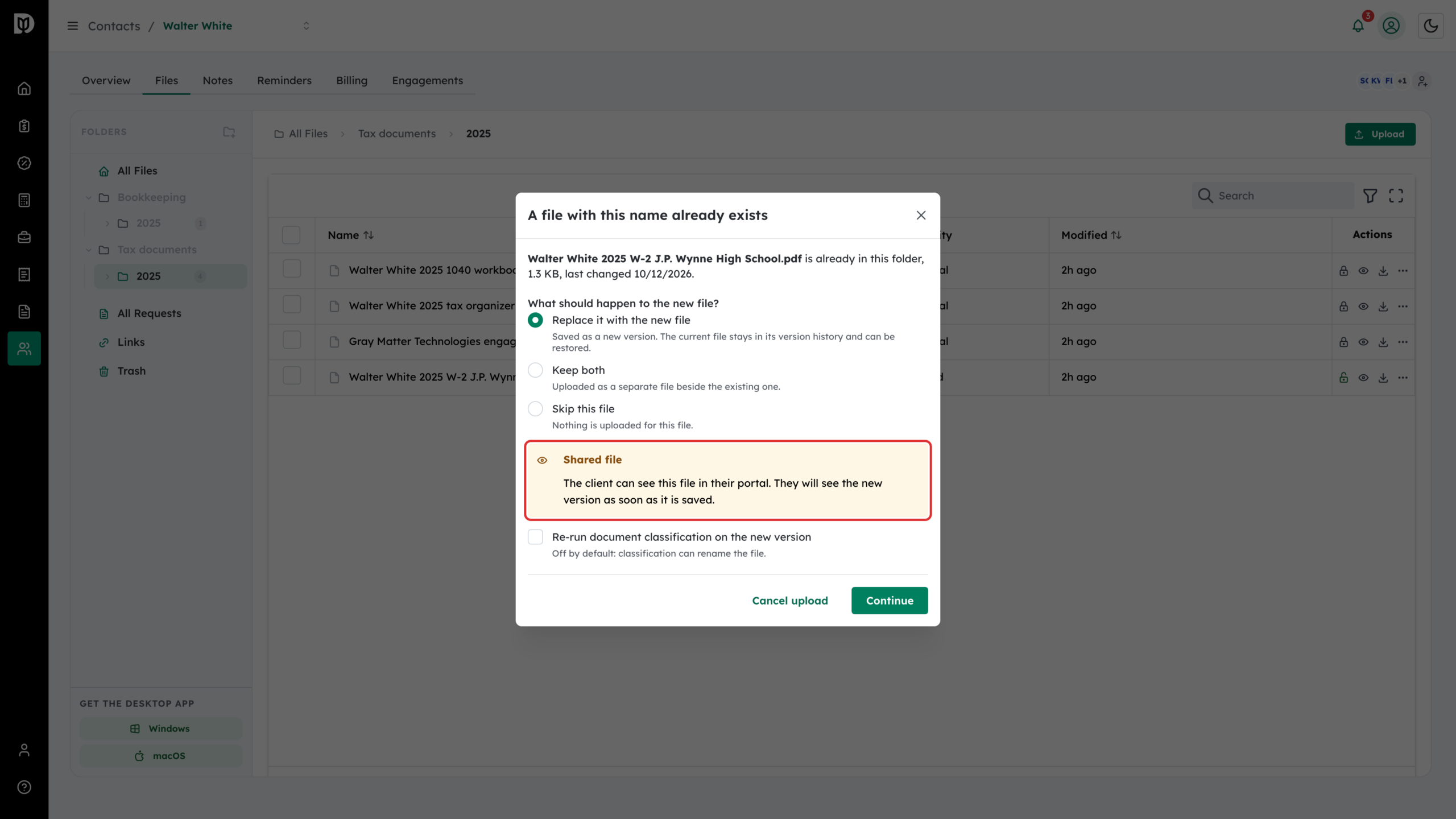
Step 7: Watch for the Shared file warning
If the client can see the file in their portal, or a share link serves it, a Shared file warning appears before you replace it. They will see the new version as soon as it is saved. Choose Keep both instead if they should keep seeing the old one.
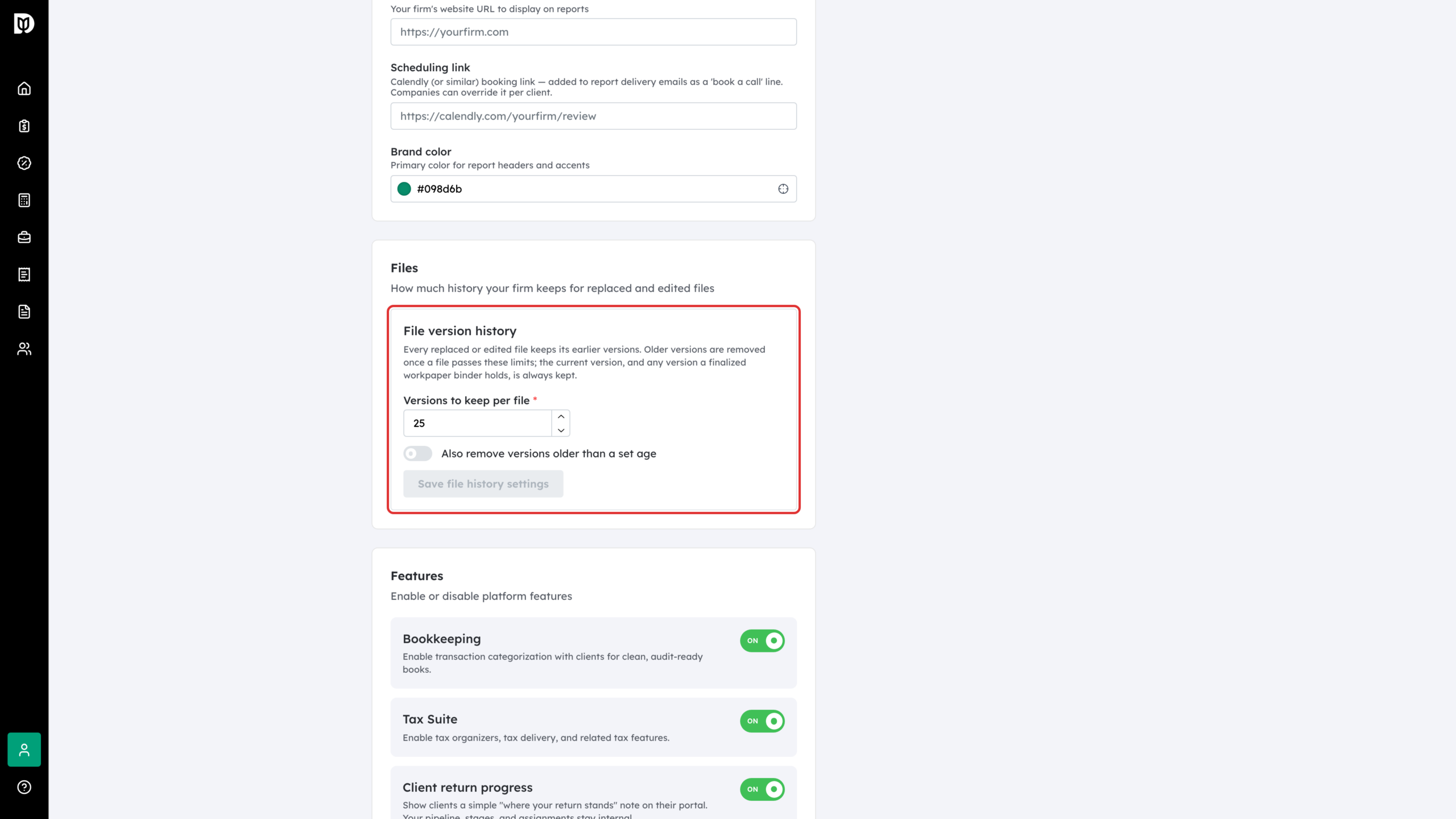
Step 8: Set how much history your firm keeps
Go to Account > Firm settings and find Files. In File version history, set Versions to keep per file (25 by default). To also remove old versions by age, turn on Also remove versions older than a set age and enter the number of days. Select Save file history settings. Only the firm owner can change this.
What happens next
Every replace, restore and deleted version is recorded in the file’s Activity. Once a file goes over your limits, Debits removes its oldest versions. The current version, and any version a finalized workpaper binder holds, is always kept. A change to the limits applies the next time each file gets a new version.
Troubleshooting
- You ended up with two copies. You chose Keep both, or the names didn’t match. Move the extra copy to Trash and upload again, choosing Replace it with the new file.
- Debits won’t let you replace a file. A finalized workpaper binder holds it. Upload the corrected file as a separate file.
- You can’t delete a version. It is the current version or a version a finalized binder keeps, or you are not an owner, admin or manager.
- Your client replaced a file. Clients can replace their own uploads from the portal, but never a document you shared with them. Their old version is in the version history.