Who this is for: Owners, admins, managers and staff who keep a client’s documents in Debits.
What you’ll learn: How to find a client’s files, organize them in folders, upload, share with the client, download several at once, and use Trash.
Before you begin
- Every contact has its own Files tab. Staff see the files of the clients they are assigned to.
- You can upload PDFs, images, Excel and Word files of up to 100 MB each.
- New files and folders are Internal until you share them, so the client cannot see them yet.
Step-by-step instructions
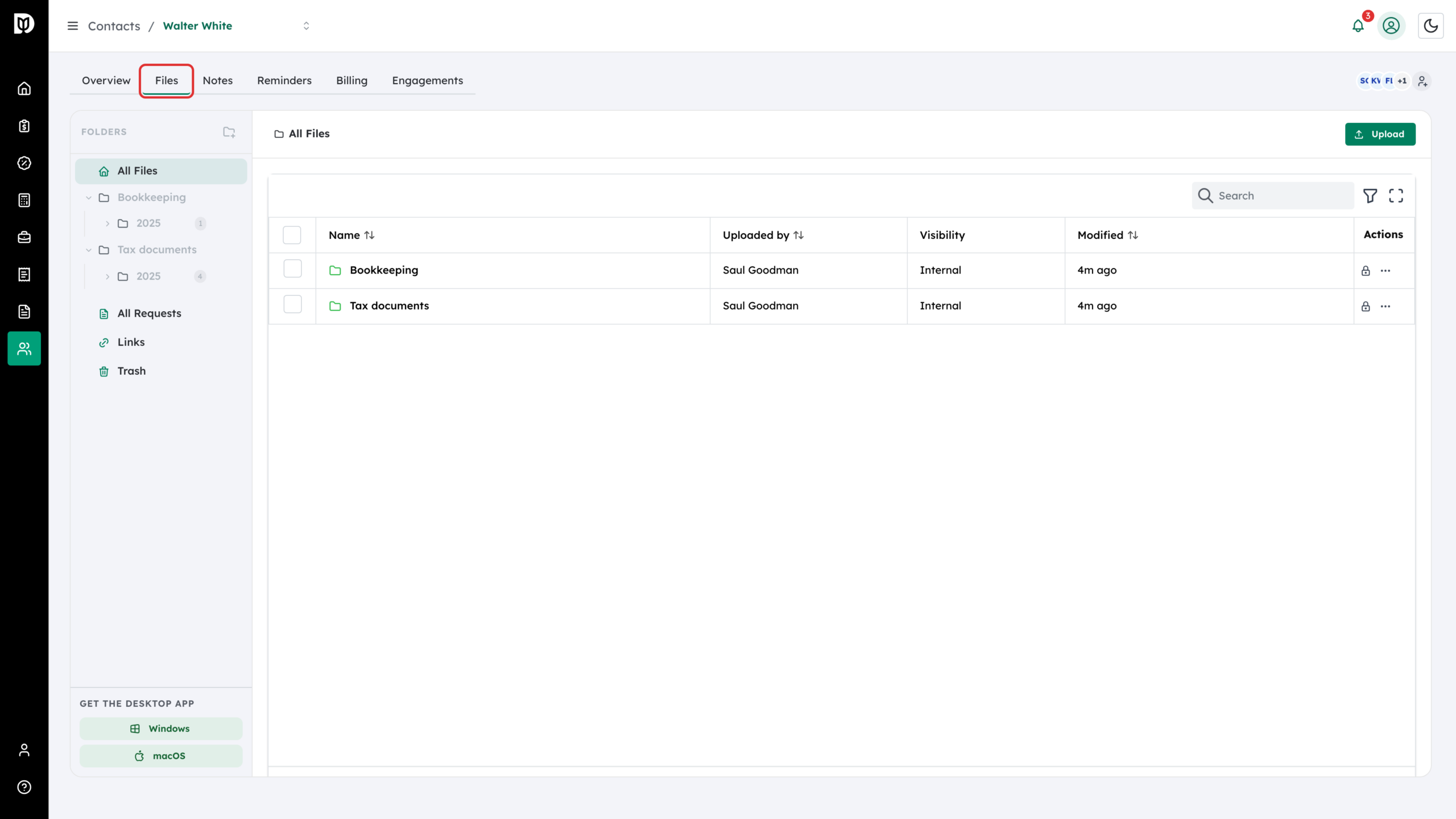
Step 1: Open the client’s Files tab
Go to Contacts, open the client, then select the Files tab.
Step 2: Find your way around the folder tree
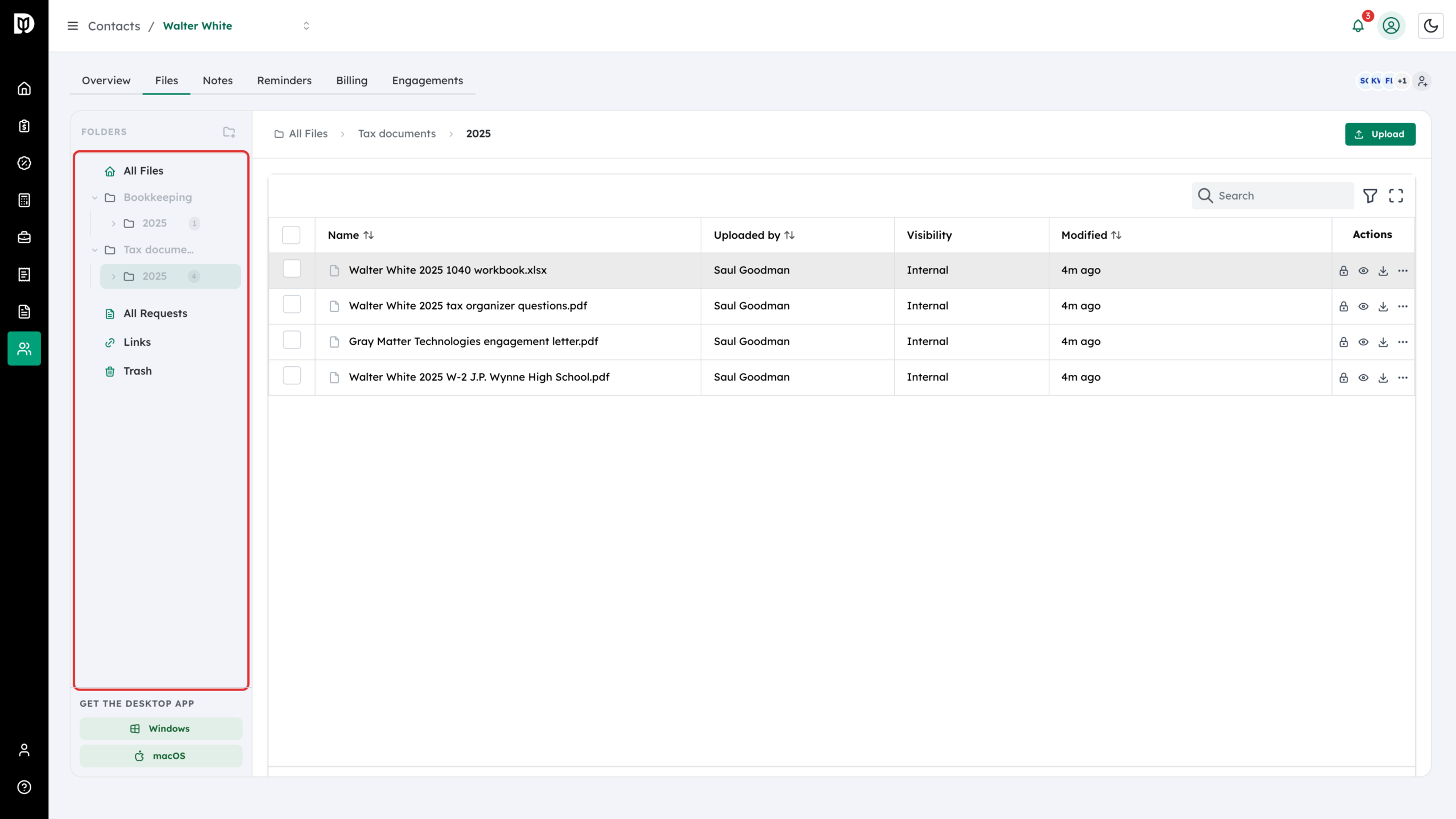
The Folders panel on the left shows the client’s folder tree. Tax work is usually kept under Tax documents with a folder for each year, and bookkeeping under Bookkeeping. Select a folder to open it, or use All Files to go back to the top. Below the tree are All Requests, Links and Trash.
Step 3: Create a folder
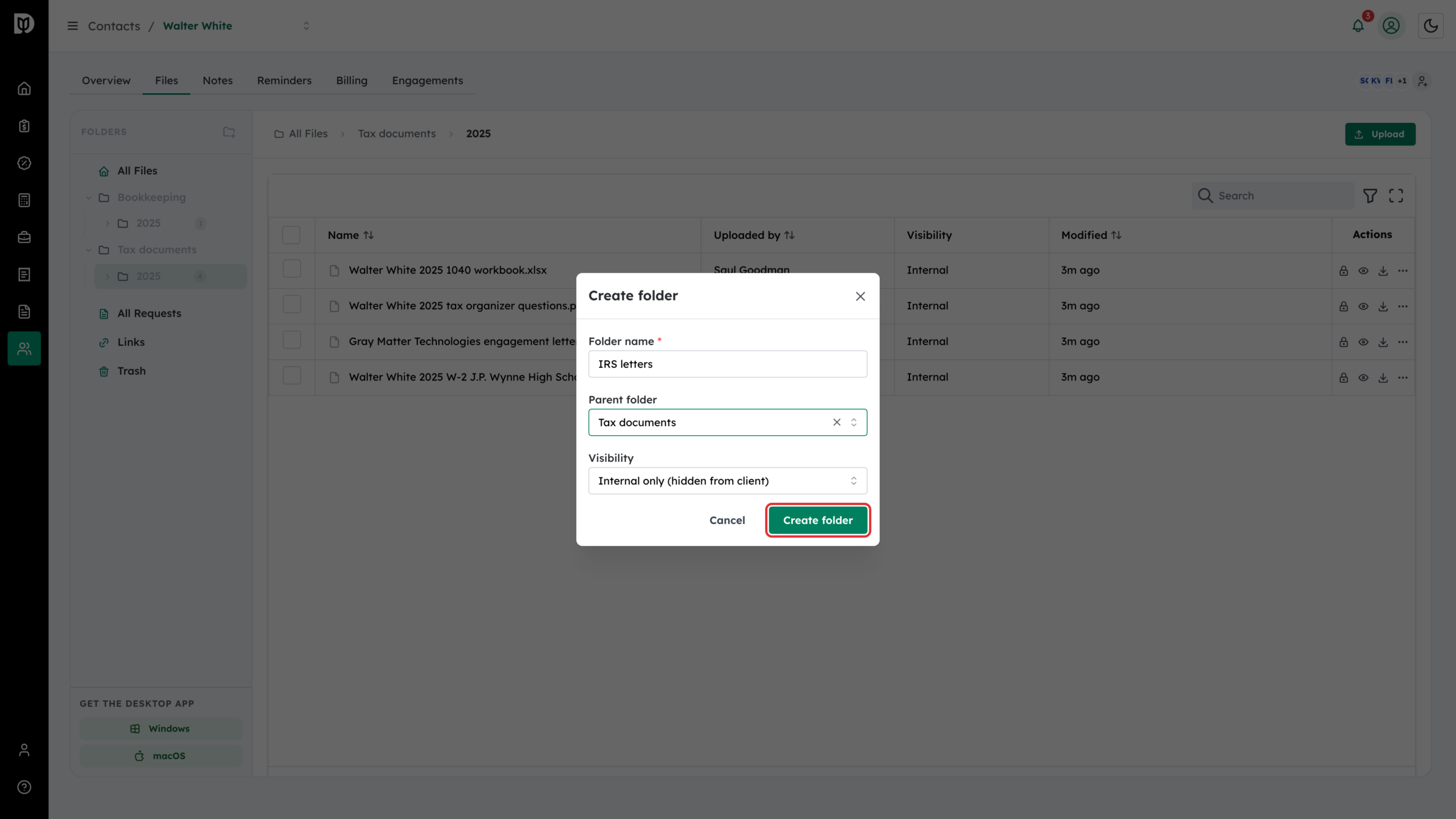
Select the new folder icon next to Folders. Type a Folder name, choose a Parent folder if it belongs inside another one, choose its Visibility, then select Create folder.
Step 4: Open the folder and select Upload
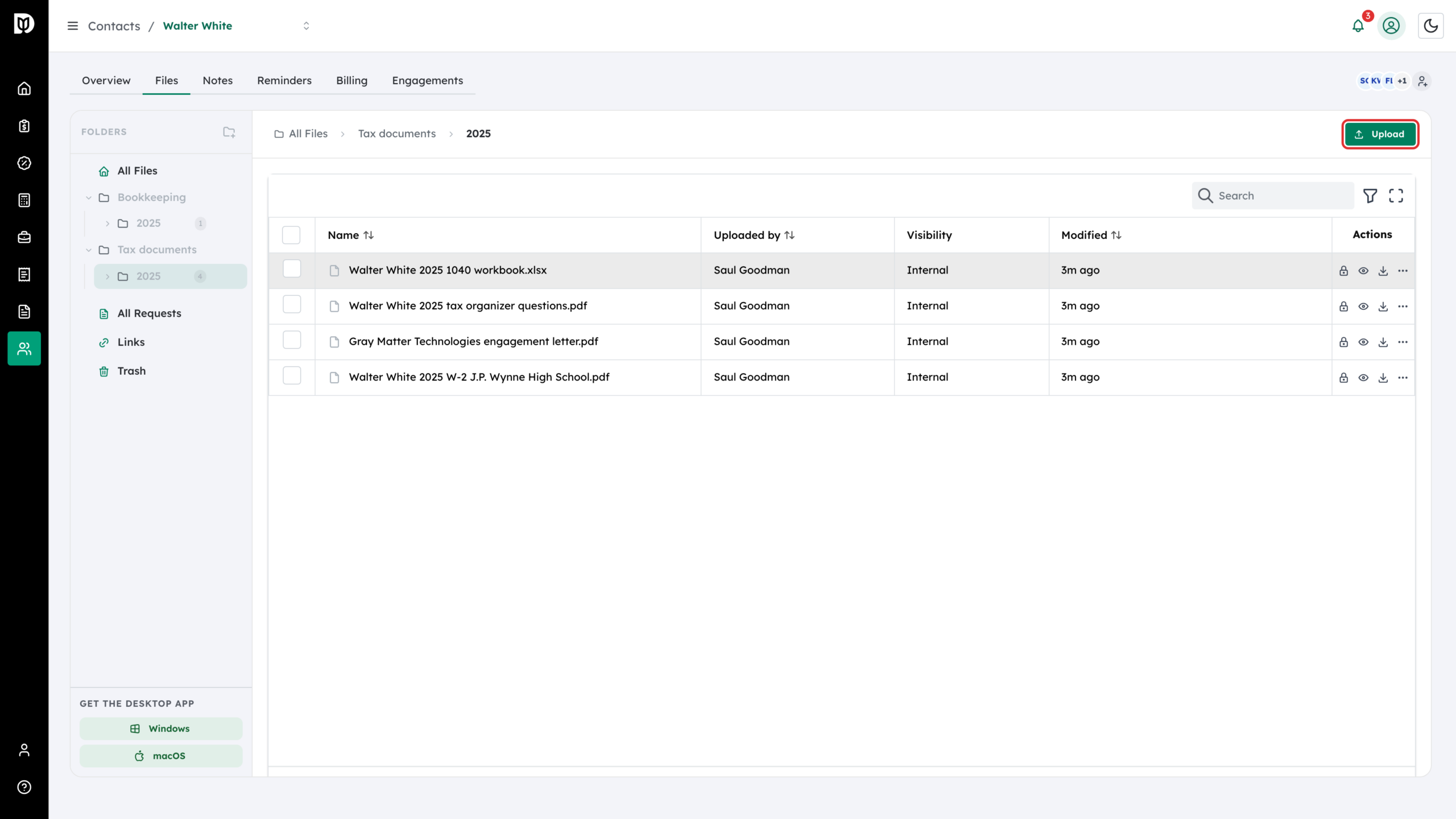
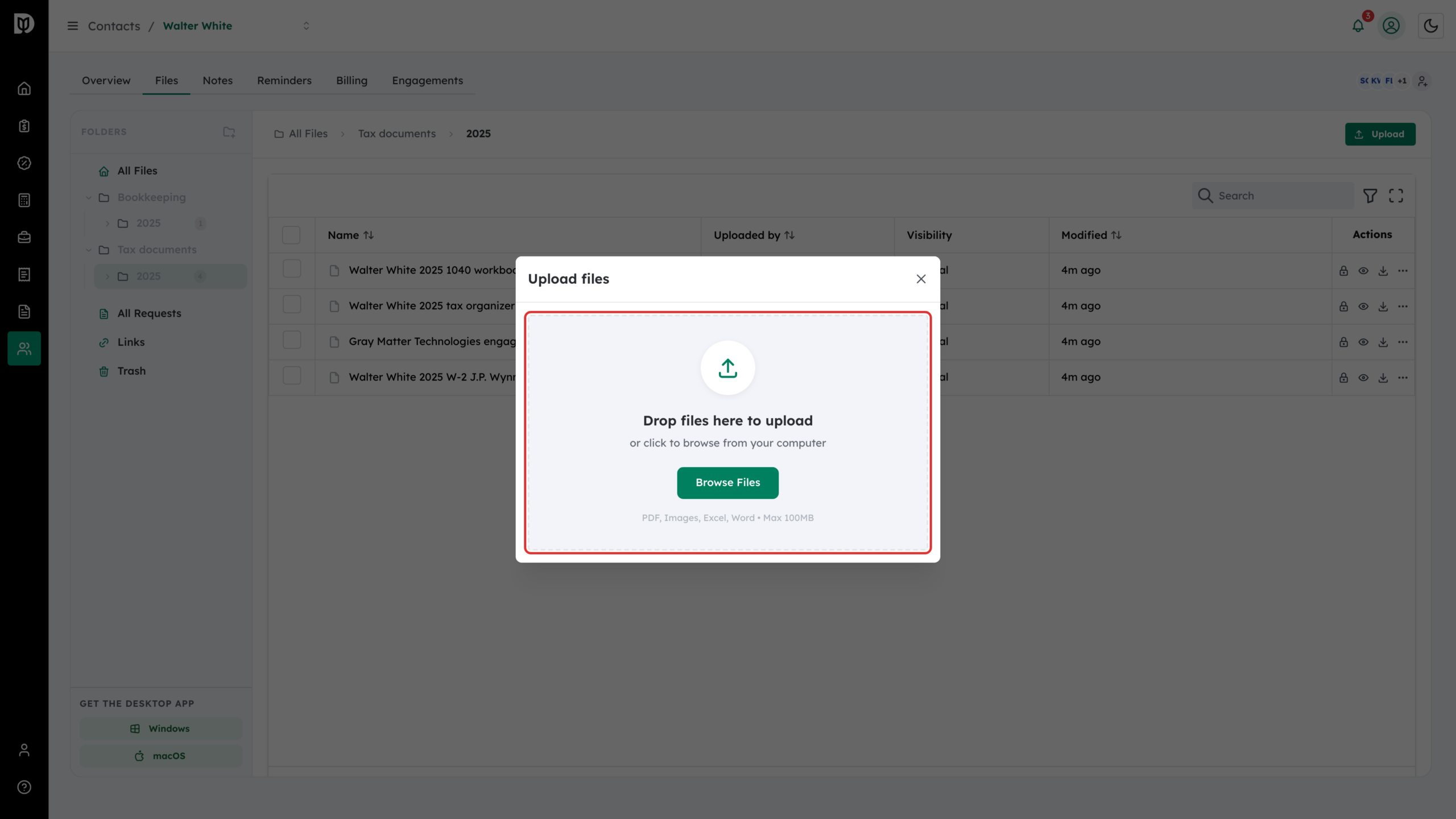
Open the folder the files belong in, then select Upload. If the folder is empty, you can drop files straight onto it.
Step 5: Drop or browse for the files
Drag files into the Upload files window, or select Browse Files. You can upload several at once. If a file with the same name is already in the folder, Debits asks whether to replace it, keep both or skip it. See Replace a file and use version history.
Step 6: Share a file with the client
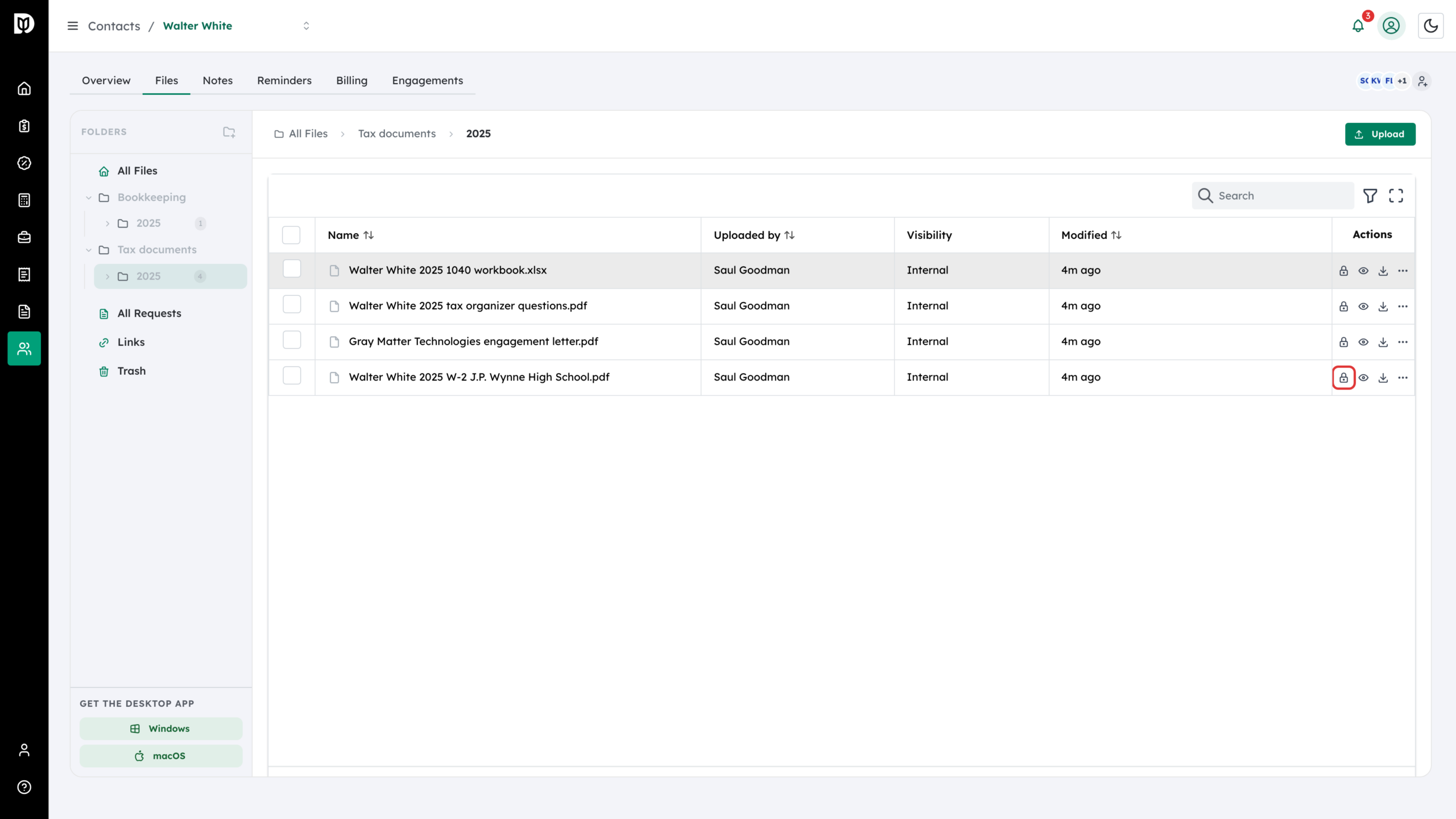
Each row has a lock icon. Select it (Share with client) to let the client see that file in their portal. Select it again (Make internal) to hide it.
Step 7: Make the folder visible too, if asked
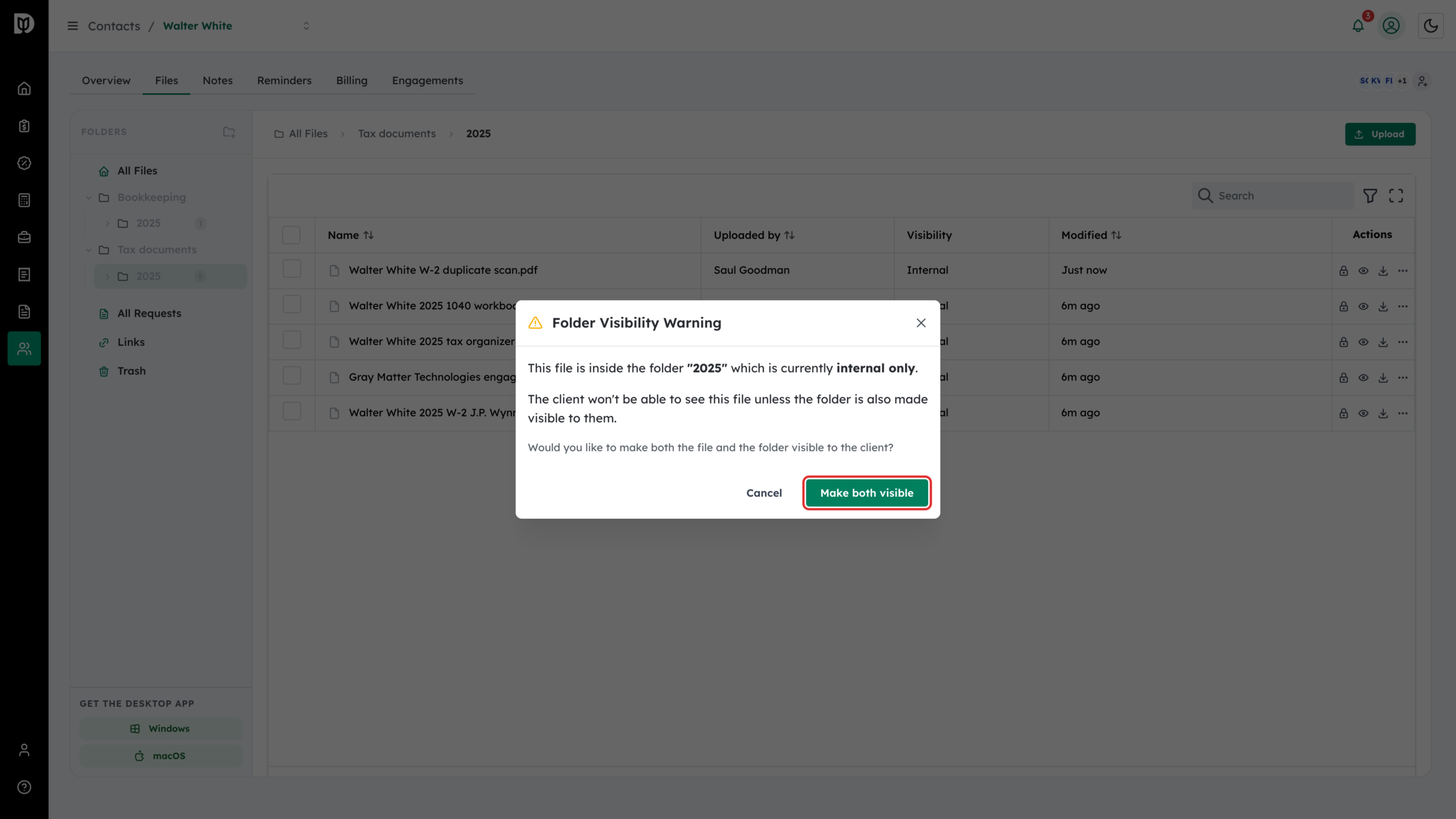
A client only sees a shared file if the folder it is in is shared as well. If it isn’t, the Folder Visibility Warning opens. Select Make both visible to share the file and its folder, or Cancel to leave both internal.
Step 8: Use the More actions menu
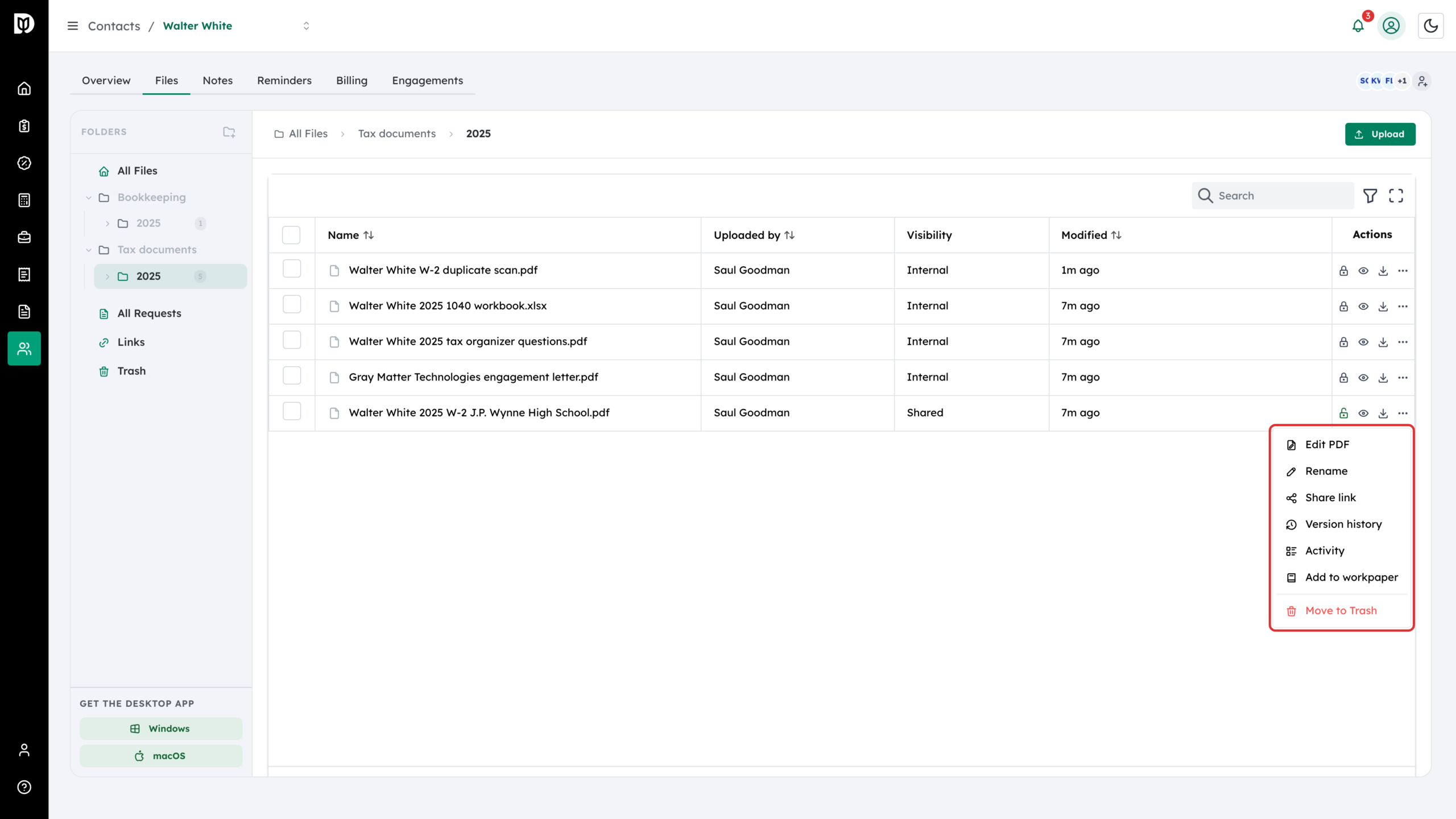
Each file also has an eye icon to view it and a download icon. Select the three dots for more: Edit PDF, Rename, Share link, Version history, Activity, Add to workpaper and Move to Trash. You can also drag a file onto another folder to move it.
Step 9: Download several files as a zip
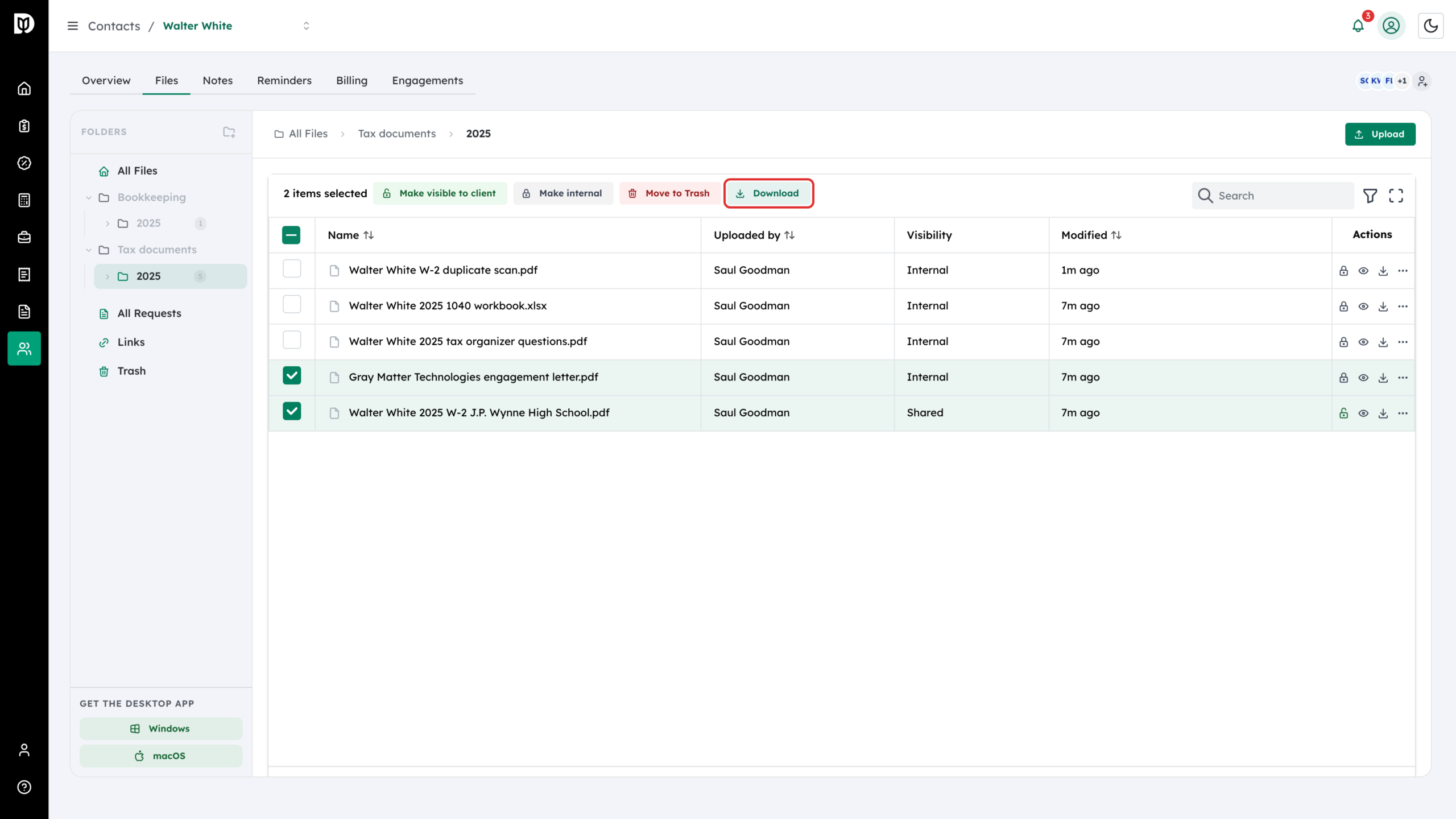
Tick the boxes next to the files or folders you want. A bar appears with Make visible to client, Make internal, Move to Trash and Download. Select Download. Debits prepares a zip archive and downloads it when it is ready.
Step 10: Move files to Trash
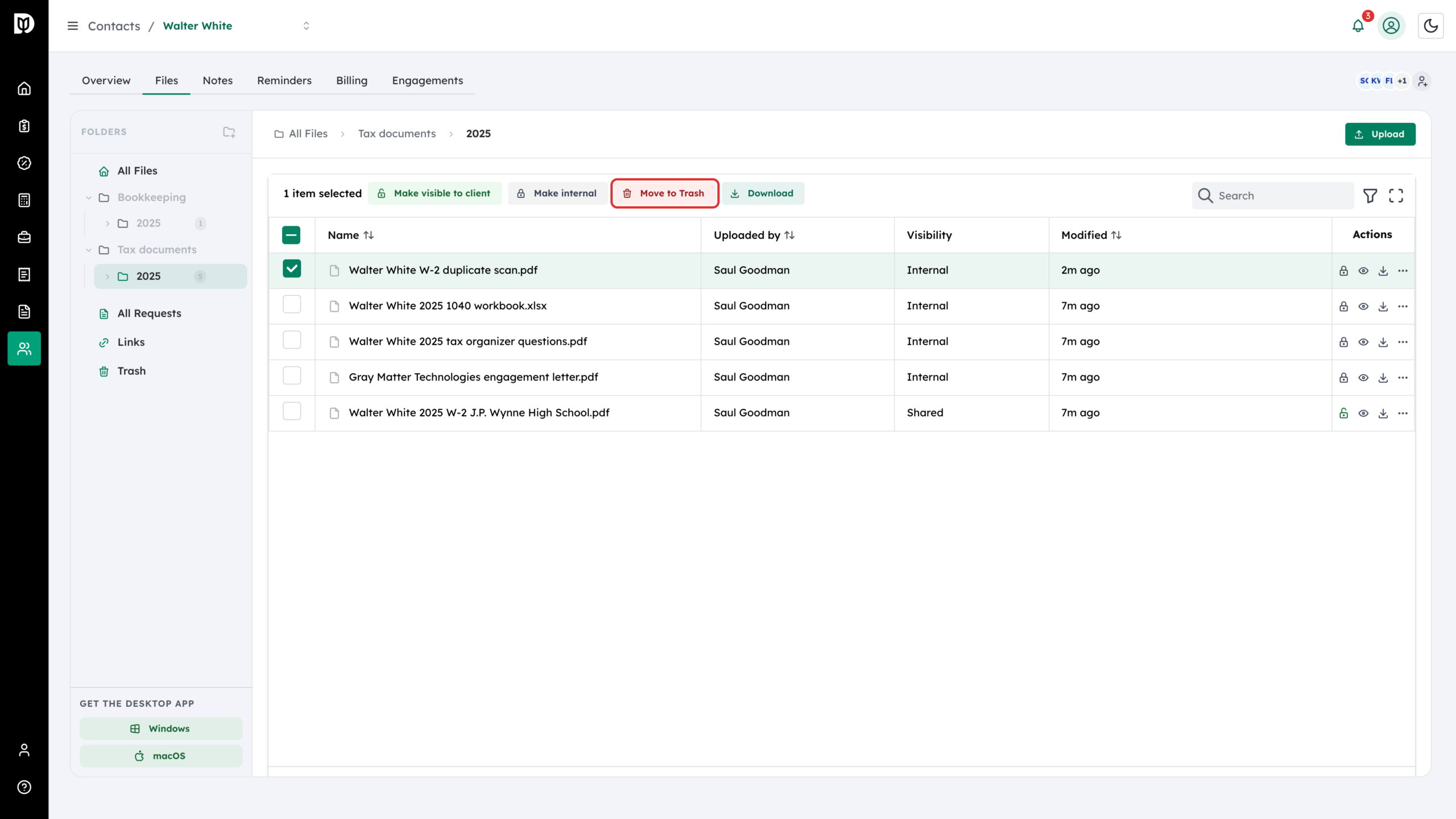
To remove files, tick them and select Move to Trash, or choose Move to Trash from a file’s menu. Staff can do this for their own clients. If a workpaper binder holds the file, Debits asks you to remove it from the binder first.
Step 11: Restore or delete from Trash
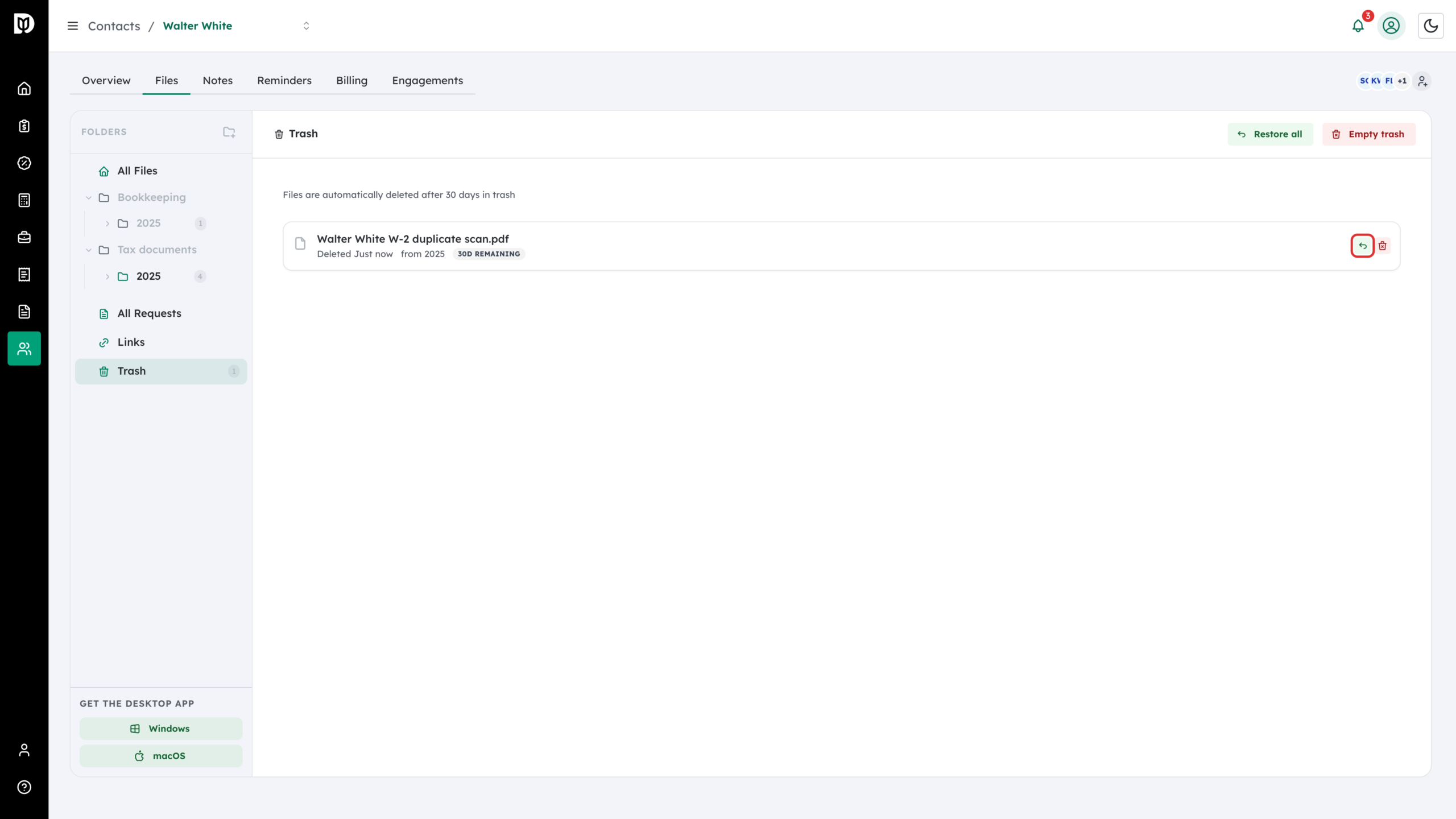
Select Trash in the folder panel. Select the restore icon to put a file back where it was, or use Restore all. Owners, admins and managers can also delete a file permanently or select Empty trash.
What happens next
Shared files and folders appear in the client’s portal straight away. Files in Trash are deleted automatically after 30 days, so restore anything you need before then.
Troubleshooting
- The client can’t see a file you shared. Check that every folder above it is shared too. Use the lock icon on each folder row.
- An upload was refused. The file is over 100 MB or isn’t a PDF, image, Excel or Word file.
- You can’t delete a file permanently. Only owners, admins and managers can empty Trash or delete permanently. Staff can still move files to Trash.
- A file won’t go to Trash. It is in a workpaper binder. Remove it from the binder first.