Who this is for: Owners, admins, managers and staff who need to change or annotate a PDF in a client’s files.
What you’ll learn: How to rearrange pages, split and merge PDFs, fill in forms, add text, tick marks, highlights and a signature, and save the result.
Before you begin
- The editor works on PDFs in a client’s Files tab. You can also open it from a workpaper binder document with Edit pages and markup.
- Everything you draw is saved into the PDF as standard annotations. It shows in Adobe Acrobat or any PDF viewer, and stays editable the next time you open the file in Debits.
- Printed text in a PDF can’t be edited. You can cover it with white-out and add new text on top.
- White-out covers text but does not redact it. The text underneath can still be copied from the file. Don’t use it to hide Social Security numbers or other private data from someone who will get the file.
Step-by-step instructions
Step 1: Open the PDF in the editor
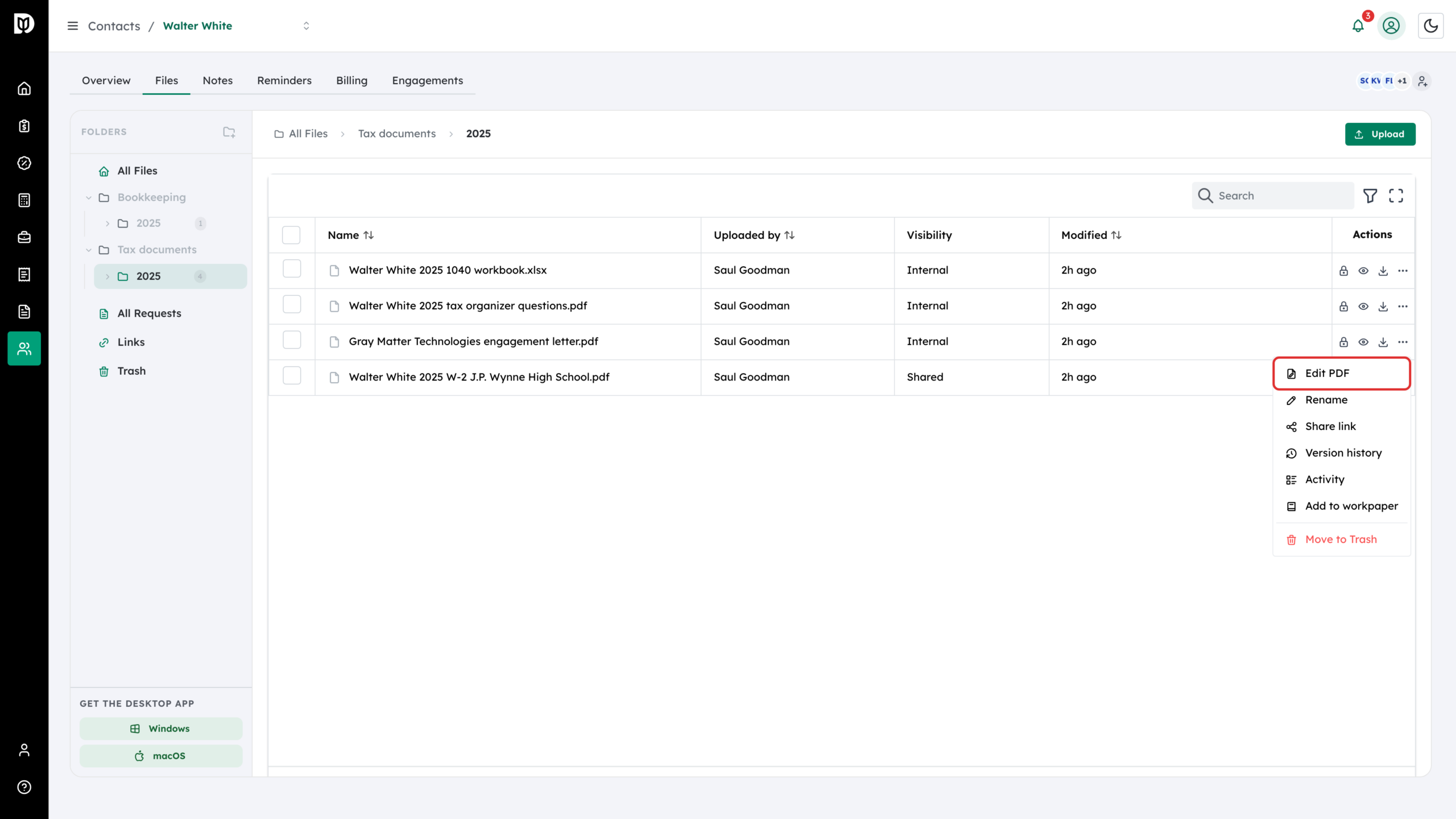
On the client’s Files tab, select the three dots on the PDF’s row and choose Edit PDF. The editor opens full screen.
Step 2: Get to know the toolbar
The toolbar across the top holds the tools: Select, Add text, Signature, Tick mark, Stamp, Sticky note, Highlight, Underline, Strikethrough, Draw, Rectangle, Circle, Arrow and White-out. Hover over a tool to see its name and keyboard shortcut. Undo and redo are on the right, beside Fields and Markup, which lists every mark page by page.
Step 3: Rearrange, rotate or remove pages
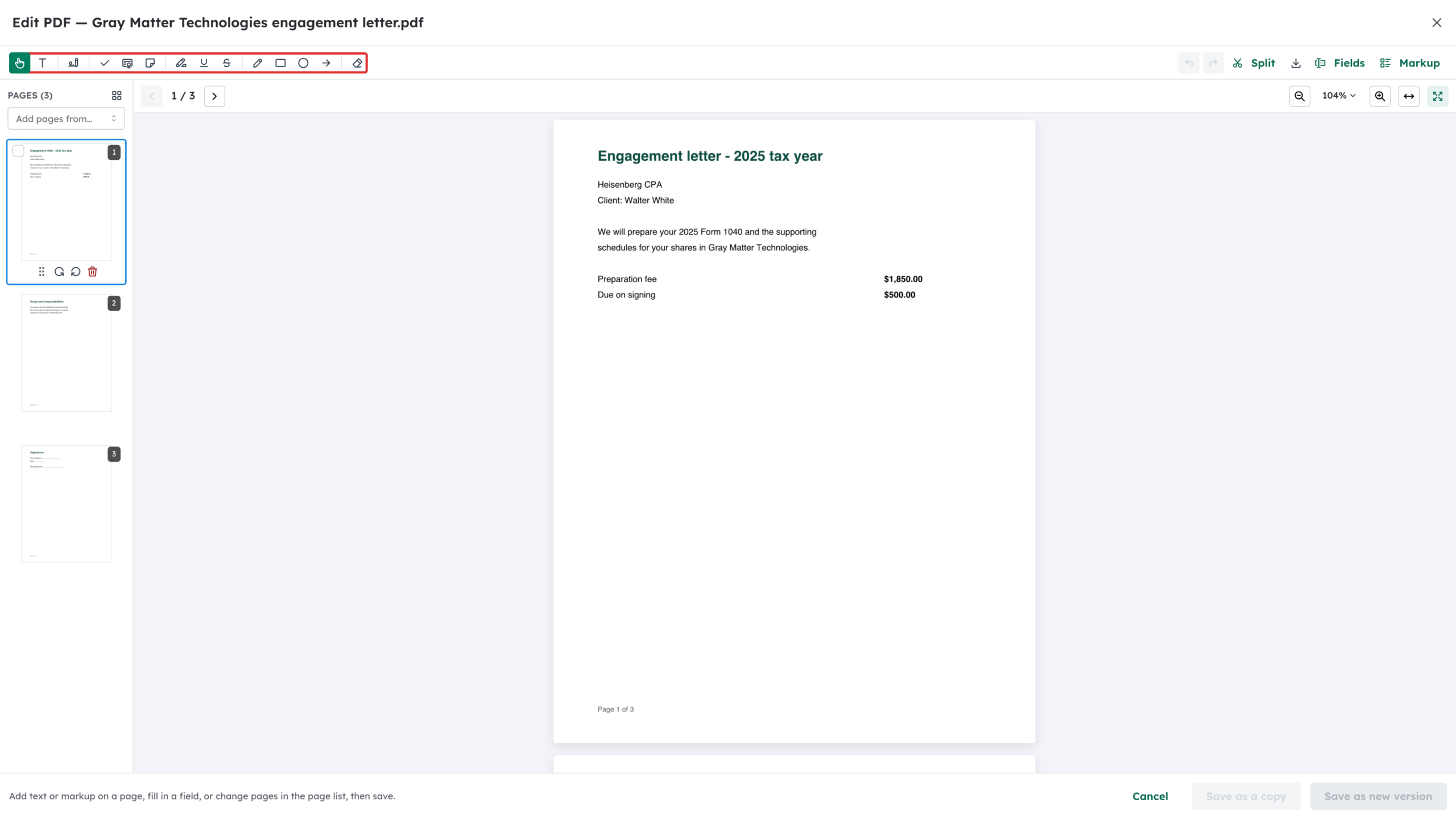
The page list on the left shows each page. Drag a page to move it, use the arrows to rotate it left or right, or the bin to remove it. Tick several pages to rotate, remove or extract them together. The grid icon next to Pages opens a larger view for organizing pages.
Step 4: Merge in pages from another PDF
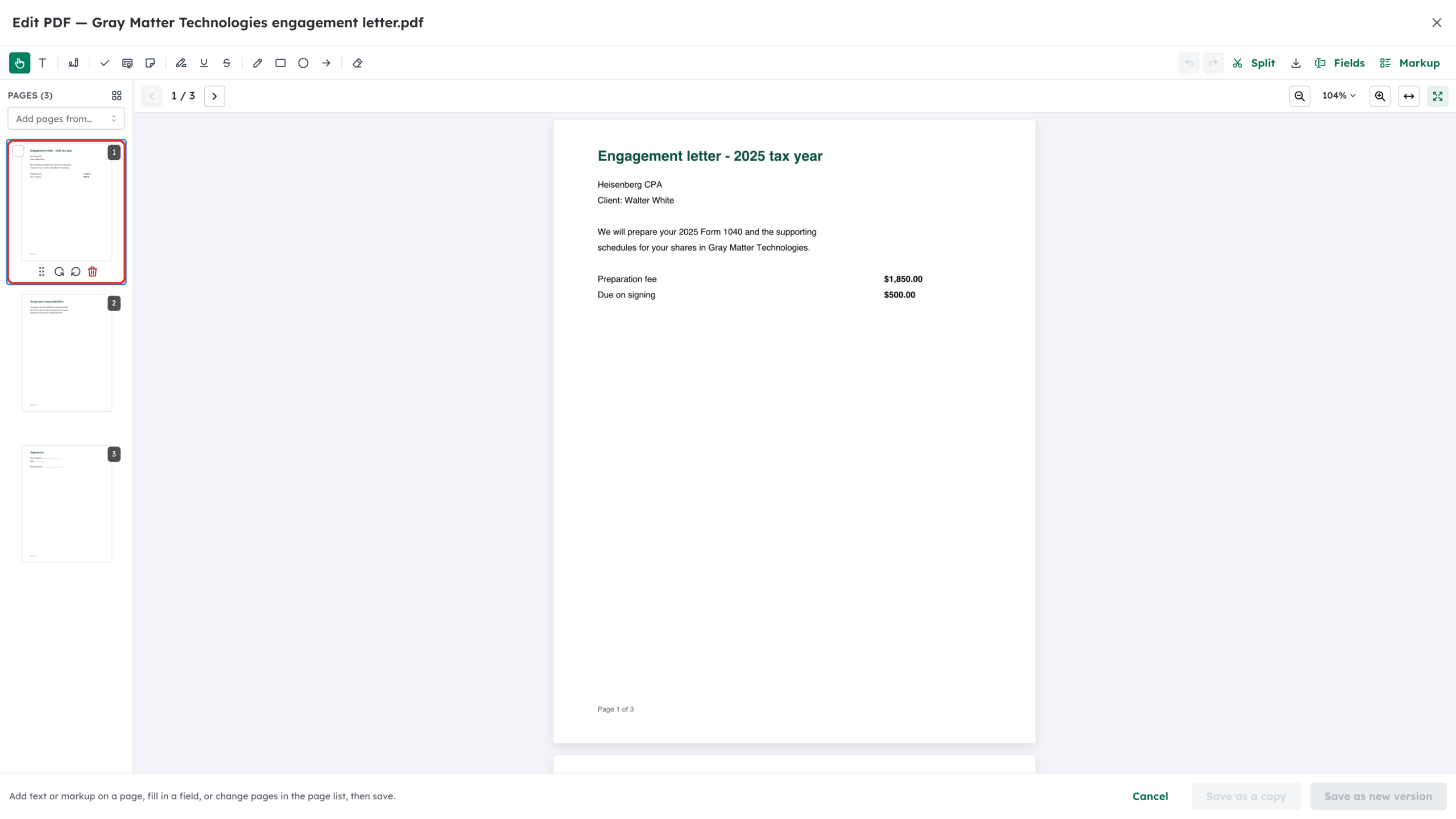
Use Add pages from… to pick another PDF in the client’s files. Its pages are added to this one, and you can move them into place.
Step 5: Split the PDF into new files
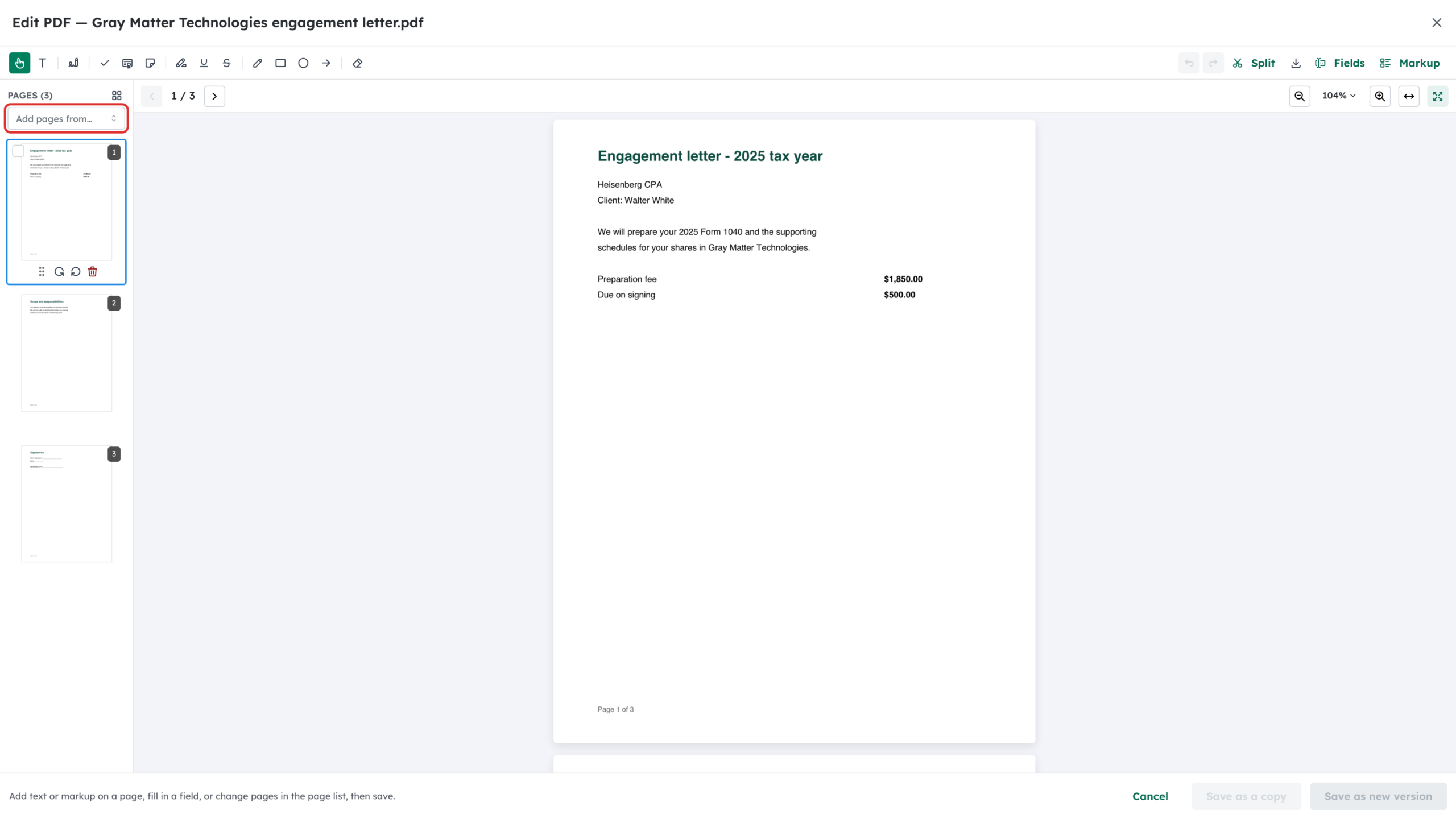
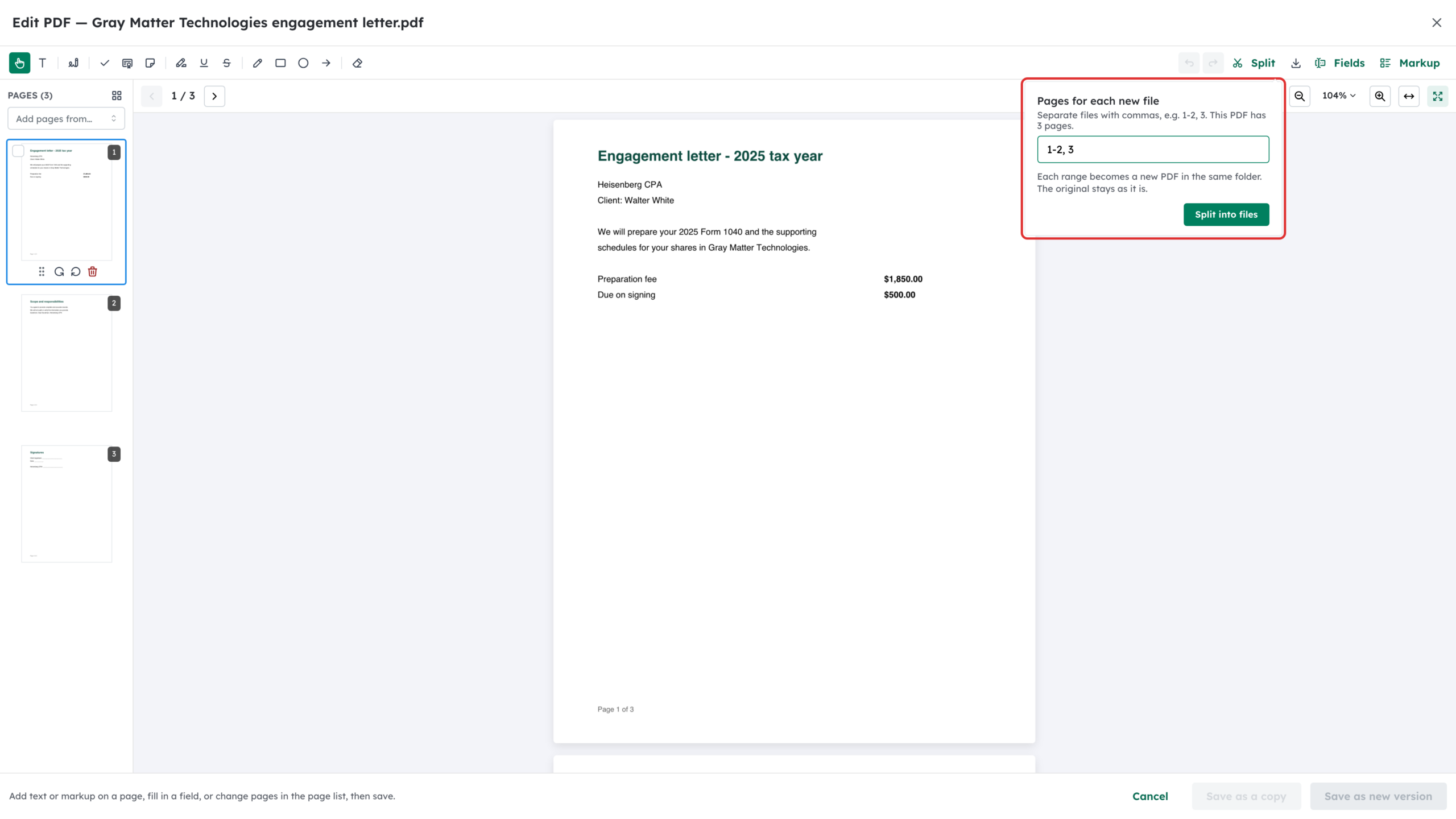
Select Split and type the Pages for each new file, separating files with commas, for example 1-2, 3. Select Split into files. Each range becomes a new PDF in the same folder, and the original stays as it is. Save or discard your other changes before you split.
Step 6: Add text
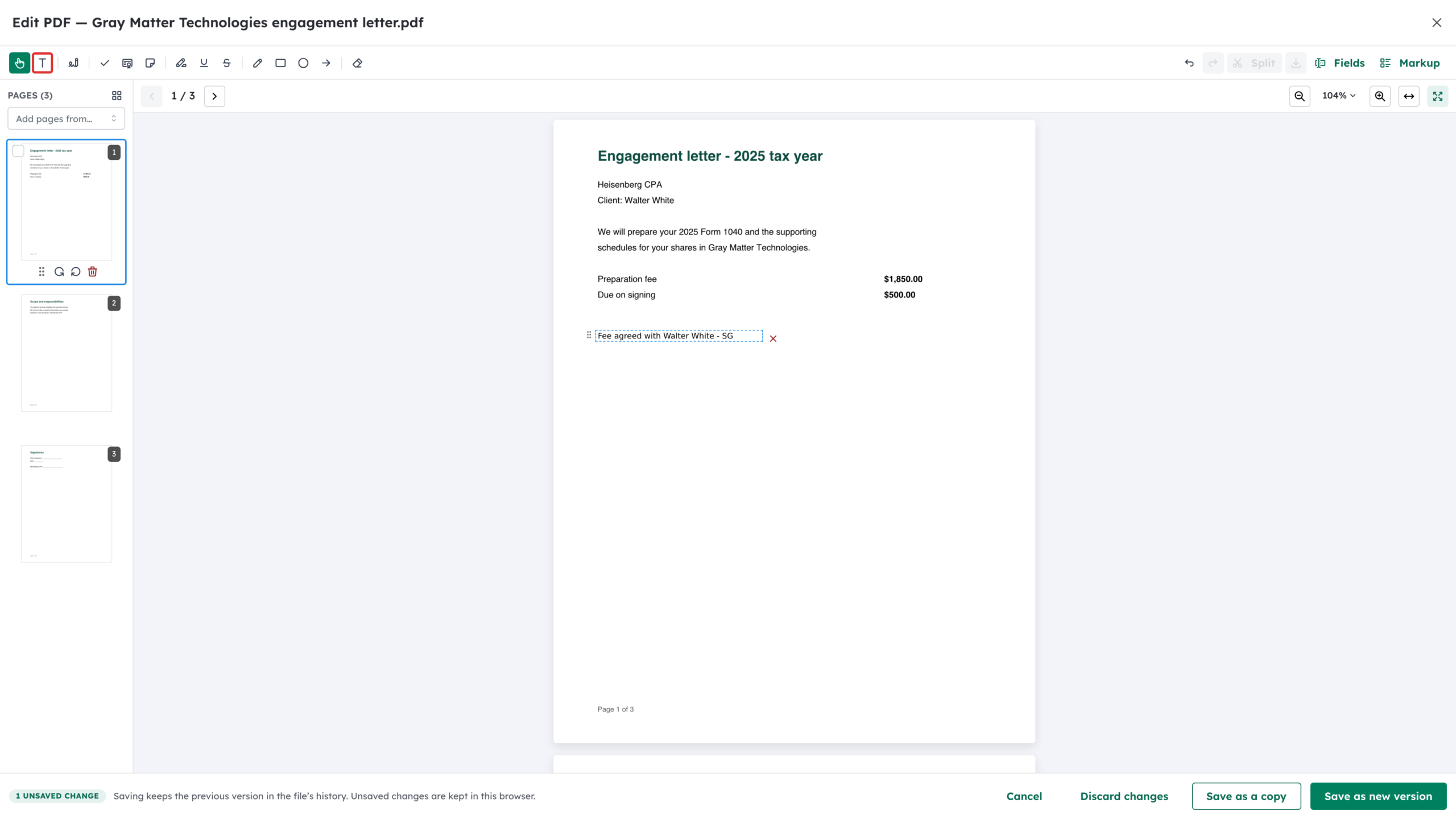
Select Add text, click the page where the text should go, and type. You can choose the font, weight, colour and size, drag the text to move it, or select the X to remove it.
Step 7: Add tick marks and stamps
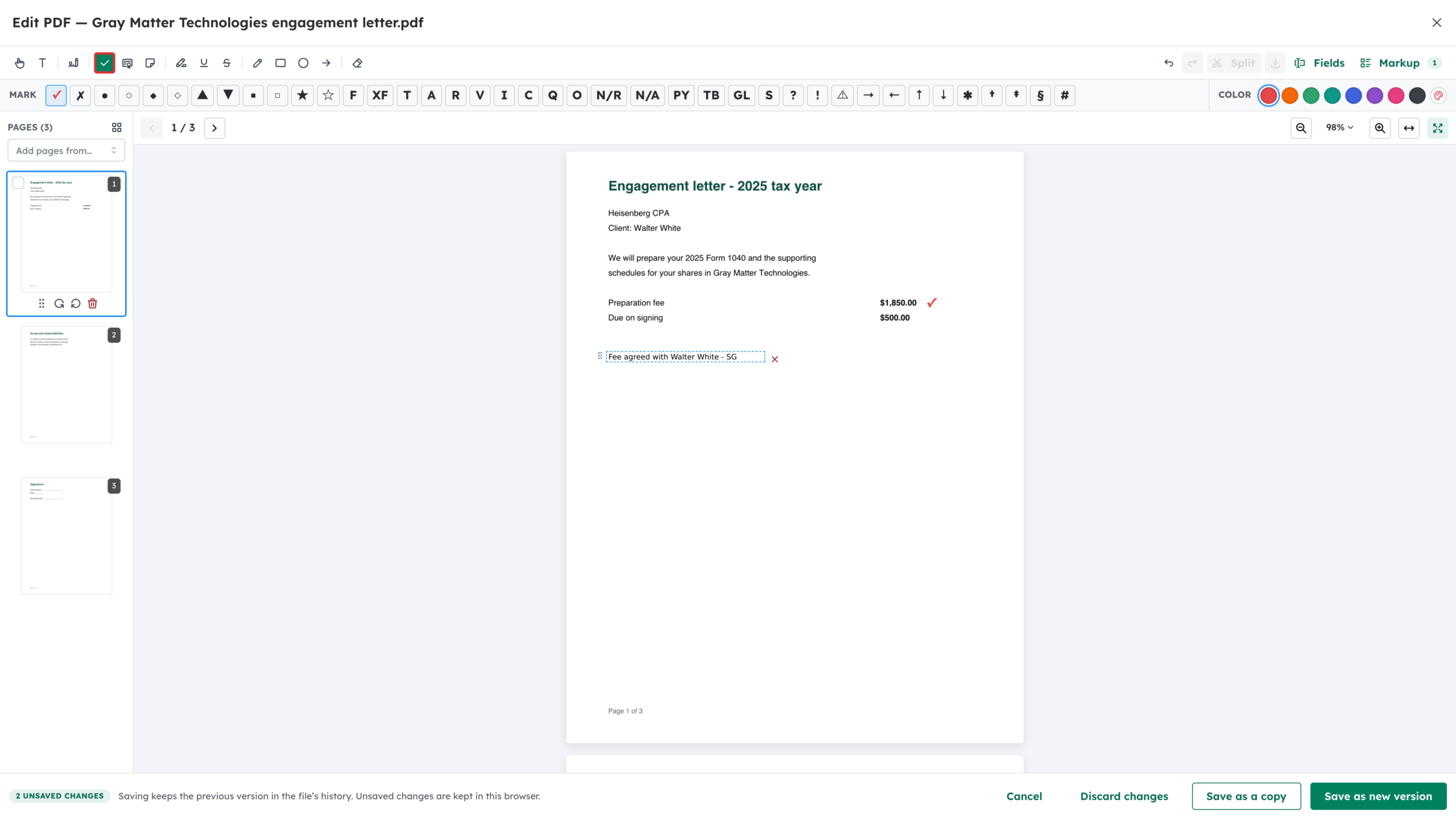
Select Tick mark, choose a mark and a Color, then click the page next to each figure you’ve checked. The palette includes standard symbols and tax and audit codes such as F, XF, TB, PY and GL. Use Stamp the same way for workpaper stamps, including ones you save yourself.
Step 8: Highlight, underline or draw
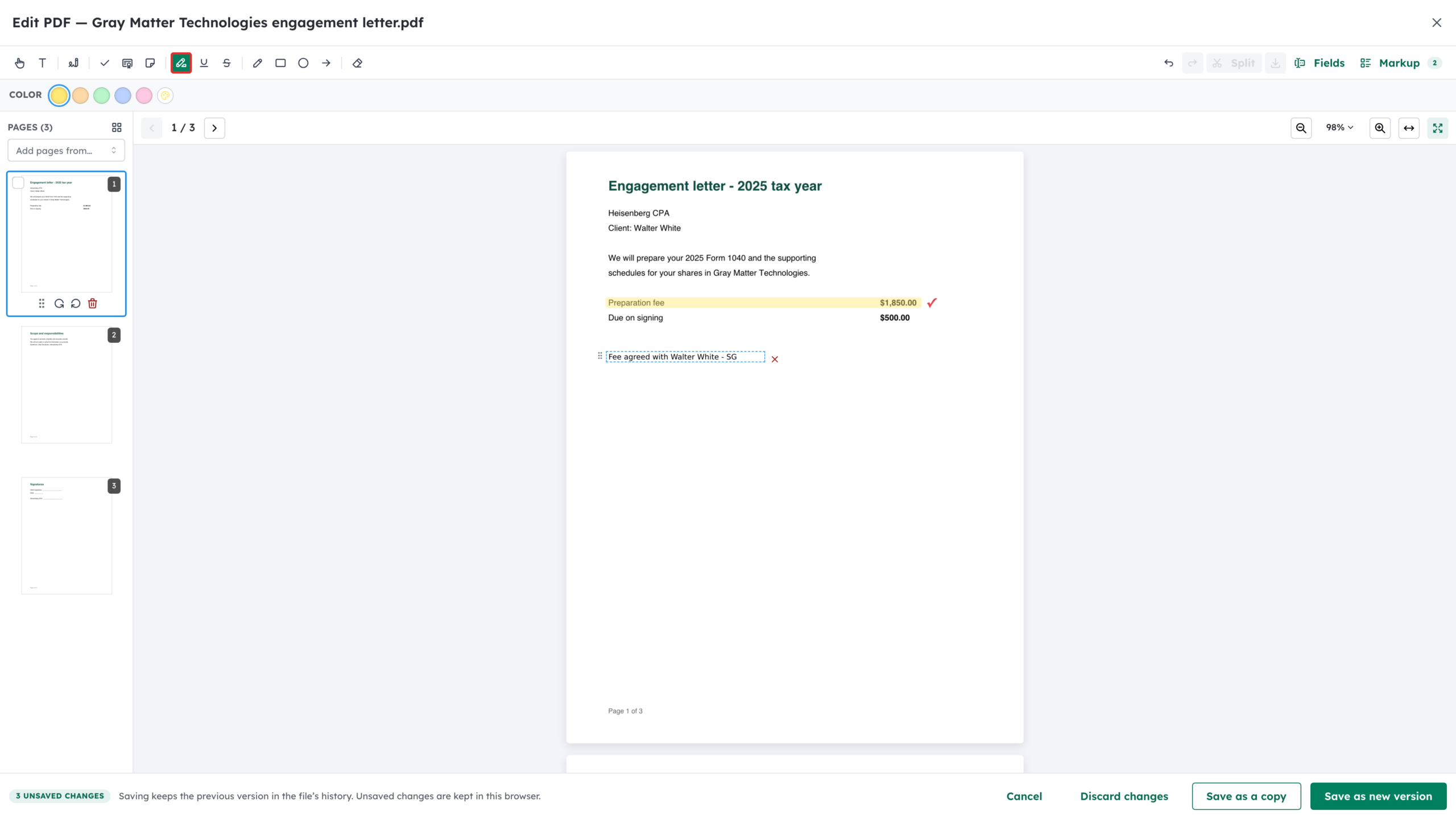
Select Highlight and drag across the text. Underline, Strikethrough, Draw, Rectangle, Circle, Arrow and Sticky note work the same way. Each has its own colour choices.
Step 9: Sign the PDF
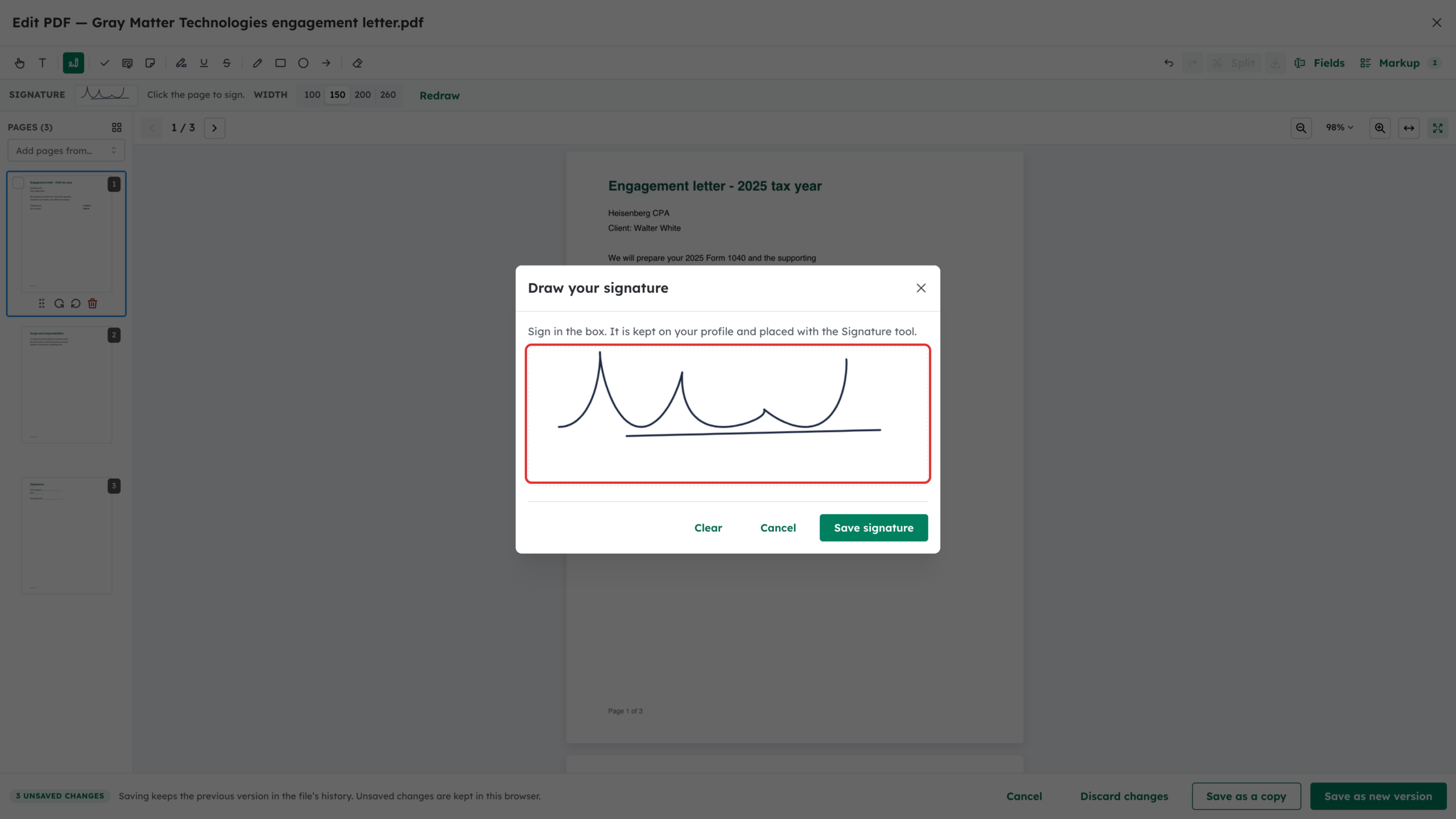
Select Signature, then Draw your signature. Sign in the box and select Save signature, then click the page where it goes. Your signature is kept on your profile, so next time you only need to click the page.
Step 10: Cover text with white-out
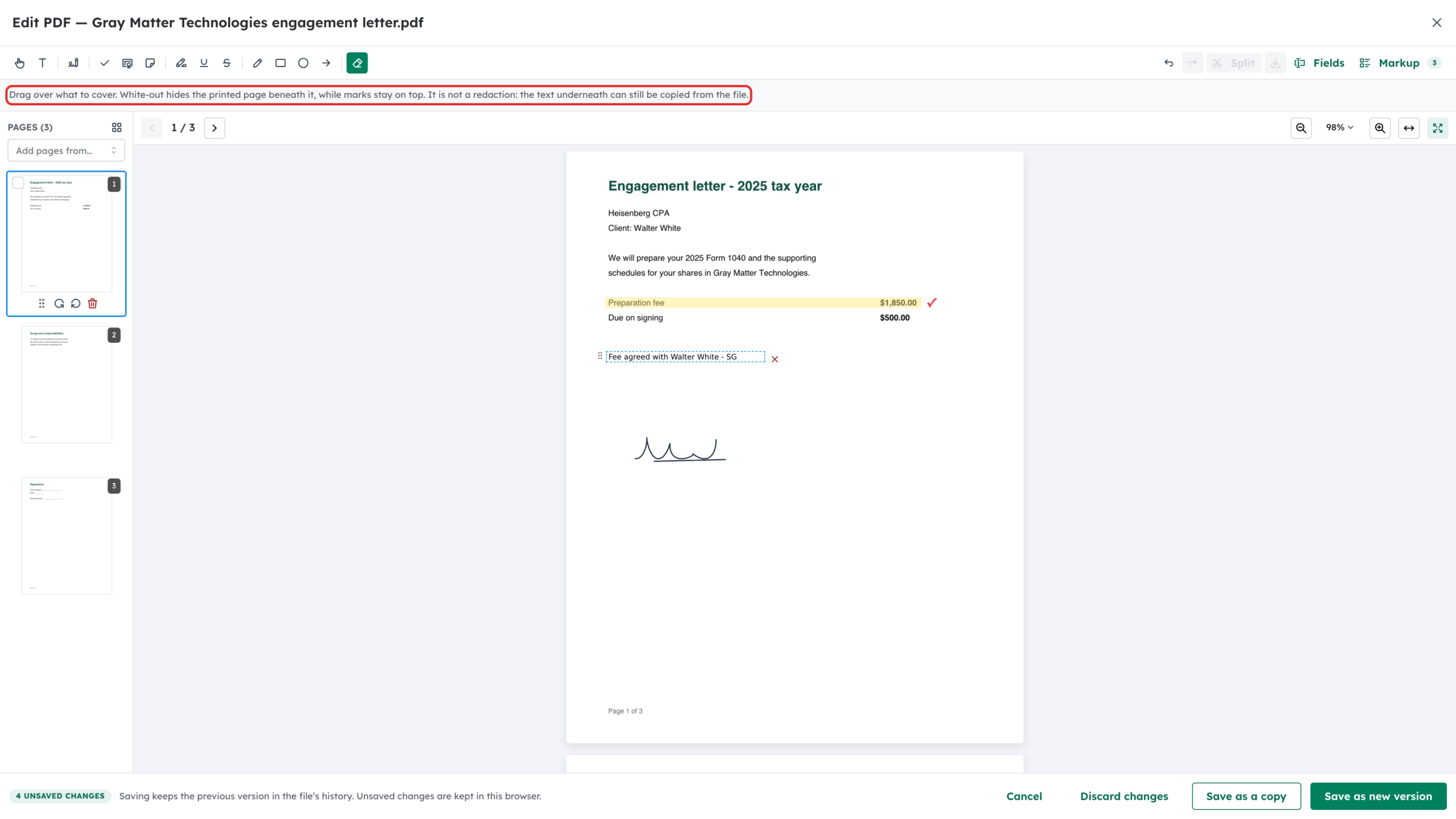
Select White-out and drag over what you want to cover. It hides the printed page beneath it while your marks stay on top. As the editor says, it is not a redaction: the text underneath can still be copied from the file.
Step 11: Fill in form fields
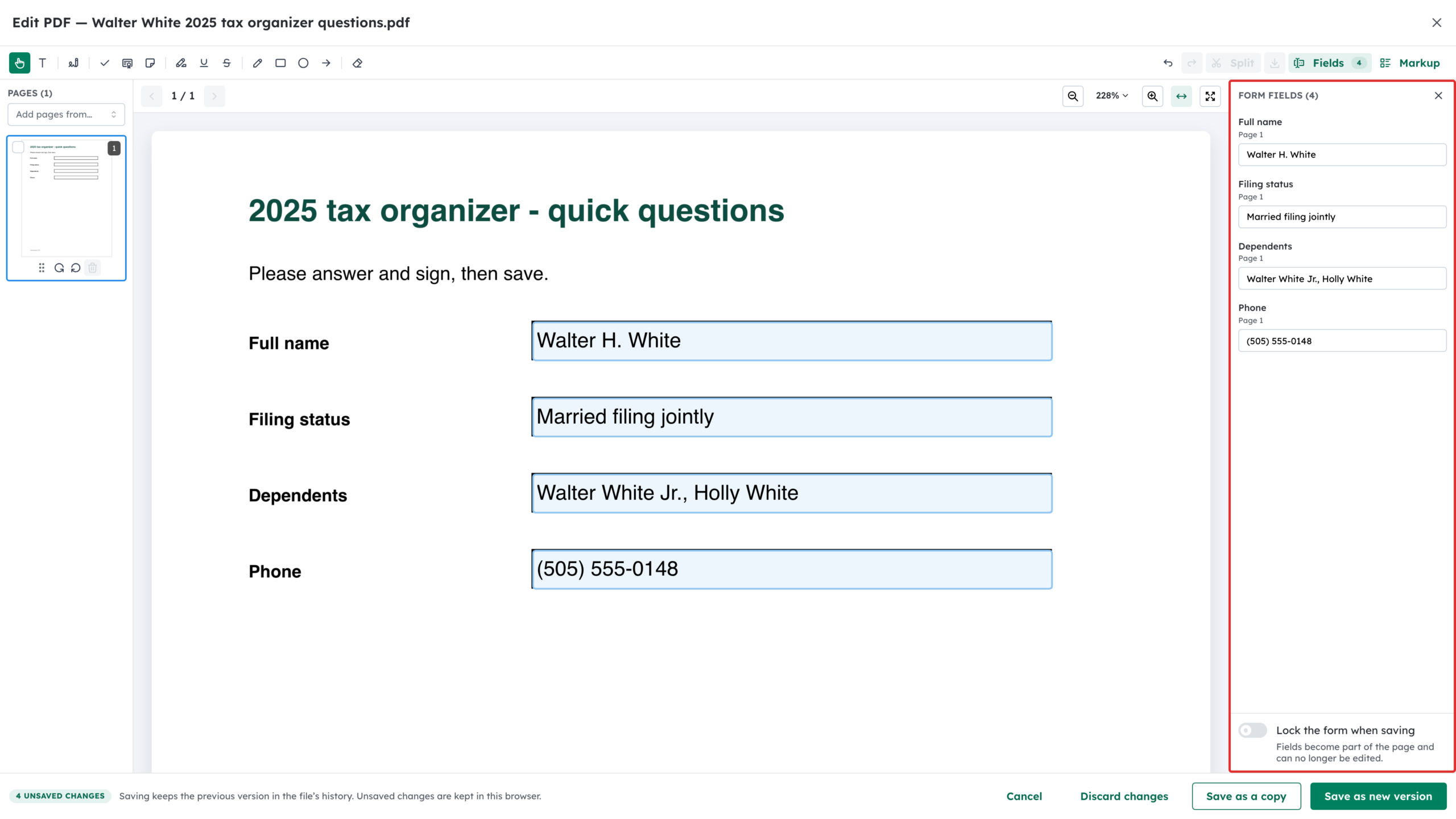
If the PDF has fillable fields, the Form fields panel opens with each field by name. Type in the panel or straight into the field on the page. Turn on Lock the form when saving to make the answers part of the page so they can no longer be edited.
Step 12: Save your changes
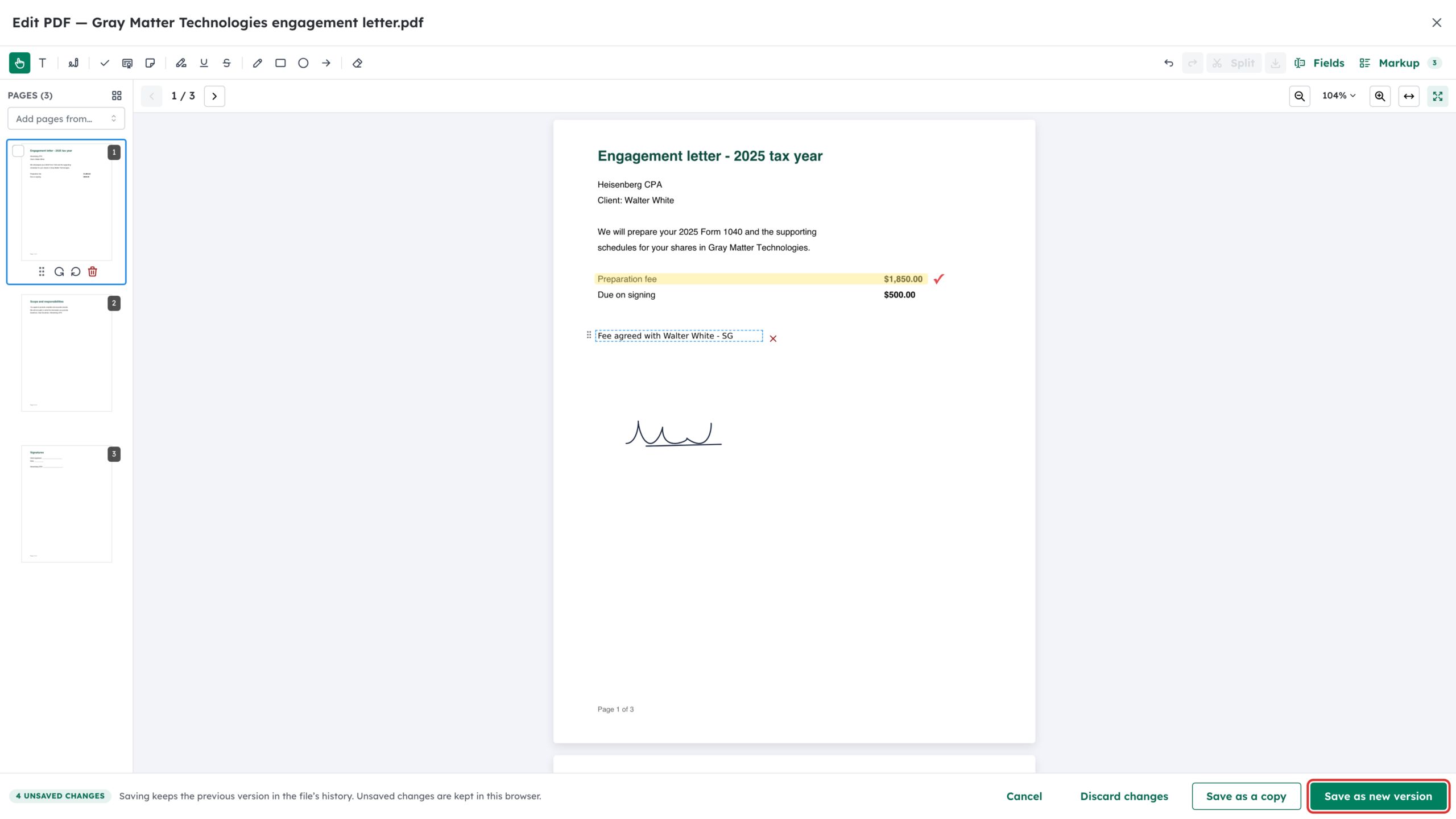
The bar at the bottom counts your unsaved changes. Select Save as new version to replace the file and keep the previous version in its history, or Save as a copy to save a new file and leave the original alone. Discard changes throws your edits away. If the client can see the file, Debits warns you first, because they will see what you save.
What happens next
The saved PDF carries your marks as standard annotations, so they show in any PDF viewer. One save makes one new version, and the edit is summarized in the file’s Activity. Open the file in the editor again and every mark can still be moved, changed or deleted. If you close the editor without saving, Debits keeps your unsaved work in this browser and offers it back next time.
Troubleshooting
- Split is greyed out. Save or discard your changes first. A one-page PDF can’t be split.
- Debits won’t let you remove or rotate a page. The page has workpaper tick marks or cross-references on it. Marks move with their pages when you reorder, but a marked page can’t be removed or rotated.
- The PDF won’t open in the editor. It may be password-protected or damaged. Download it, remove the password, and upload it again.
- Your client needs to fill in a form. Share the PDF with them. In their portal they can choose Fill in and sign, and their completed copy is saved beside your original.