You can save any organizer’s questionnaire and answers as a PDF — useful for your records, for the workpaper file, or to share outside Debits.
Before you begin
- The organizer must have answers to print. Download PDF is greyed out while the row is still in Awaiting delivery or Sent; it becomes available once the client has started or submitted.
- Any accountant with access to the organizer can download it.
- The PDF prints the client’s identifiers (SSN, ITIN, EIN and bank account numbers) in full, so you can prepare the return from it. Handle it like the return itself.
Step-by-step instructions
Step 1: Open the row’s actions menu
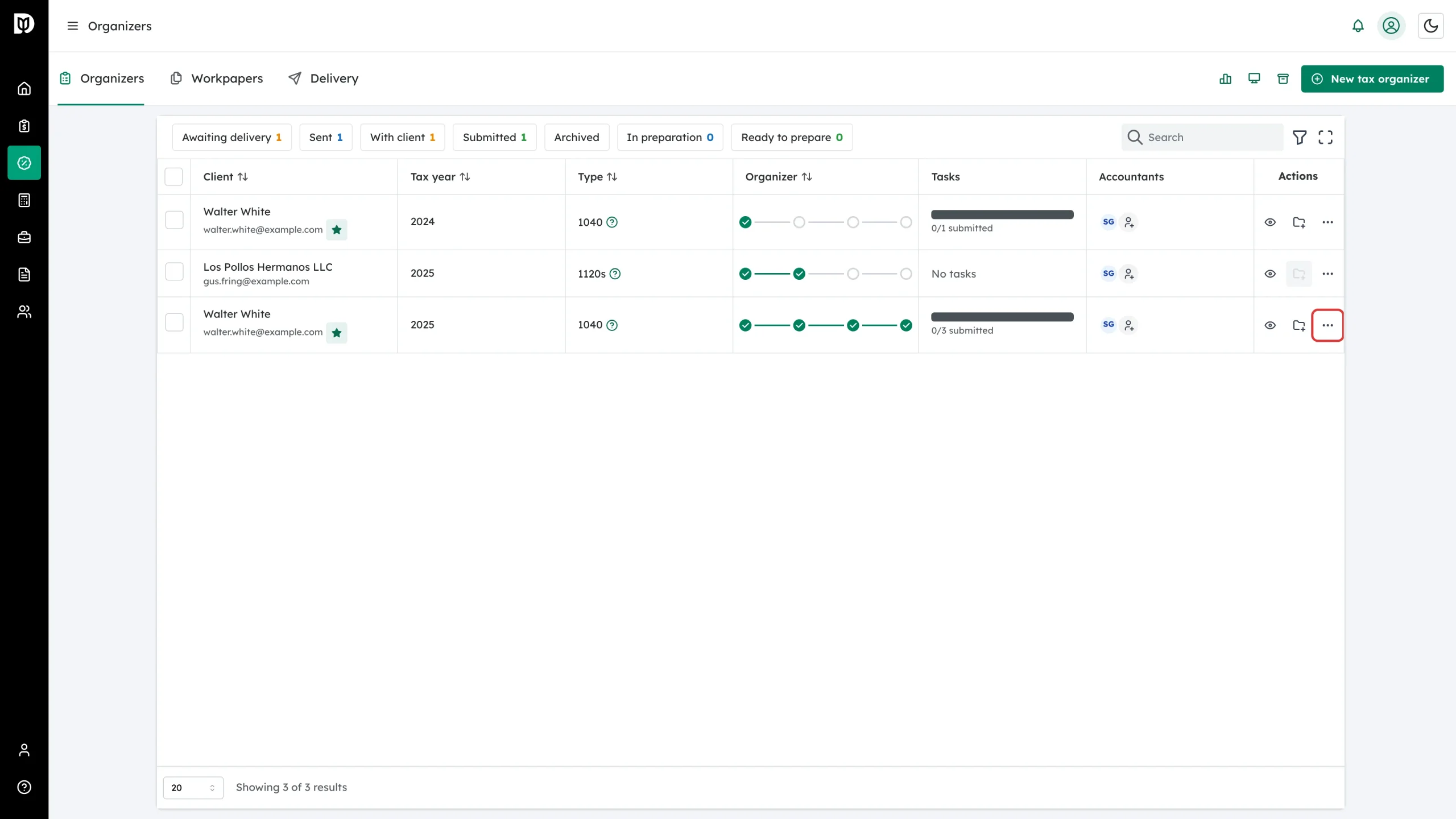
In the left sidebar, click Tax, then open the Organizers tab. Find the organizer you want (search by name or email if the list is long), then click the three-dot More actions icon at the end of the row.
Step 2: Click Download PDF
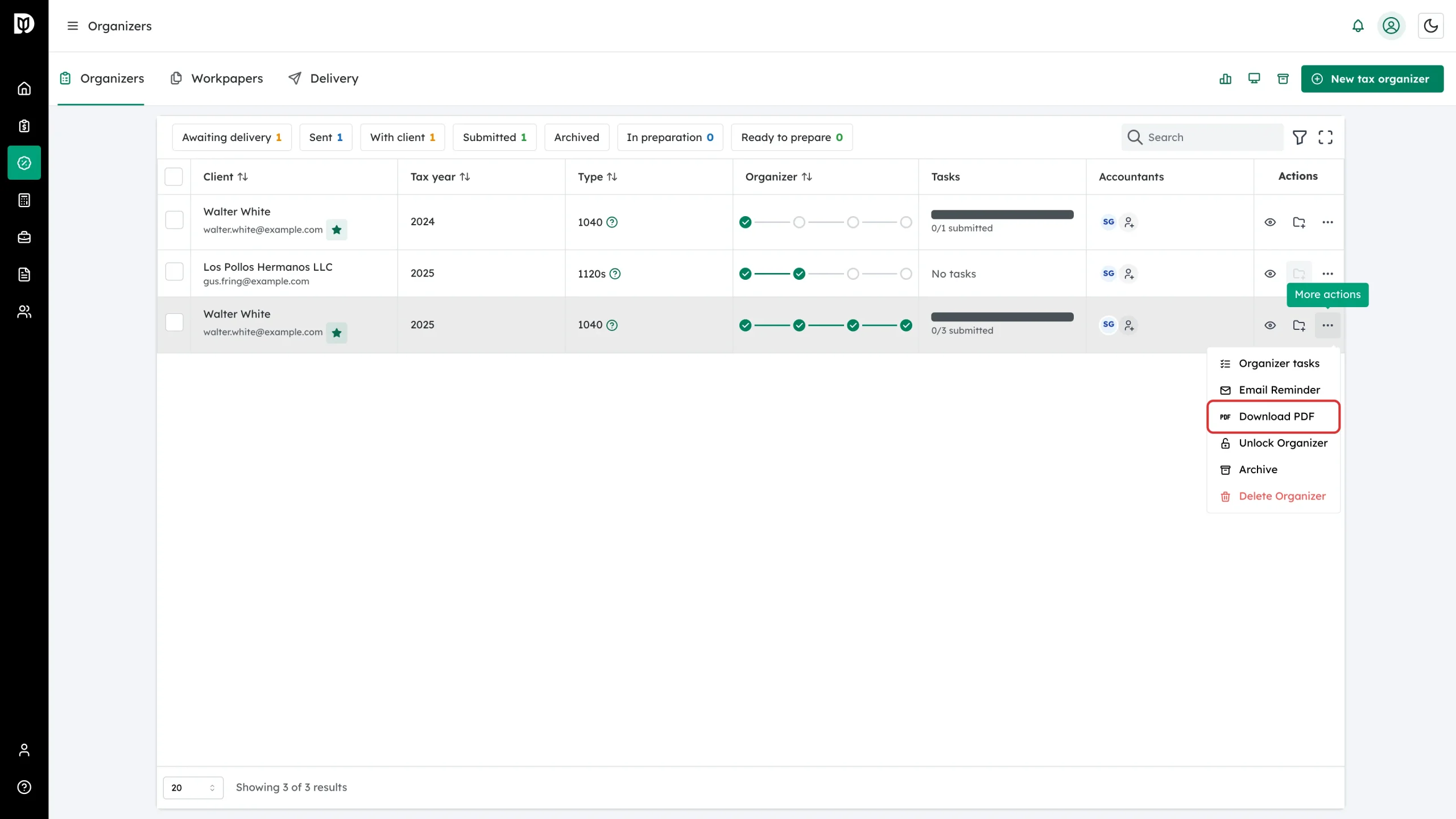
In the menu, click Download PDF. The PDF is generated right away and your browser downloads it — the file is named after the client, return type, and year, for example walter-white-1040-2025.pdf.
What happens next
Open the file in any PDF reader, print it, or store it with your workpapers. The download reflects the answers at the moment you generate it — download again after the client makes changes.
Troubleshooting
- Download PDF is greyed out: the organizer is still in Awaiting delivery or Sent, so there is nothing to print yet. Send the invite and wait for the client to start, or open the organizer with the eye icon and fill it in on their behalf.
- A share link is refused: tax organizer PDFs can’t be shared by link because they contain full SSNs and account numbers. Download it and send it securely instead.
- Nothing downloads: check your browser’s pop-up or download settings for this site, then try again.