Demo organizers let you preview the questionnaire your clients will fill out — before you send anything. There is one demo for each return type: 1040, 1065, 1120s and 1120.
Before you begin
- You need an accountant login. Clients do not see the demos.
- Demos are available on desktop; the control is hidden on small screens.
Step-by-step instructions
Step 1: Find the View demos button
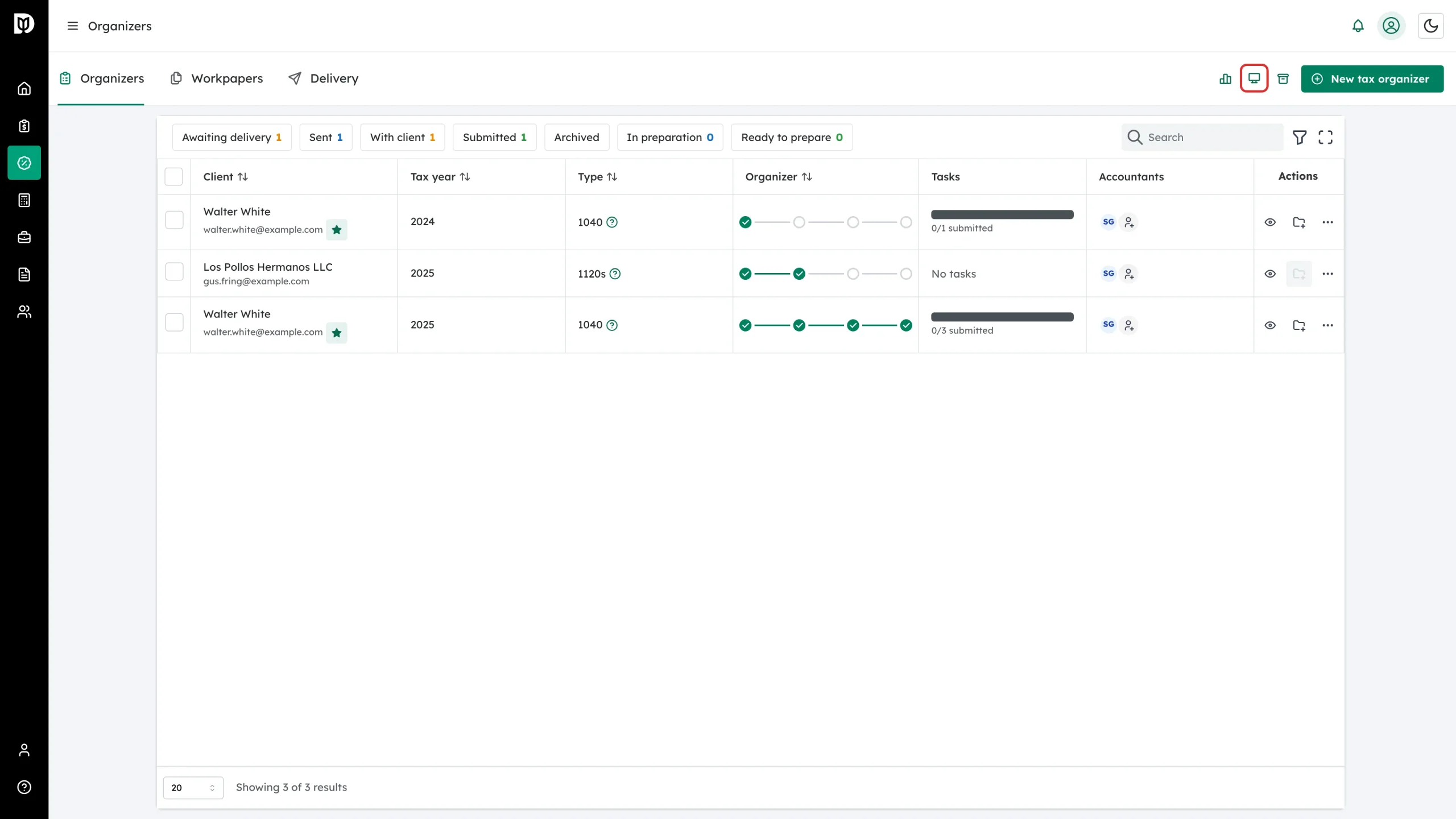
In the left sidebar, click Tax, then open the Organizers tab. In the tab bar at the top right, click the monitor icon labelled View demos (hover it to see the tooltip). It sits between the reports icon and the View archived icon, next to New tax organizer.
Step 2: Pick a return type
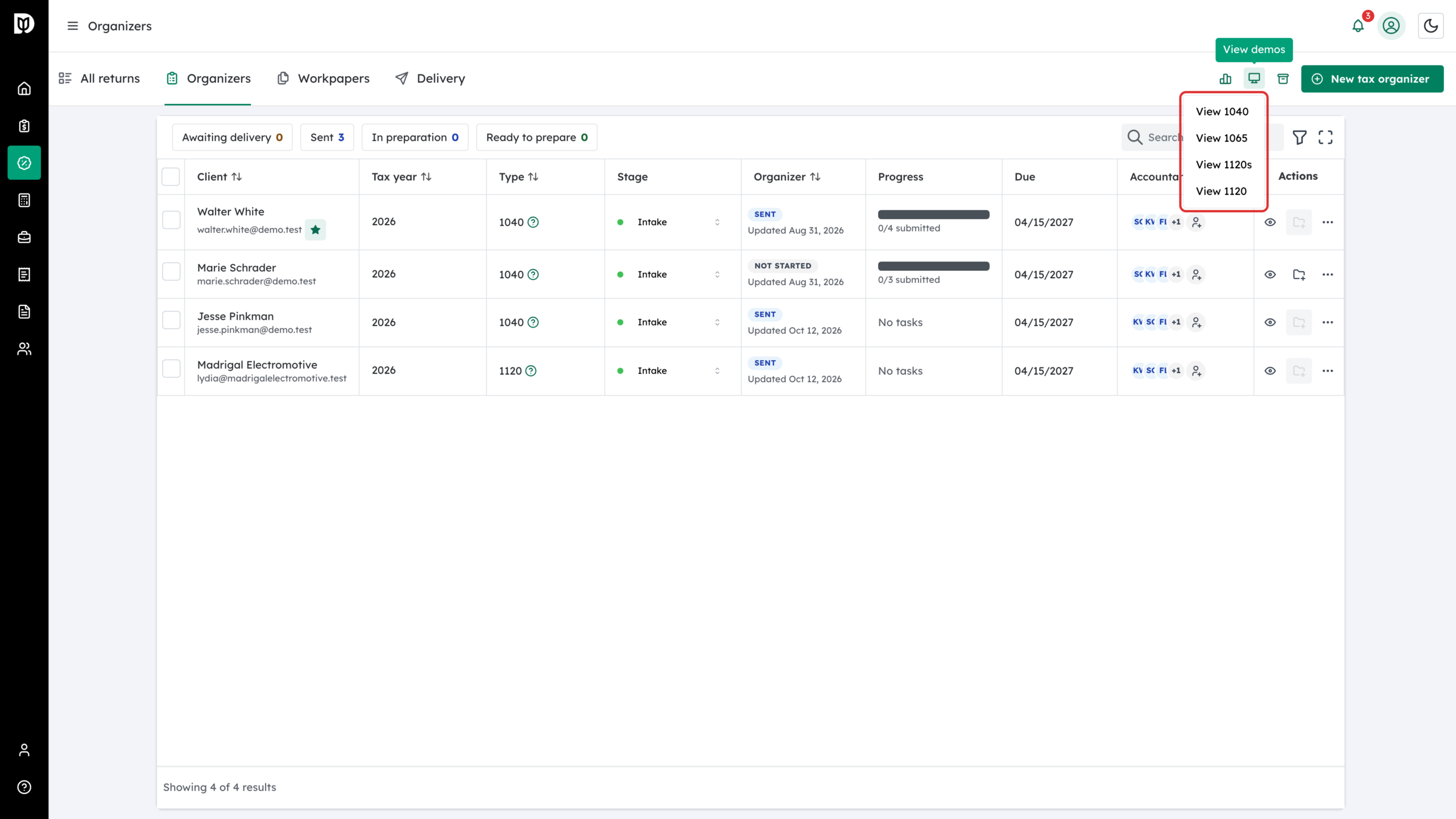
A menu opens with four demos: View 1040 (individual return), View 1065 (partnership return), View 1120s (S-corporation return) and View 1120 (C-corporation return). Click the one you want to preview.
Step 3: Explore the sample organizer
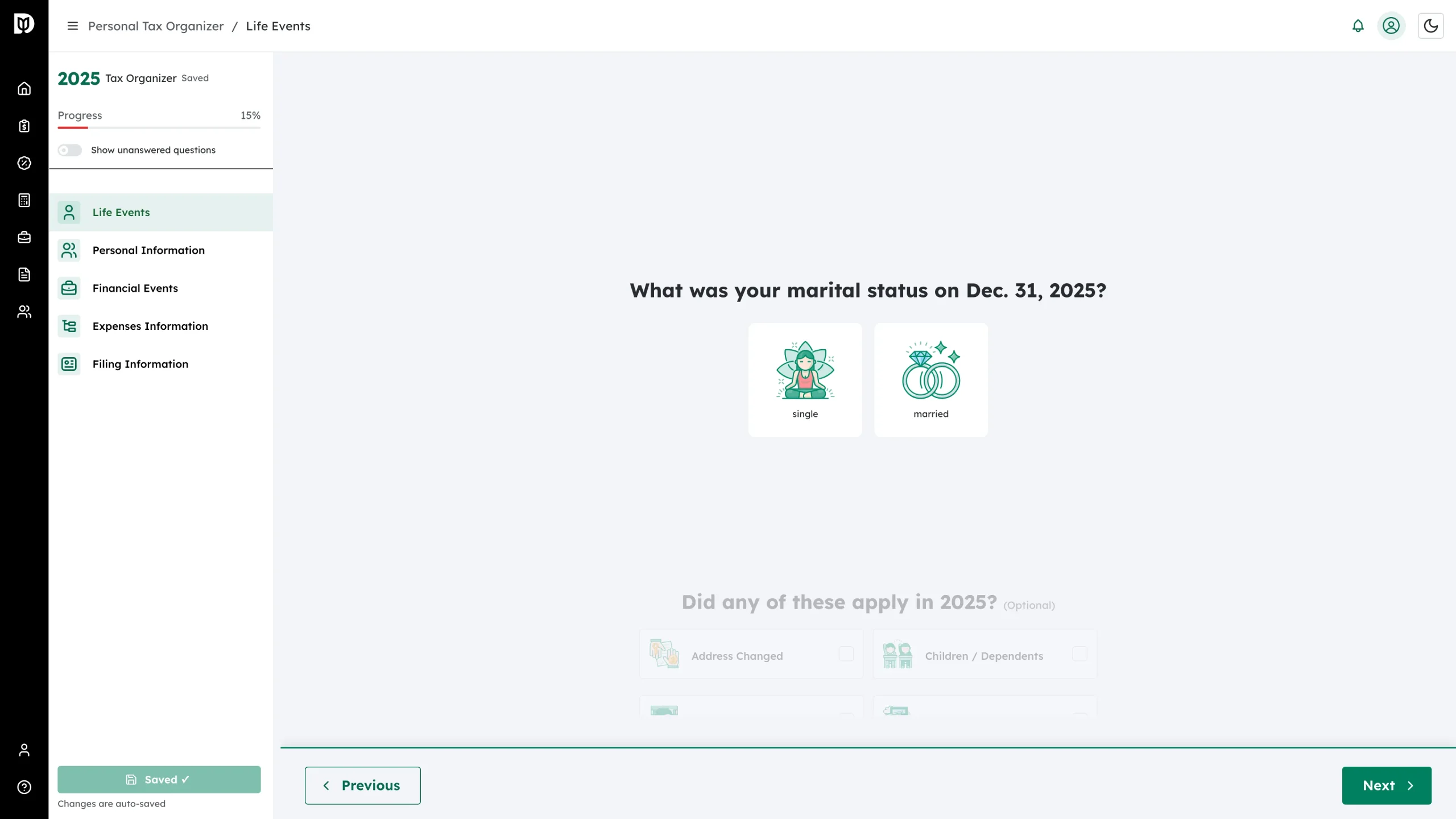
The demo opens the same questionnaire your client sees. Use the section list on the left (for a 1040: Life Events, Personal Information, Financial Events, Expenses Information, Filing Information) and the Previous/Next buttons to move through the questions. Answering a question in the demo shows how follow-up sections appear — for example, choosing “married” adds a Spouse section.
What happens next
Nothing you do in a demo is sent to a client. When you are ready to use the real thing, go back to the Organizers tab and click New tax organizer.
Troubleshooting
- You cannot see the View demos icon: make sure you are on the Organizers tab of the Tax hub and on a desktop-sized window — the icon is hidden on mobile.