

Who this is for: Accountants and bookkeepers who prepare monthly or custom CFO reports for their clients in Debits.
What you’ll learn: How to start a new report for a company and period, pick a starting layout or template, and choose which sections it contains.
Before you begin #
- The client company must be connected to QuickBooks Online so Debits can pull live financial data.
- Open the company, then go to the Reports tab.
- Reports are prepared by your firm. Your client only sees a report after you deliver it.
Step-by-step instructions #
Step 1: Open the Reports workspace #
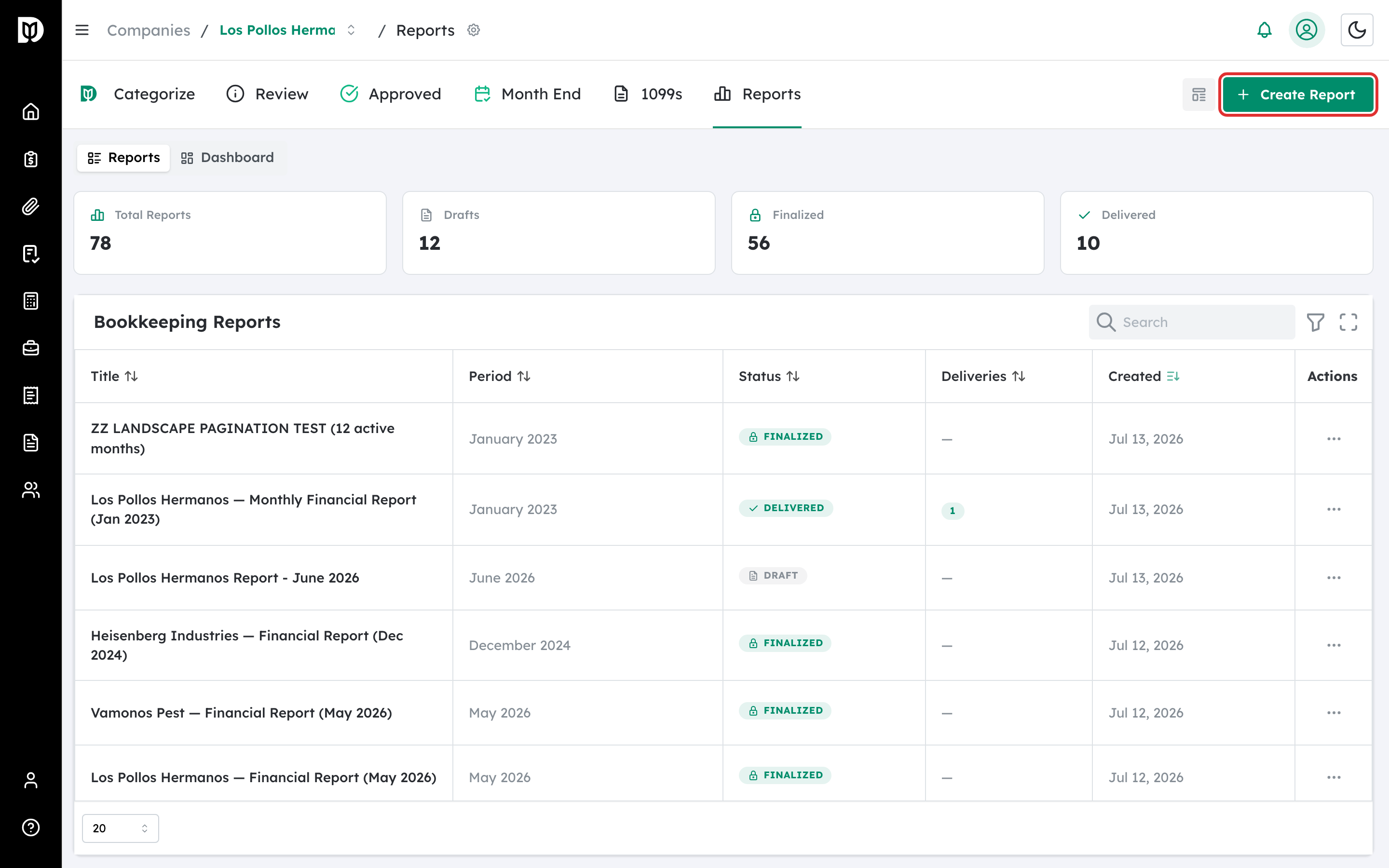
From the company’s bookkeeping page, select the Reports tab. You’ll see a summary of Total Reports, Drafts, Finalized, and Delivered, plus the list of existing reports.
Step 2: Start a new report #
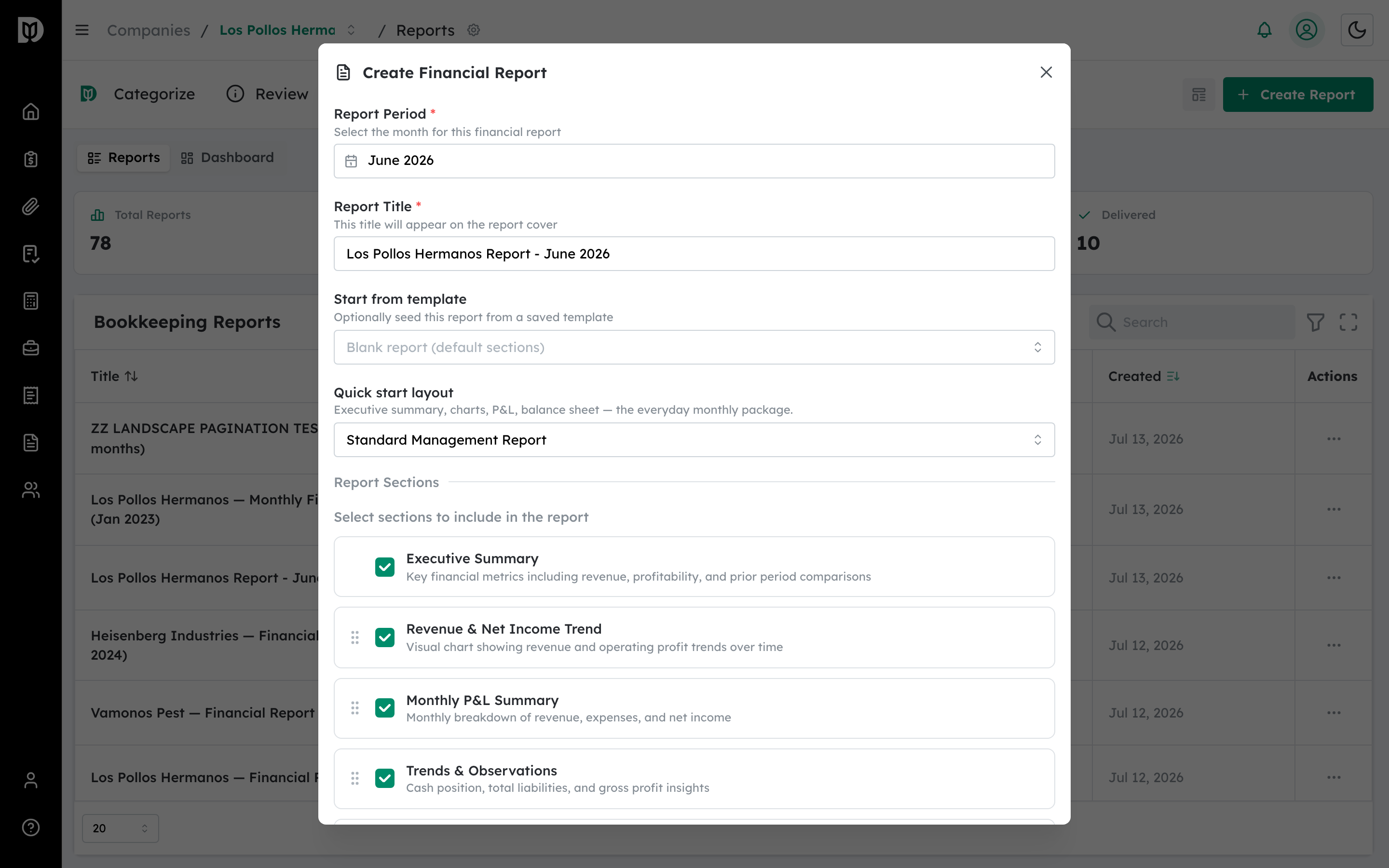
Select Create Report. The Create Financial Report window opens.
Step 3: Choose the report period #
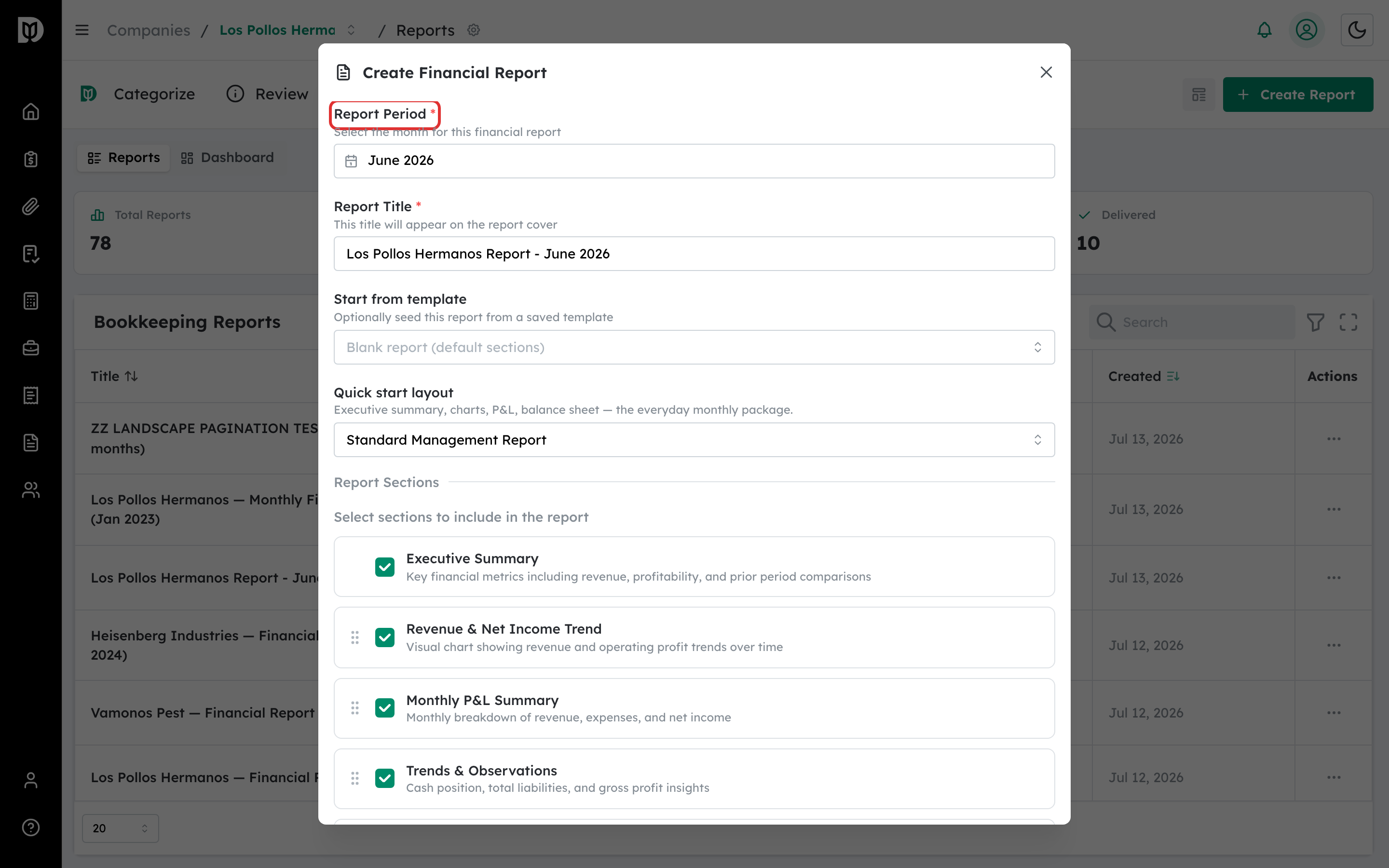
Use Report Period to pick the month the report covers. Debits fills in a suggested Report Title that appears on the report cover — edit it if you like.
Step 4: Pick a starting point #
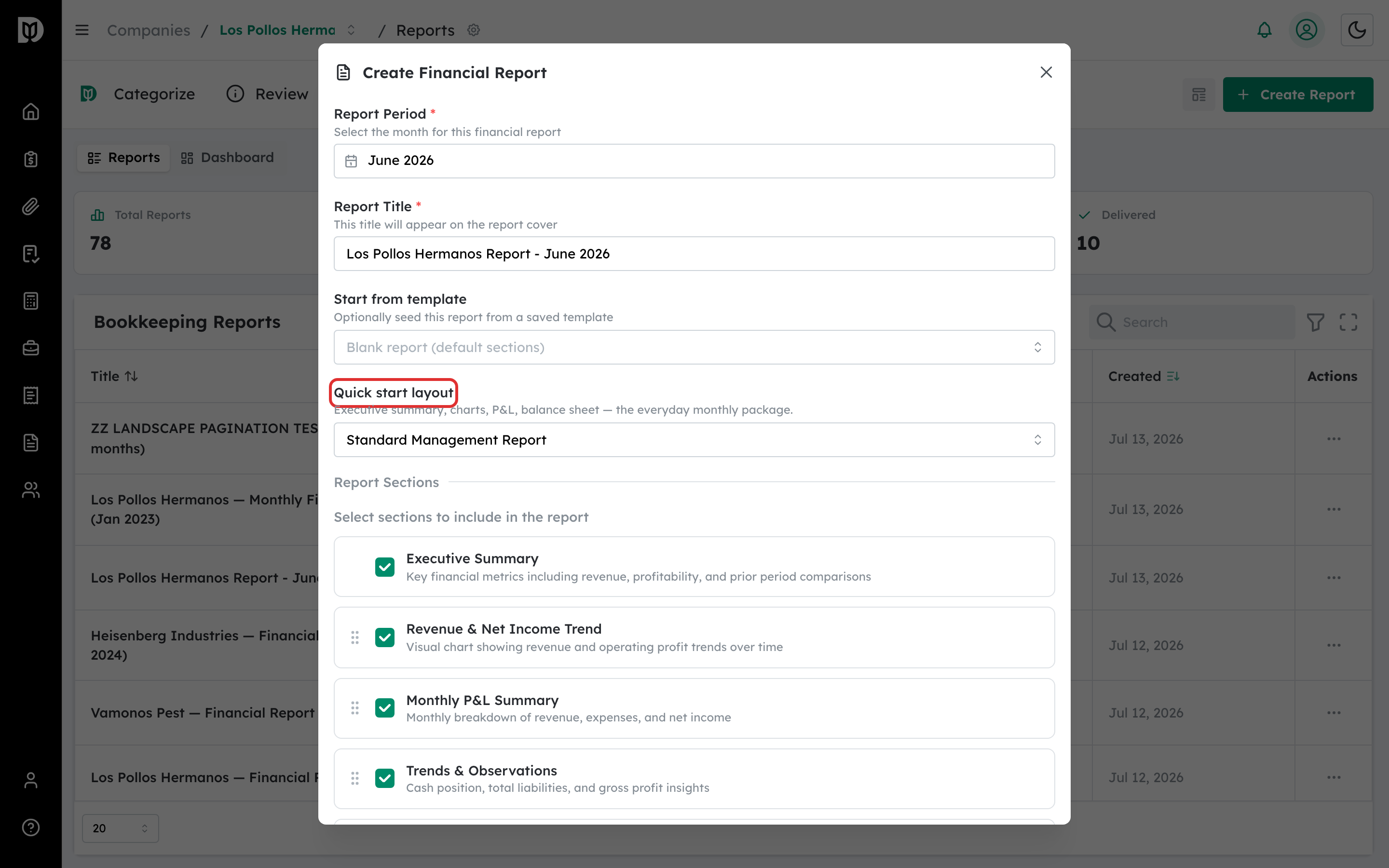
You have two ways to shape the report:
- Start from template — seed the report from one of your saved templates (see the related article on templates).
- Quick start layout — choose a ready-made shape: Standard Management Report, CFO Board Pack, or Simple P&L.
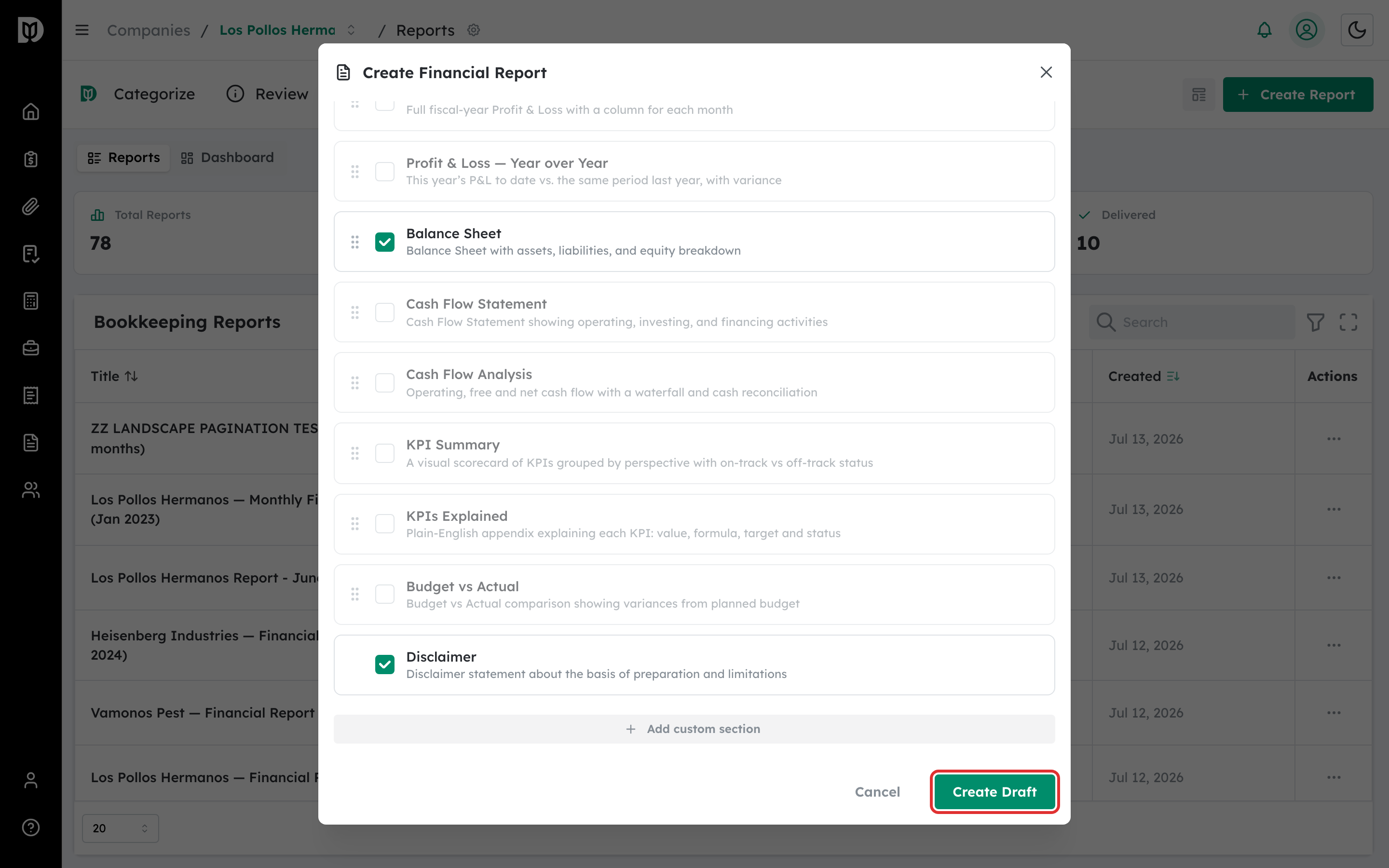
Step 5: Adjust the sections #
Under Report Sections, turn sections on or off with the checkboxes. You can fine-tune everything later, so it’s fine to start with the defaults.
Step 6: Create the draft #
Select Create Draft. Debits opens the new report so you can preview and customize it.
What happens next #
The report is created as a draft. Draft reports show a live preview of the company’s current QuickBooks data. Nothing is locked yet — you can edit sections, add commentary, set a budget, and preview the PDF before you finalize.
Troubleshooting #
- Problem: The preview shows all zeros. The company may have no QuickBooks data for the month you chose. Pick a period that has activity, or confirm the QuickBooks connection.
- Problem: The Create Draft button is disabled. Make sure at least one section is enabled and any custom KPI formulas are valid.


