Schedule your 15-minute demo now

    We’ll tailor your demo to your immediate needs and answer all your questions. Get ready to see how it works!

    View Categories

    How to Deliver a Financial Report to Clients

    Who this is for: Accountants who have finalized a financial report and want to send it to one or more clients.

    What you’ll learn: How to select recipients, add a custom message, publish to the client portal, and send the report.

    Before you begin #

    • The report must be in Finalized or Delivered status. Draft reports cannot be delivered.
    • You should have contacts set up for the company. If no contacts exist, you can add recipients manually during delivery.

    Step-by-step instructions #

    Step 1: Click the Deliver button #

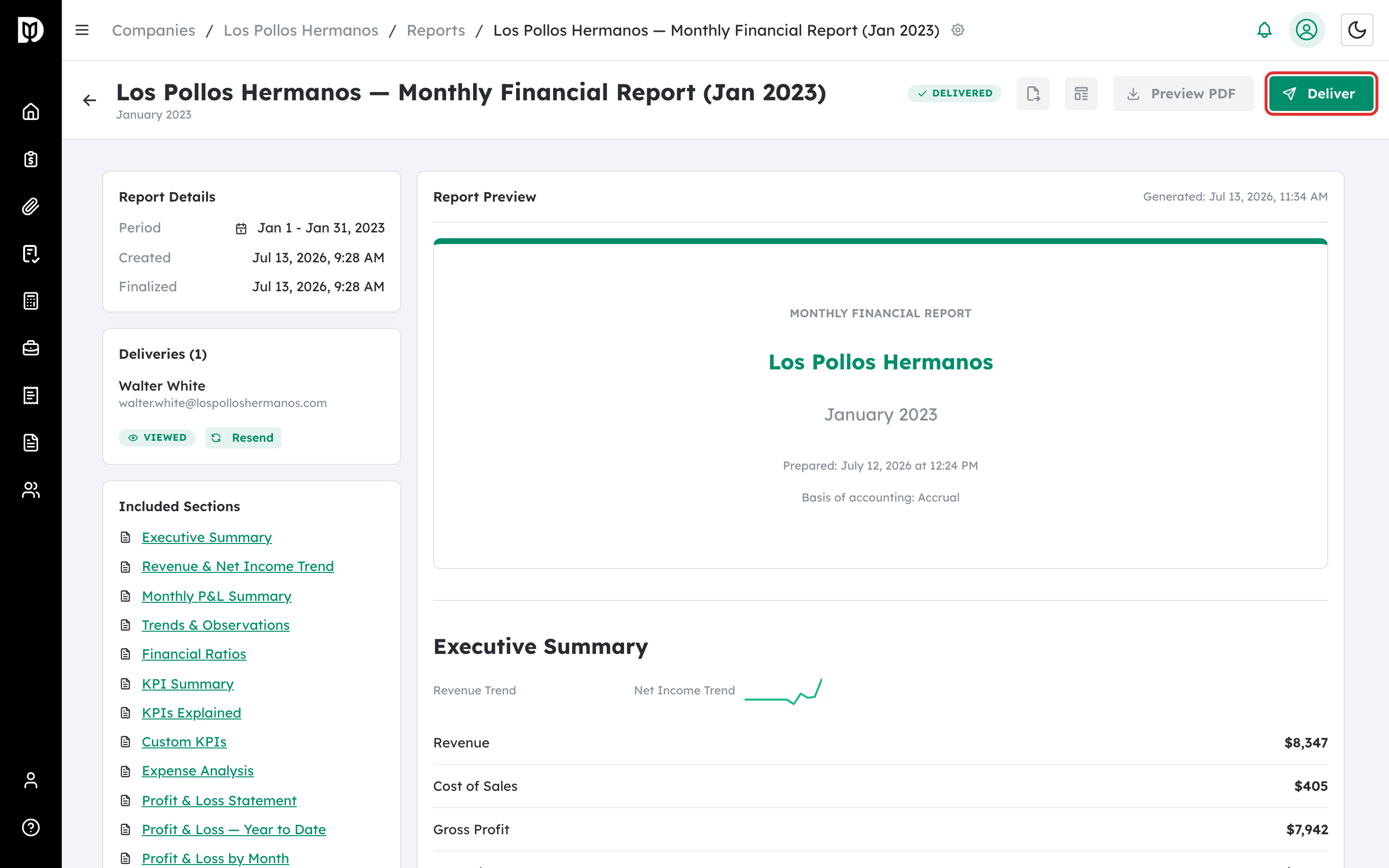
    On the report detail page (or from the three-dot menu in the Reports tab table), click the Deliver button (shown with a send icon). This opens the Deliver Report modal.

    Deliver button with send icon in the report detail header

    Step 2: Select recipients from your contacts #

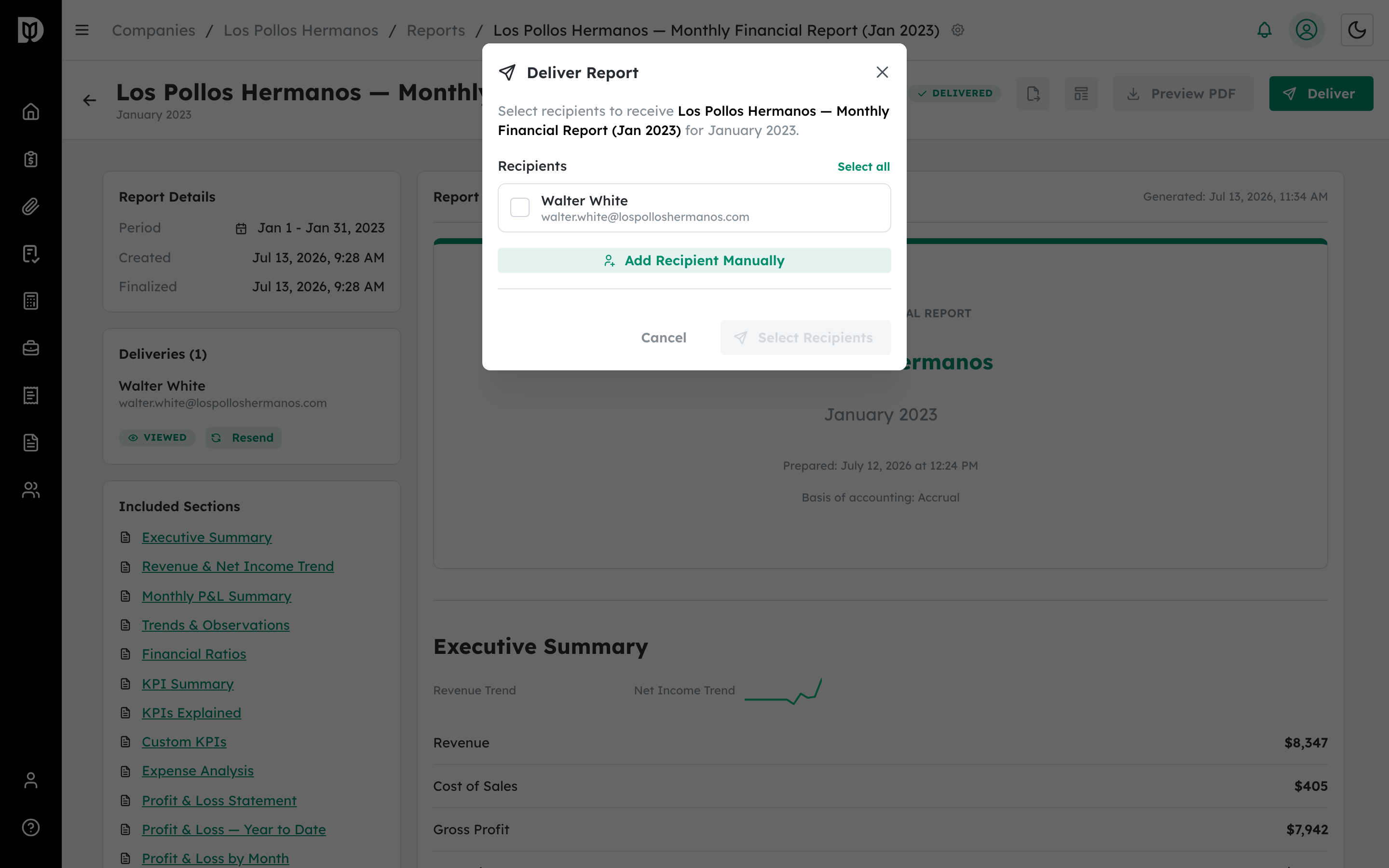
    The modal displays a list of contacts associated with the company. Check the box next to each contact you want to receive the report. You can use the search bar to filter contacts by name or email. Click Select all to choose every contact at once.

    Contact list with checkboxes in the Deliver Report modal

    Step 3: Add recipients manually (optional) #

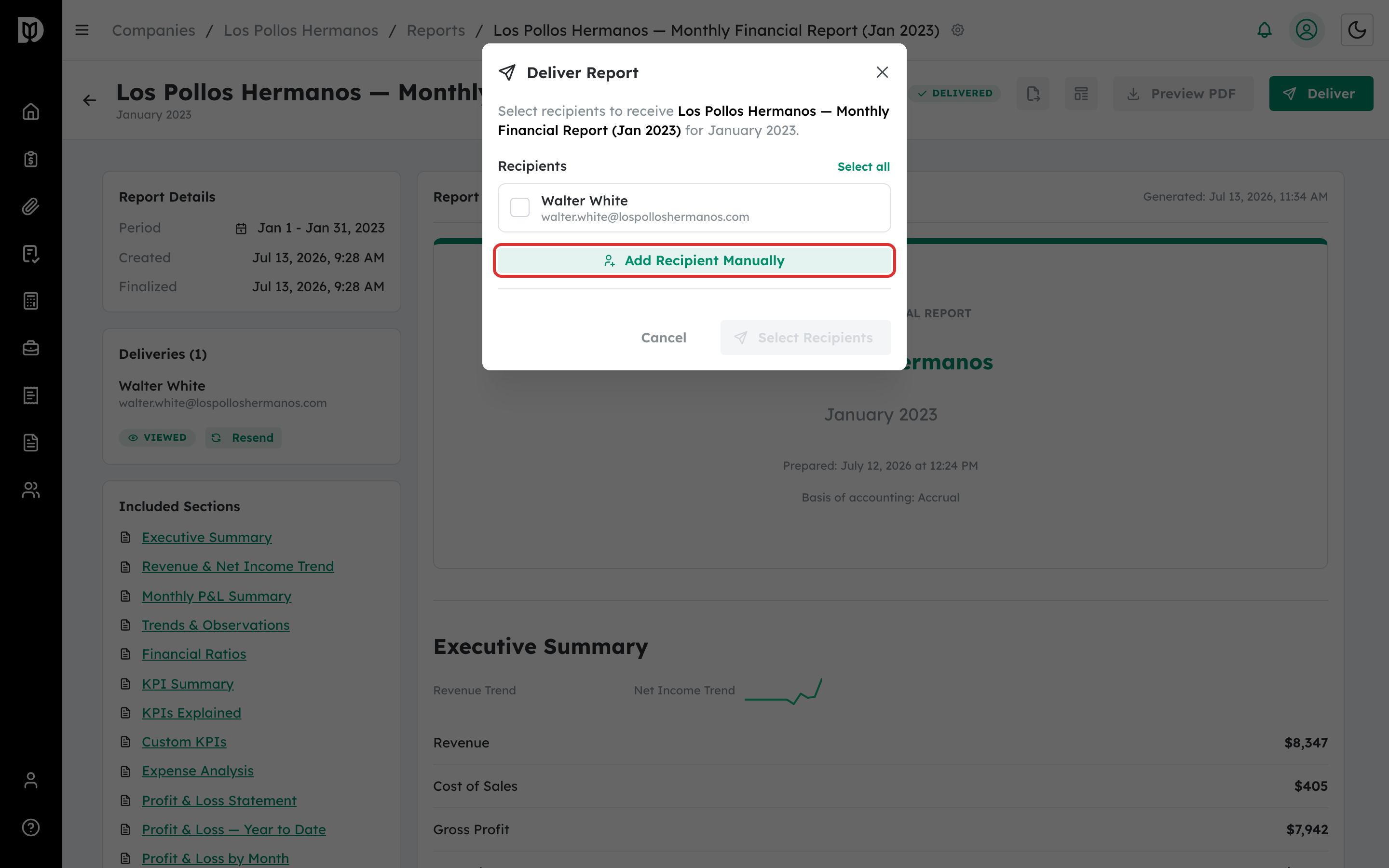
    If a recipient is not in your contacts list, click Add Recipient Manually. Enter their full name and email address, then click Add. The new recipient appears as a badge above the manual entry fields. You can remove them by clicking the X on their badge.

    Manual recipient entry fields with Add button

    Step 4: Write a custom message (optional) #

    After selecting at least one recipient, a Custom message text area appears. Enter a personal note to include in the delivery email, such as “Here is your monthly financial report. Please let me know if you have any questions.”

    Custom message text area in the Deliver Report modal

    Step 5: Enable Publish to client portal (optional) #

    Toggle the Publish to client portal switch to make the report available on the client’s dashboard within Debits. When enabled, clients can also find the report under their Financial Reports tab without needing the email link.

    Publish to client portal toggle switch

    Step 6: Send the report #

    Click the Send to [N] Recipient(s) button at the bottom of the modal. A progress indicator appears while the delivery is processed. Once complete, a success notification confirms that the report has been sent.

    Send to recipients button at the bottom of the Deliver Report modal

    What happens next #

    Each recipient receives an email with a secure link to view the report online and download the PDF. The report status changes to Delivered. You can track delivery status (Sent, Viewed, Downloaded) in the Deliveries panel on the report detail page. You can resend the report to any recipient by clicking the refresh icon next to their name.

    Troubleshooting #

    • “Select Recipients” button is grayed out: You must select at least one recipient before sending.
    • “Delivery Failed” error: Check your internet connection and try again. Confirm that the recipient email addresses are valid.
    • No contacts appear in the list: The company may not have any contacts set up. Use the manual add option, or add contacts first from the Contacts page.
    • Recipient did not receive the email: Ask them to check their spam folder. You can resend the report from the Deliveries panel on the report detail page.

    Related articles #

    Updated on April 7, 2026

    Debits © 2026, All rights reserved.