Schedule your 15-minute demo now

    We’ll tailor your demo to your immediate needs and answer all your questions. Get ready to see how it works!

    View Categories

    How to Access a Shared Financial Report

    Who this is for: Anyone who has received a financial report link from their accountant via email.

    What you’ll learn: How to open, view, and download a financial report using the secure access link — no Debits account required.

    Before you begin #

    • You need the report access link sent to you by your accountant (typically received via email).
    • No Debits account or login is required to view the report.
    • The link must be valid and not expired.

    Step-by-step instructions #

    Step 1: Click the report link in your email #

    Open the delivery email from your accountant and click the link to view your financial report. The link opens in your web browser and takes you directly to the report page.

    Financial report link in a delivery email

    Step 2: View the report #

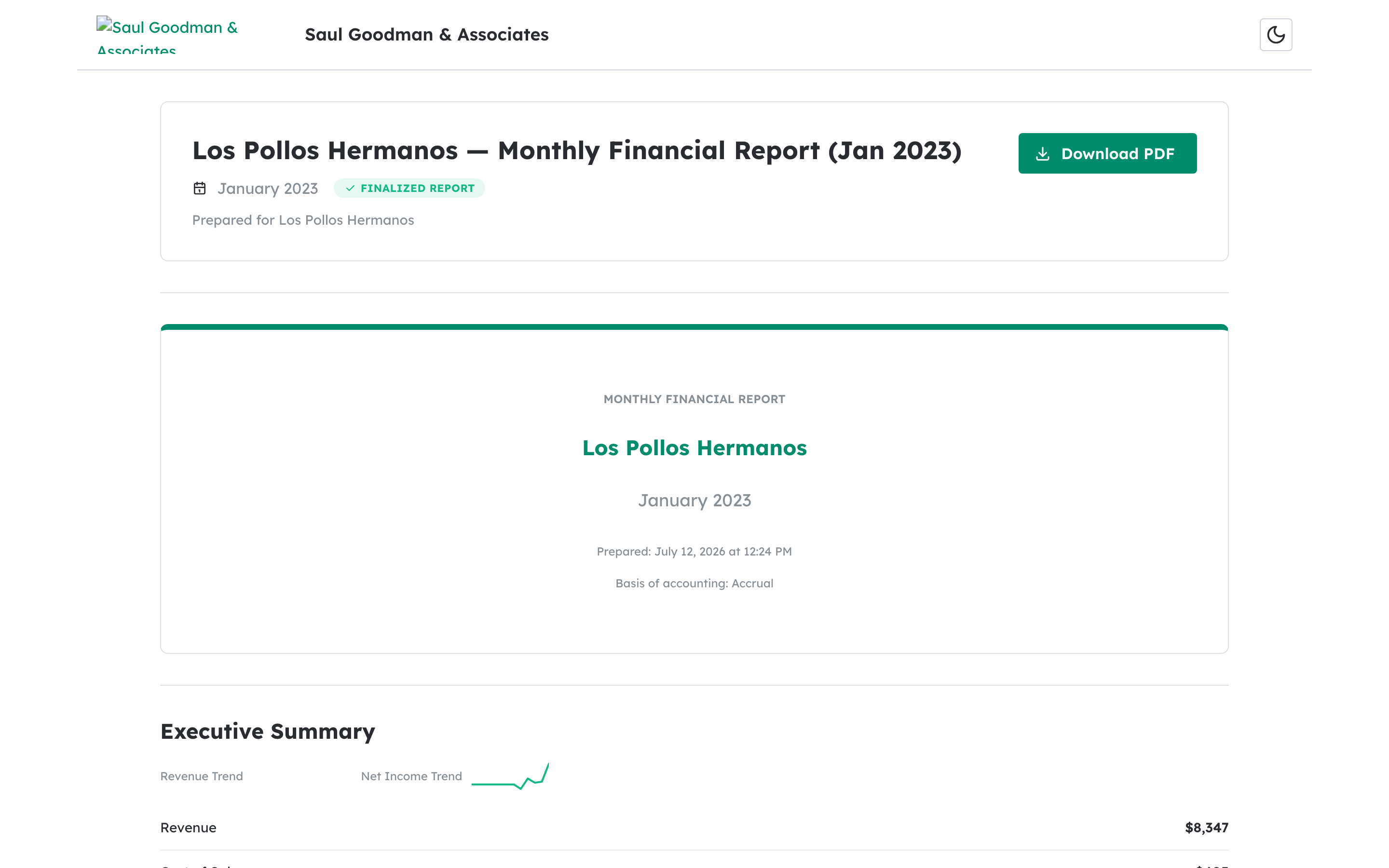
    The report page displays a branded header (showing your accountant’s firm logo and name, if configured), followed by the report title, period, and a “Finalized Report” badge. Scroll down to see all report sections including the Executive Summary, charts, financial statements, and disclaimer.

    Report access page showing branded header, report title, and Finalized Report badge

    Step 3: Download the PDF #

    Click the Download PDF button at the top of the report page. The PDF file downloads to your computer. A second Download PDF button is also available at the bottom of the report for convenience.

    Download PDF button at the top of the report access page

    What happens next #

    Once you view or download the report, your accountant can see the updated status (Viewed or Downloaded) on their end. If you have questions about the financial data in the report, contact your accountant directly. Their firm name is displayed at the bottom of the report page.

    Troubleshooting #

    • “This link is invalid or has expired”: The access link may have expired or been revoked. Contact your accountant and ask them to resend the report with a new link.
    • The page shows a loading spinner that does not stop: Check your internet connection and refresh the page. The report data may take a few seconds to load.
    • Download fails: Try clicking the Download PDF button again. If the issue persists, try a different browser or contact your accountant for the PDF directly.

    Related articles #

    Updated on April 7, 2026

    Debits © 2026, All rights reserved.