

Who this is for: Accountants sending a finalized report to their clients.
What you’ll learn: How to choose recipients, add a message, and deliver the report.
Before you begin #
- The report must be finalized.
- Recipients can be existing company contacts or added manually.
Step-by-step instructions #
Step 1: Start delivery #
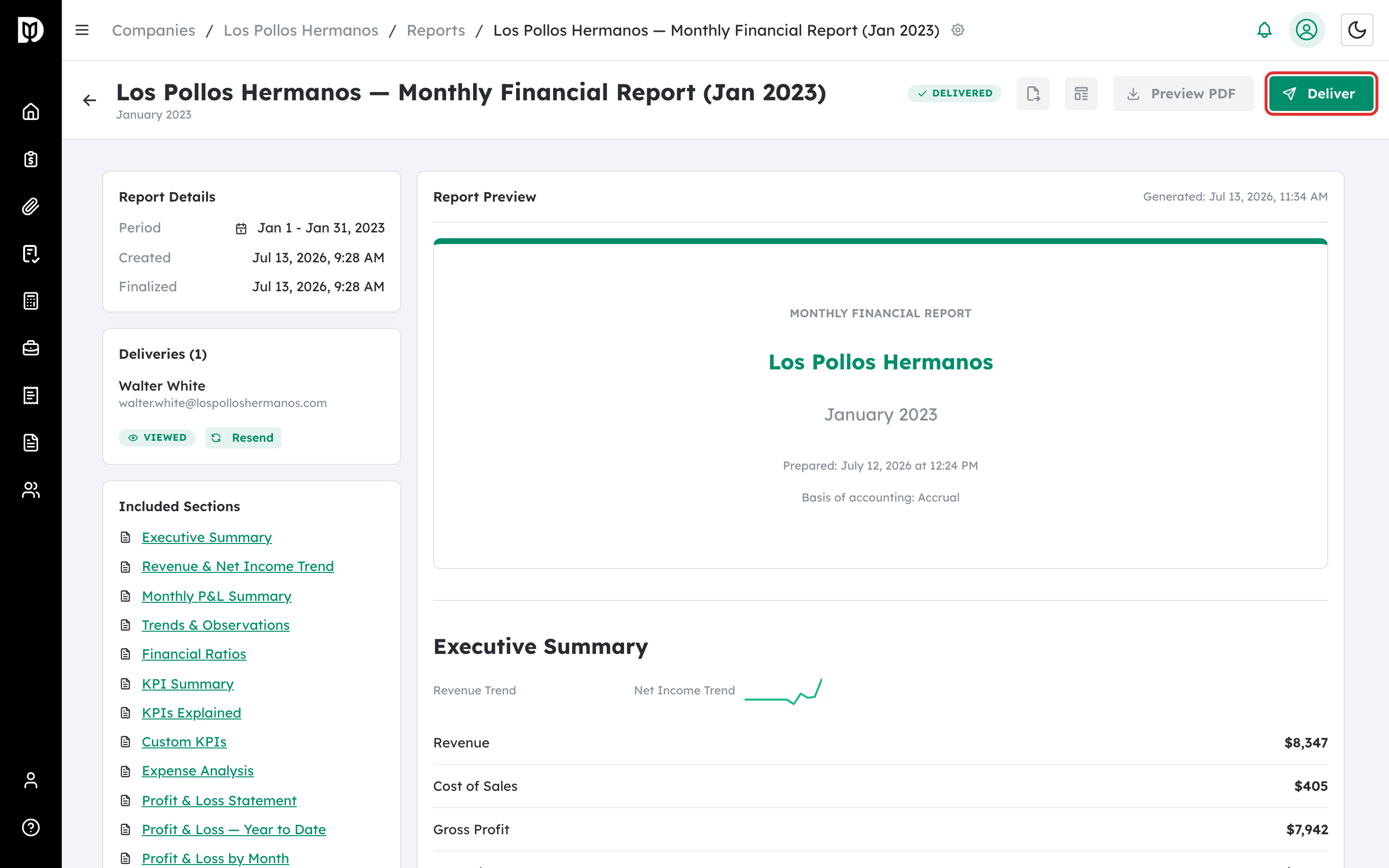
Open the finalized report and select Deliver.
Step 2: Choose recipients #
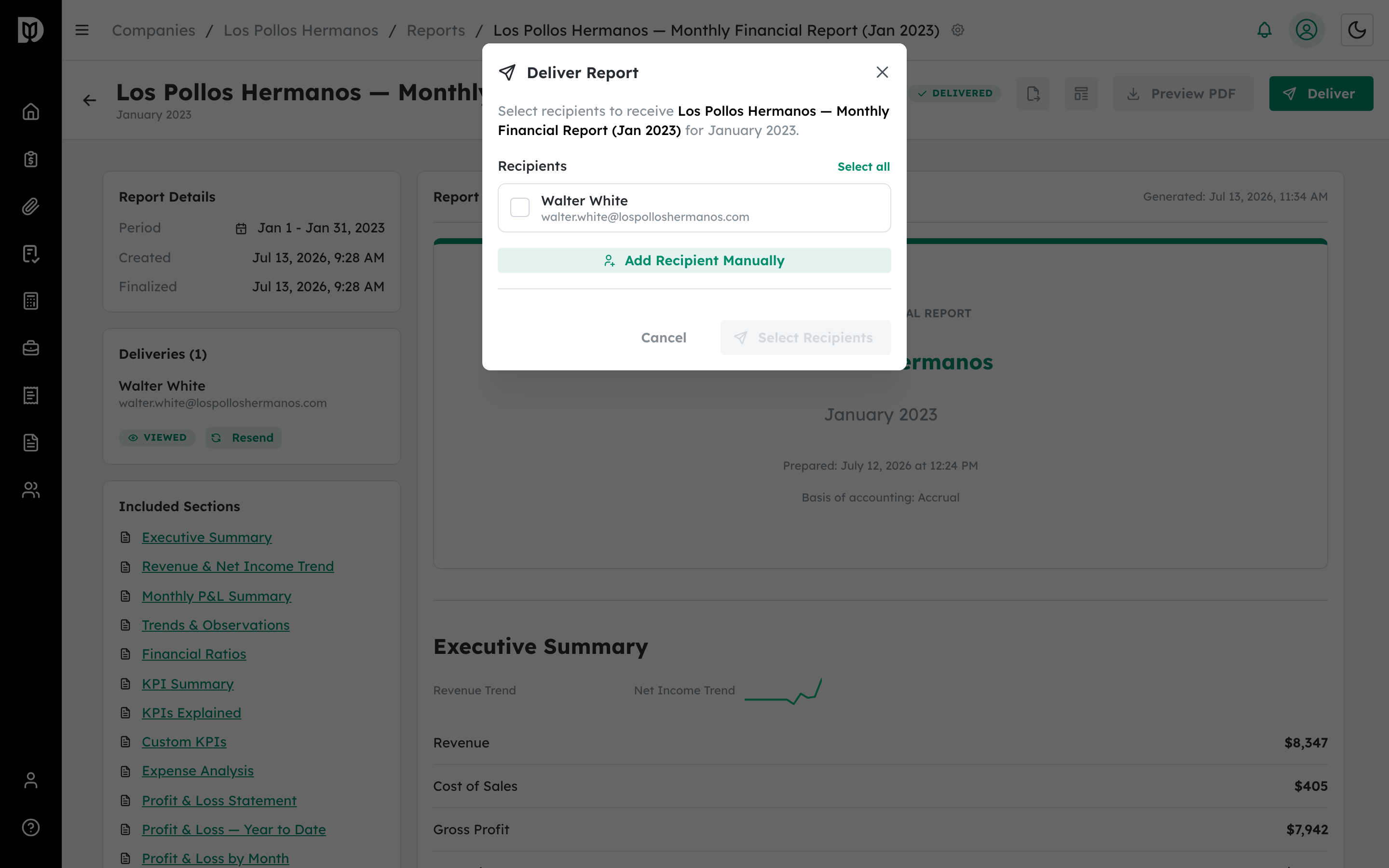
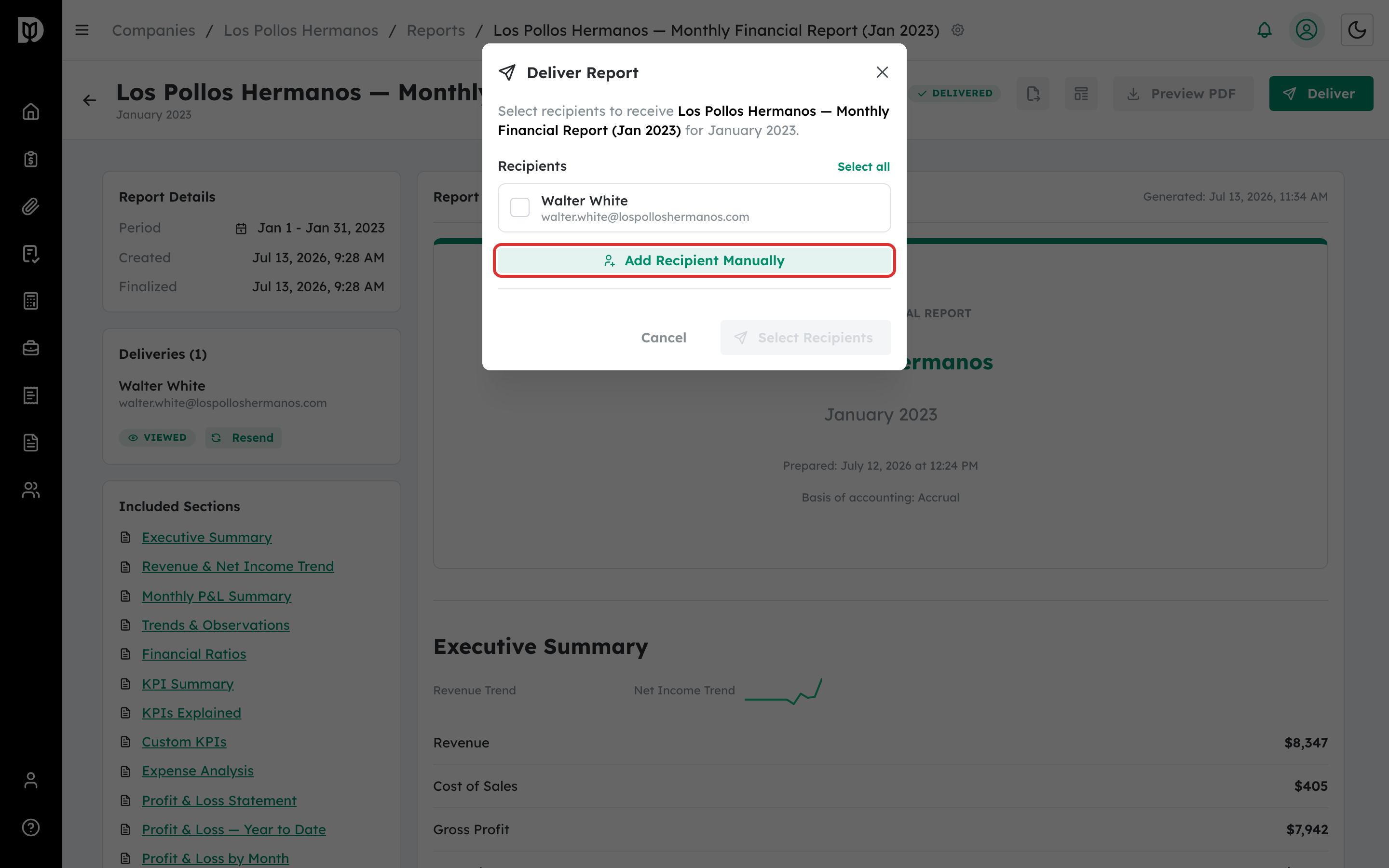
In Deliver Report, check the contacts who should receive it, or add someone with Add Recipient Manually.
Step 3: Add a message and portal option #
Add an optional Custom message. Turn on Publish to client portal to also make the report available on the client’s dashboard.
Step 4: Send #
Select Send to … Recipients. Each recipient gets an email with a secure link to their report.
What happens next #
The report status changes to Delivered. Each recipient receives a secure link, and you can track when they view or download it.
Troubleshooting #
- Problem: No contacts appear. Add recipients manually, or add contacts to the company first.
- Problem: The Send button is disabled. Select at least one recipient.


