

Who this is for: Accountants who want to view, search, filter, duplicate, or delete existing reasonable compensation surveys.
What you’ll learn: How to navigate the RC survey dashboard, use search and filters to find specific surveys, and perform actions like duplicating or deleting surveys.
Before you begin #
- You need an active Debits account with the Accountant role.
- You should have at least one existing RC survey. If not, see How to Create a Reasonable Compensation Survey.
Step-by-step instructions #
Step 1: Open the survey dashboard #
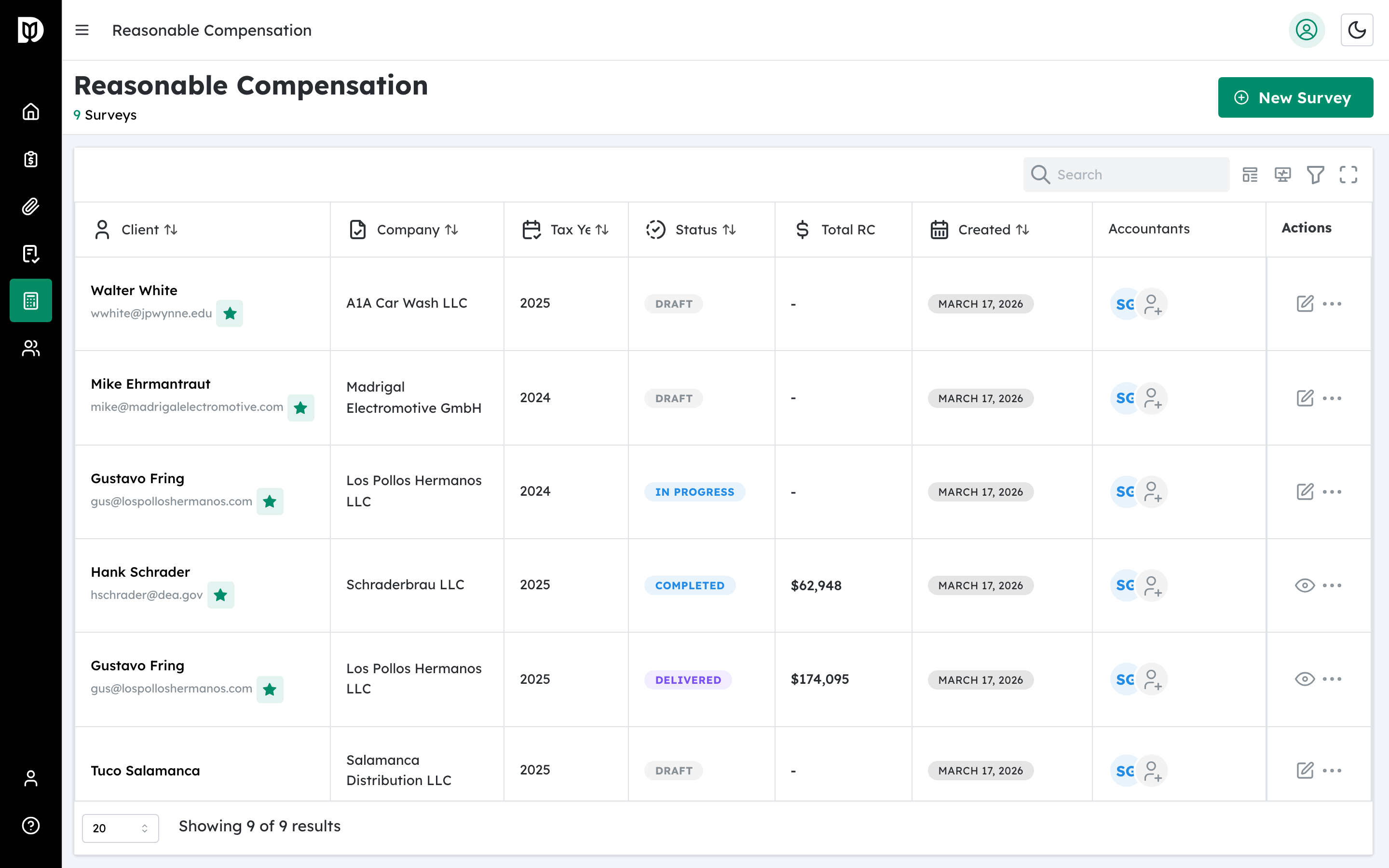
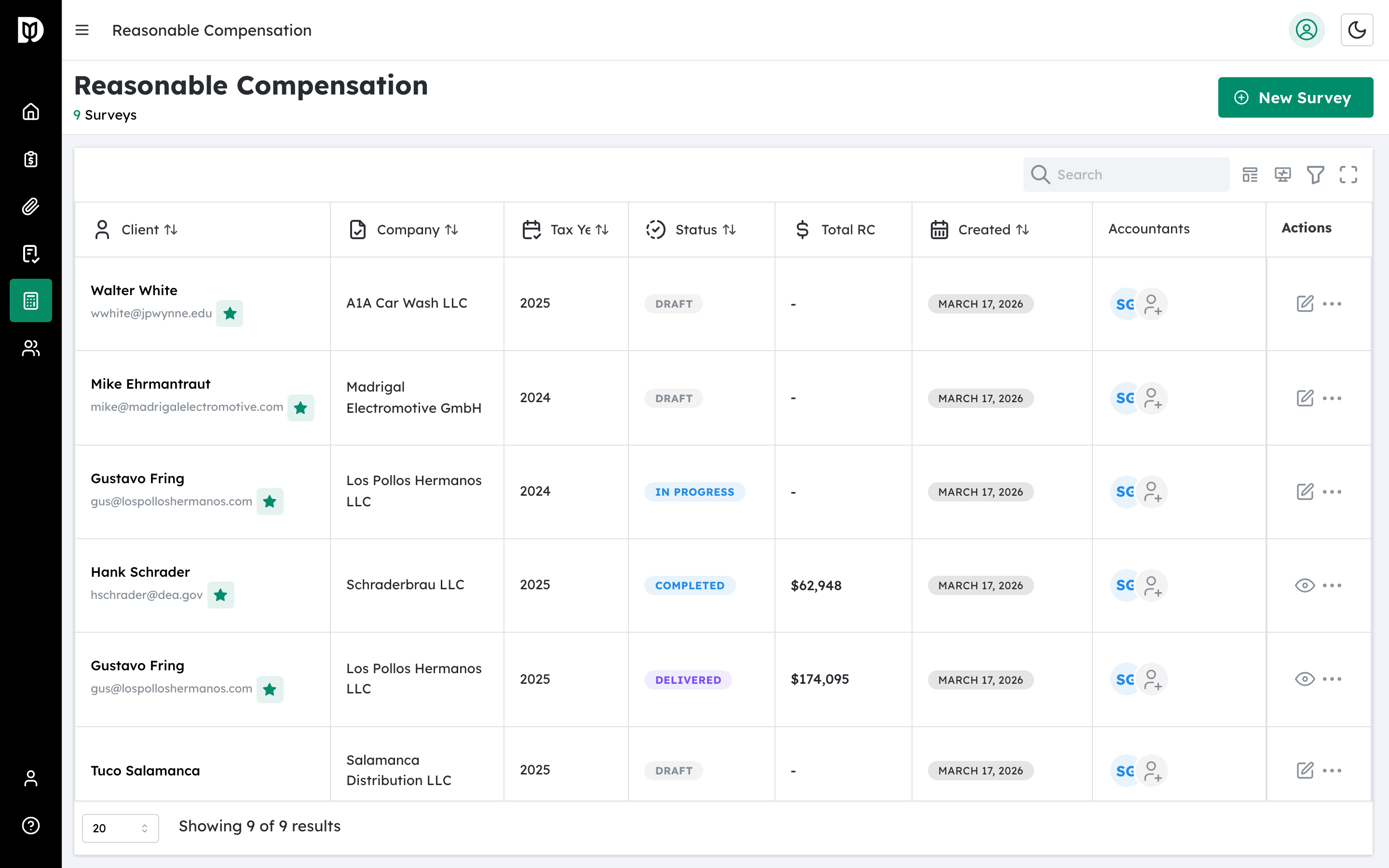
Click Reasonable Comp in the left sidebar to open the dashboard. The page title reads Reasonable Compensation and shows a count of your surveys (for example, “12 Surveys”).
Step 2: Create a new survey #
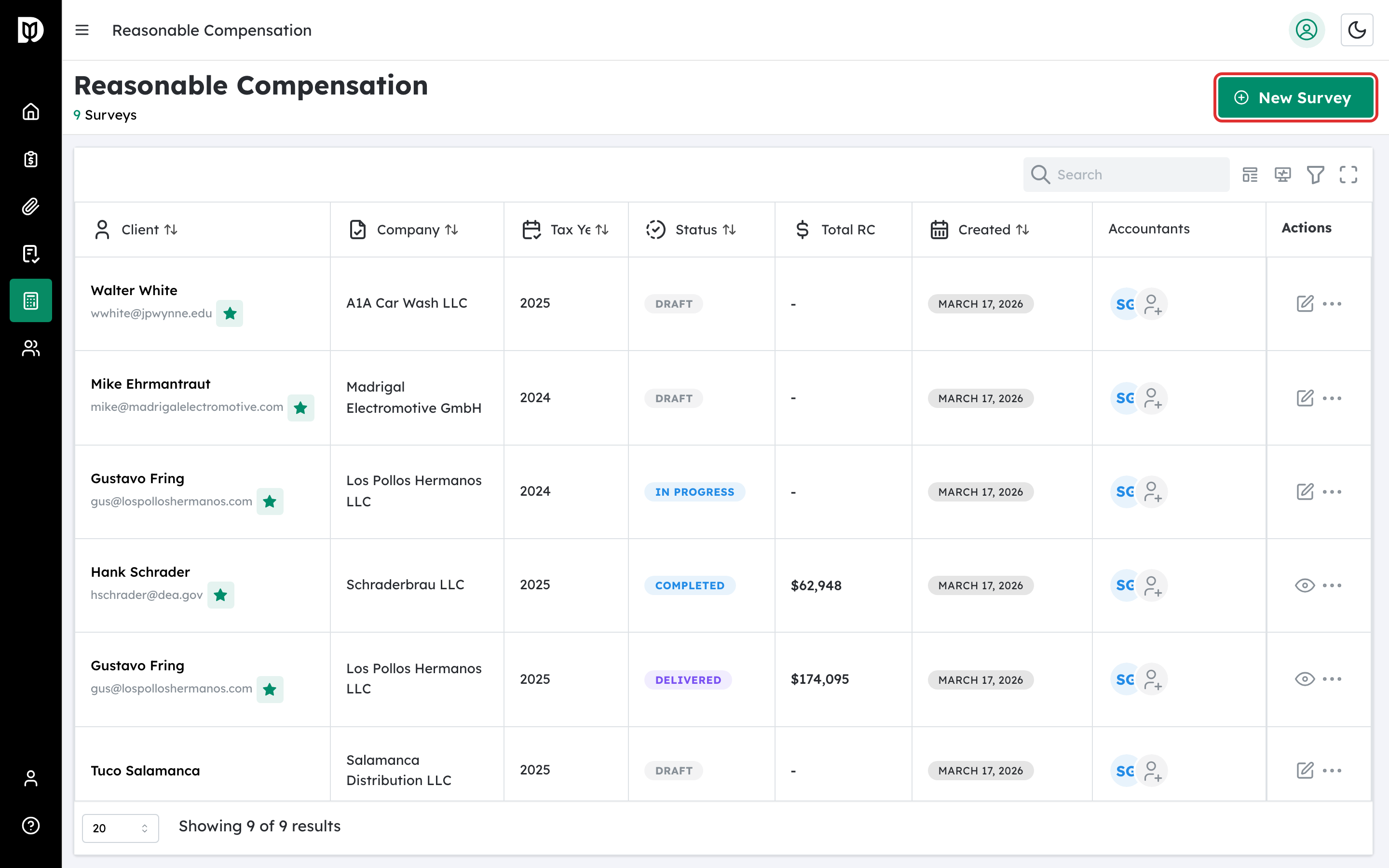
To start a new compensation analysis, click the New Survey button in the top-right corner of the dashboard. This takes you to the survey wizard.
Step 3: Search for a survey #
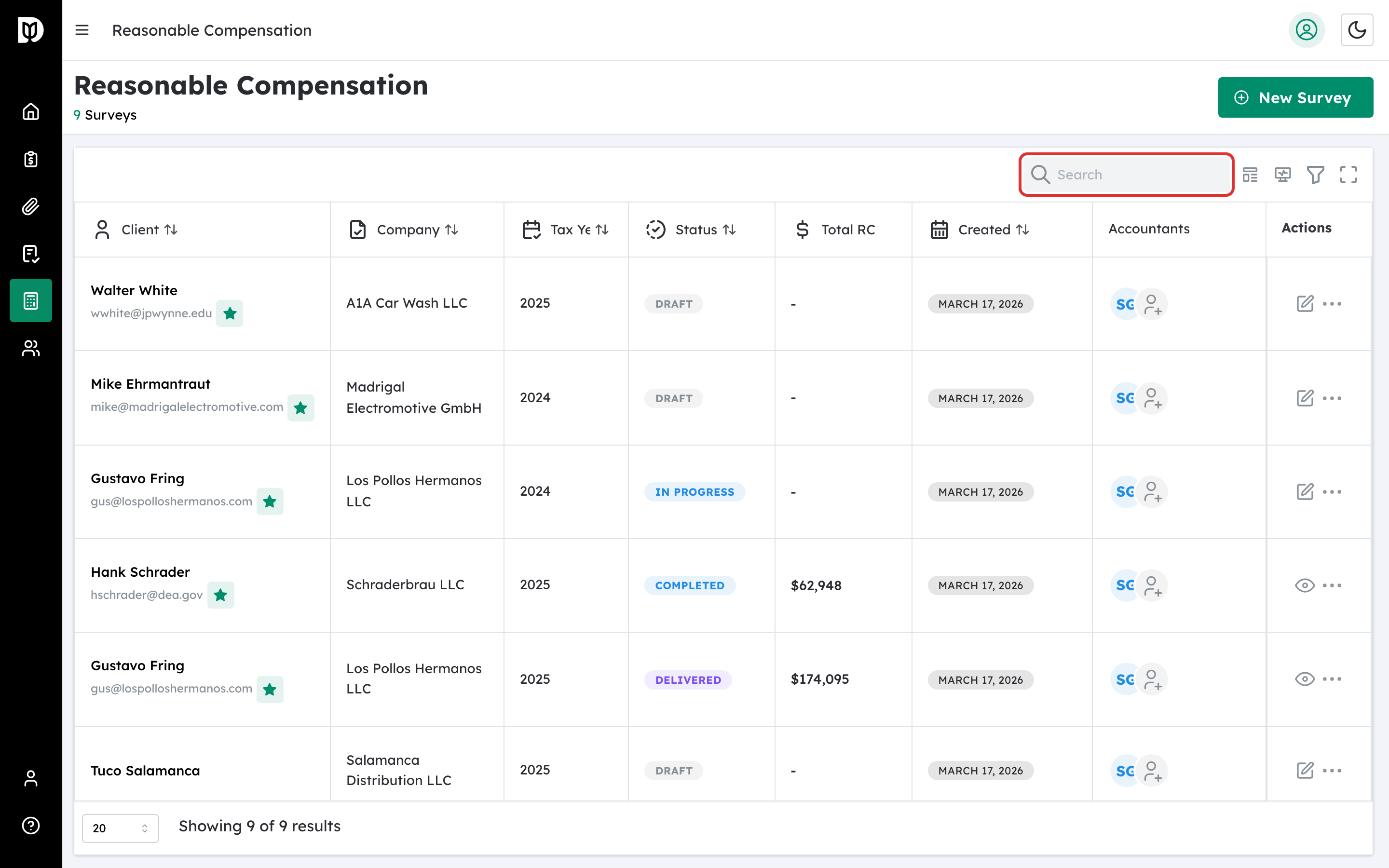
Use the search bar at the top of the table to find surveys by client name. Type part of the client’s name and the table updates automatically.
Step 4: Filter surveys by status or tax year #
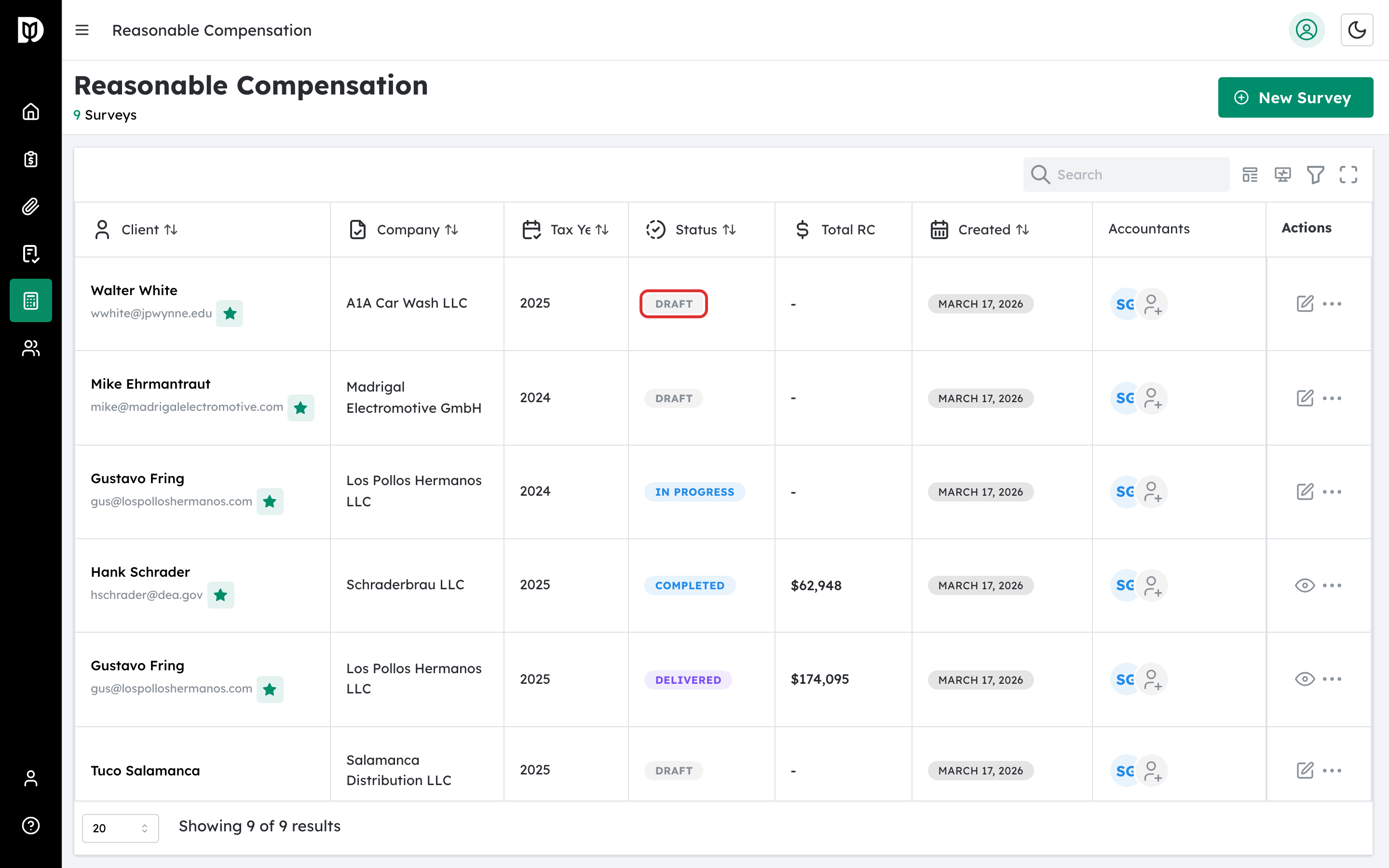
Each column header has a filter option. Click the filter icon on the Status column to filter by Draft, In Progress, Completed, Finalized, or Delivered. Click the filter icon on the Tax Year column to filter by a specific year (2020 through 2025). The Created column supports date range filtering.
Step 5: Open a survey #
Click a client name in the table to open that survey. Surveys with a status of Draft or In Progress open in the survey wizard so you can continue editing. Surveys with a status of Completed, Finalized, or Delivered open the report page instead.
You can also click the action icon in the row: a pencil icon appears for draft and in-progress surveys, while an eye icon appears for completed surveys and beyond.
Step 6: Access the row action menu #
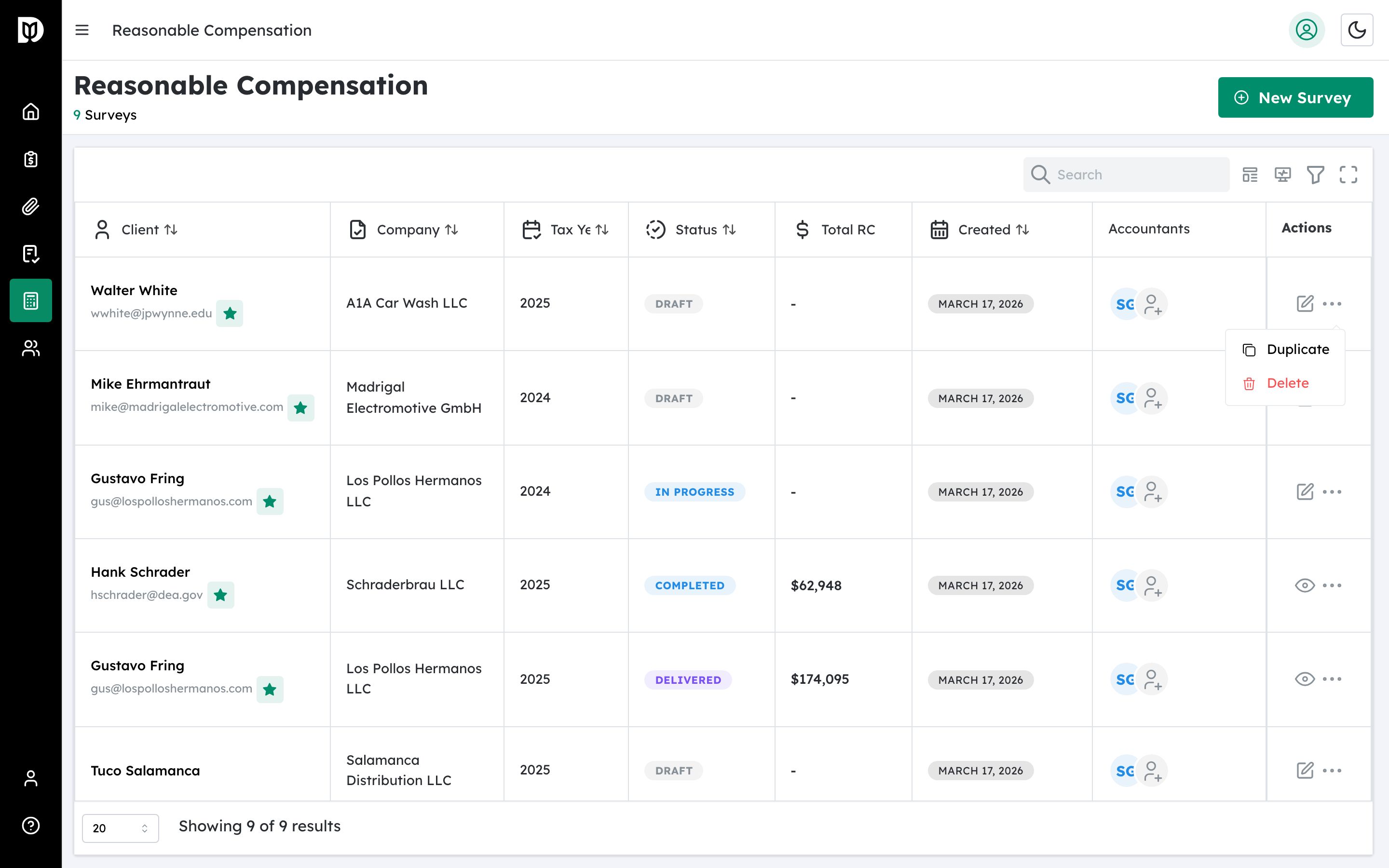
Each survey row has a three-dot menu icon on the right side. Click it to reveal additional actions.
Step 7: Duplicate or delete a survey #
The action menu provides two options:
- Duplicate: Creates a copy of the survey and opens it in the survey wizard for editing. This is useful when you need to create a similar analysis for a different tax year or with slight modifications.
- Delete: Opens a confirmation dialog asking “Are you sure you want to delete this survey?” Click Confirm to permanently delete, or Cancel to keep the survey.
What happens next #
When you open a draft or in-progress survey, the wizard resumes at your last step. When you open a completed survey, the full report is displayed with export options.
Troubleshooting #
- The table is empty but I have created surveys before: Check if any filters are active. Clear all column filters and the search field to show all surveys.
- I accidentally deleted a survey: Deleted surveys cannot be recovered. Consider using the Duplicate action before deleting if you need to preserve the data.
- The Duplicate action is slow or shows an error: This may happen if the server is temporarily unavailable. Wait a few seconds and try again.


