

Who this is for: Accountants who need to create a new reasonable compensation study for an S-Corporation shareholder-employee.
What you’ll learn: How to complete all six steps of the RC survey wizard, from entering client information to generating the final compensation report.
Before you begin #
- You need an active Debits account with the Accountant role.
- Have the following information ready for your client: client name, company name, tax year, company EIN (optional), business state, and the types of work the shareholder performs.
- Know approximately how many hours per week the shareholder works and how those hours are split across different job functions.
Step-by-step instructions #
Step 1: Start a new survey #
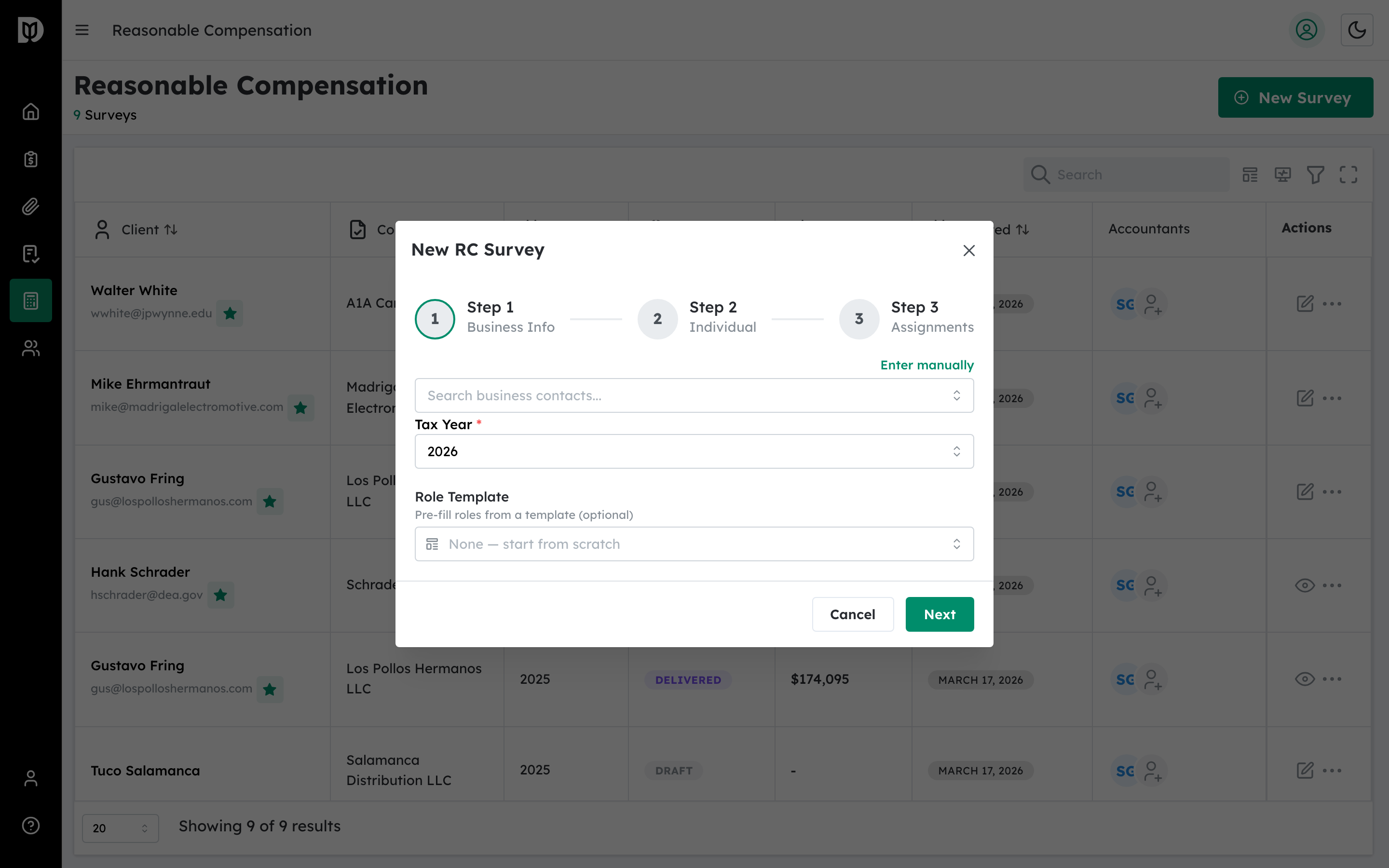
From the Reasonable Compensation dashboard, click the New Survey button. The survey wizard opens with a sidebar on the left showing all six steps and the main content area on the right.
The six wizard steps are:
- Client Info — Basic client and company details
- Time & Location — Weekly hours and business location
- Standard Tasks — Common job categories the shareholder performs
- Business Tasks — Additional specialized roles
- Hours & Proficiency — Time allocation and skill level for each role
- Review — Review all entries and complete the survey
Step 2: Enter client information (Step 1 of 6) #
The first section presents questions one at a time in a slide format. Fill in:
- What is the client name? — Enter the shareholder-employee’s full name (for example, “John Smith”).
- What is the company name? — Enter the S-Corporation name (for example, “Smith Consulting LLC”).
- What tax year is this for? — Select the tax year from the dropdown. Options range from the current year back to four years prior.
- What is the company EIN? — Optionally enter the Employer Identification Number in the format XX-XXXXXXX.
Click Next on each slide to advance to the next question. When you finish all questions in this section, click Next Section to continue.
Step 3: Understand auto-save and the sidebar #
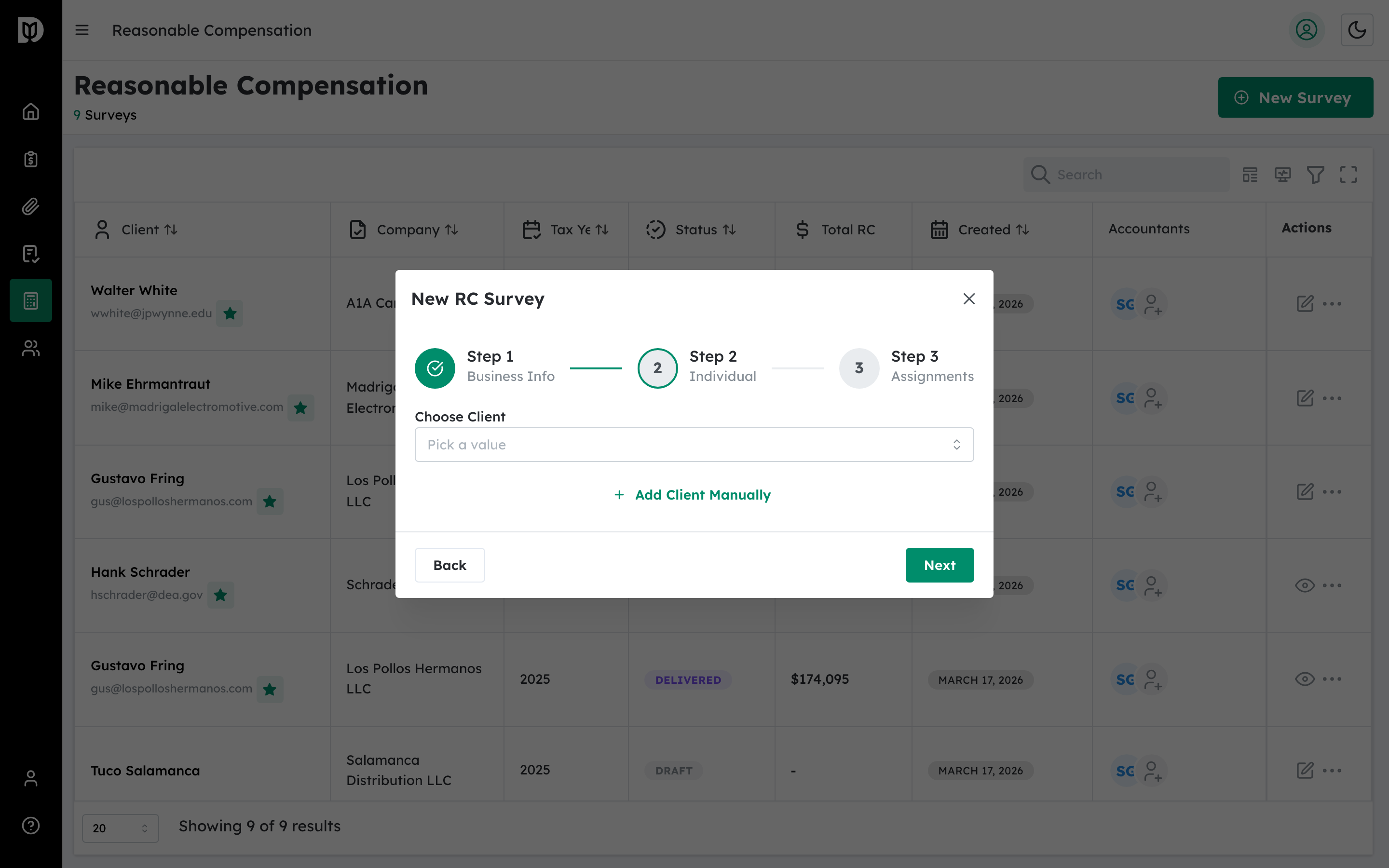
The sidebar tracks your progress and saves your work automatically:
- Progress bar: Shows the percentage of the wizard you have completed.
- Task count: Displays how many roles you have selected (for example, “3 task(s) selected”).
- Save status: Shows “Saving…” during a save, or “Saved 2m ago” after the last successful save. Your work auto-saves 3 seconds after any change.
- Save button: Click to manually save at any time.
- Step navigation: Click any completed or current step to jump directly to it.
Step 4: Set time and location (Step 2 of 6) #
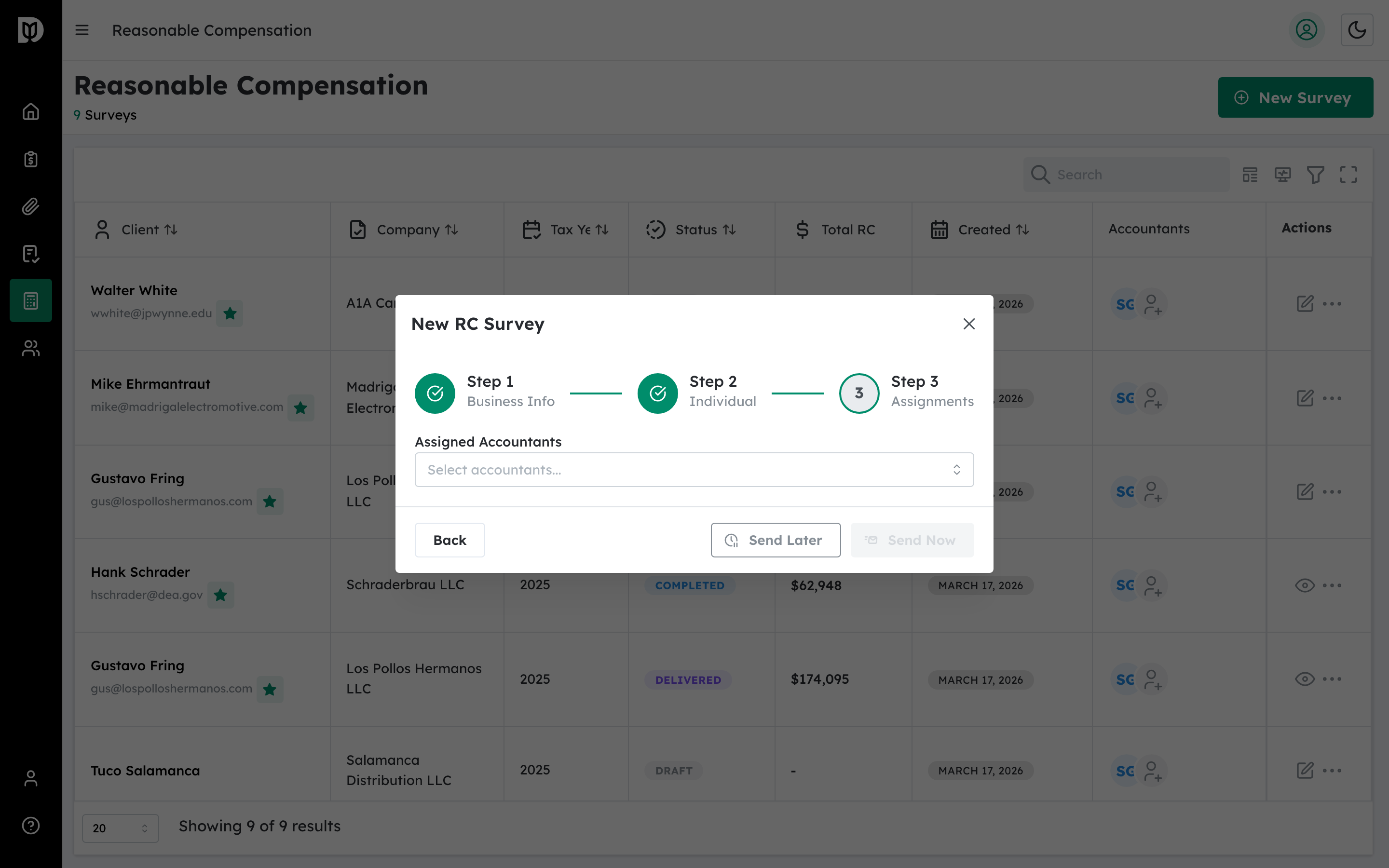
In this section, answer three questions:
- How many hours per week does the shareholder work? — Use the slider to select between 0 and 60 hours. The slider has marks at 0, 20, 40, and 60 hours.
- In which state is the business located? — Select from all 50 US states plus DC. This determines the geographic wage adjustment.
- What county is the business in? — Optionally enter the county (for example, “Los Angeles County”). This helps refine the wage data if available.
Step 5: Select standard tasks (Step 3 of 6) #
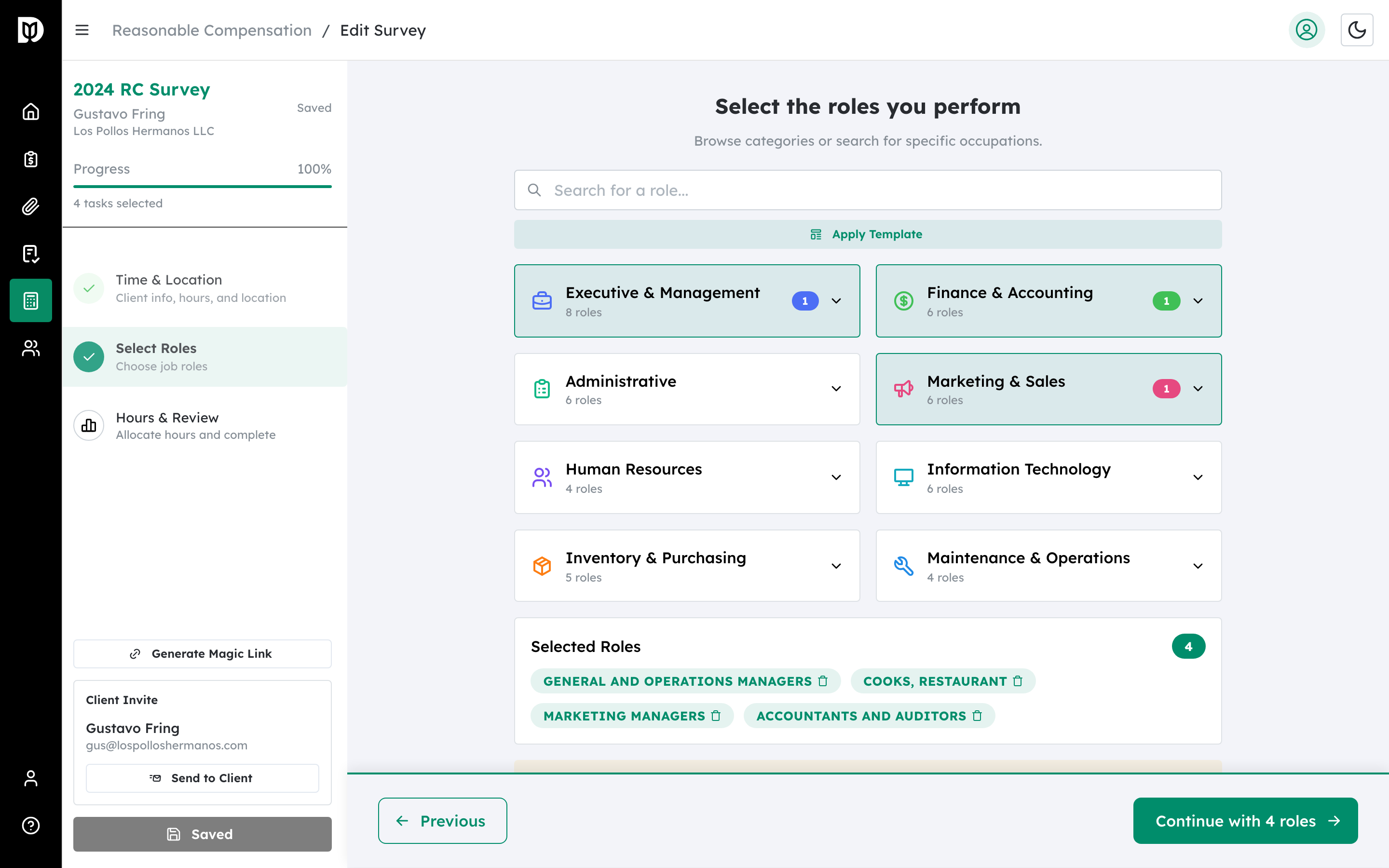
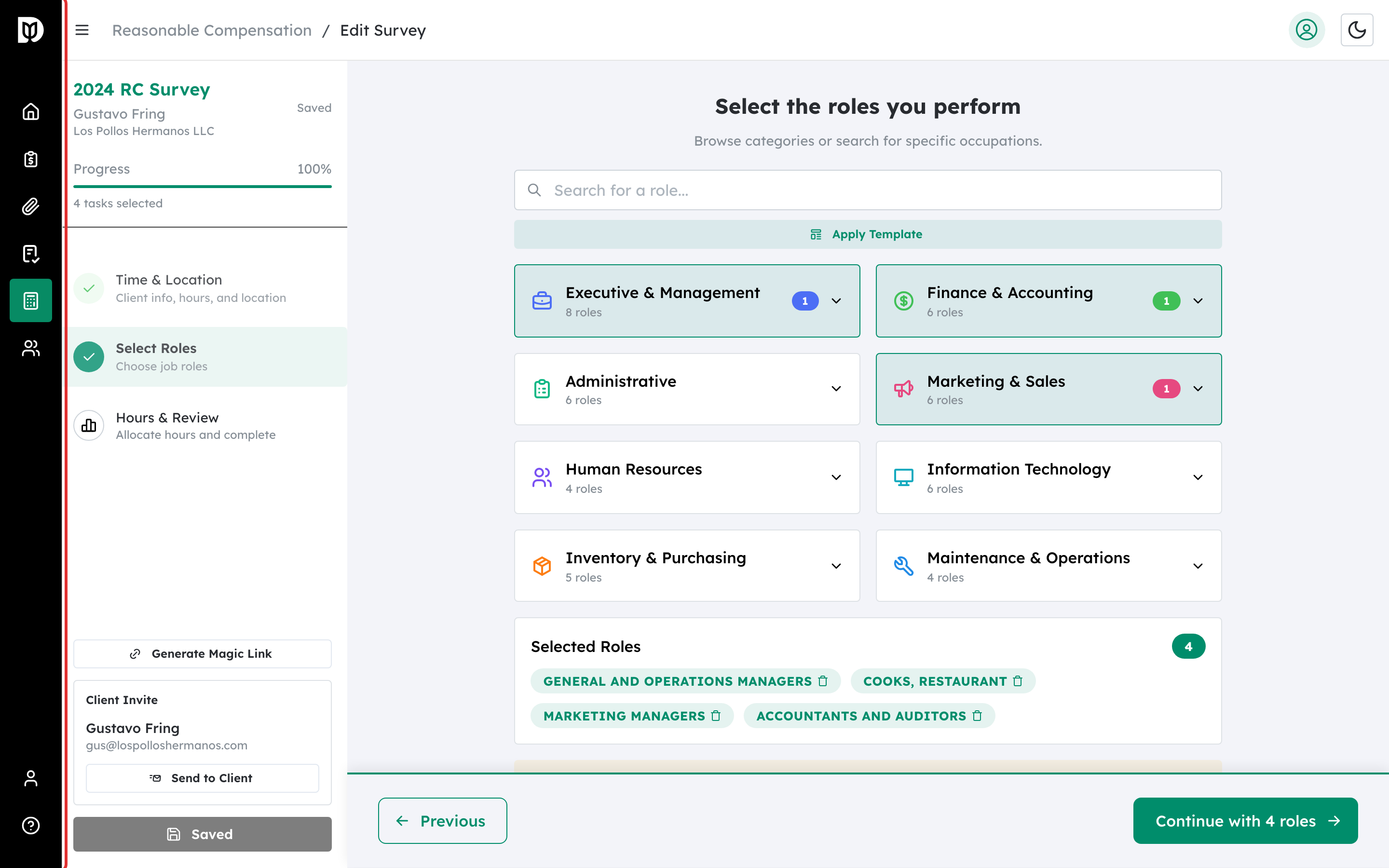
This step asks: What types of work does the shareholder perform?
The screen shows eight task category cards, each containing common job roles:
- Executive & Management: Chief Executive, General & Operations Manager, Marketing Manager, Administrative Services Manager
- Financial & Accounting: Financial Manager, Accountant, Financial Analyst, Bookkeeper
- Sales & Marketing: Sales Manager, Sales Representative, Retail Sales Supervisor
- Technical & IT: IT Manager, Software Developer, Computer Systems Analyst, Network Administrator
- Professional Services: Management Analyst, Project Manager, Business Consultant
- Administrative: Office Manager, Administrative Assistant, Receptionist
- Healthcare: Healthcare Administrator, Registered Nurse, Licensed Practical Nurse
- Construction & Trades: Construction Manager, Construction Supervisor, Electrician, Plumber
Click on a category card to expand it and check the specific roles the shareholder performs. Selected roles appear as badge pills at the bottom of the step. You can remove a role by clicking the trash icon on its badge.
Step 6: Add business-specific tasks (Step 4 of 6) #
If the shareholder performs specialized roles not covered by the standard categories, add them here. This step uses the same interface as Standard Tasks but lets you search for additional BLS occupation codes. Skip this step if the standard categories cover all the shareholder’s job functions.
Step 7: Allocate hours and set proficiency (Step 5 of 6) #
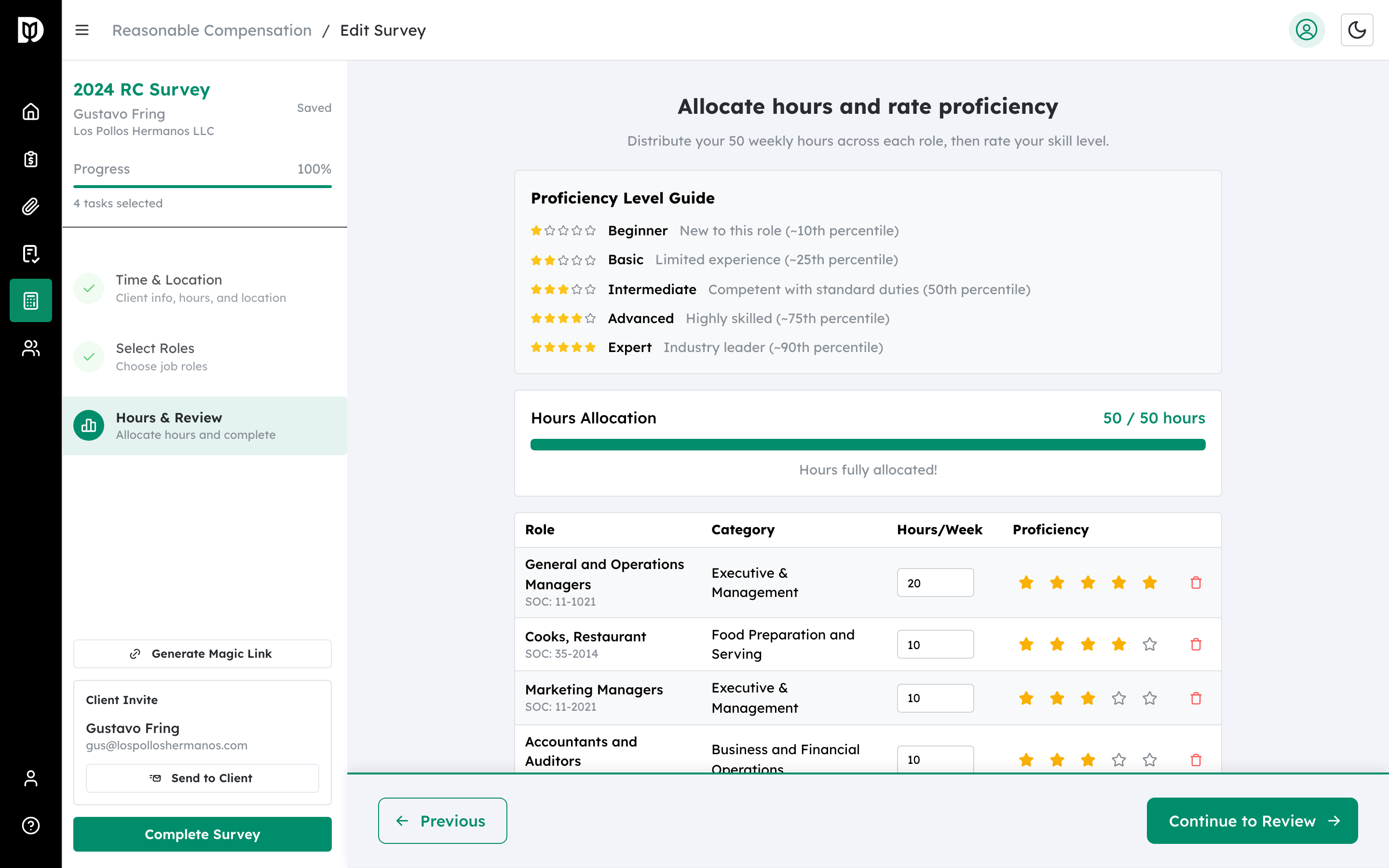
For each role you selected, set:
- Hours per week: Enter the number of hours the shareholder spends on this role each week.
- Proficiency level: Rate the shareholder’s skill level using a 1-to-5 star rating:
- 1 star = Entry Level
- 2 stars = Developing
- 3 stars = Proficient
- 4 stars = Advanced
- 5 stars = Expert
The Hours Progress card at the top shows how many hours you have allocated out of the total weekly hours you set in Step 2. The progress bar turns:
- Blue when hours remain to be allocated
- Green when hours are fully allocated
- Red when hours are over-allocated
Aim to match the total hours allocated to the weekly hours you entered. You can remove a role by clicking the trash icon next to it.
Step 8: Review and complete the survey (Step 6 of 6) #
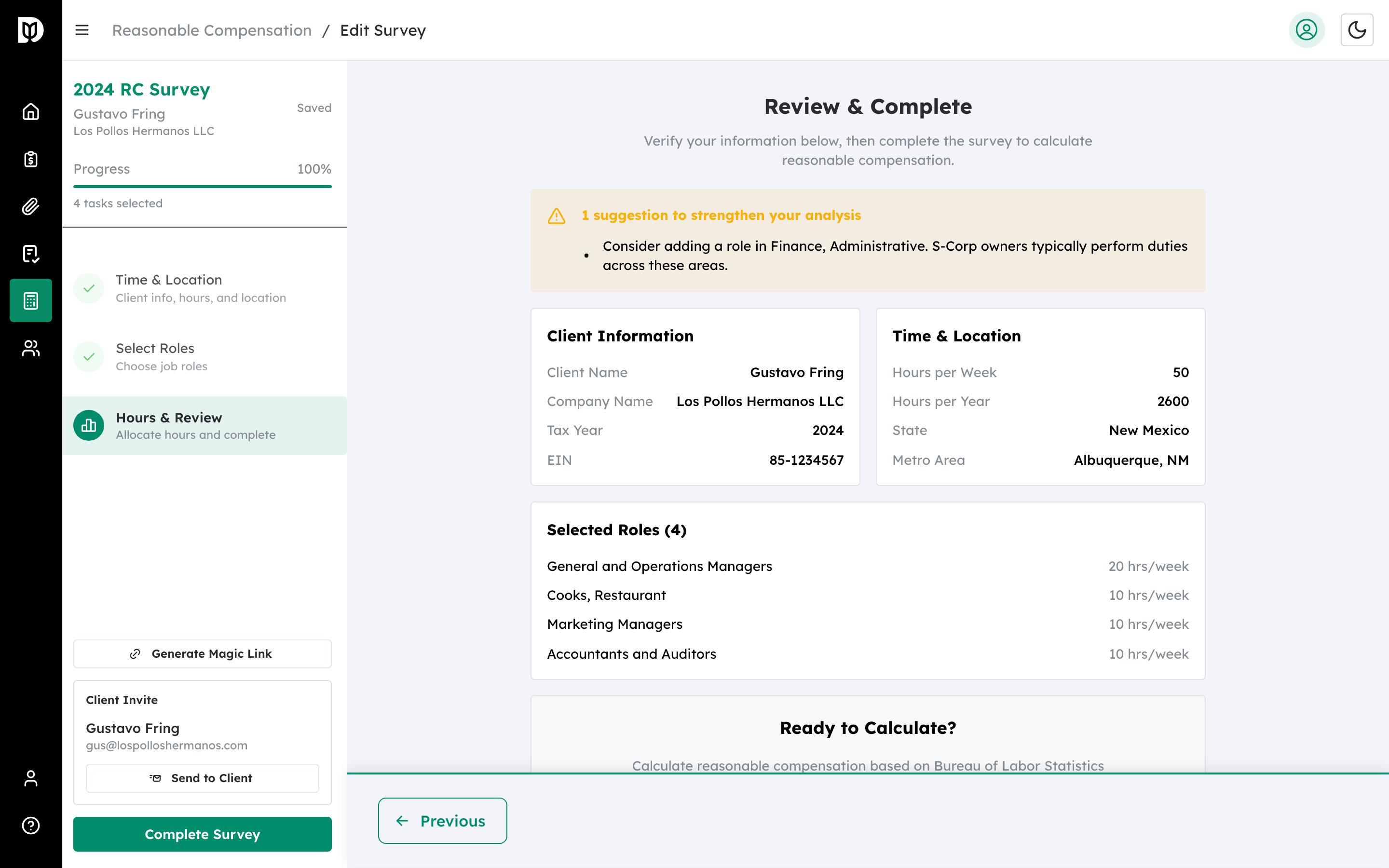
The final step displays all your entries for review:
- Client Information card: Client name, company name, tax year, and EIN
- Time & Location card: Hours per week, state, and county
- Selected Roles table: Each role with its category, hours per week, and proficiency rating
If everything looks correct, click the Complete Survey button at the bottom of the page (or in the sidebar). Debits will calculate reasonable compensation using BLS wage data and redirect you to the report page.
Step 9: Save your progress manually #
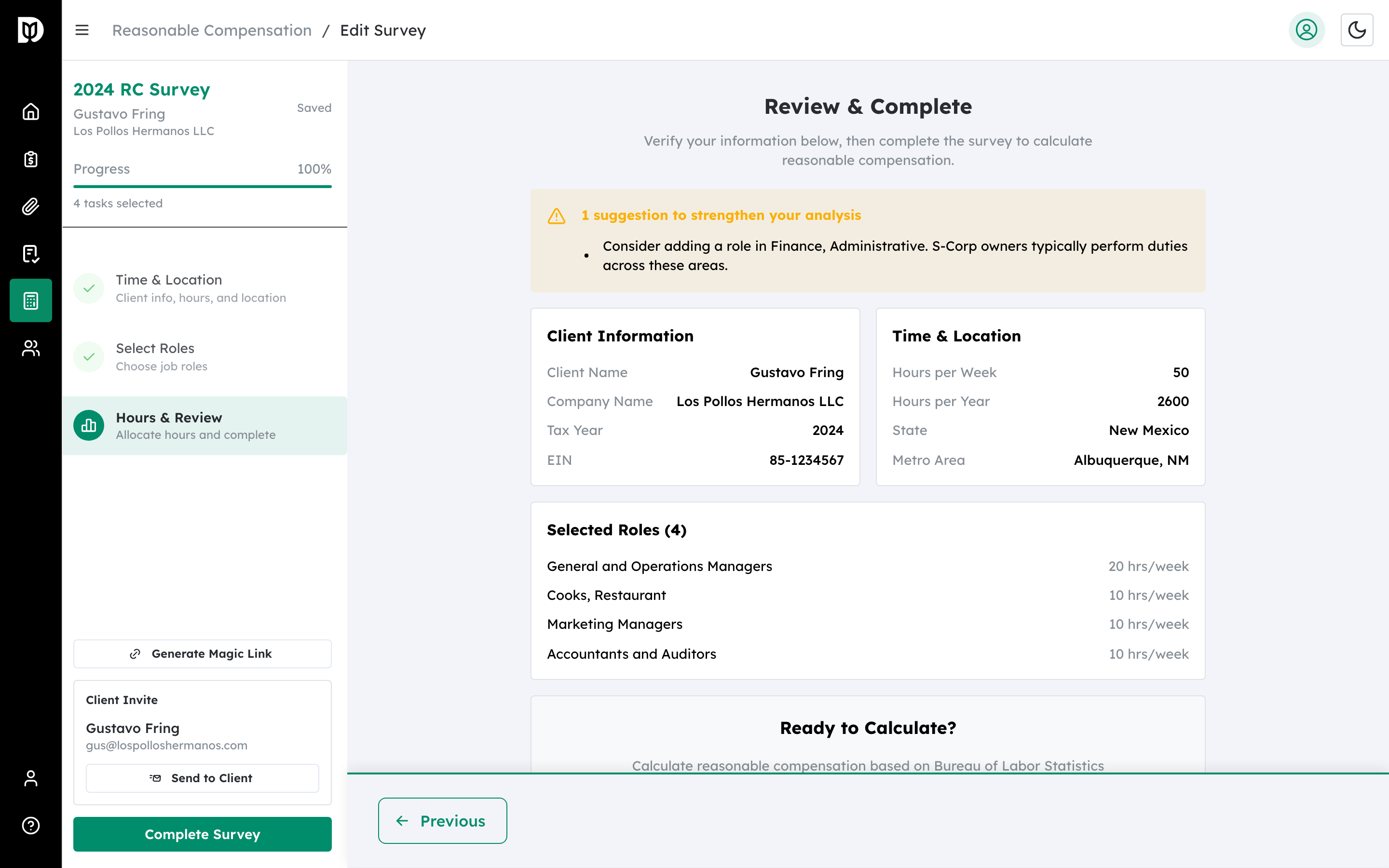
While auto-save handles most situations, you can click the Save button in the sidebar at any time to force an immediate save. The save status text below the button confirms when the last save occurred.
What happens next #
After clicking Complete Survey, the system performs BLS wage lookups for each selected role, applies geographic and proficiency adjustments, and generates the full compensation report. You are automatically redirected to the report page. See How to Read and Export a Reasonable Compensation Report for details on the report contents.
Troubleshooting #
- The Complete Survey button is not clickable: Ensure all required fields are filled in and that your allocated hours match the total weekly hours. Return to each step to verify no fields are missing.
- I see “Unsaved changes” but auto-save is not working: Check your internet connection. Try clicking the Save button manually. If the save fails repeatedly, copy your data and refresh the page.
- I navigated away and lost my progress: If you saved at least once (manually or via auto-save), your survey is preserved. Go back to the dashboard and click on your survey to resume. A browser warning will appear if you try to leave with unsaved changes.
- I cannot find a specific job role in Standard Tasks: Try the Business-Specific Tasks step (Step 4), which lets you search the full BLS occupations database for specialized roles.
- The hours progress bar is red: You have allocated more hours than the weekly total set in Step 2. Either reduce hours on some roles or go back to Step 2 and increase the total weekly hours.


