This guide is for accountants and firm staff. It shows how to find, filter, reopen, duplicate, chase and delete reasonable compensation studies from the survey list.
Before you begin
- You need an accountant login with tax access.
- You need at least one existing study. If you have none, see How to create a reasonable compensation survey.
Step 1: Open the survey list
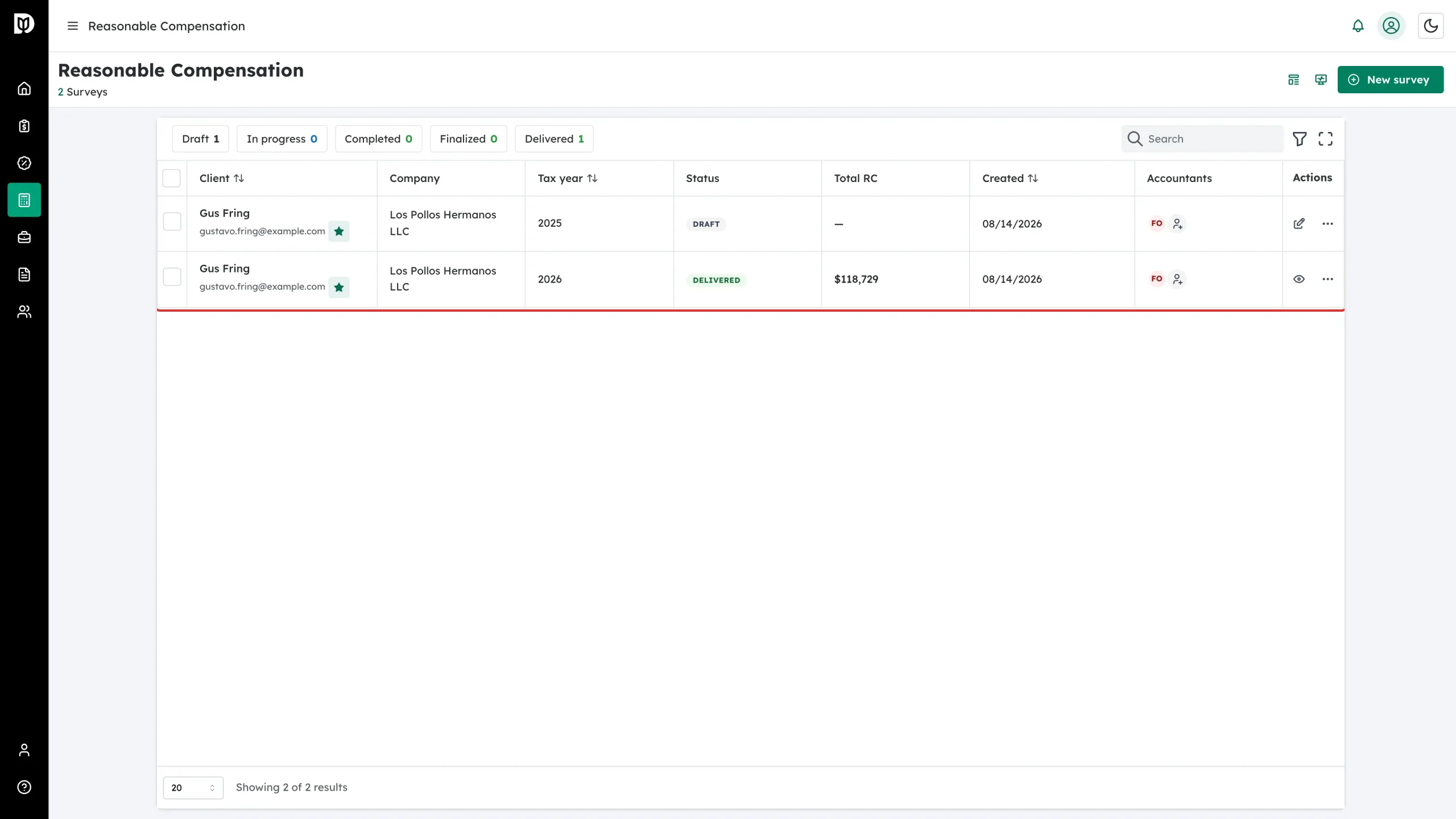
Click Reasonable Comp in the left sidebar. The heading shows the total, for example “2 Surveys”.
Step 2: Search
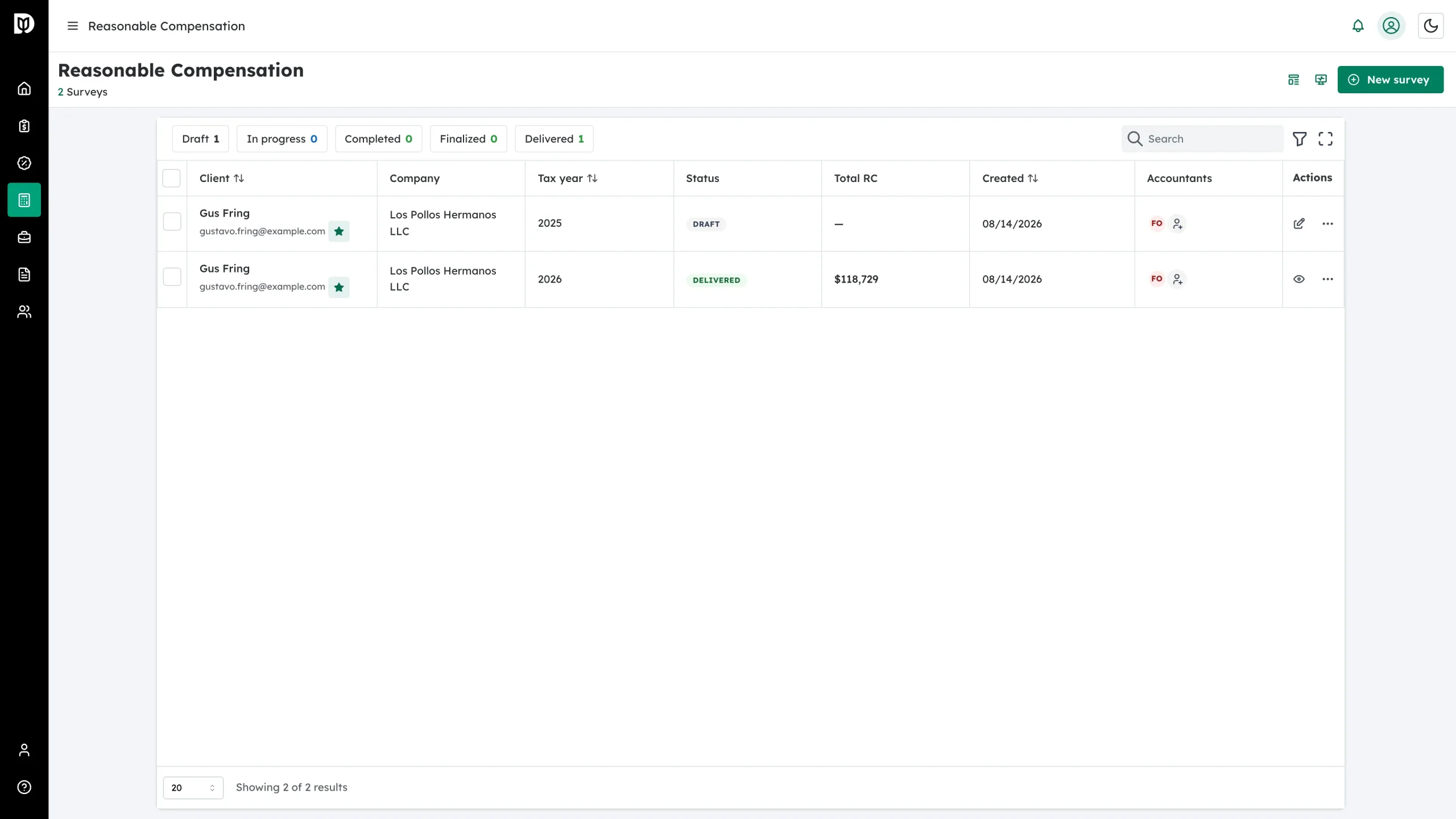
Use the search box at the top right of the table. It matches the client’s name, the company name and the client’s email address.
Step 3: Filter by status
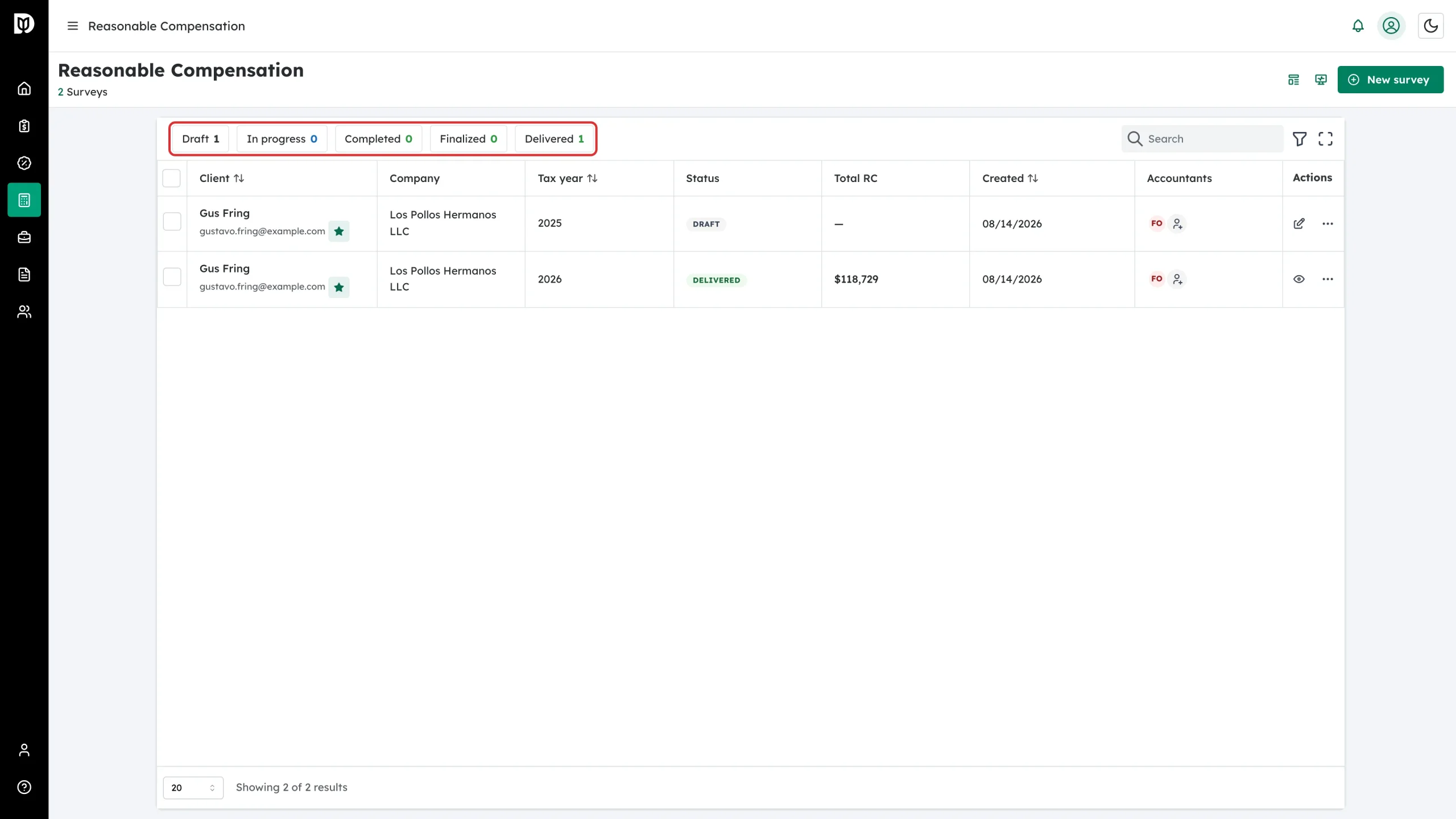
Click a chip — Draft, In progress, Completed, Finalized or Delivered — to show only those studies. The number on each chip is the live count. Click the same chip again to clear it.
Step 4: Filter by column
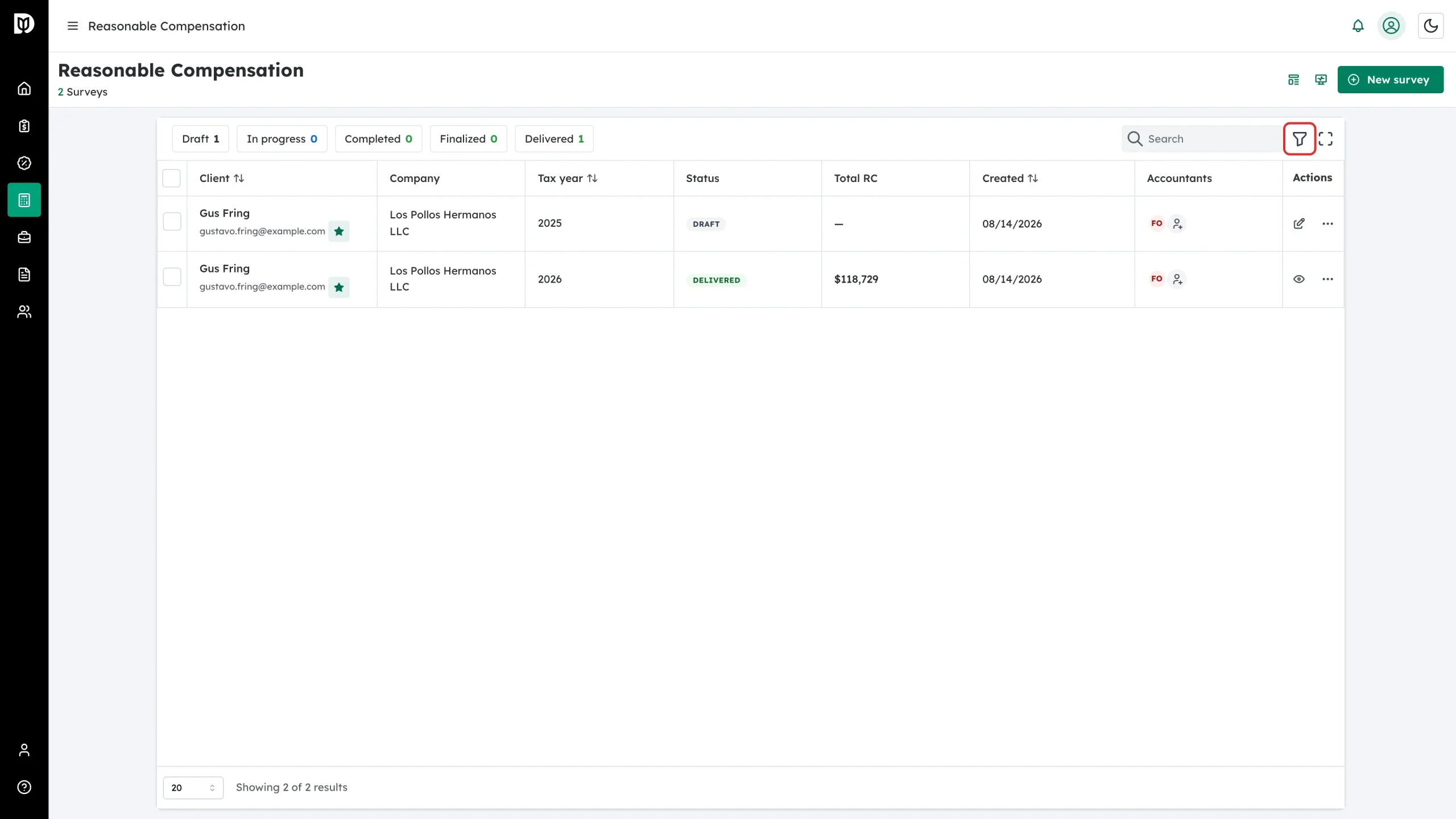
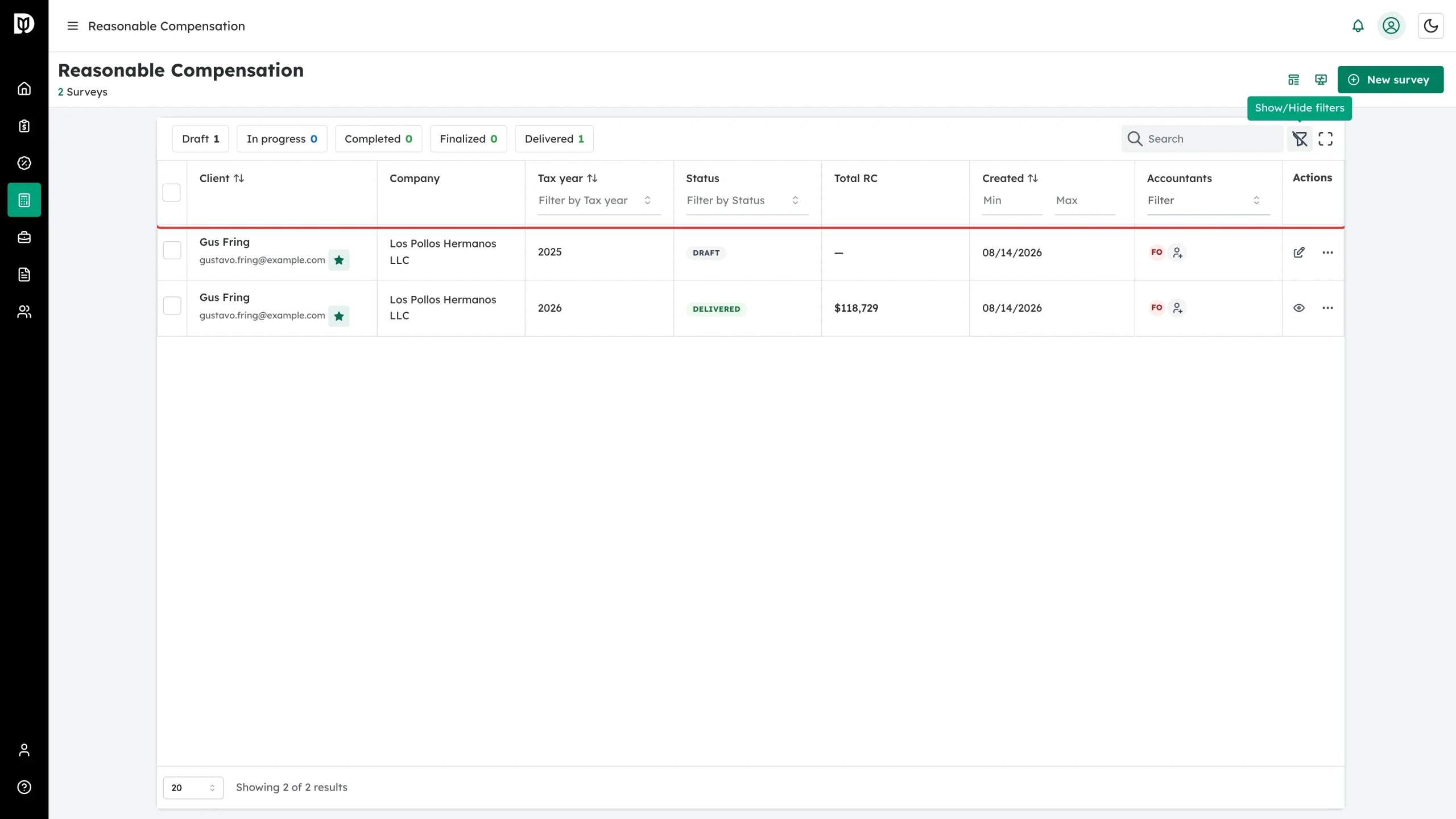
Click the funnel icon in the table toolbar to show the column filters, then filter by tax year (2021–2026), status, created date or assigned accountant. The accountant filter can match either any assigned accountant or the lead.
Step 5: Open a study
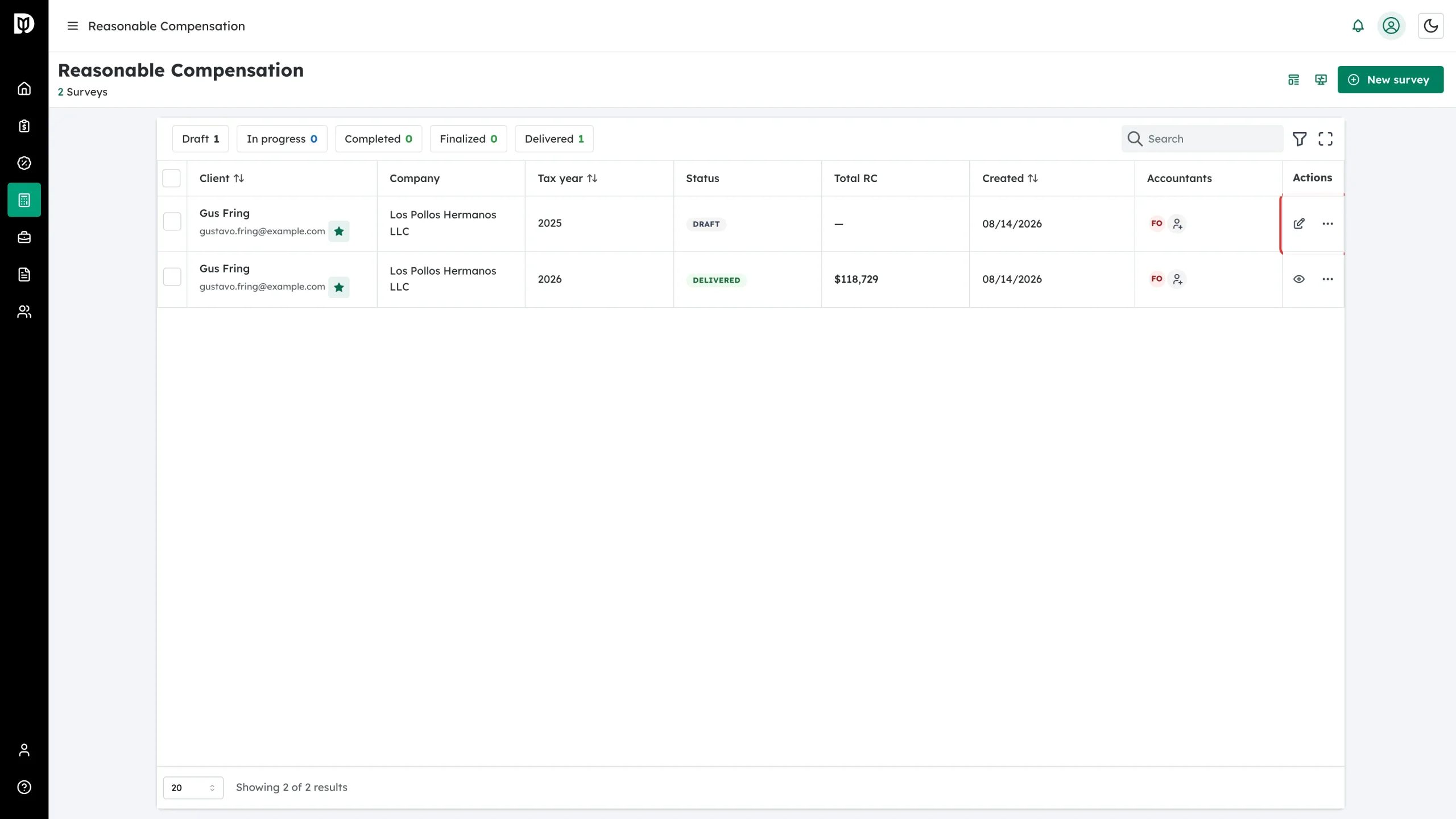
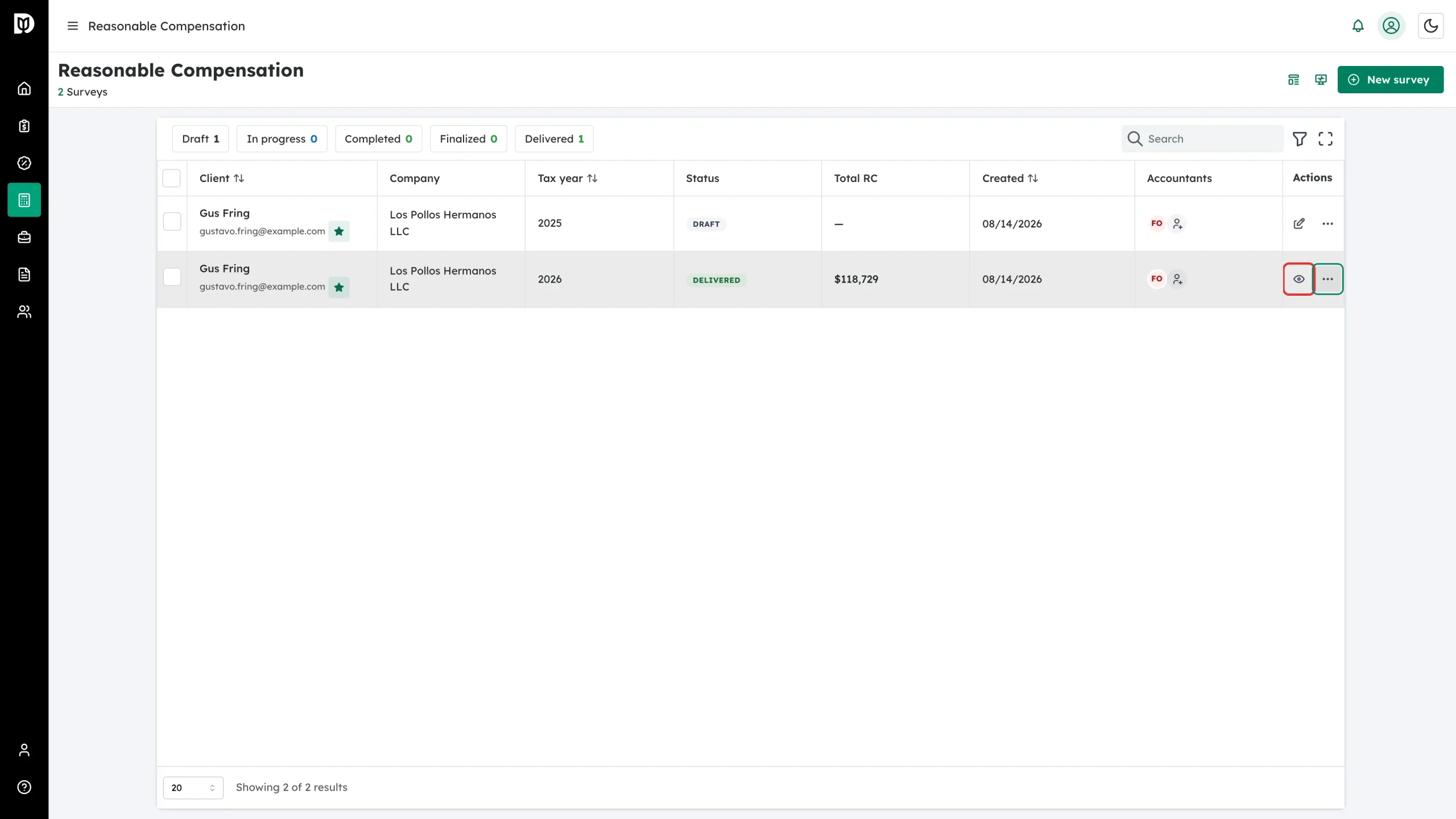
Click the client’s name, or use the icon at the end of the row. Which one you see depends on the status:
- A pencil on a Draft or In progress study reopens the survey questions.
- An eye on a Completed, Finalized or Delivered study opens the report.
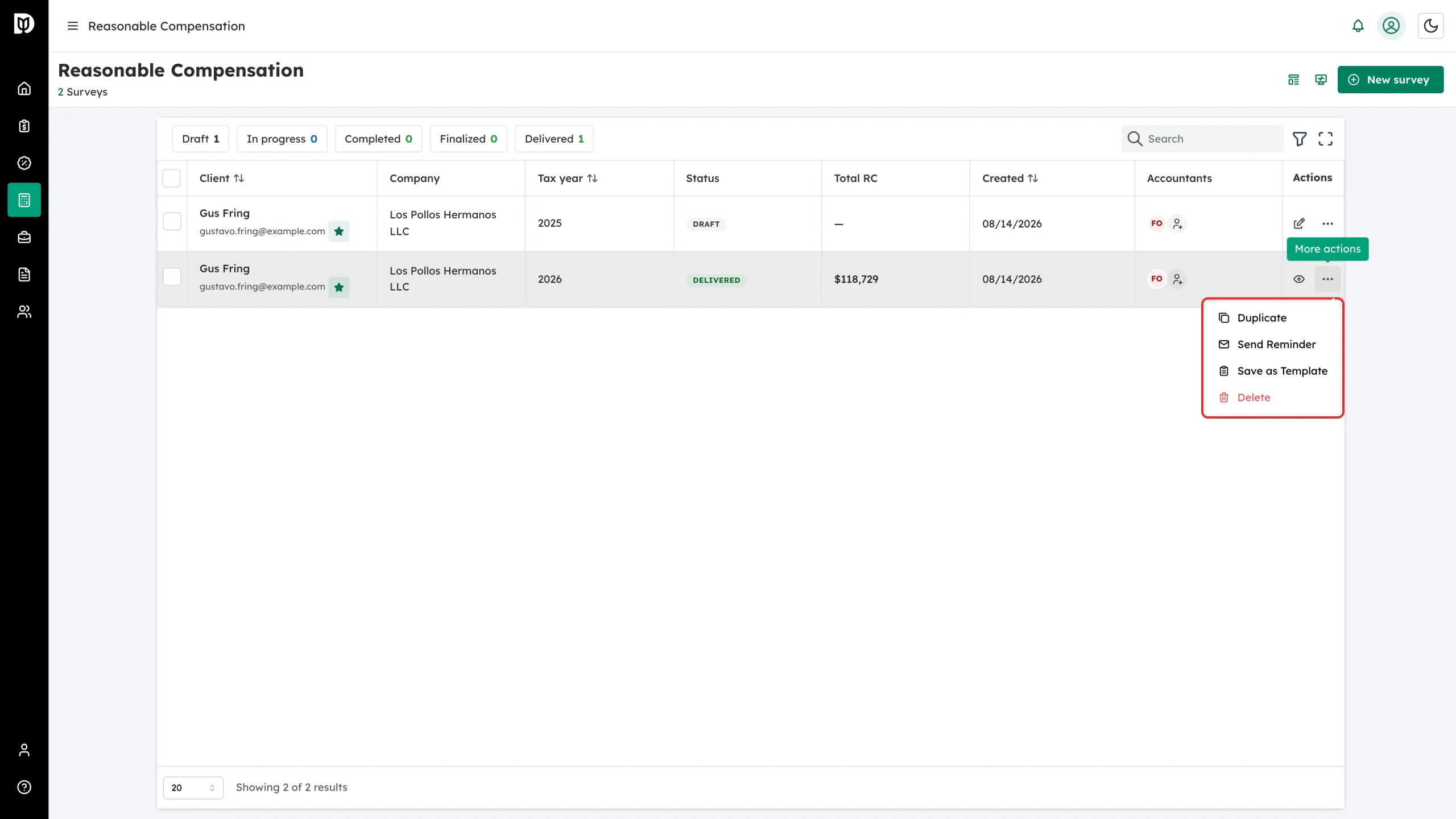
Step 6: Use the row menu
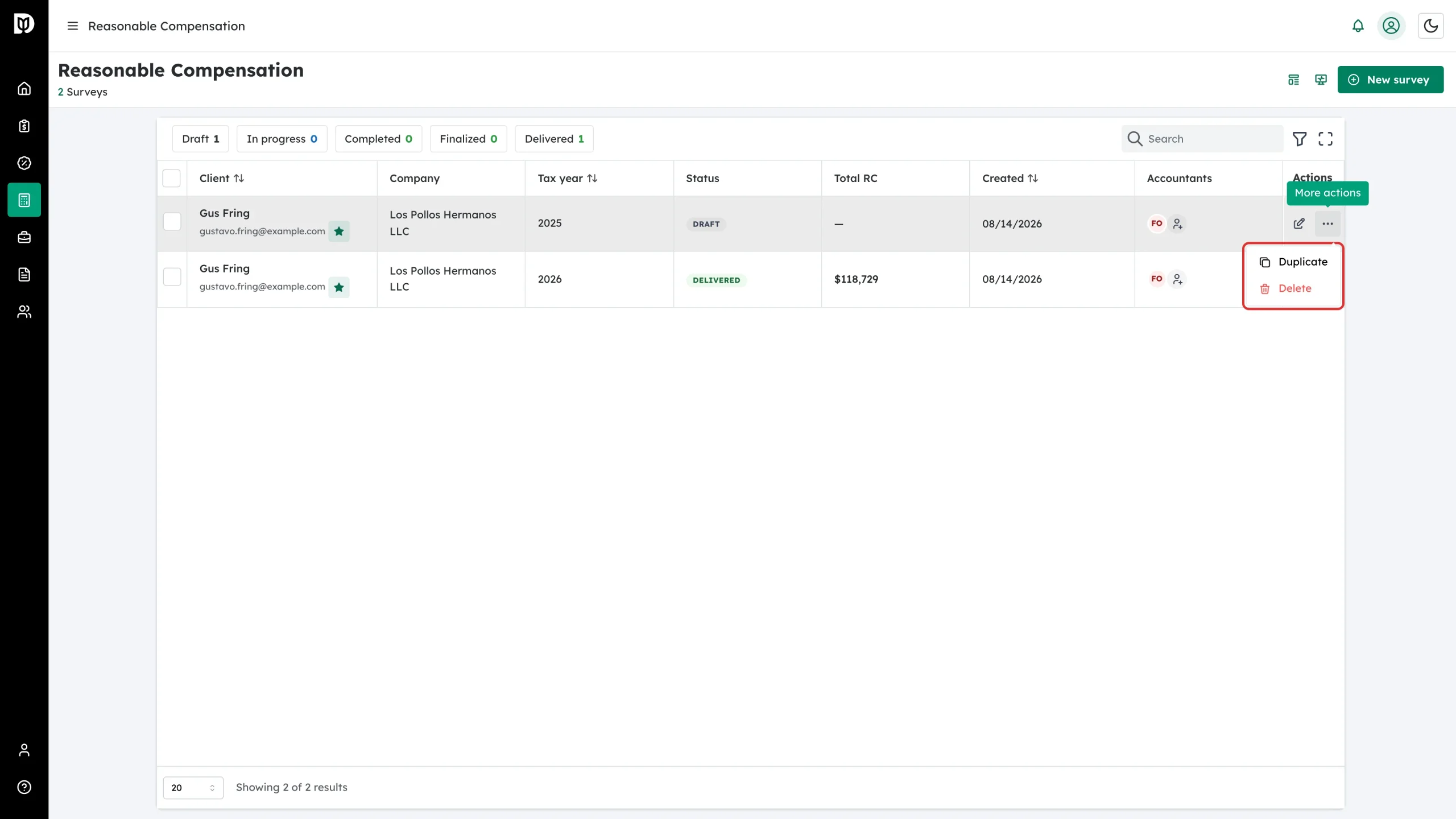
Click the three-dot button at the end of a row. A draft offers Duplicate and Delete.
A delivered study offers two more:
- Duplicate — copies the study and opens the copy in the wizard. Use this to roll a client forward to the next tax year.
- Send Reminder — emails the client a nudge. Reminders are email only.
- Save as Template — turns the role set into a reusable template for similar clients.
- Delete — asks you to confirm, then removes the study permanently.
Step 7: Act on several studies at once
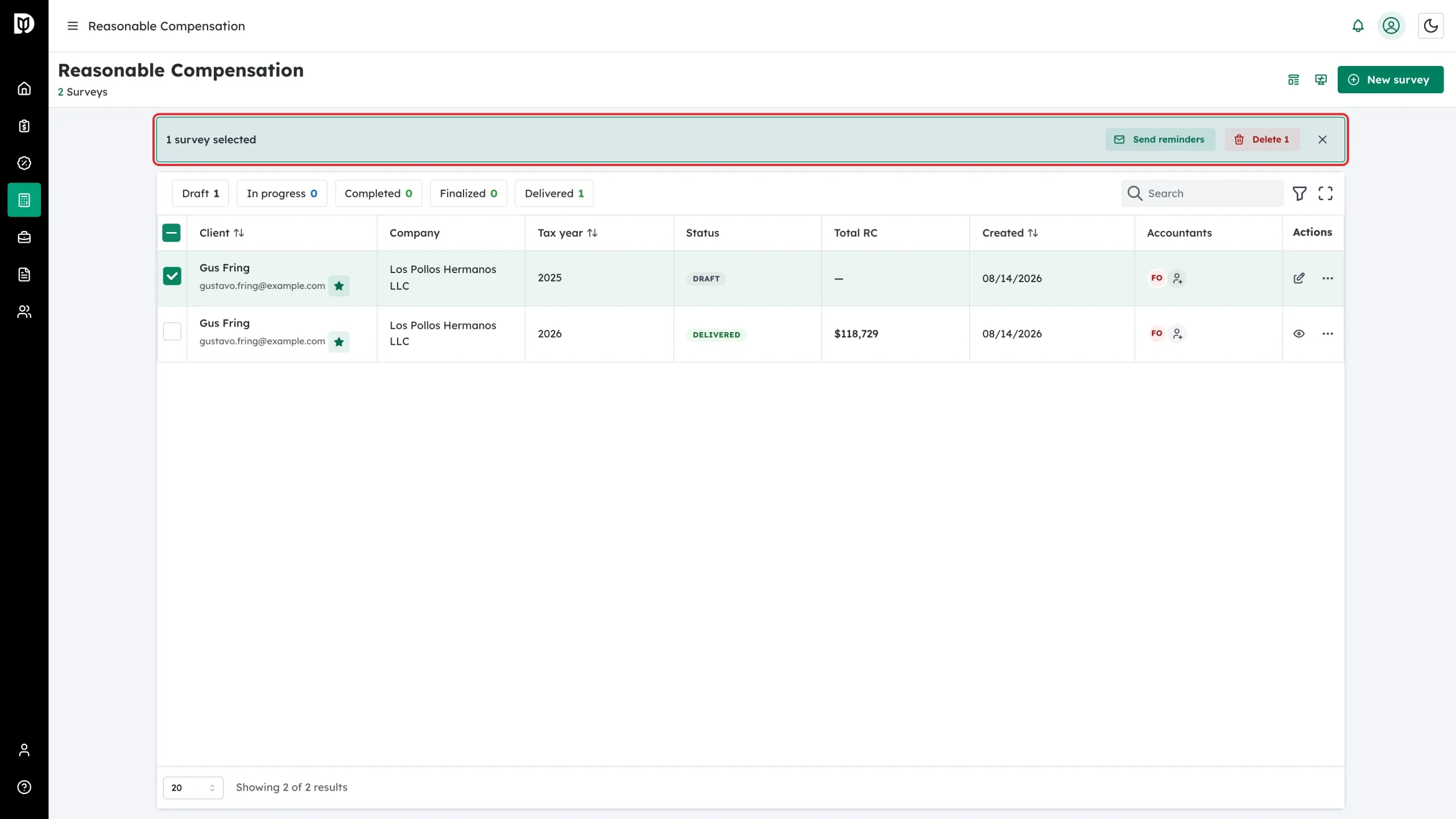
Tick the checkbox at the start of one or more rows. A bar appears with Send reminders and a bulk delete. The bulk delete asks you to confirm first.
Step 8: Send the client a magic link
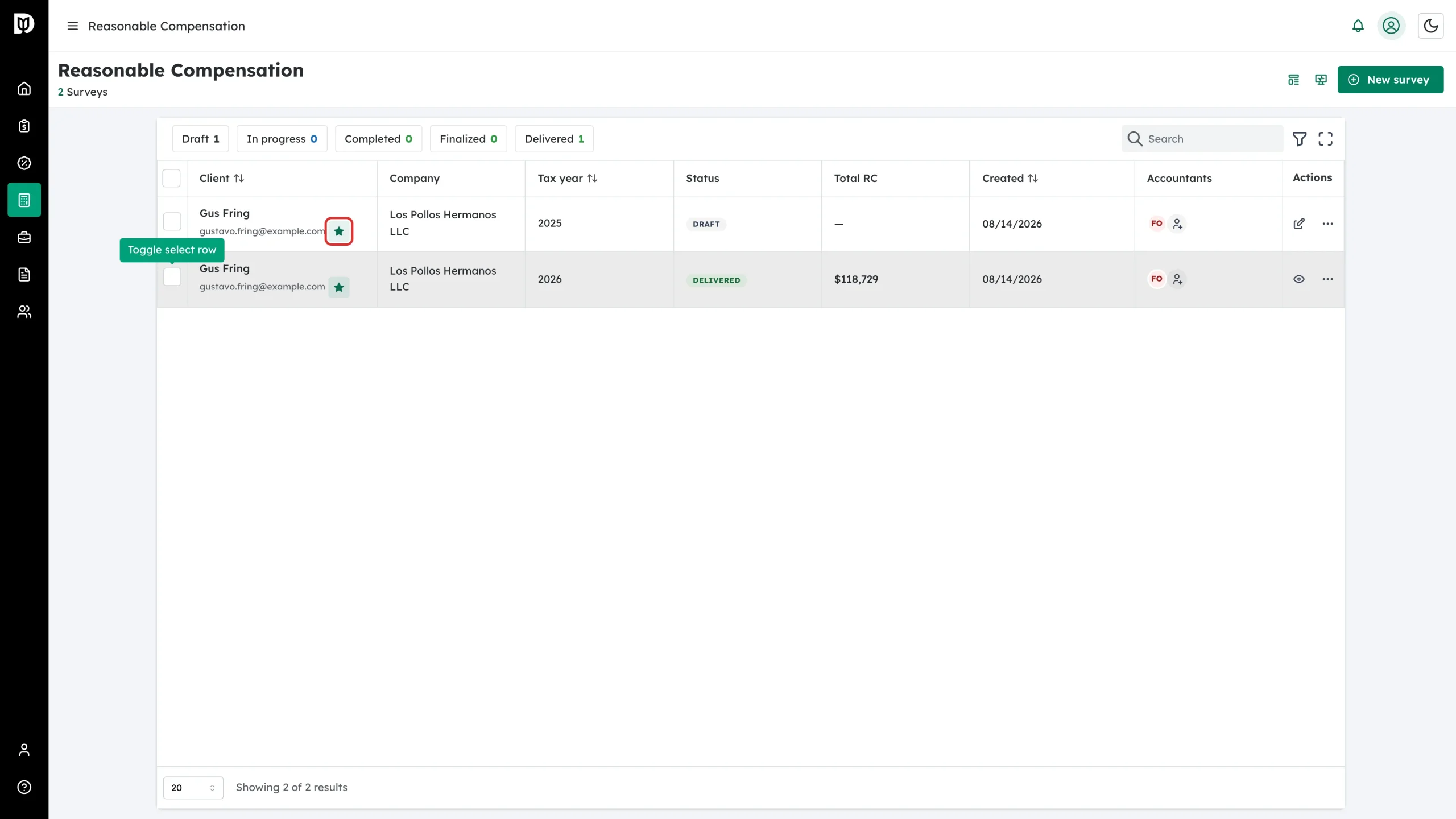
The green star beside a client’s email opens the magic-link window, which gives you a sign-in-free link the client can use to fill in their own survey. Useful when a client says the invitation email never arrived.
What happens next
Reopening a draft drops you back at the step you left. Opening a completed study loads the report with its finalize, download and deliver actions.
Troubleshooting
- The table looks empty. Clear the search box and any active status chip or column filter.
- Send Reminder says no reminder was sent. The study has no client email on it, or there is nothing outstanding to chase. Open the study and check the client invite panel.
- I deleted a study by mistake. Deletions cannot be undone. Duplicate before deleting if you might want the data back.
- Save as Template is missing. The study has no roles on it yet. Add roles first.