

Who this is for: Accountants and tax professionals with an active Debits subscription who need to determine reasonable compensation for S-Corporation shareholder-employees.
What you’ll learn: What the Reasonable Compensation feature does, how the workflow is organized, and how to navigate between the survey dashboard, the survey wizard, and the report page.
Before you begin #
- You need an active Debits account with an Accountant role (not a Client role).
- Your subscription must be active or in a trial period.
- You should have at least one S-Corporation client who needs a reasonable compensation study.
What is Reasonable Compensation? #
The IRS requires S-Corporation shareholder-employees to receive reasonable compensation for the work they perform. The Reasonable Compensation feature in Debits helps you build IRS-defensible compensation reports using the Cost Approach, also known as the Many Hats methodology.
The system pulls wage data from the Bureau of Labor Statistics (BLS) Occupational Employment and Wage Statistics (OEWS) program. It adjusts wages based on the shareholder’s geographic location and proficiency level for each job function they perform.
Key capabilities #
- 6-Step Survey Wizard: A guided process to collect client details, select job roles, allocate hours, and set proficiency levels.
- BLS Wage Data Integration: Automatically pulls current wage data from the Bureau of Labor Statistics based on occupation, state, and proficiency.
- Auto-Save: Your work is saved automatically every 3 seconds, so you never lose progress.
- Comprehensive Report: Generates a detailed report with executive summary, task breakdown, industry comparison, and IRS audit defense notes.
- PDF Export: Download the completed report as a PDF to share with clients or attach to tax filings.
Step-by-step instructions #
Step 1: Open Reasonable Compensation #
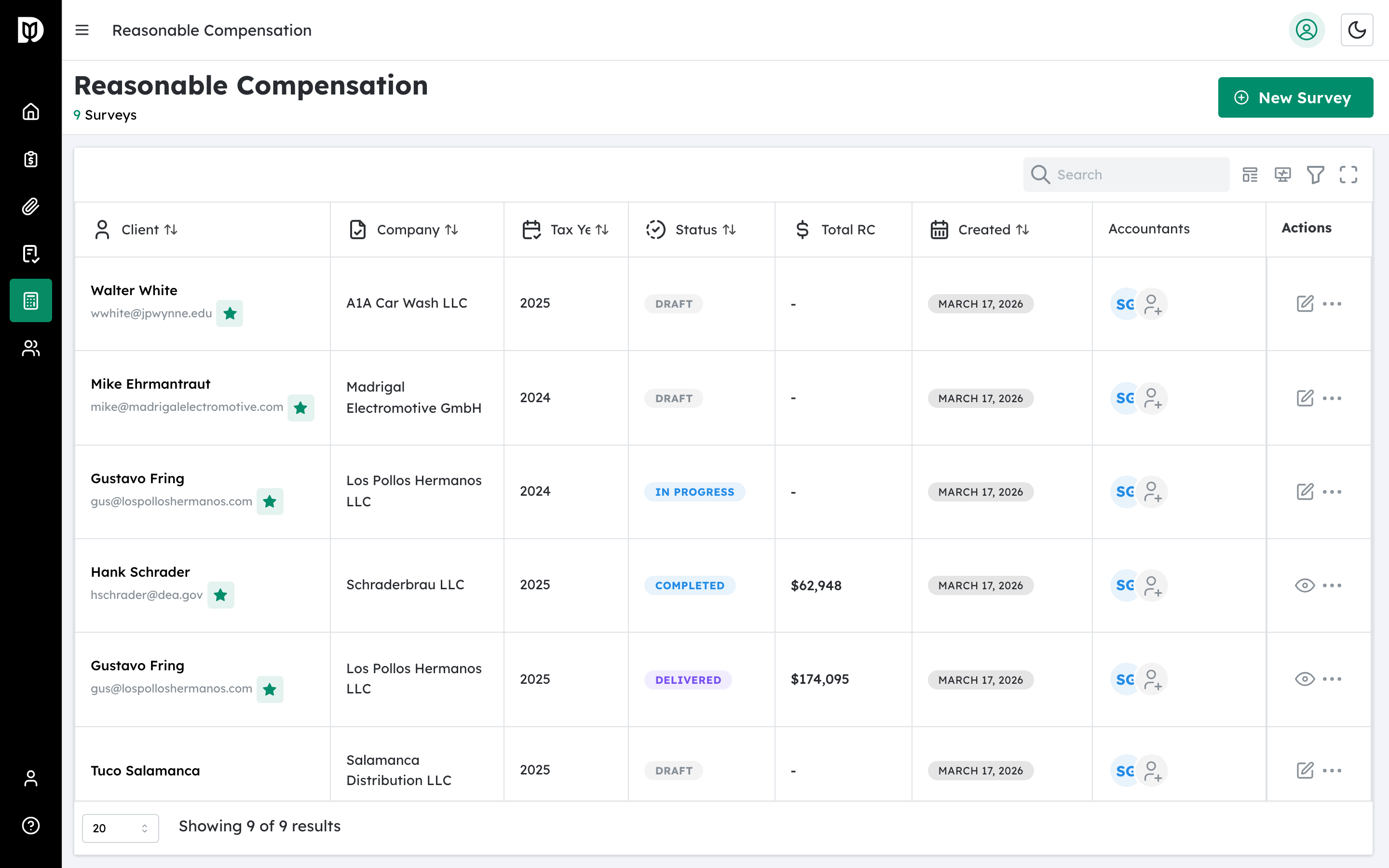
In the left sidebar, click Reasonable Comp. This opens the survey dashboard where all your compensation surveys are listed.
Step 2: Review the dashboard #
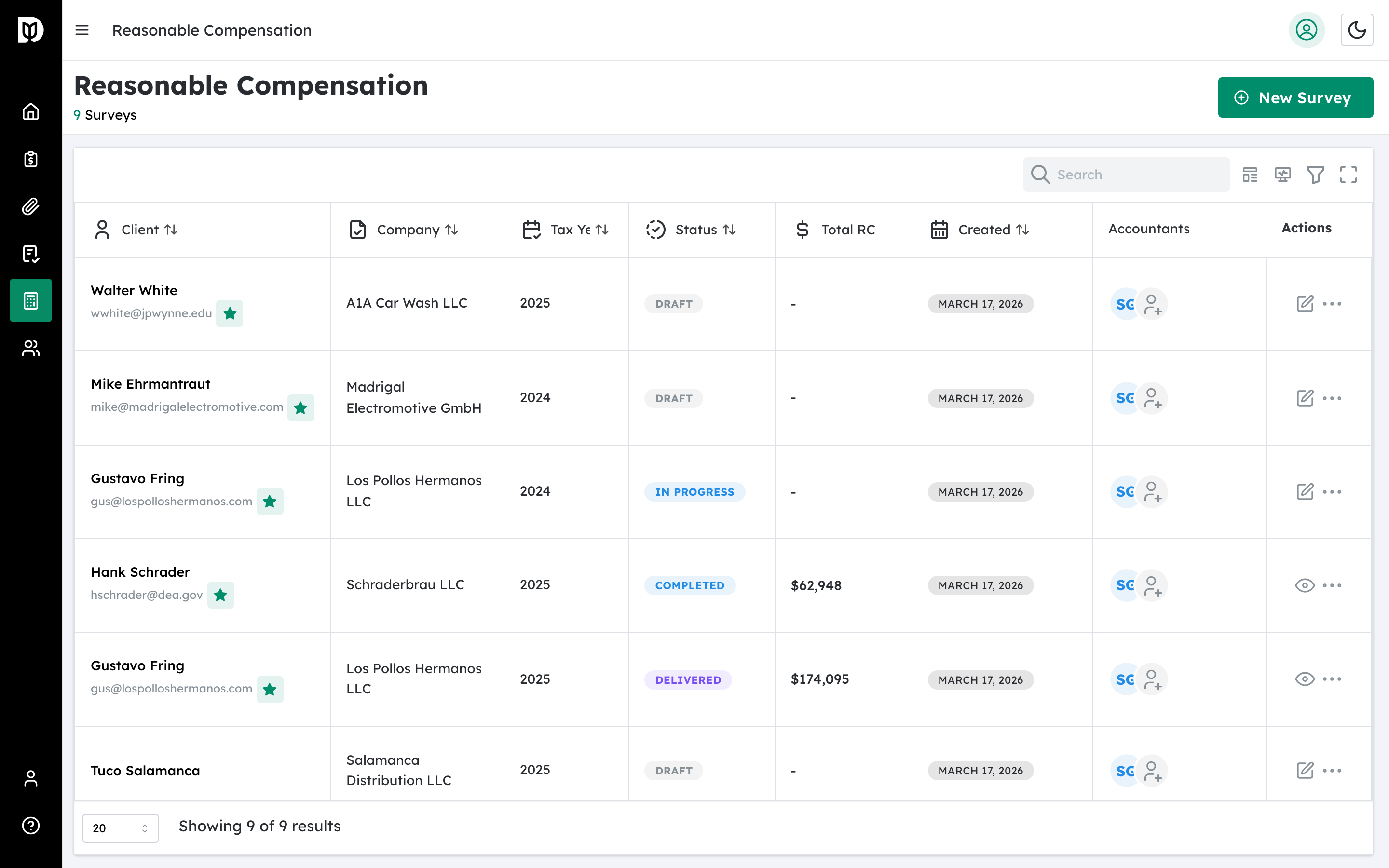
The dashboard displays all your RC surveys in a table. Each row shows the client name, company name, tax year, status, total reasonable compensation amount, and creation date. If you have no surveys yet, the table will be empty.
Step 3: Understand the workflow #
Every reasonable compensation analysis follows this workflow:
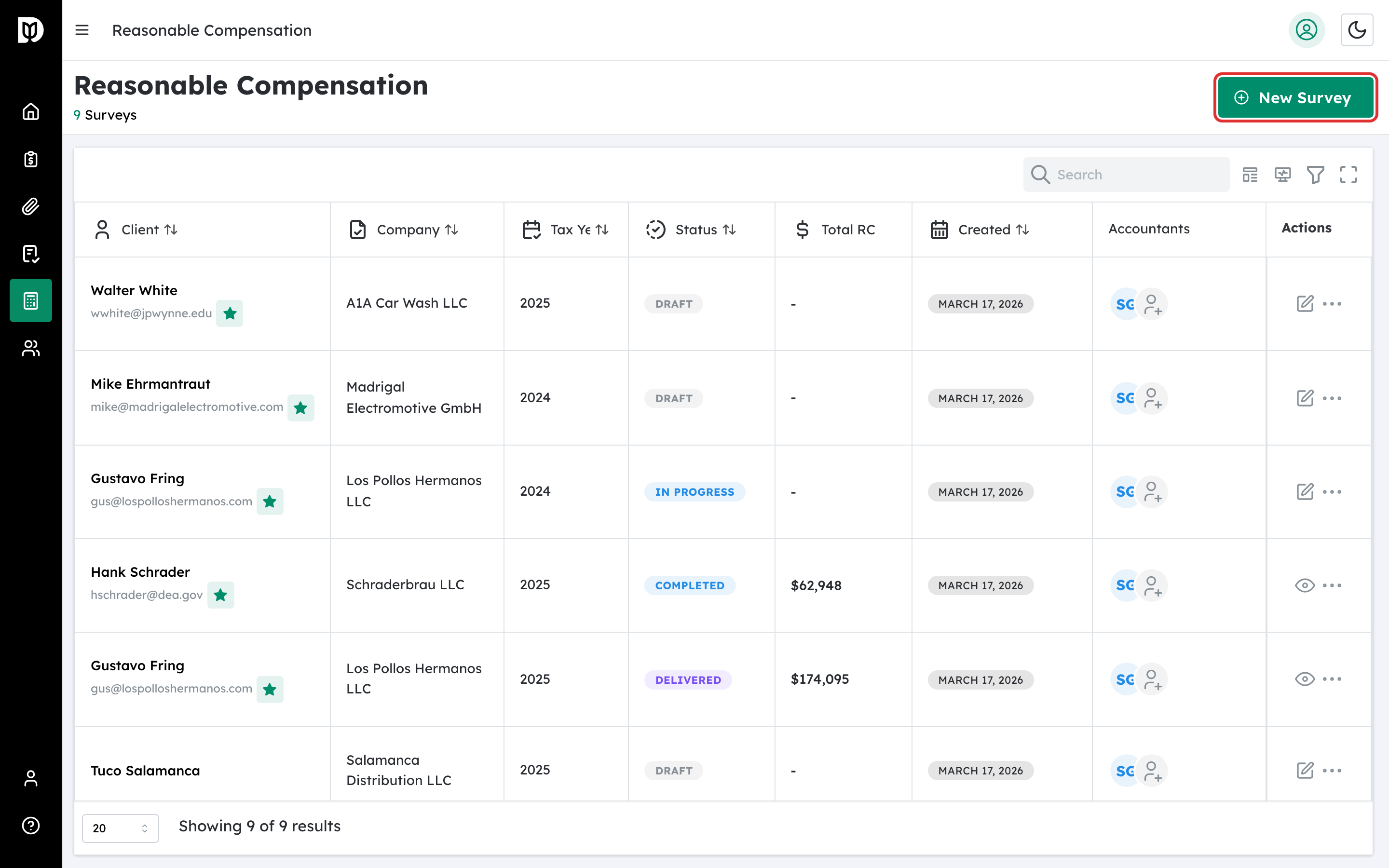
- Create a survey: Click New Survey to start the 6-step wizard.
- Complete the wizard: Enter client details, select job roles the shareholder performs, allocate hours, and set proficiency levels.
- Generate the report: When you complete the survey, Debits calculates reasonable compensation using BLS wage data and generates a full report.
- Export the report: Download the report as a PDF from the report page.
What happens next #
After clicking New Survey, you will be taken to the survey wizard. See How to Create a Reasonable Compensation Survey for detailed instructions on each wizard step.
Troubleshooting #
- I cannot see Reasonable Comp in the sidebar: This feature is only available to users with the Accountant role. Client-role users do not have access. Also confirm your subscription is active.
- The page shows a loading spinner that never finishes: Check your internet connection and refresh the page. If the issue persists, sign out and sign back in.


