

Who this is for: Bookkeepers and reviewers checking a client’s transactions before closing the month.
What you’ll learn: How to run the automated scan and approve, fix, or exclude the transactions it flags.
Before you begin #
- Open the client’s Month End tab and select the Review tab.
- The client should be connected to QuickBooks so the scan can read transactions.
Step-by-step instructions #
Step 1: Open Review Items #
On the Review tab, switch from Final Review to Review Items to see flagged transactions and anomalies.
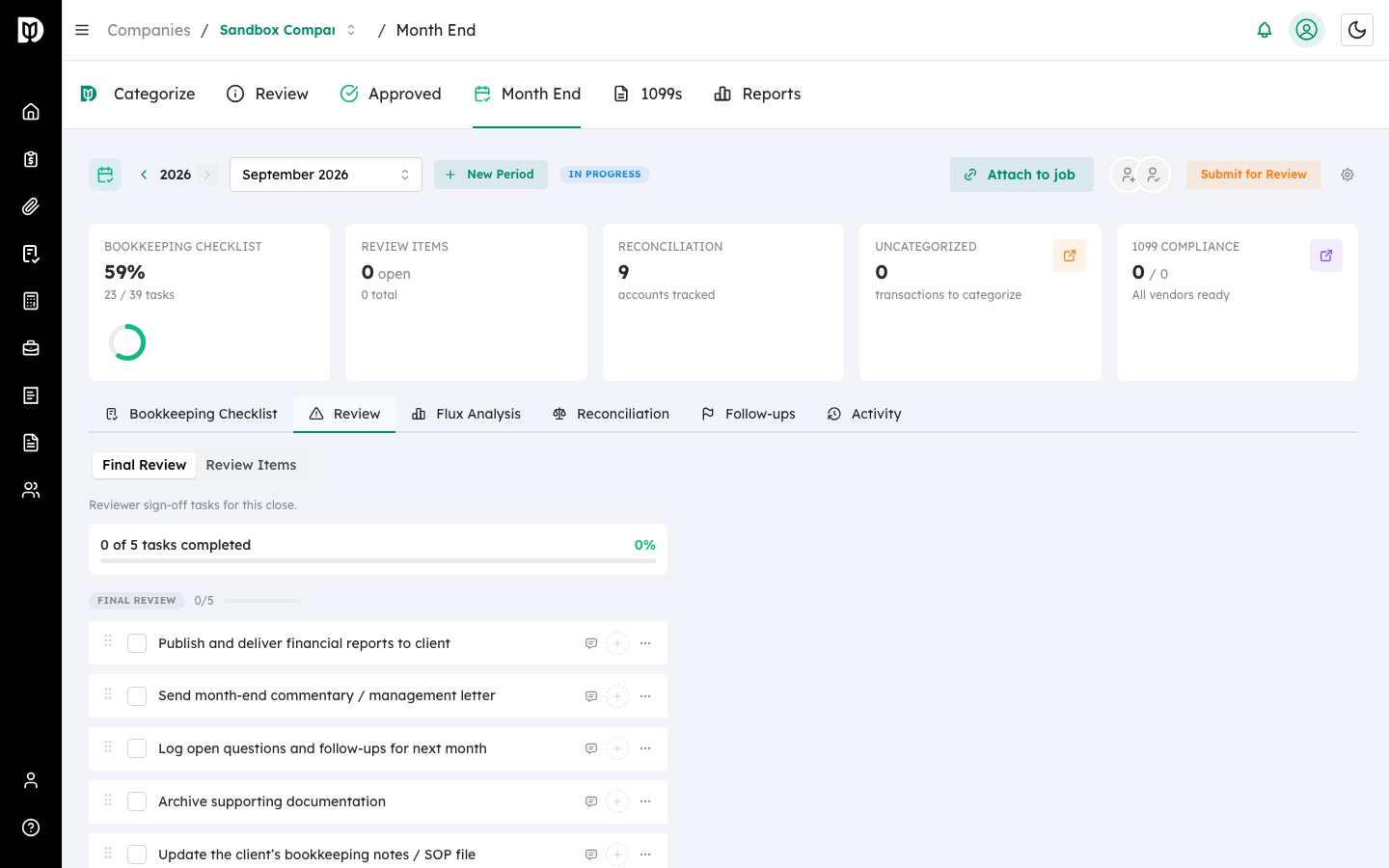
Step 2: Run the scan #
Select Run Scan. Debits checks for issues such as uncategorized transactions, missing payees, large transactions, and AI-detected anomalies, then lists any items it finds.
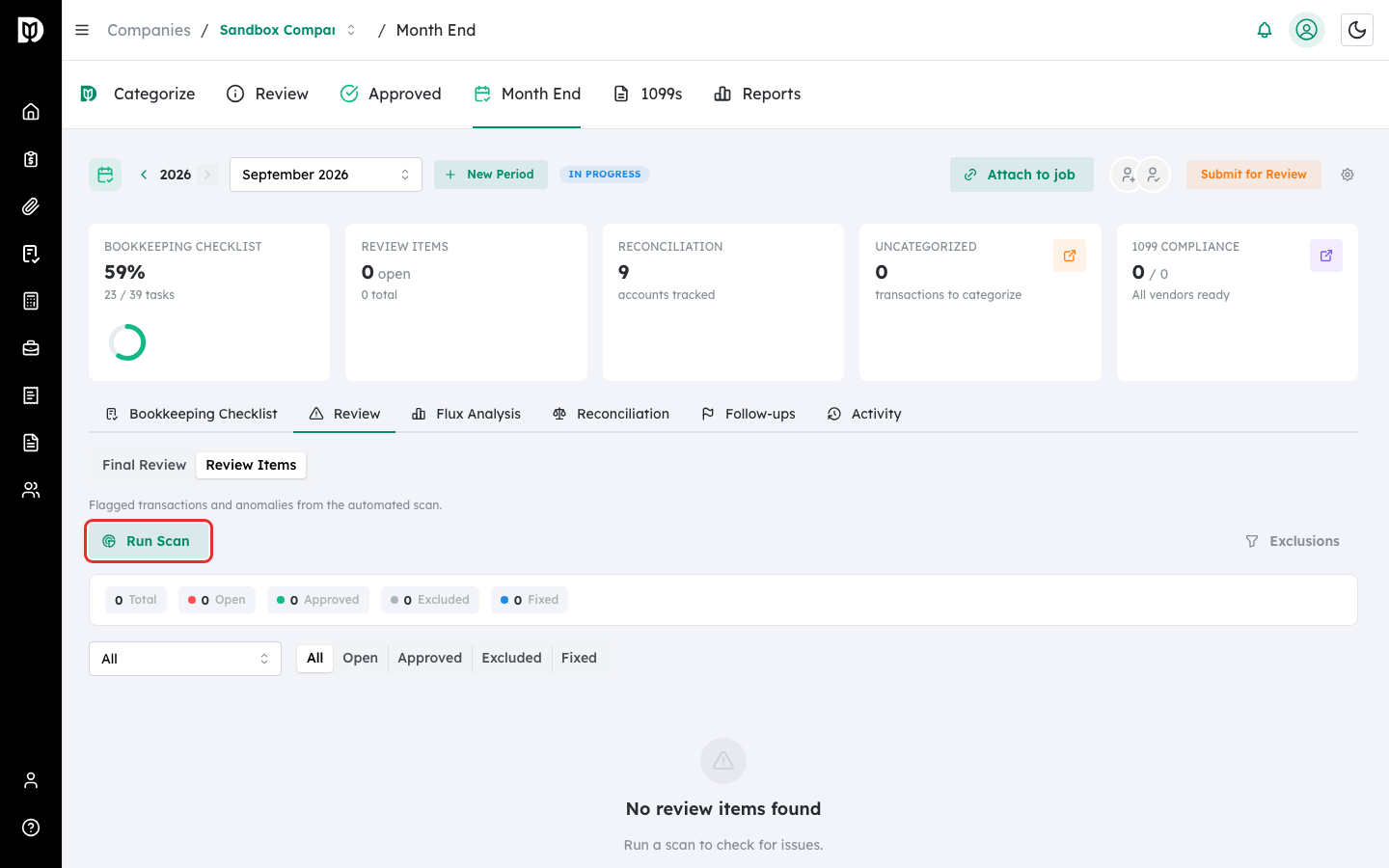
Step 3: Resolve each item #
For each flagged item, choose an action: Approve to accept it as-is, Fix to correct the category or payee inline, or Exclude to drop it from review. Use the status filters to focus on Open items.
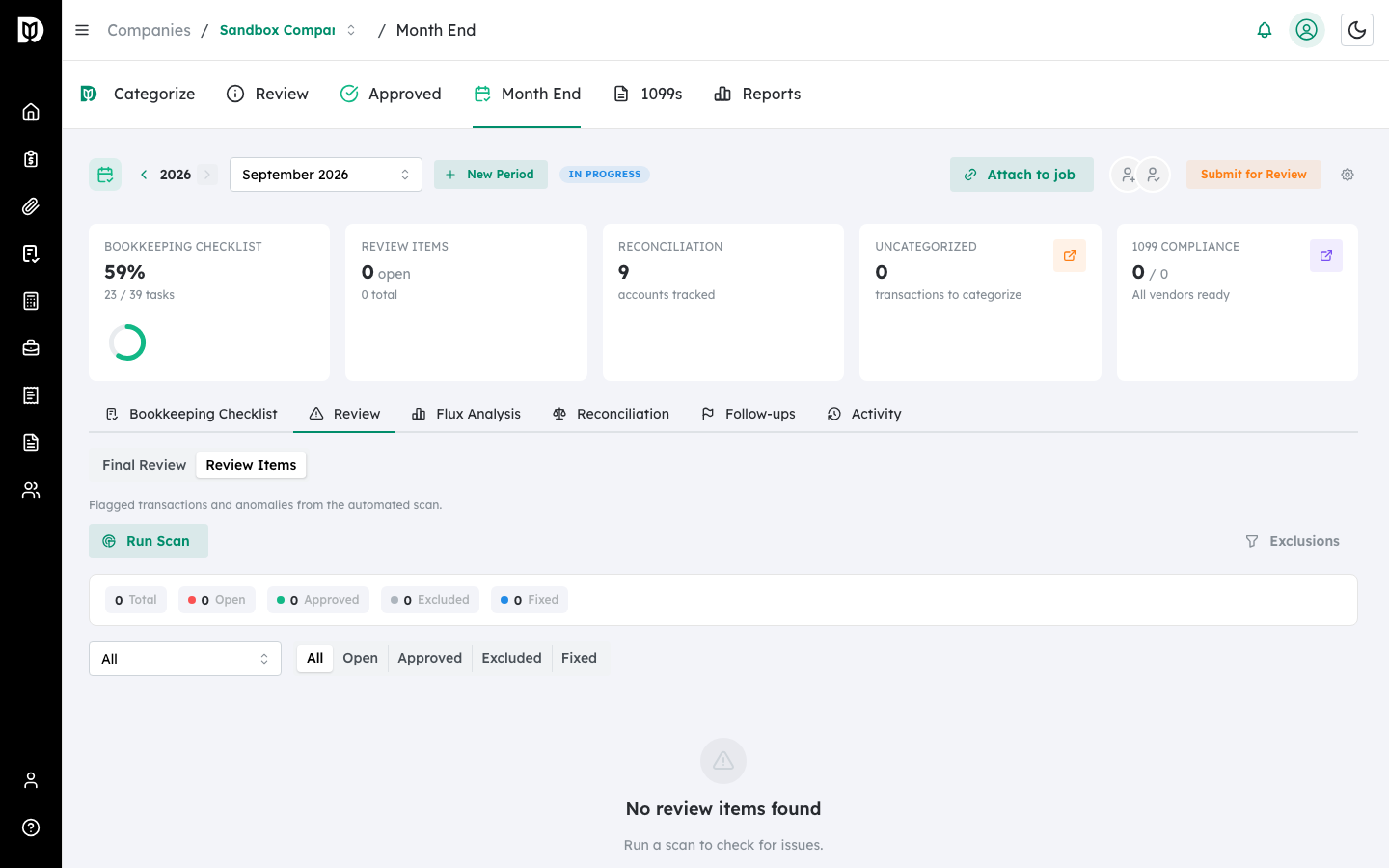
Note: Until you run a scan — or if the client is not yet connected to QuickBooks — this view shows No review items found. That is expected: run the scan to populate the list.
What happens next #
Resolved items move out of the Open count and the Review Items badge updates. Re-run the scan any time to pick up new transactions. Reviewers sign off the period only after open items are handled.
Troubleshooting #
- Problem: The scan returns no items. That means no issues were found for the period, or the client is not connected to QuickBooks.
- Problem: The same kind of transaction keeps getting flagged. Add an exclusion rule so it is filtered out of future scans.


