

Who this is for: Bookkeepers confirming that bank, credit card, and balance sheet accounts are reconciled for the period.
What you’ll learn: How to read the reconciliation status list and filter it by account type.
Before you begin #
- Open the client’s Month End tab and select the Reconciliation tab.
- Reconciliation balances come from QuickBooks, so the client should be connected.
Step-by-step instructions #
Step 1: Review the account list #
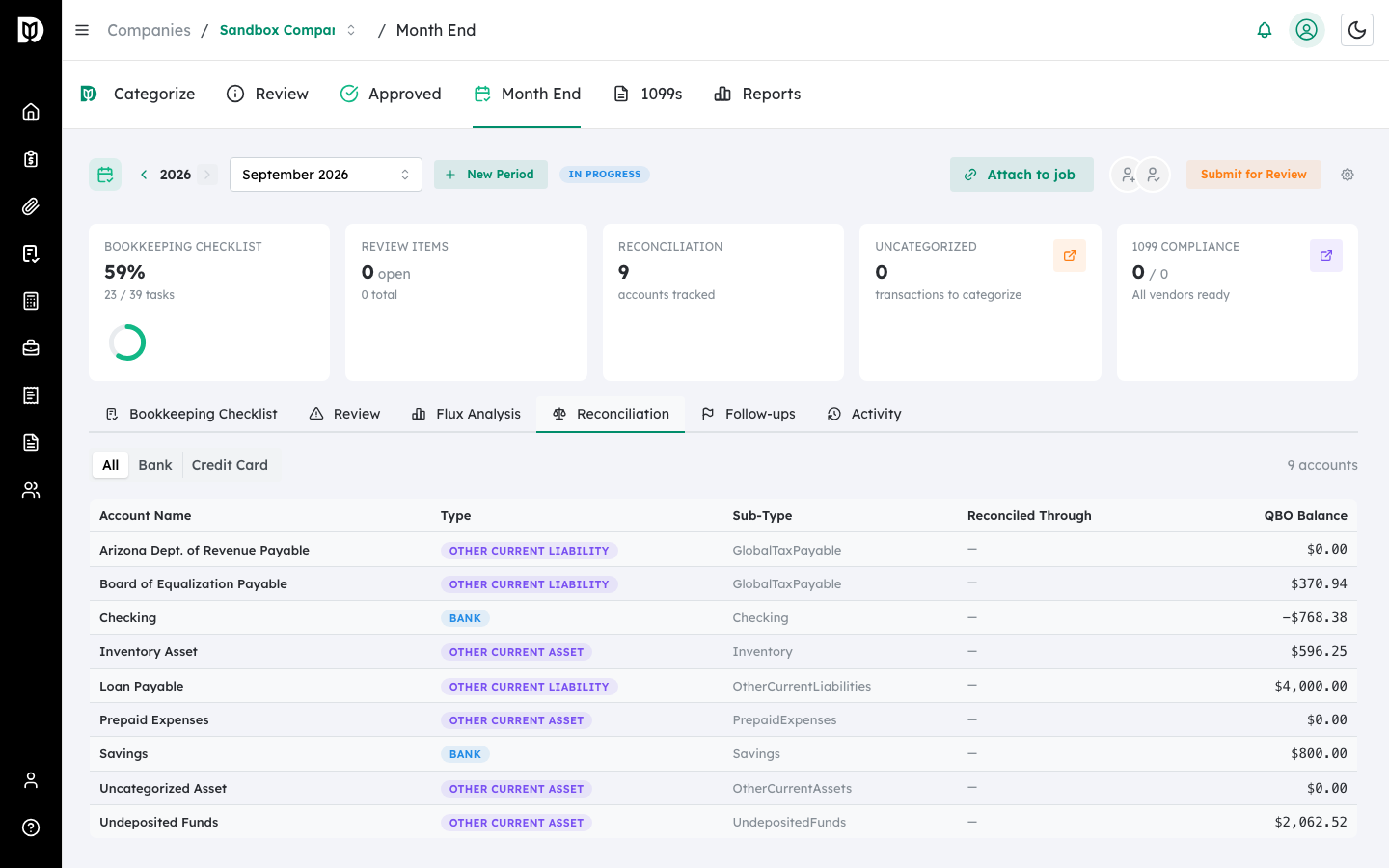
The Reconciliation tab lists each account with its type, sub-type, the date it is reconciled through, and its QuickBooks balance.
Step 2: Filter by account type #
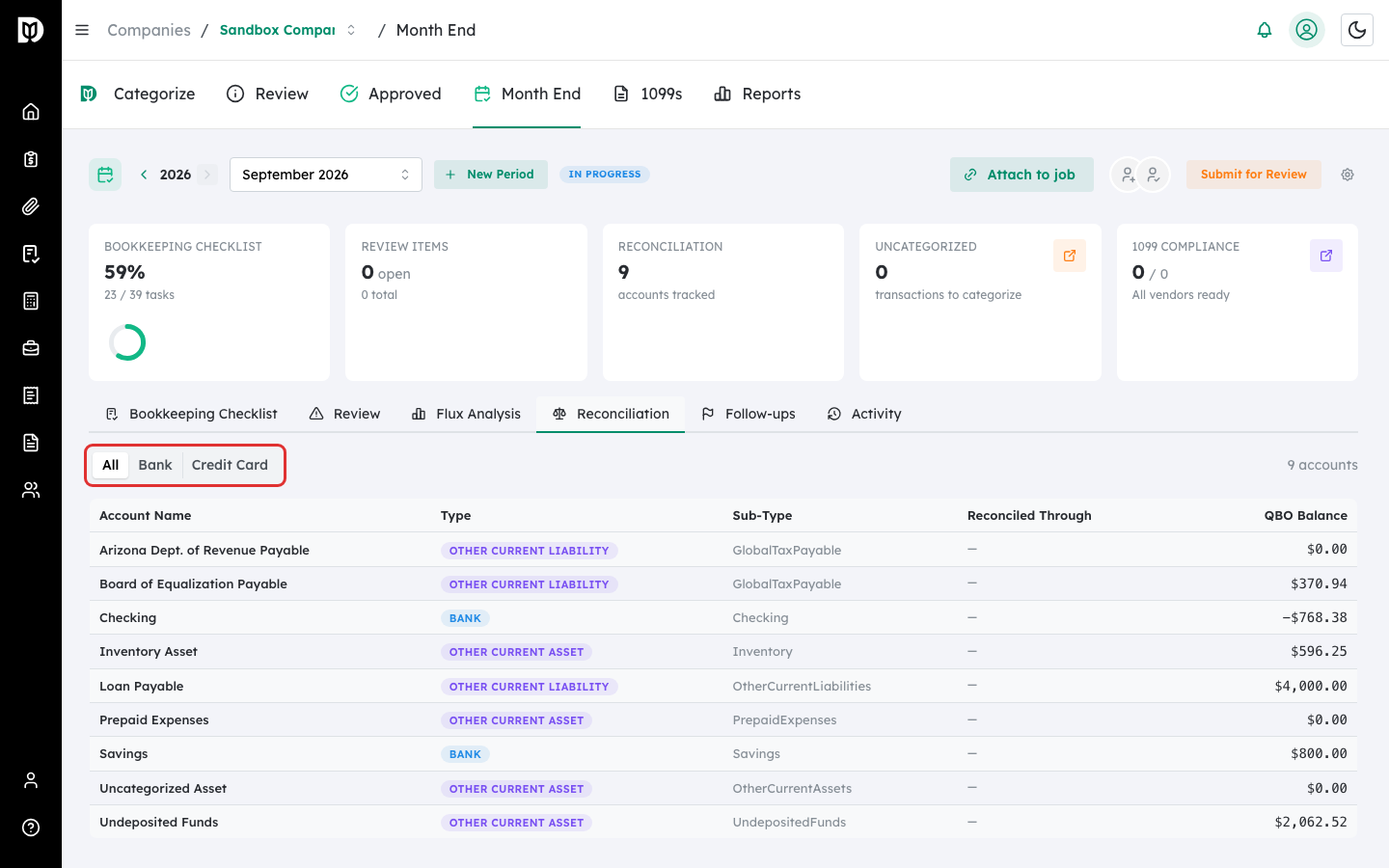
Use the All / Bank / Credit Card filter to narrow the list to the accounts you are working on.
What happens next #
Use this view to confirm every account is reconciled through the end of the period before you submit the close for review. Balances refresh from QuickBooks; if a balance shows as unavailable, the account is not currently returning a value from QuickBooks.
Troubleshooting #
- Problem: No accounts appear. Change the filter back to All, or confirm the client is connected to QuickBooks.
- Problem: A balance shows as unavailable. QuickBooks did not return a value for that account. Refresh the tab or check the connection.


