This guide is for accountants and firm staff. It explains what the Reasonable Compensation feature does, how the work is organised, and where each part lives.
Before you begin
- You need an accountant login on a firm with the tax suite enabled. Client logins do not see this feature.
- You need at least one S-corporation client. The study applies to a shareholder-employee, not to the company as a whole.
What a reasonable compensation study is
The IRS expects an S-corporation shareholder who works in the business to take a reasonable salary before taking distributions. Debits builds the file that defends the number you picked.
A study breaks the shareholder’s working week into the jobs they actually do, values each job against Bureau of Labor Statistics wage data for their state, and reconciles three valuation approaches into one figure:
- Cost Approach (Many Hats) — every role valued at market rates and added up.
- Market Approach — weighted-average replacement cost across the same roles.
- Income Approach — used when you supply company financials; skipped when you do not.
The output is a documented report with an audit-defence section, a salary-versus-distribution view and a compensation range, ready for the client file.
Studies are run on demand, when you decide a client needs one. Debits does not run one automatically on every S-corporation, and there is no per-report fee — run as many as your engagements call for.
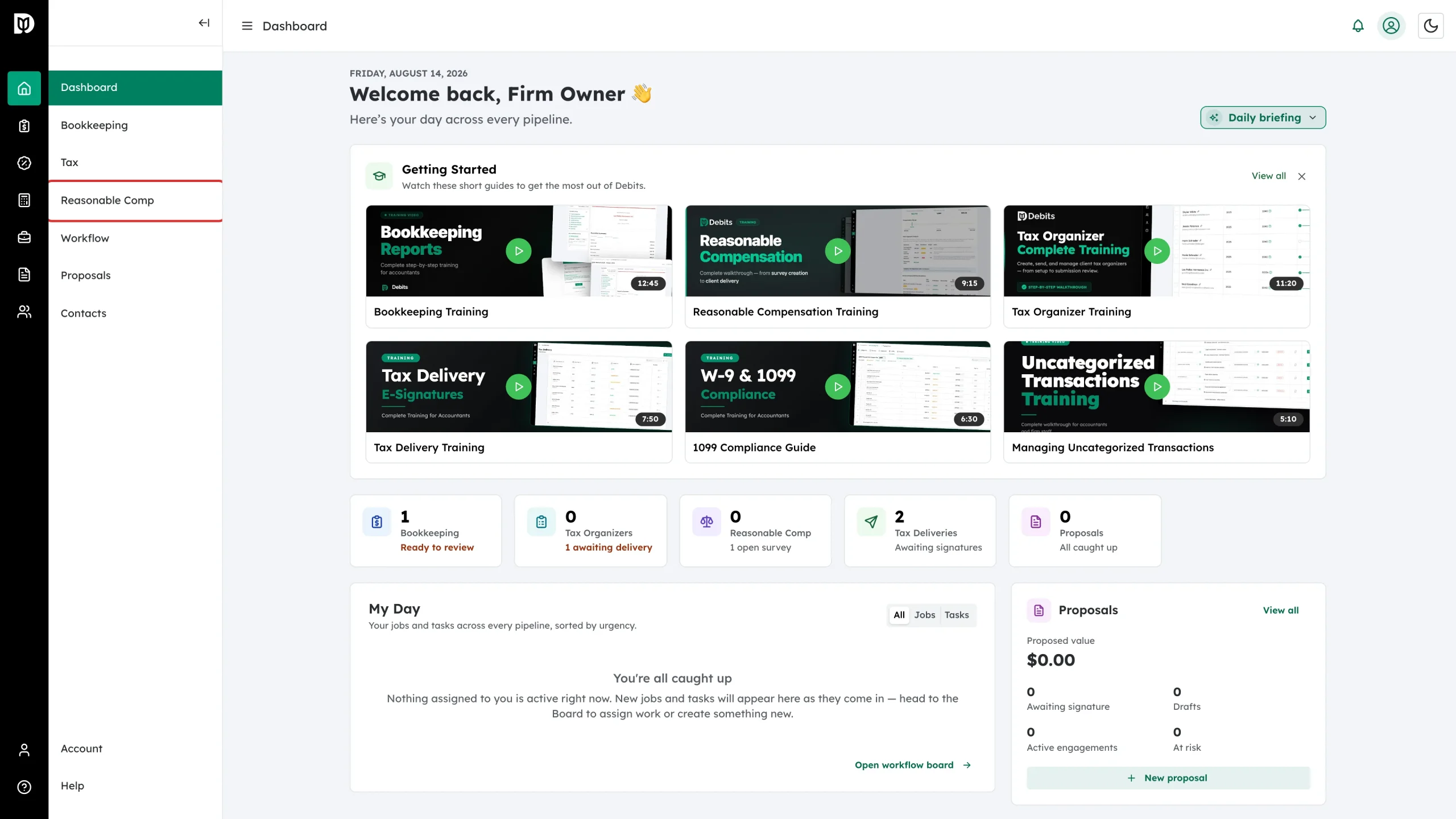
Step 1: Open Reasonable Comp
Click Reasonable Comp in the left sidebar.
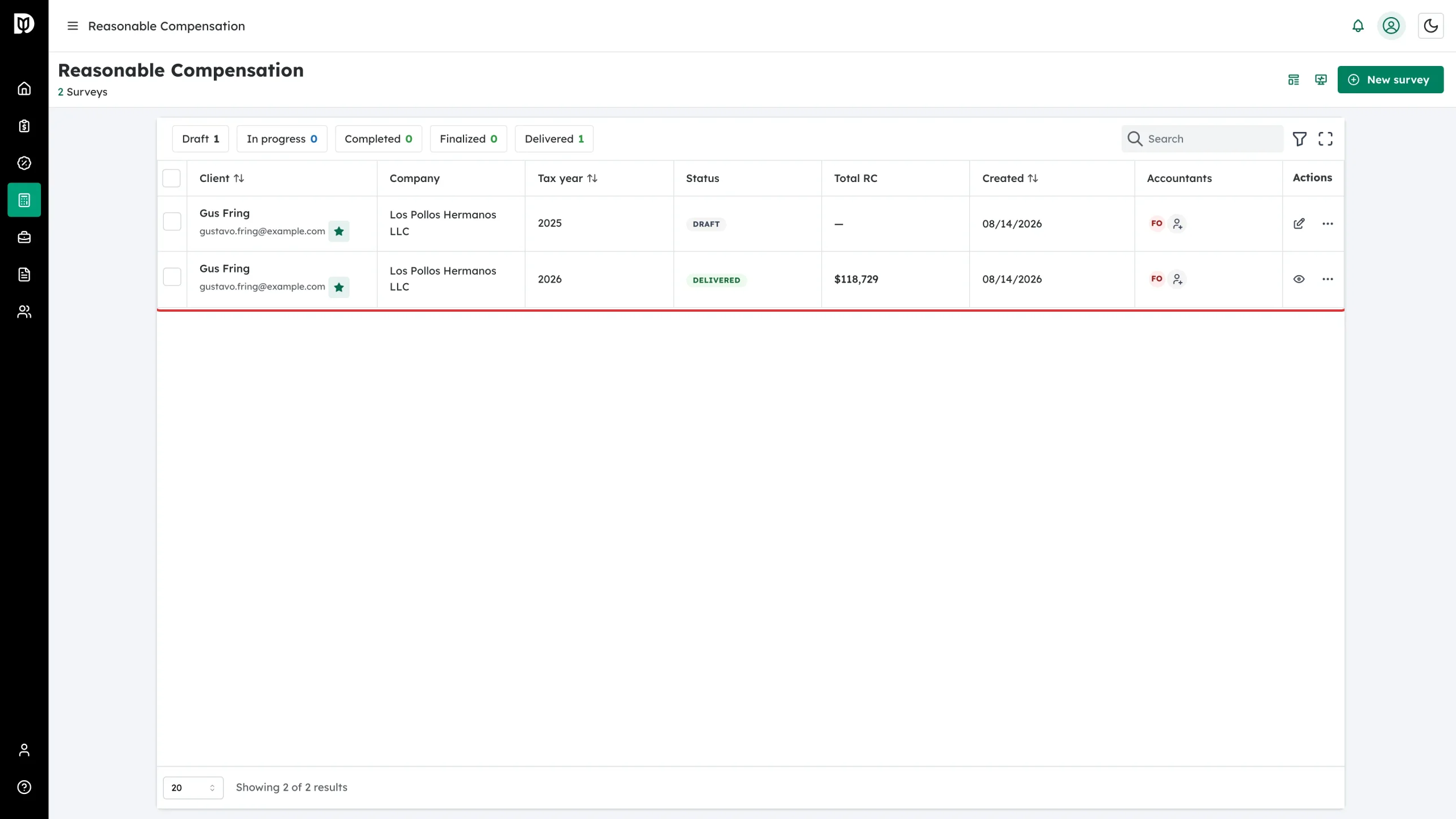
Step 2: Look over the survey list
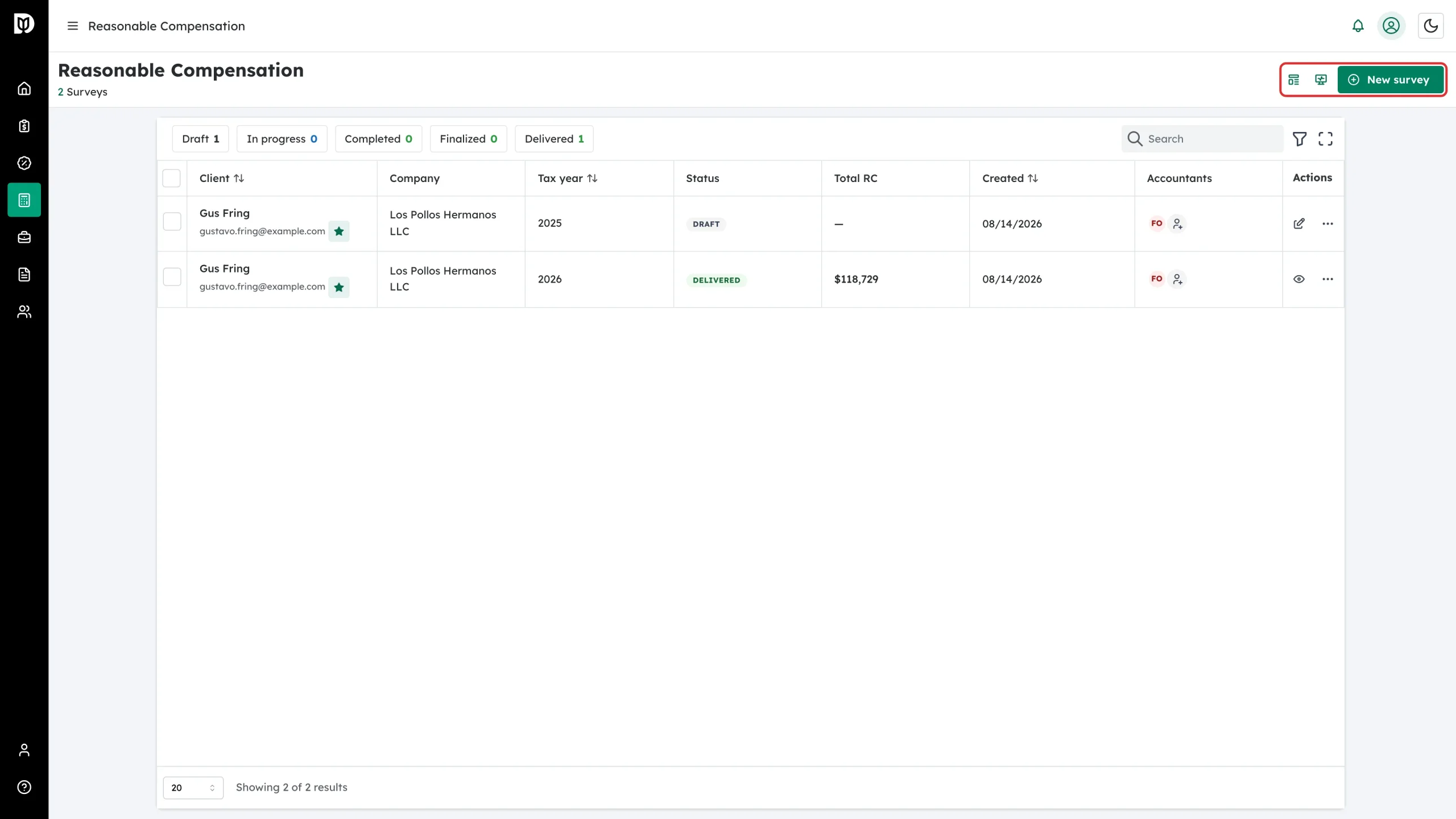
Every study you have started is listed here, with the client, company, tax year, status, total reasonable compensation, creation date and assigned accountants.
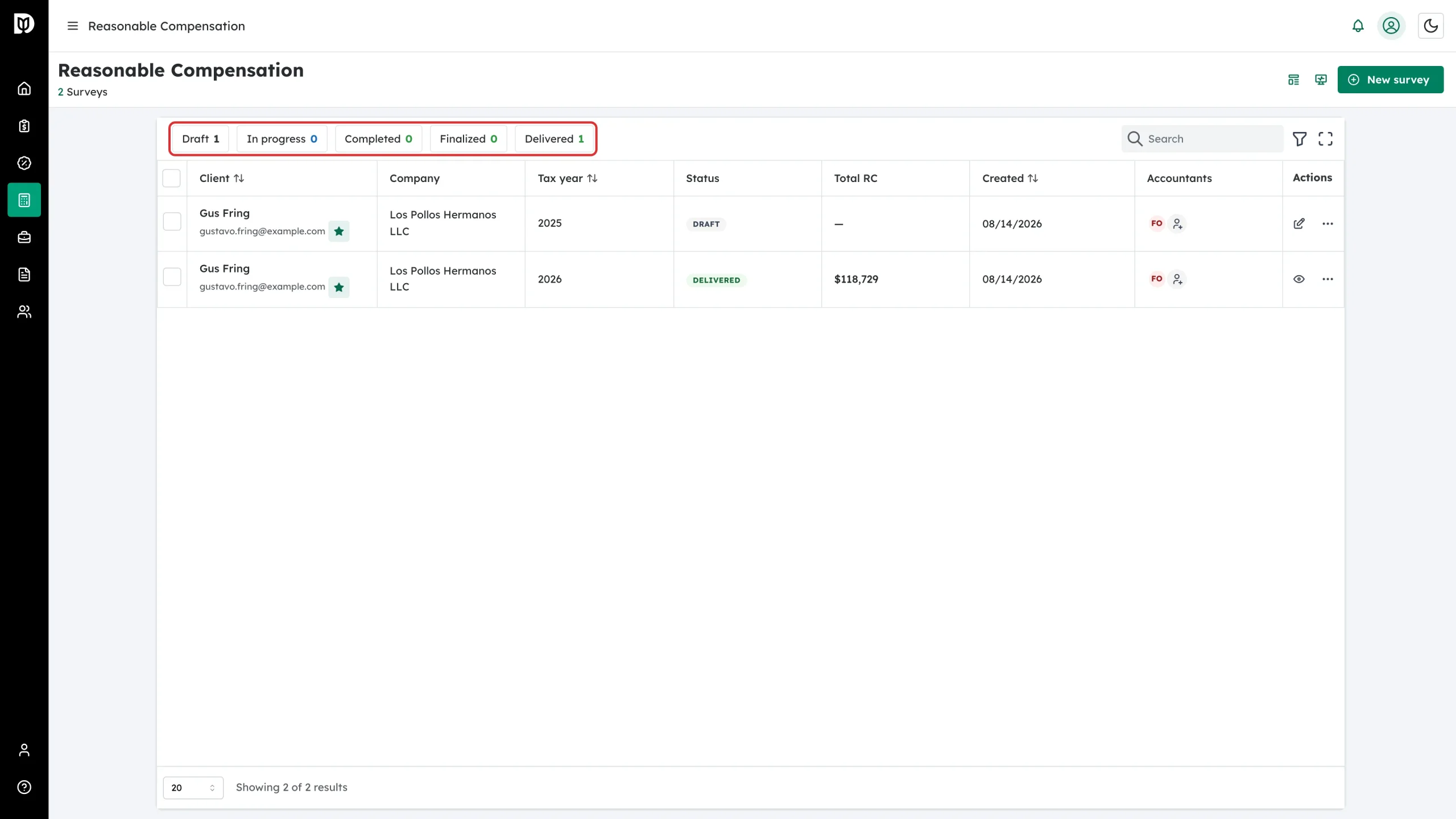
Step 3: Learn the five statuses
The chips above the table both filter the list and show how many studies sit at each stage.
- Draft — created, nothing answered yet.
- In progress — you or the client are part way through the questions.
- Completed — the figures are calculated and the report exists, but it is still editable.
- Finalized — locked and the PDF has been generated.
- Delivered — sent to the client.
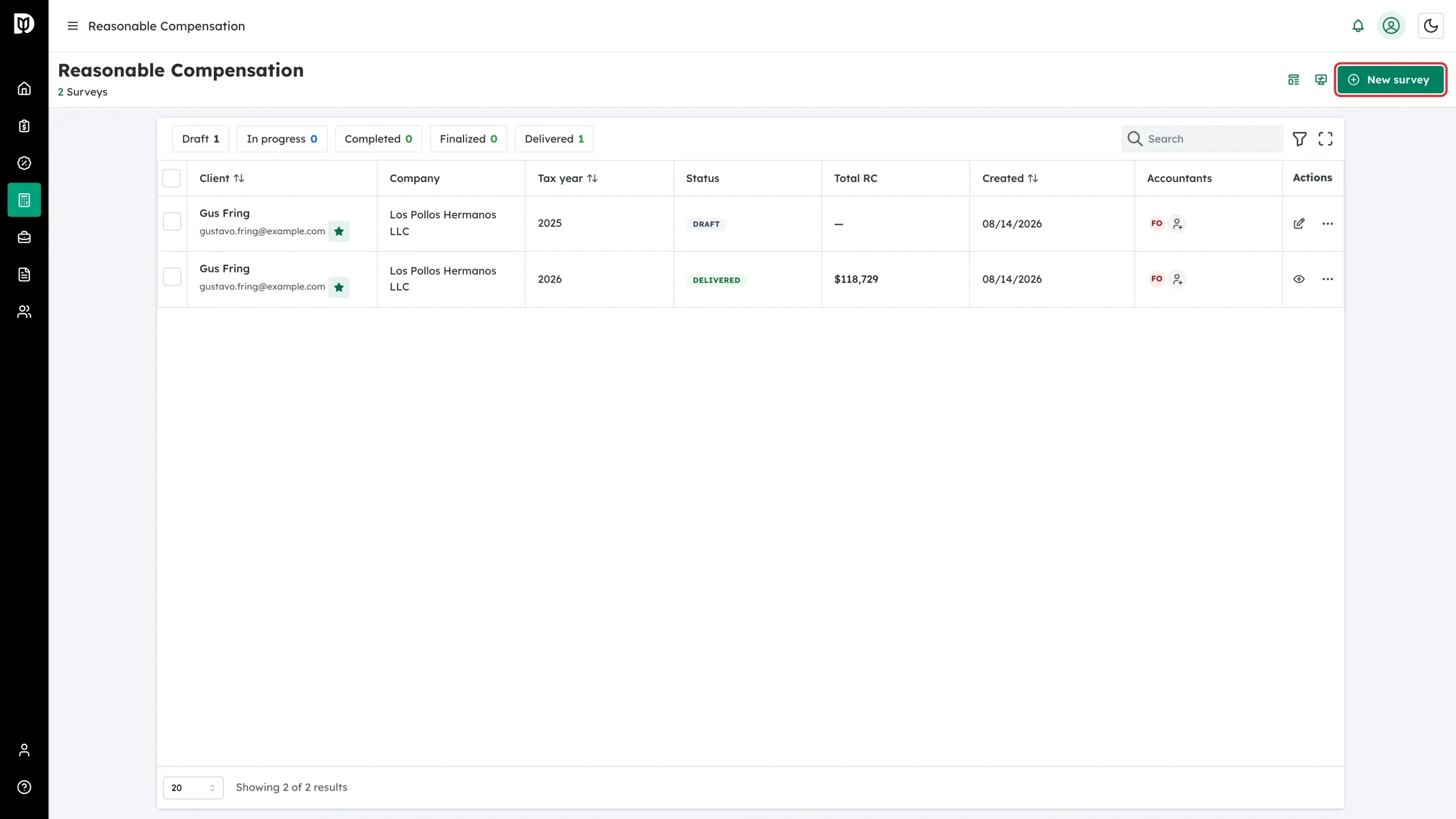
Step 4: Start a study
Click New survey at the top right. You pick the business, the shareholder and the accountants on the job, then either fill the answers in yourself or email the survey to the client.
Step 5: Know where Templates and Monitor are
Two icons sit beside the New survey button.
- Templates — ready-made role sets by business type (Restaurant Owner/Operator, General Contractor, Retail Store Owner, Professional Services Firm Owner and more). Applying one pre-fills the roles and a suggested weekly hours figure. You can also save any study’s roles as your own template.
- Monitor — a portfolio view of every completed study, scored Current, Review Needed or Outdated so you can see which clients are due a refresh before wage data drifts.
What happens next
The normal run of work is: create the survey, collect the answers, calculate, review the report, finalize it, then deliver it to the client. See How to create a reasonable compensation survey for the detail.
Troubleshooting
- Reasonable Comp is missing from the sidebar. The feature needs the tax suite enabled on your firm and an accountant login with tax access. Check with your firm owner.
- The table is empty but I know studies exist. A status chip or a column filter is still applied. Click the active chip again to clear it.
- I want to see this demonstrated. The firm dashboard carries a Reasonable Compensation Training video in the Getting Started row.