Who this is for: The firm owner. Only the owner can close the account.
What you’ll learn: How to permanently close your Debits account, exactly what gets deleted, and the safer alternatives.
Before you begin
- Closing the account is permanent. Everything listed in the confirmation window is deleted and cannot be recovered.
- Export or download anything you need first — reports, tax documents, transaction data.
- If you’re leaving but the firm keeps working in Debits, use Transfer Ownership instead (see below).
Step-by-step instructions
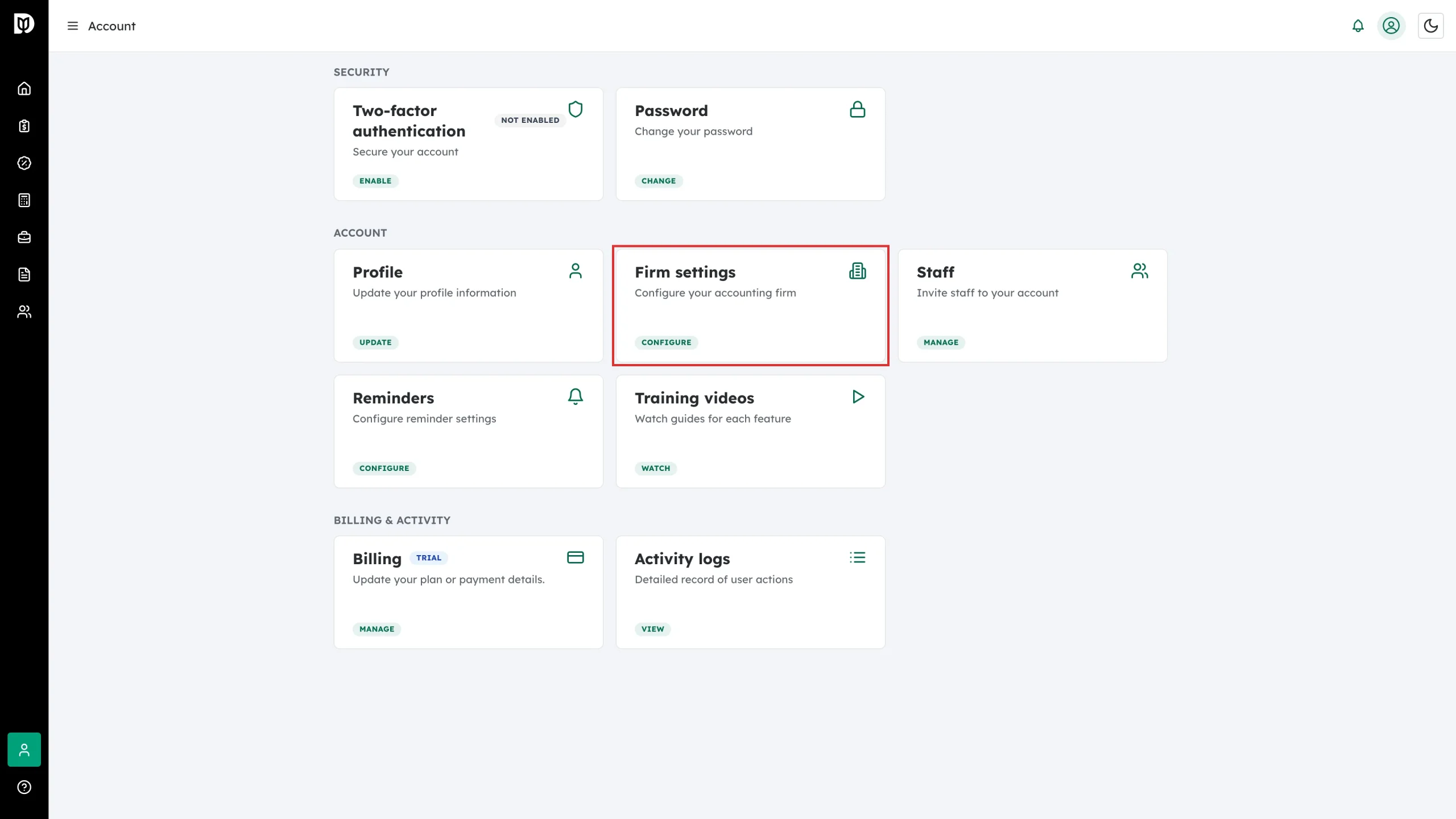
Step 1: Open Firm settings
Go to Account and click the Firm settings card.
Step 2: Find the Danger Zone
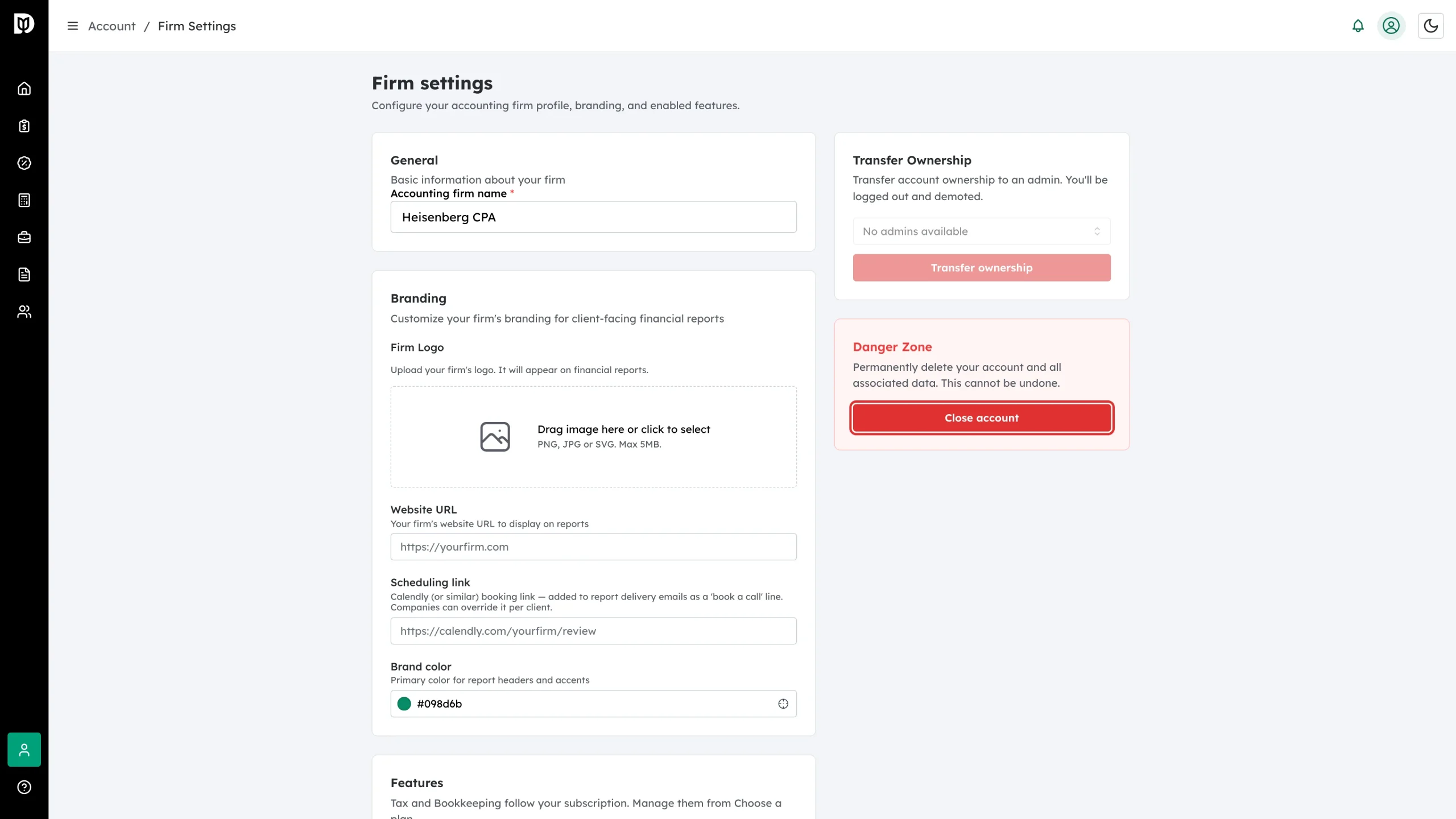
On the right side of Firm settings, the red Danger Zone panel reads “Permanently delete your account and all associated data. This cannot be undone.” Click Close account.
Step 3: Review what will be deleted, then confirm
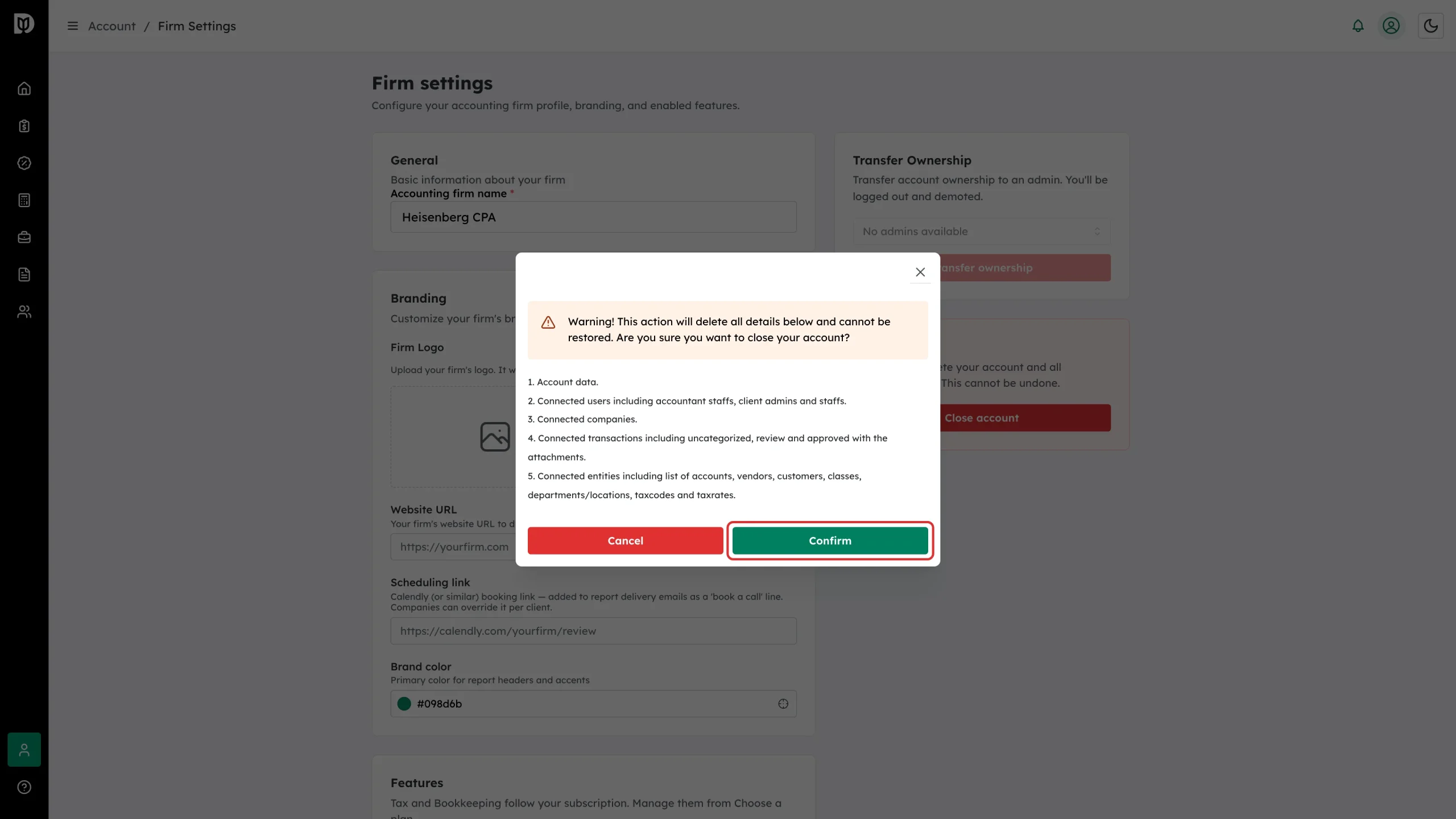
A confirmation window lists everything that will be removed:
- Account data
- Connected users — accountant staff, client admins and staff
- Connected companies
- Connected transactions — uncategorized, review, and approved, with their attachments
- Connected entities — accounts, vendors, customers, classes, departments/locations, taxcodes and taxrates
Read the list carefully. Note the button colors: the red button is Cancel and the green button is Confirm. Click Confirm only if you are sure — there is no undo.
What happens next
Your account is closed, you are signed out, and you land back on the sign-in page. Staff and client users lose access immediately.
Alternative: transfer ownership instead
If the firm keeps using Debits without you, use the Transfer Ownership panel on the same page: pick an admin from the dropdown and click Transfer ownership. You’ll be signed out and your role becomes admin; the chosen admin becomes the owner. (If the dropdown says “No admins available”, promote a staff member to admin first under Account → Staff.)
Troubleshooting
- You don’t see the Danger Zone: Only the firm owner does. Ask the owner, or have ownership transferred to you first.
- You need your data after closing: It can’t be recovered. Export everything before you confirm.
- You just want to stop being billed: there is no separate cancel button. Close account is how you cancel — it ends your Debits subscription along with deleting the firm’s data, so export what you need first. To change to a smaller plan instead, use Change plan on the Subscription & Billing page.