Who this is for: Any Debits user — accountants and staff — who wants a second layer of sign-in security.
What you’ll learn: How to turn on two-factor authentication (2FA) with an authenticator app, and why you must save your backup code.
Before you begin
- Install an authenticator app on your phone — Google Authenticator, Authy, Microsoft Authenticator, or similar.
- Once 2FA is on, every sign-in needs your password plus a 6-digit code, so keep your phone handy.
Step-by-step instructions
Step 1: Open the Two-factor authentication page
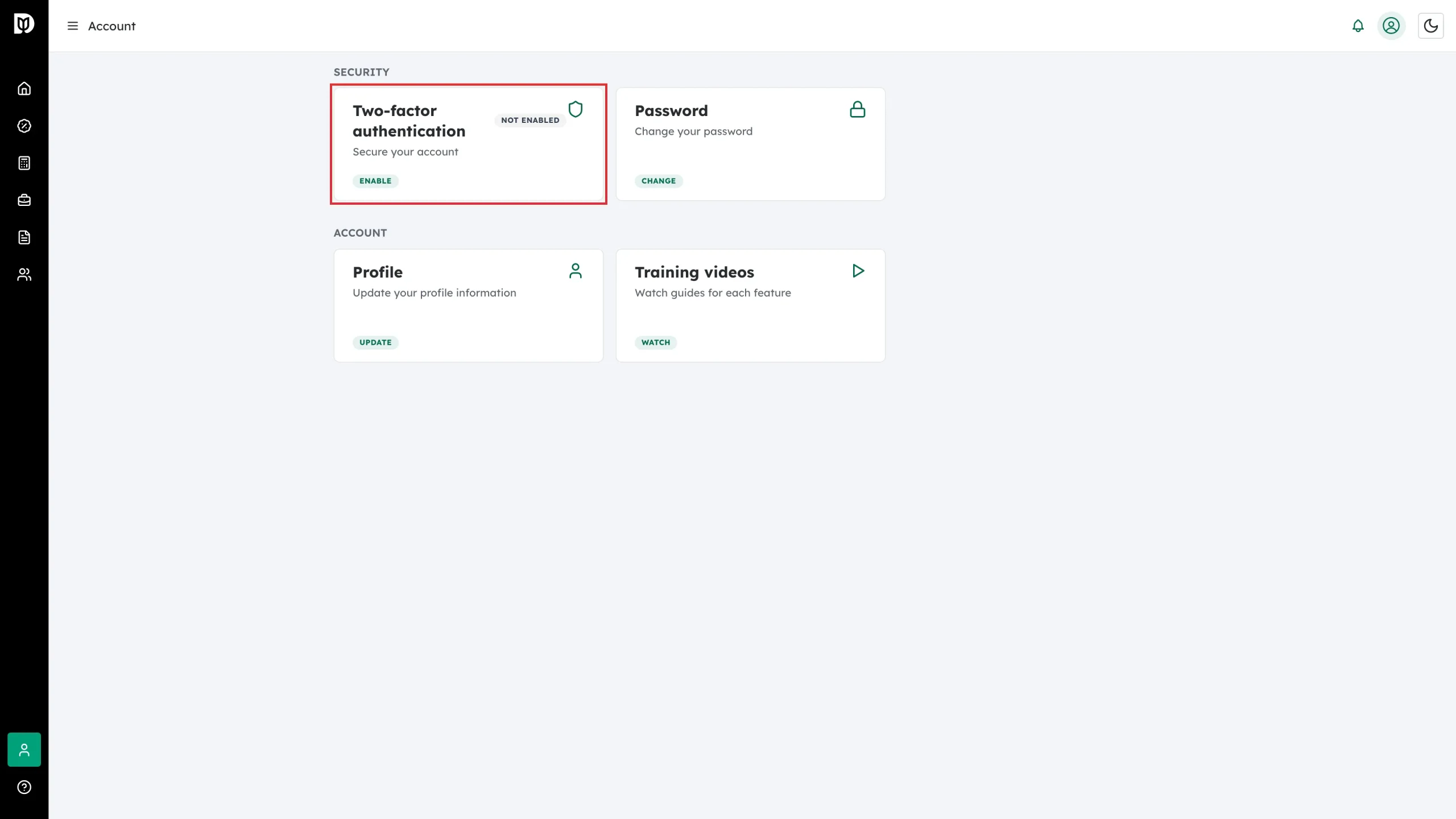
Go to Account. Under Security, the Two-factor authentication card shows your current status (Not enabled or Enabled). Click it.
Step 2: Turn on the Enable 2FA switch
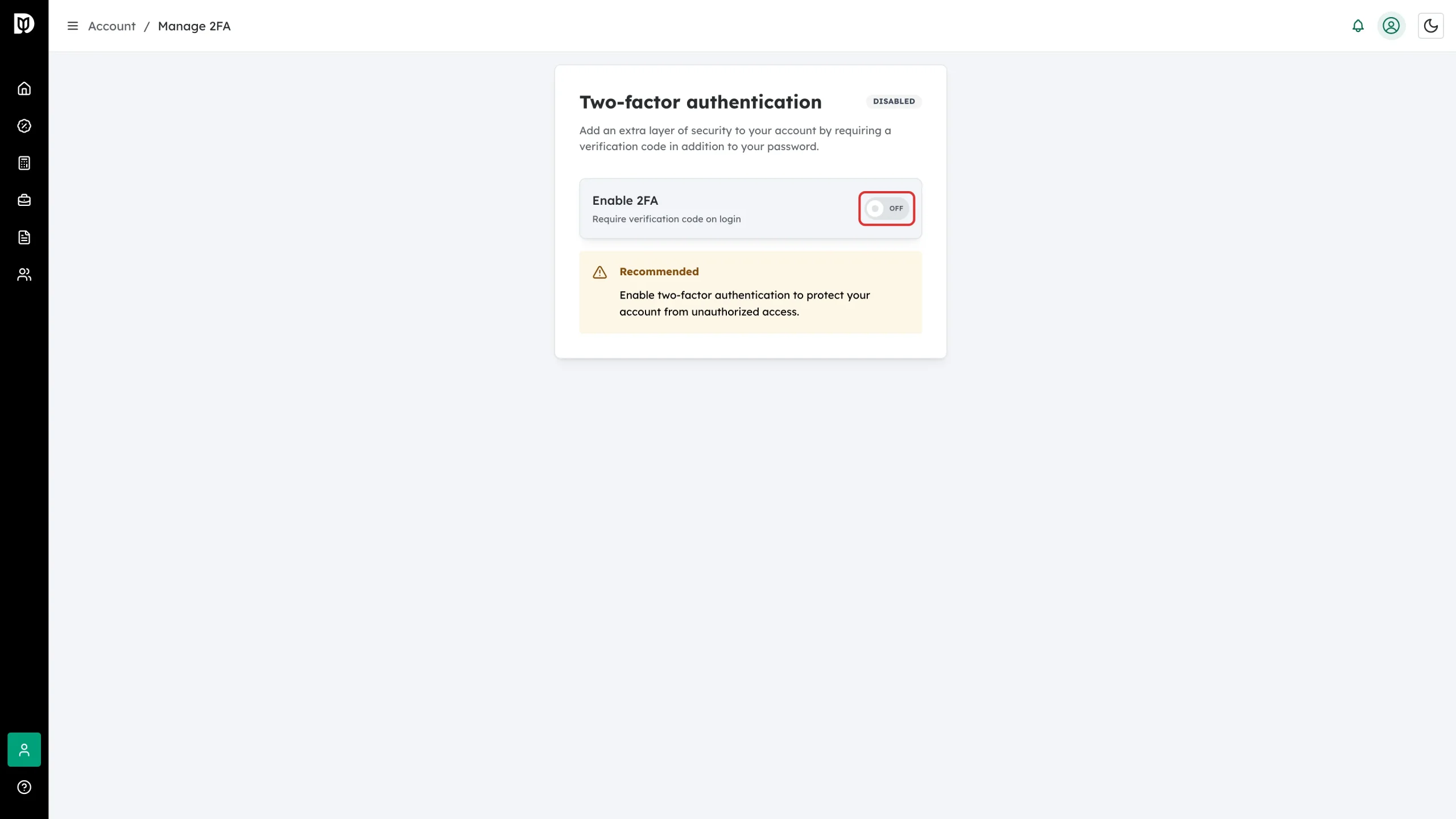
On the Manage 2FA page, flip the Enable 2FA switch. A four-step progress bar appears: Enable → Scan → Verify → Done.
Step 3: Scan the QR code
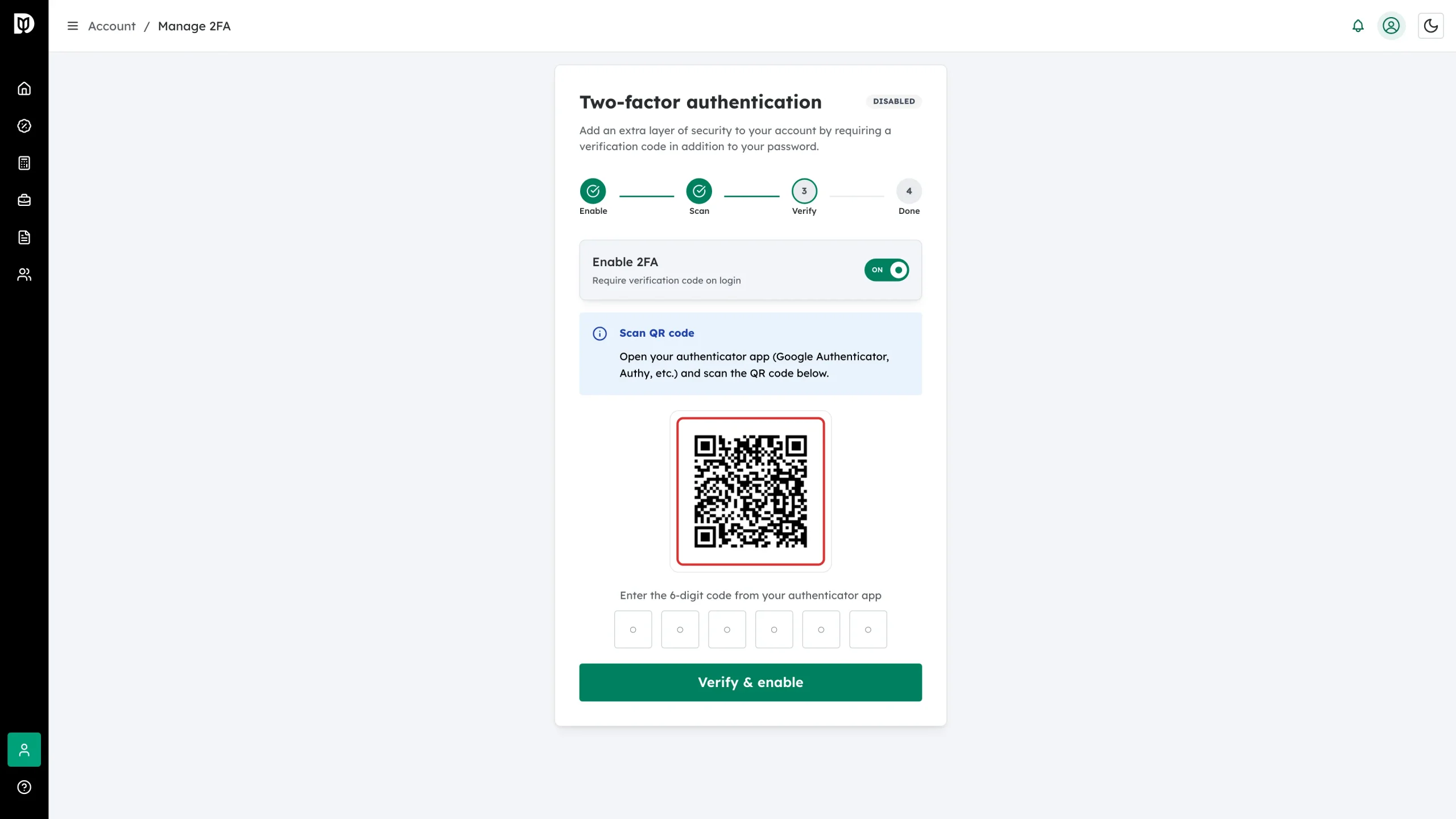
A QR code appears. In your authenticator app, choose Add account (or the + button), pick Scan QR code, and point your camera at the screen. A new “Debits” entry appears in the app with a 6-digit code that changes every 30 seconds.
Step 4: Enter the code and verify
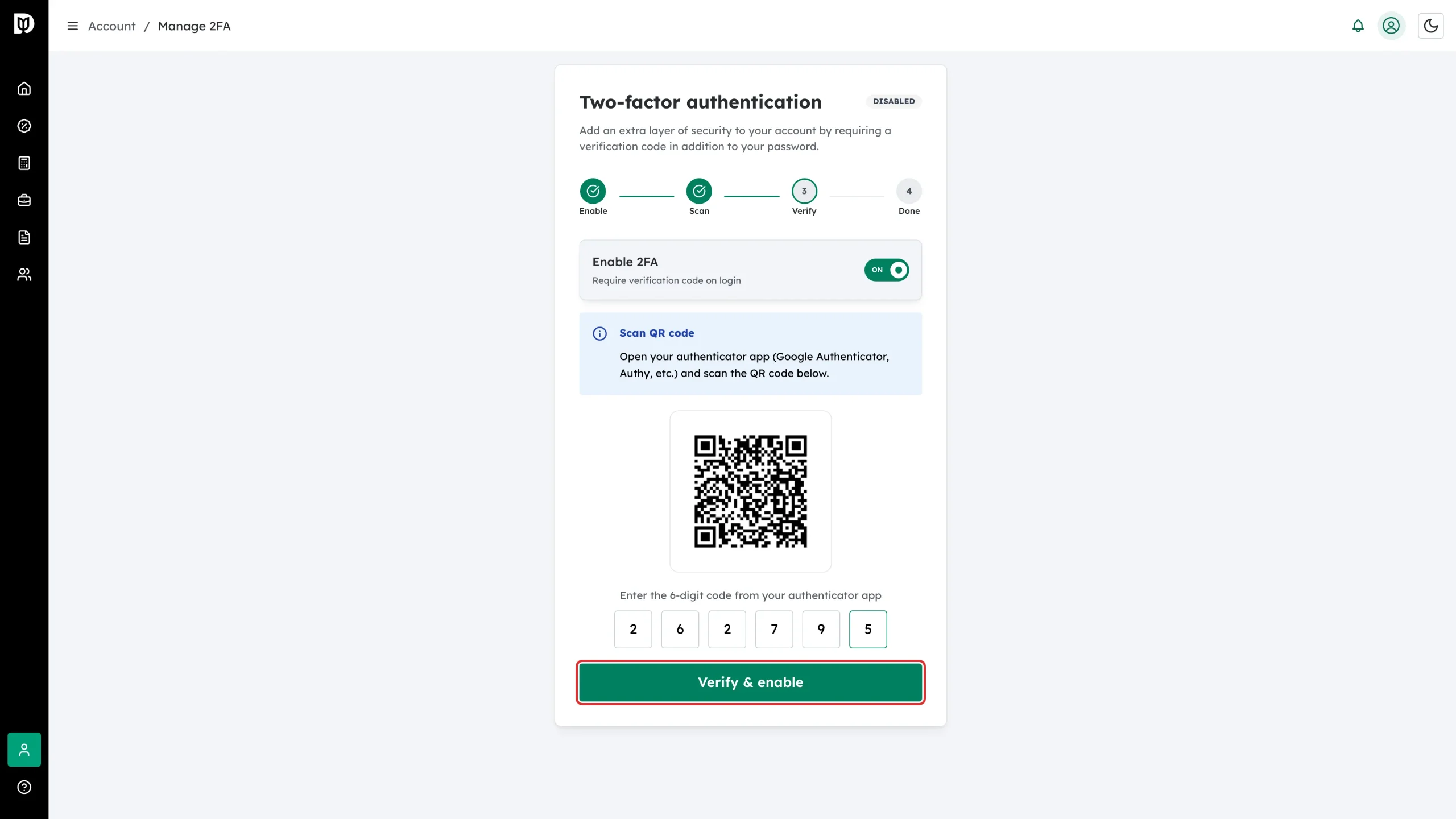
Type the current 6-digit code from your authenticator app into the code boxes, then click Verify & enable.
Step 5: Save your backup code
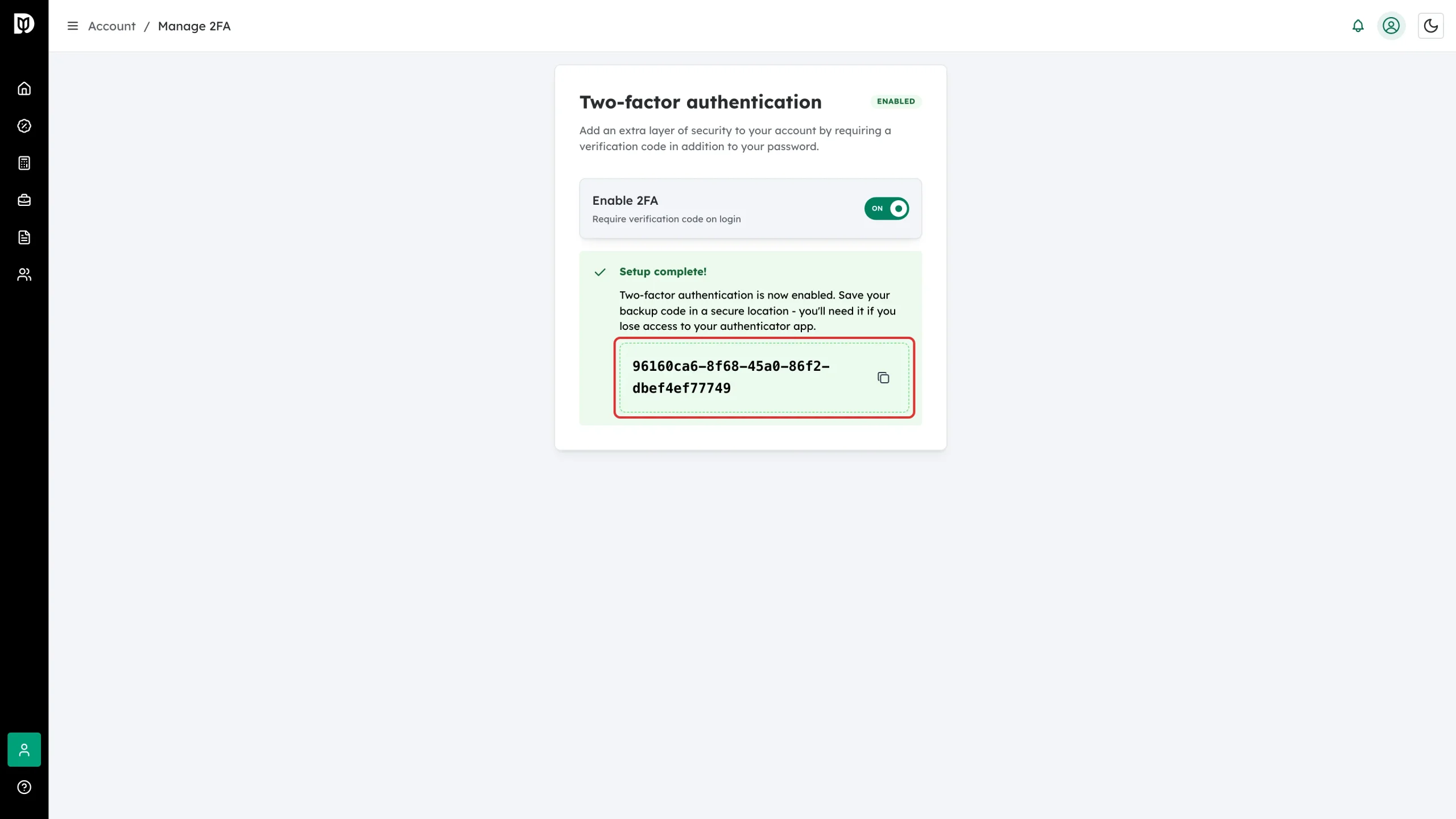
A green Setup complete! panel shows your backup code with a copy button. Copy it and store it somewhere safe (a password manager is ideal). This code is your only way back in if you lose your phone or authenticator app — it is shown once, here.
What happens next
- The card on the Account page now shows Enabled.
- Every sign-in asks for your password and then a 6-digit code from your authenticator app.
- If you can’t use the app, sign in with your backup code instead.
Turning 2FA off
Return to Account → Two-factor authentication (the card link now reads Manage) and flip the Enable 2FA switch off.
Troubleshooting
- The code is rejected: Codes rotate every 30 seconds — enter the one currently showing, and check your phone’s clock is set automatically.
- You lost your phone: Sign in with your backup code, then disable and re-enable 2FA to enroll a new device.
- You lost the backup code too: Contact Debits support to verify your identity and reset 2FA.