Who this is for: Anyone updating their own name or email — and owners/admins updating the firm’s name.
What you’ll learn: Where your personal profile lives, where the firm name moved to, and why some firm service toggles are read-only on a subscription plan.
Before you begin
- Anyone can edit their own profile. Firm settings need owner or admin access.
- Your email is your sign-in address — make sure any new address is one you can receive mail at.
Update your personal profile
Step 1: Open Profile
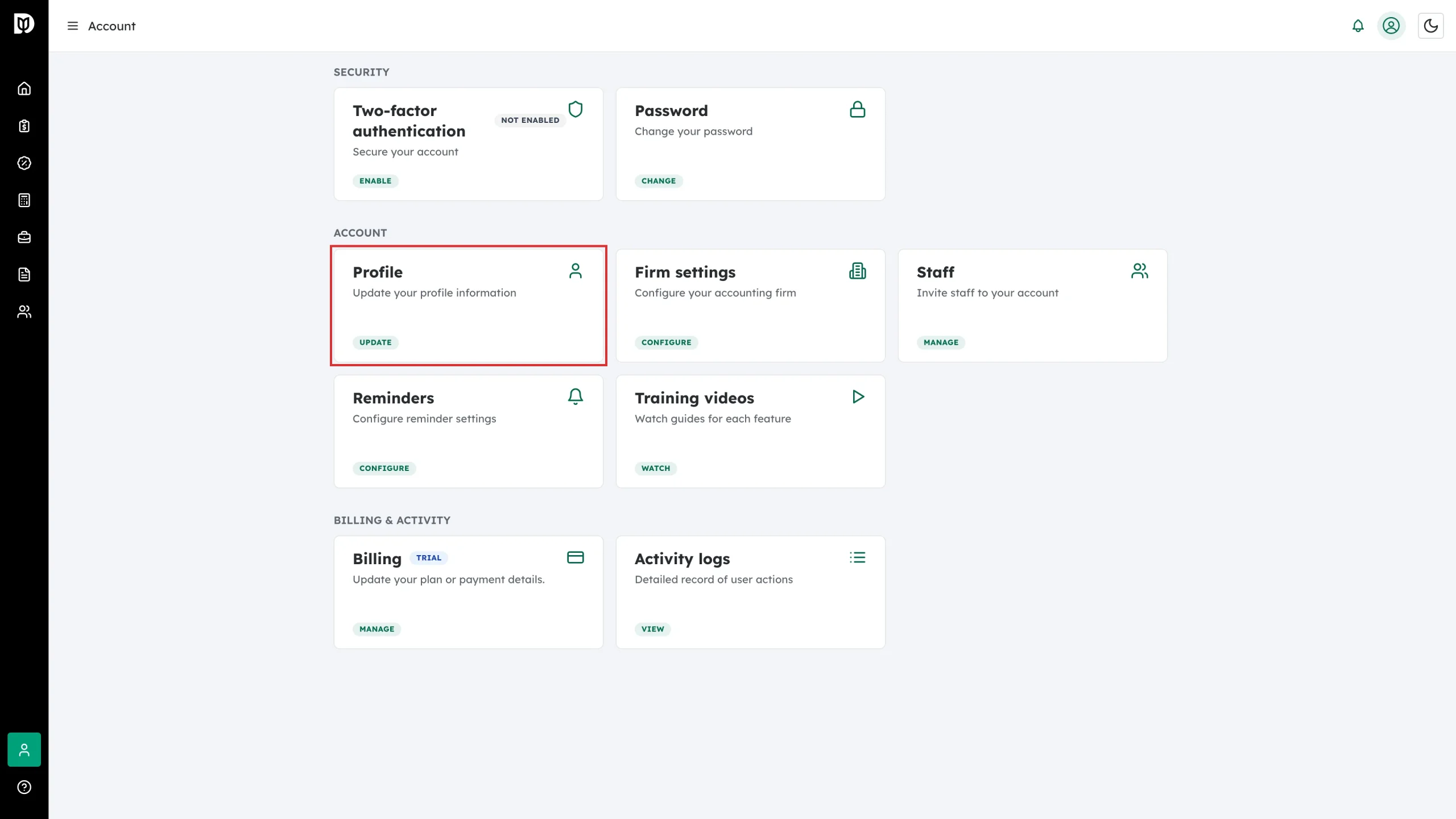
Go to Account and click the Profile card.
Step 2: Edit your name or email and save
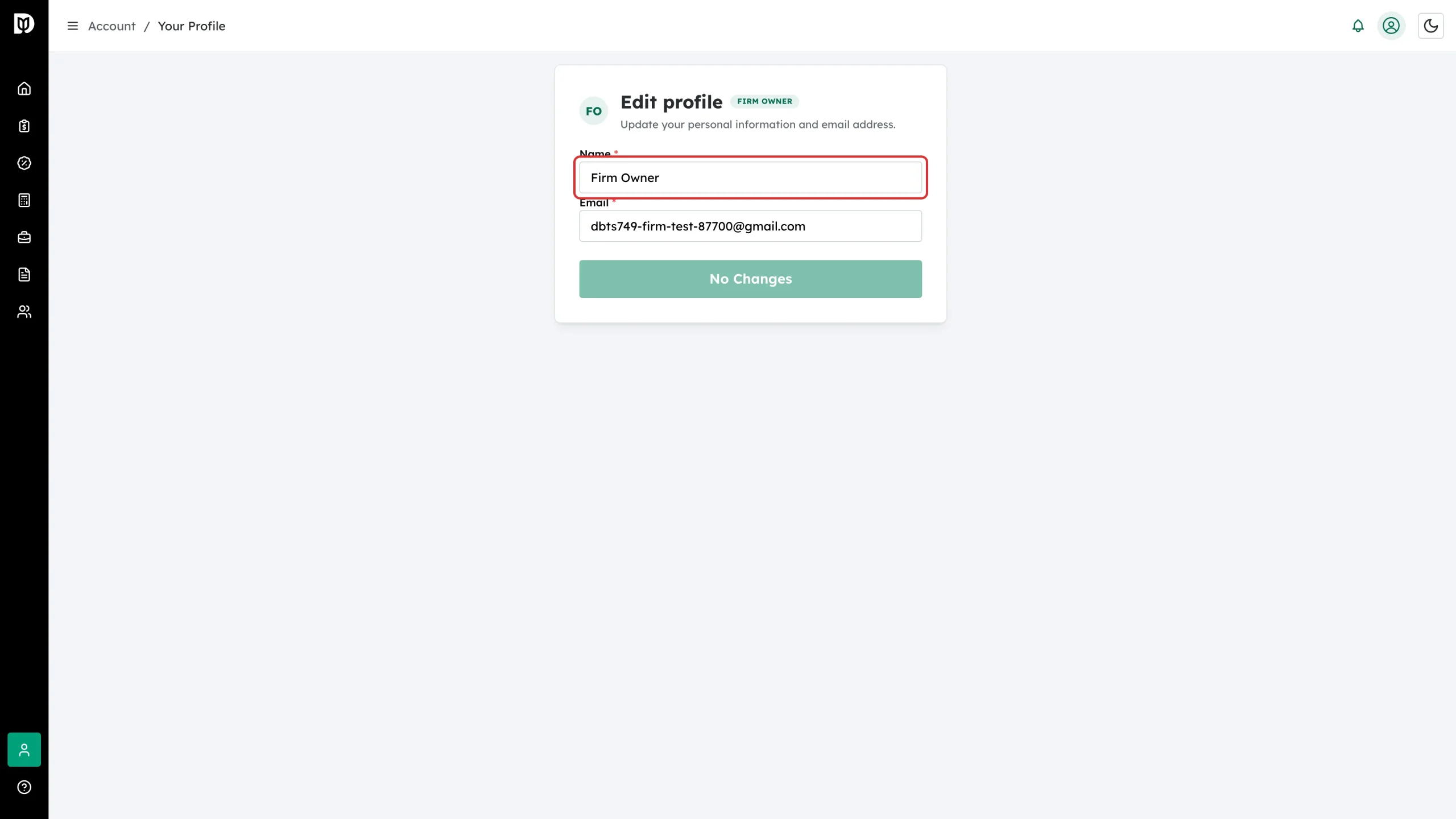
On the Edit profile form, change your Name or Email. The button reads No Changes until you edit something — then click Save Changes.
Update your firm’s name
Step 3: Open Firm settings
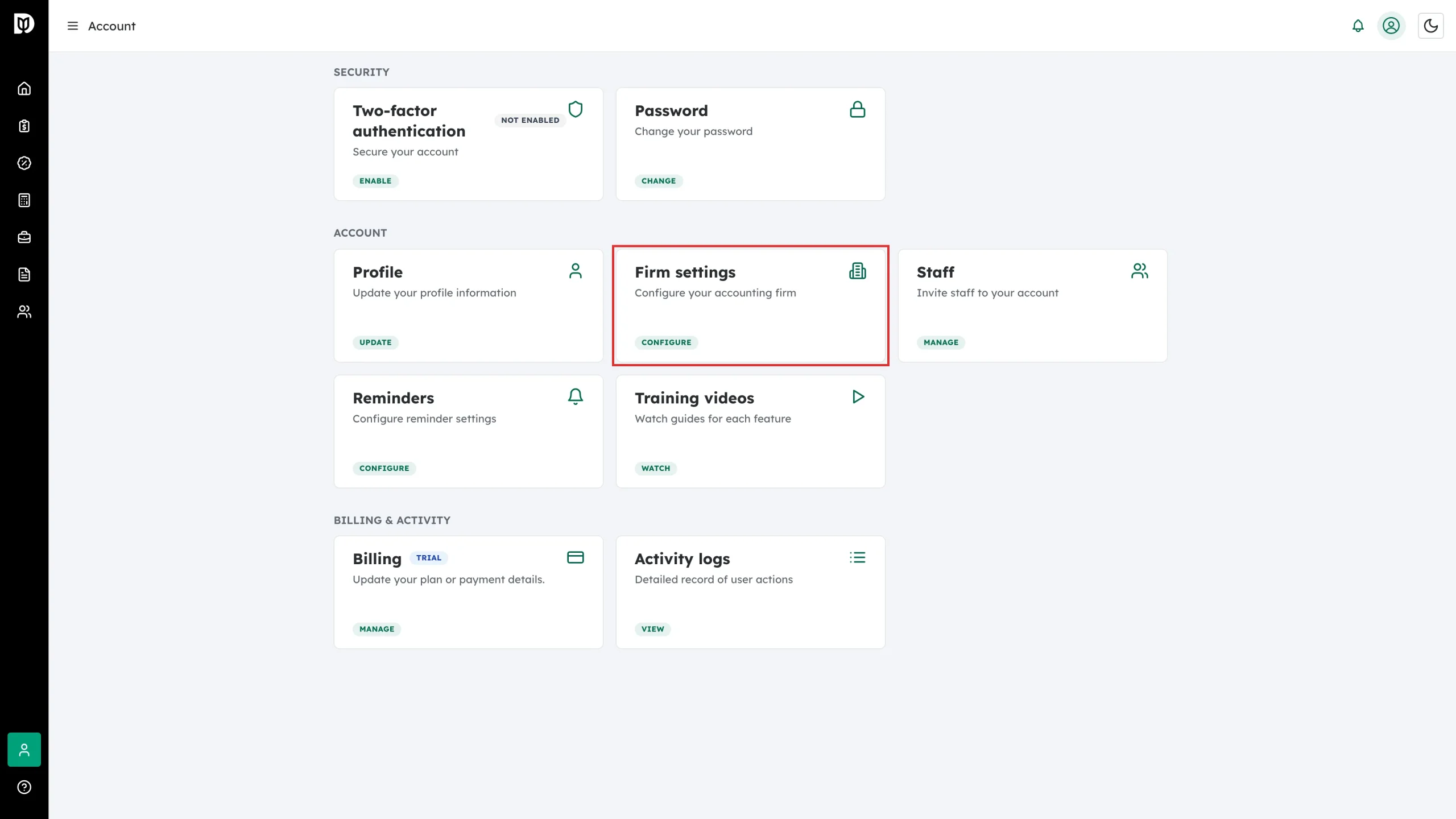
The firm name is a firm-wide setting, not part of your profile. Go to Account and click the Firm settings card.
Step 4: Change the accounting firm name
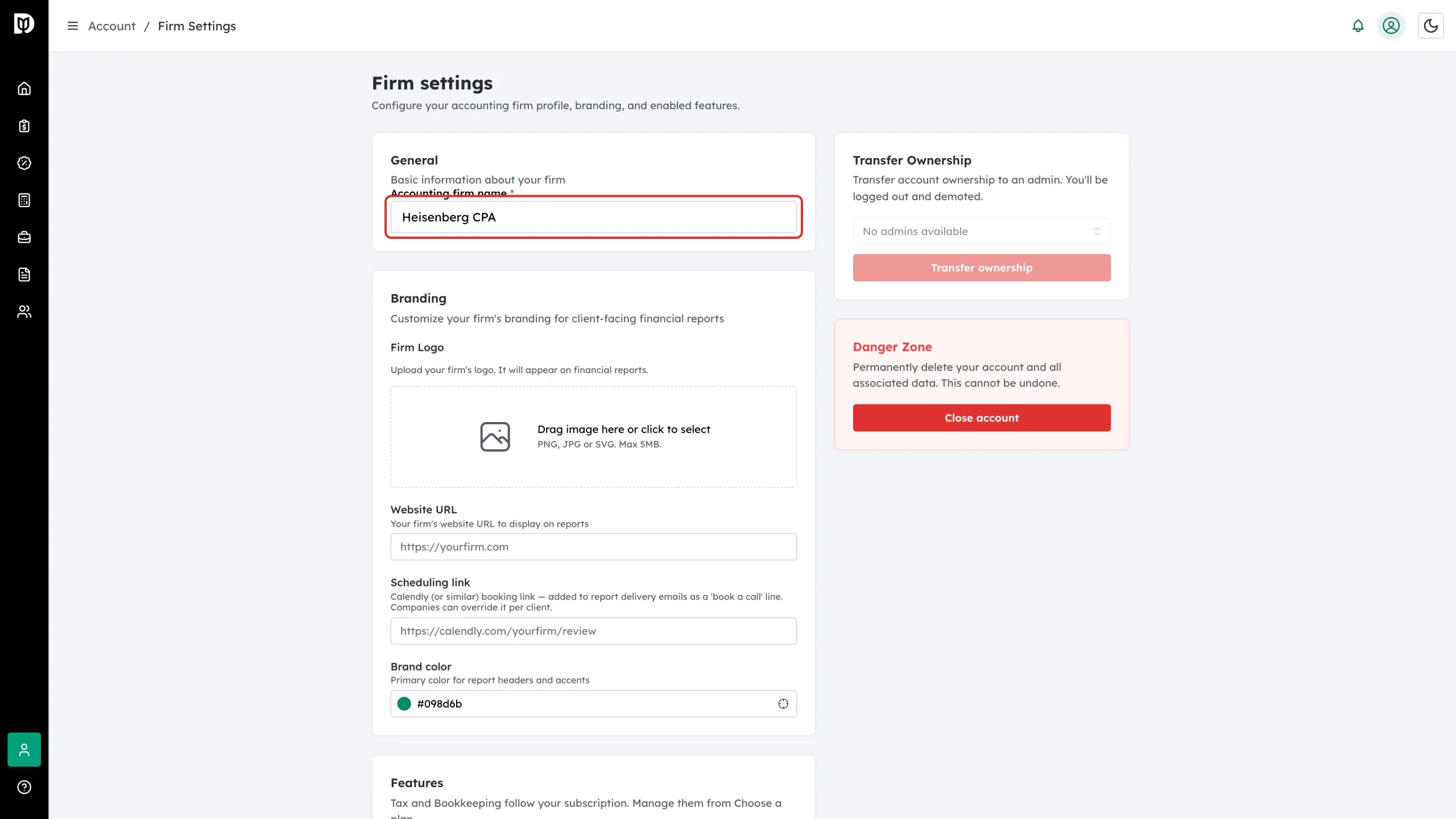
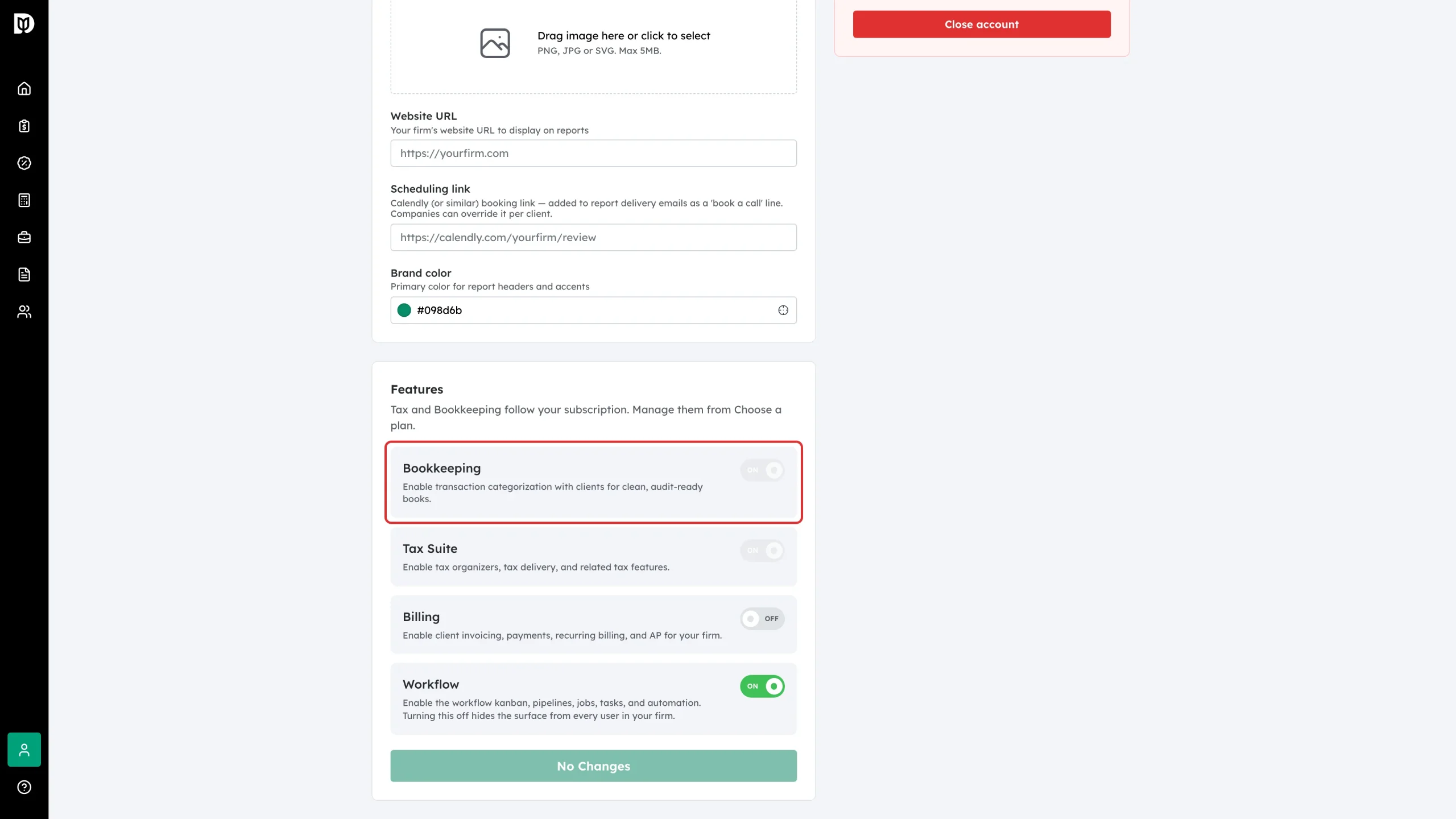
Under General, edit Accounting firm name — this is the name clients see on reports and client-facing pages. This page also holds your firm’s branding: logo, website URL, scheduling link, and brand color. Click Save Changes at the bottom when you’re done.
About the Features toggles
Further down Firm settings is a Features section. If your firm is on a subscription plan, the Bookkeeping and Tax Suite toggles follow your plan and are read-only here — the page says “Tax and Bookkeeping follow your subscription. Manage them from Choose a plan.” To add or remove those services, change your plan instead. The Billing and Workflow toggles stay editable.
What happens next
- Profile changes apply immediately to your account.
- A firm name change flows through to reports and client-facing surfaces.
Troubleshooting
- No Firm settings card: Only owners and admins see it. Ask your firm owner.
- The Bookkeeping/Tax toggles are greyed out: That’s expected on a subscription plan — manage those services from your plan, not this page.
- Email won’t save: It must be a valid address and can’t already be used by another Debits account.