Who this is for: Firm owners and admins who decide what each person in the firm can do.
What you’ll learn: What the Owner, Admin, Manager and Staff roles can reach, what a Manager cannot do, and how to adjust one person’s permissions.
Before you begin
- Every firm has four roles: Owner, Admin, Manager and Staff.
- There is one owner: the person who holds the account. Only the owner can manage the subscription and change the firm’s details.
- You need to be the owner, an admin or a manager to open Manage staff.
What each role can reach
- Owner — everything, including the subscription, firm settings, billing access for others and closing the account.
- Admin — every bookkeeping and tax client automatically, and can edit any staff member’s permissions and role.
- Manager — every bookkeeping and tax client automatically, starting with the same permissions as an admin. Unlike an admin, each of a manager’s permissions can be adjusted.
- Staff — only the clients you assign, and only the areas you switch on.
Step-by-step instructions
Step 1: See everyone’s role
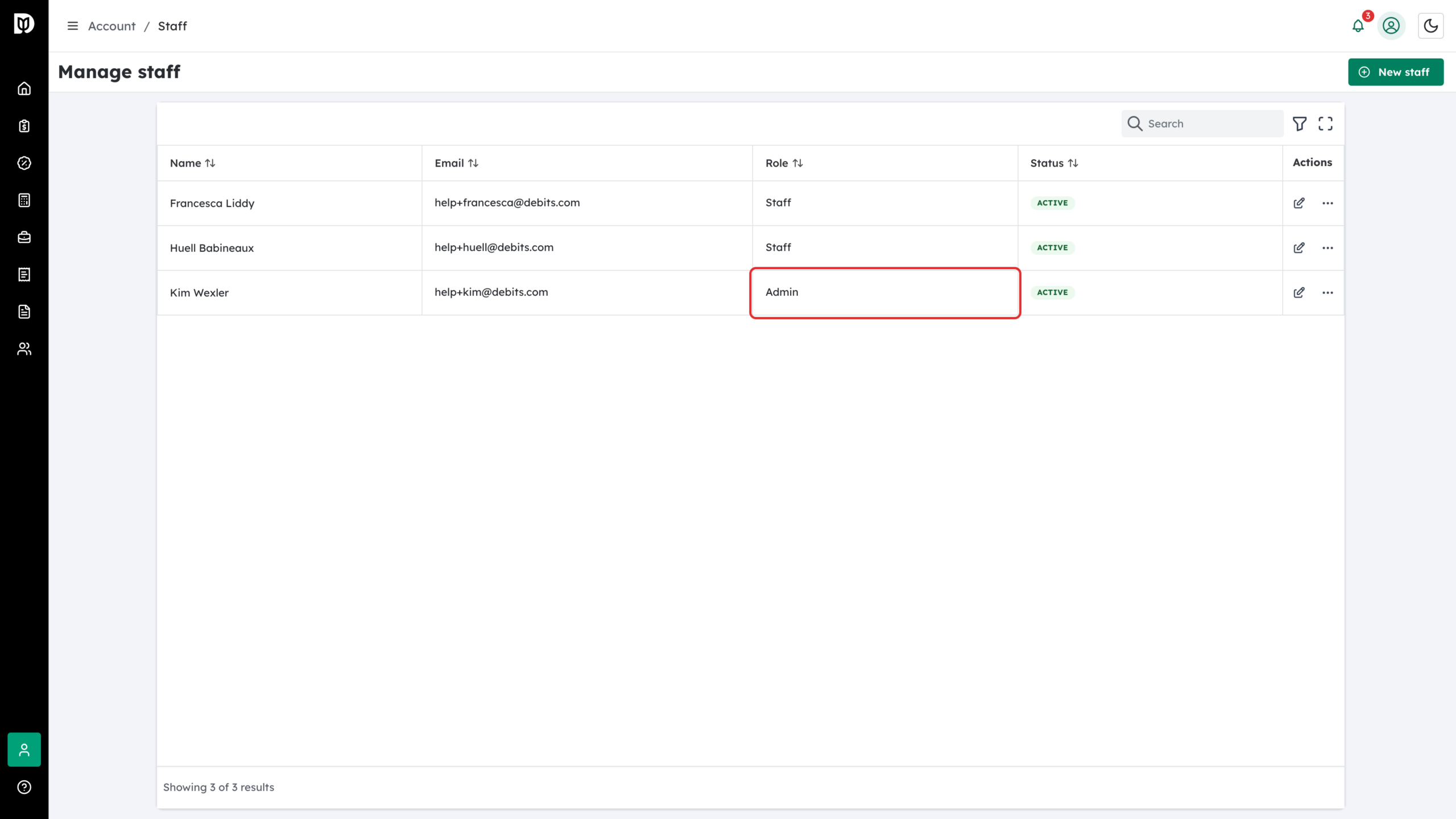
Go to Account > Staff. The Role column on the Manage staff page shows each person’s role.
Step 2: Choose a role when you invite someone
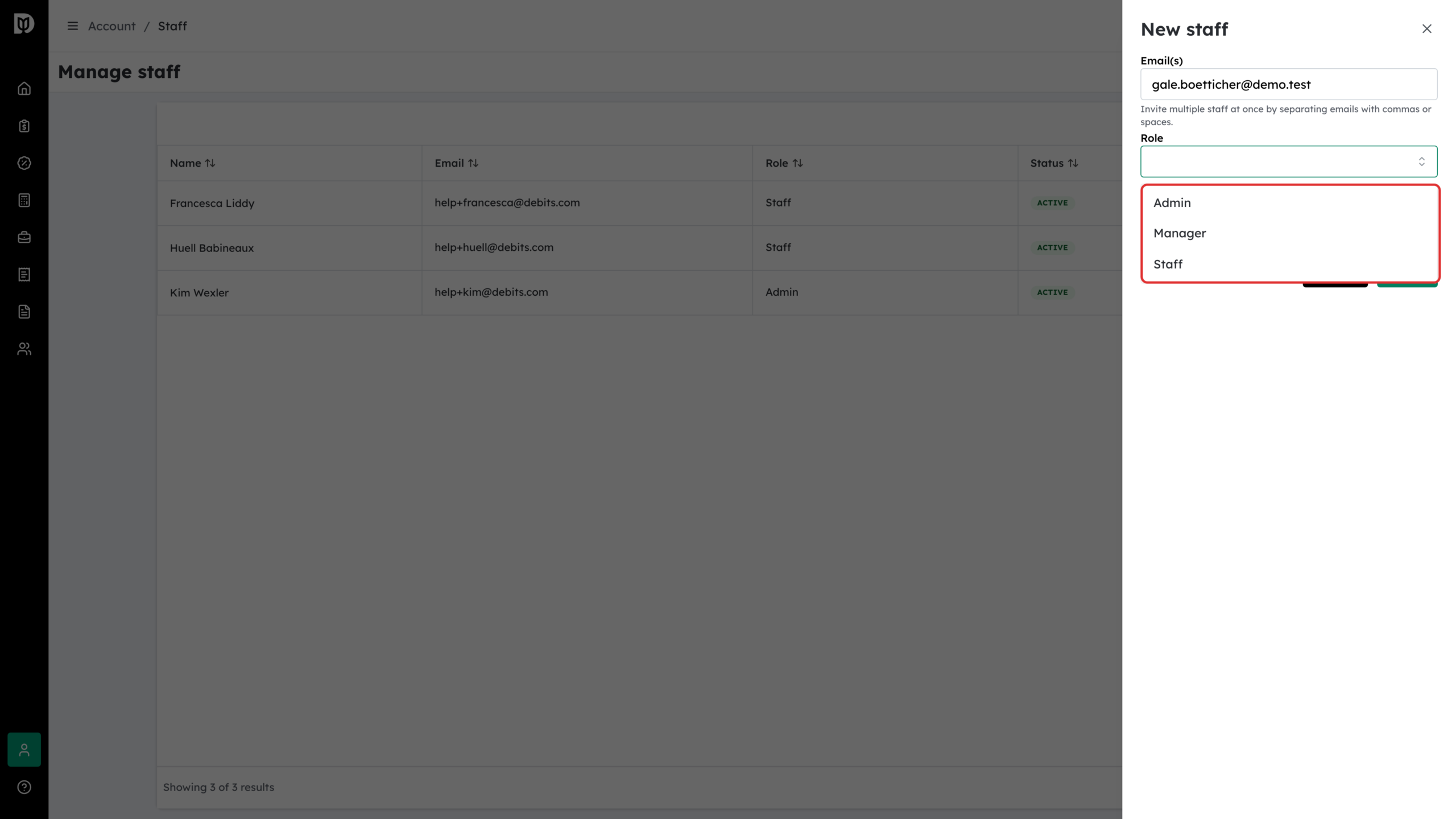
Select New staff, enter the Email(s), then open Role. Owners and admins can pick Admin, Manager or Staff. A manager can only pick Staff.
Step 3: Check what the role reaches
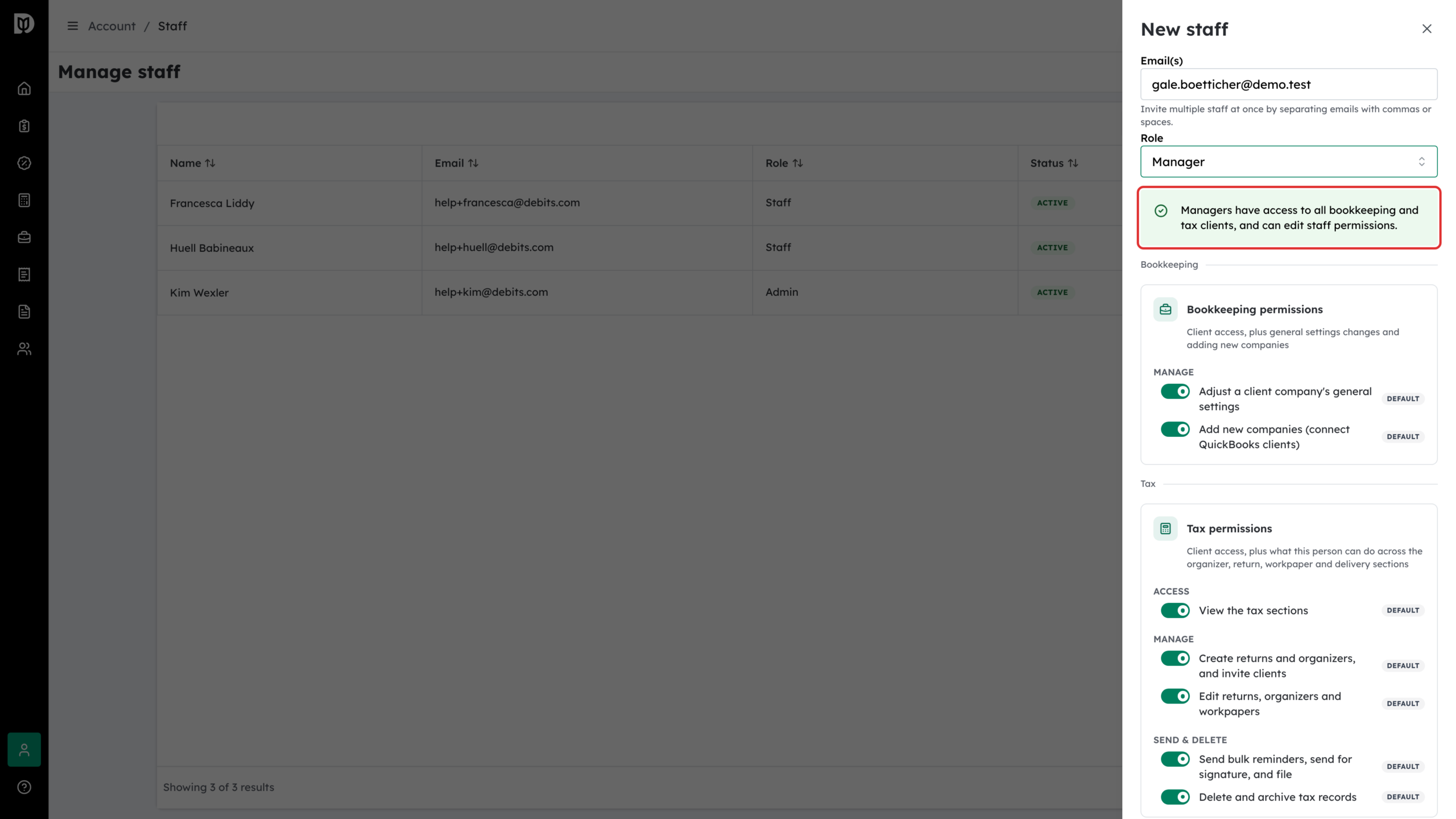
When you pick Admin or Manager, a green note confirms that they have access to all bookkeeping and tax clients and can edit staff permissions. There are no clients to assign. When you pick Staff, the permission cards let you choose All clients or Select clients instead.
Step 4: Change someone’s role or permissions
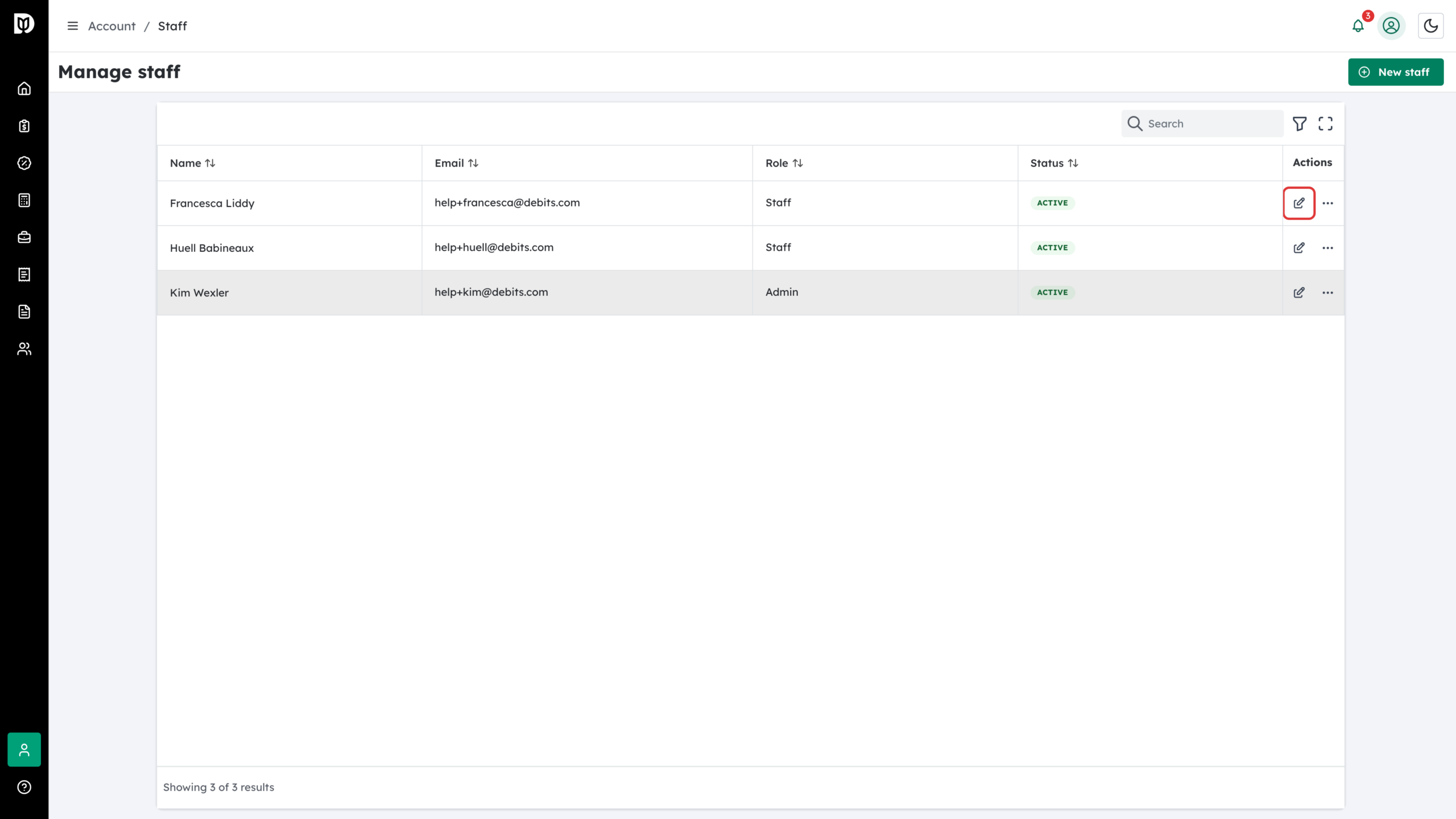
Select the edit (pencil) icon on their row. The Update staff drawer opens with their role and every permission card. Make your changes and select Save changes.
Changing someone between Staff and Admin or Manager clears their assigned client list, so re-assign their clients after a role change.
Step 5: Adjust one permission, or put it back
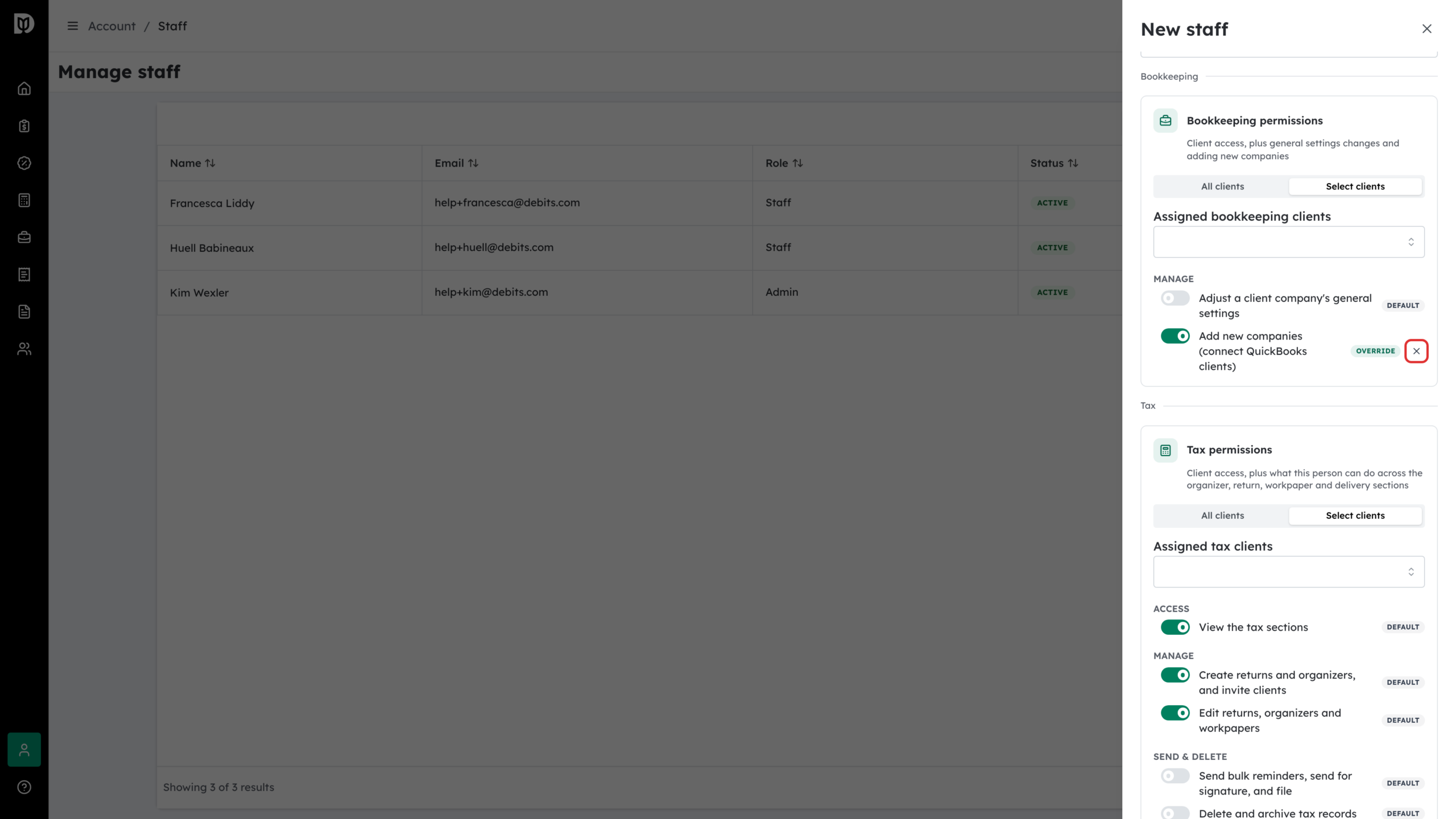
Every switch starts at the role’s default and is marked DEFAULT. When you change one, it is marked OVERRIDE and an X appears beside it. Select the X (Clear override) to put that switch back to the role’s default.
Step 6: Give someone billing access (owner only)
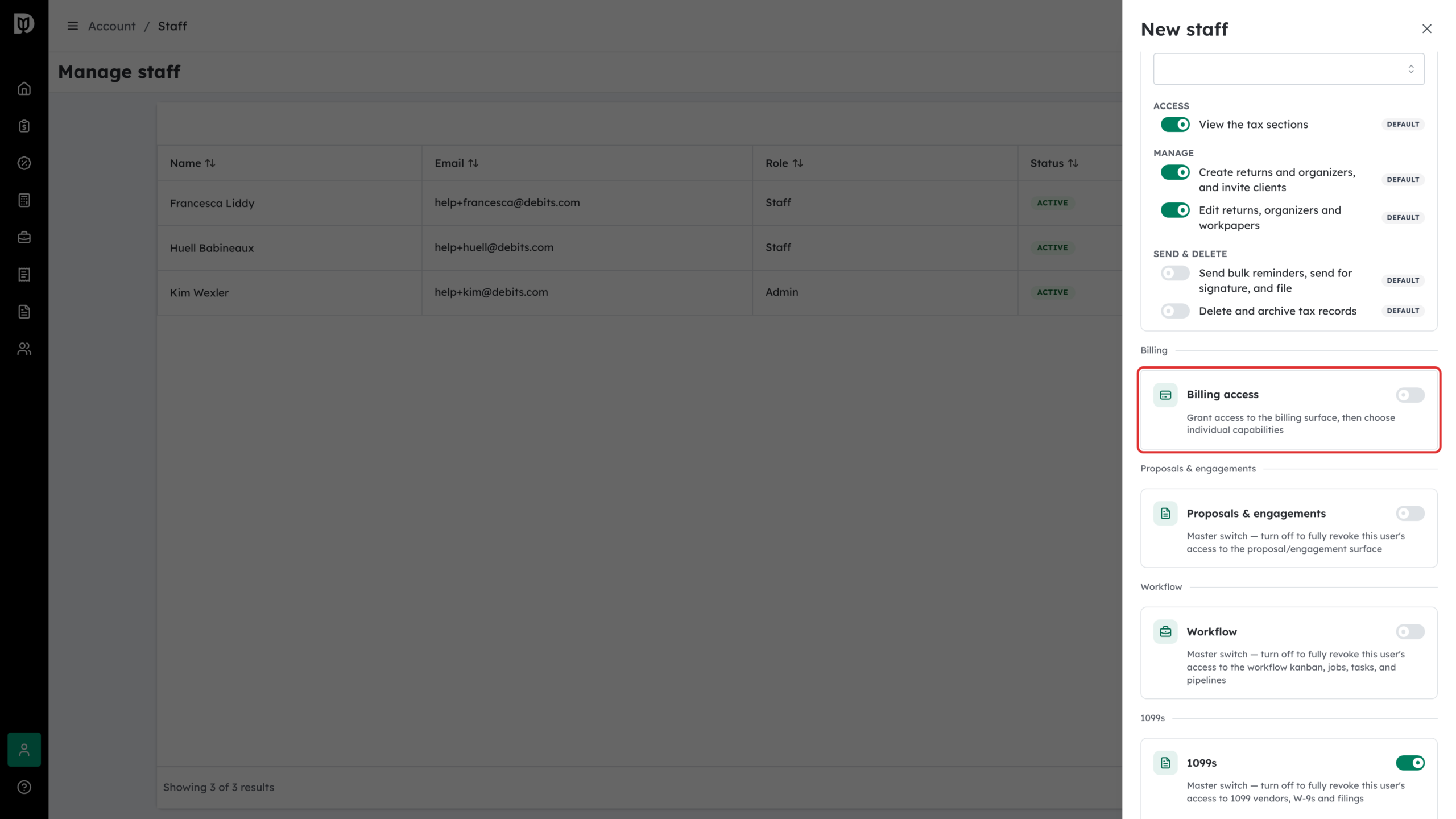
Only the firm owner sees the Billing access card in the staff drawer. Turn on its switch, then choose what the person can do with invoices, payments and billing settings. Admins and managers cannot grant billing access.
What a Manager cannot do
- Edit or invite anyone other than Staff. On an admin’s or another manager’s row, the edit button is greyed out, and hovering over it shows Managers can only edit staff.
- Offboard or reinstate staff. A manager can only delete a staff invite that has not been accepted yet.
- Rename the firm or change other firm settings. Those are for the owner.
- Grant billing access.
What happens next
Changes apply as soon as you save them. For new invites, Proposals & engagements and Workflow start switched off until you turn them on.
Troubleshooting
- You cannot choose Admin or Manager: you are signed in as a manager, and managers can only add Staff.
- A switch is greyed out with an “always on” badge: that role always has this permission, so it cannot be turned off for them.
- You do not see the Billing access card: only the firm owner can grant billing access.