

Who this is for: Accountants who want to compare a client’s actual results against a planned budget.
What you’ll learn: How to set a budget for a company and add the Budget vs Actual section.
Before you begin #
- Open a draft report for the company and period.
- Add the Budget vs Actual section in Edit Report Sections so it appears in the report.
Step-by-step instructions #
Step 1: Open the budget editor #
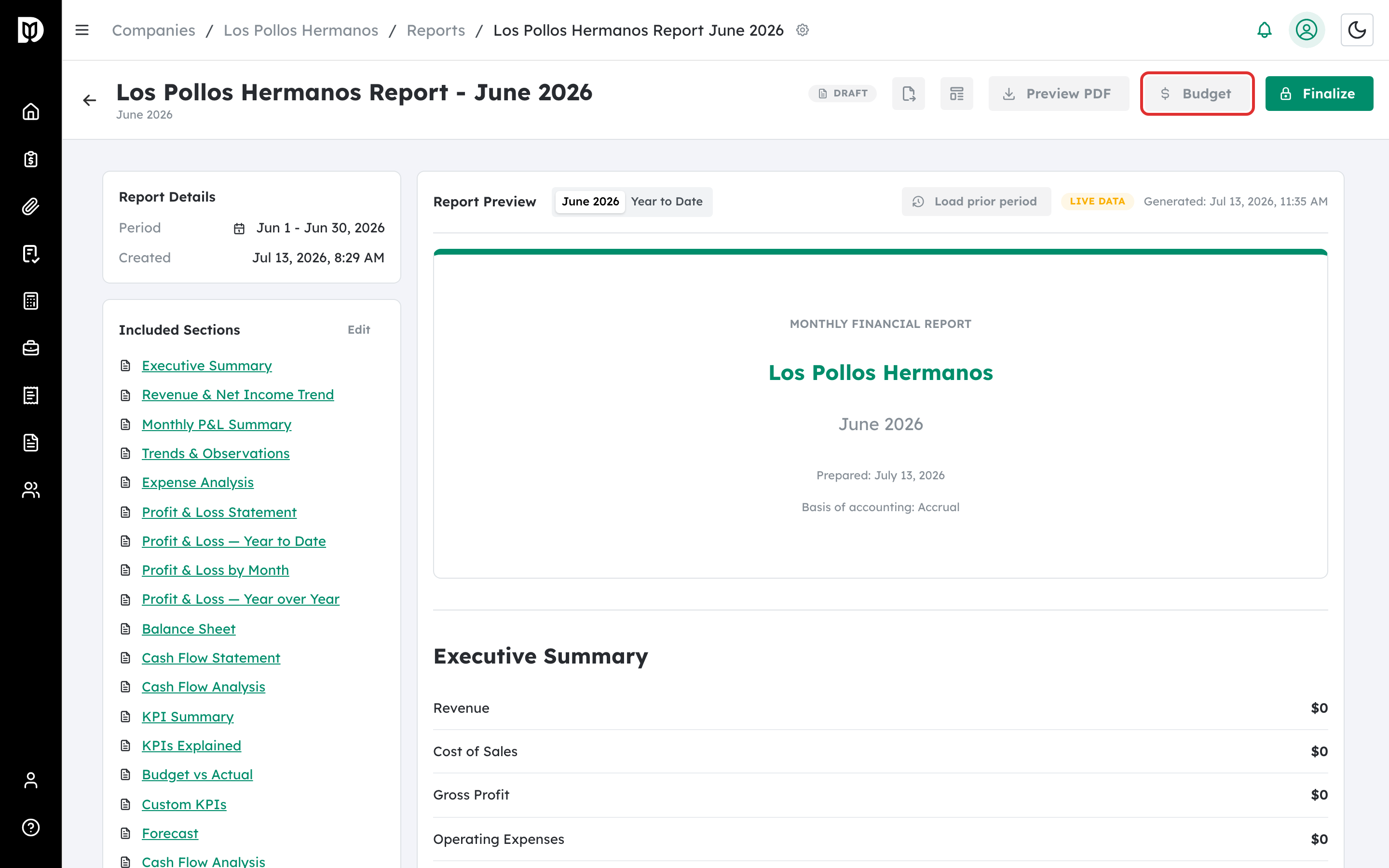
In the report header, select Budget.
Step 2: Enter your budget lines #
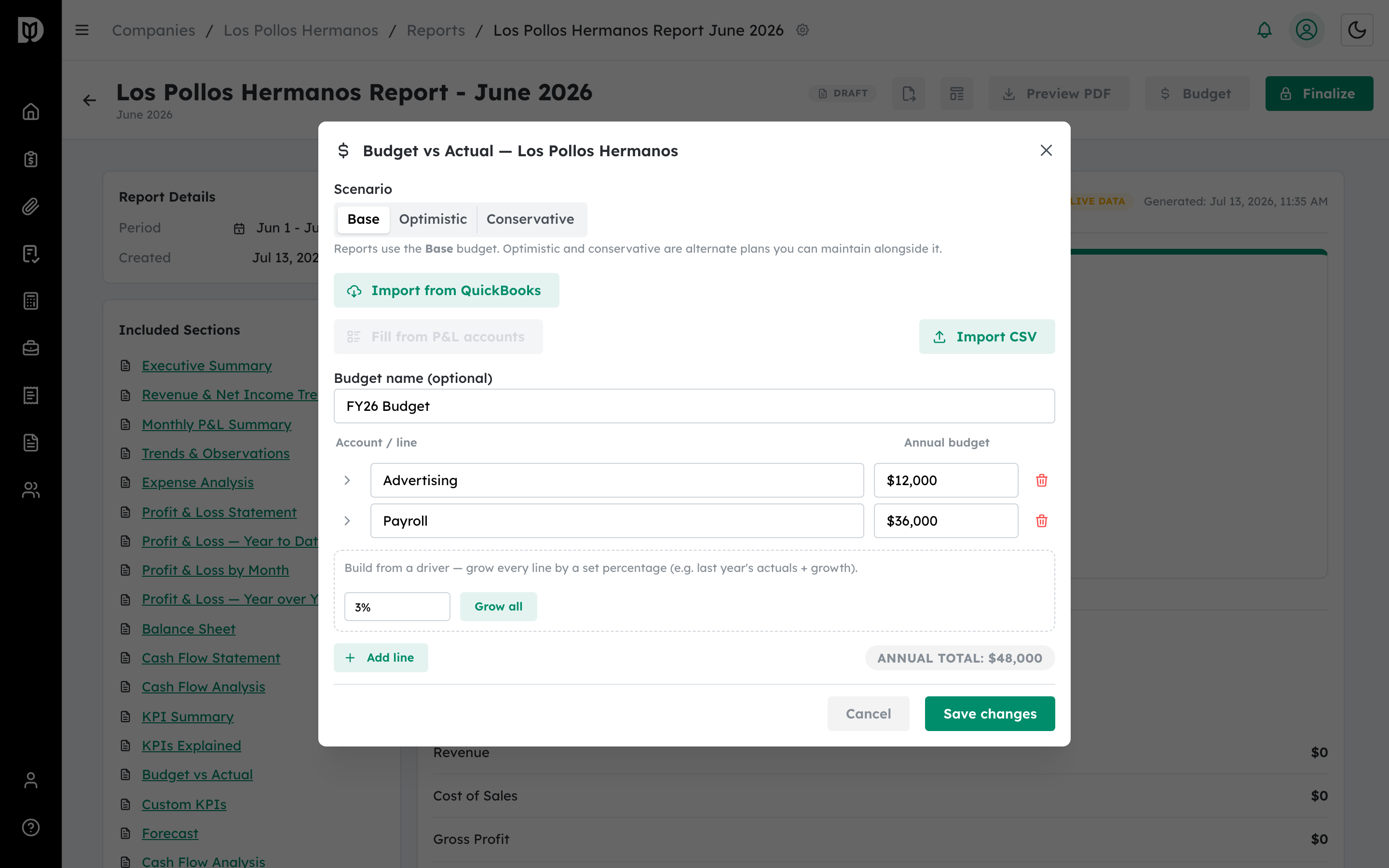
Add a line per account and enter its Annual budget; Debits spreads it across the twelve months. You can also Import from QuickBooks, fill from your P&L accounts, or import a CSV.
Step 3: Choose a scenario (optional) #
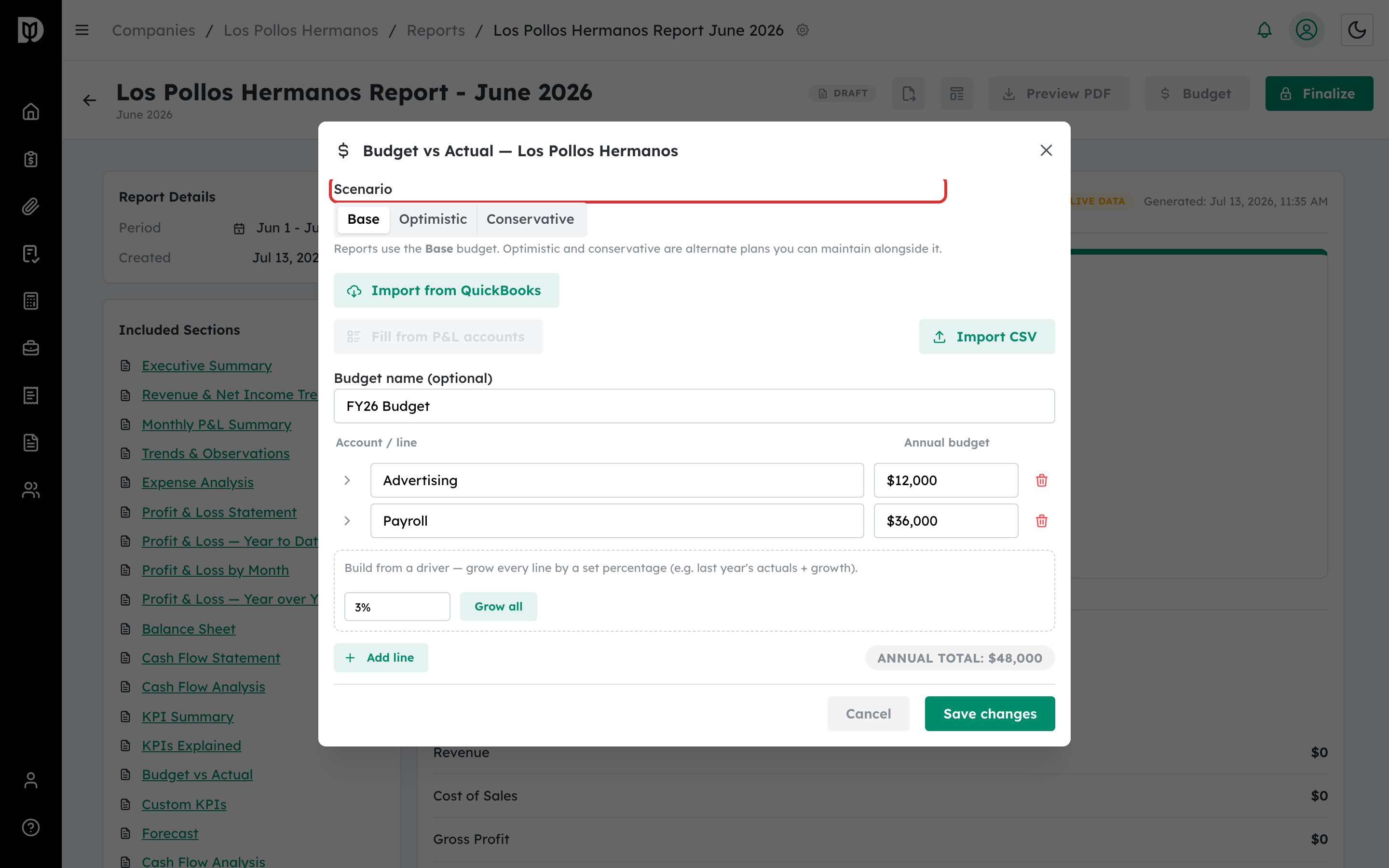
Use the Scenario toggle to keep a Base, Optimistic, or Conservative plan. Reports use the Base budget.
Step 4: Save the budget #
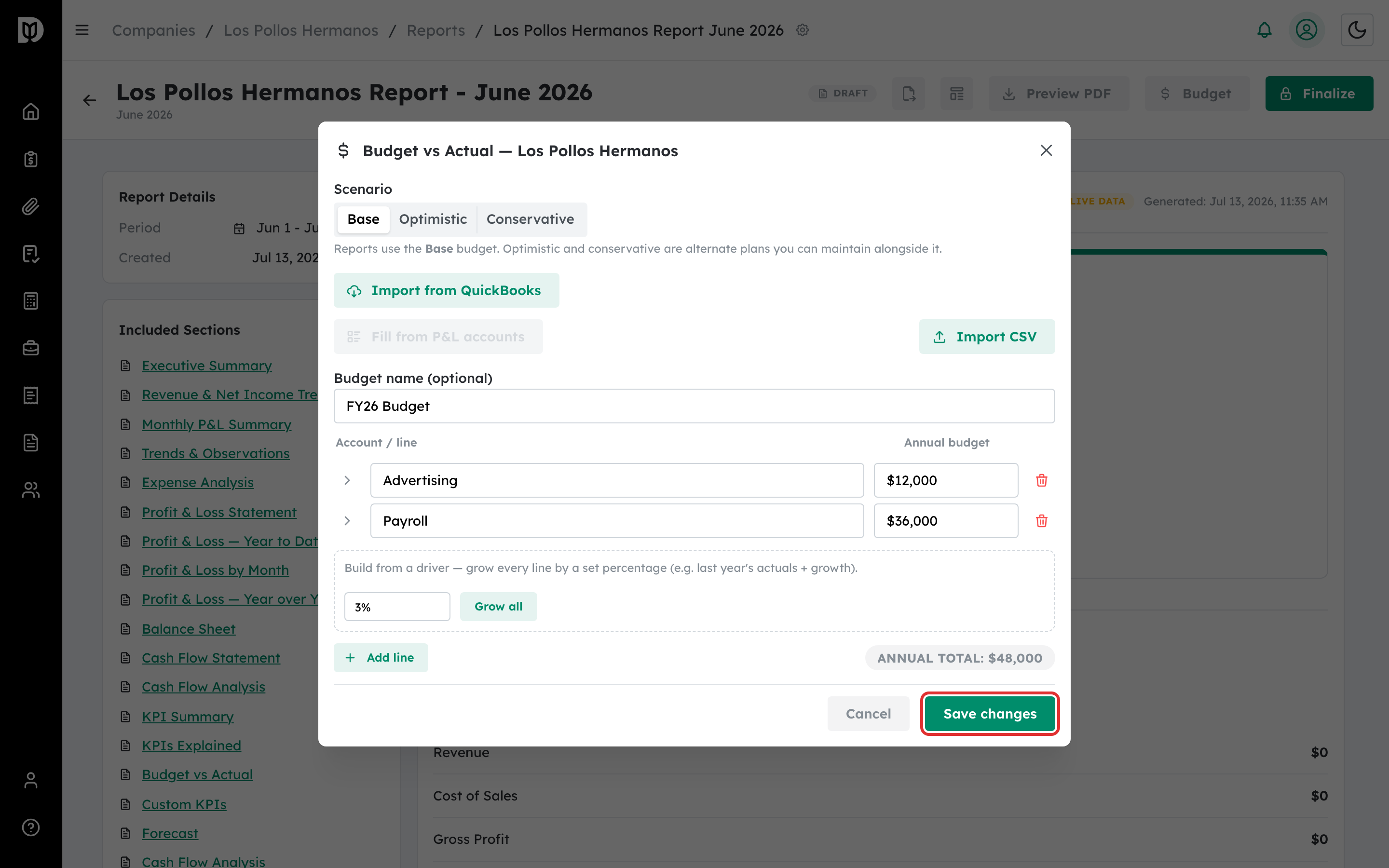
Select Save changes.
What happens next #
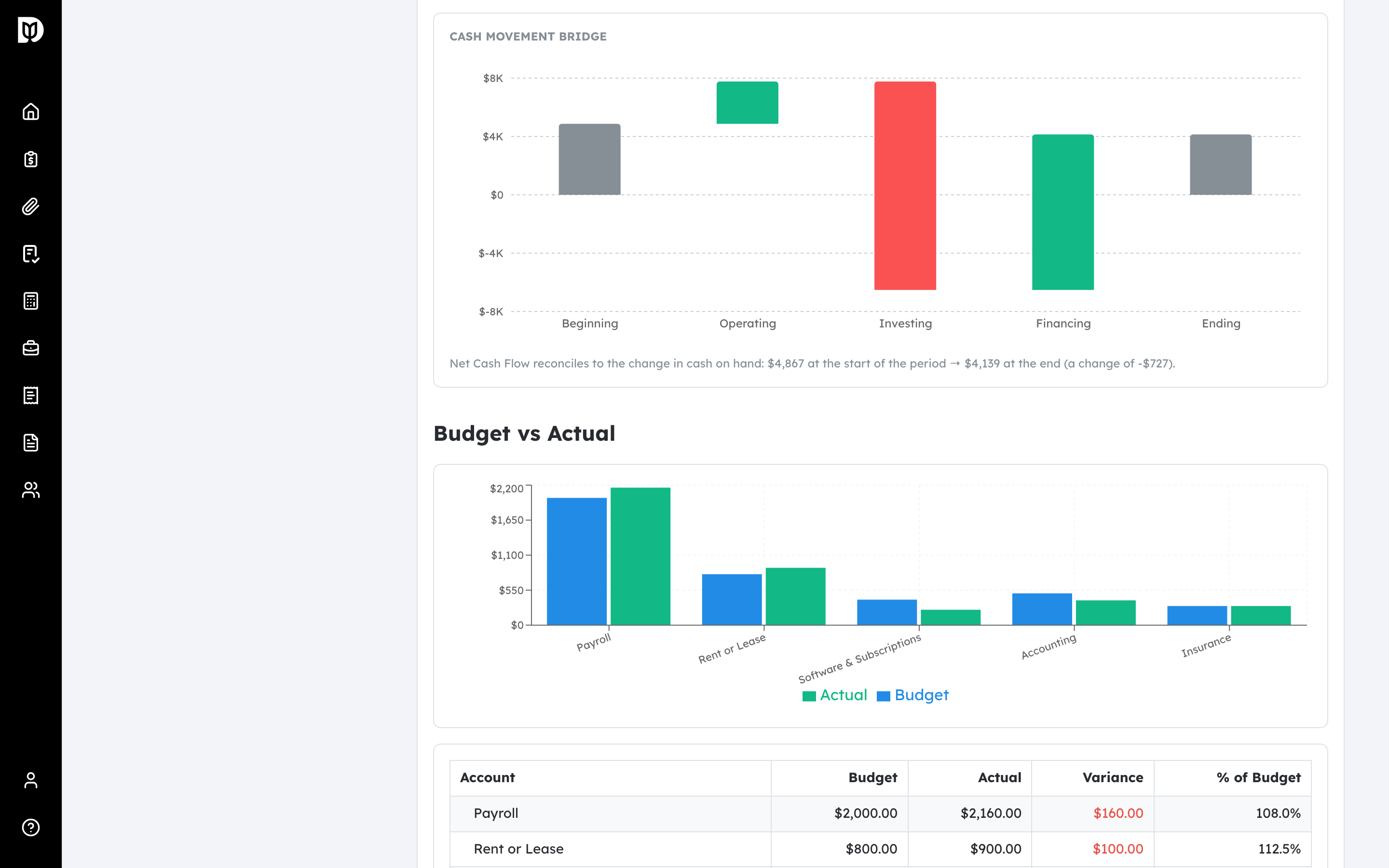
The Budget vs Actual section shows a budget-versus-actual chart and a variance table with the amount over or under budget and the percent of budget. Beating budget on revenue and staying under budget on expenses are shown as favorable.
Troubleshooting #
- Problem: The section says no budget has been set. Enter budget figures for the report’s period and save.
- Problem: Import from QuickBooks returns nothing. The company has no budget in QuickBooks for that year; enter the budget manually instead.


