Who this is for: Anyone running work that comes back every month, quarter or year.
What you’ll learn: How to make a job repeat on a schedule, and how to archive finished work and bring it back.
Before you begin
- Set up the job the way you want every future copy to look first — checklist, assignees and stage.
- You need permission to archive jobs to use the archive action.
- Archiving is not deleting. Archived jobs can be restored to the stage they came from.
Step-by-step instructions
Step 1: Open the repeat settings
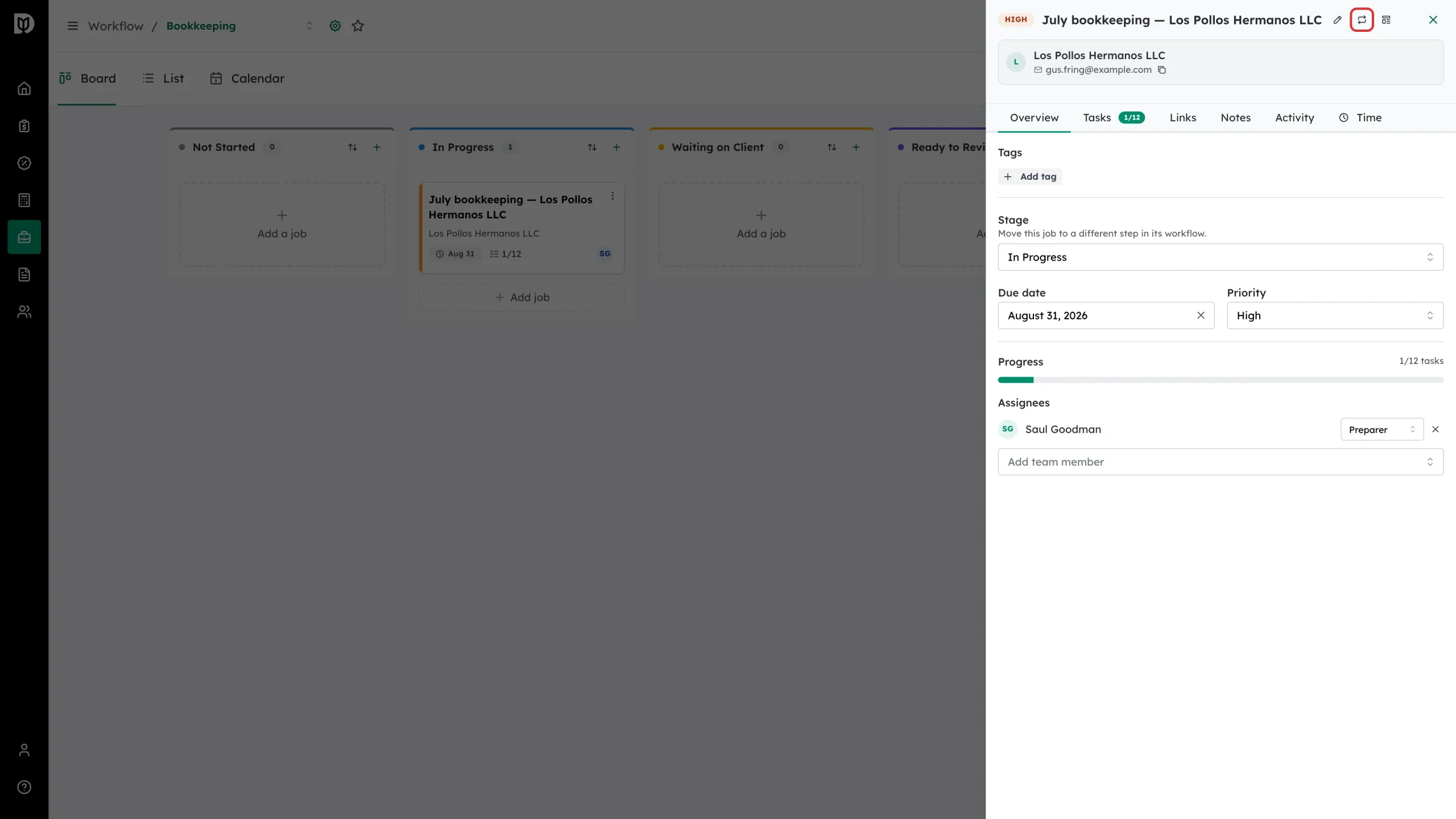
Open the job and select the repeat icon in the panel header.
Step 2: Set the schedule
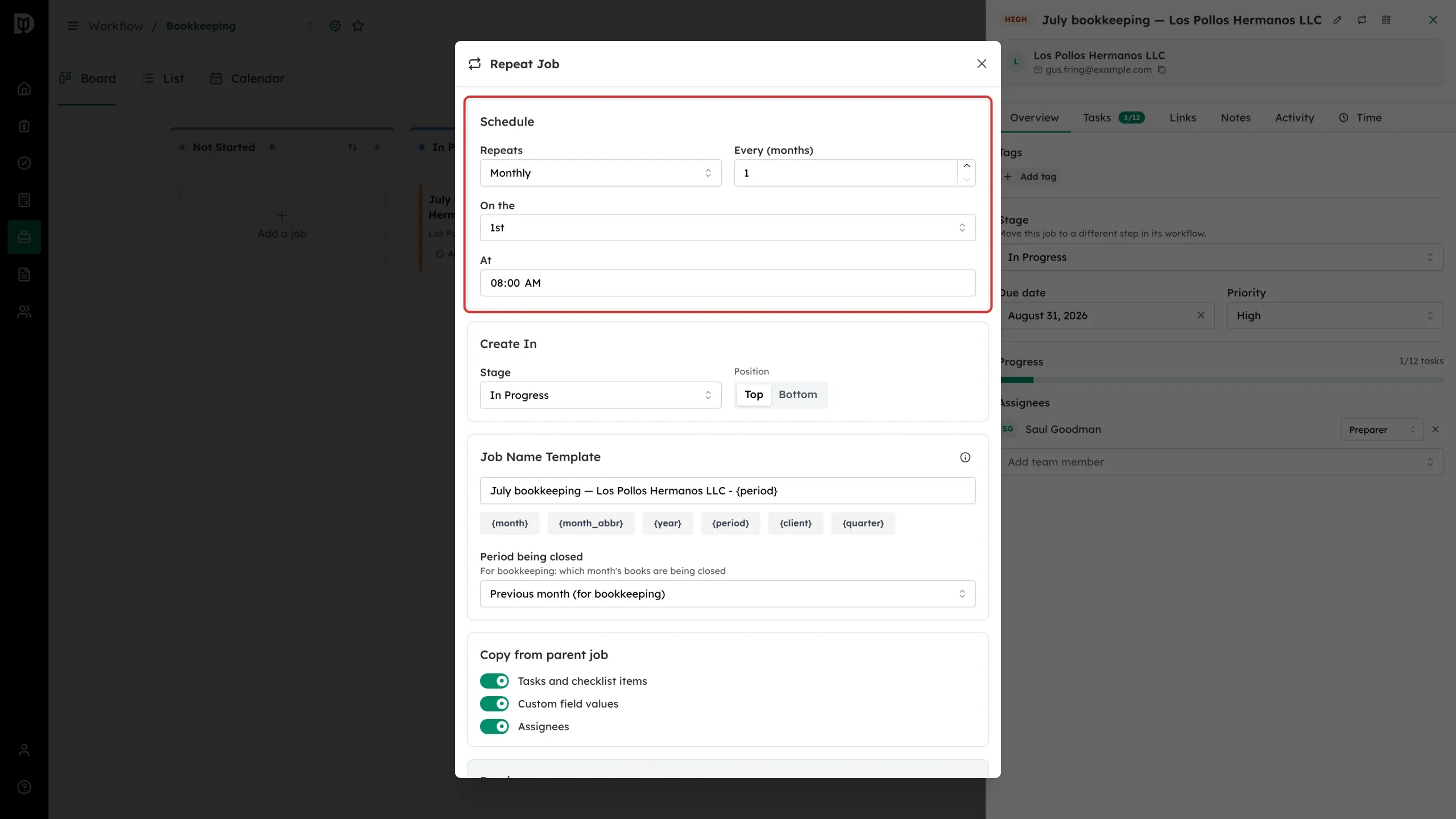
Under Schedule, choose how often the job repeats — daily, weekly, monthly, quarterly or annually — plus the interval, the day it lands on and the time of day.
Step 3: Say where the new card should land
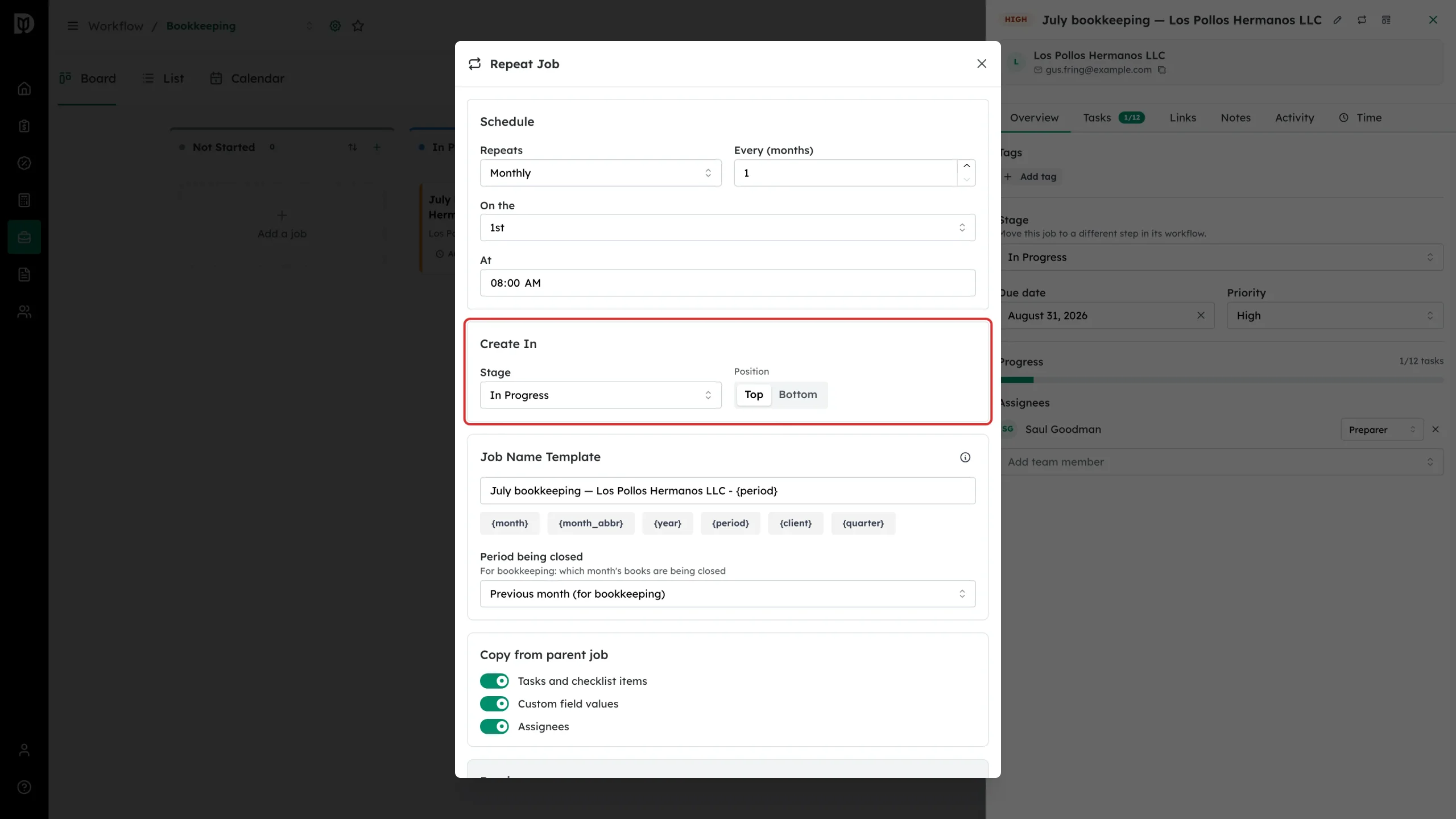
Create In decides which stage each new card starts in and whether it goes to the top or the bottom of that column.
Step 4: Name the copies
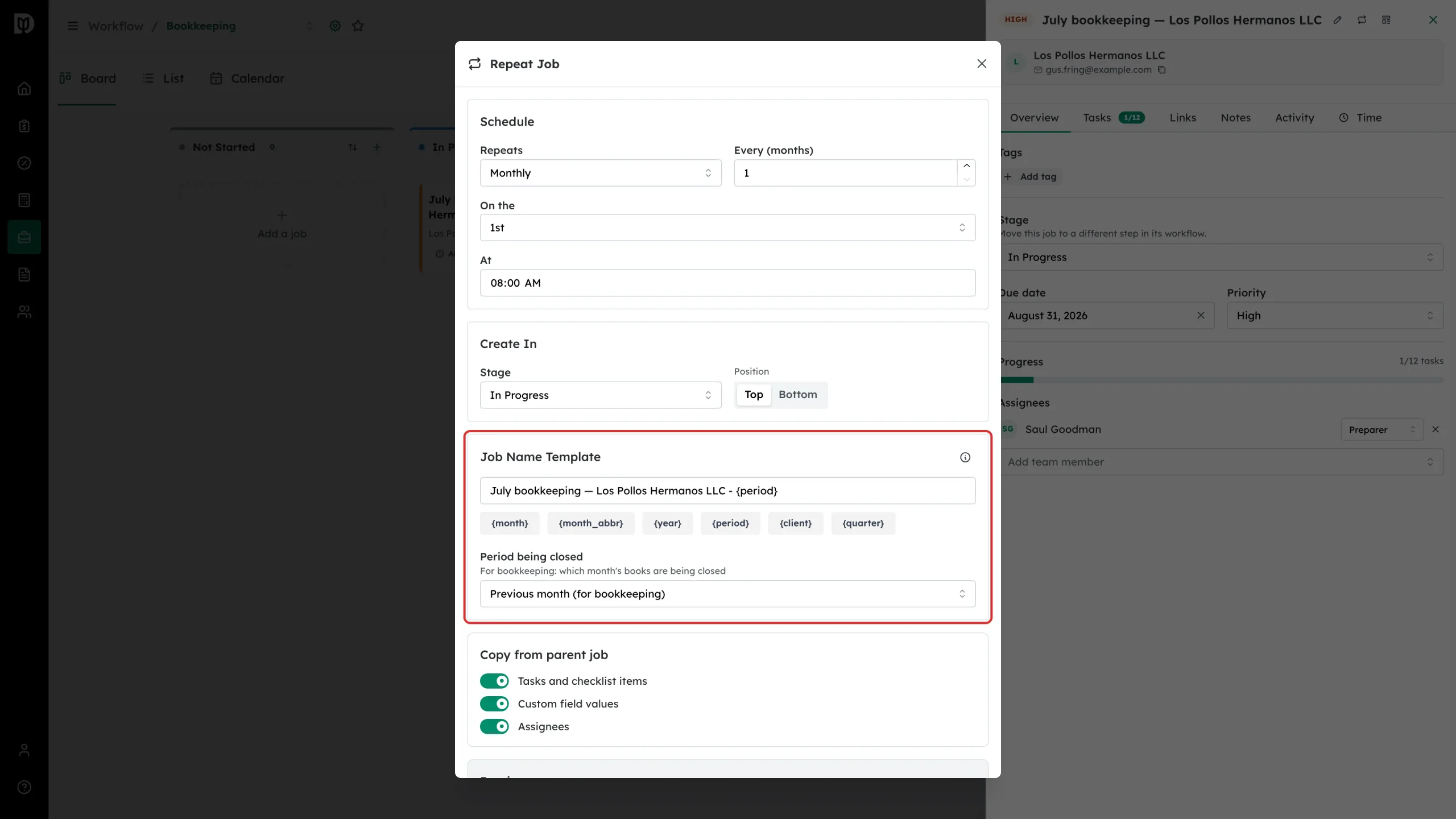
Job Name Template is the name each new card gets. Use the chips below the field to drop in the month, the abbreviated month, the year, the period, the client or the quarter. Period being closed tells Debits which month the copy is for, which matters for bookkeeping work done in arrears.
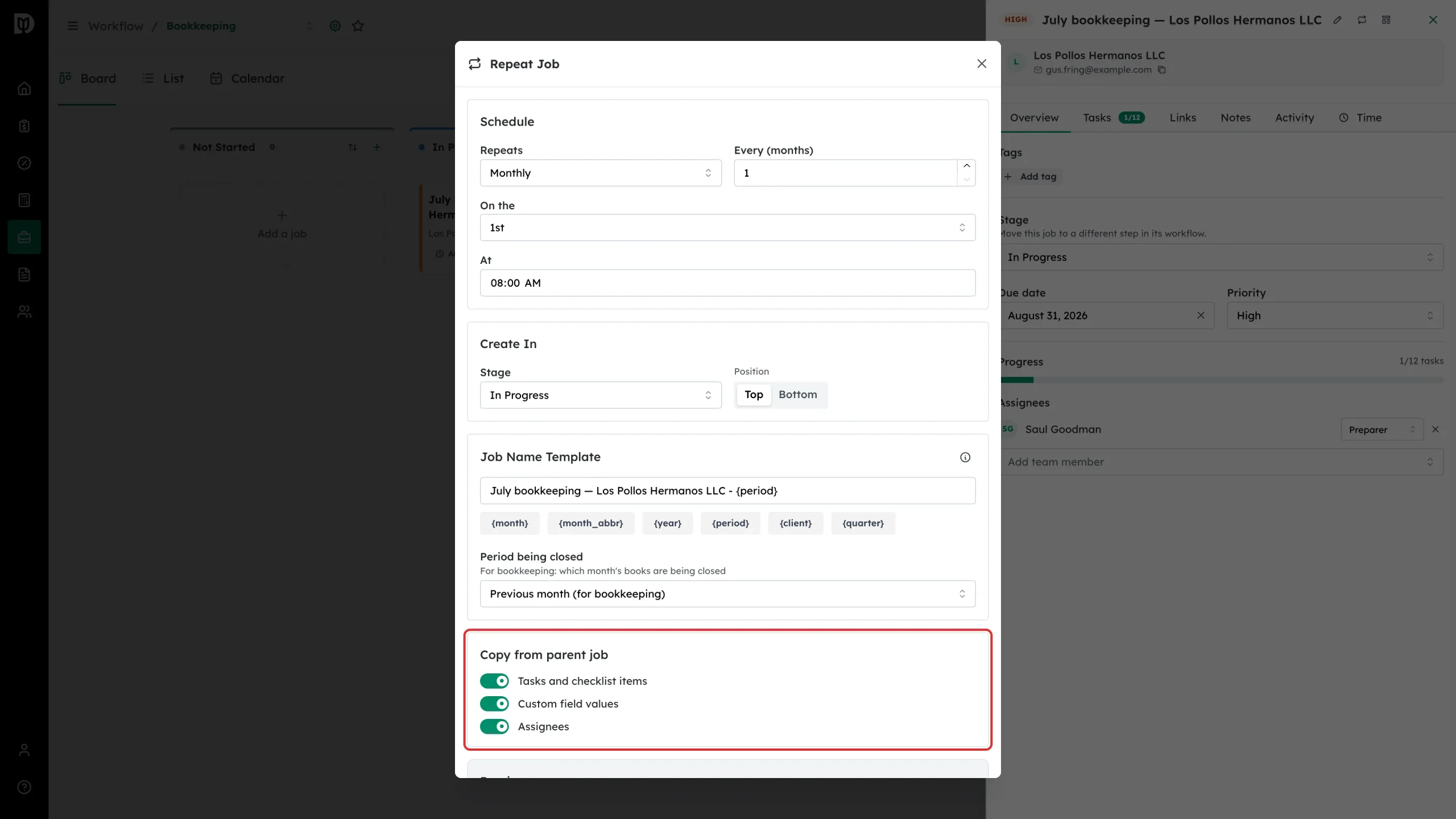
Step 5: Choose what carries over
Copy from parent job decides whether each copy brings the tasks and checklist items, the custom field values and the assignees with it.
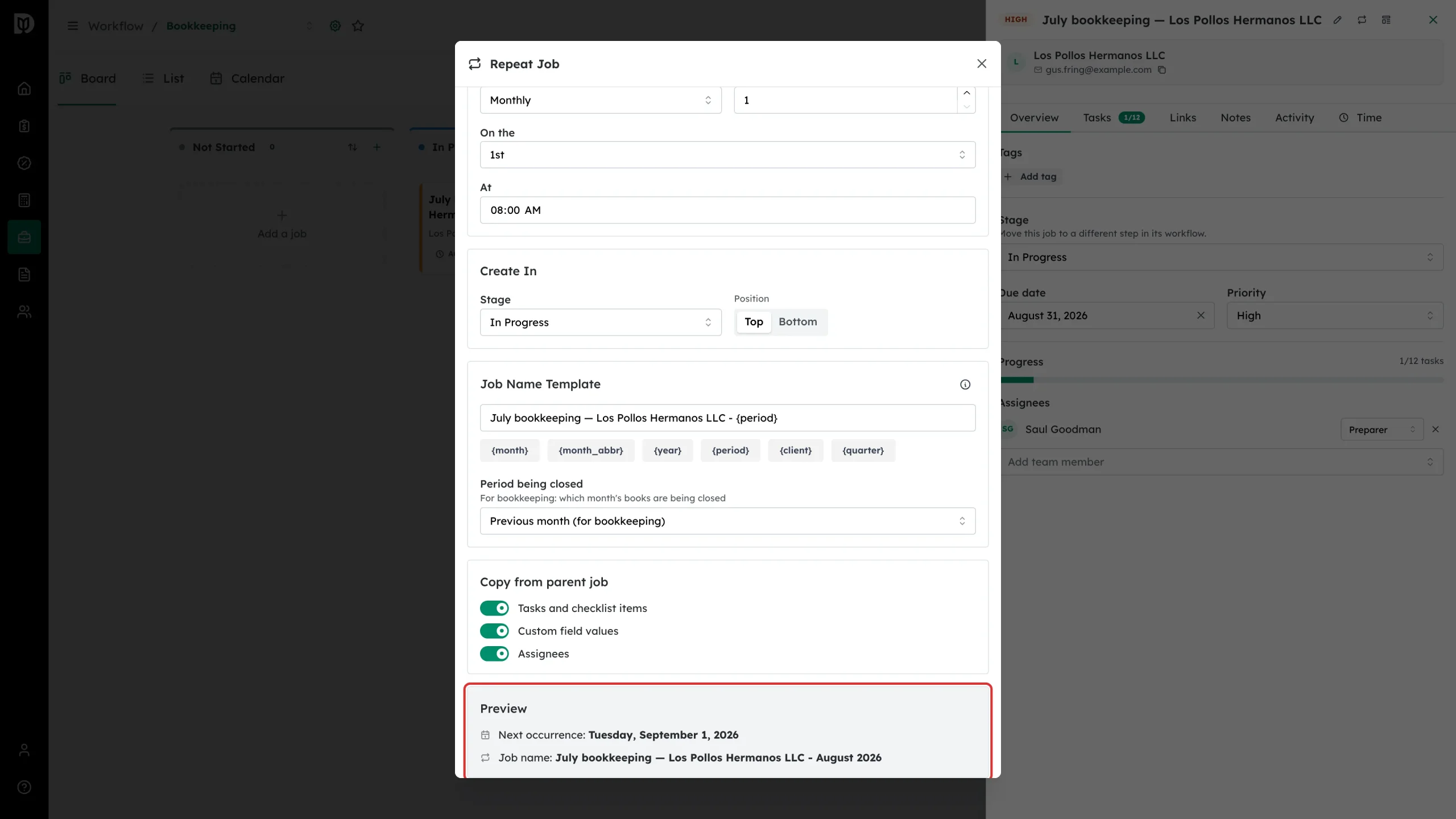
Step 6: Check the preview
Preview shows the date of the next run and the name that card will be given, so you can see the template working before you commit.
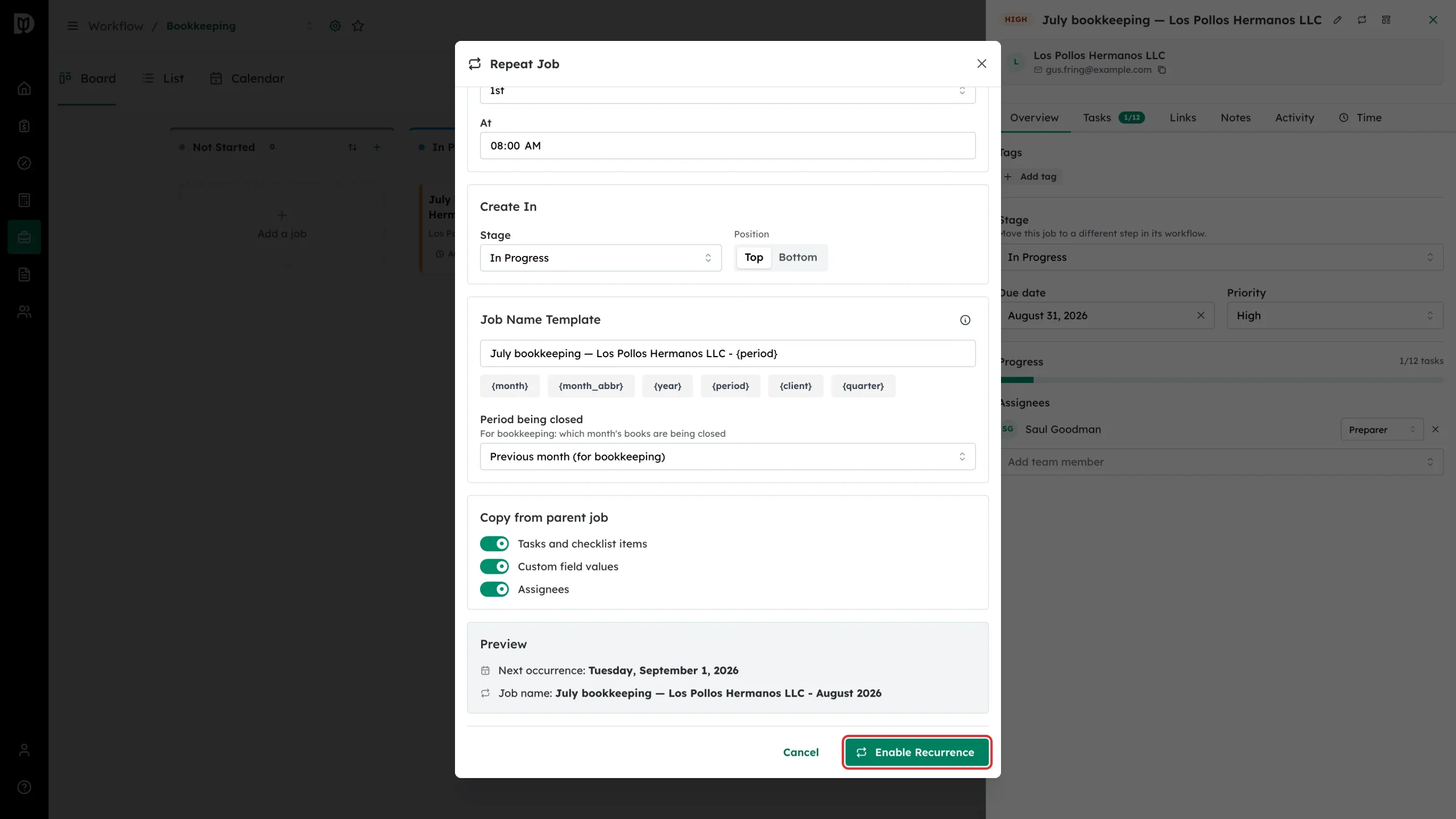
Step 7: Turn the schedule on
Select Enable Recurrence. The repeat icon on the job goes green and the card picks up a repeat marker on the board.
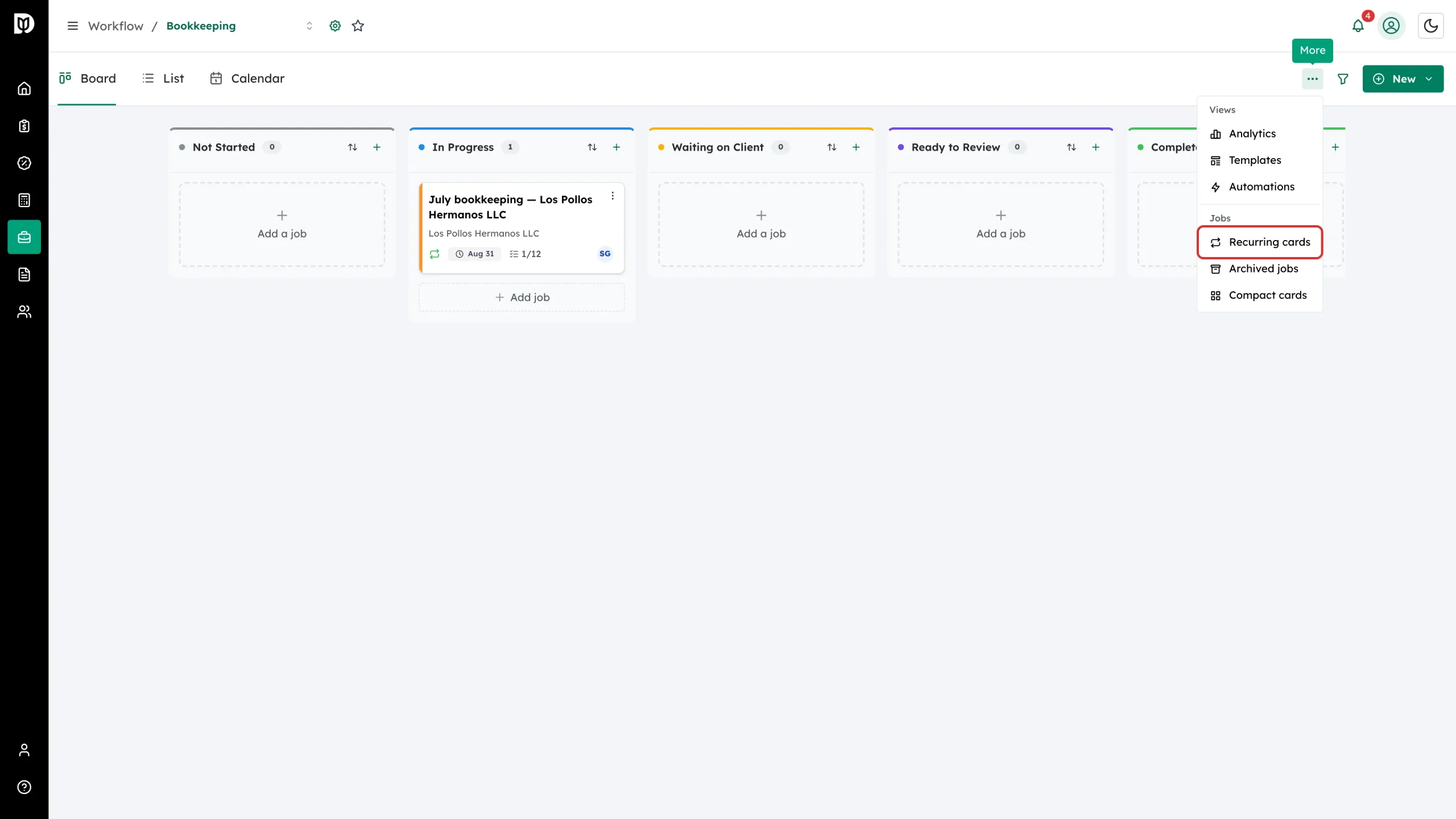
Step 8: Find every repeating card
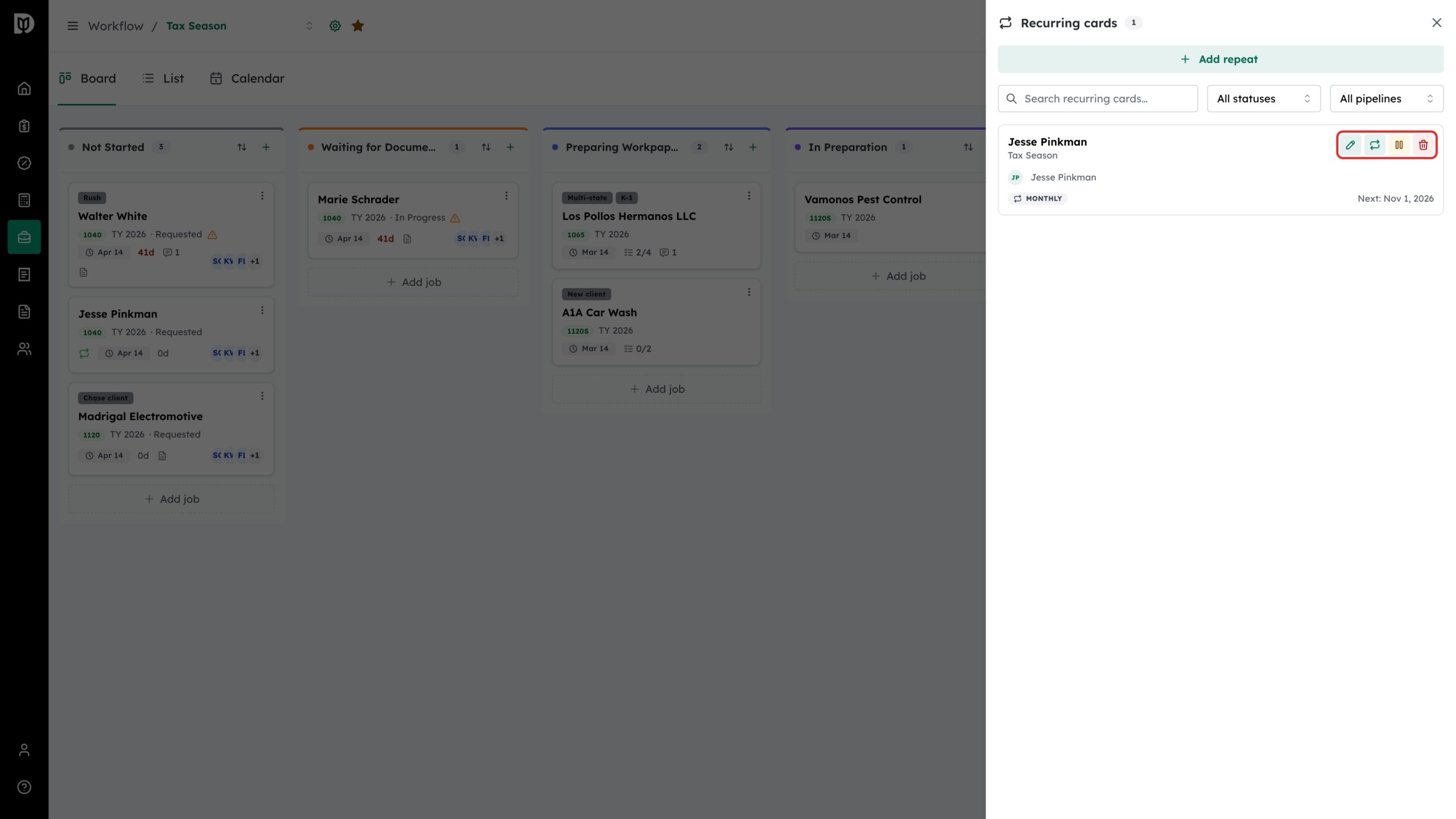
Open the three-dot More menu and select Recurring cards.
Step 9: Manage a schedule from the drawer
Each entry shows its board, its client, how often it repeats and when it runs next. The icons on the row are Edit card (opens the job card), Edit repeat schedule, Pause recurrence (or Resume recurrence) and Remove recurrence. Search and the status and board filters at the top narrow the list.
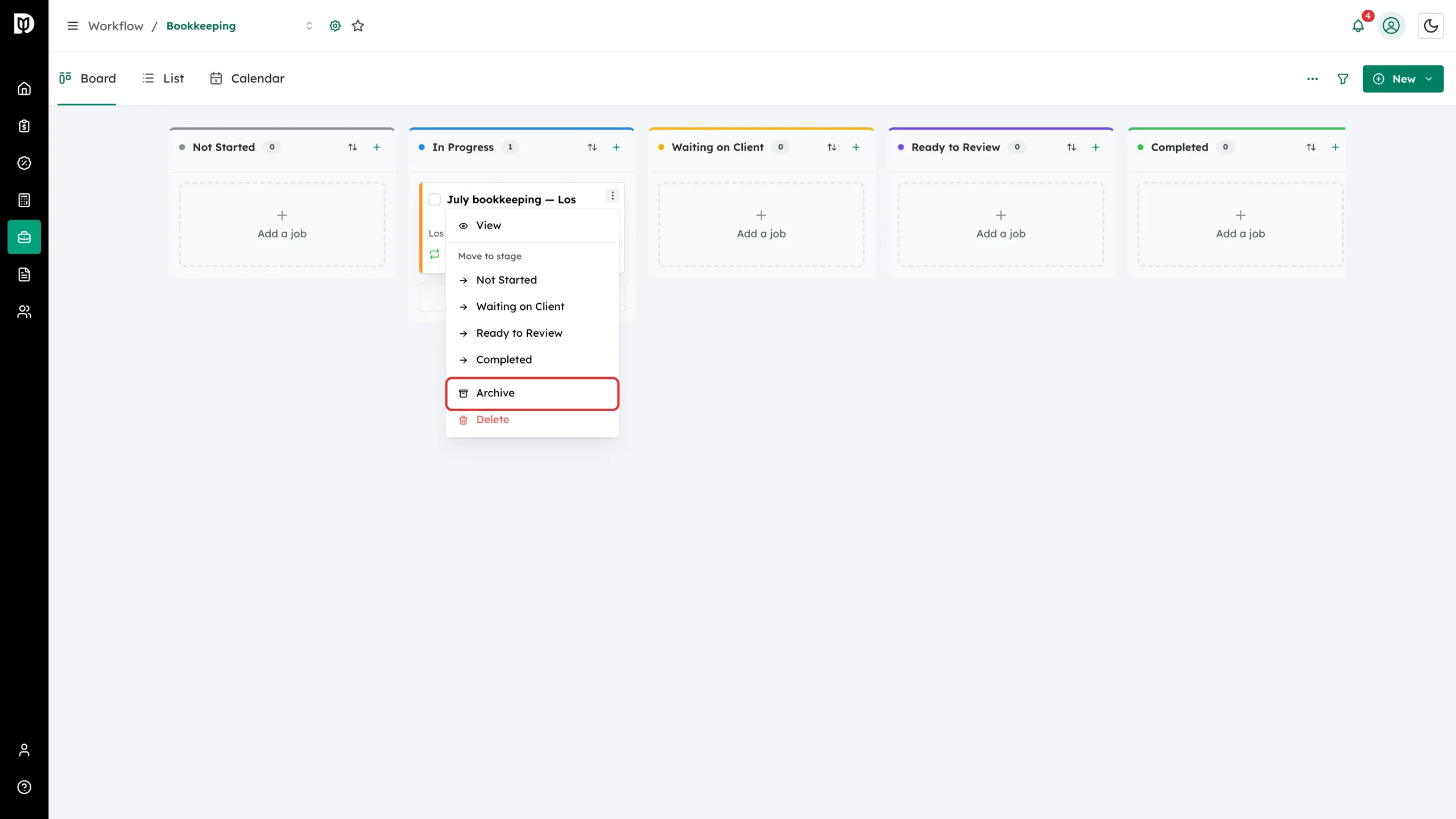
Step 10: Archive a finished job
On the board, open the card’s three-dot menu and select Archive.
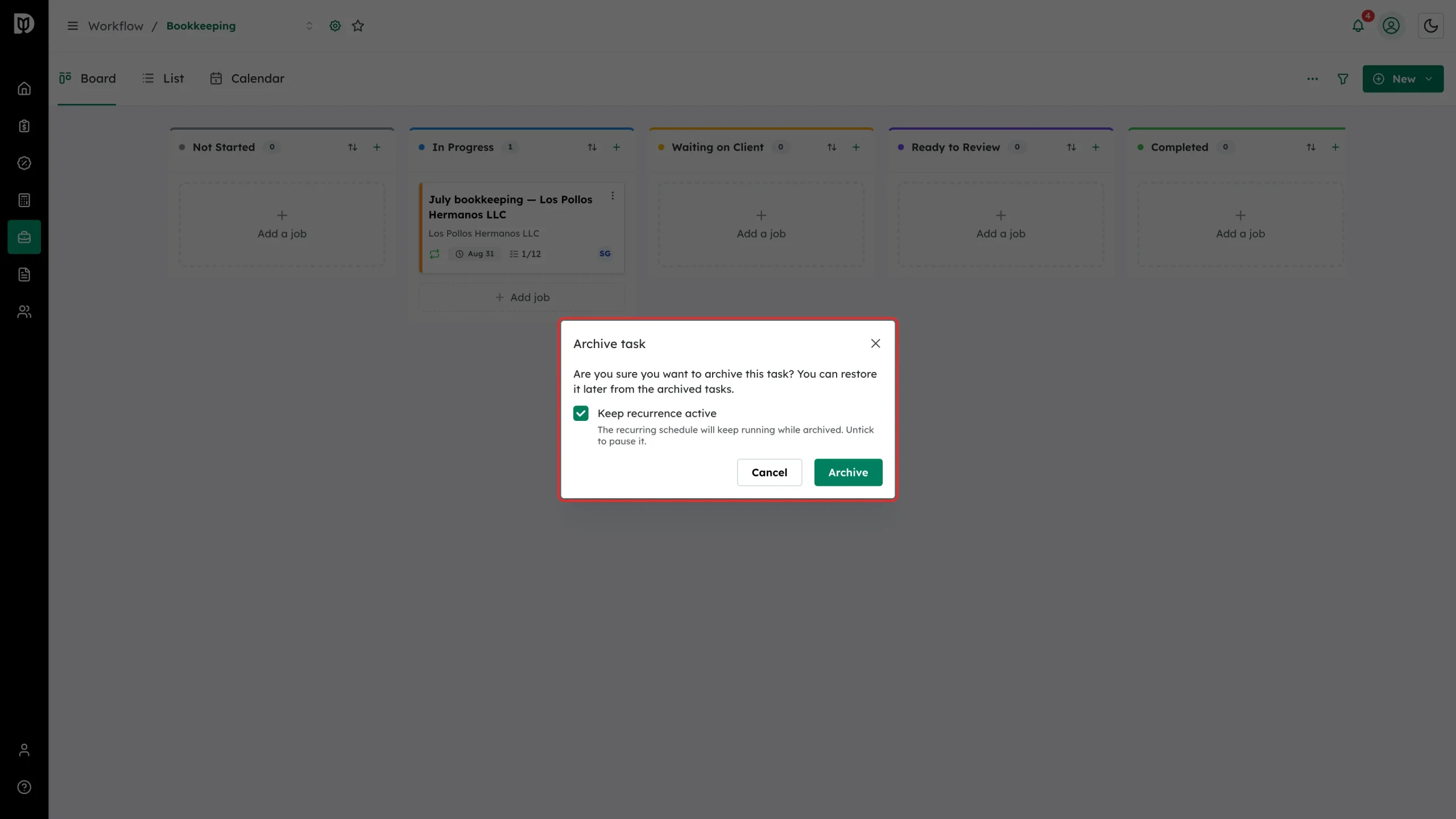
Step 11: Decide what happens to the schedule
If the job repeats, the confirmation offers Keep recurrence active. Leave it ticked to keep producing new cards; untick it to pause the schedule as well.
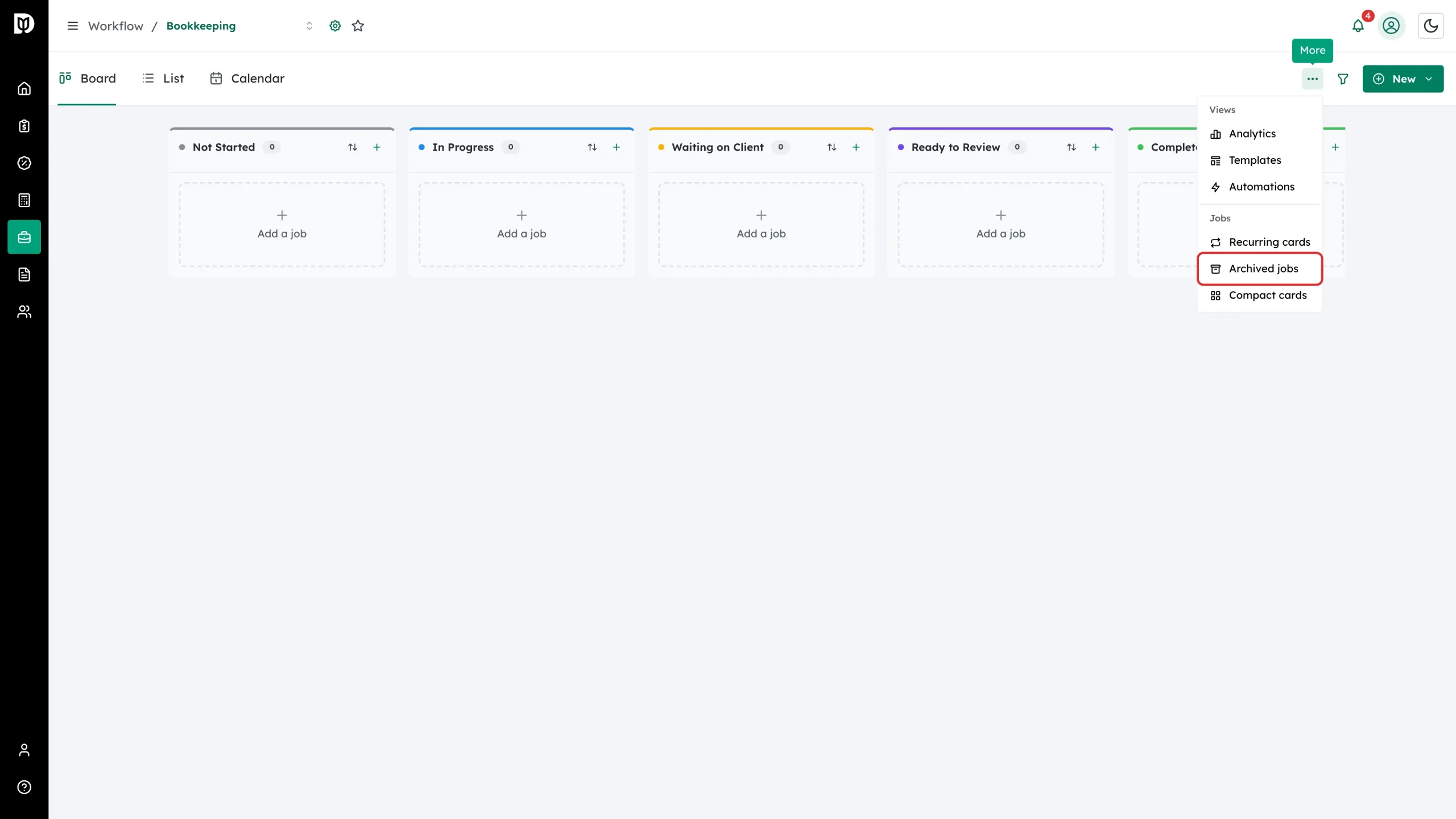
Step 12: Open the archive
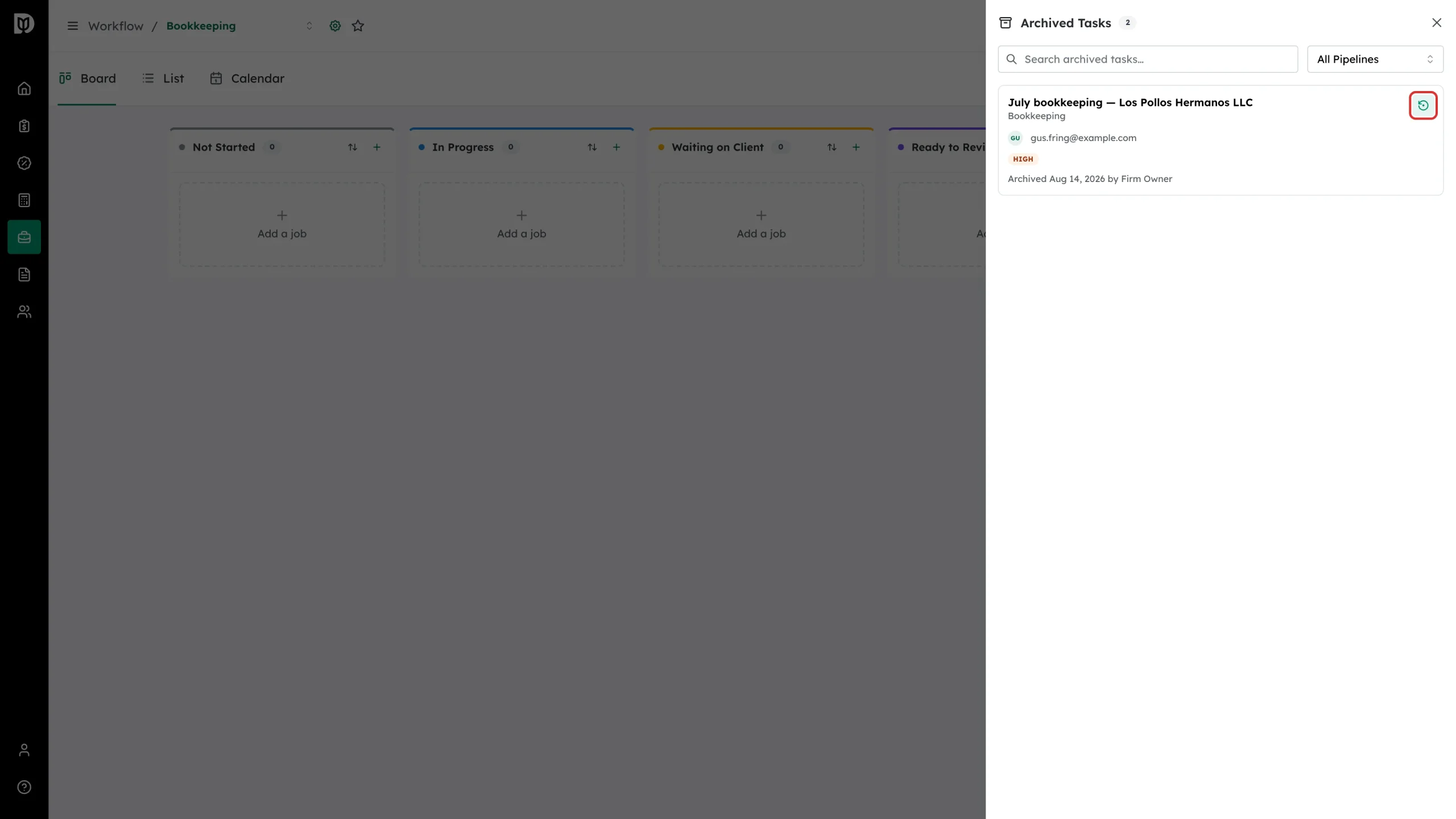
Archived work lives in the More menu under Archived jobs.
Step 13: Restore a job
Find the job — search and the board filter help — and select the restore icon on its row. Confirm, and the job goes back to the stage it was archived from.
What happens next
A live schedule creates the next card by itself at the time you set, using the name template and copying whatever you told it to copy. Archived jobs leave the board and its counts but keep their tasks, notes, time and activity, and come back with them when restored.
Troubleshooting
- The preview is empty. Finish the schedule first — the preview only appears once the repeat settings are valid.
- New cards have unhelpful names. Add a variable to the name template, for example Monthly bookkeeping – {month} {year}, so each copy is easy to tell apart.
- Copies keep appearing after you archived the job. The archive confirmation’s Keep recurrence active was left ticked. Pause or remove the schedule from the Recurring cards drawer.
- Archive is missing from the card menu. You do not have permission to archive jobs.