This guide is for business owners and staff using the Debits client portal. It shows how to send your accountant a question about one specific transaction, without losing track of which one you meant.
Before you begin
- You need access to a company under Bookkeeping.
- Type your note in the Write a memo… box on the row first. It is carried into the message so your accountant sees your wording.
Step 1: Find the transaction
Go to Bookkeeping, open your company, and find the row you want to ask about. Check the date and amount so you are on the right one.
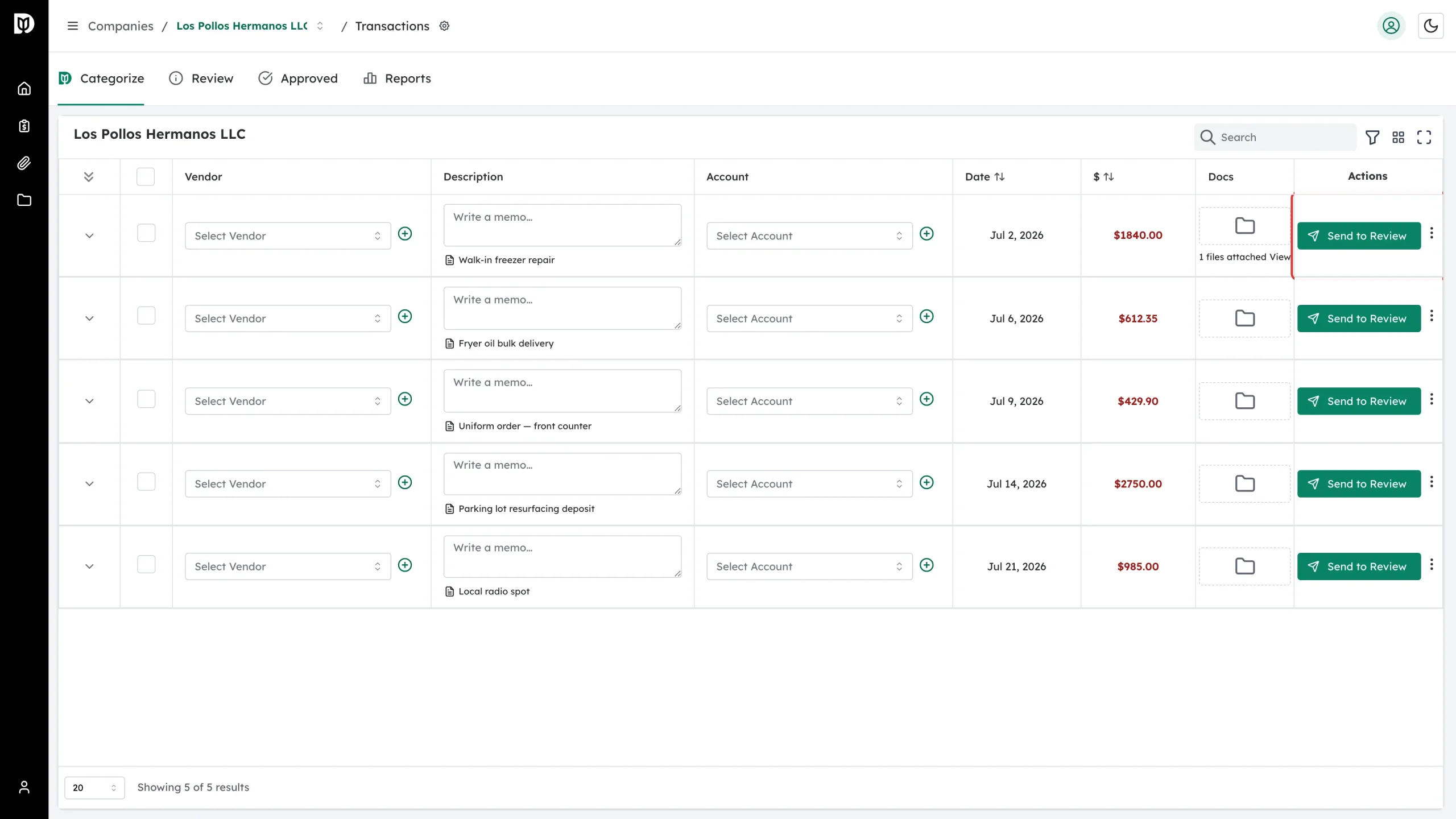
Step 2: Open the row menu and choose Email
Click the three-dot button at the end of the row, then click Email.
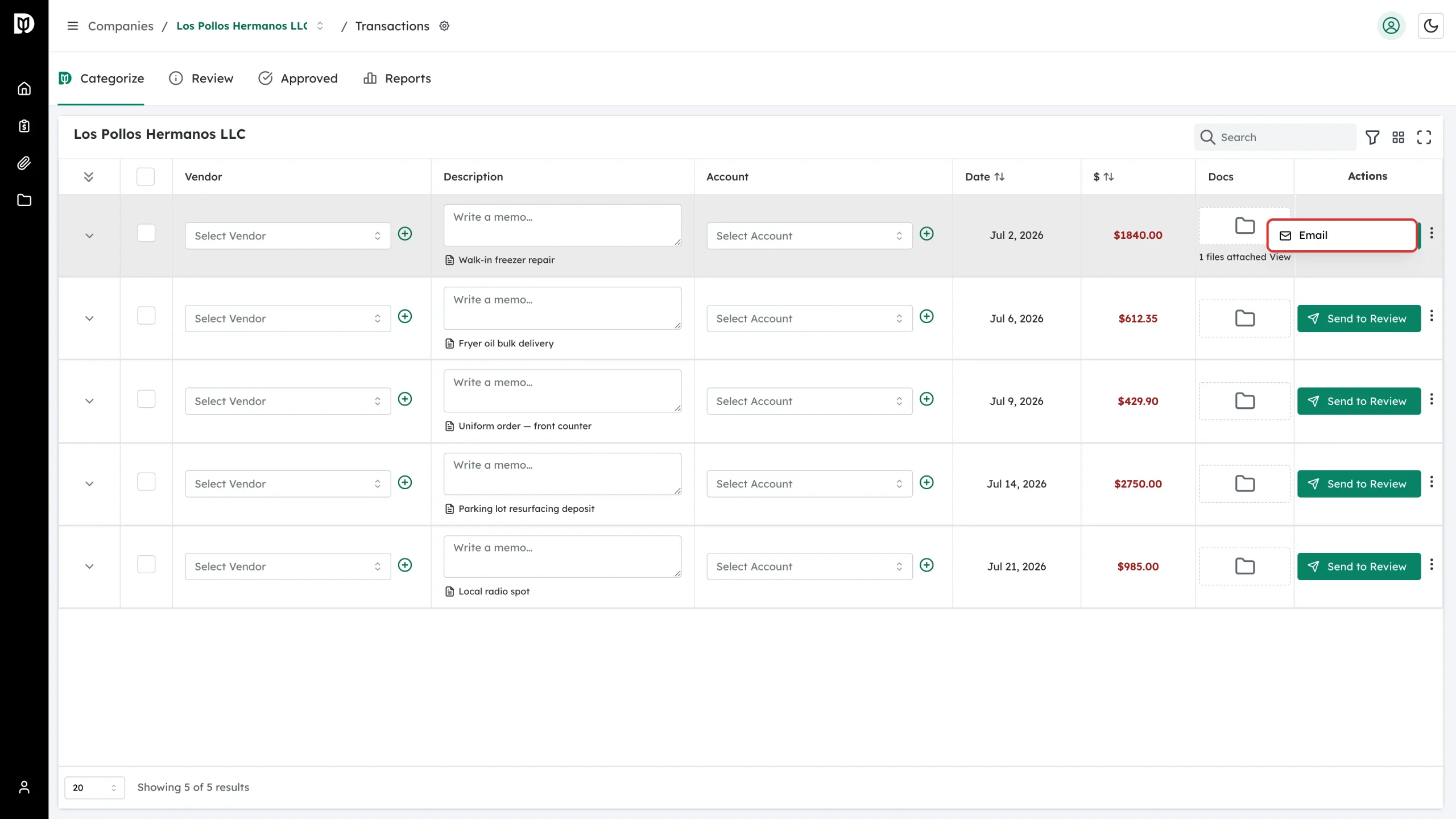
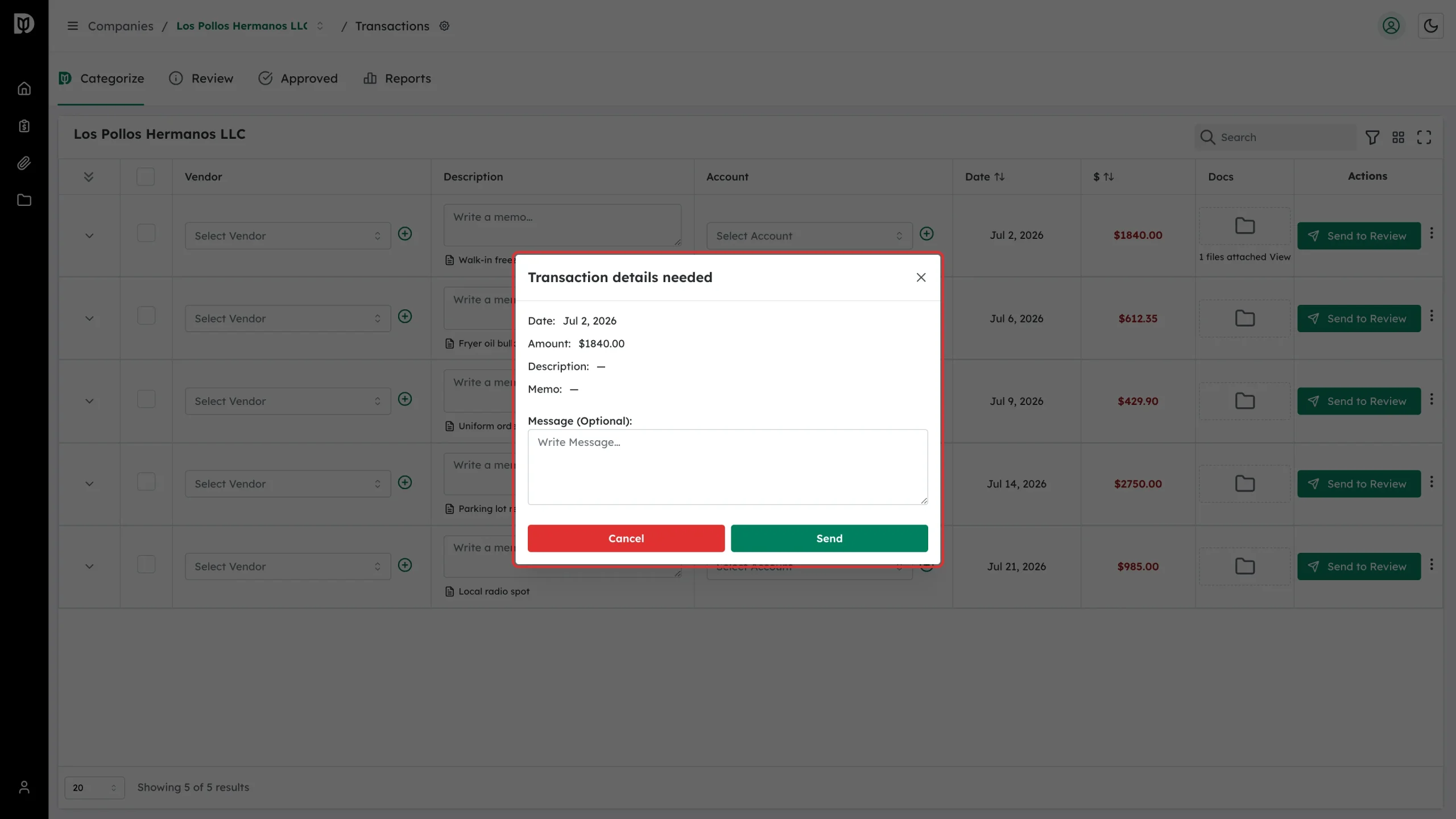
Step 3: Check the transaction details
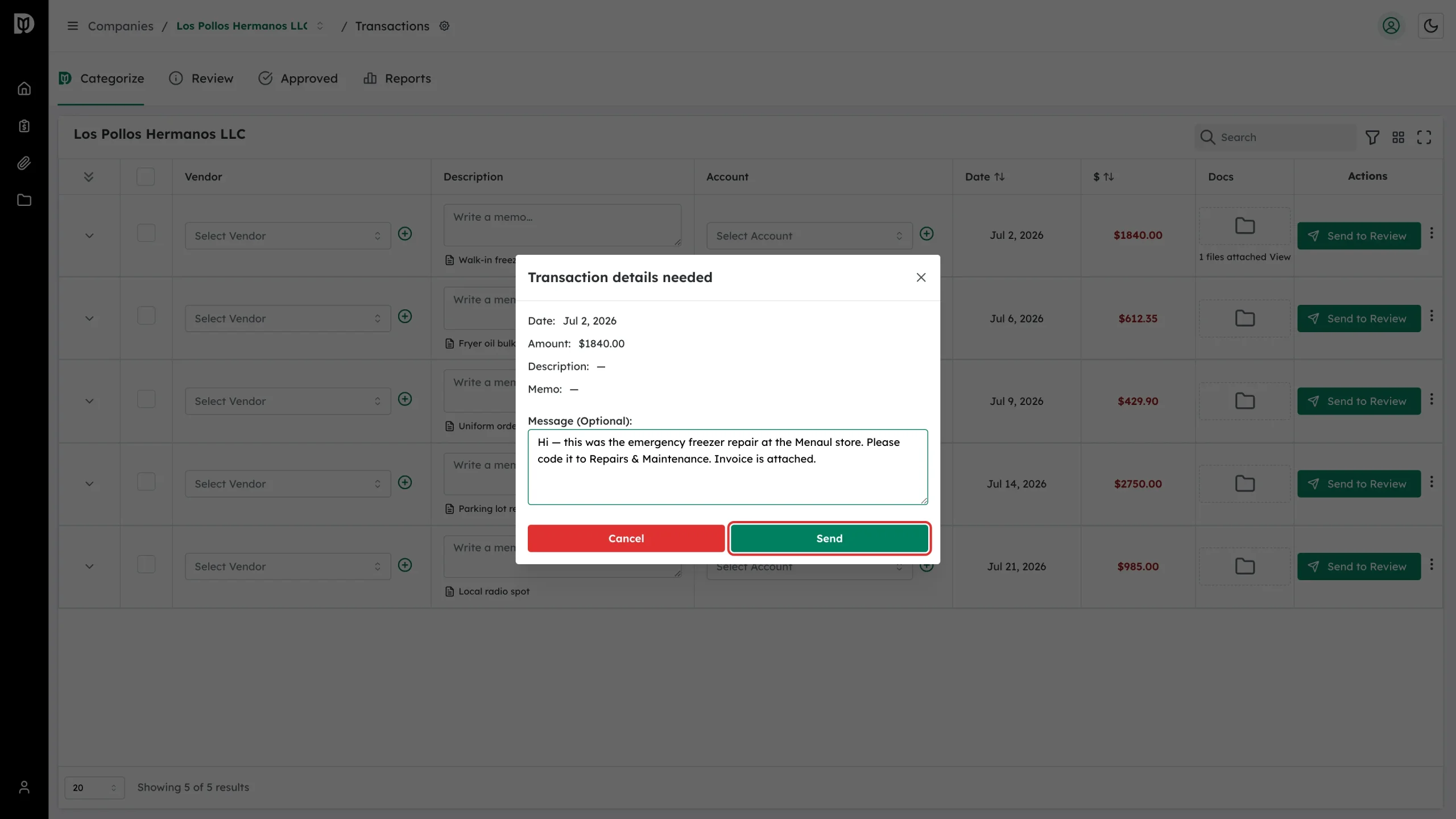
The Transaction details needed window opens. It shows the Date, Amount, Description and Memo for the row, so your accountant knows exactly which entry you mean.
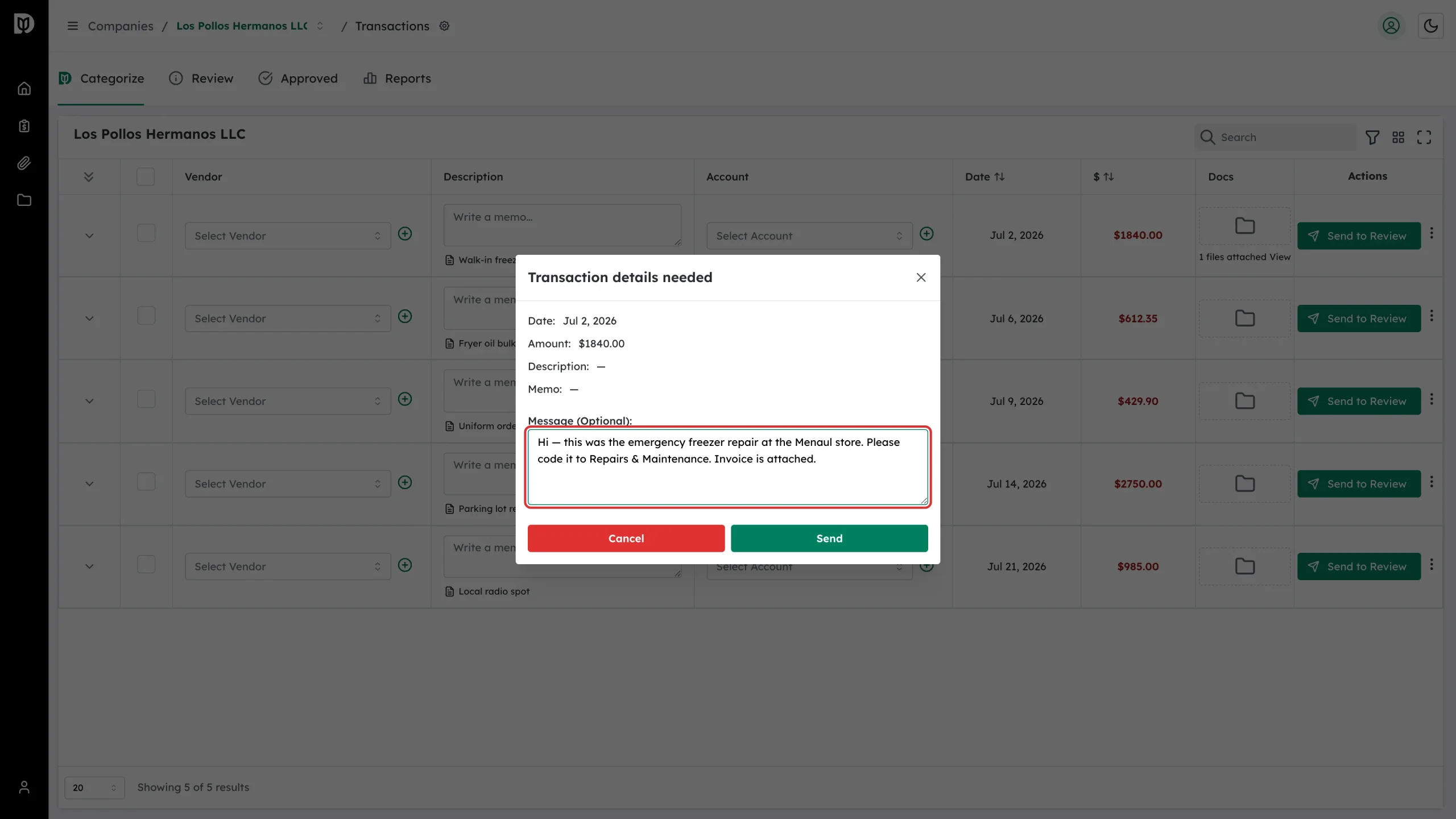
Step 4: Write your message
Type your question in Message (Optional):. Useful things to include are what the purchase was for, which account you think it belongs to, and anything unusual about it.
Step 5: Send it
Click Send. Click Cancel instead if you change your mind — nothing is sent.
What happens next
Debits emails your accounting firm with your message and the transaction’s date, amount, description and memo. They reply by email. The transaction itself does not move — if you still need to send it for review, click Send to Review on the row.
Troubleshooting
- There is no Email option in the menu. Your firm has switched the transaction email off for your company. Contact them directly instead.
- The Description line shows a dash. You have not written a memo on that row yet. Close the window, type one in the Description column, then reopen the menu.
- The window shows an error when I press Send. Check your connection and try again. If it keeps failing, take a screenshot and email your firm.