This guide is for business owners and staff whose accounting firm uses Debits. It shows how to answer your accountant’s questions about transactions your bank and QuickBooks could not categorise on their own.
Before you begin
- Your accountant must have invited you to Debits and connected your company. If you cannot see Bookkeeping in the left menu, no company has been shared with you yet.
- Sign in at the address in your invitation email with your own email and password.
Step 1: Check your dashboard
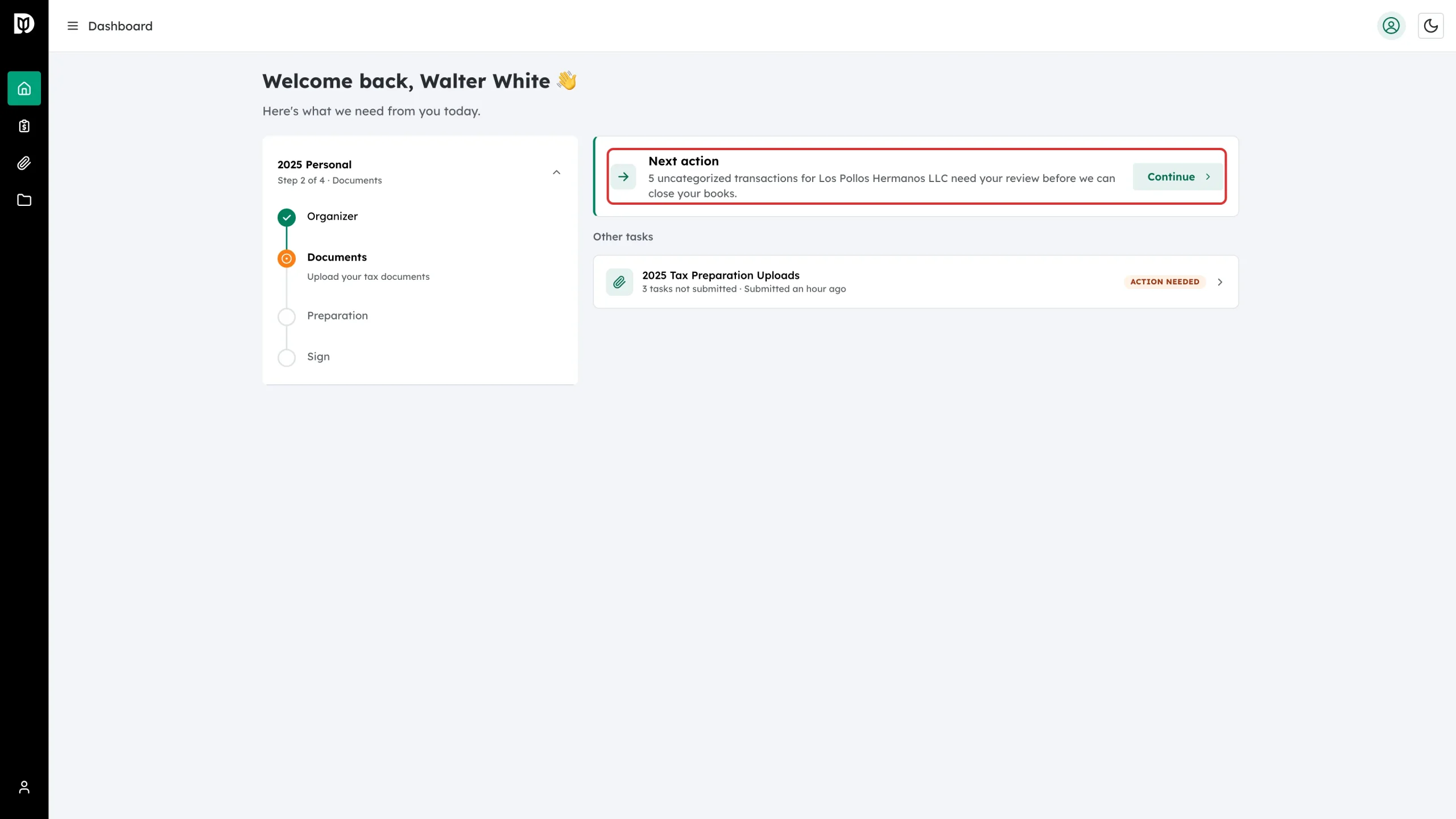
When you sign in, the Dashboard shows a Next action card. If your accountant is waiting on you, it names the company and how many transactions need your input. Click Continue to jump straight there.
Step 2: Open Bookkeeping
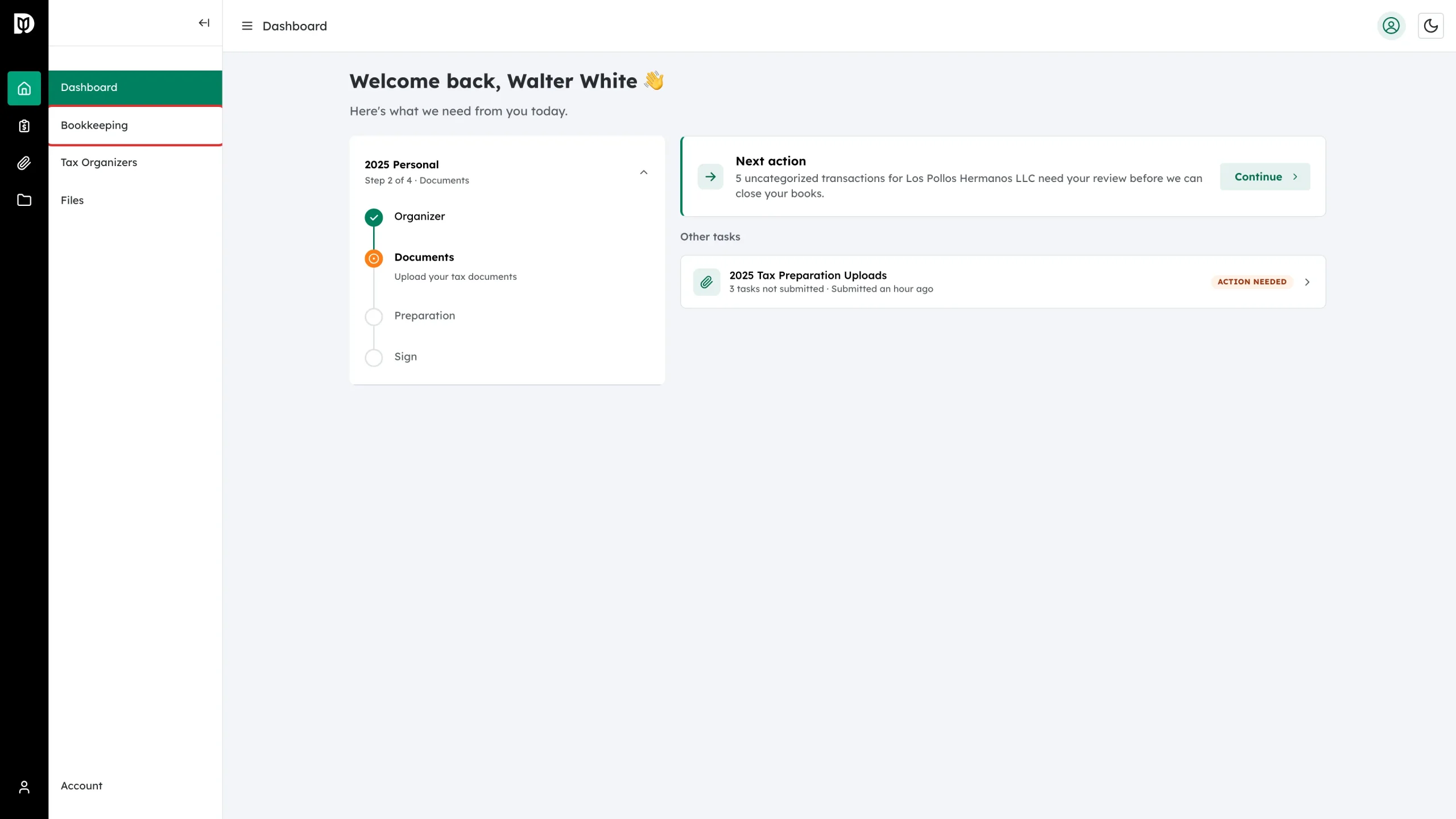
You can also get there from the menu. Click Bookkeeping in the left sidebar.
Step 3: Choose your company
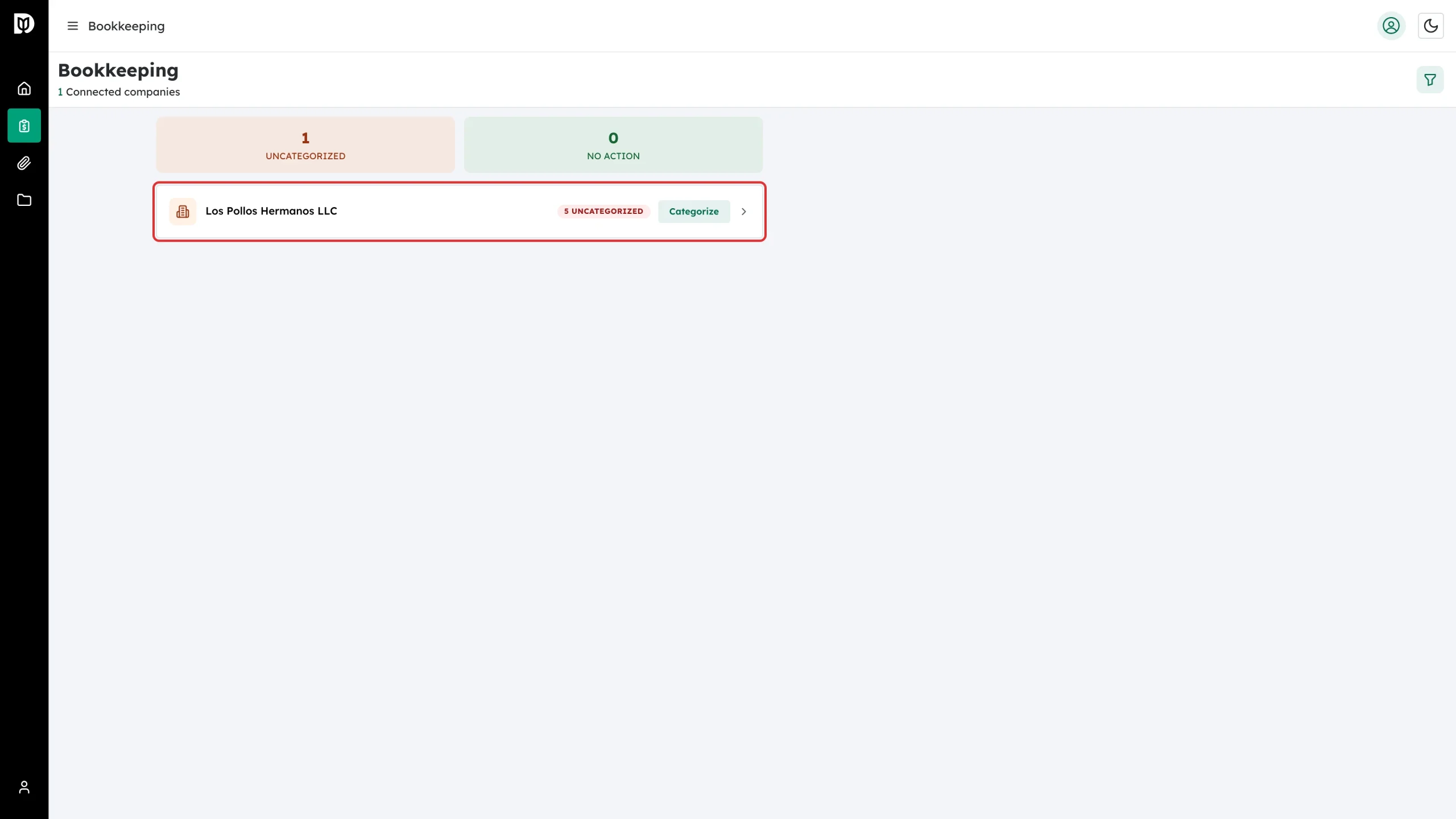
The Bookkeeping page lists every company you have access to. The counters at the top tell you how many companies have work waiting. Click the company card, or its Categorize button, to open its transactions.
Step 4: Work through the Categorize tab
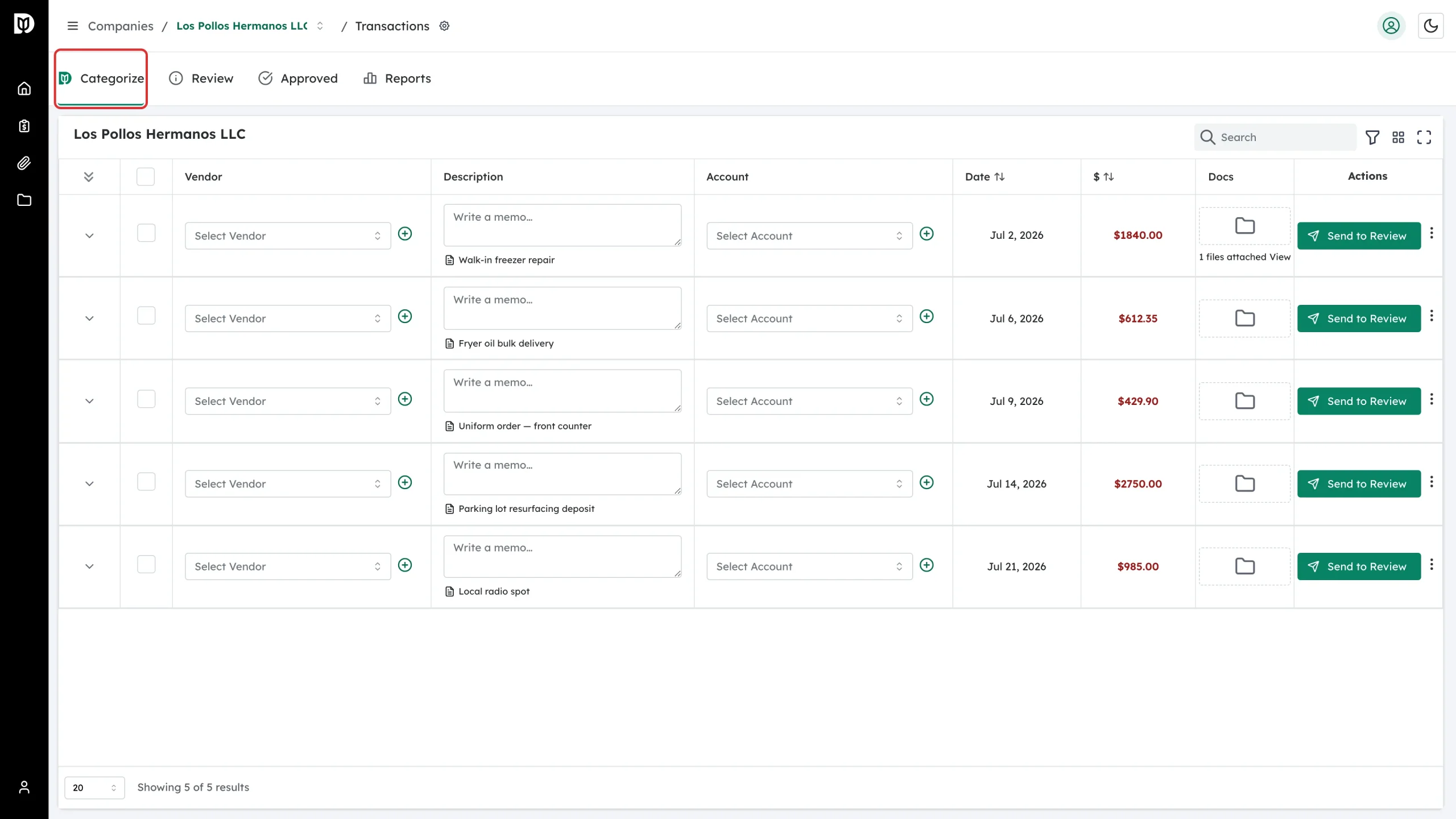
The page opens on the Categorize tab. These are the transactions your accountant needs you to explain. The other tabs are Review (already sent to your accountant), Approved (finished) and Reports.
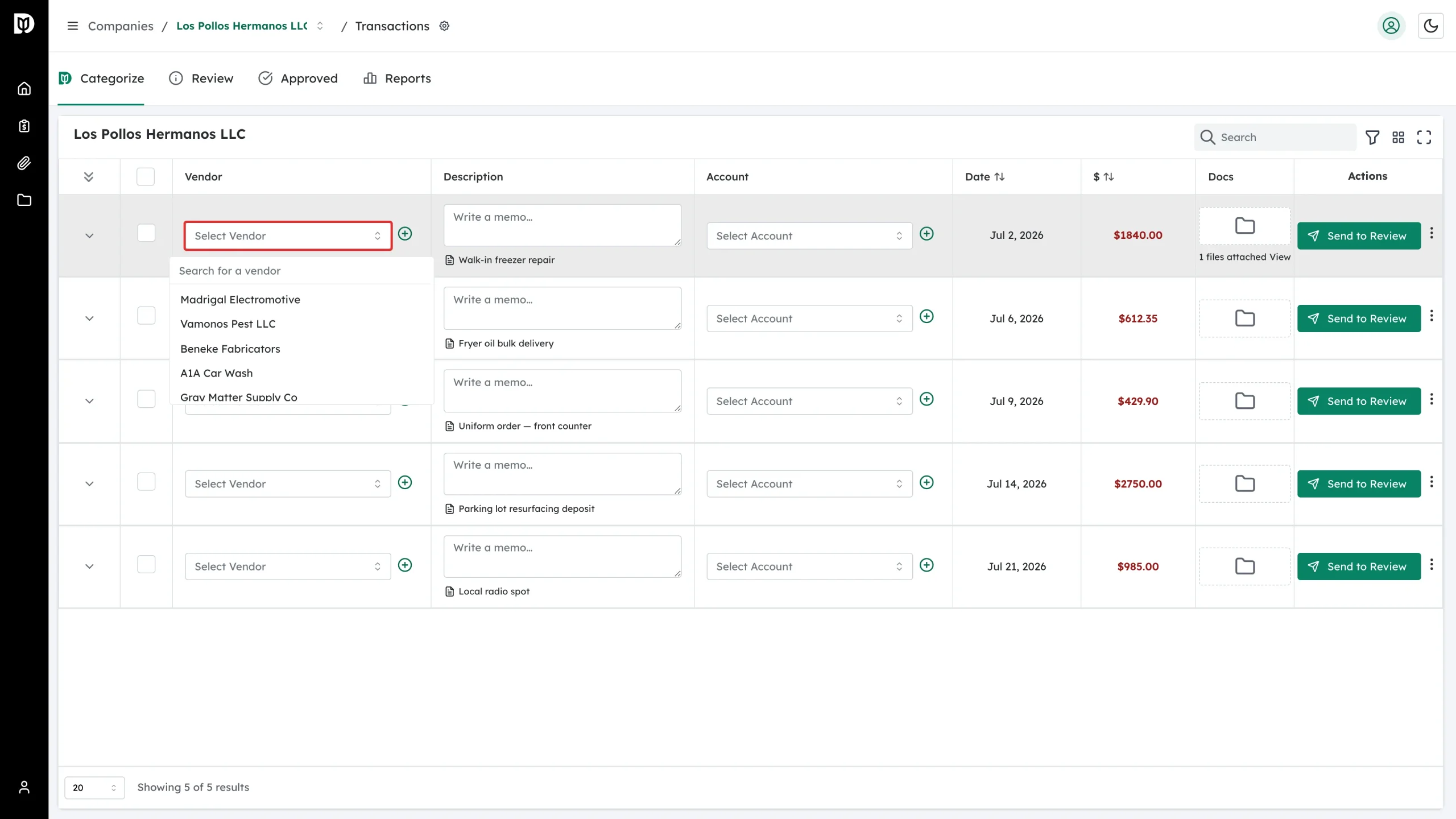
Step 5: Pick the vendor
In the Vendor column, click Select Vendor and choose who you paid. Start typing to search the list.
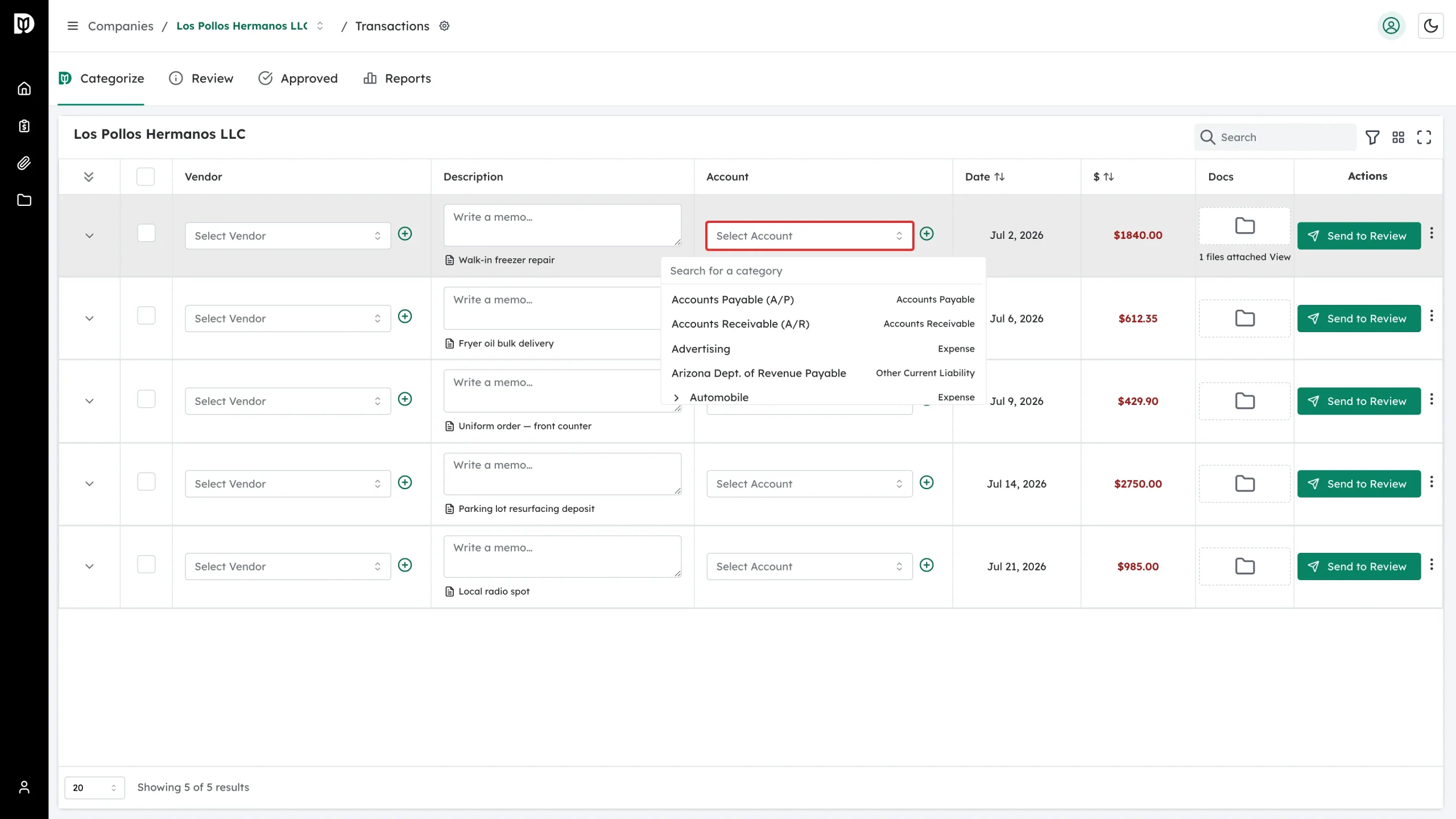
Step 6: Pick the account
In the Account column, click Select Account and choose the category the expense belongs to, such as Advertising or Repairs. Type in the search box to filter the list. On a sales receipt you pick the product or service that was sold instead of an account.
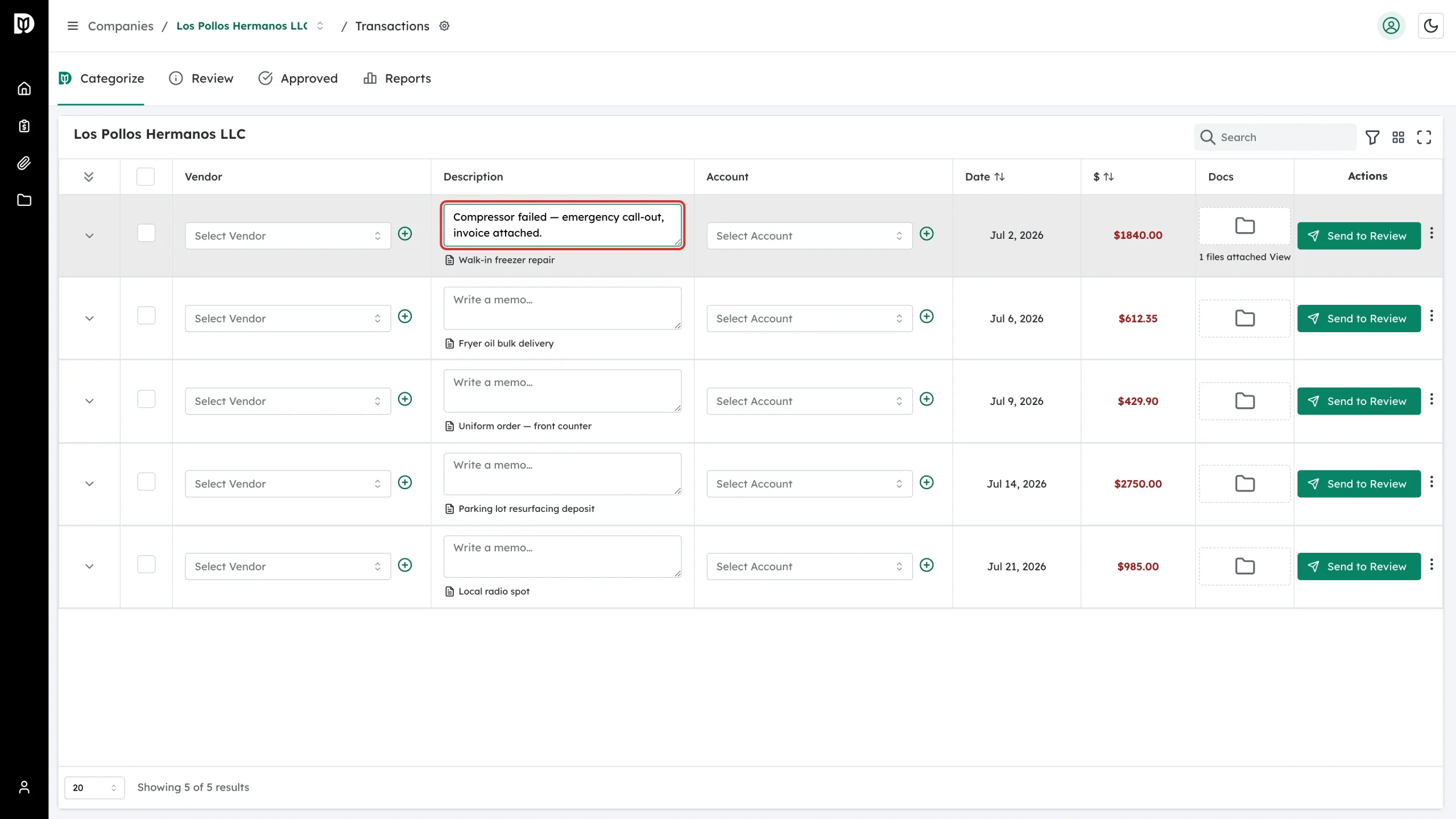
Step 7: Add a memo
Use the Write a memo… box in the Description column to say what the purchase was for. The bank’s own wording is shown underneath so you can tell the rows apart. A short note here saves your accountant a follow-up email.
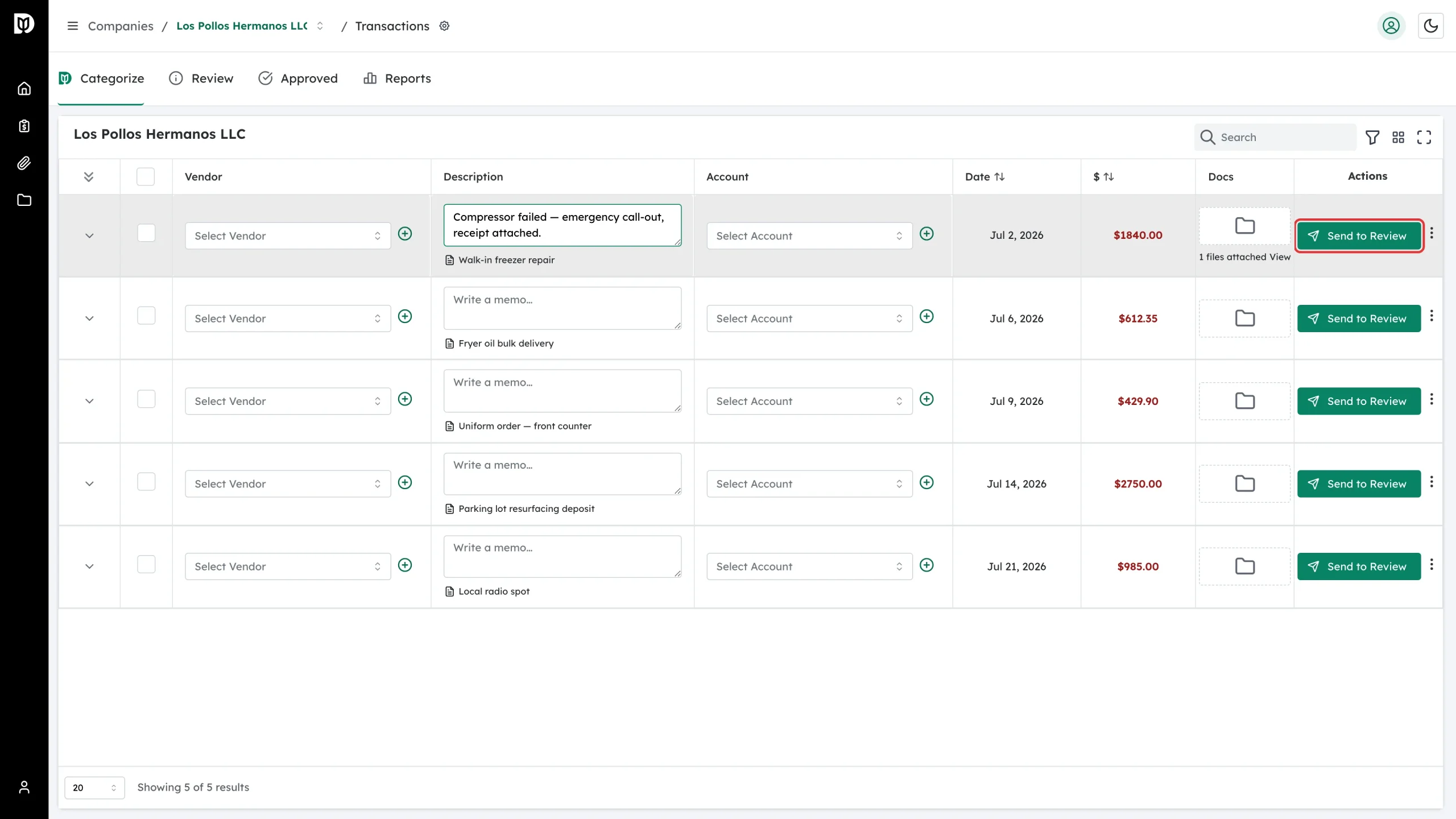
Step 8: Send the transaction to your accountant
Click Send to Review on the row. The row leaves the Categorize tab straight away.
Step 9: Check the Review tab
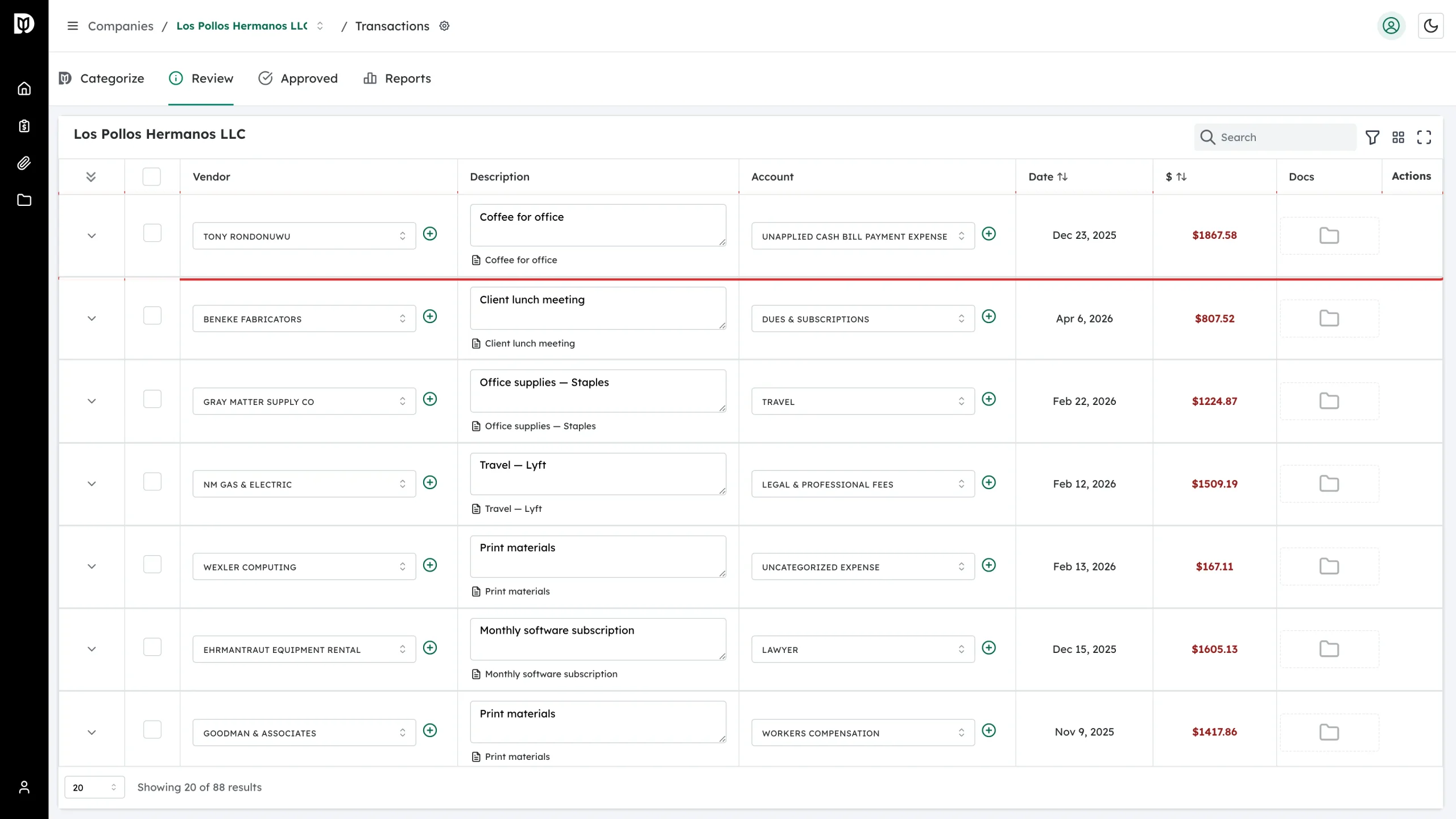
Open the Review tab to see everything you have sent. Your accountant checks these and moves them to Approved. You can still open a row here to see what you entered.
What happens next
Your accountant reviews what you sent and either approves it or asks a follow-up question. Anything still sitting in Categorize is still waiting on you. Debits emails you a reminder when items have been waiting a while — reminders are sent by email only.
Troubleshooting
- I do not see Bookkeeping in the menu. Your firm has not shared a company with you. Ask them to add you to the company.
- The company card says it is disconnected. The QuickBooks connection has dropped. Only your accounting firm can reconnect it, so contact them.
- The vendor or the account I need is not in the list. Use the + button beside the field to create it, if your firm has allowed that. Otherwise, write the name in the memo and send it to review.
- I sent the wrong row. Ask your accountant to send it back — they can return it to you from their side.