Who this is for: Clients who use the Debits client portal.
What you’ll learn: How to fill in and sign a PDF form your accountant shared with you, and save your completed copy without printing or scanning anything.
Before you begin
- You need to be signed in to your client portal.
- Your accountant must have shared the form with you. Forms waiting for you show a To fill in badge on your Files page.
- You can fill in the form’s own fields, type text anywhere on the page, tick boxes and add your signature. Printed text on the form cannot be changed.
Step-by-step instructions
Step 1: Find the form on your Files page
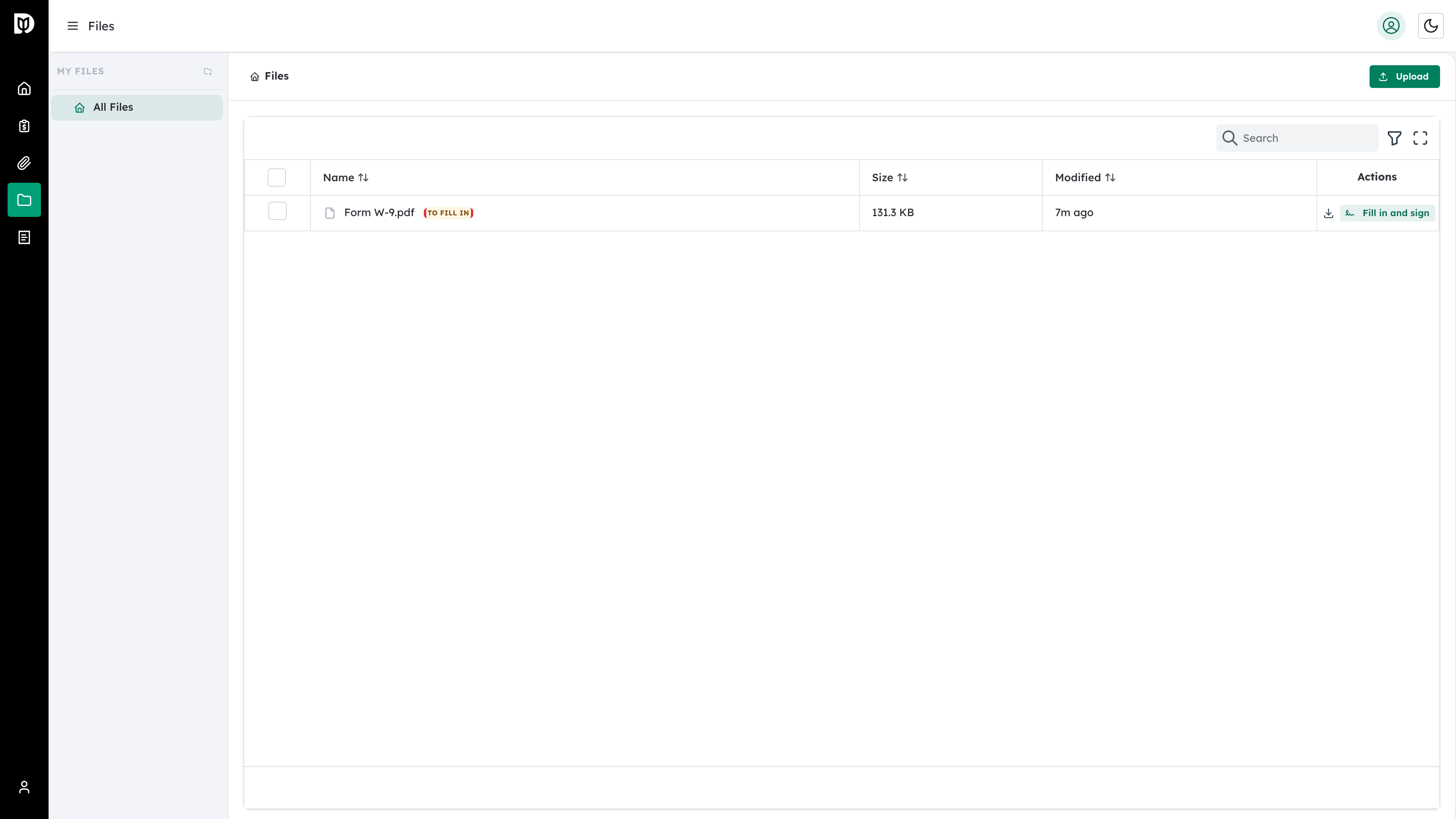
Open Files from the menu. A form that still needs filling in shows a To fill in badge next to its name.
Step 2: Open the form
Select Fill in and sign on that row. The form opens full screen, with a toolbar across the top and the pages on the left.
Step 3: Start the guided fill-in
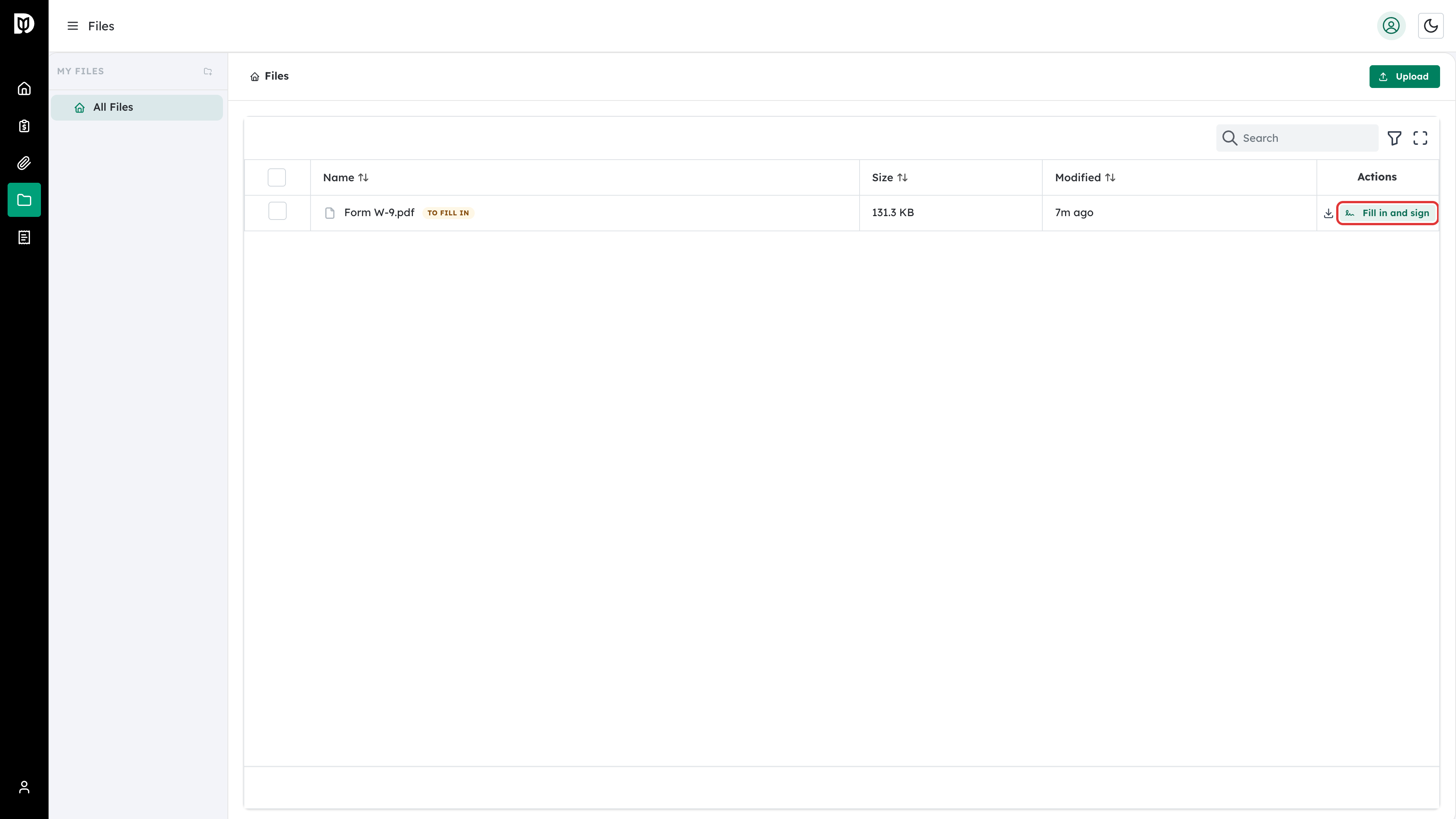
Select Start. Debits takes you to the first field. After each answer, select Next field to move on. Required fields have a dashed red outline until you fill them.
Step 4: Fill in the fields
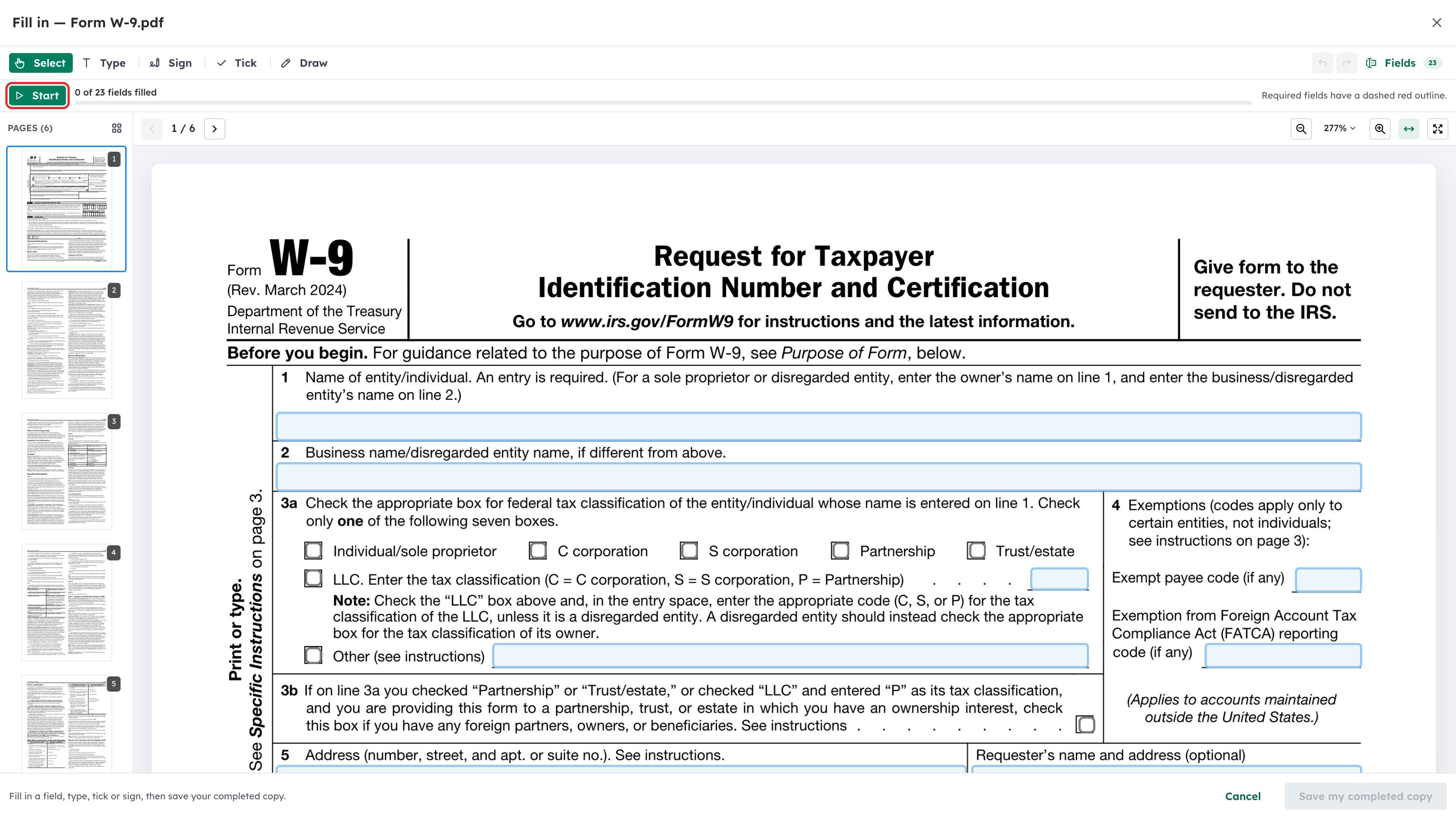
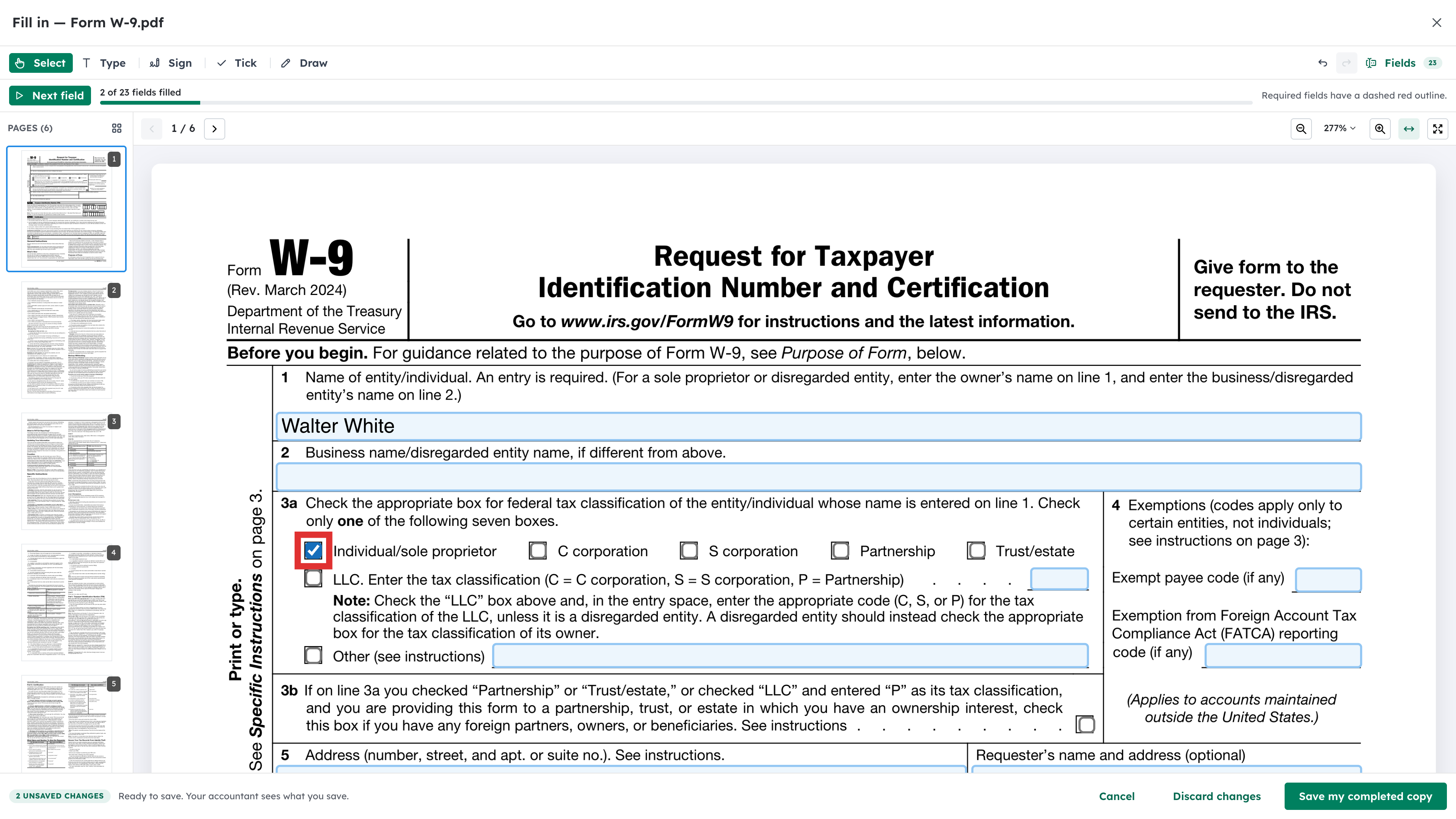
Type your answer straight into the field on the page. The bar at the top counts your progress, for example 1 of 23 fields filled.
Step 5: Tick the boxes that apply
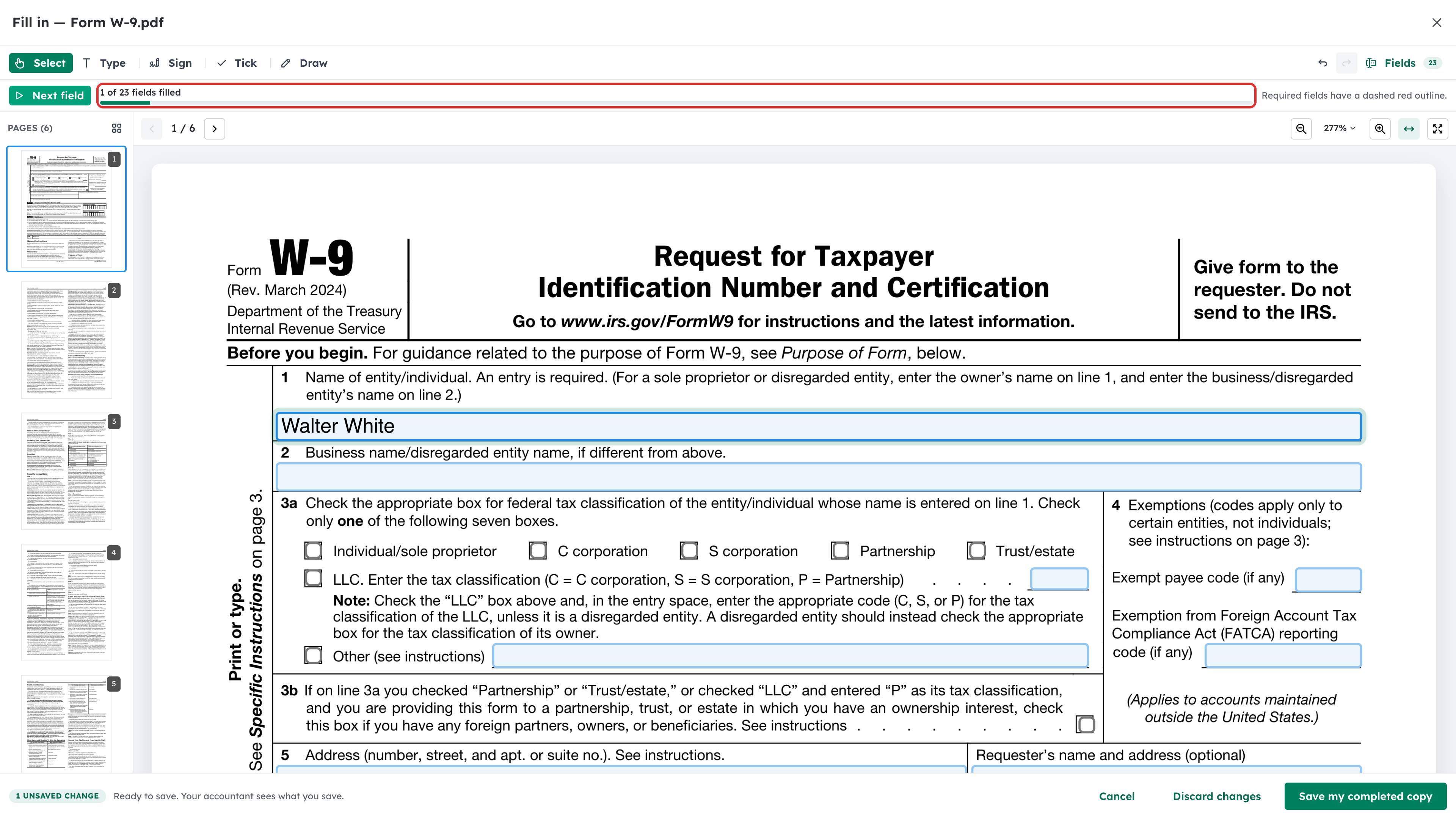
Click a checkbox on the form to tick it. If you need to tick somewhere the form has no box, use Tick in the toolbar, then click the page.
Step 6: Create your signature
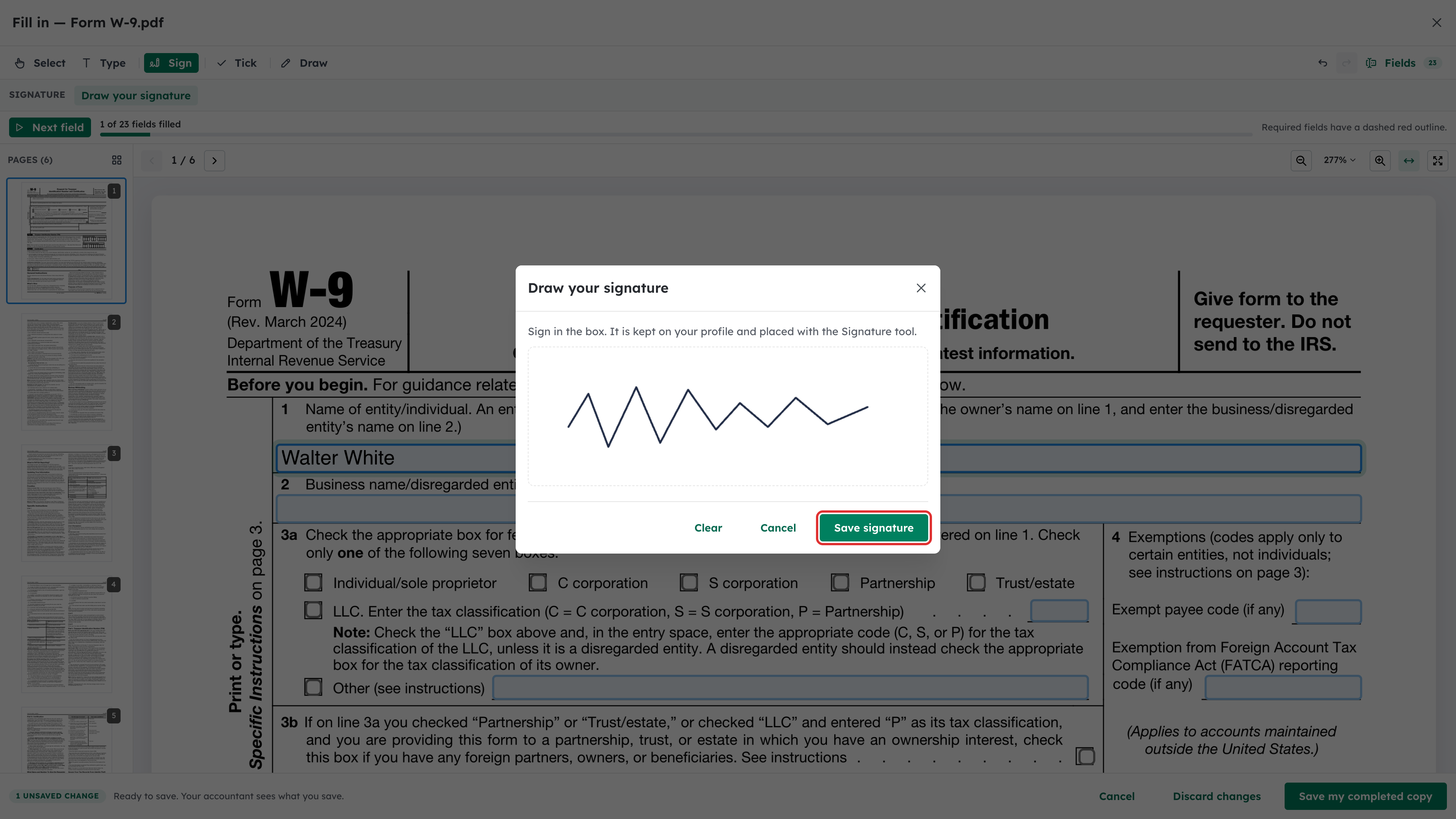
Select Sign in the toolbar, then Draw your signature. Sign in the box with your mouse, finger or stylus, then select Save signature. Your signature is kept on your profile, so next time you can place it straight away. Select Redraw if you want to change it.
Step 7: Place your signature
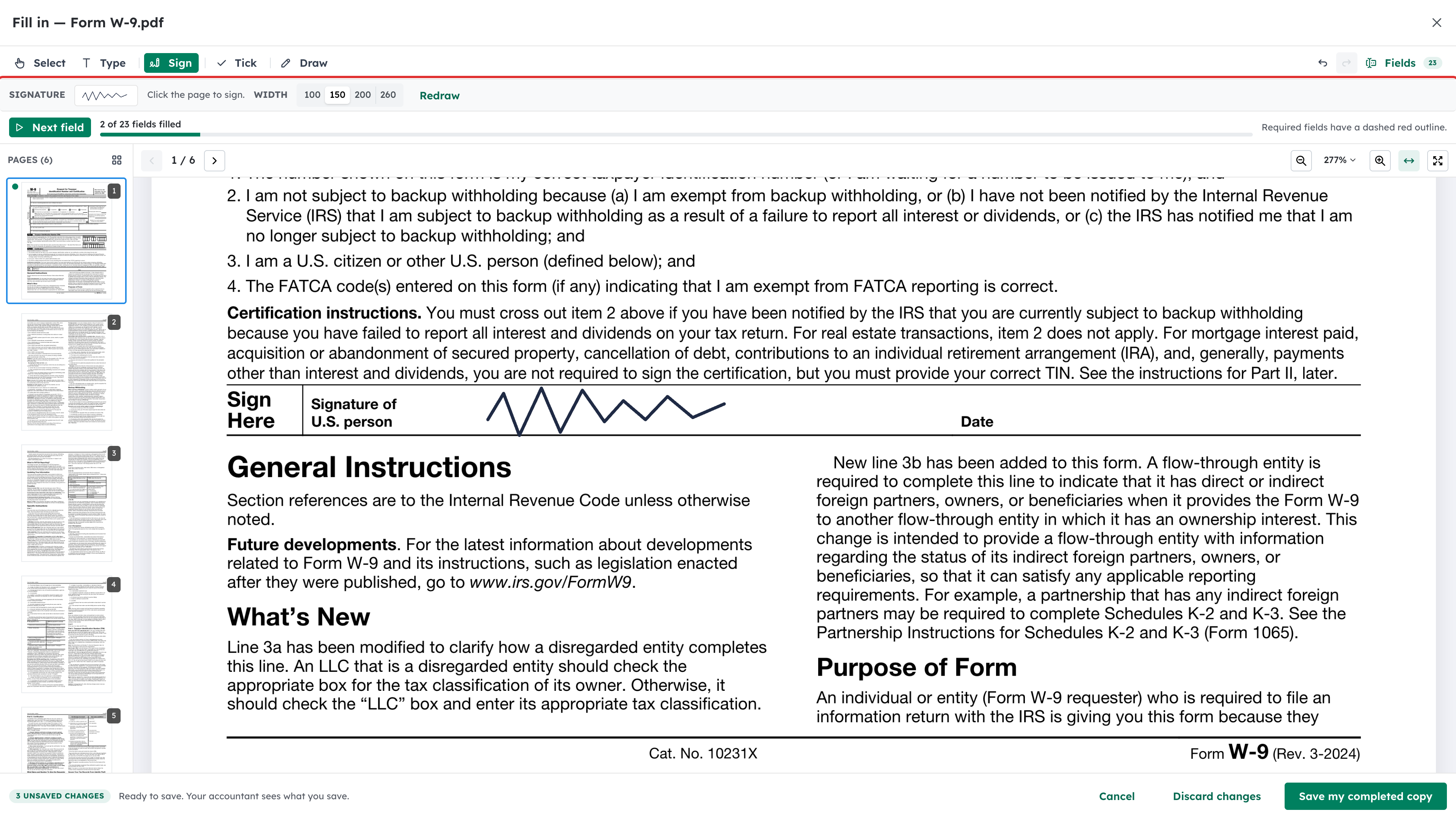
With Sign selected, click the signature line on the form. You can pick a size under Width first. To move or remove something you added, choose Select, click it and drag it or delete it. Undo and Redo are at the top right.
Step 8: Save your completed copy
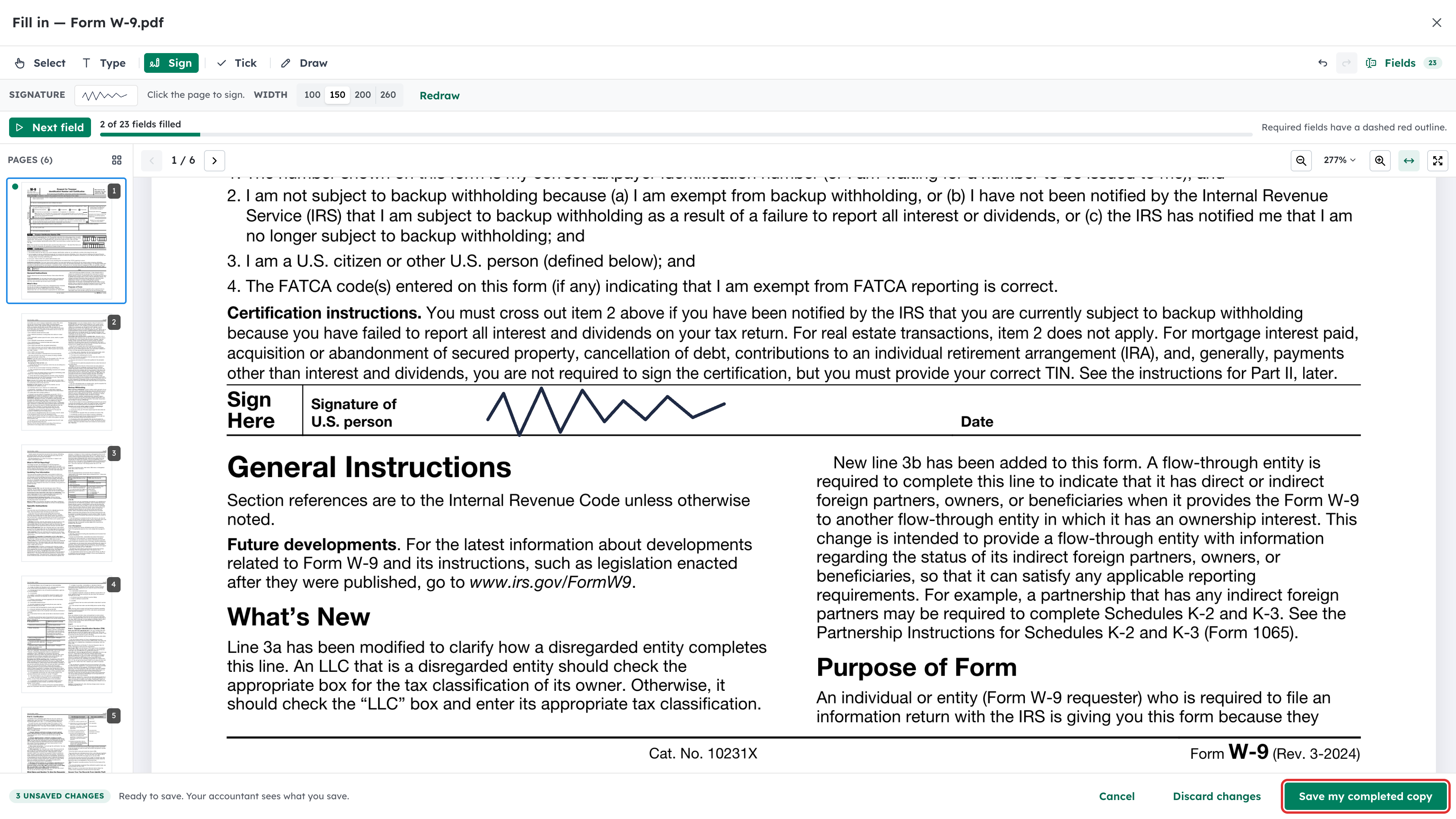
Select Save my completed copy. The bar at the bottom shows how many unsaved changes you have. To start again, select Discard changes.
Step 9: Check that it is done
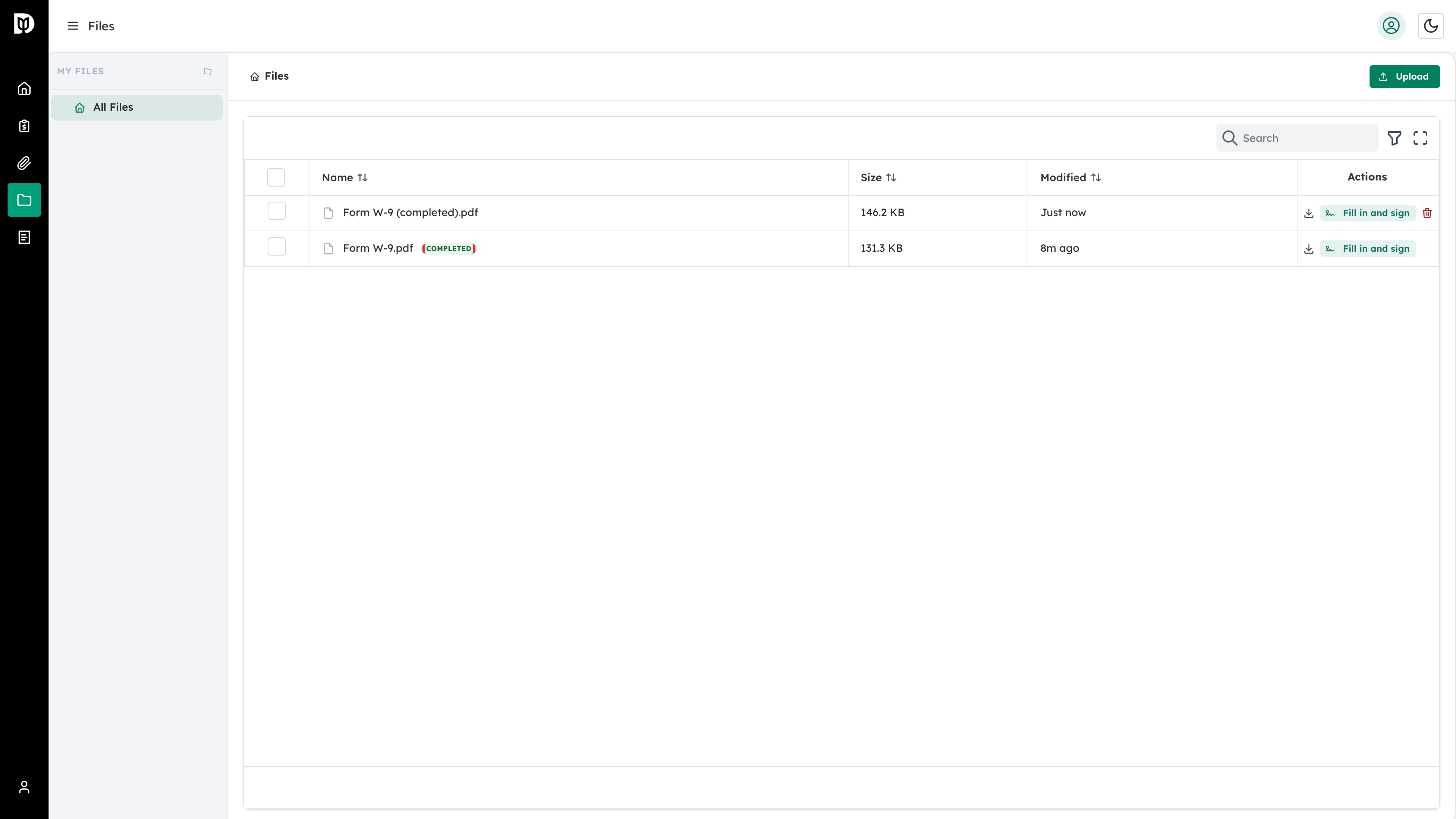
Back on Files, your filled-in form is saved as a new file beside the original, with (completed) in its name. The original now shows a Completed badge.
What happens next
Your accountant sees your completed copy as soon as you save it. The form they sent stays as it was, so you can always open it again. If you fill in a PDF you uploaded yourself, your changes are saved as a new version of that file instead of a separate copy.
Troubleshooting
- A form has no To fill in badge: The badge appears only on forms your accountant shared that have fields to fill in. You can still open any PDF with Fill in and sign and type, tick or sign on it.
- You closed the form before saving: Open it again. Unsaved work is kept as a draft in your browser and offered back to you.
- The form says it is a dynamic (XFA) form: Debits cannot edit this type of form without losing its content. Ask your accountant for a standard PDF version.
- Some fields can’t be filled in: You may have read-only access, or the form may be for a year your access does not cover. Contact your accountant.