Who this is for: Clients who have been sent a proposal, and firm staff who need to talk them through it.
What you’ll learn: What the proposal page shows, how to sign or decline, and what happens once everyone has signed.
Before you begin
- You do not need a Debits login. The proposal opens from the link in your email.
- Signing is tied to your own personal link. If you were forwarded someone else’s link you can read the proposal but not sign on their behalf.
- Every proposal has a Valid until date. Sign by that date to lock in the quoted price.
Step-by-step instructions
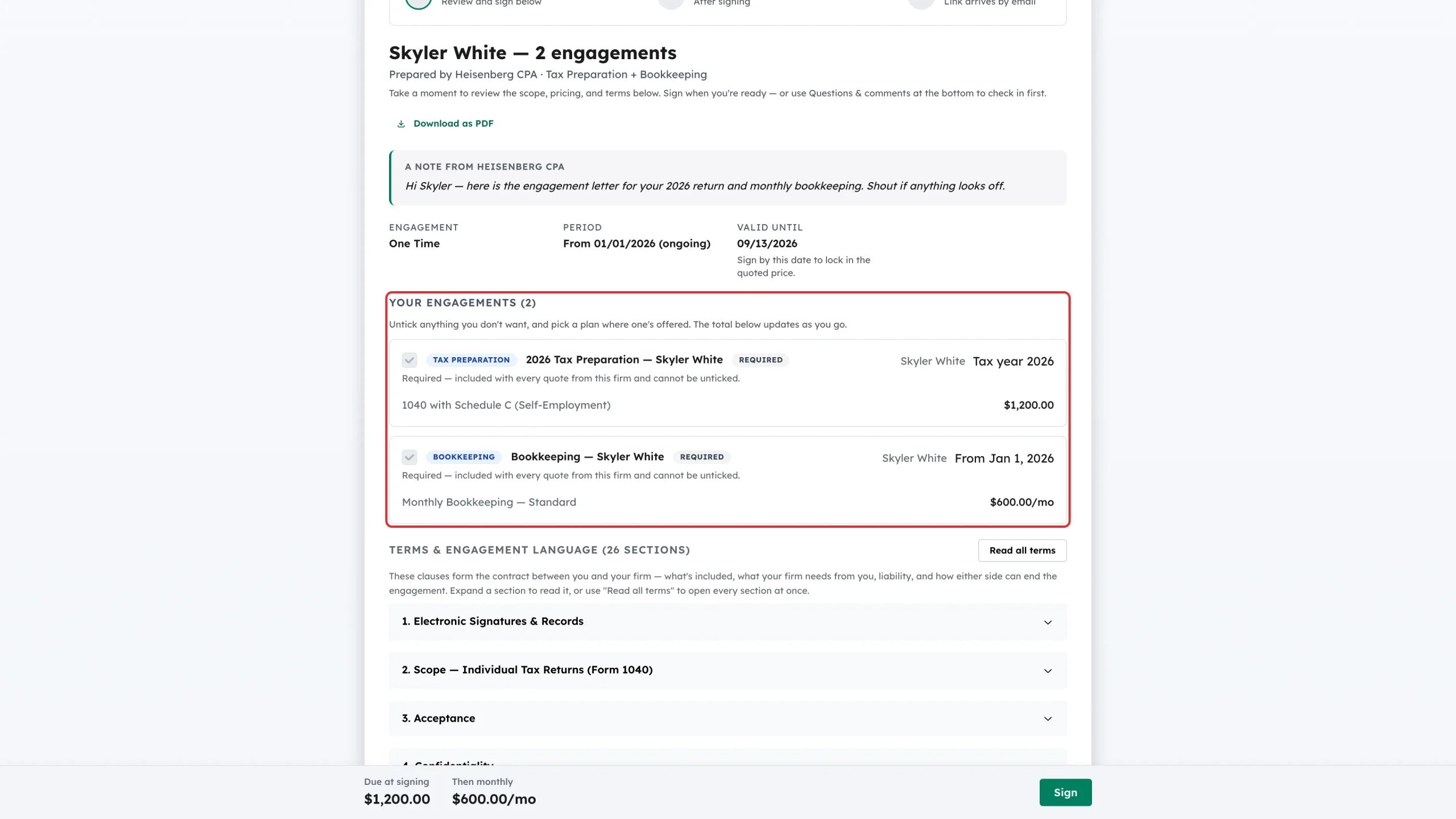
Step 1: Review your engagements
Open the link in the email. Under Your engagements, each piece of work is listed with what is included and what it costs. Items marked Required are part of every quote from the firm and cannot be unticked. Anything optional has a live tick box, and the total updates as you change it. Where the firm has offered plans, pick the one you want.
Step 2: Read the terms
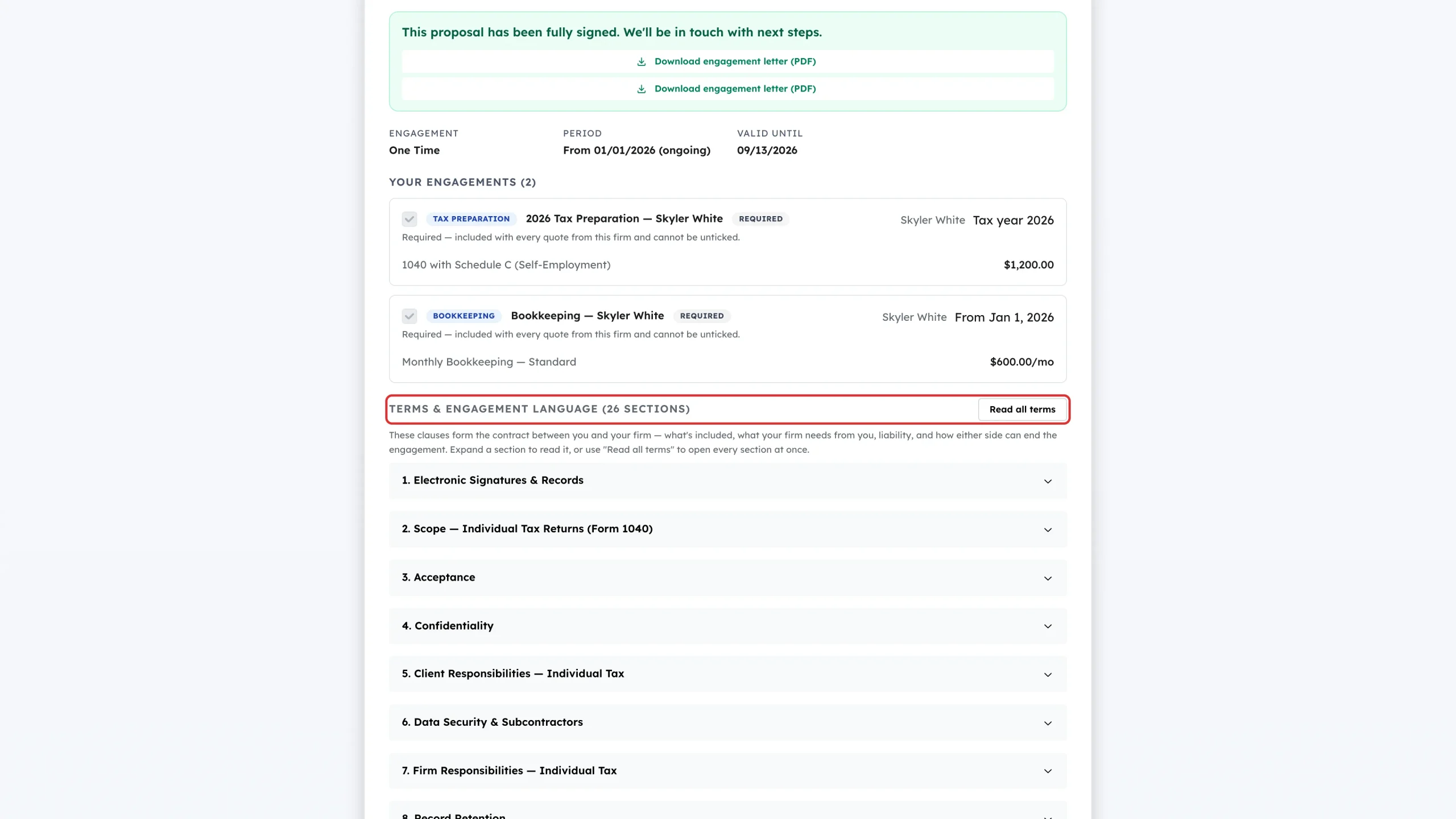
Terms & engagement language is the contract. Expand any numbered section to read it, or click Read all terms to open every section at once.
Step 3: Check the total
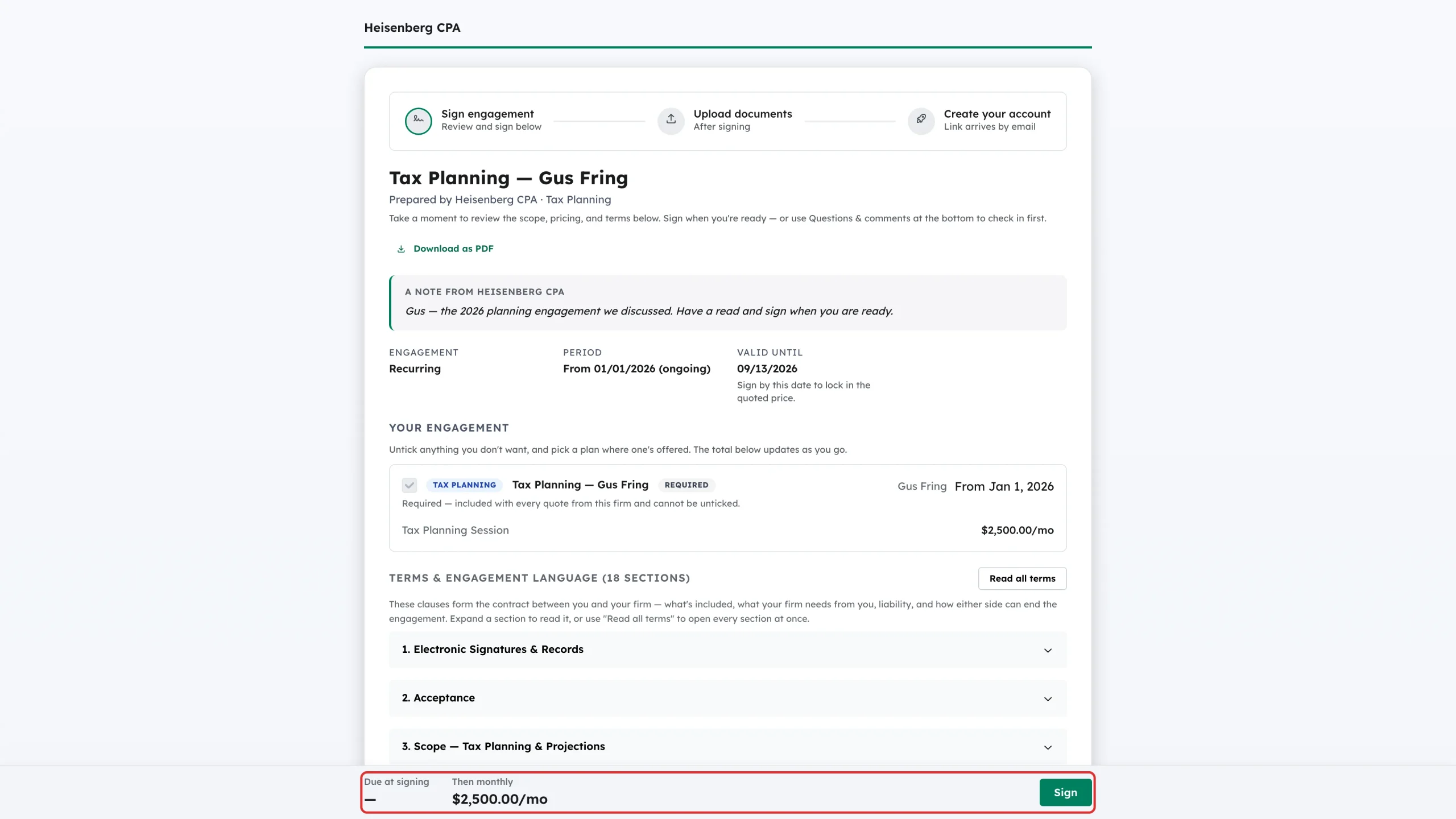
The bar pinned to the bottom of the page shows what you owe. One-off and ongoing amounts are shown separately — for example Due at signing and Then monthly. If the firm has quoted a single price for the whole relationship, you will see that one figure instead.
Step 4: Start signing
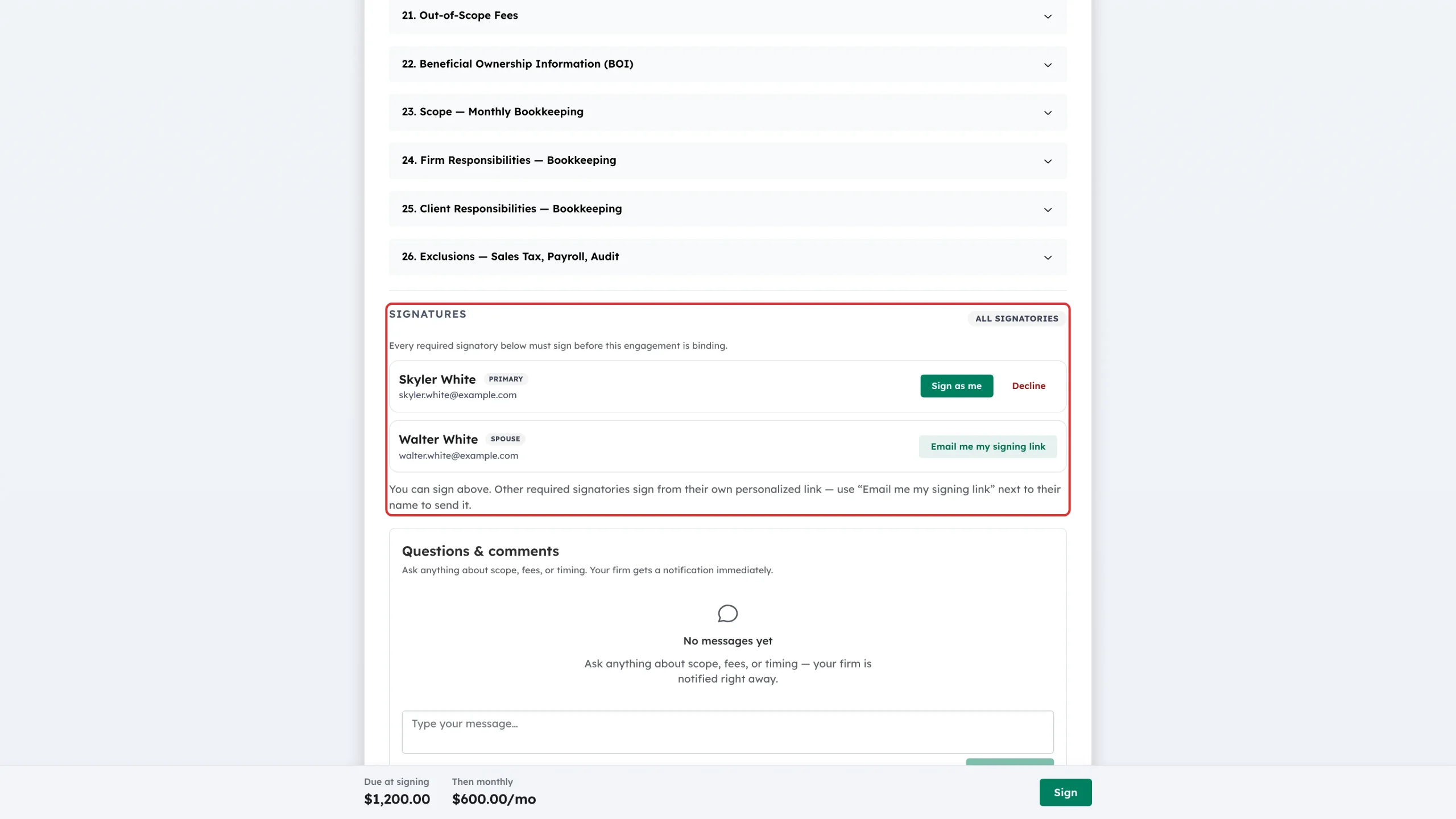
Scroll to Signatures. Your own row has Sign as me and Decline next to it. Other signatories have Email me my signing link — use it to send their personal link to the address on file. You can also use the Sign button in the total bar.
Step 5: Add your signature
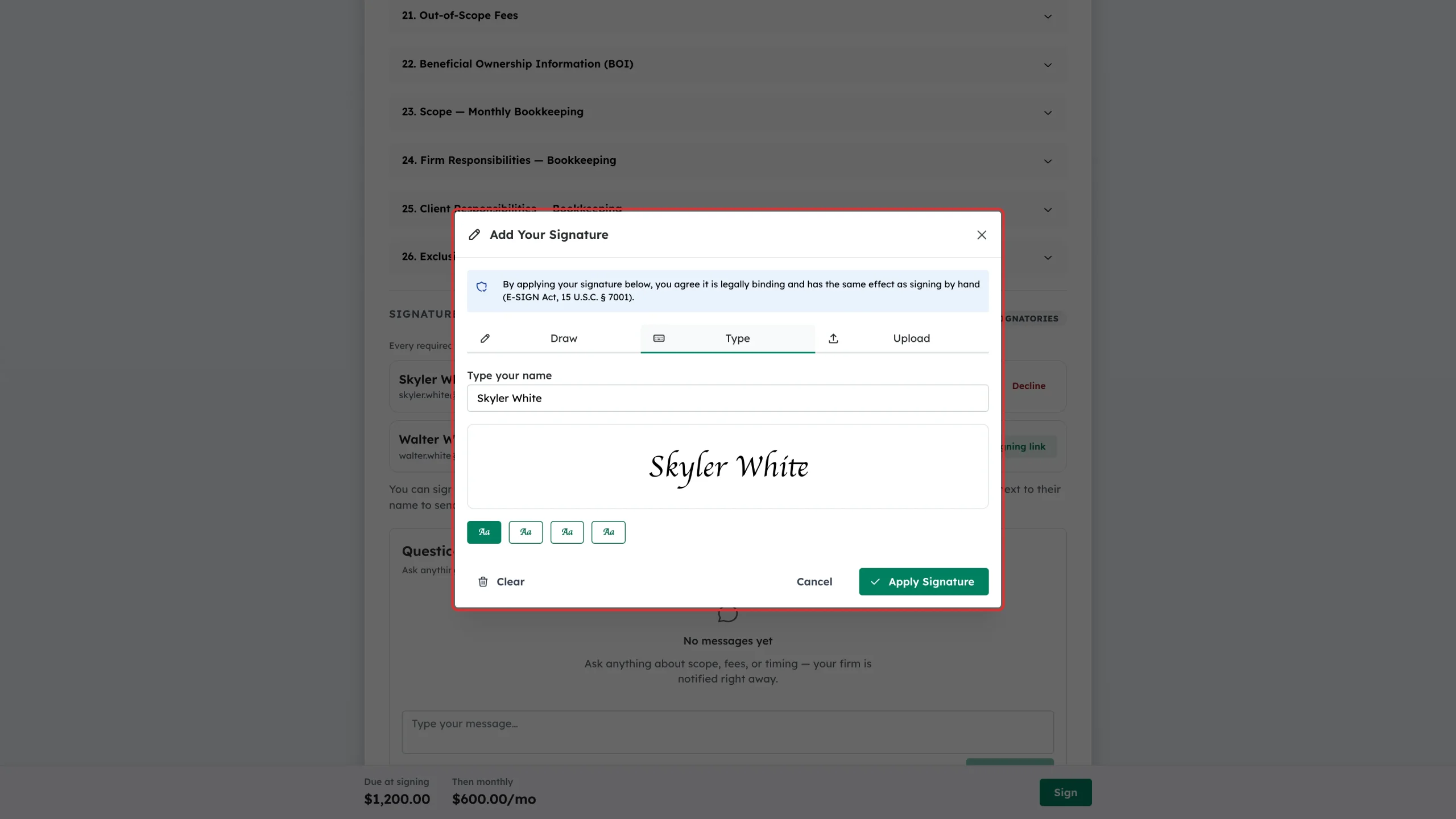
The Add Your Signature box explains that applying your signature is legally binding under the E-SIGN Act. Choose Draw, Type or Upload. If you type, enter your name and pick a style. Click Apply Signature.
Step 6: Wait for the other signers
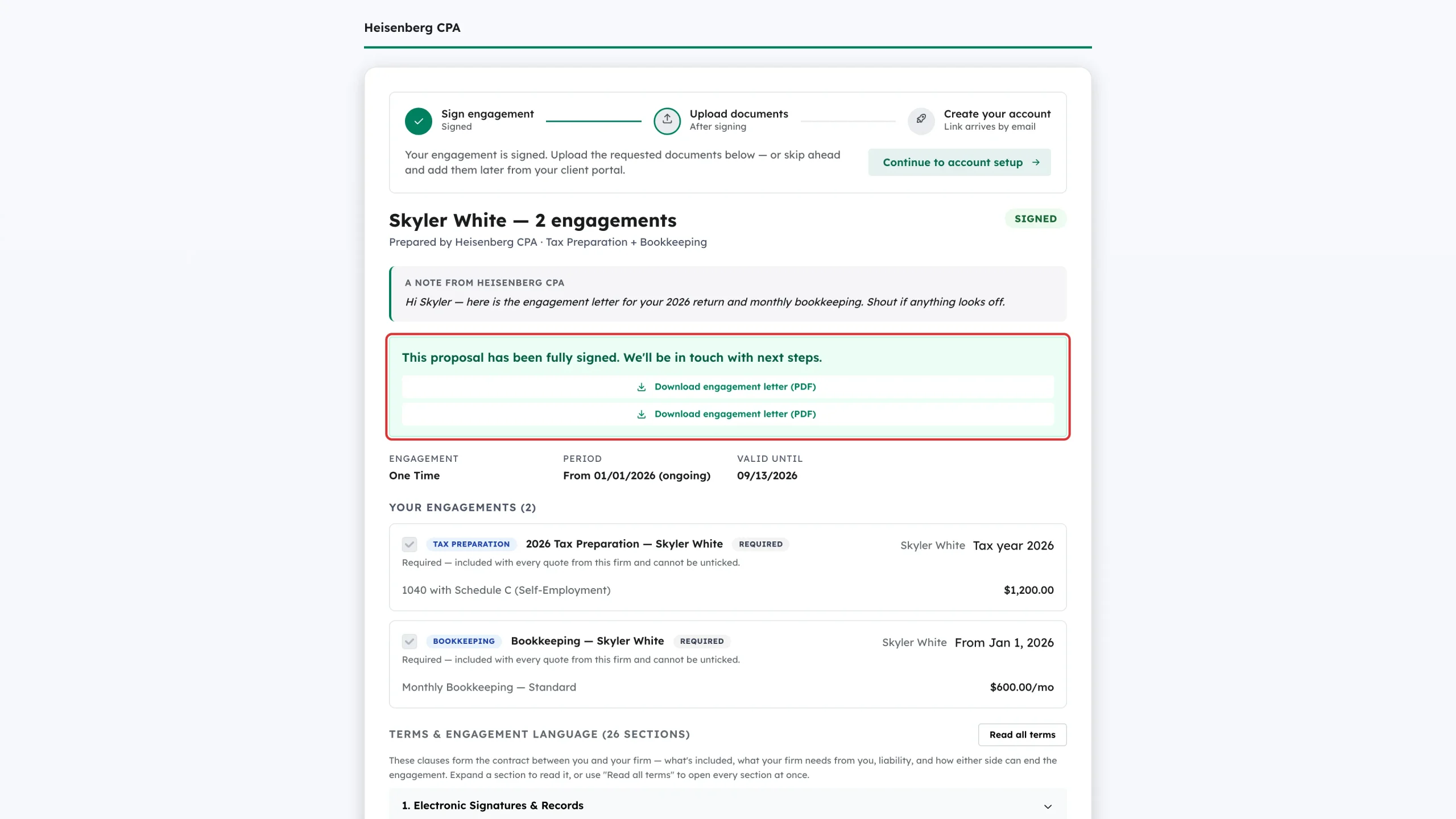
If the proposal needs more than one signature, your row shows Signed and the page waits for the rest. Once everyone has signed you see This proposal has been fully signed, with a Download engagement letter (PDF) link for each engagement.
Step 7: Upload the documents your firm asked for
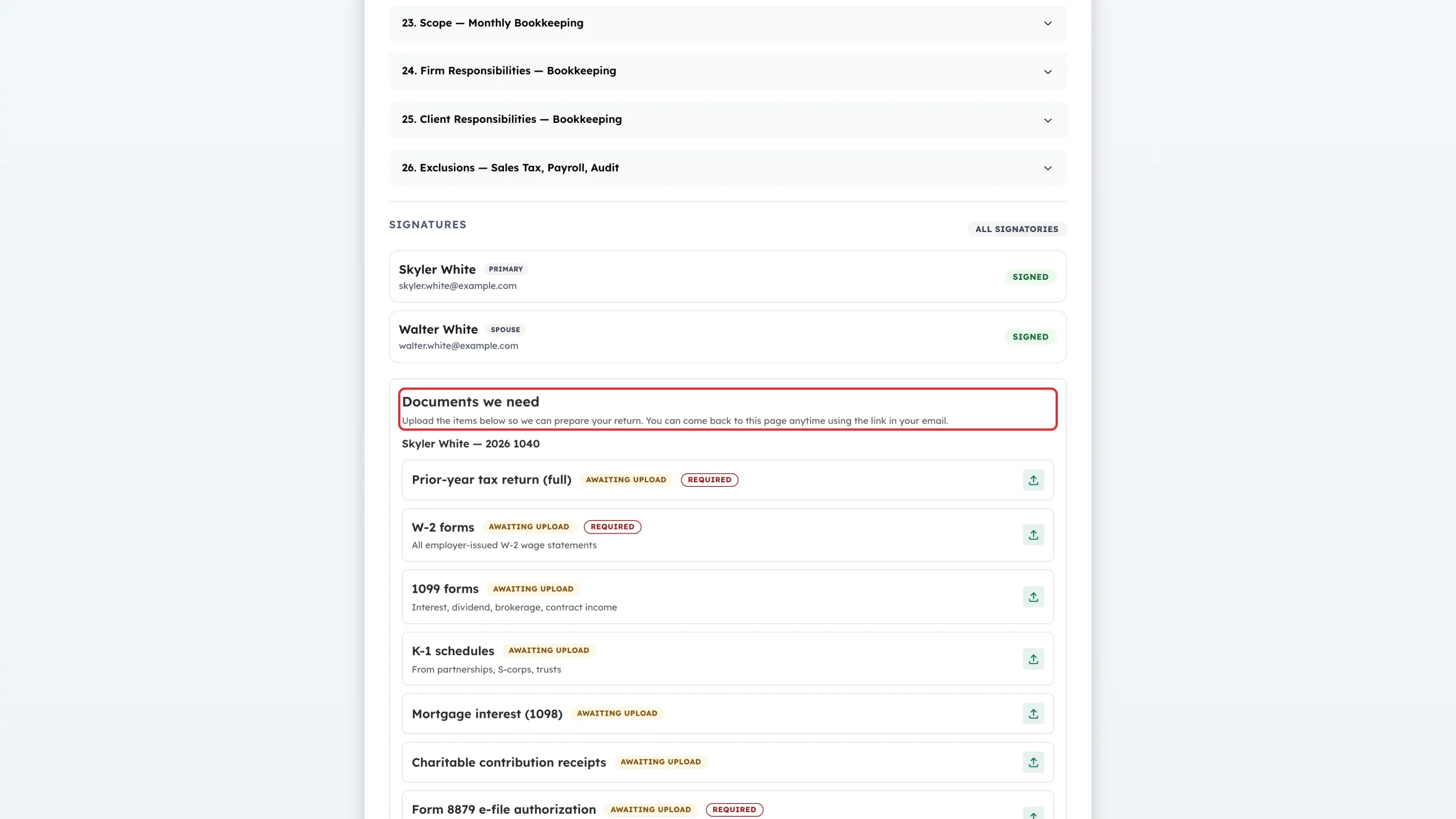
Below the signatures, Documents we need lists what to send, grouped by engagement. Each row shows whether it is Required and sits at Awaiting upload until you send it — use the upload icon on the right. You do not have to do it all now: click Continue to account setup to create your Debits login and come back to this page whenever you like.
Step 8: Decline instead, if you need to
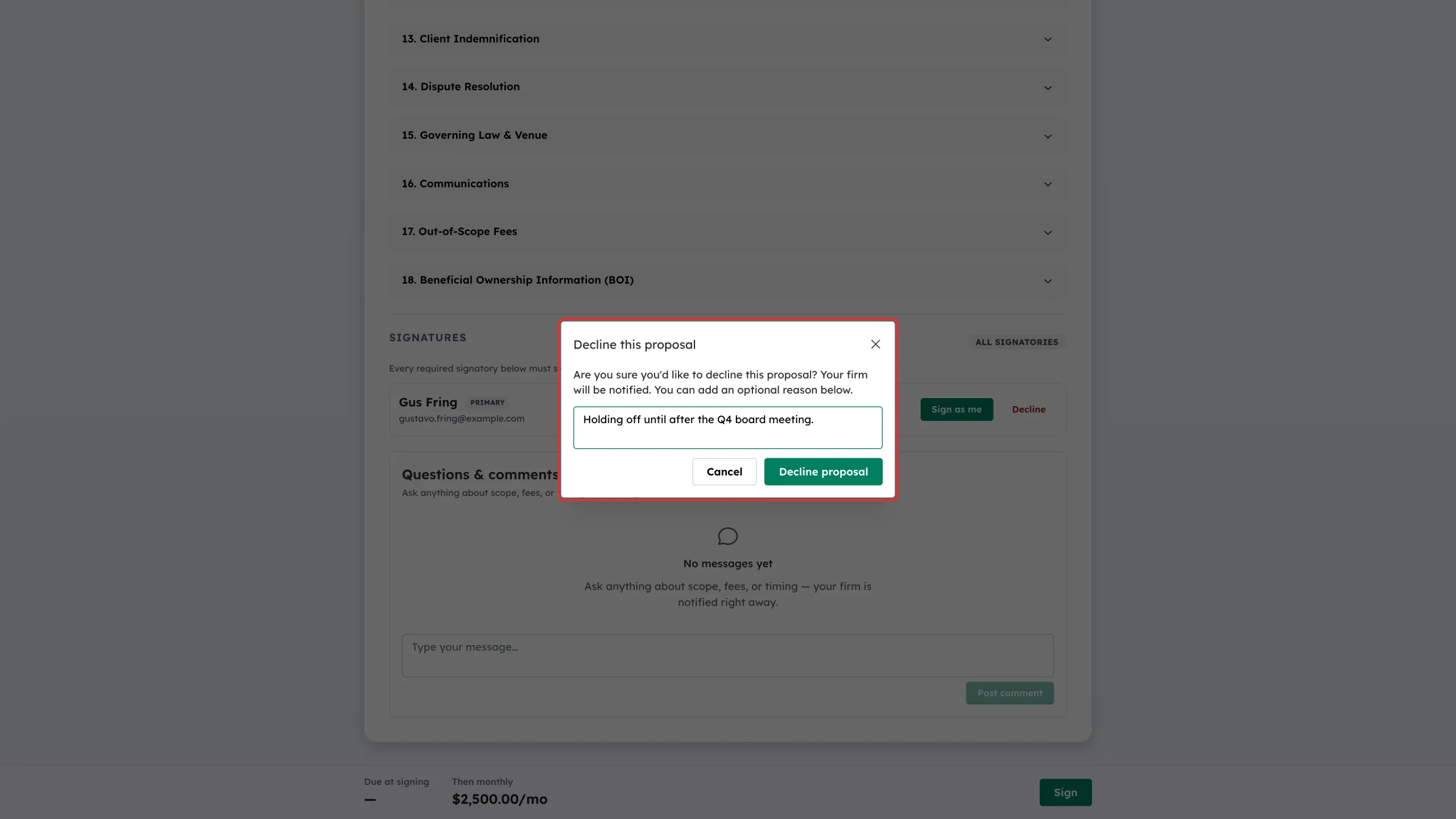
If the quote is not right, click Decline on your row. Add a short reason so the firm knows what to change, then click Decline proposal. If you would rather ask a question first, use Questions & comments at the bottom of the page — your firm is notified straight away.
Step 9: What a declined proposal looks like
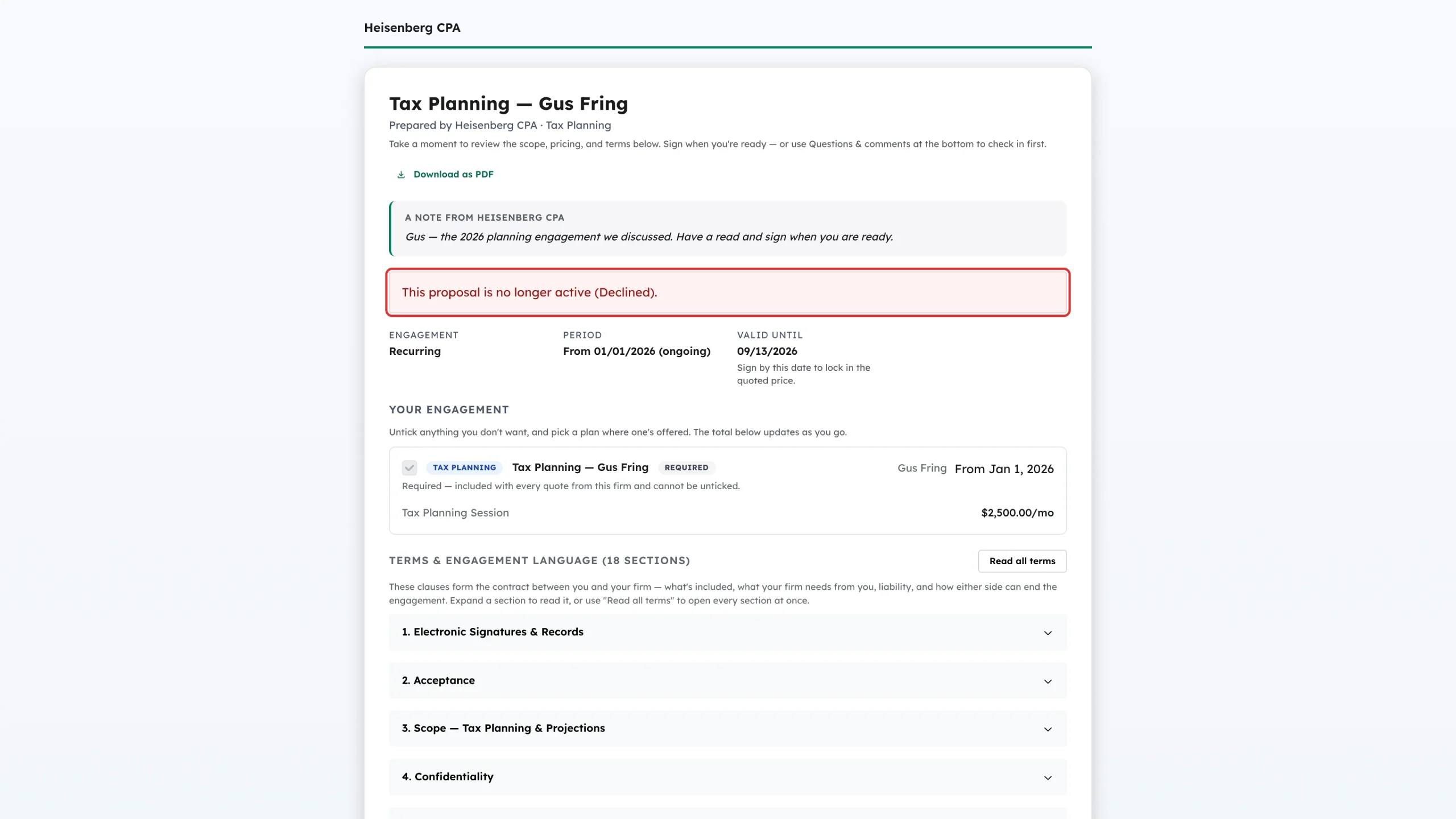
The page then shows This proposal is no longer active (Declined). Nothing is billed and no engagement is created. Your firm can send a revised proposal.
What happens next
When the last required signature is in, the proposal’s status becomes Signed. Your firm is notified, an engagement letter PDF is produced for each engagement, any amount due at signing is invoiced, and you are emailed an invitation to set up your Debits account so you can upload documents and see your engagements.
Troubleshooting
- I can’t see a Sign button. Signing only appears on the row that matches the link you opened. Find your name in the Signatures list and use Email me my signing link to get your own link.
- The link says the proposal is no longer active. It has been signed, declined, cancelled, or it has passed its Valid until date. Ask your firm to resend it.
- I can’t untick an engagement. Anything labelled Required is included with every quote from that firm. Ask them to quote it separately if you only want part of the work.
- I’m asked for a payment method before I can sign. Some firms require a card on file. Save one in the payment box and the Sign button becomes available.
- I want to change something before signing. Post it under Questions & comments. Your firm has to cancel and reissue the proposal to change what it quotes.