Who this is for: Anyone at the firm who sets prices on a proposal.
What you’ll learn: The four pricing models, which billing cadences each one allows, when to use tiers or a deposit schedule, and how to quote one price for the whole relationship.
Before you begin
- You need permission to change proposal pricing. Staff without it can open the wizard but not edit what a proposal quotes.
- Pricing lives on Step 2 — Engagements of the proposal wizard. Each engagement you add walks you through three questions in turn: What’s the work?, What will you charge? and How should invoices go out? Use Continue to move between them and Done to finish.
- Every price is per billing period. A $600 monthly card means $600 each month, not $600 in total.
Step-by-step instructions
Step 1: Pick a pricing model
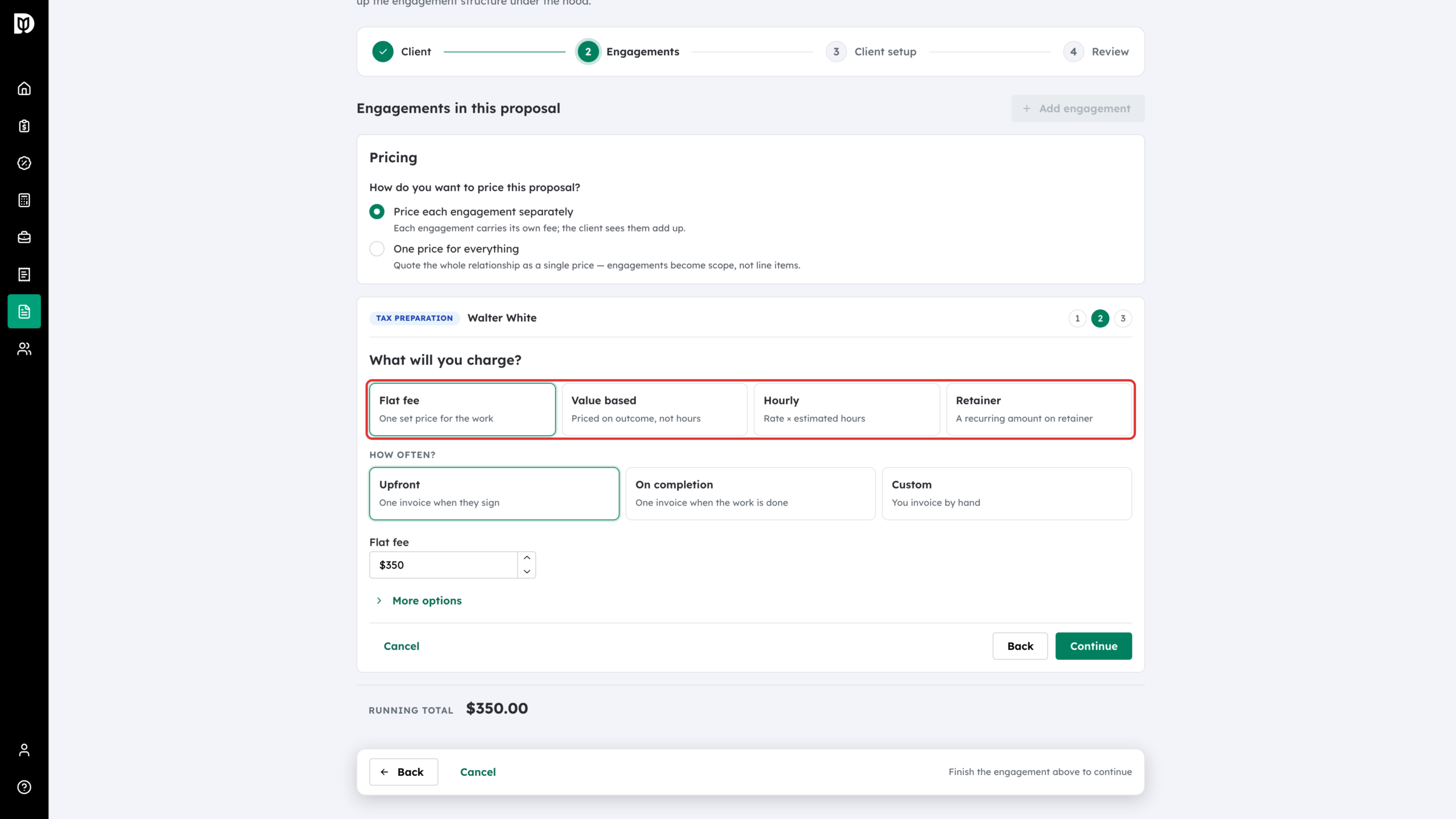
On What will you charge?, choose one of the four models:
- Flat fee — one set price for the work, billed once.
- Value based — priced on outcome, not hours, and billed once. It must be greater than zero.
- Hourly — a rate multiplied by an estimate. It can be billed once or on a recurring cycle.
- Retainer — a recurring amount. It must be greater than zero and bills monthly, quarterly or annually.
Switching models keeps the figure you already typed, so you can compare framings without retyping. If the cadence you had picked is not allowed for the new model, it moves to one that is.
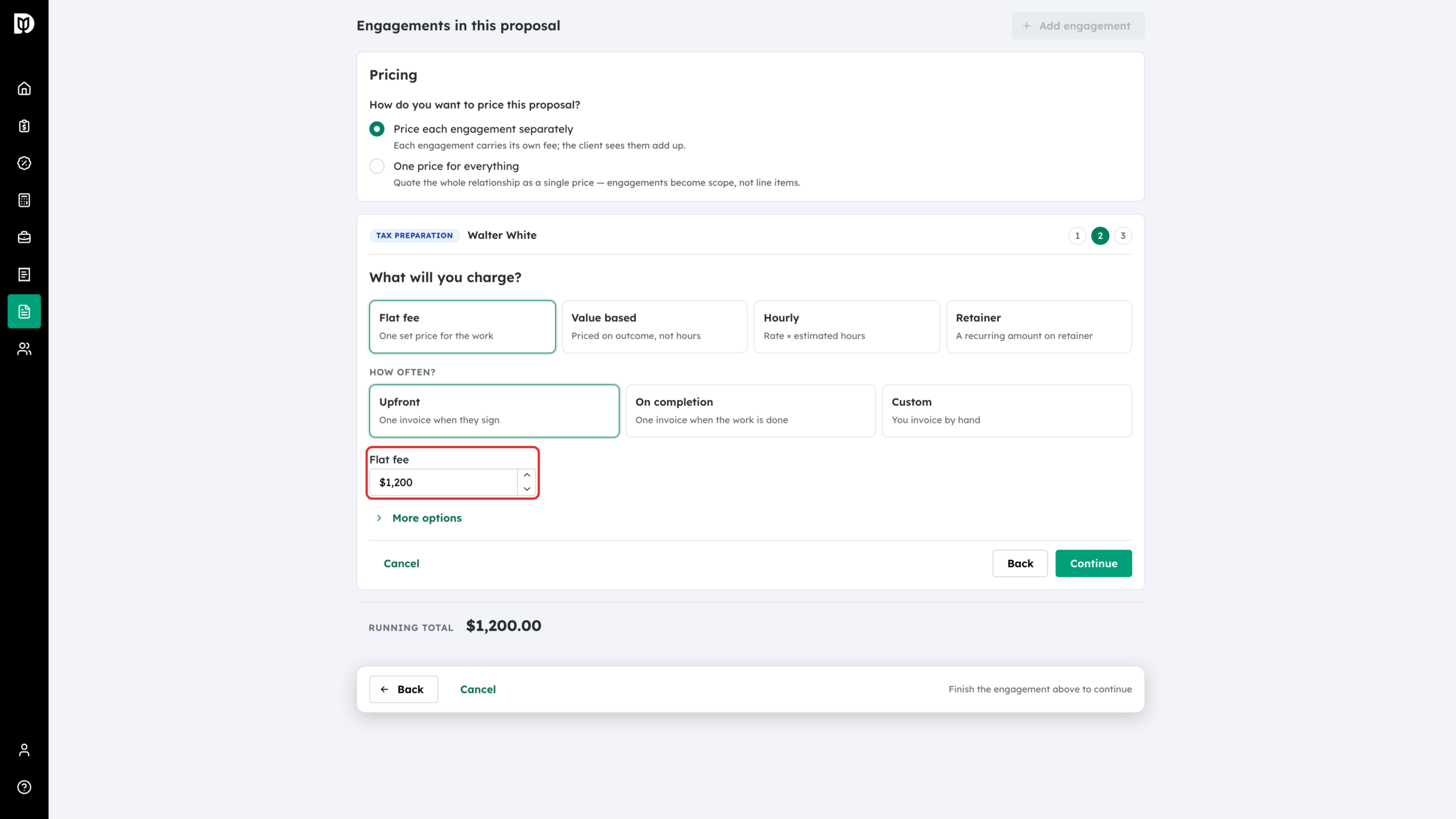
Step 2: Enter a flat fee
Type the amount in the Flat fee box. If you ticked catalog items on What’s the work? while this model is selected, their default rates are added to the fee — so check the number after you build the scope. A flat fee of $0 is allowed, for work you are comping.
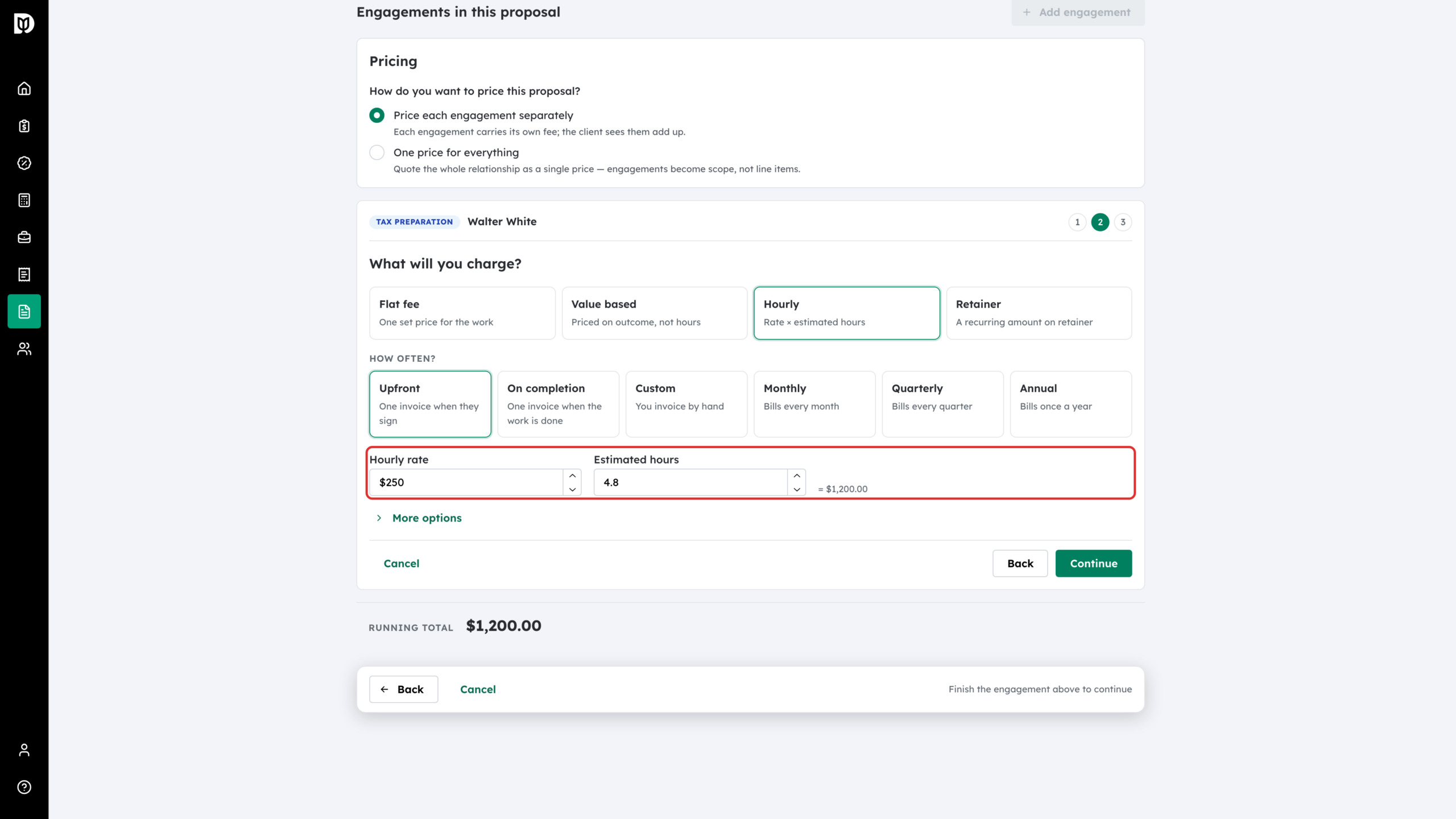
Step 3: Or quote by the hour
Choose Hourly and fill in Hourly rate and Estimated hours. The total becomes rate × hours and is shown beside the fields. Both fields must be greater than zero.
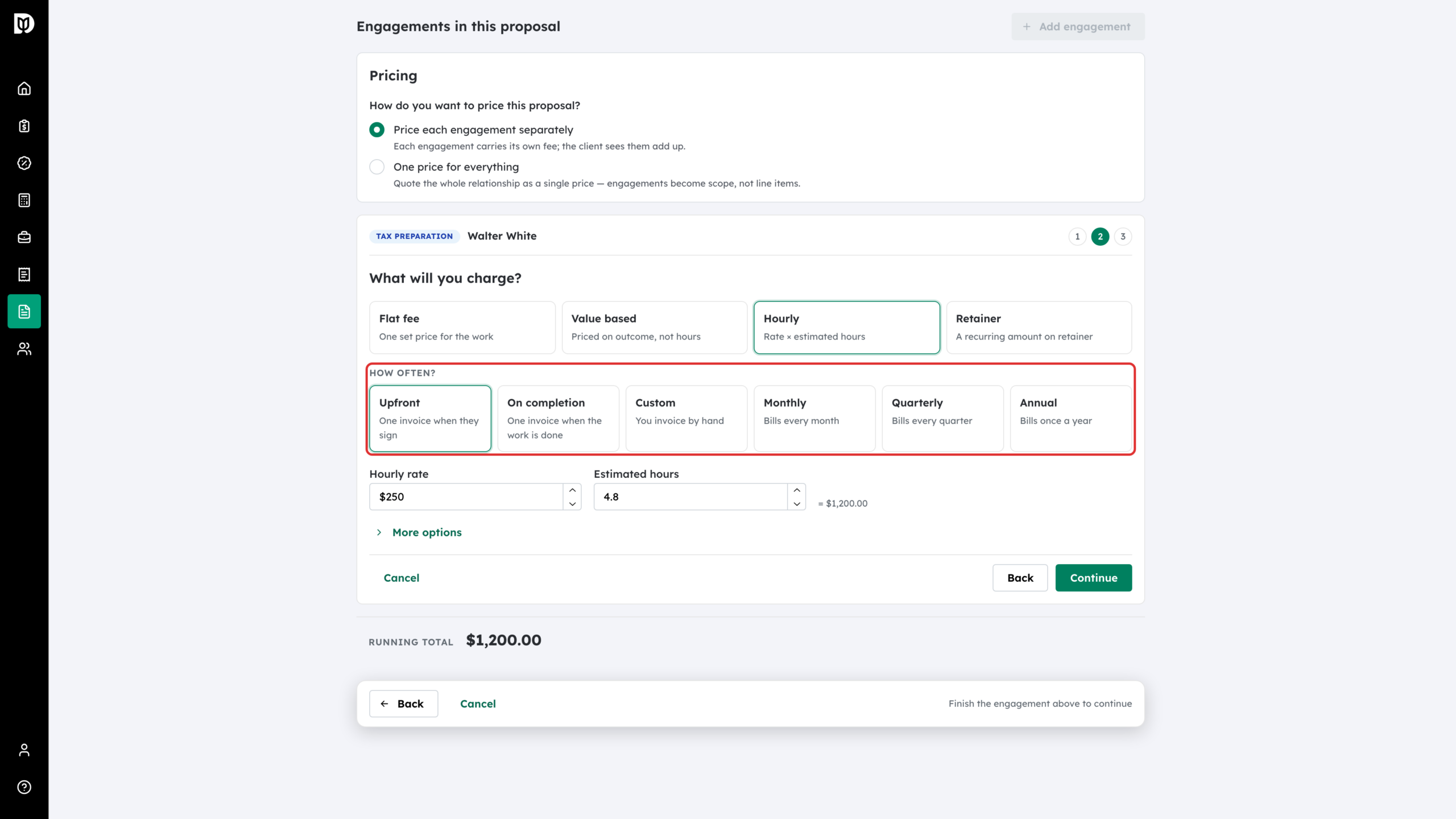
Step 4: Choose when it bills
Under How often?, beside the amount, pick a cadence. There are six: Upfront, On completion and Custom for one-off work, and Monthly, Quarterly and Annual for ongoing work. Only the cadences that fit the model are offered:
- Flat fee and Value based — Upfront, On completion or Custom.
- Retainer — Monthly, Quarterly or Annual.
- Hourly — any of the six.
Picking a recurring cadence makes the engagement recurring, and the amount you typed becomes the amount per period.
Step 5: Offer tiers instead of one price
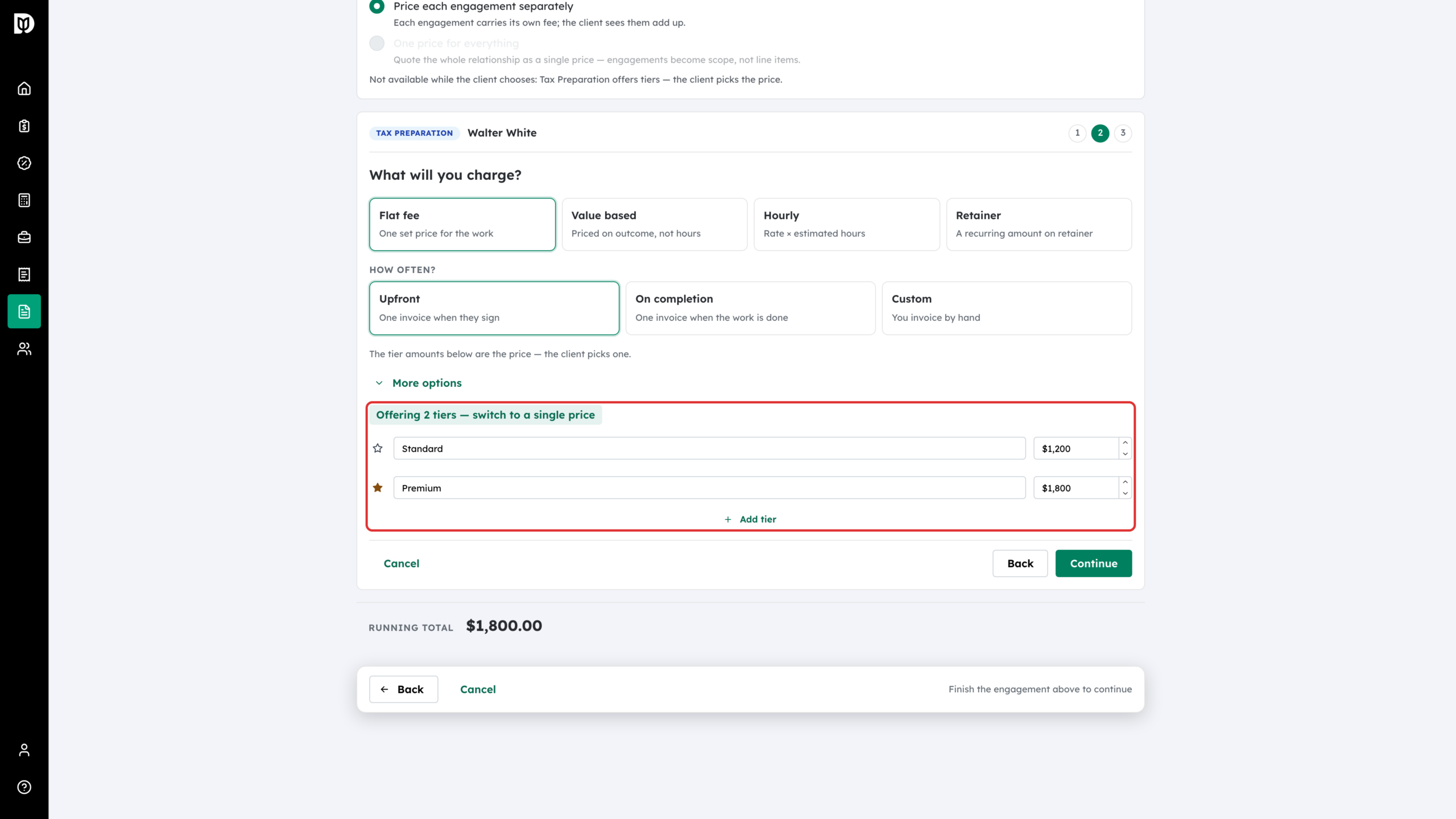
Open More options and click Offer tiers the client picks from to let the client choose. You get two tiers to start; name them, price them, and use Add tier for more. Click the star on a row to mark it recommended — that tier is highlighted for the client and is the one used if they sign without picking. With tiers on, the tier amounts are the price and the single-figure box disappears. To go back, click switch to a single price on the same button.
Step 6: Control how invoices are raised
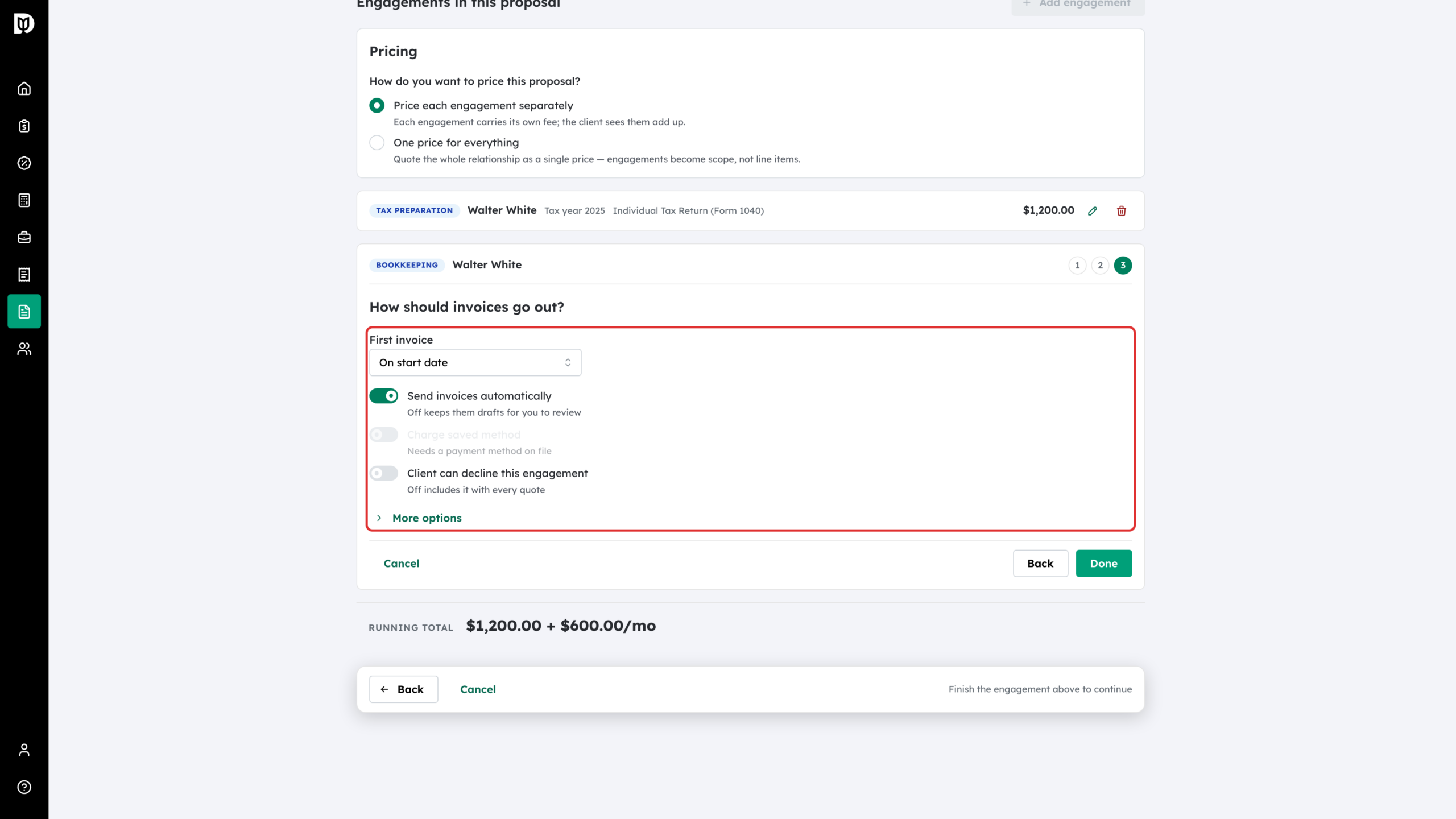
On How should invoices go out?, First invoice (recurring cadences only) decides whether billing starts On start date or When signed. Turn Send invoices automatically off to hold each invoice as a draft for you to check first. Charge saved method only becomes available when the proposal collects a payment method. Turn on Client can decline this engagement to make it optional for the client.
Step 7: Add a deposit schedule
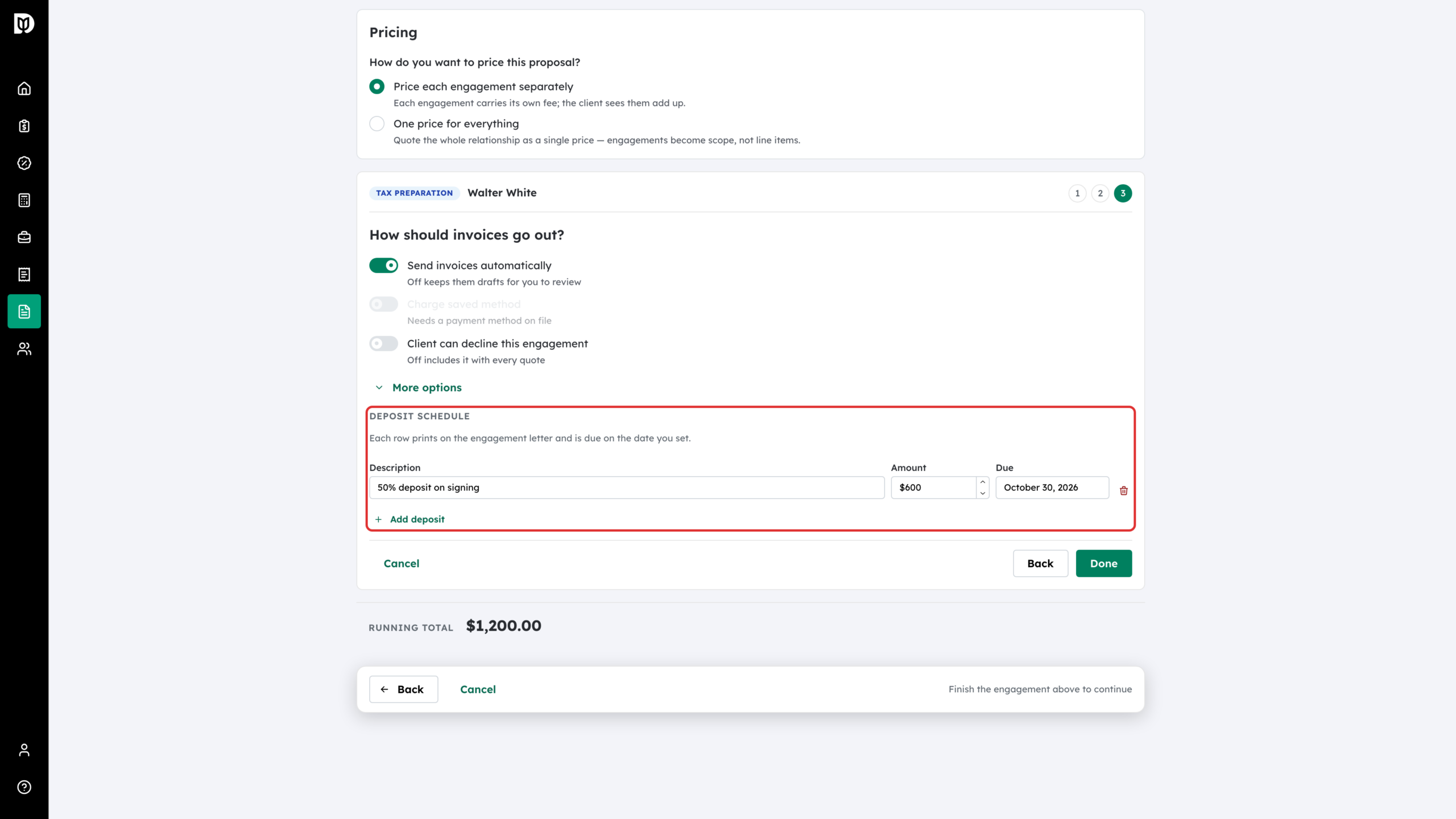
On the same step, open More options and click Add deposit to add a row with a description, amount and due date — for example “50% deposit on signing”. Add a row per amount due before the work is finished. Deposit rows print on the engagement letter.
Step 8: Quote one price for everything
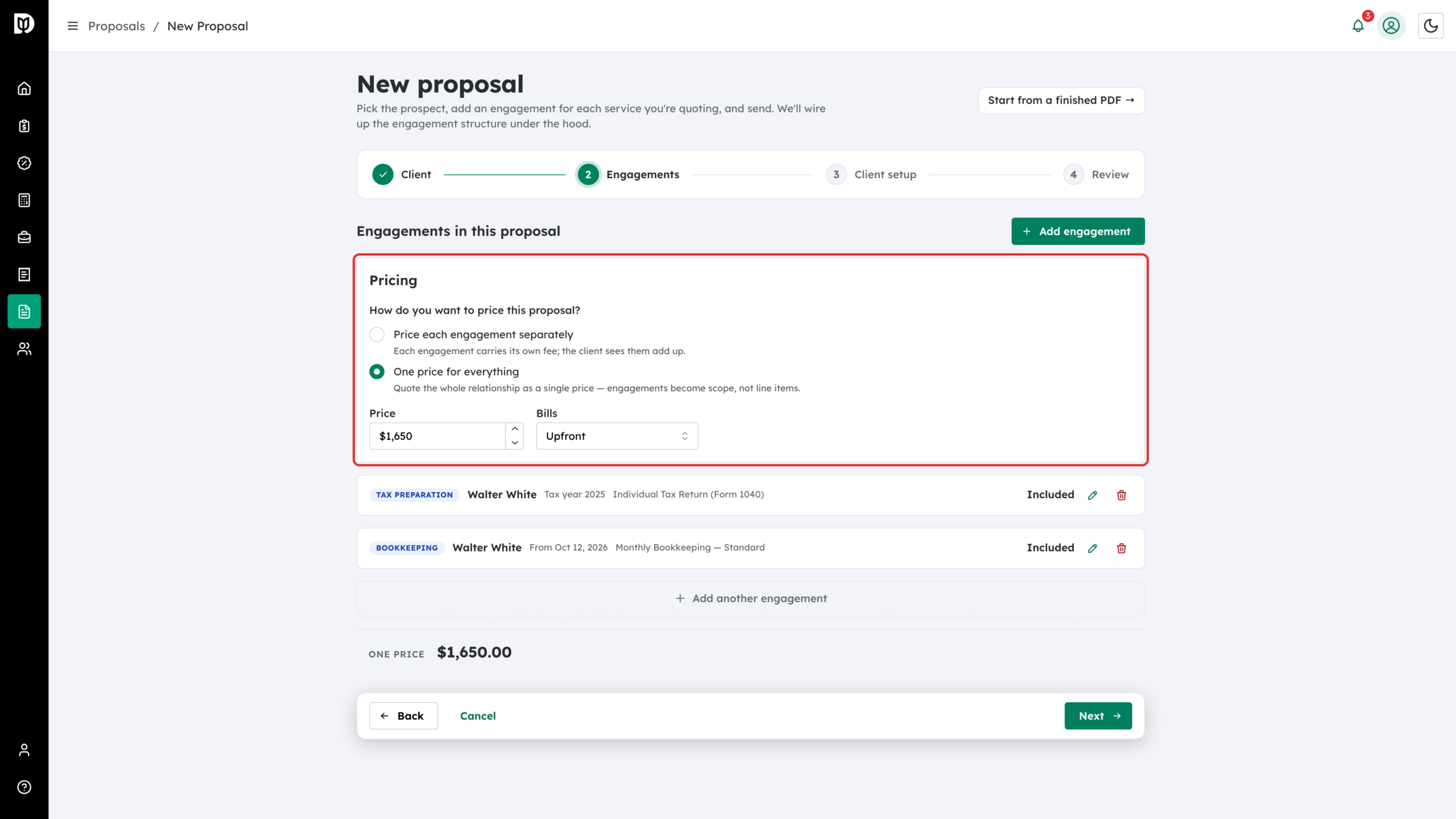
Scroll to the Pricing panel below your engagements and choose One price for everything (instead of Price each engagement separately). Enter the Price and choose when it Bills. The footer changes from Running total to One price, each engagement only asks about scope and shows Included instead of a fee, and the client is billed the single quoted figure.
What happens next
The Review step of the wizard shows the exact split the client will see: a one-off amount and a recurring amount, side by side, never merged into one number. When the proposal is signed, each engagement is created with the price and cadence you set for it. Upfront amounts are invoiced straight away, and recurring cadences get a billing schedule that raises invoices on the cycle you chose.
Troubleshooting
- “One price for everything” is greyed out. It cannot be combined with client choice. Turn tiers off on every card and mark every engagement as Required, then it becomes available.
- “Enter an amount greater than zero.” Value based and Retainer cards must carry a real figure. Only a flat fee is allowed to be $0.
- “Enter an hourly rate and estimated hours.” Hourly needs both fields filled in.
- The fee jumped when I ticked a service. That only happens on a Flat fee engagement, which adds the catalog item’s default rate. Overtype the total, or price it with a different model.
- I can’t pick Monthly for a flat fee. Flat fee and Value based bill once. For ongoing work, use Retainer (Monthly, Quarterly or Annual), or Hourly if you quote rate × hours per period.
- I can’t pick Upfront for a retainer. A retainer is recurring by definition. Use a flat fee for one-off work.