Who this is for: Firm owners and admins responsible for engagement-letter wording.
What you’ll learn: How the clause library builds your engagement letters, how to customise the default language, and how to see where a clause is in use.
Before you begin
- You need an owner or admin login to add, fork or edit clauses.
- Debits ships a set of system clauses. They are generic starting language, not legal advice — review them with your professional liability carrier and legal counsel before you send an engagement letter.
- Clause changes apply to new proposals. A proposal that has already been sent keeps a snapshot of the wording it went out with.
How clauses reach a letter
Each clause has a category, an order number that decides where it sits in the letter, and the engagement types it applies to. When you build a proposal, Debits gathers the system clauses and any you have marked as recommended for the engagement types on that proposal, and attaches them in order.
Step-by-step instructions
Step 1: Open the clause library
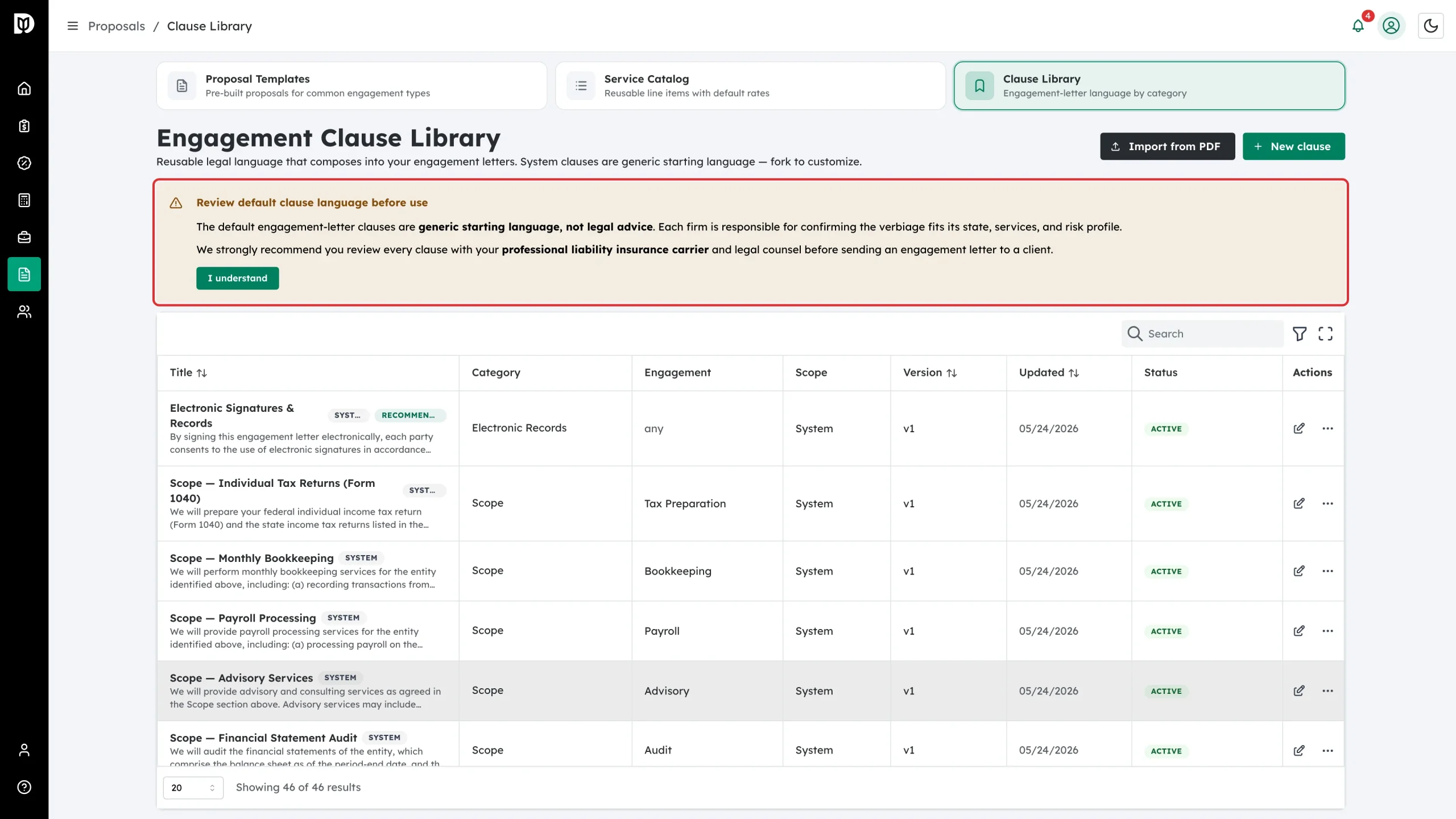
Go to Proposals, open the library strip and click Clause Library. Read the warning banner at the top before you rely on any default wording, then click I understand to collapse it.
Step 2: Write a new clause
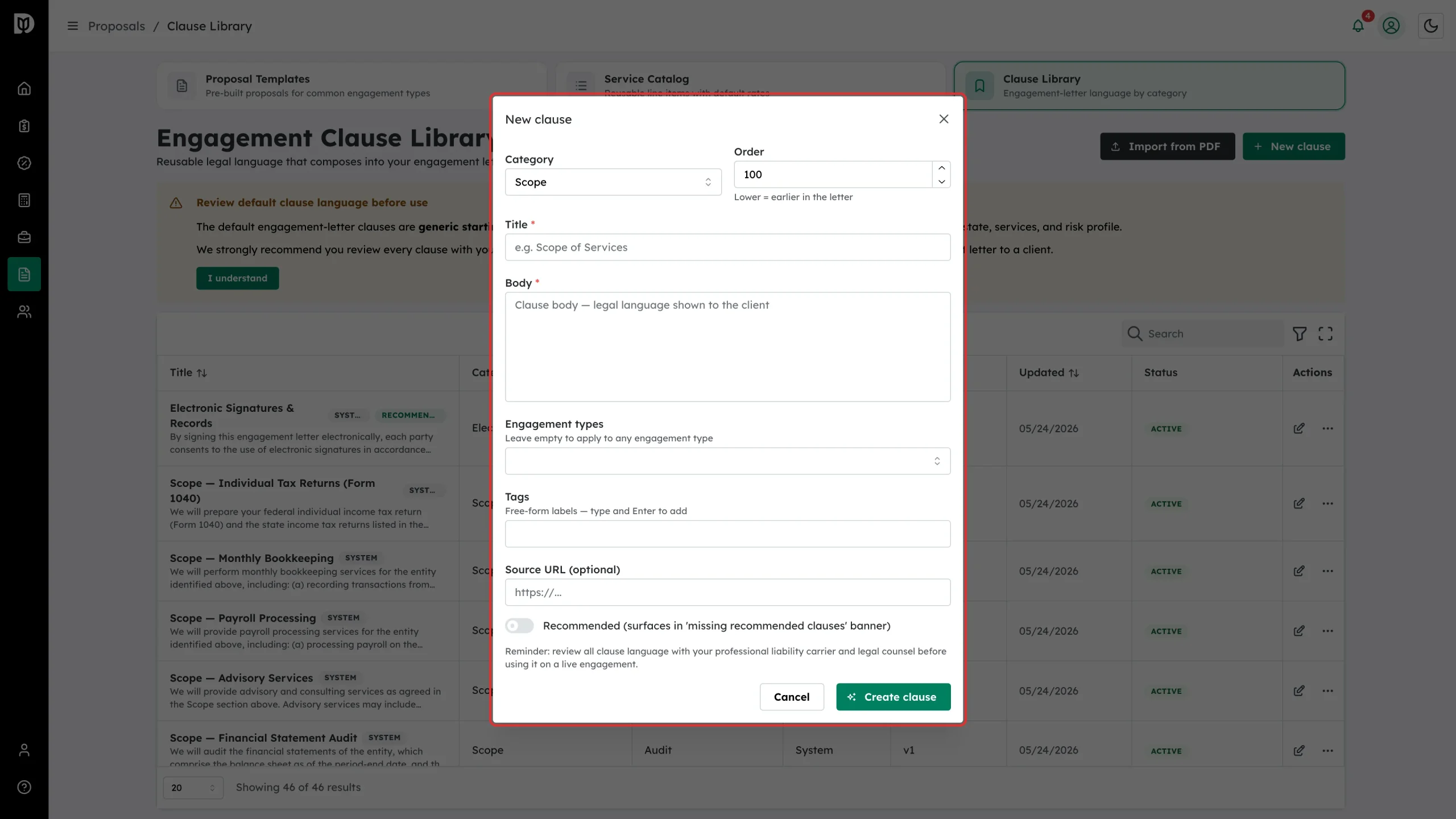
Click New clause. Choose a Category and an Order number (lower numbers appear earlier in the letter). Add a Title and the Body — the body is the legal language the client reads. Set Engagement types to limit it, or leave it empty to apply it to any type. Add Tags and a Source URL if you want to record where the wording came from, turn on Recommended so it is attached by default, and click Create clause.
Step 3: Open a clause’s actions
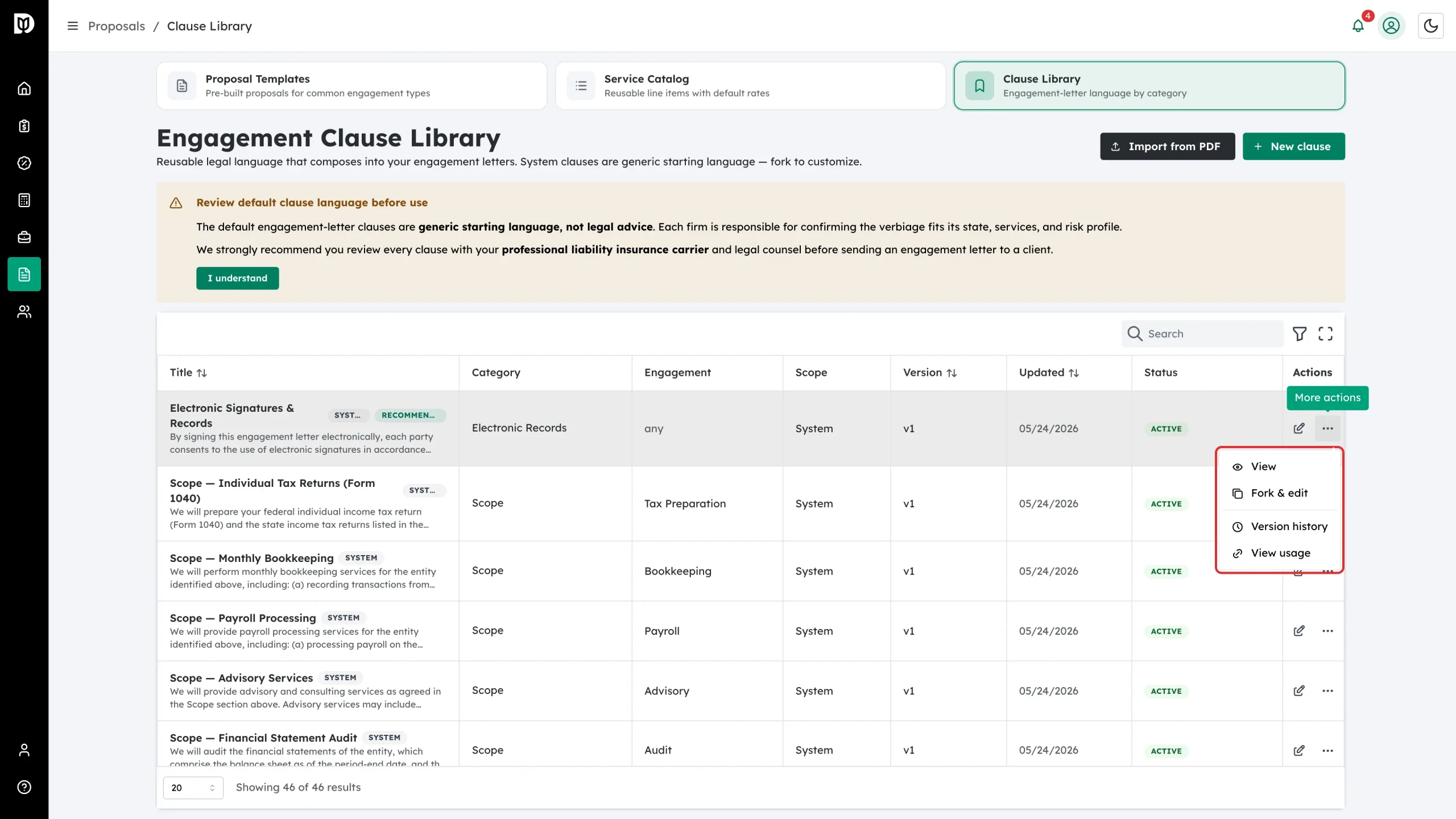
Click the three-dot icon in the Actions column. A system clause offers View, Fork & edit, Version history and View usage. A clause your firm owns offers Edit instead of Fork & edit, plus archive and restore.
Step 4: Fork and edit a system clause
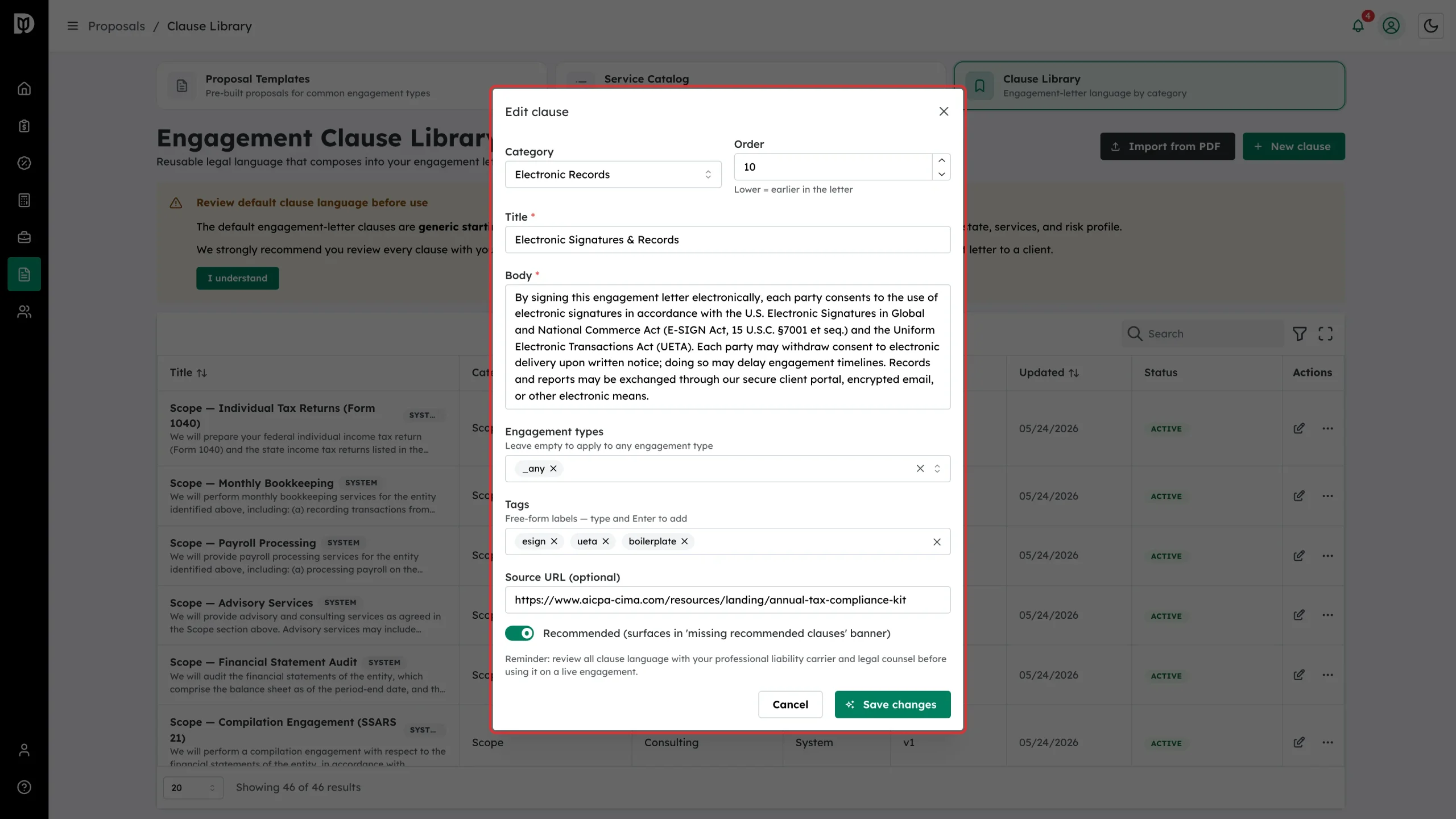
Click Fork & edit. Debits makes a copy your firm owns and opens it for editing with the system wording already filled in. Change the body, then click Save changes. The row is now tagged Customized and your version replaces the system one on new proposals.
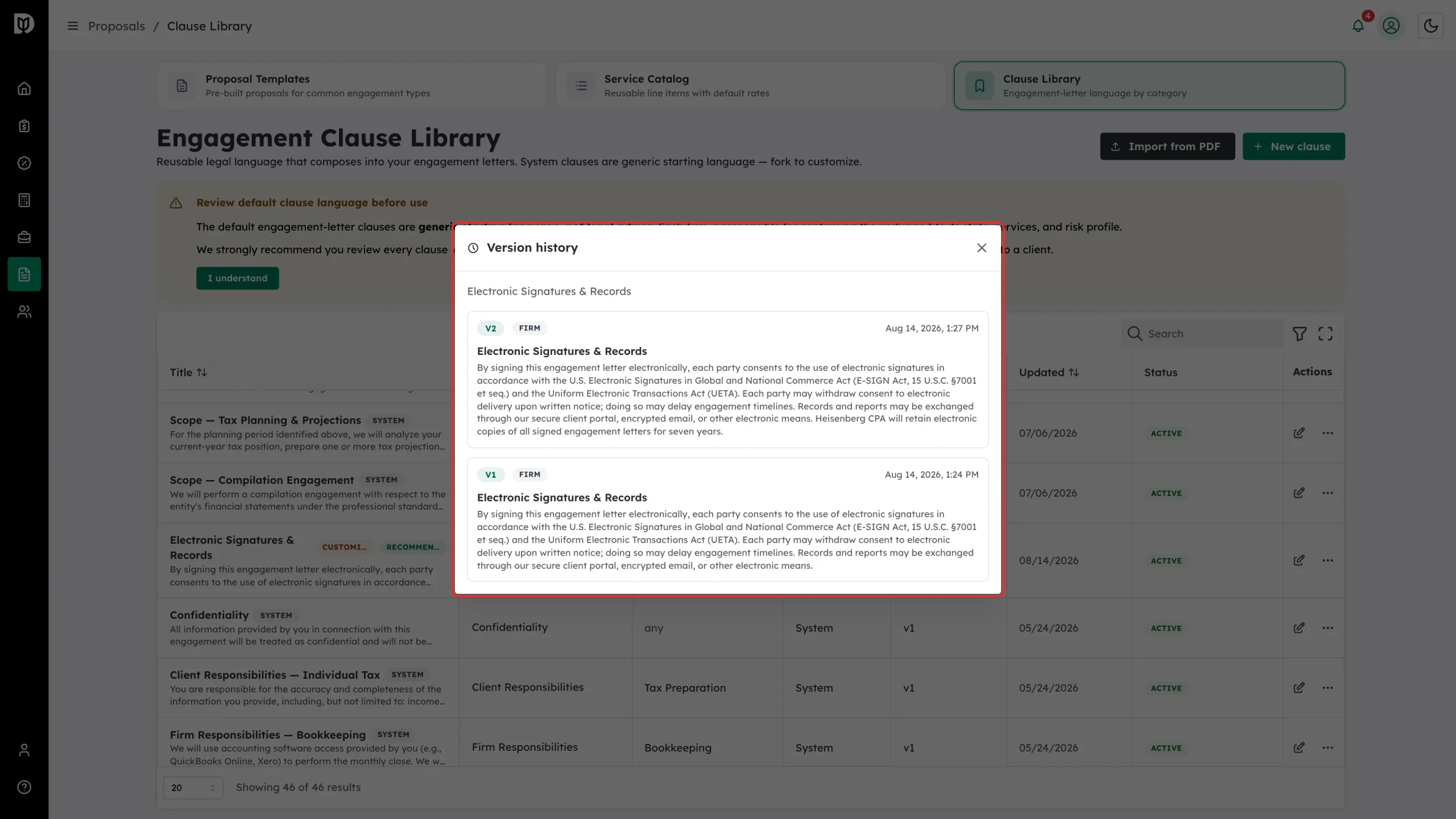
Step 5: Check version history
Choose Version history to see every saved version of a clause, newest first, with the date and full body. A clause you have never edited shows nothing yet.
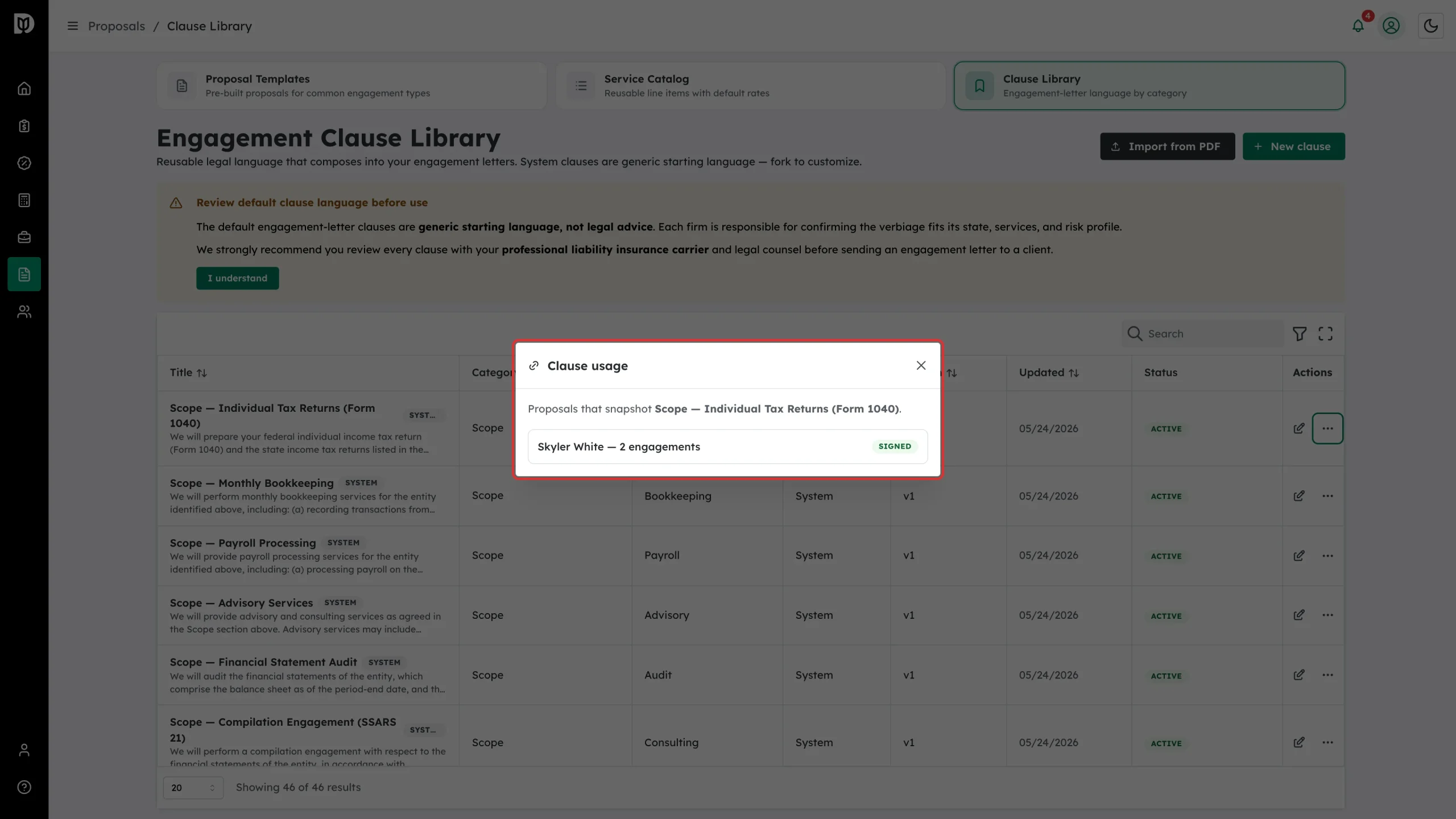
Step 6: See where a clause is used
Choose View usage to list the proposals that carry a snapshot of the clause, with each proposal’s status. Check this before you rewrite anything so you know what is already out with clients.
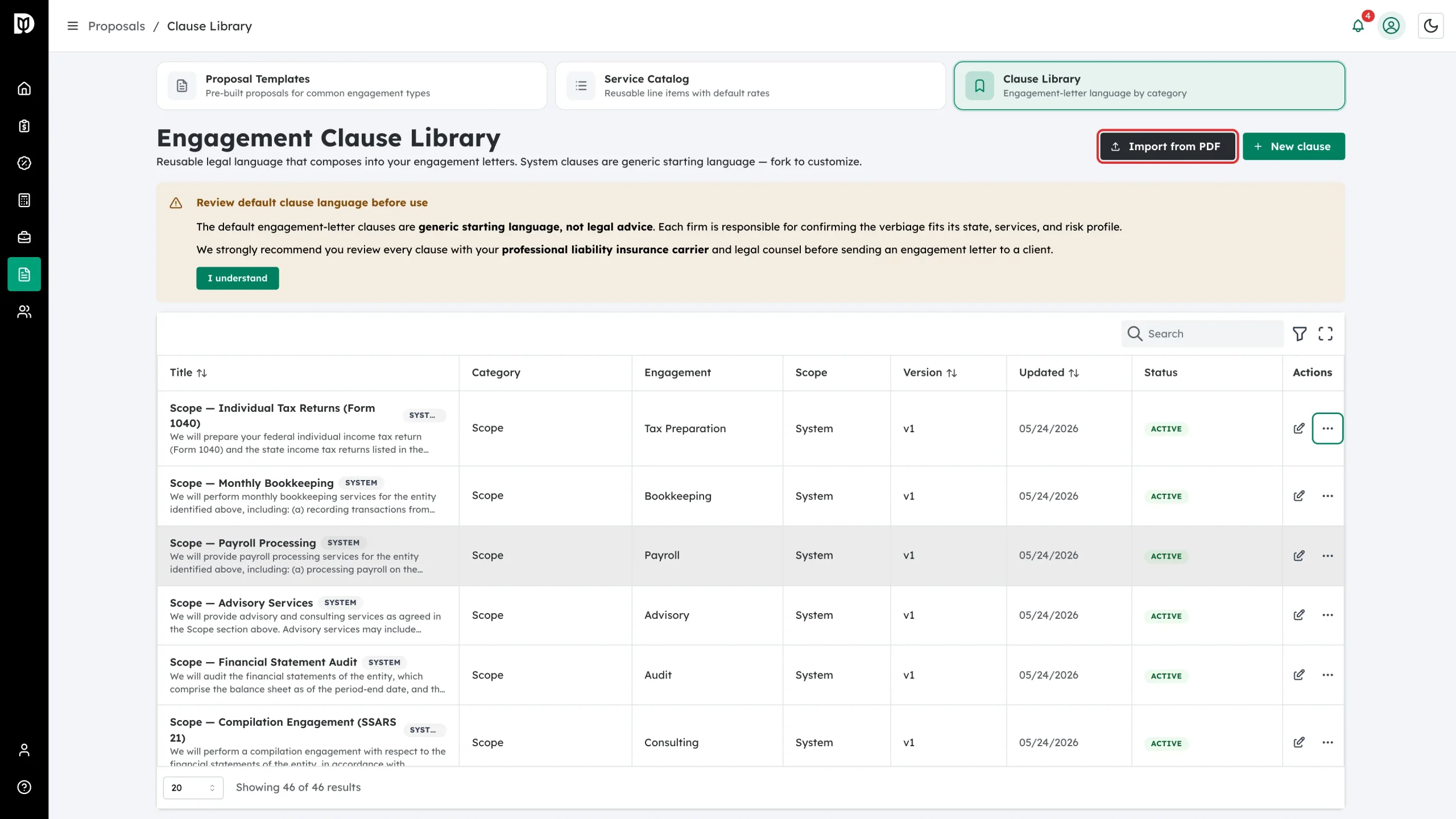
Step 7: Import clauses from a PDF
If you already have engagement letters you like, click Import from PDF and choose the file. Debits reads it and offers the clauses it found so you can pick which ones to add to your library.
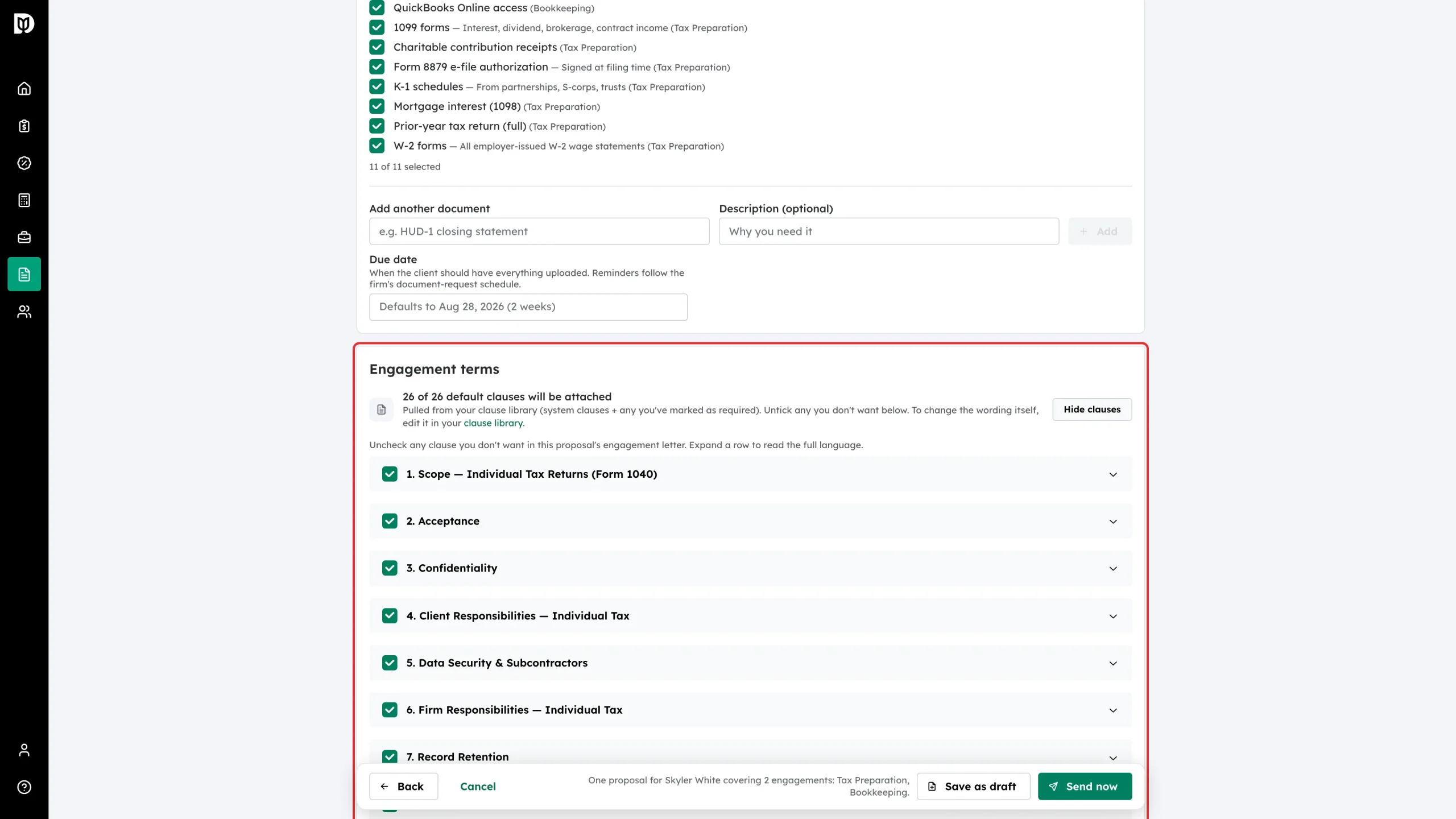
Step 8: Confirm what goes on a proposal
On the Review step of the proposal wizard, the Engagement terms panel shows how many clauses will be attached. Click Show clauses to read the numbered list, untick anything you do not want on that proposal, and expand a row for the full wording.
What happens next
Your edits take effect on the next proposal you build. When a proposal is signed, its clauses are baked into the engagement letter PDF, so the letter a client signed never changes even if you rewrite the clause afterwards. Archiving a clause hides it from new proposals but leaves it on letters already signed.
Troubleshooting
- I can’t edit a system clause. System clauses are read-only. Use Fork & edit to make a firm copy, then edit that.
- My clause isn’t appearing on proposals. Check its Engagement types match the engagement types on the proposal, and that Recommended is on. Clauses that are neither system nor recommended are not attached automatically.
- The clause is in the wrong place in the letter. Change its Order number — lower numbers appear earlier.
- Version history is empty. Nothing has been saved against that clause yet. Editing it once creates the first firm version.