Who this is for: Firm staff who deliver the work after a proposal is signed.
What you’ll learn: Where signed work lives, how to get the signed engagement letter, and how to amend, renew, complete or end an engagement.
Before you begin
- Engagements only exist once a proposal reaches Signed. One engagement is created per engagement card on the proposal.
- State changes — complete, terminate, add a charge, add an amendment, generate a renewal — need the manage-engagements permission.
- Money tiles and the amendment option are hidden from staff who cannot view engagement financials.
Step-by-step instructions
Step 1: Open the Engagements tab
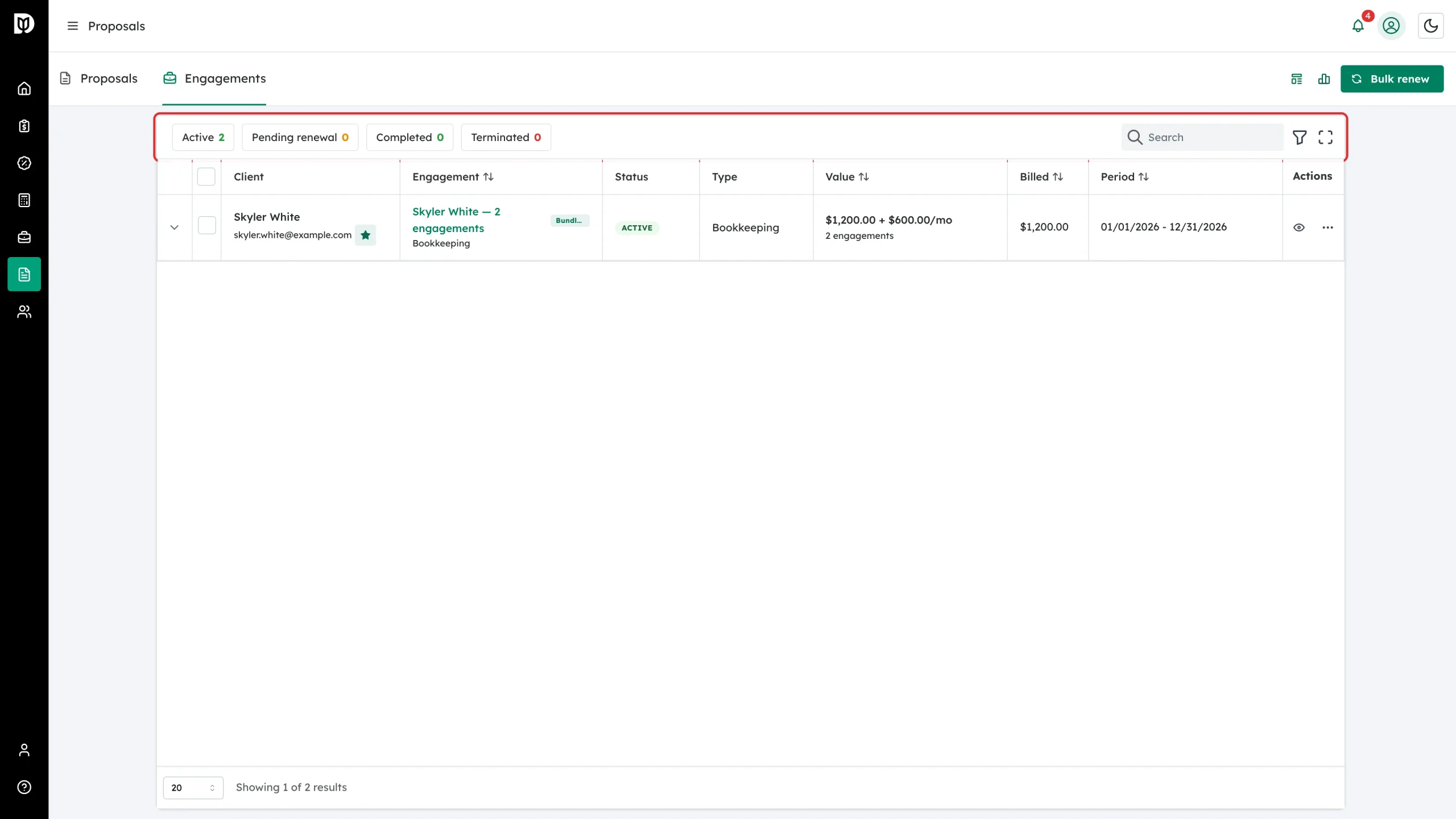
Go to Proposals and click Engagements. The chips filter by status: Active, Pending renewal, Completed and Terminated. Each row is one proposal’s worth of work, with the split value and the total billed so far.
Step 2: Expand a proposal’s engagements
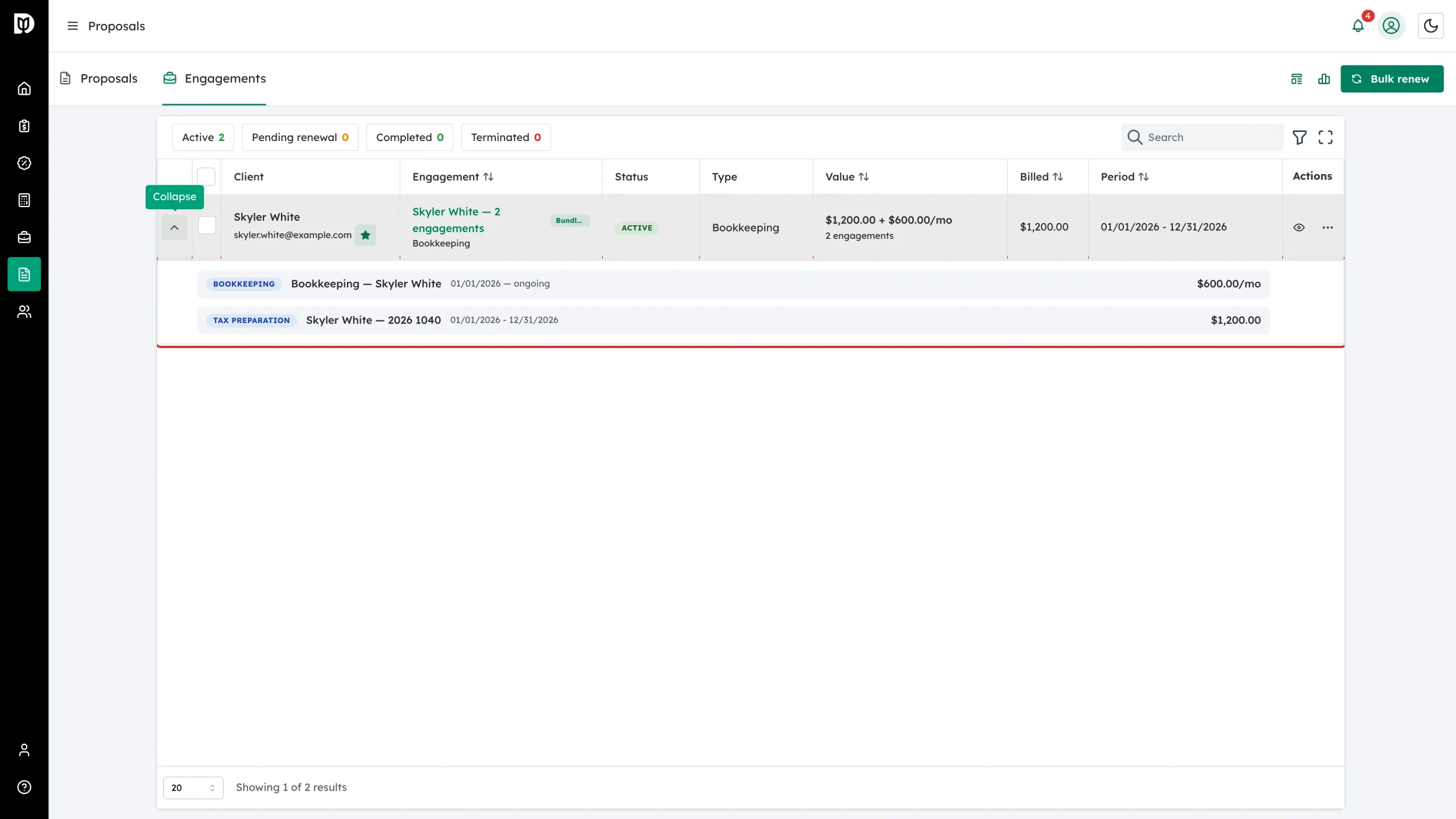
A proposal that carried several engagements shows as a single row tagged Bundle. Click the chevron on the left to expand it and see each engagement, its period and its price. Click an engagement’s name to open it.
Step 3: Read the engagement summary
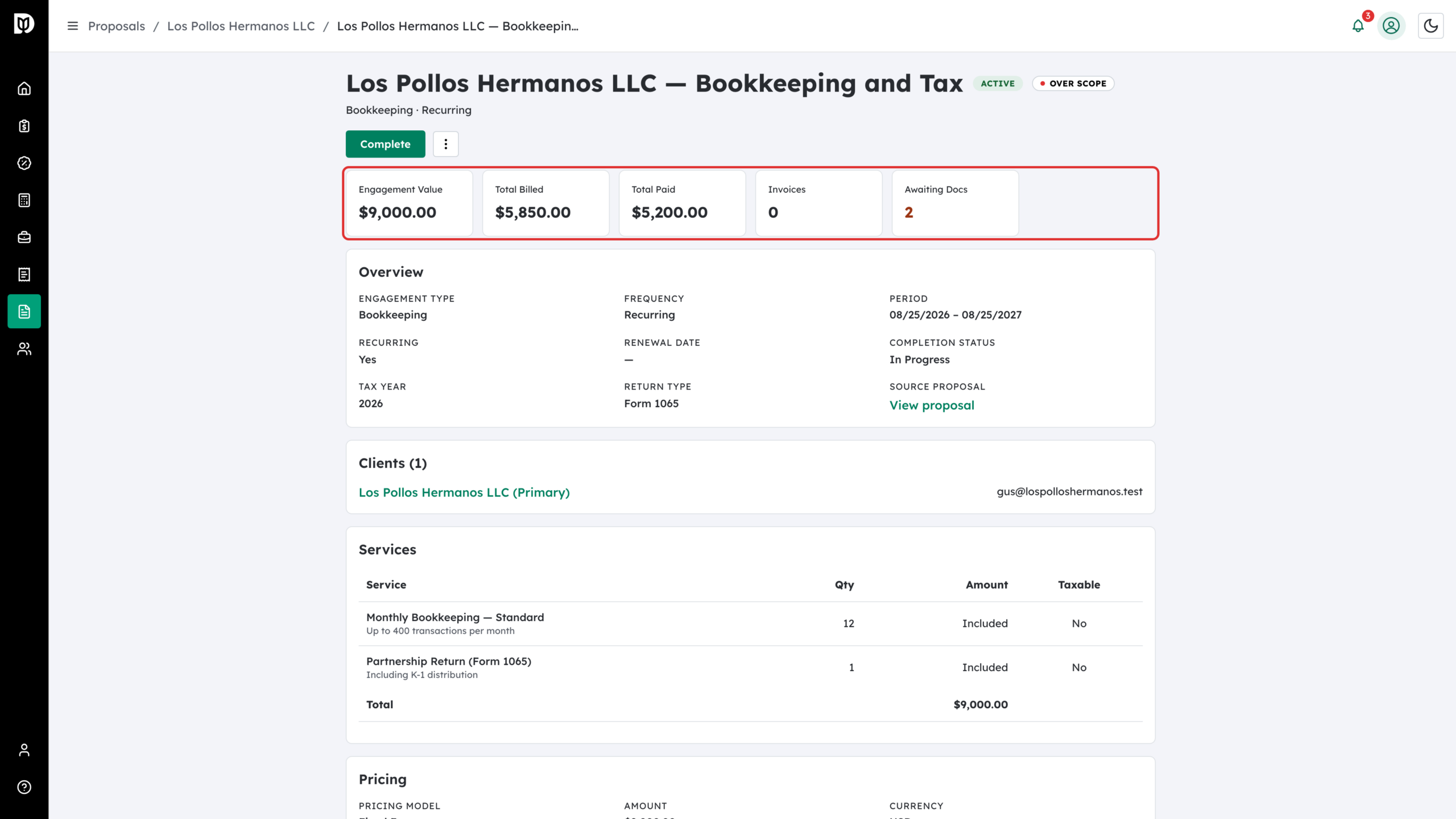
The engagement page opens with its status and health, then five tiles: Engagement Value, Total Billed, Total Paid, Invoices and Awaiting Docs. The four money tiles only show if you can view engagement financials. Below that, Overview shows the type, frequency, period and a link back to the source proposal.
Step 4: Download the signed engagement letter
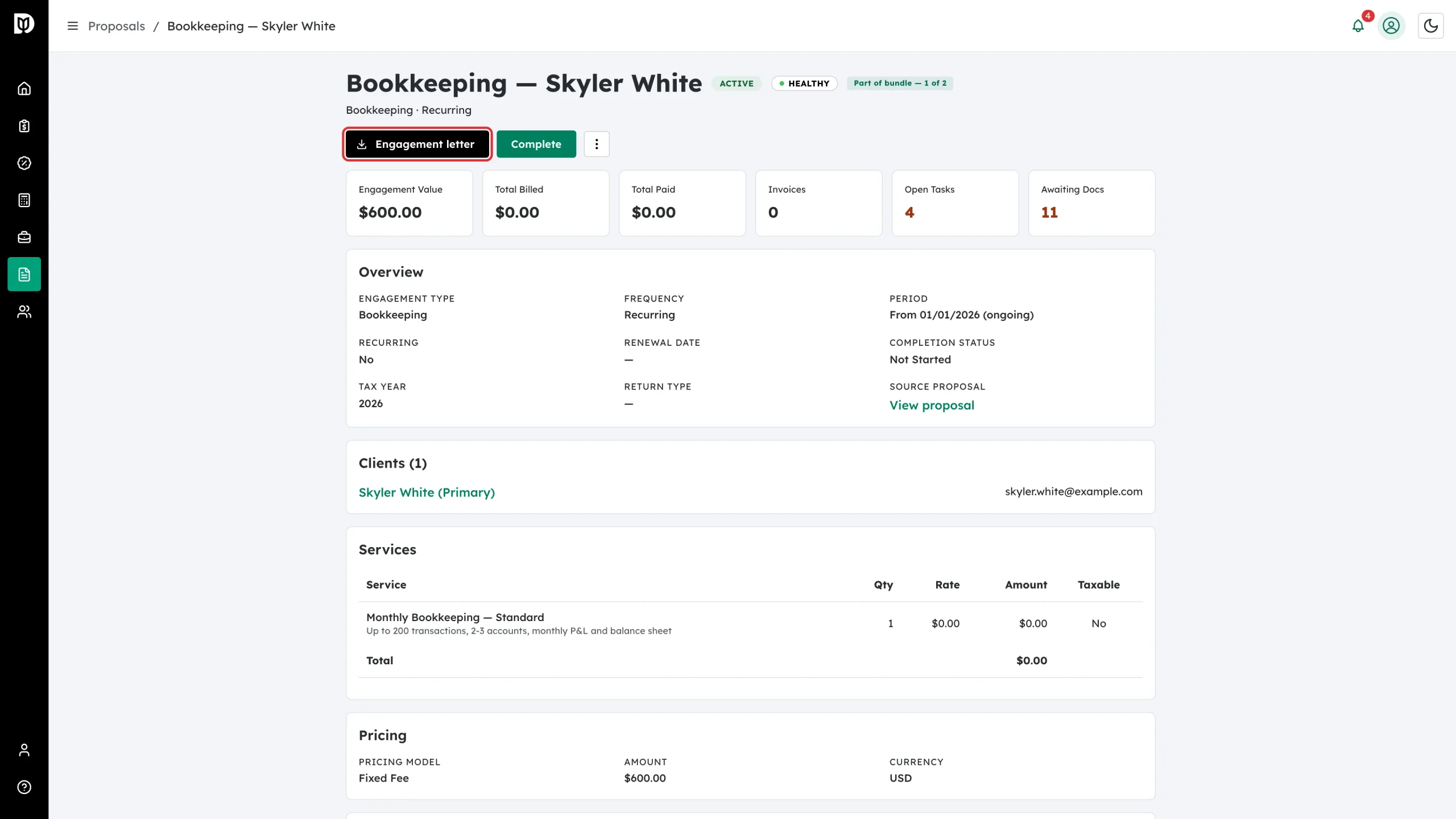
Click Engagement letter to download the signed PDF. If you have since changed a clause or a detail and want the letter rebuilt, use Regenerate engagement letter in the three-dot menu. The proposal page has an Engagement Letters button that gets all of them at once.
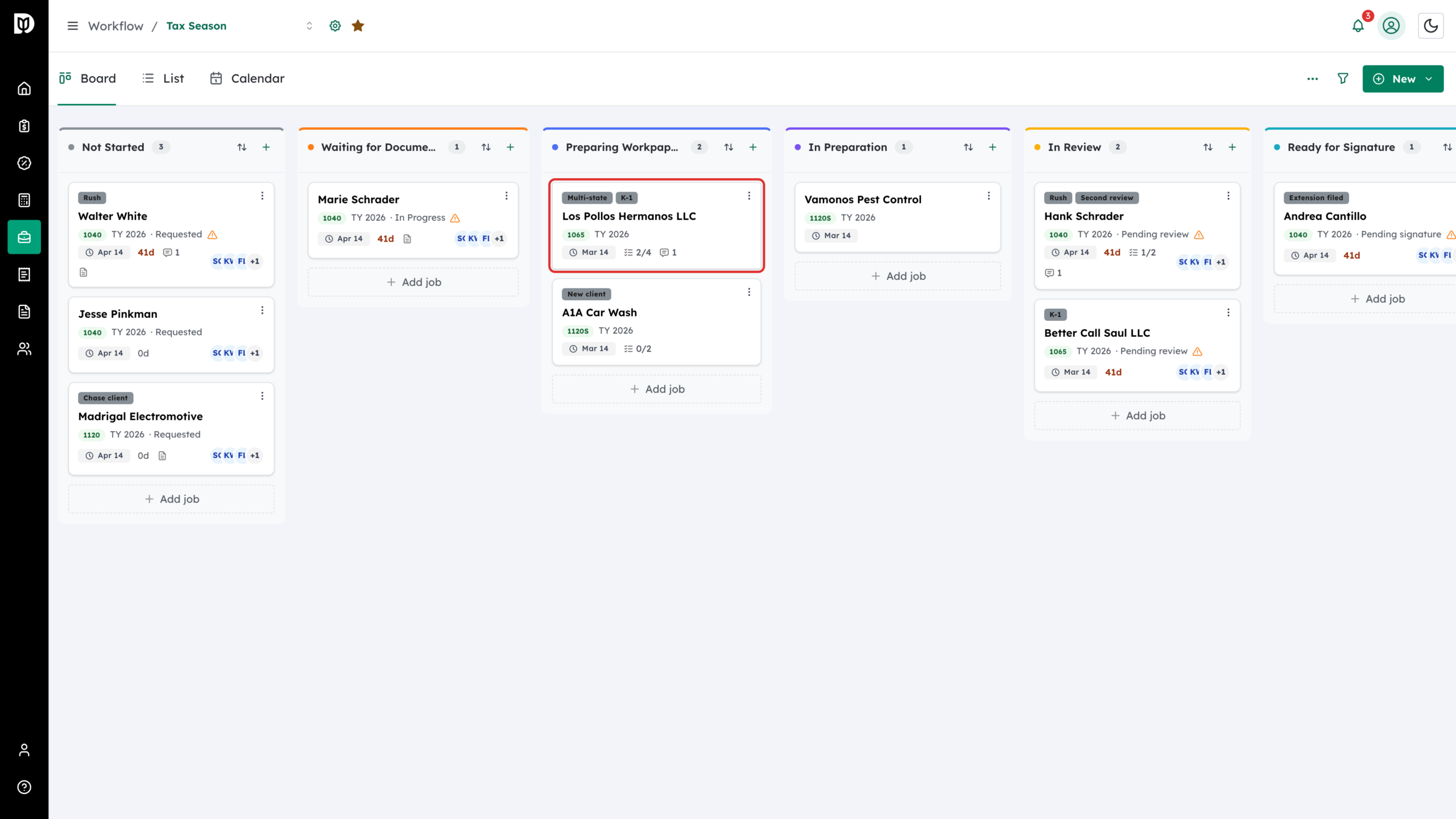
Step 5: Track the work itself on your workflow board
Engagements no longer carry their own task list. The engagement records what was agreed, billed and paid; track the day-to-day work on your workflow board’s job cards.
Step 6: Chase the documents you asked for
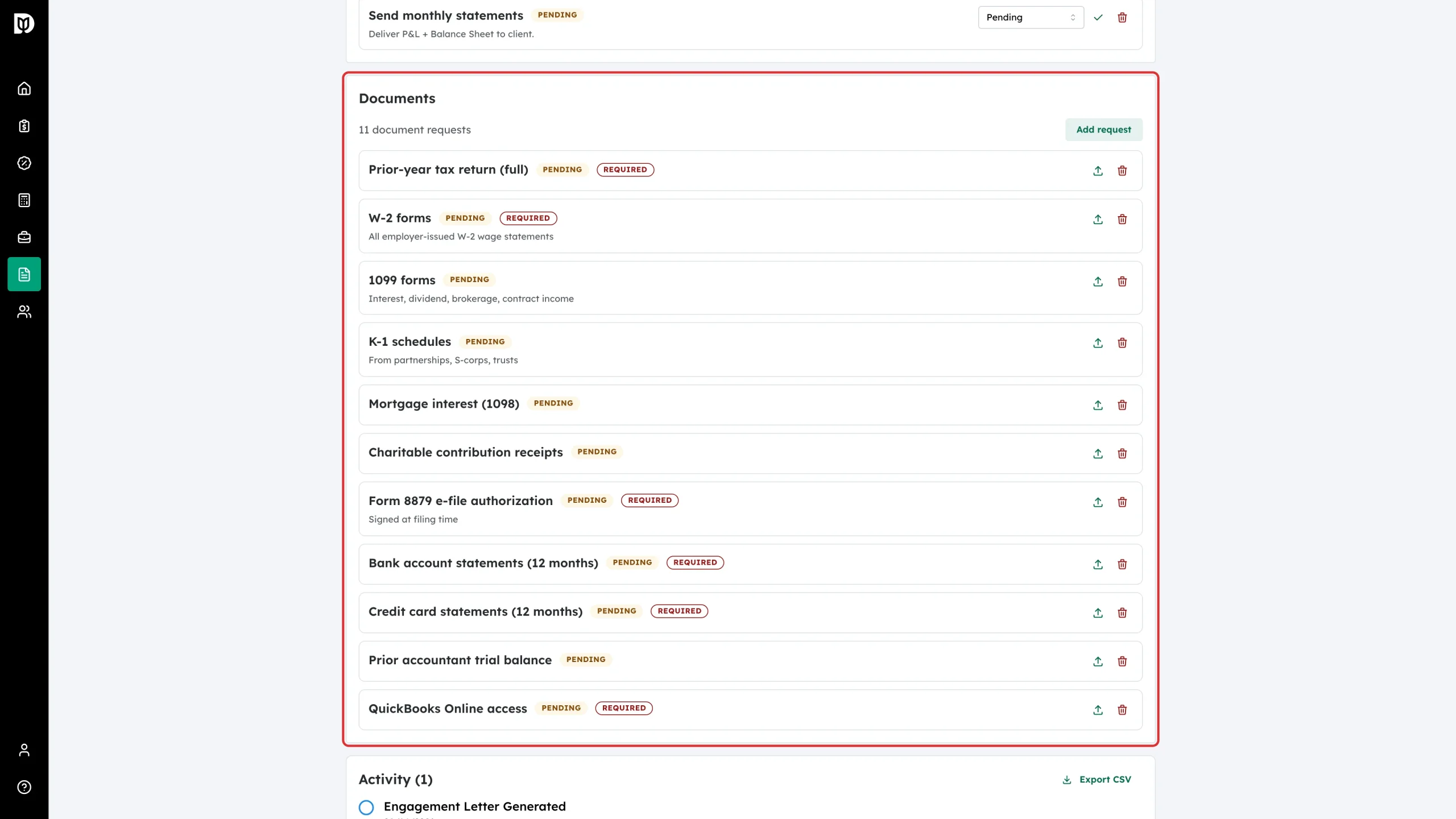
The Documents panel lists every document request from the proposal, with its status and whether it is required. Use Add request to ask for something new. The same requests appear in the client’s file manager and on their engagement page.
Step 7: Record an amendment
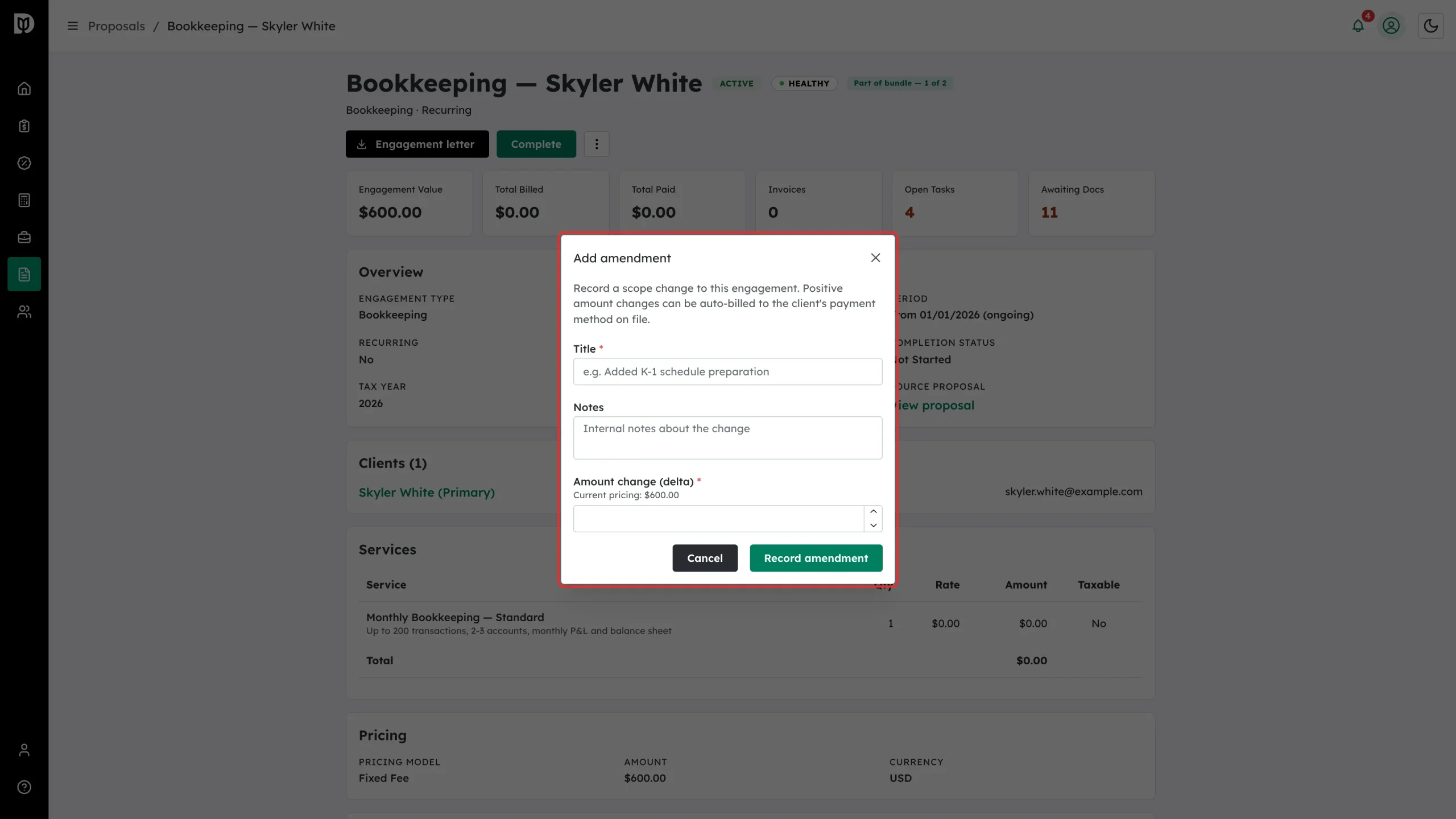
When the scope changes mid-term, open the three-dot menu and choose Add Amendment. Give it a Title and Notes, enter the Amount change (delta) — positive for extra work, negative for a reduction — and choose whether to charge the client for the delta automatically. Click through to save it.
Step 8: Generate a renewal
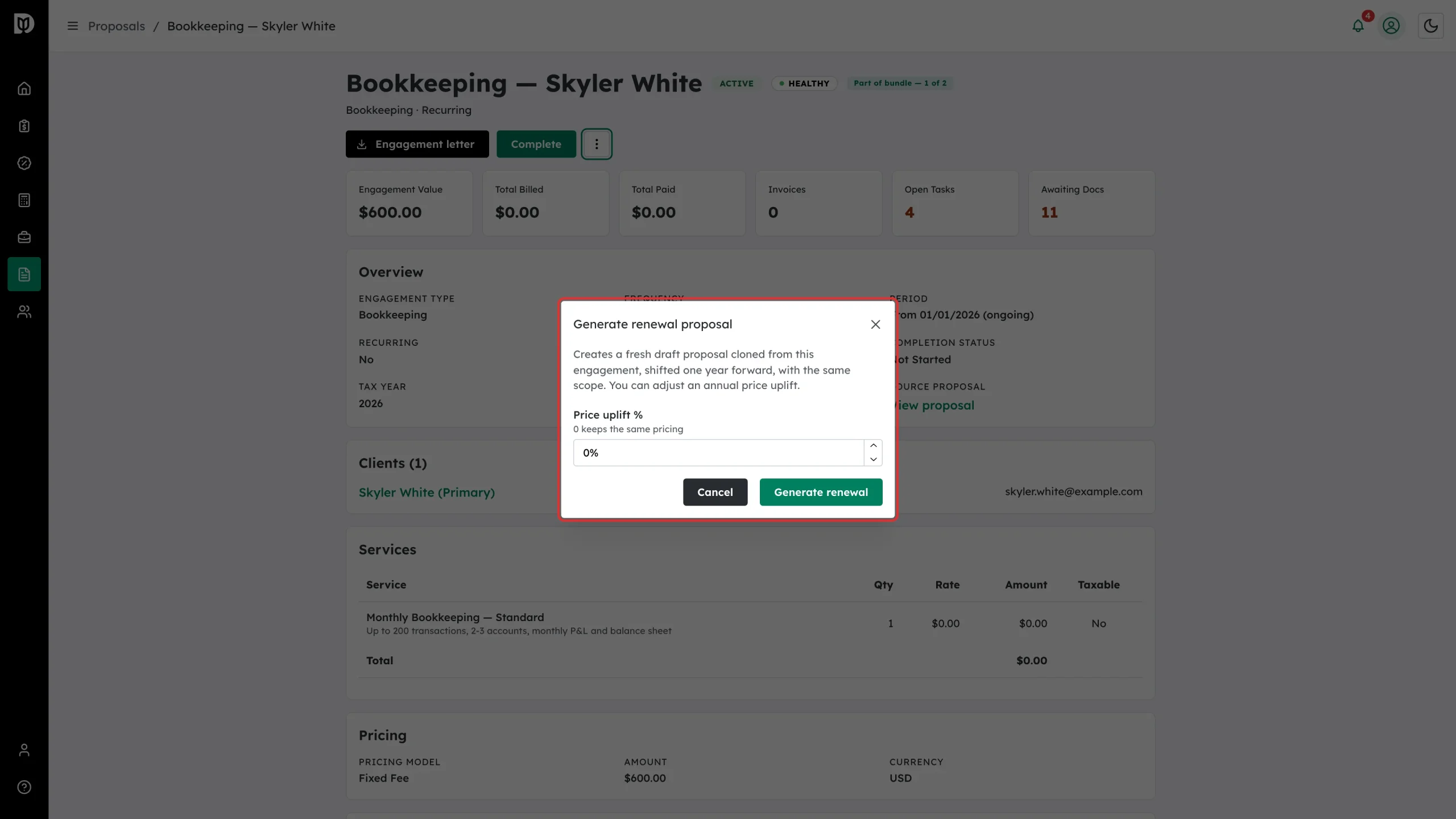
Choose Generate Renewal to create a fresh draft proposal cloned from this engagement, shifted one year forward, with the same scope. Set a Price uplift % (0 keeps the same pricing) and click Generate renewal. Review and send it like any other proposal.
Step 9: Complete or end the engagement
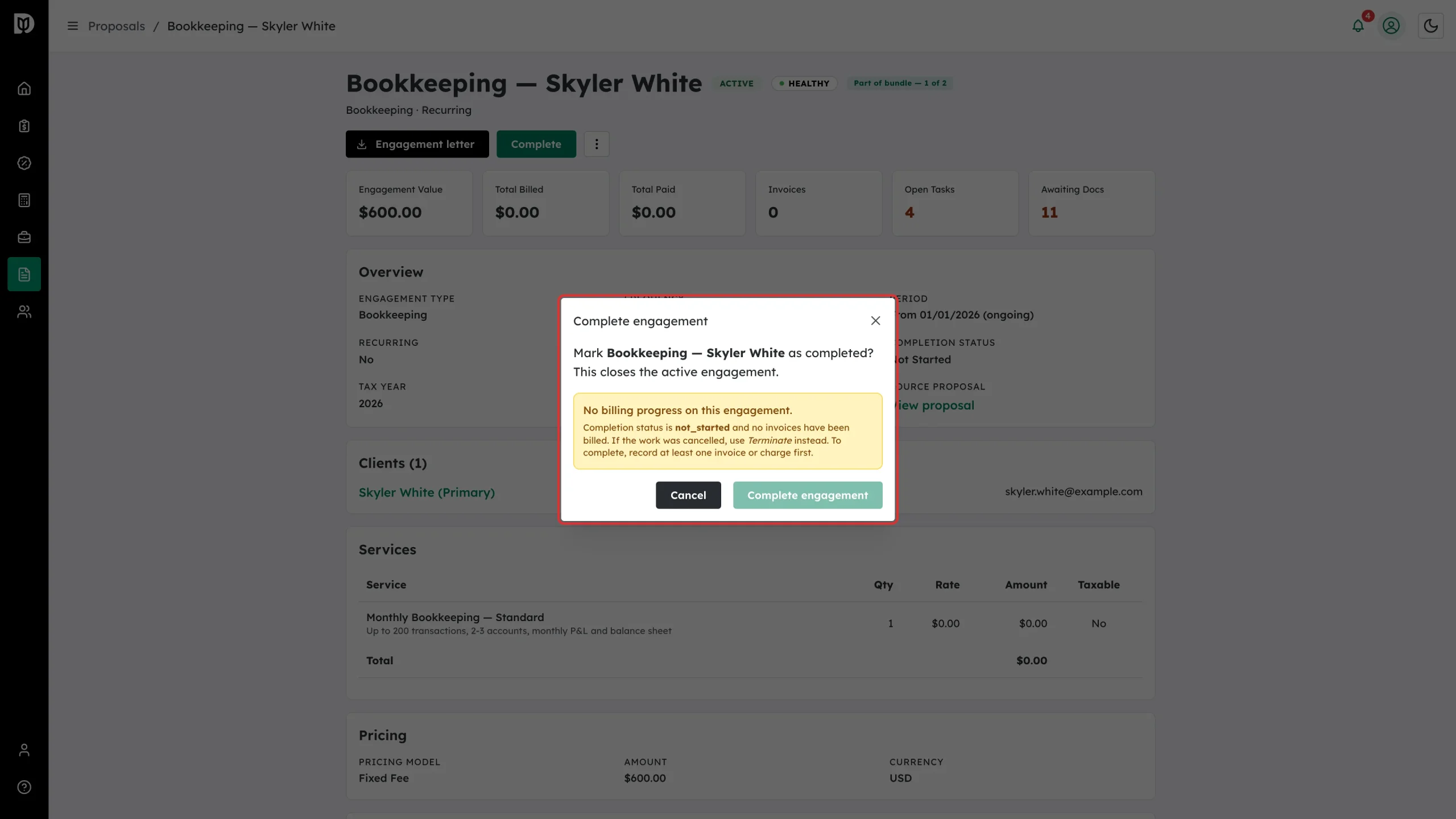
When the work is finished, click Complete and confirm. If nothing has been billed on the engagement, Debits blocks the confirmation and tells you to record an invoice or charge first — or to use Terminate if the work was cancelled. If the client leaves or you resign mid-term, use Terminate in the three-dot menu and record a reason; that keeps lost work visually distinct from work that finished normally.
Step 10: Renew several at once
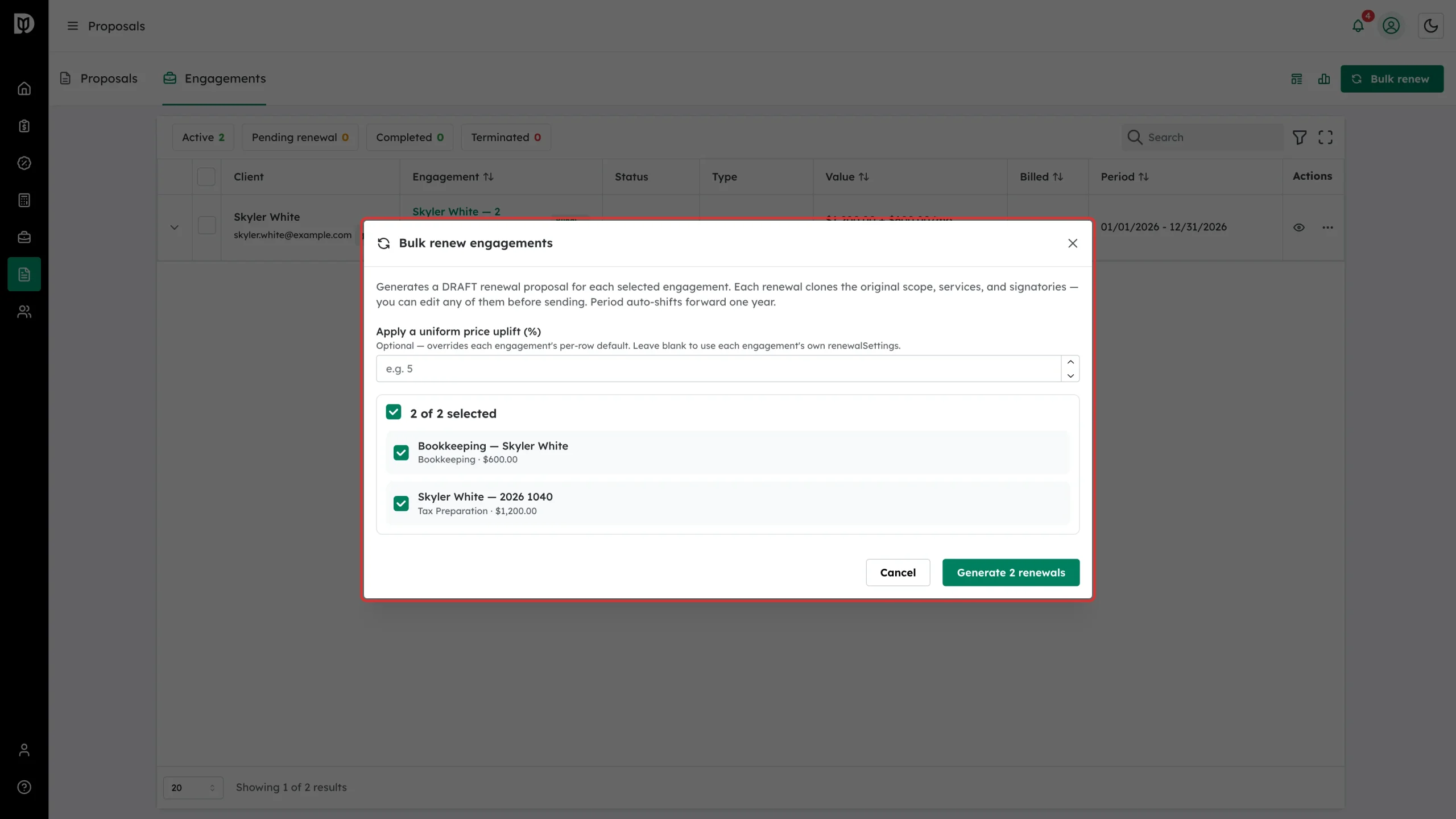
At renewal season, click Bulk renew at the top of the Engagements tab. Tick the engagements to renew, optionally set a uniform price uplift (%), and click Generate renewals. Each one becomes a draft proposal cloning the original scope, services and signatories, with the period moved forward a year.
What happens next
Completing an engagement closes it and notifies the client. Terminating ends it early and marks it as lost. Renewals arrive as drafts on the Proposals tab, so nothing reaches a client until you review and send it. Amendments adjust the engagement’s value and, if you chose to, raise a charge for the difference.
Troubleshooting
- “Engagement not found” after clicking the eye icon on a bundled row. Open the engagement from inside the row instead: click the chevron to expand it, then click the engagement’s name.
- I can’t see Complete, Terminate or Add Amendment. Those need the manage-engagements permission, and amendments also need permission to view engagement financials.
- There’s no Regenerate engagement letter option. It only appears once a signed letter exists for that engagement.
- The Complete button is missing. It only shows on engagements that are still Active.
- The Complete engagement button is greyed out. The engagement has no billing progress. Add a charge or record an invoice first, or use Terminate if the work never happened.
- Awaiting Docs stays high. Those are the document requests from the proposal. Remove any you no longer need, or nudge the client from their engagement page.