Who this is for: Firm owners and admins who want proposals to build themselves.
What you’ll learn: How to keep your service catalog tidy and how to use proposal templates so you are not retyping the same quote.
Before you begin
- You need an owner, admin or manager login to add or edit catalog items and templates (or a staff login that has been given those permissions).
- Your firm starts with a seeded catalog and, once you finish the setup wizard, a starter template for each service line you offer.
- Both libraries feed the proposal wizard. Changes apply to new proposals only — proposals already sent keep the wording and rates they were built with.
Step-by-step instructions
Step 1: Open your libraries
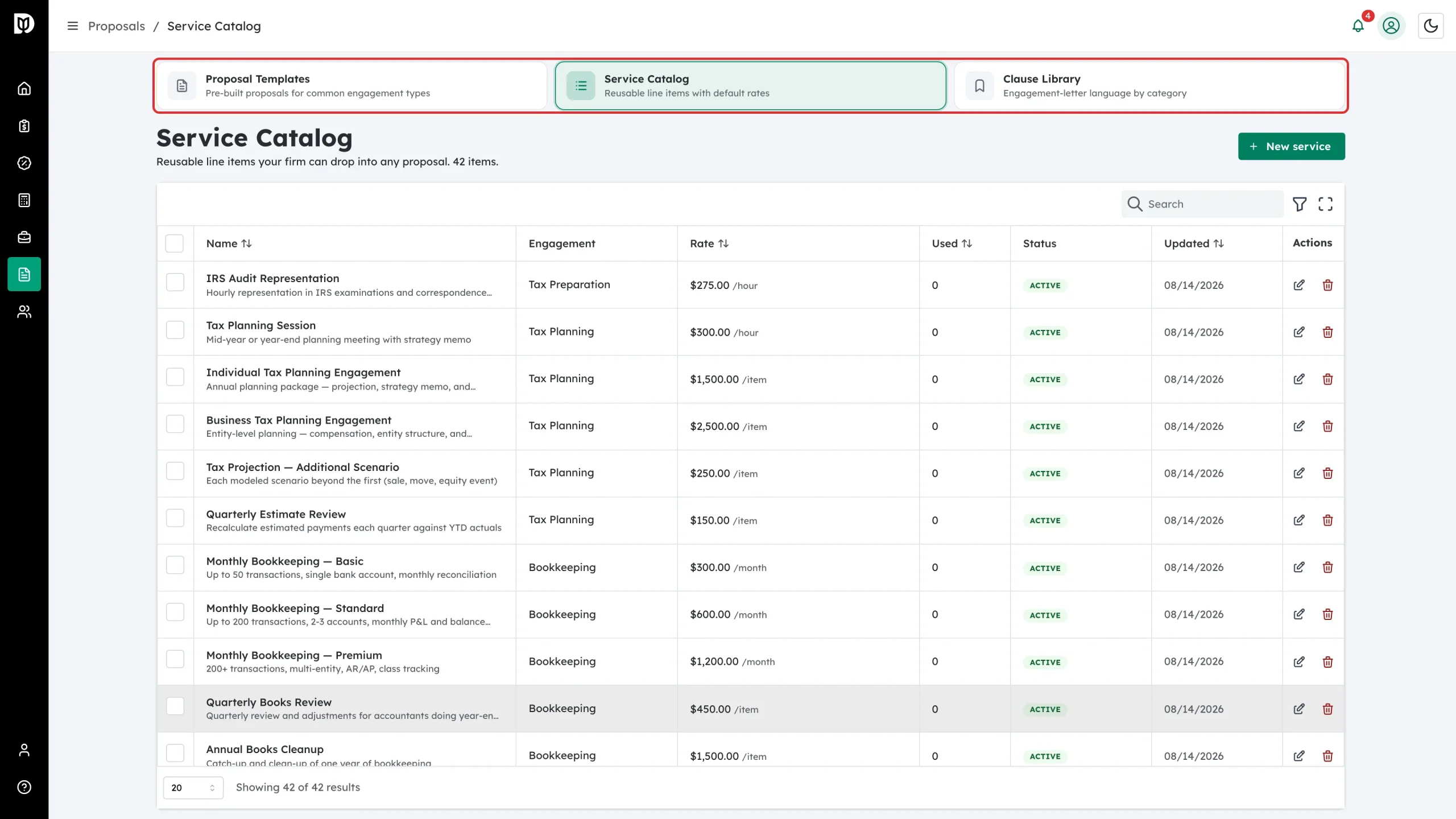
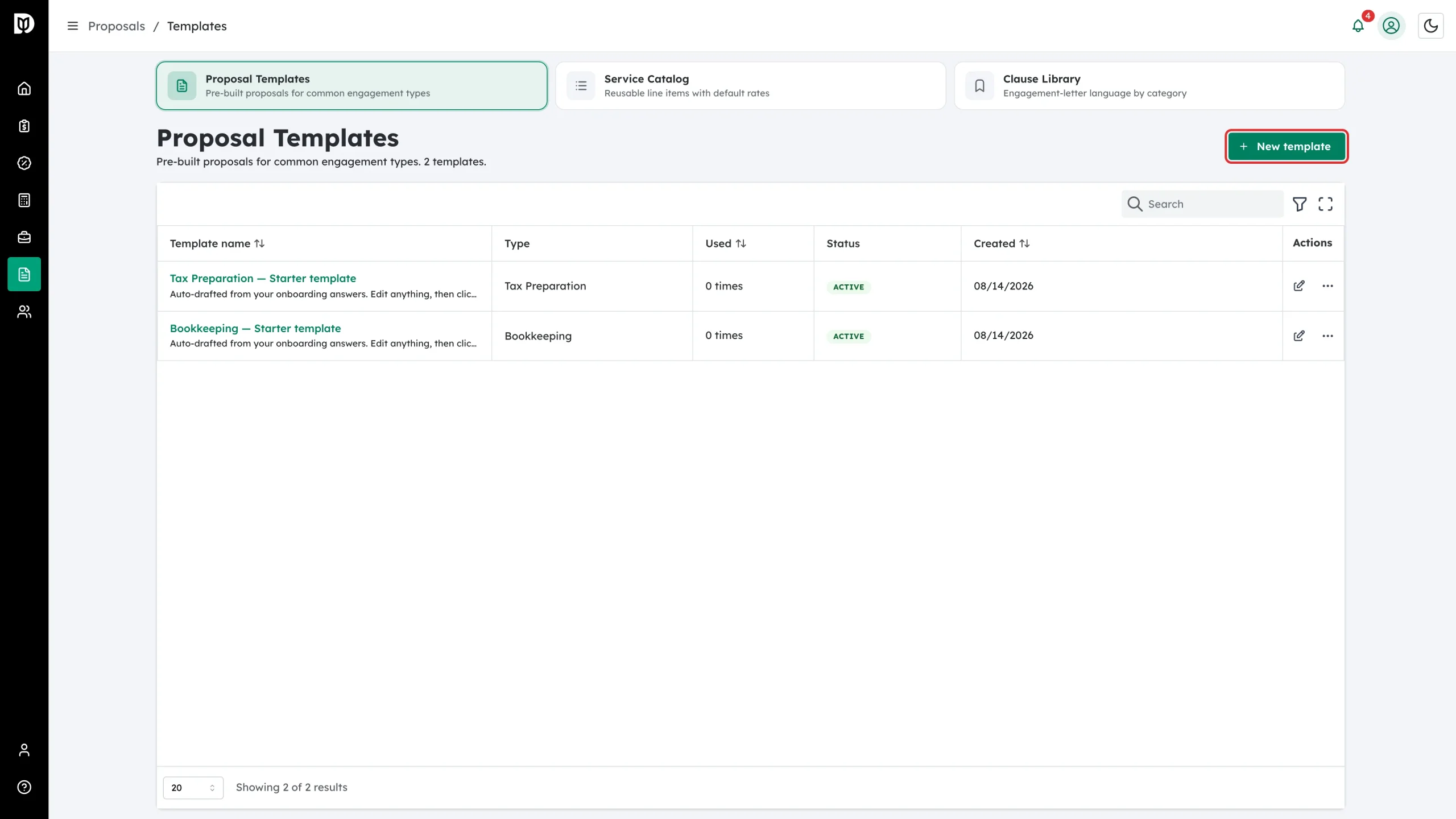
Go to Proposals and click the template icon at the top right, then use the strip at the top of the page to move between Proposal Templates, Service Catalog and Clause Library.
Step 2: Review the service catalog
Open Service Catalog. Each row is a reusable line item with a name, the engagement type it belongs to, a default rate and unit, how many times it has been used, and its status. Use the search box to find something quickly.
Step 3: Add a service
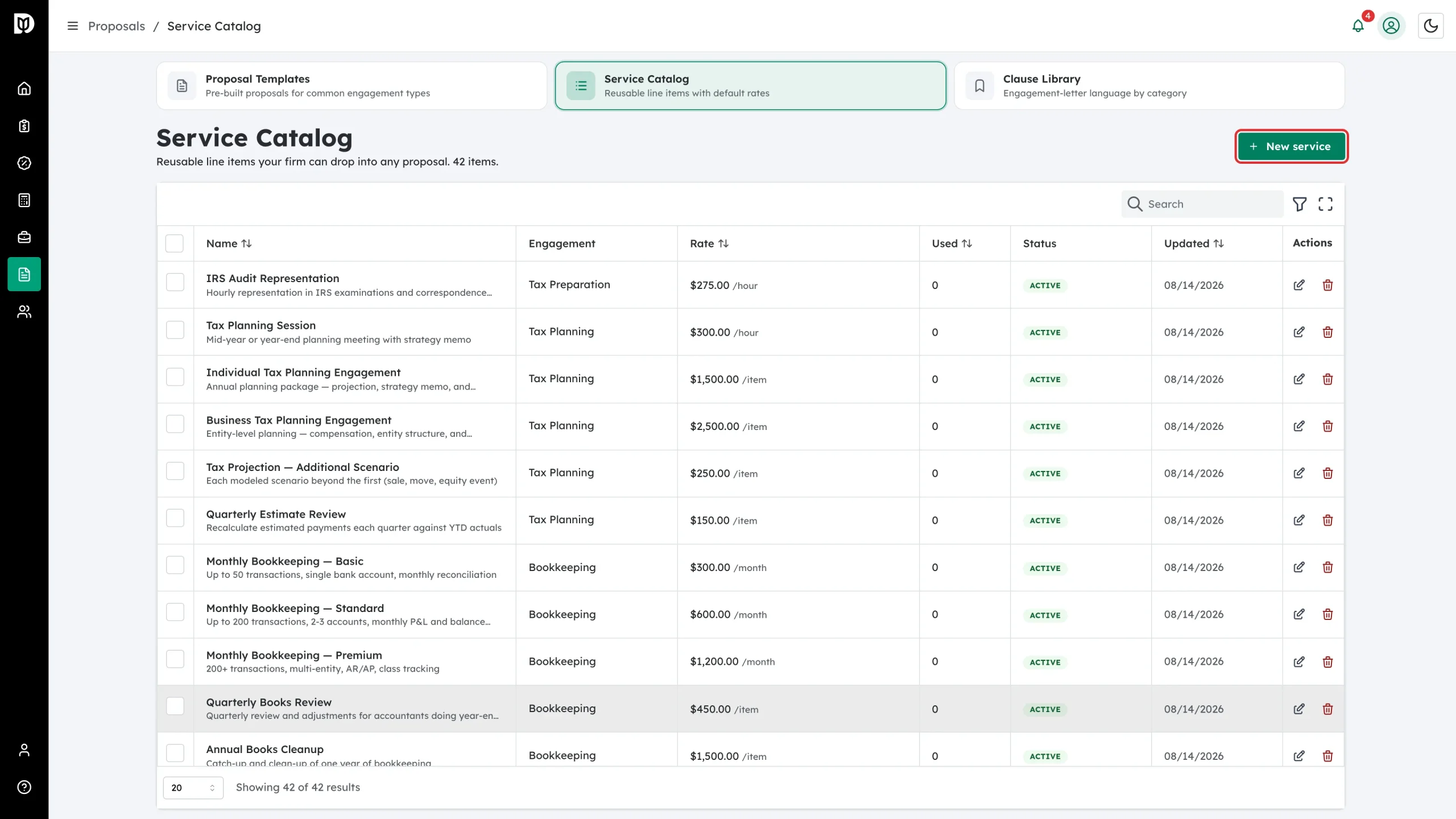
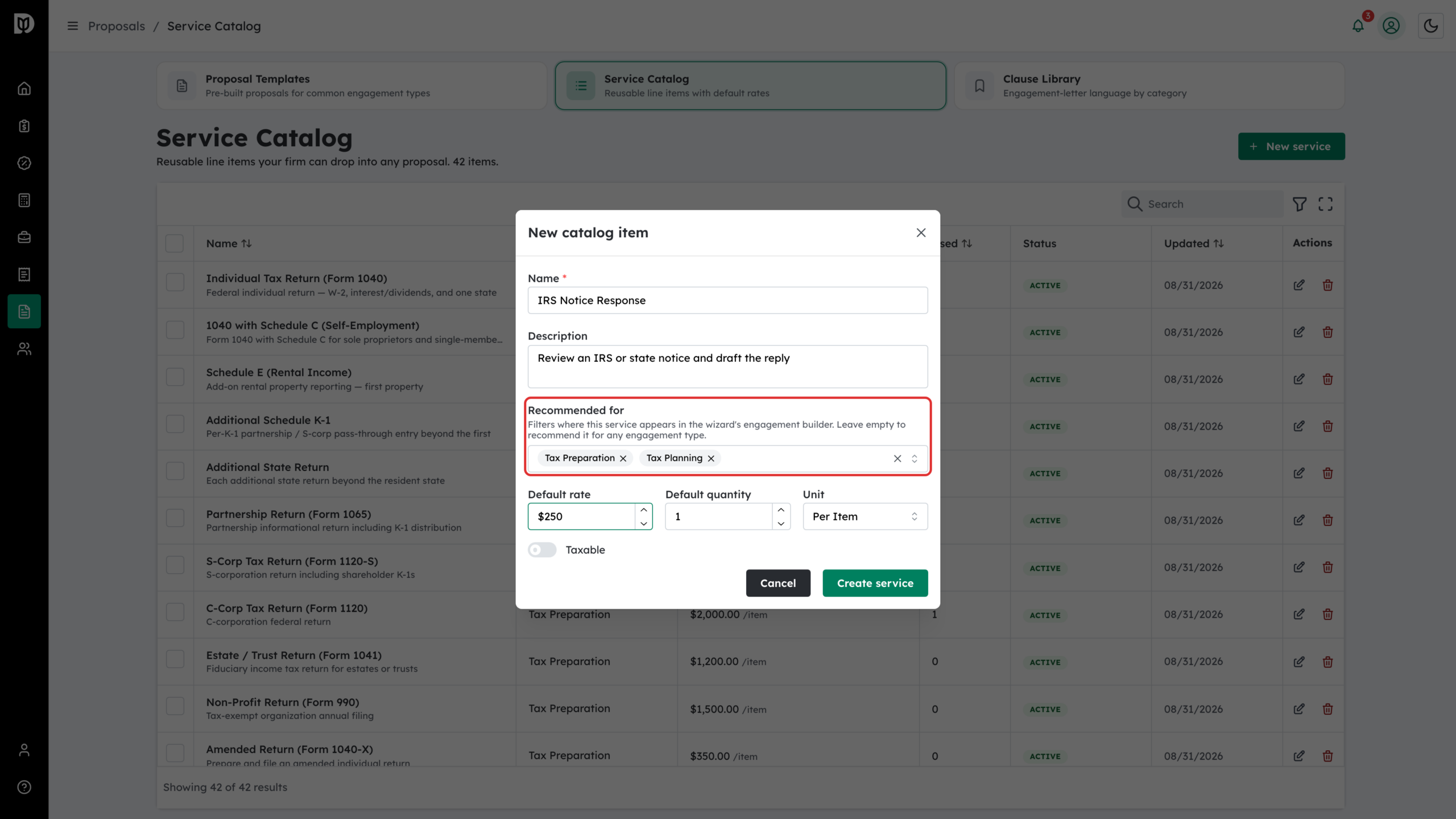
Click New service. Fill in the Name and an optional Description (your team sees it, the client does not). In Recommended for, pick every engagement type it belongs to — one service can be recommended for several. That decides which engagements offer it in the proposal wizard; leave it empty to offer it for any engagement type. Add a Default rate, Default quantity and Unit (per item, per hour, per month), switch Taxable on if it applies, then click Create service.
Step 4: Edit or remove a service
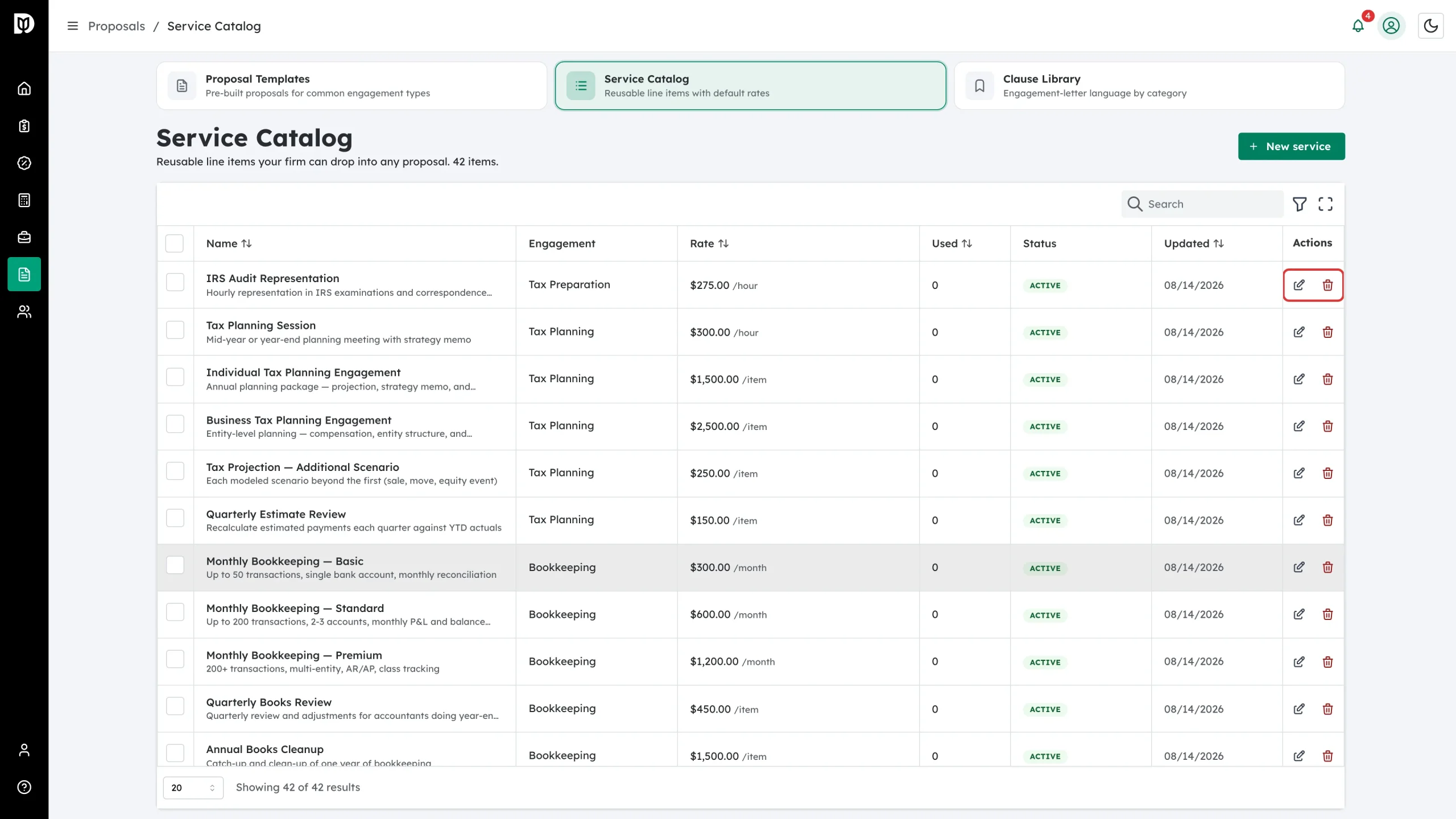
Use the pencil icon in the Actions column to change a rate or description, and the bin icon to delete an item you no longer sell. You can also switch an item to inactive on the edit form to keep it on old proposals while hiding it from new ones.
Step 5: Open Proposal Templates
Switch to Proposal Templates. A template is a pre-built proposal for a common engagement type: default services, pinned clauses, and the signing and reminder settings you normally use. The list shows how many times each one has been used.
Step 6: Start a proposal from a template
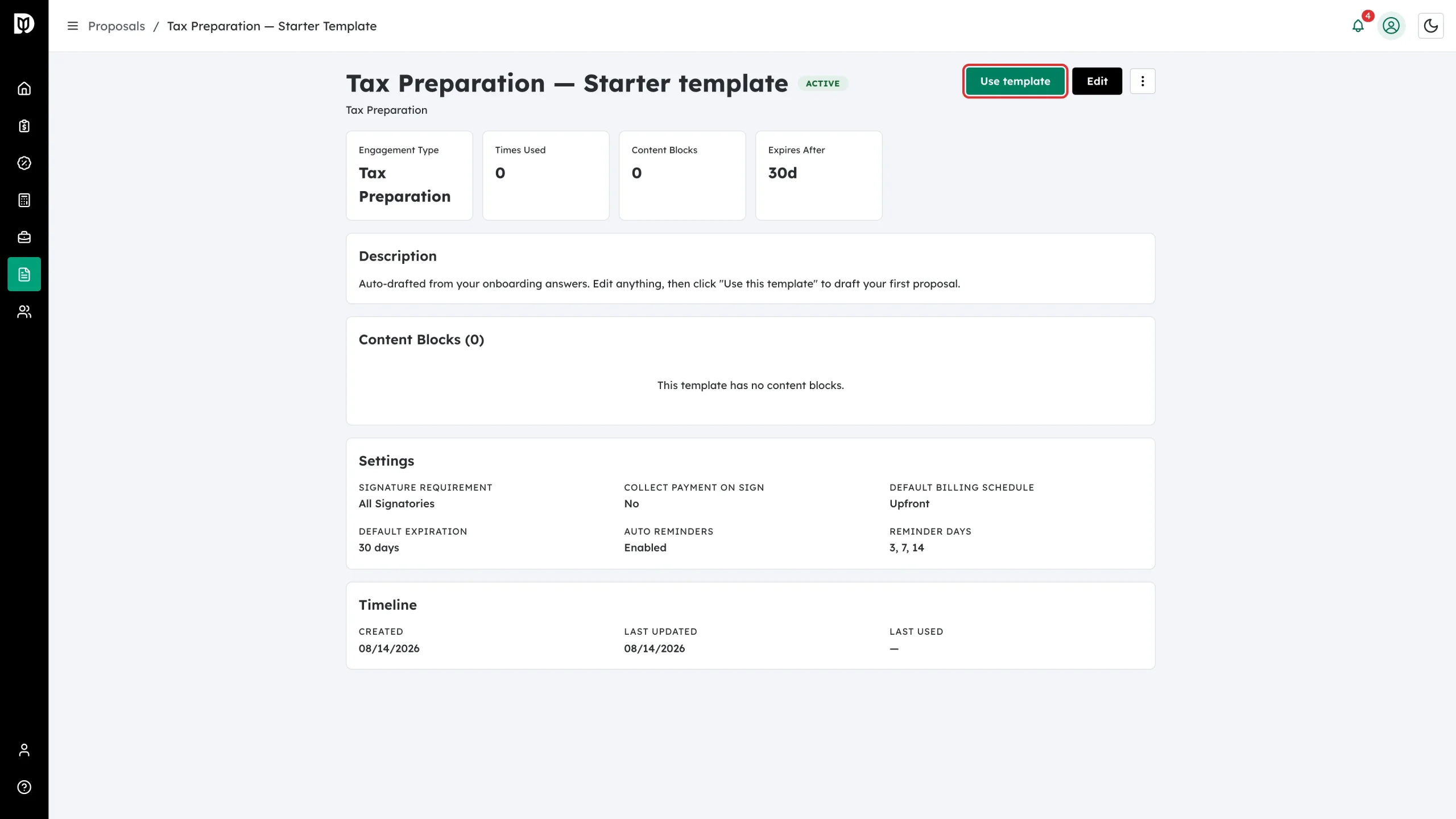
Click a template name to open it. Check the settings — signature requirement, default billing schedule, expiry and reminder days — then click Use template. The proposal wizard opens with the template’s services already matched to your catalog, so you only have to pick the client and confirm the price. If the template carries a package price, the wizard opens with One price for everything already on and the price and cadence filled in.
Step 7: Build a template of your own
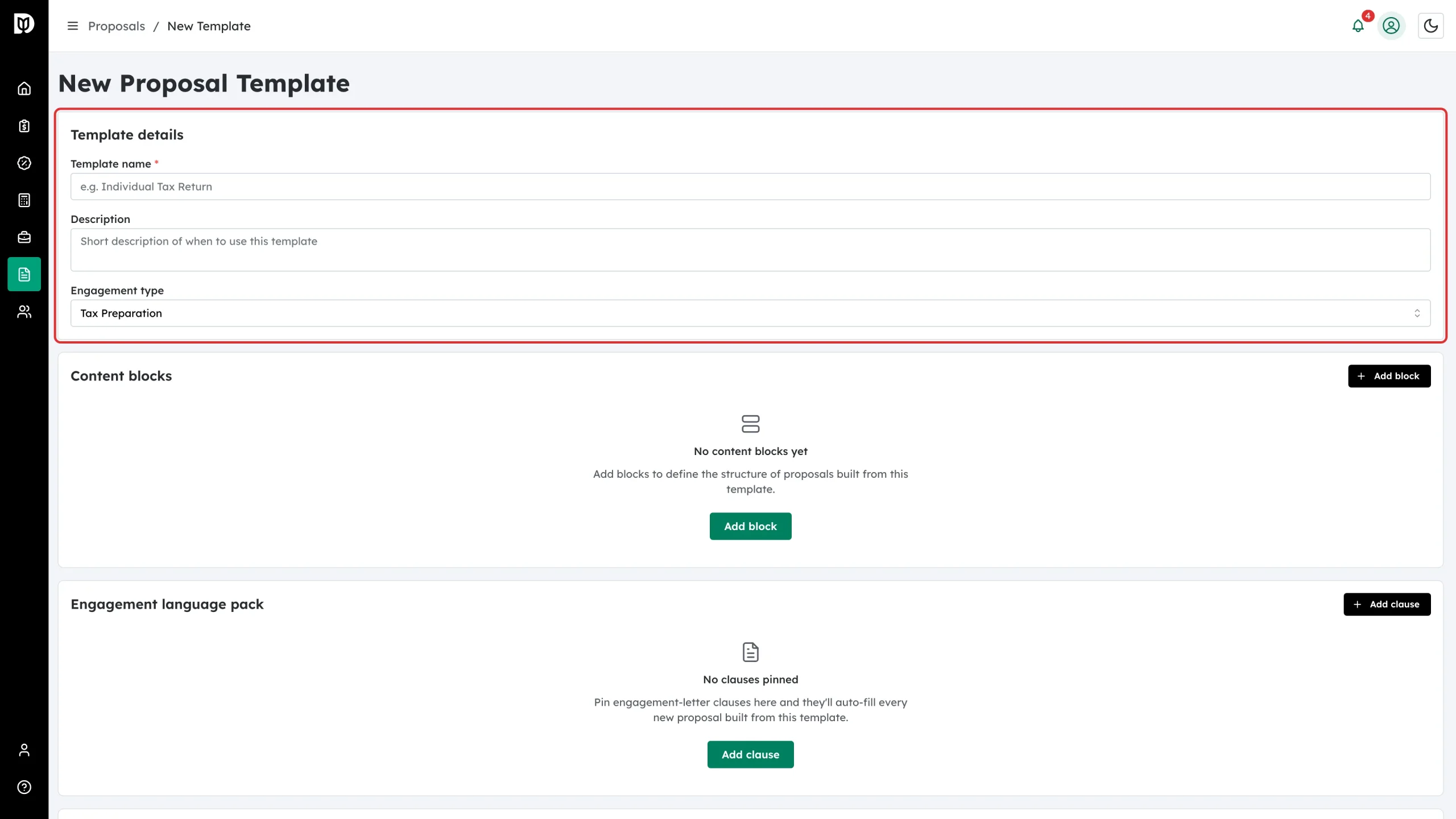
Click New template. Give it a Template name, a short Description of when to use it, and an Engagement type. Then add Default services (use Pick from catalog), pin the clauses you always include under Engagement language pack, and set the defaults at the bottom — signature requirement, billing schedule, expiry days, reminder days and auto reminders. To quote one package price, enter it in One price for everything and choose when it Bills; leave it blank to price each engagement separately. Click Create Template.
What happens next
New catalog items appear in the Add service picker on every matching engagement card straight away, along with their default rate. New templates appear in the template list and can be used from their detail page. A template that is no longer current can be deactivated instead of deleted: it disappears from the picker for new proposals while existing proposals keep the version they were built from.
Troubleshooting
- A service doesn’t show up on an engagement. One of its Recommended for engagement types has to match the engagement, or the field has to be empty (any engagement type). Also check the item is still active.
- Ticking a service changed the price. That is intended on a Flat fee card — the item’s default rate is added. On hourly, retainer and value-based cards ticking only adds scope.
- The starter templates say “Auto-drafted from your onboarding answers.” Those are generated from the setup wizard. Edit them freely; they are ordinary templates.
- Times Used stays at 0. It only counts proposals started with Use template, not proposals you built from scratch.