Work that repeats on a schedule — a monthly bookkeeping fee, a quarterly review — can be put on a recurring schedule so Debits raises and sends the invoice for you.
-
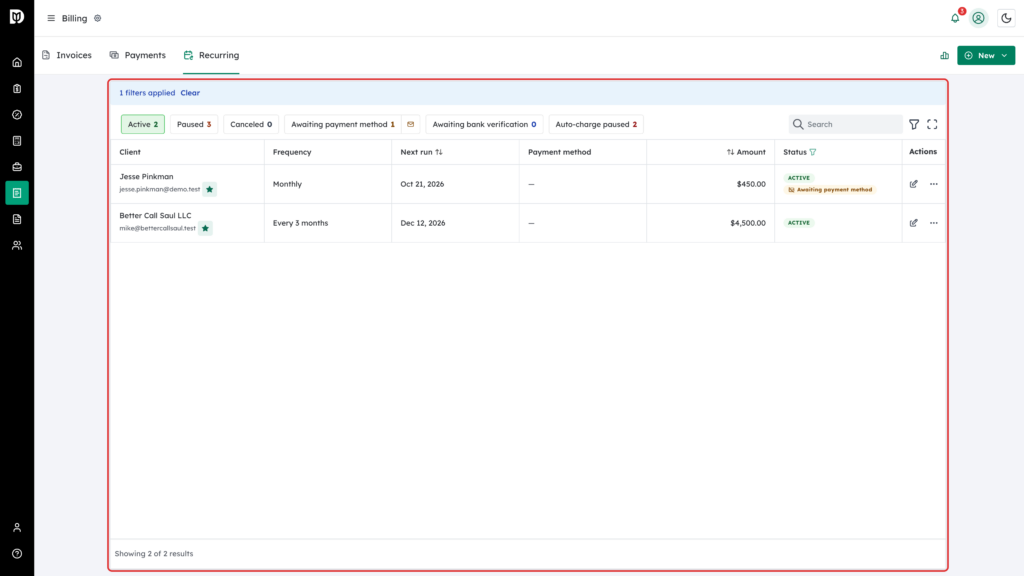
Open the Recurring tab
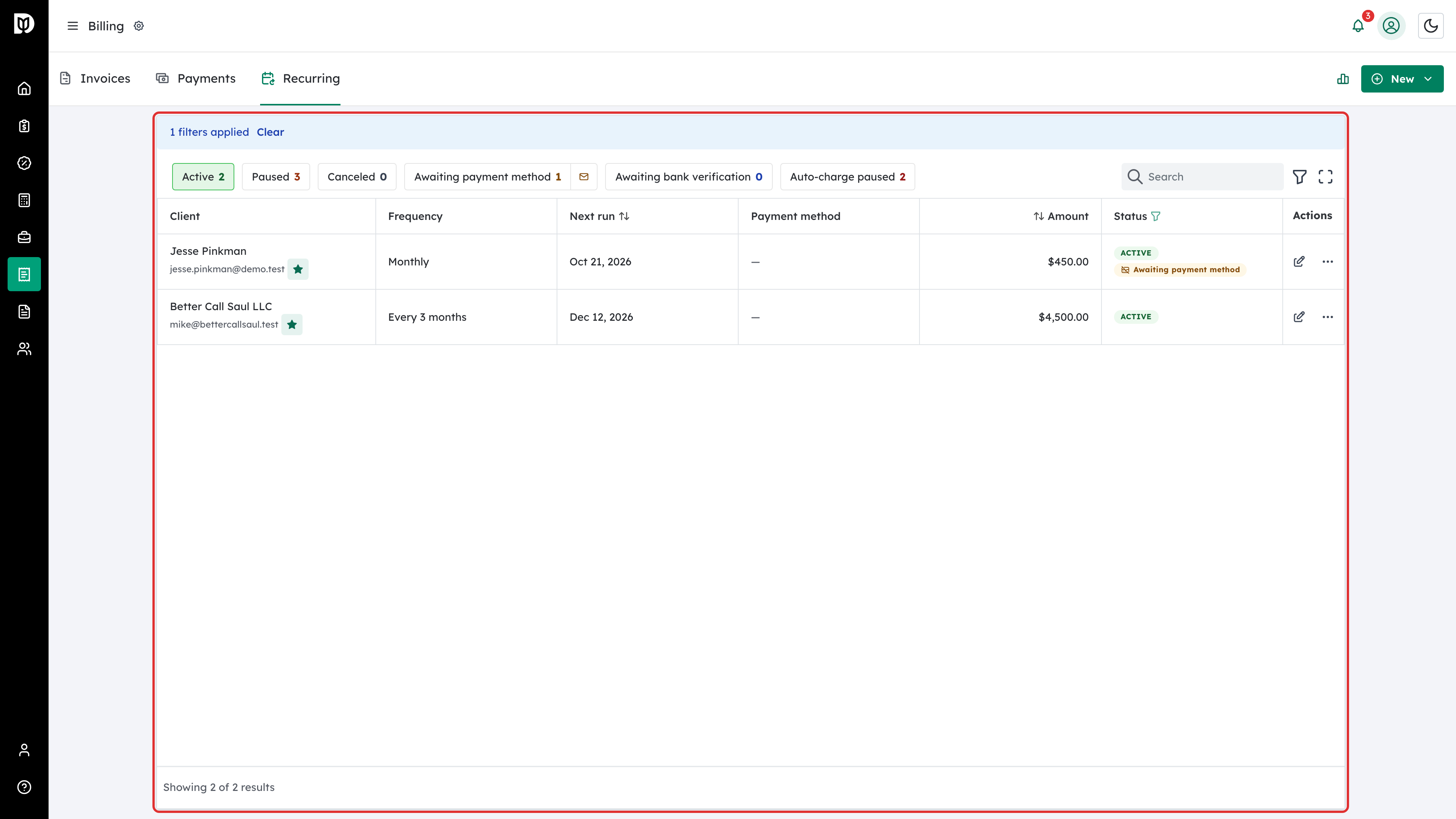
The Recurring tab lists your active schedules, who each one bills, how often it runs, and when it next runs.
-
Create a schedule
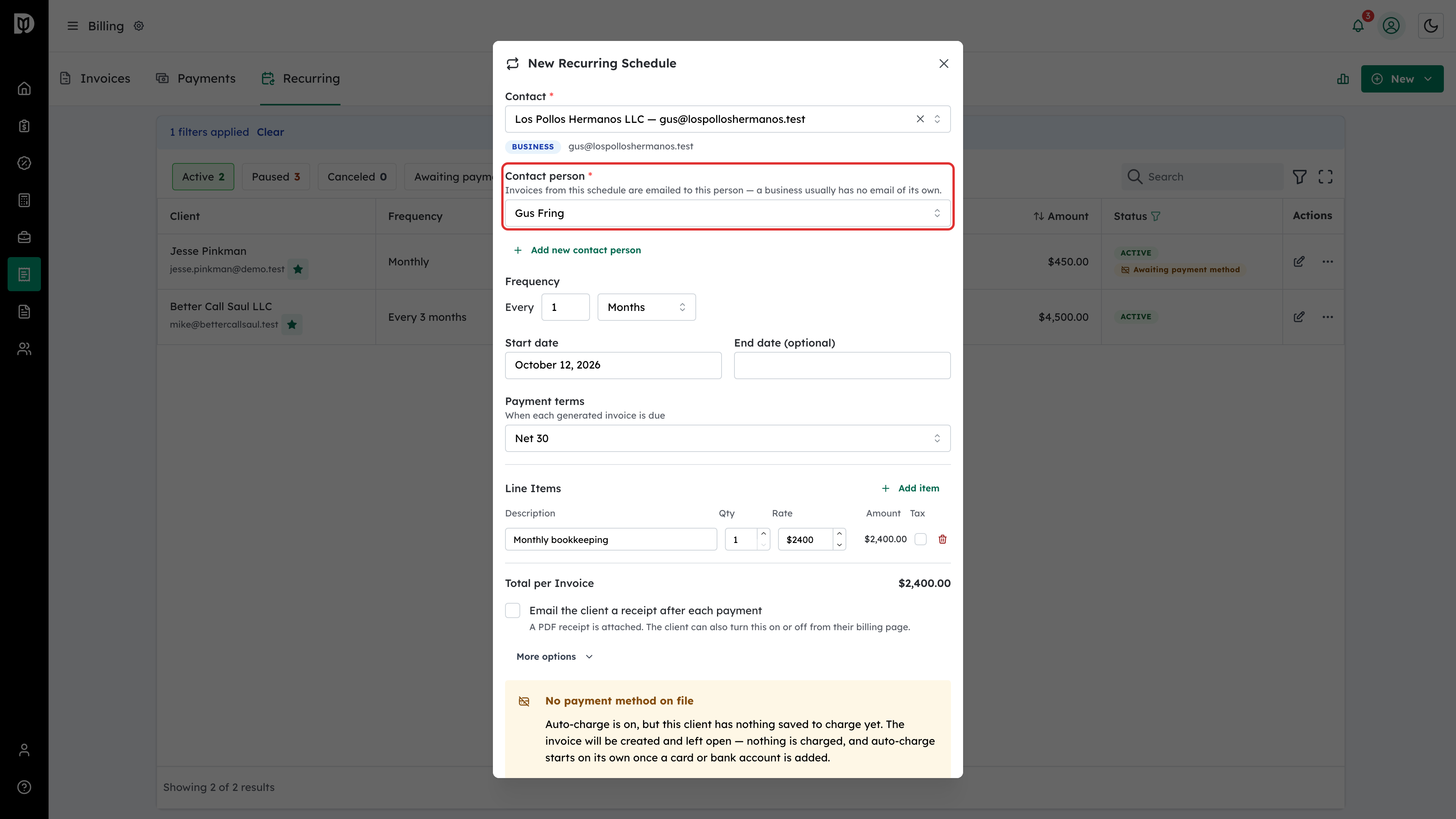
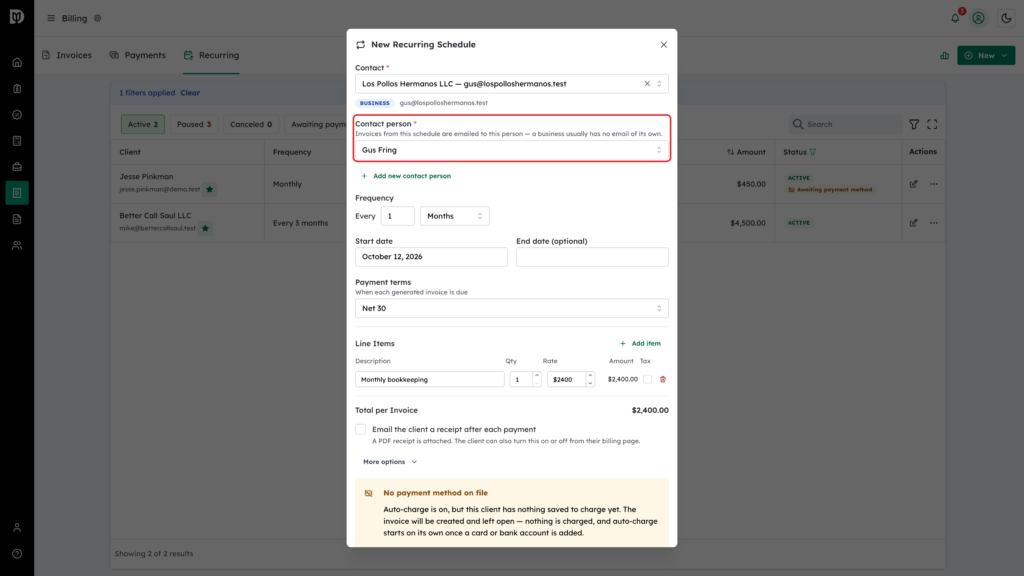
Choose the client and the line items exactly as you would on a one-off invoice, then set the frequency and the date it should start. For a business, also pick the Contact person — the invoices and emails go to them. Set Payment terms (when each generated invoice is due); it starts at Net 30.
-
Choose how it behaves
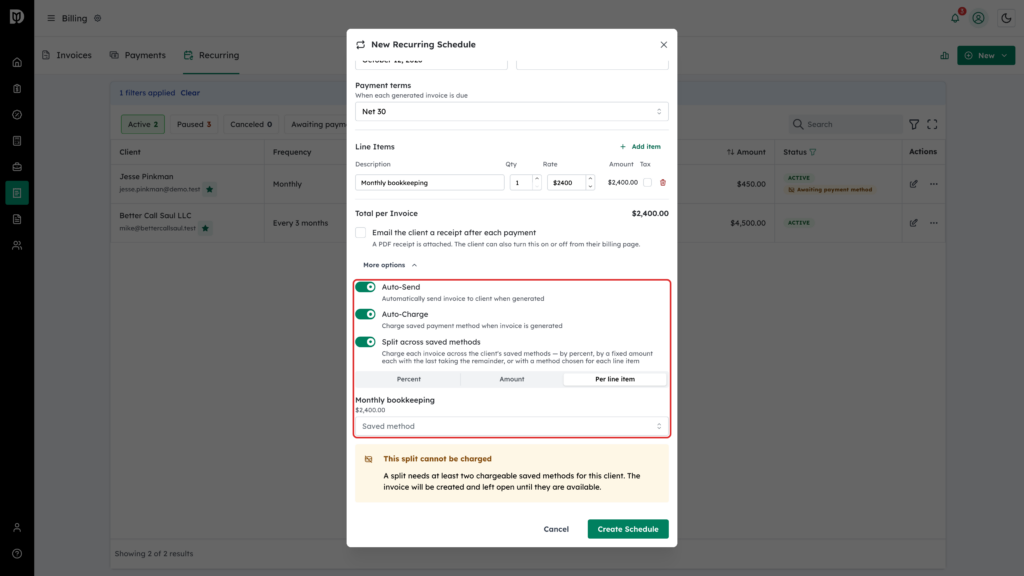
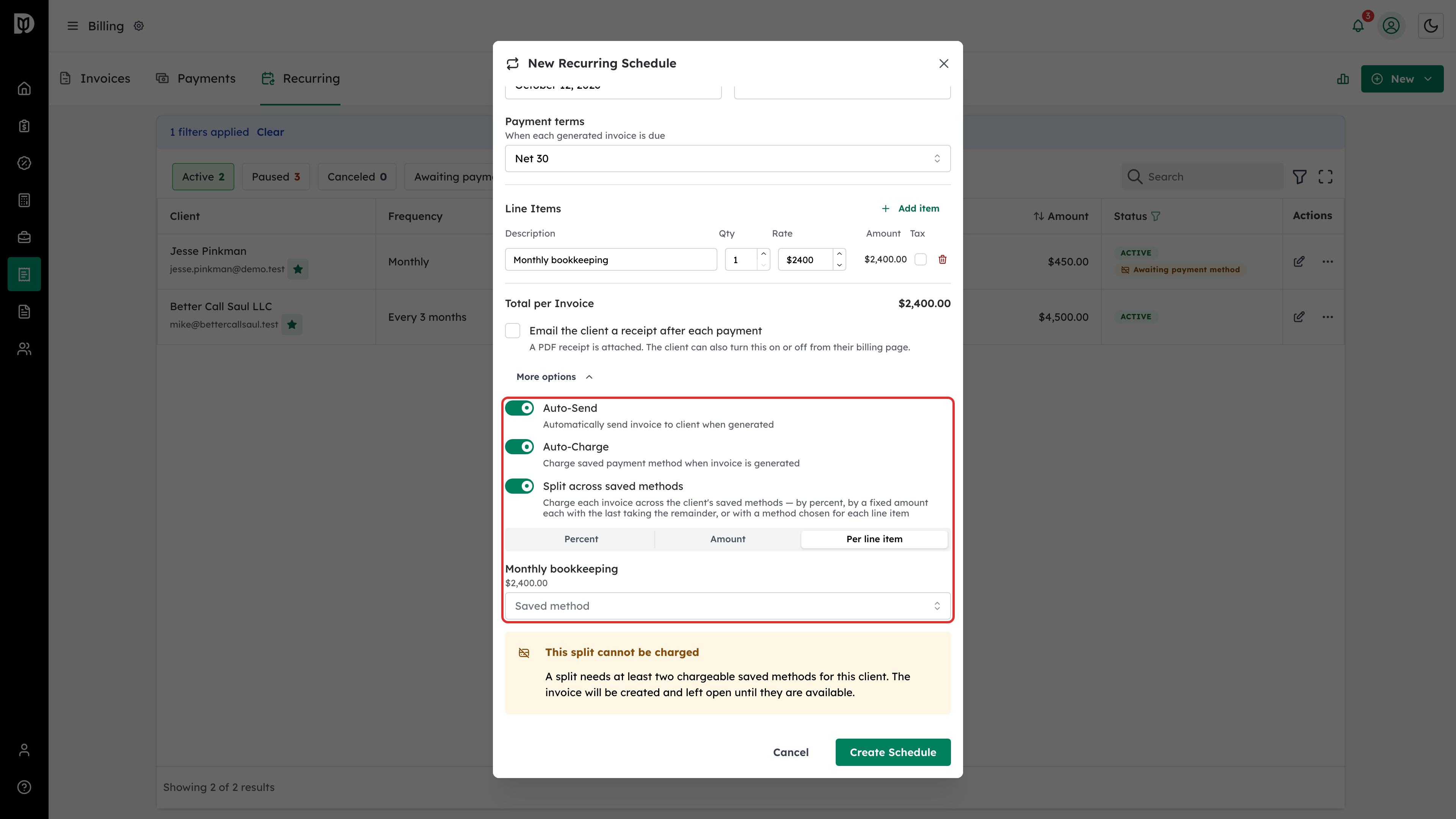
A schedule can raise the invoice as a draft for you to review, or raise and send it automatically with Auto-Send. Turn on Auto-Charge and Debits also collects the payment from the client’s saved payment method.
To charge more than one card, turn on Split across saved methods and choose Split by: Percent, Amount (fixed amounts, with the last method taking the remainder) or Per line item (a saved method chosen for each line, which is charged for its own lines plus their tax).
Receipts are not emailed for a schedule’s card payments unless you tick Email the client a receipt after each payment (a PDF receipt is attached). It starts unticked, and the client can also turn it on or off from their billing page.