Three ways to adjust an invoice after it has been issued. All three leave a record rather than editing history.
-
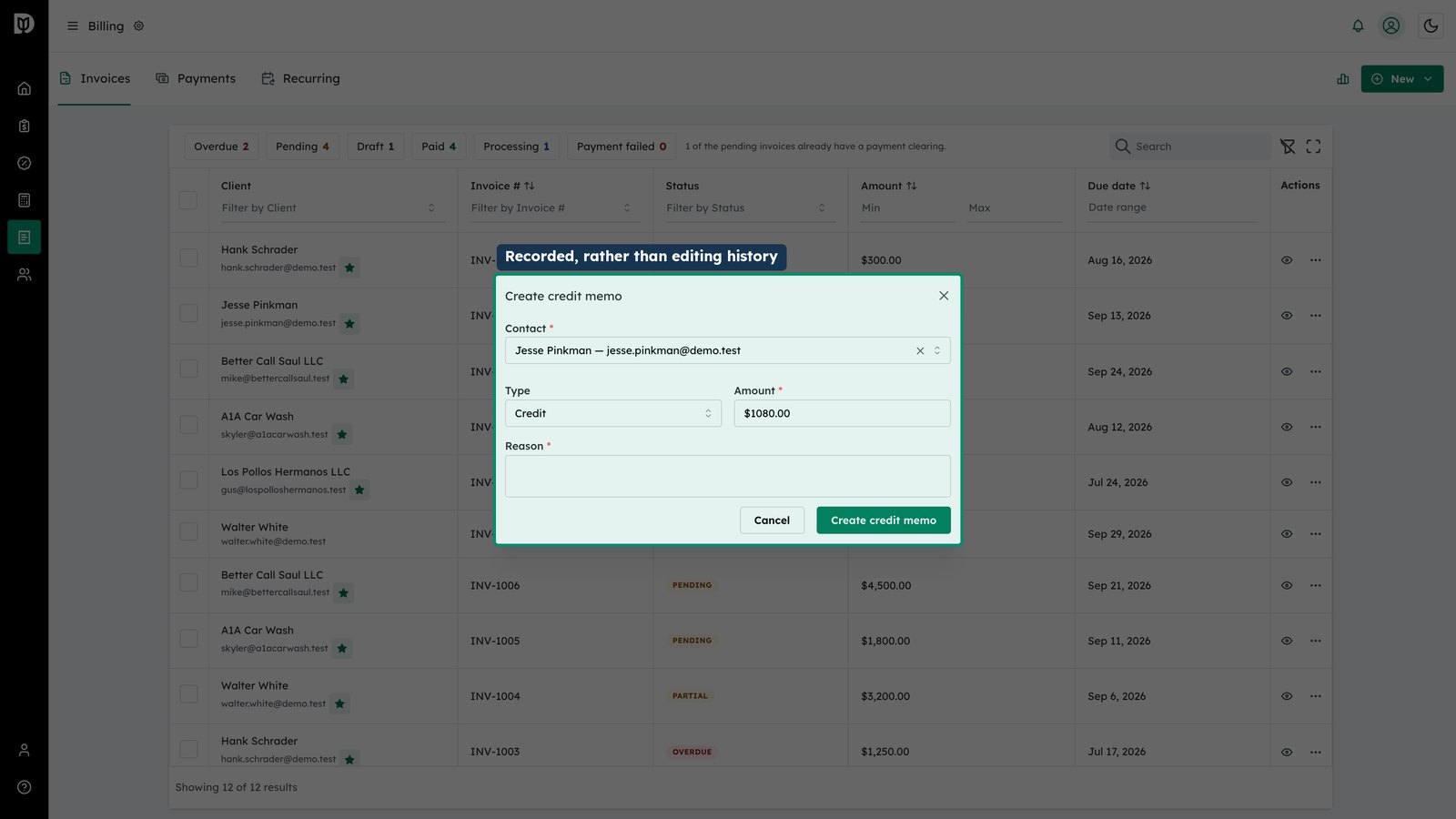
Issue a credit memo
Choose the client, pick whether it is a credit against future work or a write-off you are never going to collect, enter the amount and re-cord the reason. That keeps the adjustment in the audit trail.
-
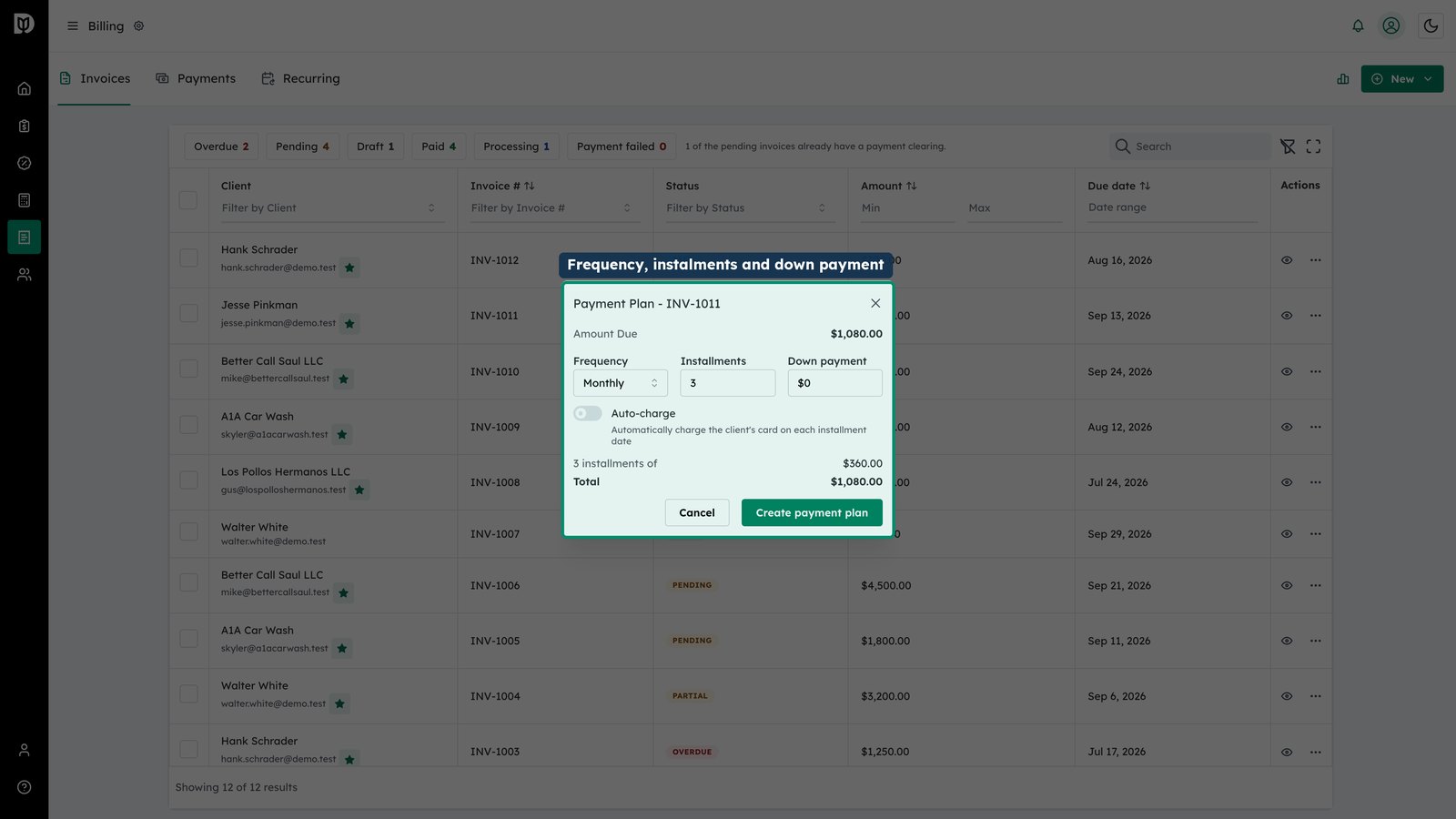
Set up a payment plan
For a balance a client cannot clear in one go, set the frequency, the number of instalments and an optional down payment. Debits raises each instalment on schedule, and the invoice shows how many have been paid. Turn on auto-charge and it collects each one automatically.
-
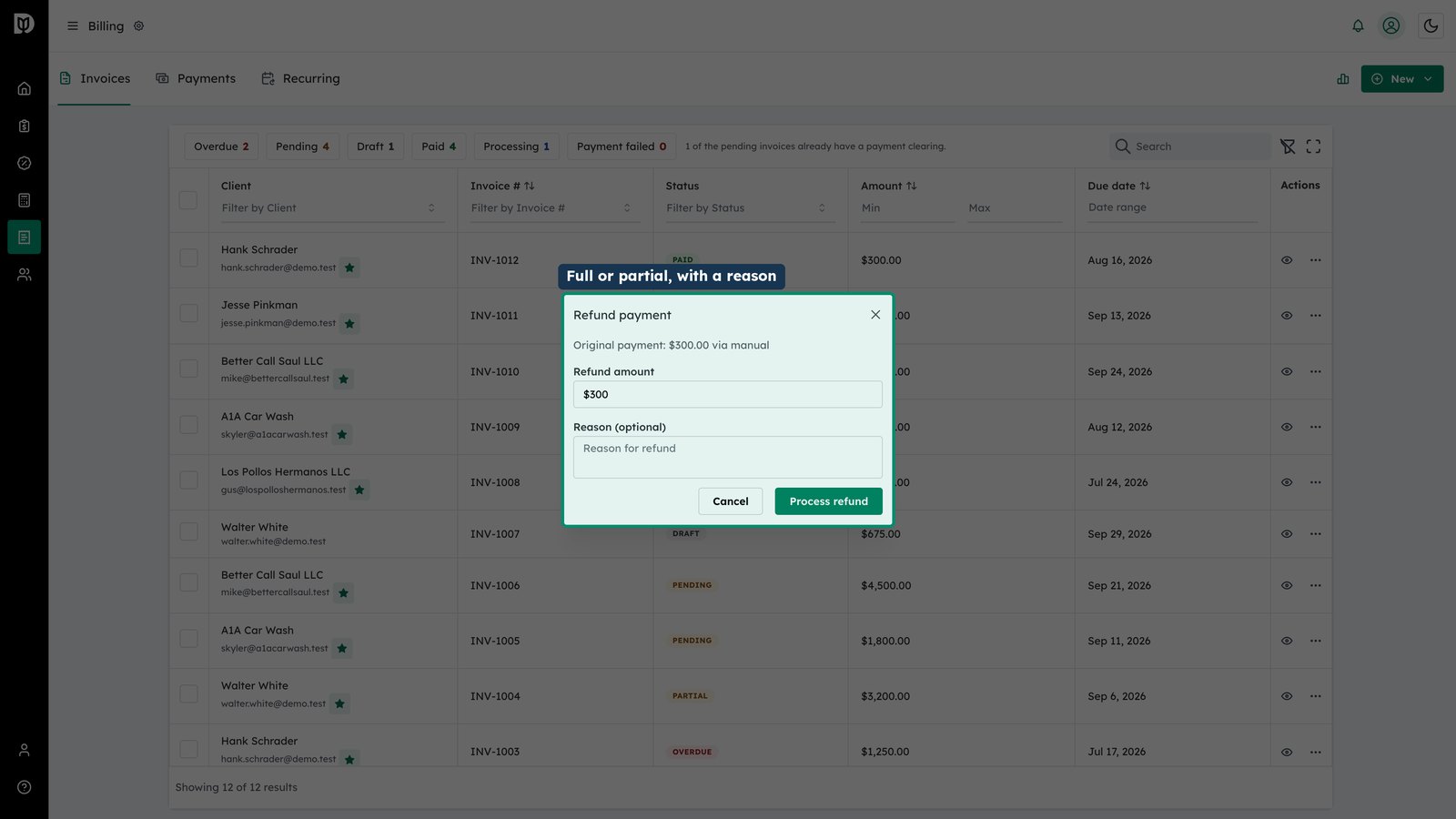
Refund a payment
On a payment that has already gone through, enter the amount — full or partial — and a reason. Debits sends it back through the original payment method and records it against the invoice.