Who this is for: Firm owners, admins, managers and staff who take payments in Debits.
What you’ll learn: Which payments email your client a receipt, how to control it, and how to send a receipt again.
Before you begin
Every receipt email has the PDF receipt attached. Whether a receipt is sent depends on how the payment was made:
- A payment you record by hand (cash, check or bank transfer you enter yourself): a receipt is sent when Email the client a receipt is ticked. It is ticked by default.
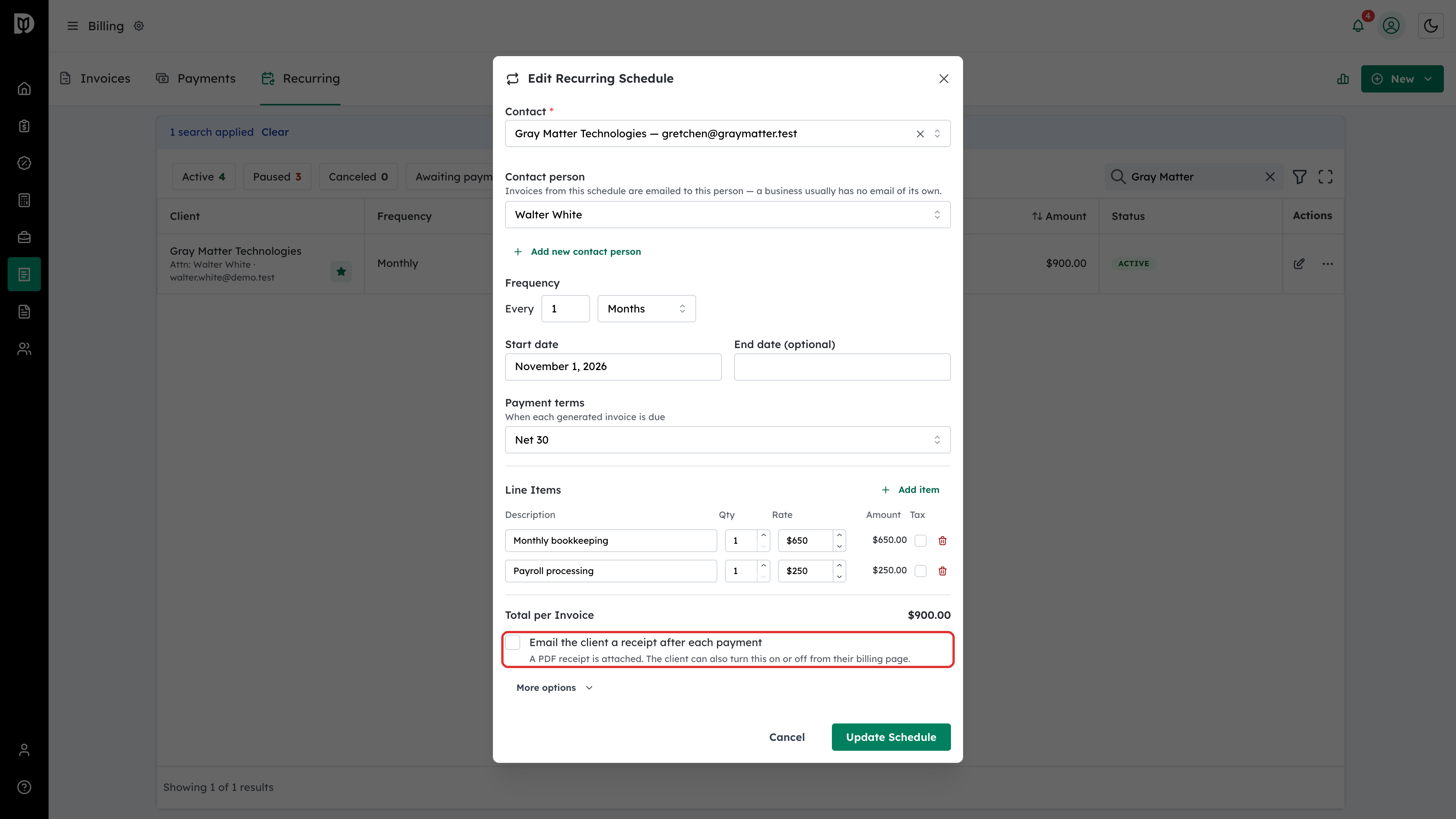
- A card payment on a recurring plan’s invoice: a receipt is sent only if Email the client a receipt after each payment is turned on for that plan. It is off by default.
- A card payment on any other invoice: a receipt is always sent.
- An ACH bank payment: a receipt is always sent once the payment clears.
- Send Receipt: always sends a receipt, whenever you choose.
The client’s receipt email is the only thing these settings change. Your own payment notification is sent either way.
Step-by-step instructions
Step 1: Record a payment by hand
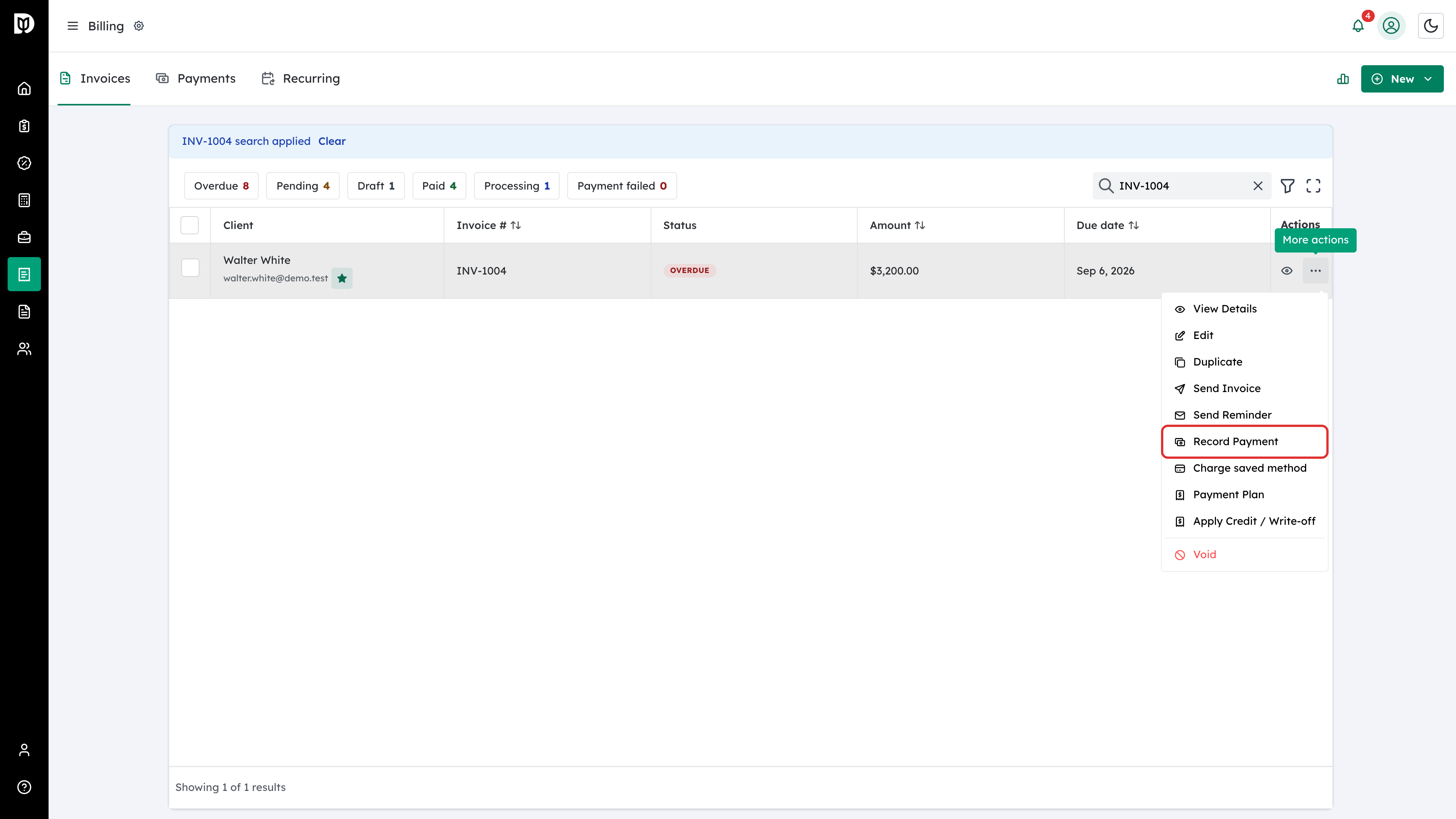
Go to Billing > Invoices, open the row menu on the invoice and select Record Payment.
Step 2: Decide whether to email a receipt
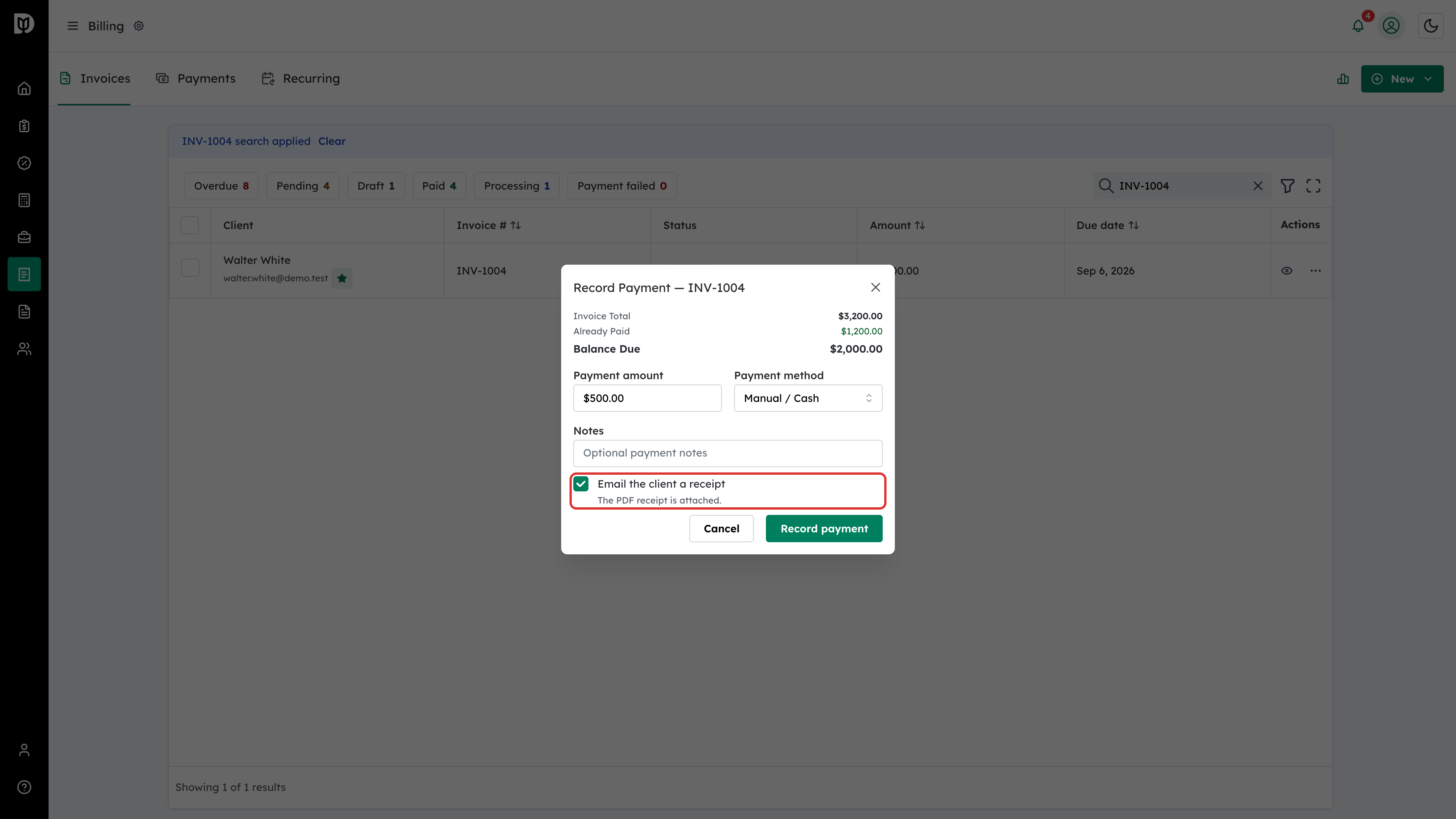
Enter the Payment amount and Payment method. Email the client a receipt is ticked by default. Untick it if you are back-entering old payments and don’t want to email the client.
Step 3: Save the payment
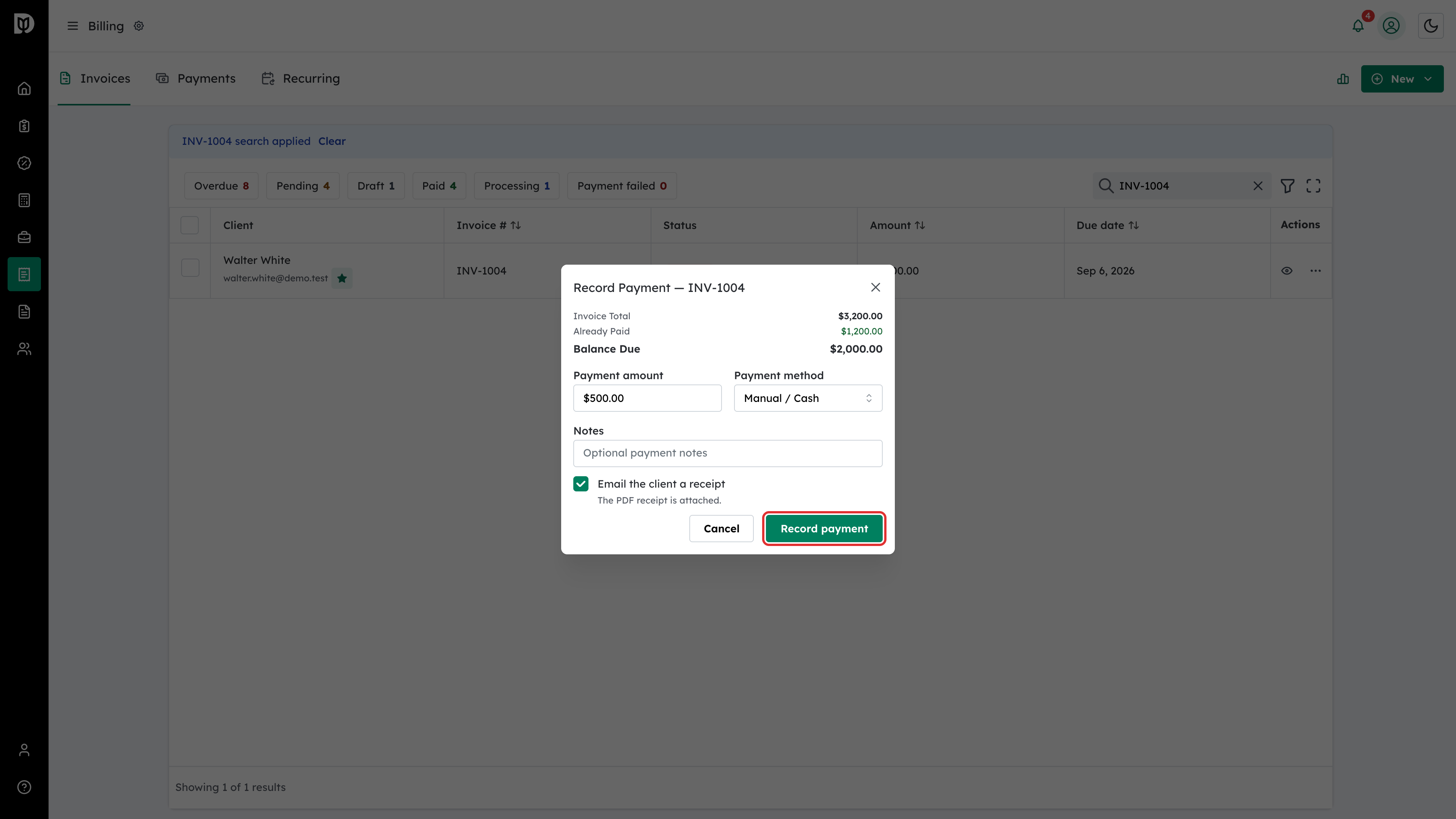
Select Record payment. If the box was ticked, the client gets an email with the PDF receipt attached.
Step 4: Send a receipt again
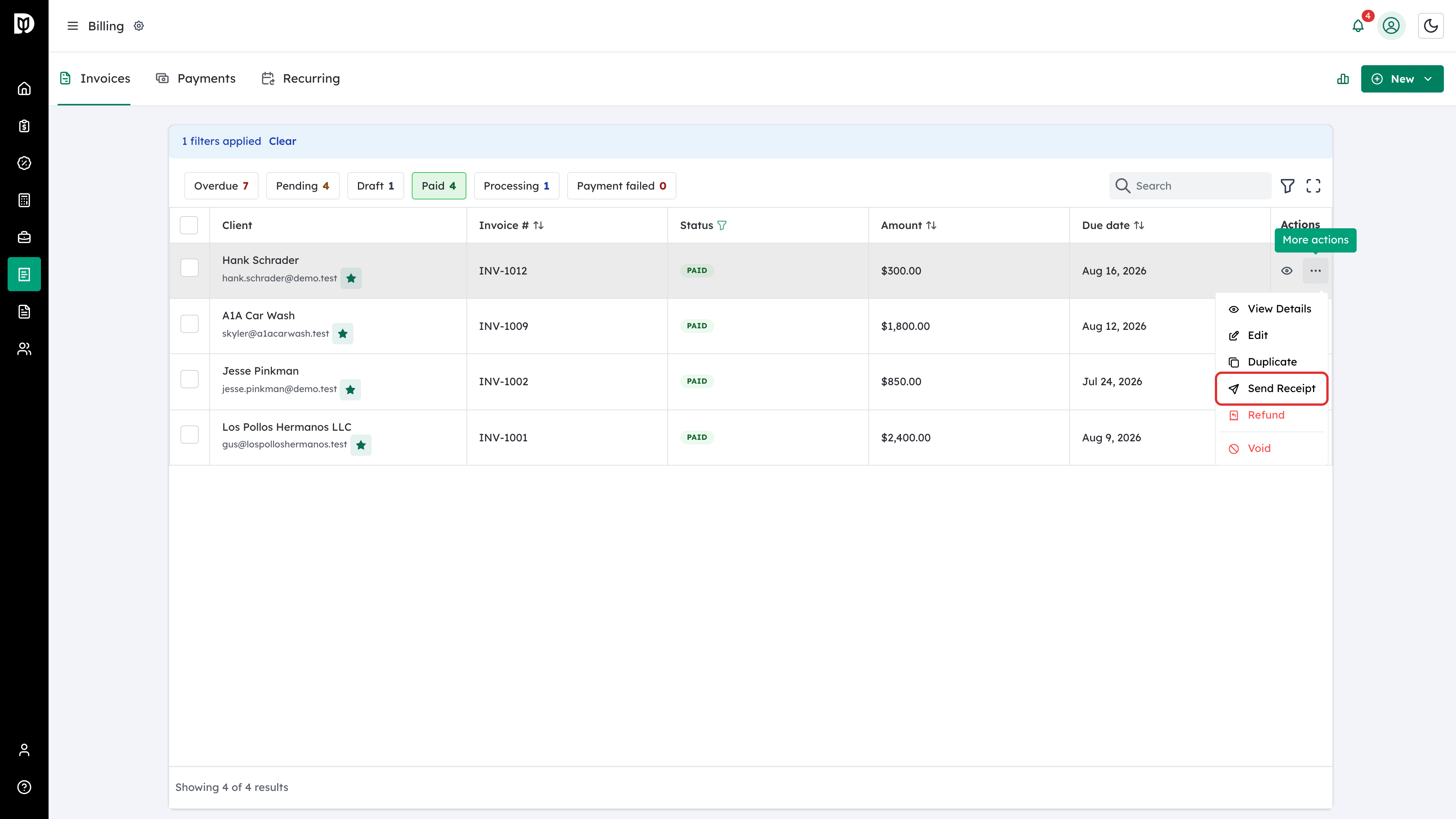
For a paid invoice, open the row menu and select Send Receipt. This emails the receipt PDF to the client again, for example if they lost the first one.
Step 5: Turn on receipts for a recurring plan
Go to Billing > Recurring and edit the schedule. Tick Email the client a receipt after each payment, then select Update Schedule.
Step 6: Let the client choose
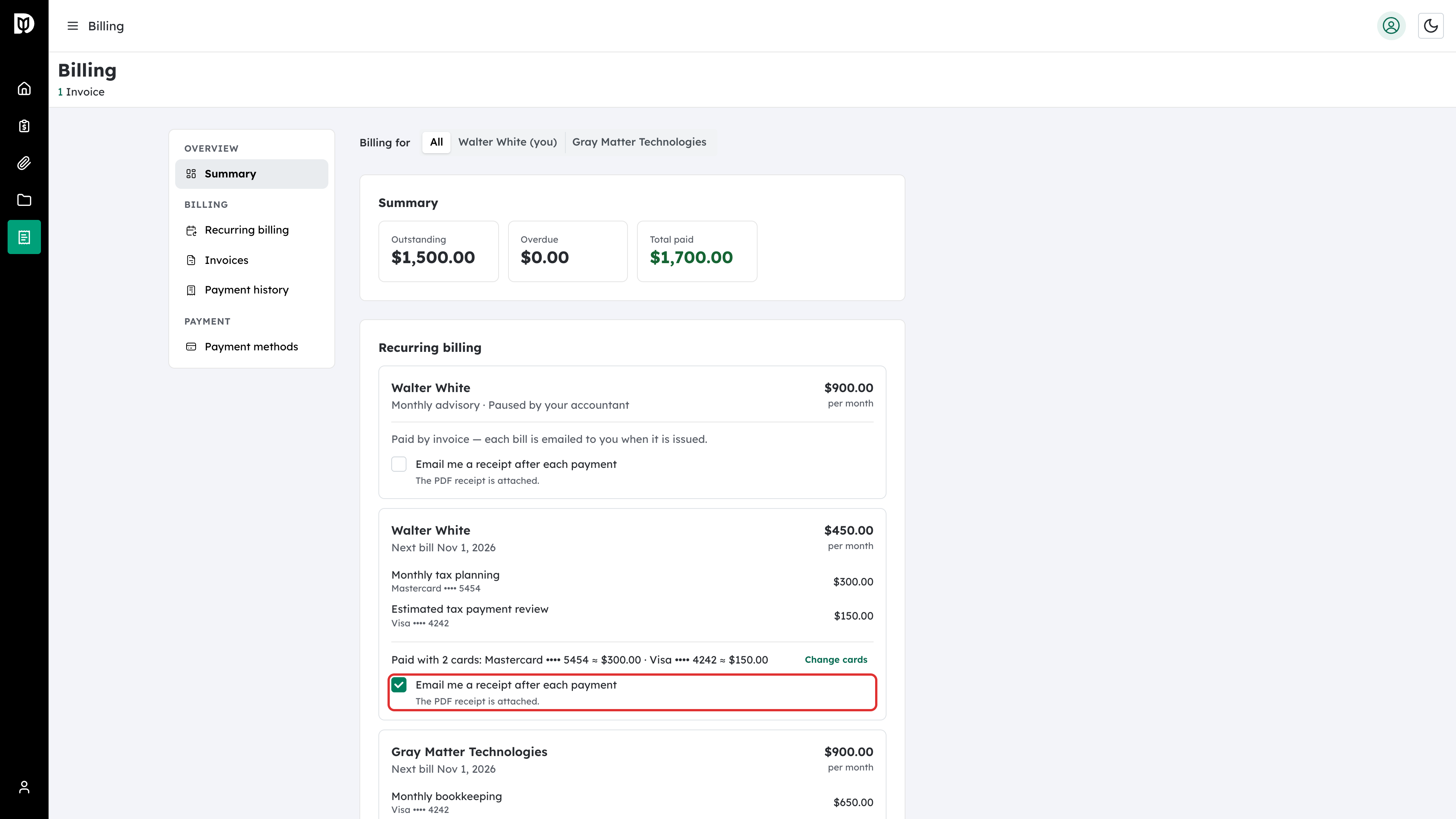
Clients can turn receipts on or off for a plan themselves. On their billing page, they tick Email me a receipt after each payment. On a business’s plan, only the person the bills are addressed to can change it. A client with no portal login can only be opted in by you.
What happens next
From then on, every payment that qualifies emails the client a receipt with the PDF attached. Clients can also download receipts from Payment history on their billing page. A bank payment that is still clearing shows After it clears until its receipt is ready.
Troubleshooting
- A client on a recurring plan stopped getting receipts: Recurring plans don’t email card receipts unless the box is ticked. Turn it on in the schedule, or ask the client to.
- The receipts box unticked itself: Moving a plan to another client, or changing its contact person, turns receipts off. The new recipient has to choose again.
- A plan has Auto-Send off and Auto-Charge on: The client is charged each period with no email at all unless receipts are turned on. Turn them on if the client should hear about each charge.
- Send Receipt isn’t in the menu: It appears only on paid invoices.