Who this is for: Firm owners, admins, managers and staff.
What you’ll learn: How to create a magic link that signs a client straight into their portal, including a client who has never set up a login, and how links for business plans work.
Before you begin
- The client needs an email address on their contact record.
- A magic link is not emailed for you. Debits creates the link, and you copy it and send it to the client yourself.
- Staff can only create links for clients they are assigned to.
- A new link replaces any earlier magic link for the same client.
Step-by-step instructions
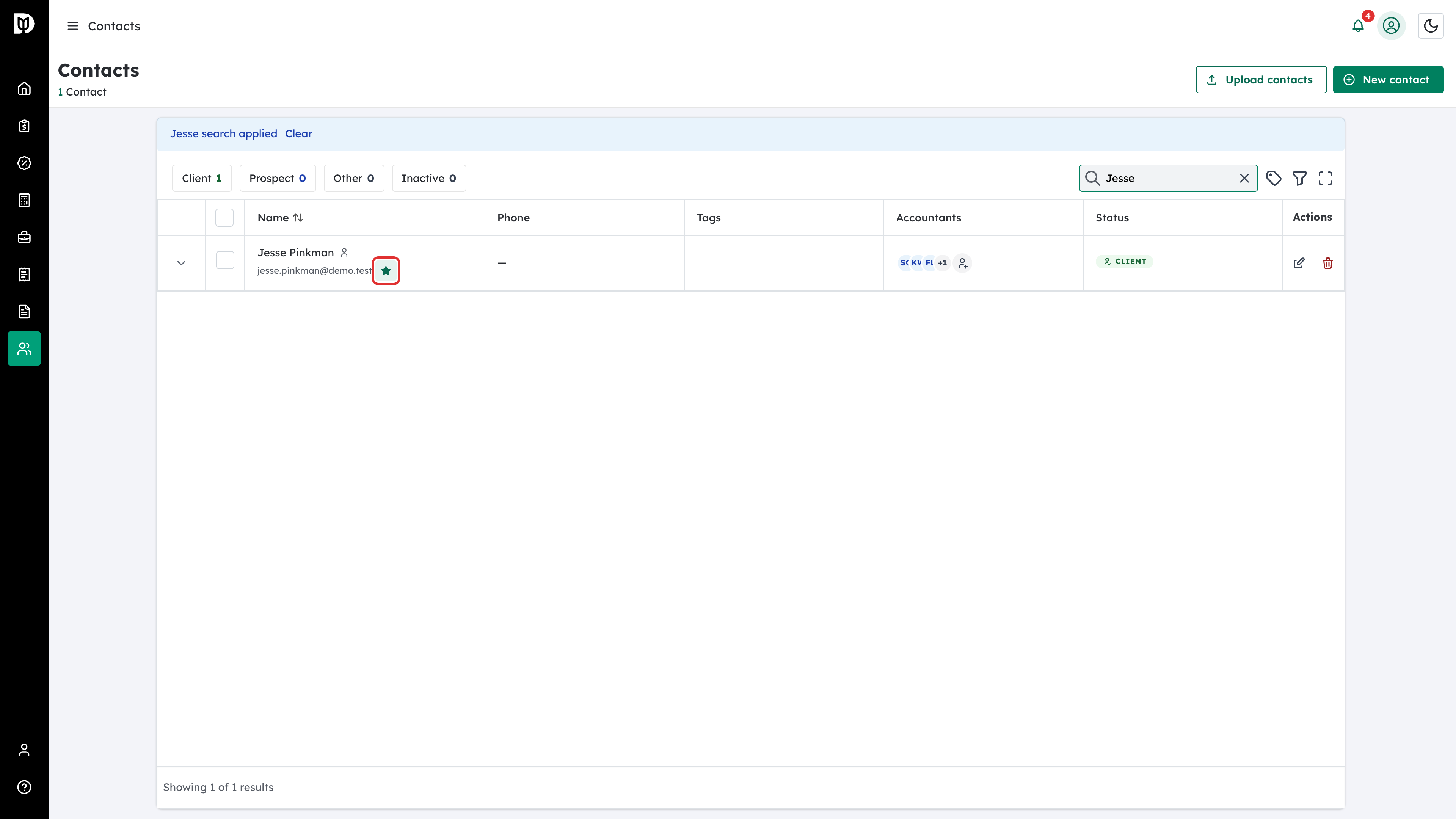
Step 1: Find the client and select the star
Go to Contacts and find the client. Select the star button next to their email address. Its tooltip reads Magic link. The same button appears next to clients on the Recurring billing list and the tax return, organizer, workpaper and delivery lists.
Step 2: Choose how long the link lasts
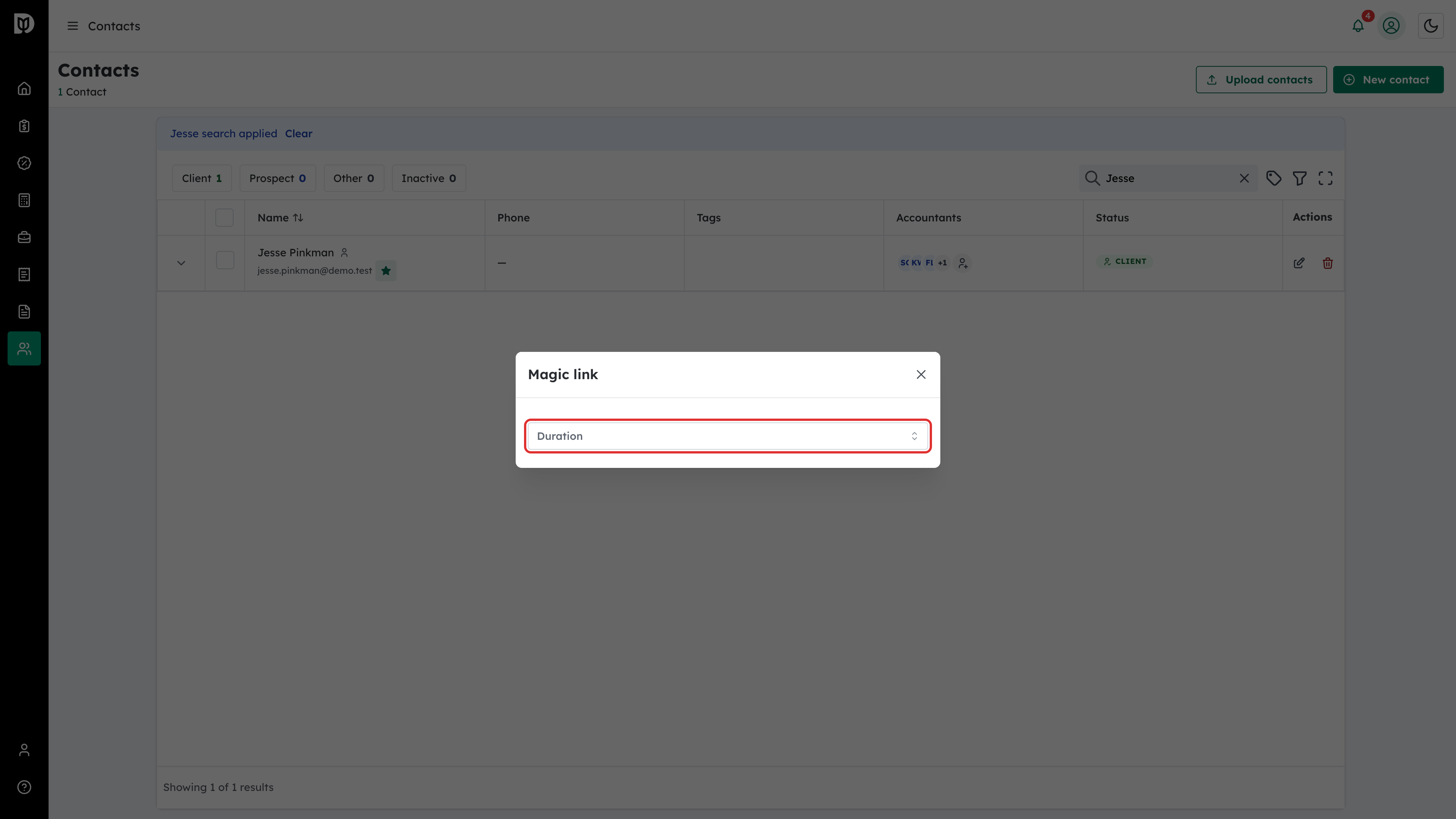
In the Magic link window, open Duration and choose 1 day, 1 week, 1 month or Never expire. Debits creates the link as soon as you choose. Never expire shows a warning: a long-lived link gives access for that whole time if it falls into the wrong hands.
Step 3: Copy the link
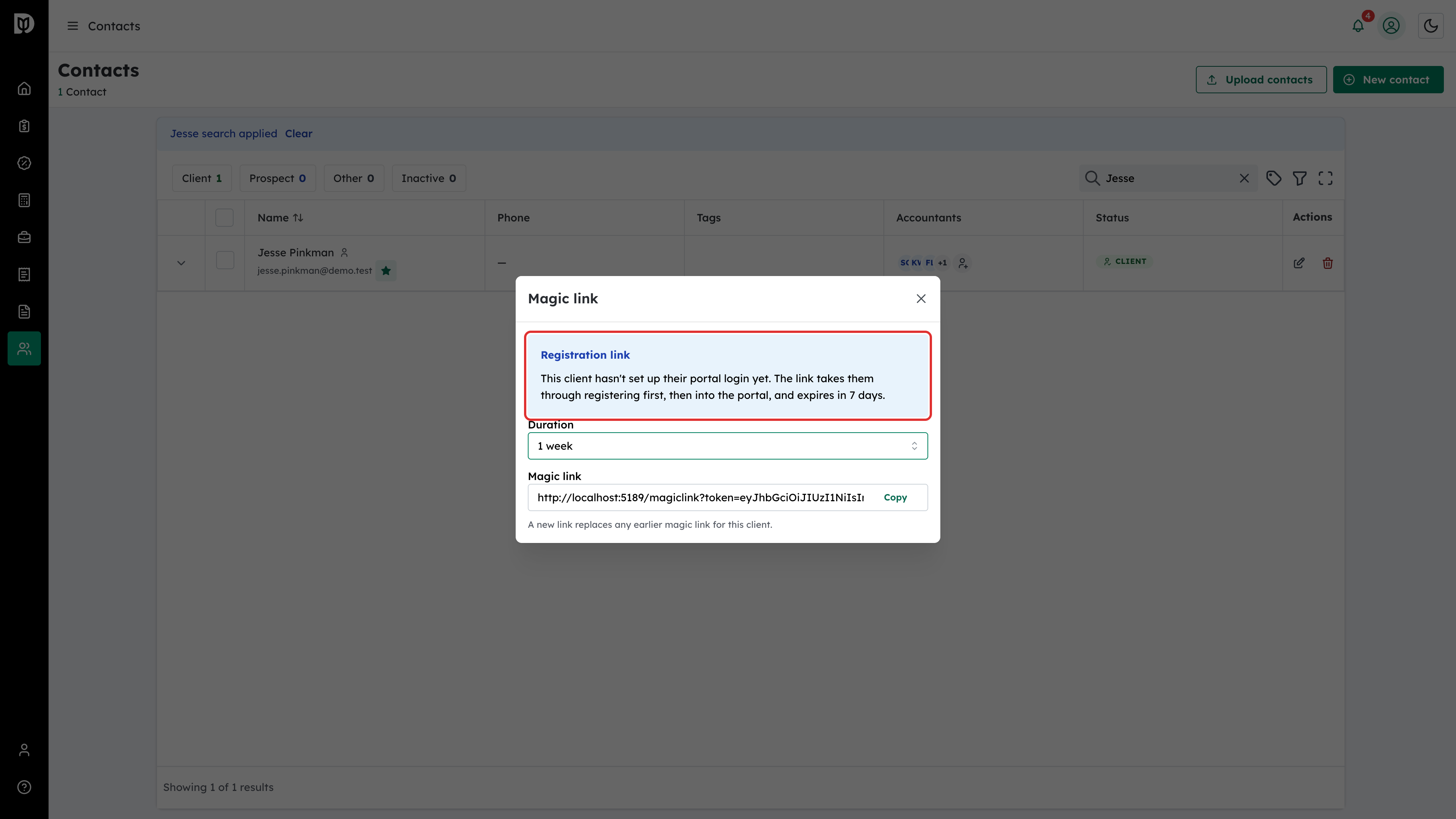
Select Copy next to the link, then paste it into your own email or message to the client. If the client hasn’t set up their portal login yet, Debits shows Registration link. Their link takes them through registering first, then into the portal, and it lasts 7 days at most, even if you chose a longer duration.
Step 4: Send a link for a business plan
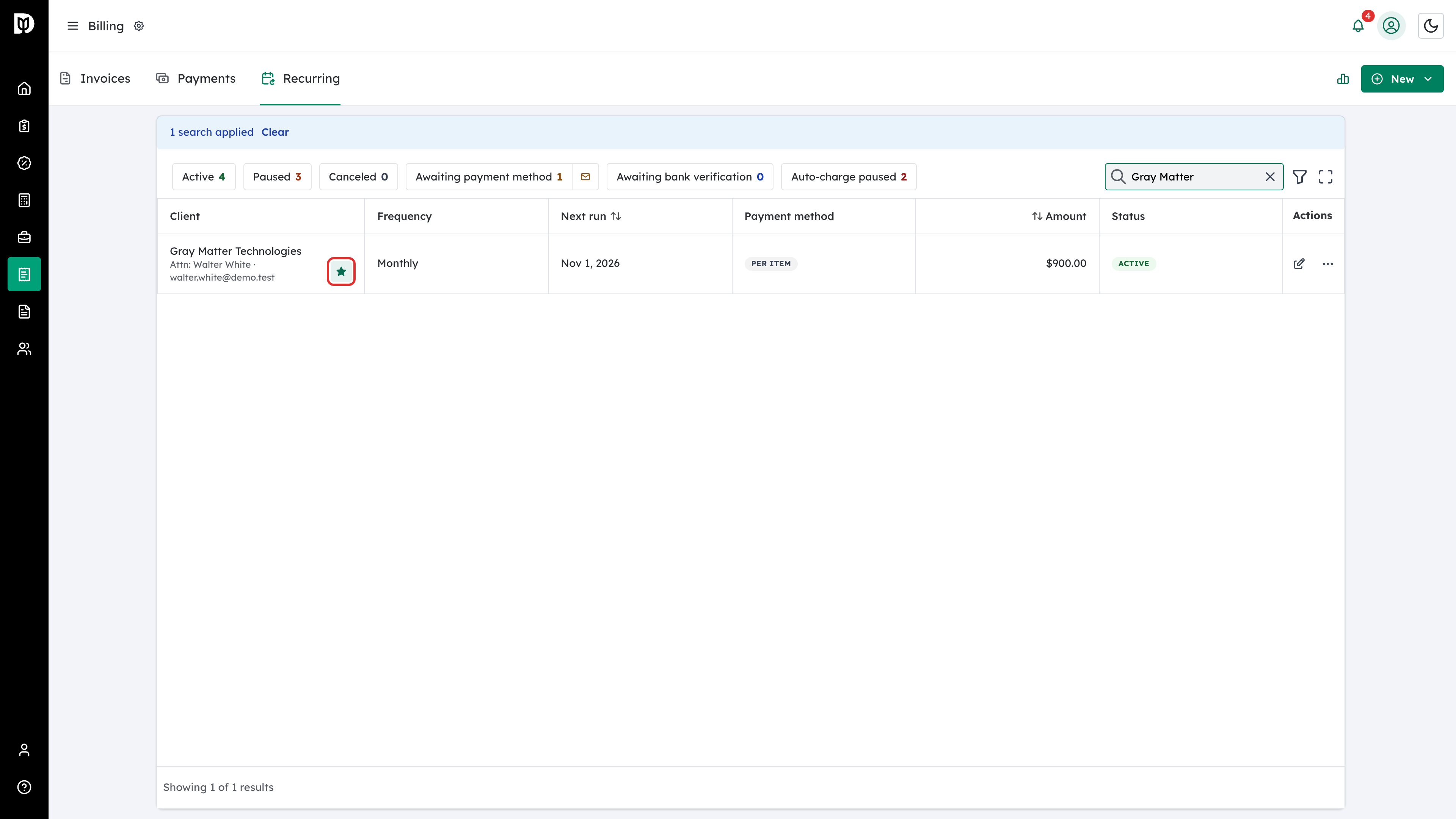
On Billing > Recurring, a business’s plan has a star button addressed to the plan’s contact person, for example Magic link for Walter White. While the plan is active or paused, the link signs in the contact person and opens their billing page filtered to that business. If the contact person can’t be used, the link goes to the business’s own portal login instead.
Step 5: What a new client sees
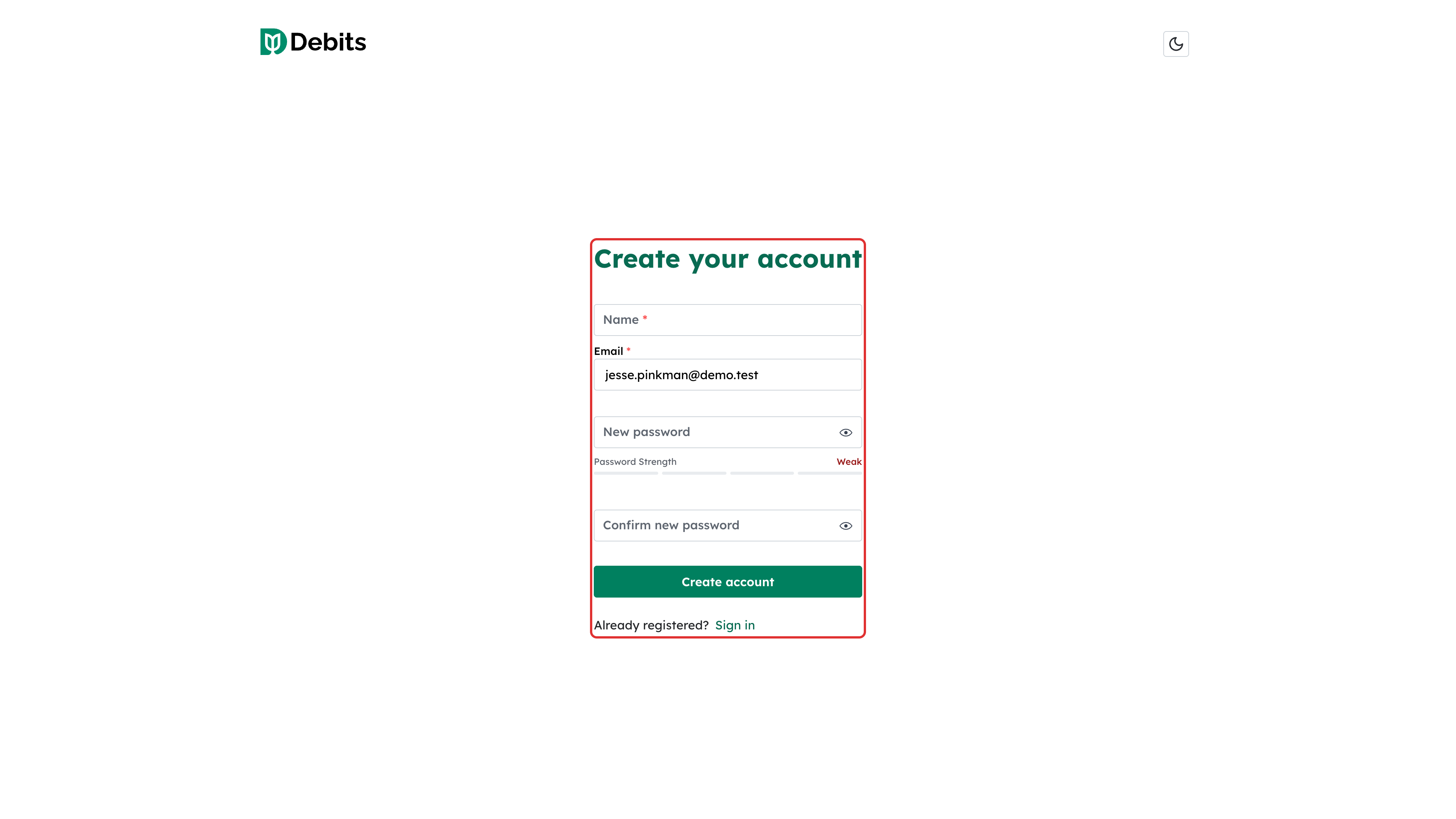
A client who has never registered lands on Create your account when they open the link, with their email already filled in. They enter their name, choose a password and select Create account. They are then signed in to your firm’s portal.
What happens next
The client signs in with one click until the link expires. A registered client can then sign in normally with their email and password. Creating another link for the same client cancels the previous one.
Troubleshooting
- “This client has no email address on file.”: Add an email to the contact, then try again.
- The link can’t be created for a contact: The email belongs to a staff login or a disabled login. Debits won’t create a client link over those. Check the contact’s email address.
- “Too many magiclink signin attempts”: Staff can only create a limited number of links in a short time. Wait and try again, or ask an owner or admin. Owners and admins are not limited.
- The client’s link stopped working: It has expired, a newer link replaced it, or the contact was made inactive. Create a new link.