Who this is for: Firm owners, admins and managers. Staff can link a spouse and set email copies, but only owners, admins and managers can invite, revoke, separate or restore.
What you’ll learn: How to link a client’s spouse, copy them on emails, give them portal access, and handle a separation.
Before you begin
- Both people must be individual contacts. If the spouse isn’t a contact yet, you can add them from the Link Spouse window.
- The spouse needs their own email address to be invited to the client portal.
- Linking a spouse doesn’t give them any access by itself. You choose what to share in the steps below.
Step-by-step instructions
Step 1: Open the client and select Link spouse
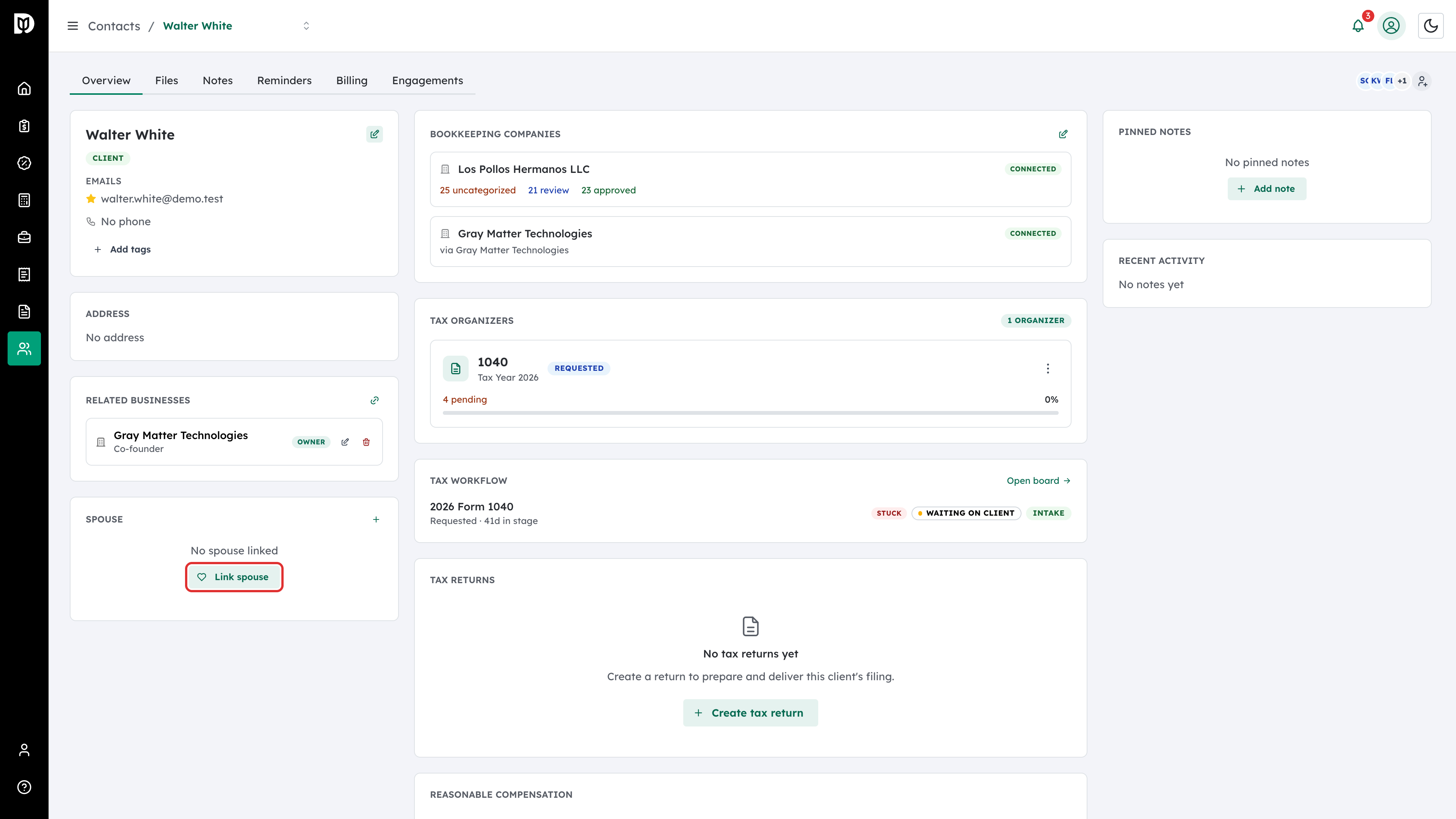
Open the client’s contact page. In the Spouse card, select Link spouse.
Step 2: Choose the spouse
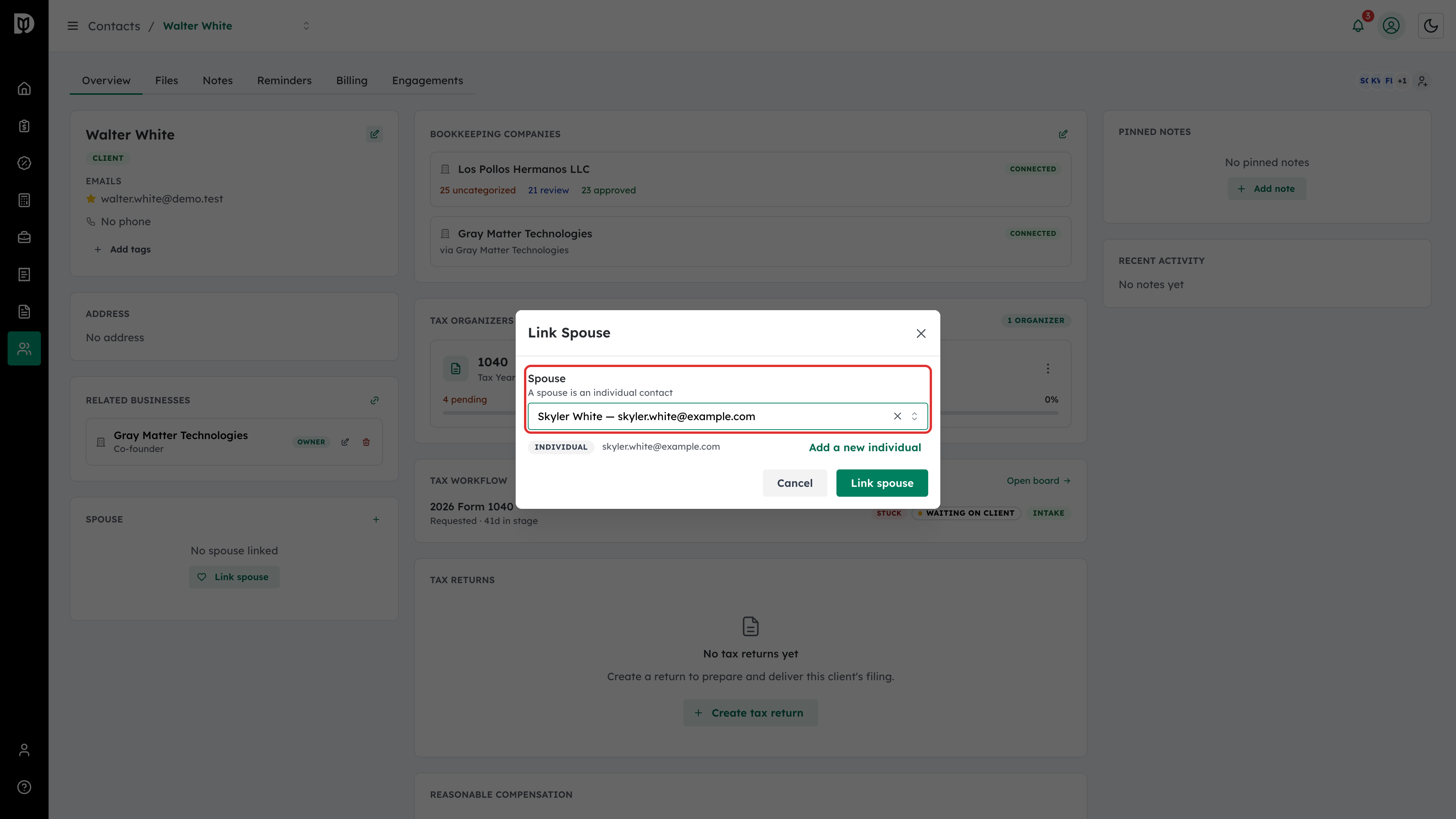
Search for the spouse under Spouse and select them. If they aren’t in Debits yet, select Add a new individual. Then select Link spouse.
Step 3: Choose which emails the spouse is copied on
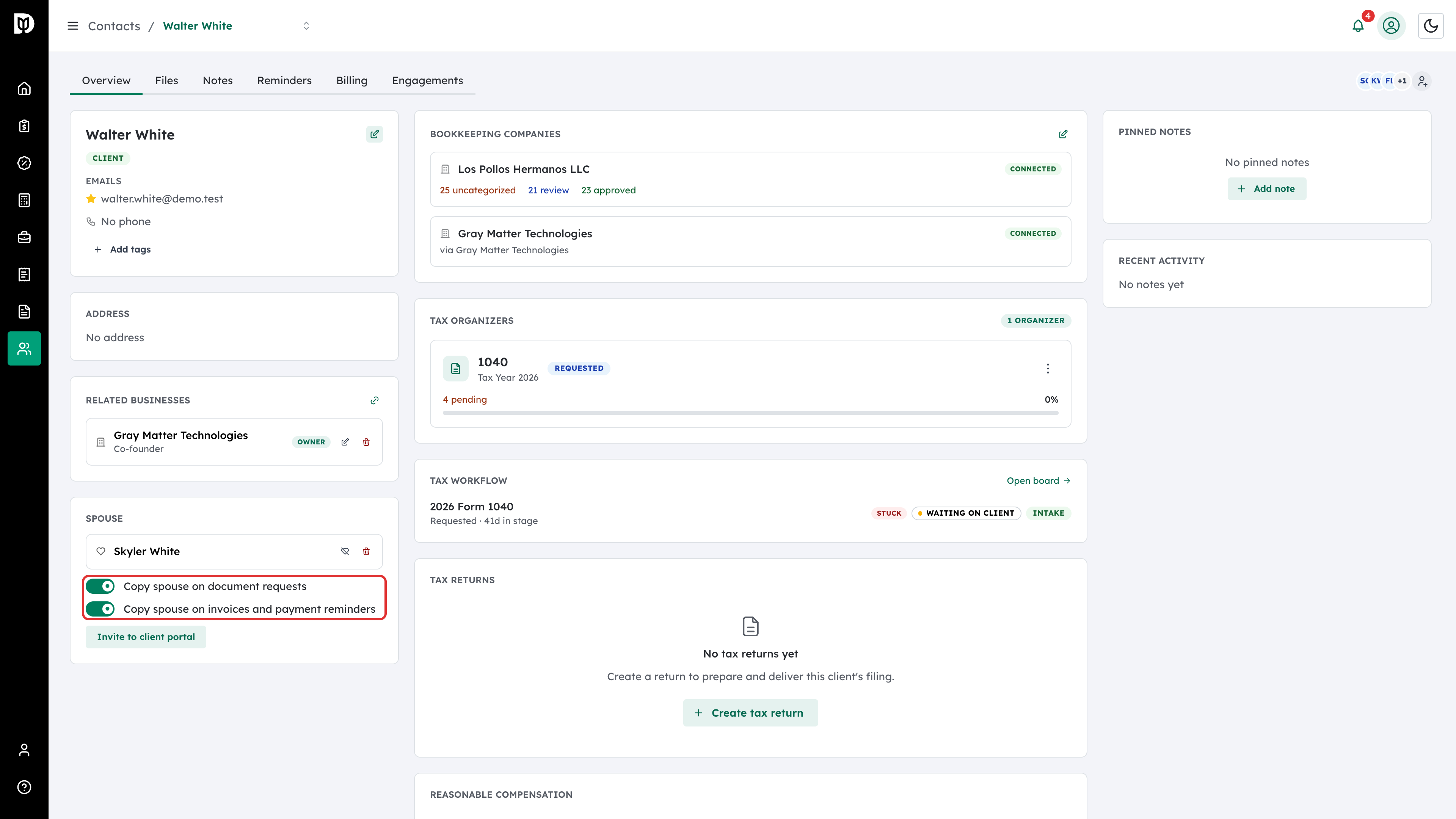
The Spouse card now names the spouse. Turn on Copy spouse on document requests or Copy spouse on invoices and payment reminders to copy them on those emails.
Step 4: Invite the spouse to the client portal
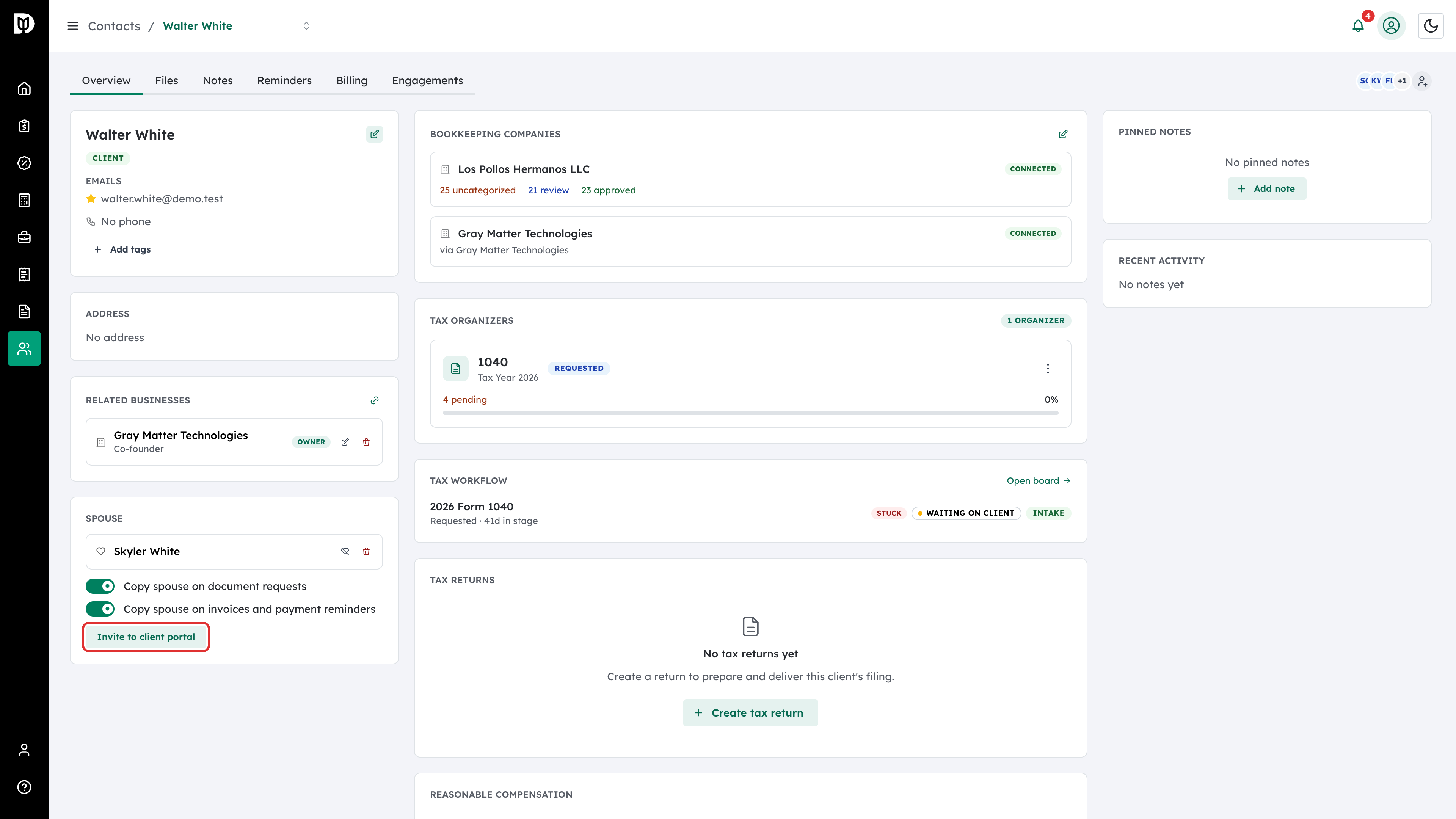
Select Invite to client portal. Debits emails the spouse an invitation to sign in to this client’s portal.
Step 5: Check their access
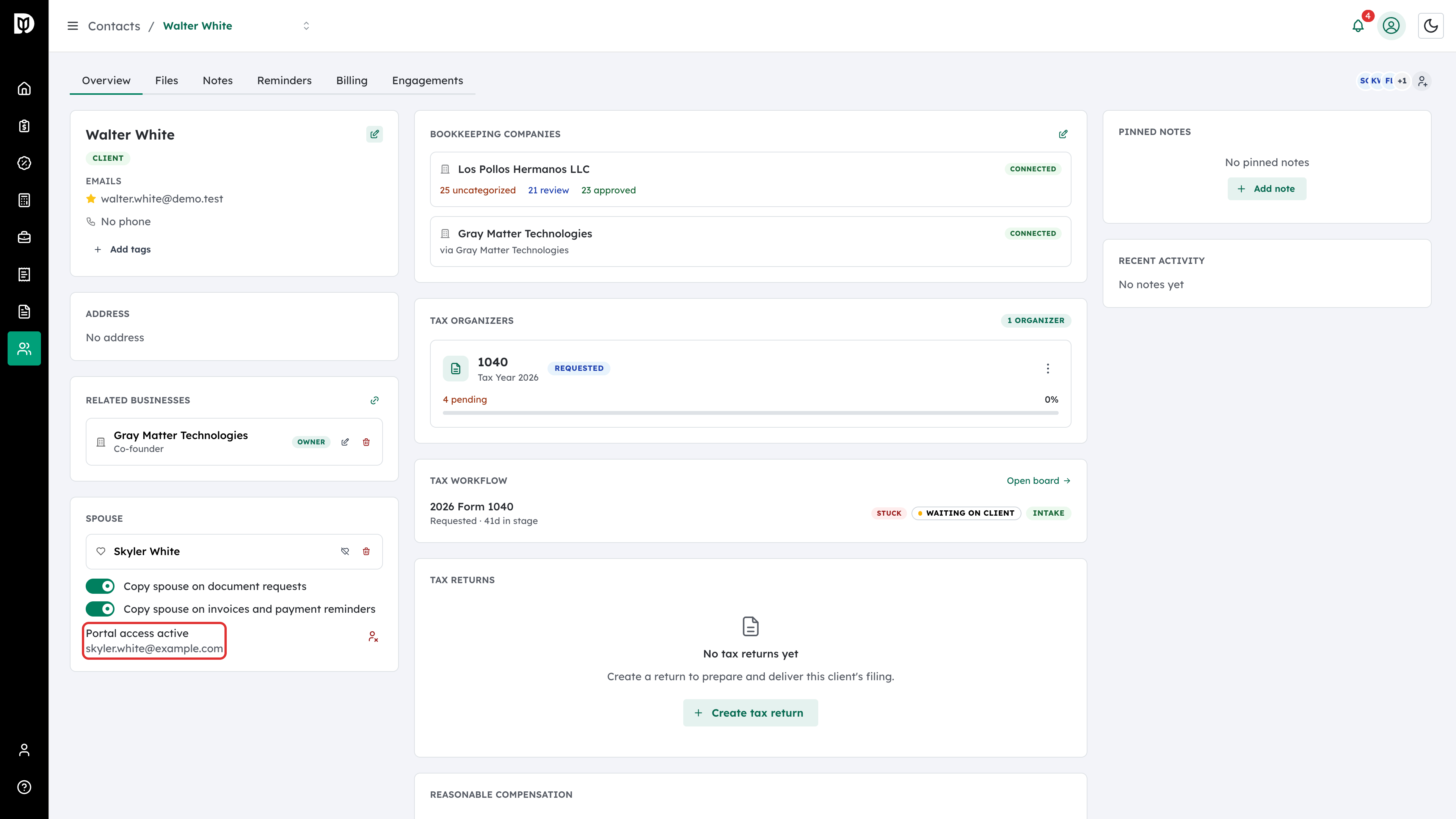
The card shows Portal access active with the spouse’s email address. The spouse can now see this client’s portal, including shared files and billing history.
Step 6: Revoke access if you need to
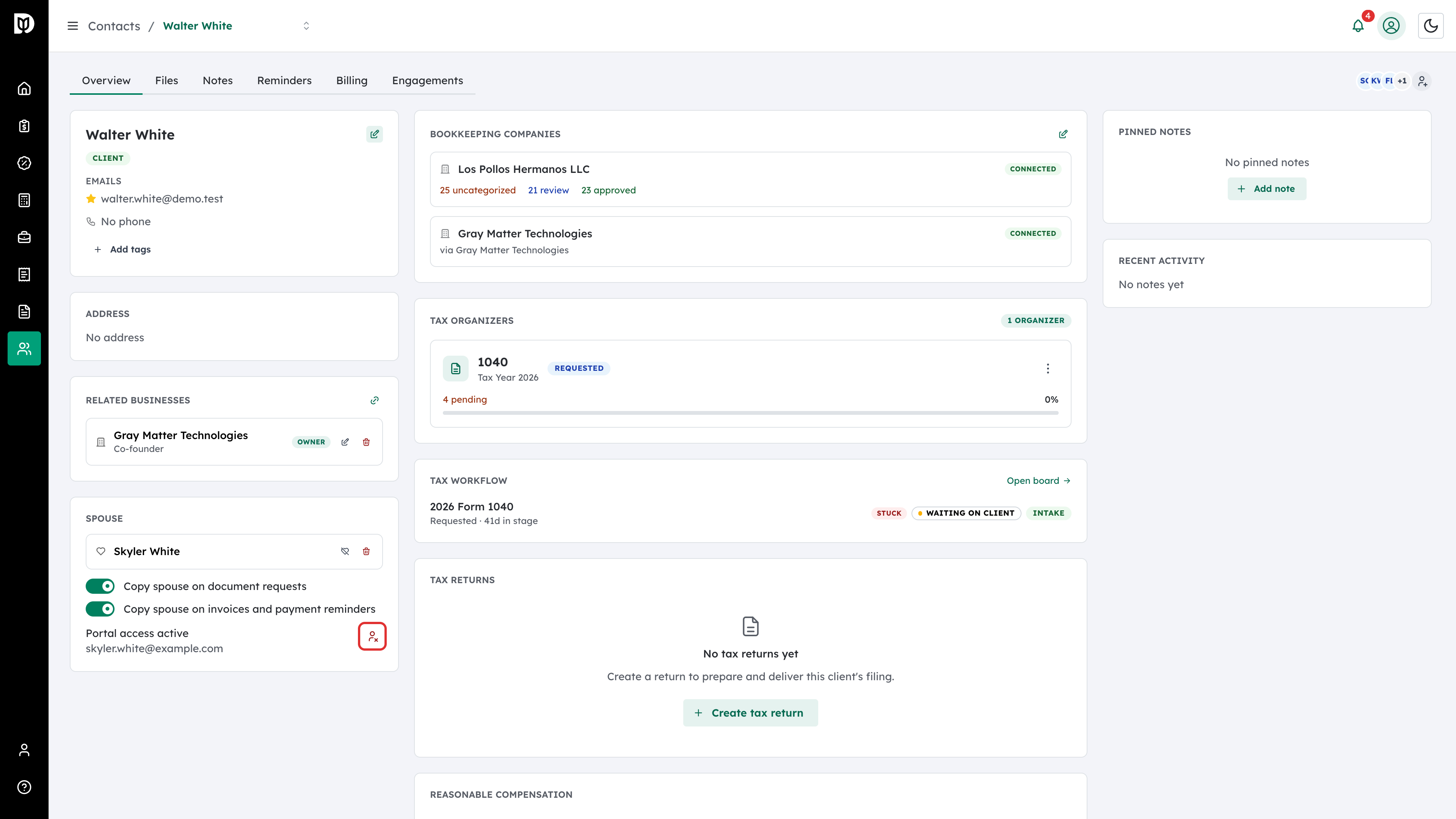
To take access away, select the Revoke portal access icon on that row, then select Revoke to confirm. The spouse link and email copies stay as they are.
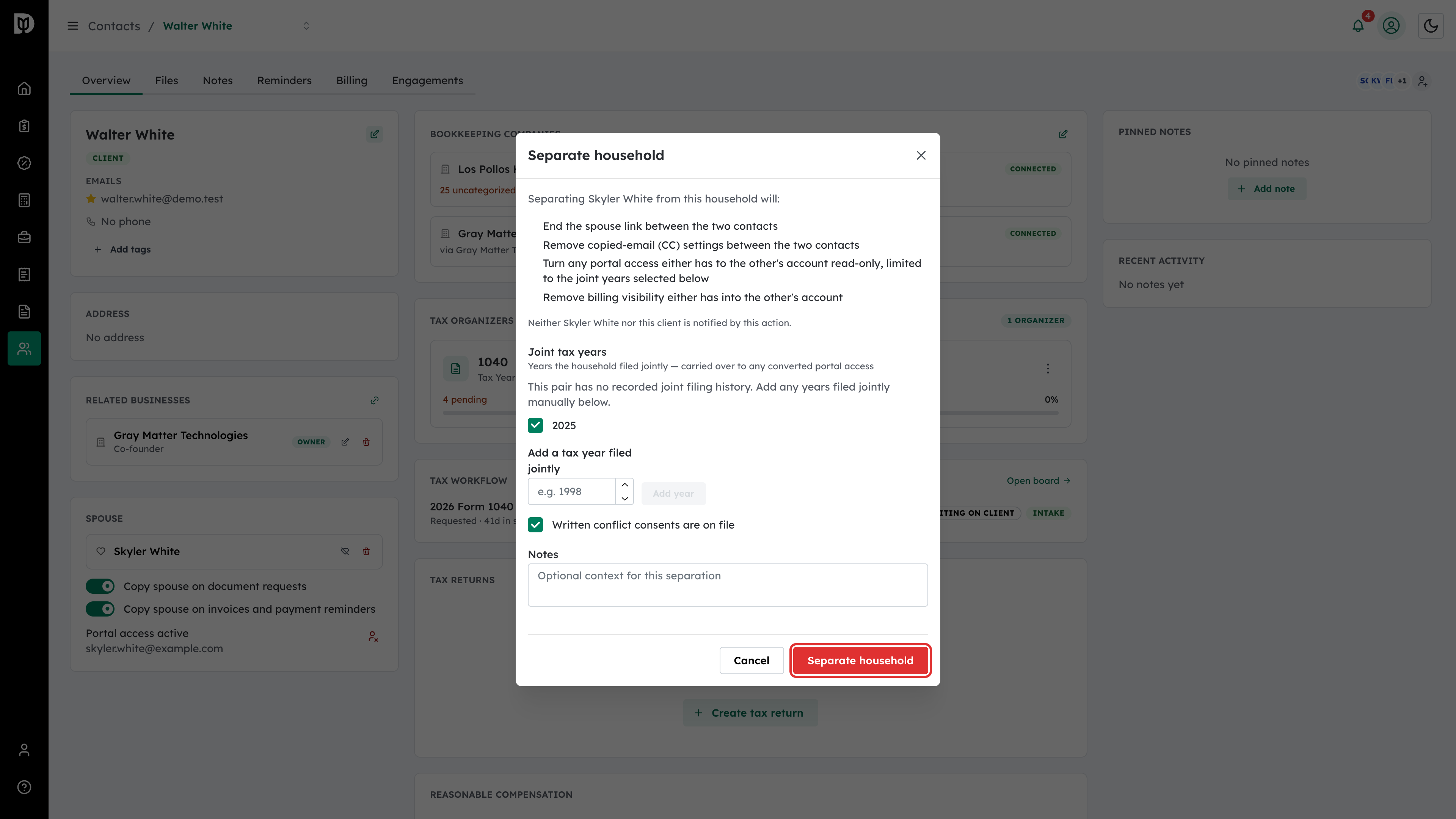
Step 7: Separate a household
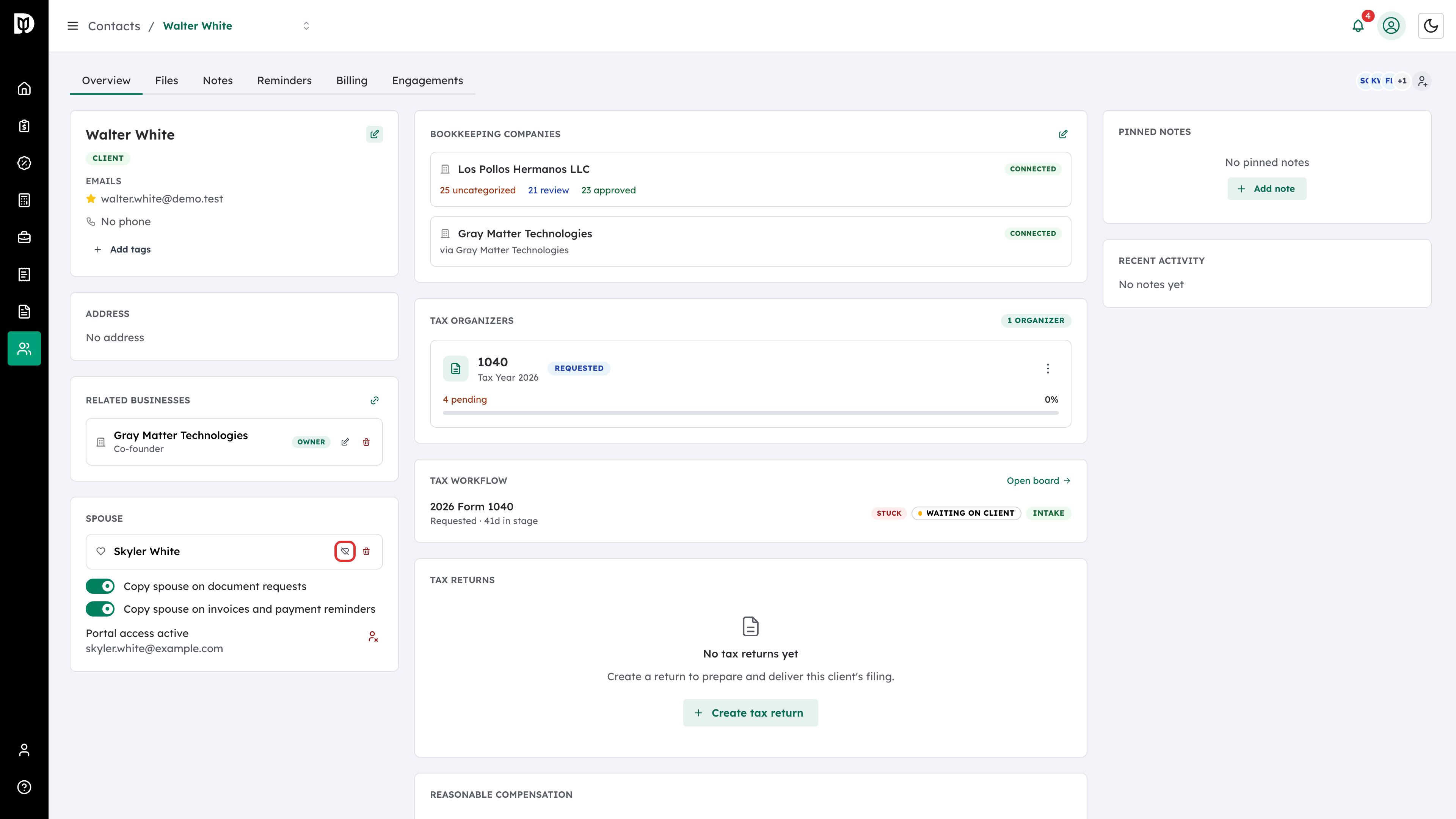
If the couple separates, select the Separate household icon next to the spouse’s name. Don’t just delete the spouse link. Deleting the link leaves portal access and email copies exactly as they were.
Step 8: Choose the joint tax years
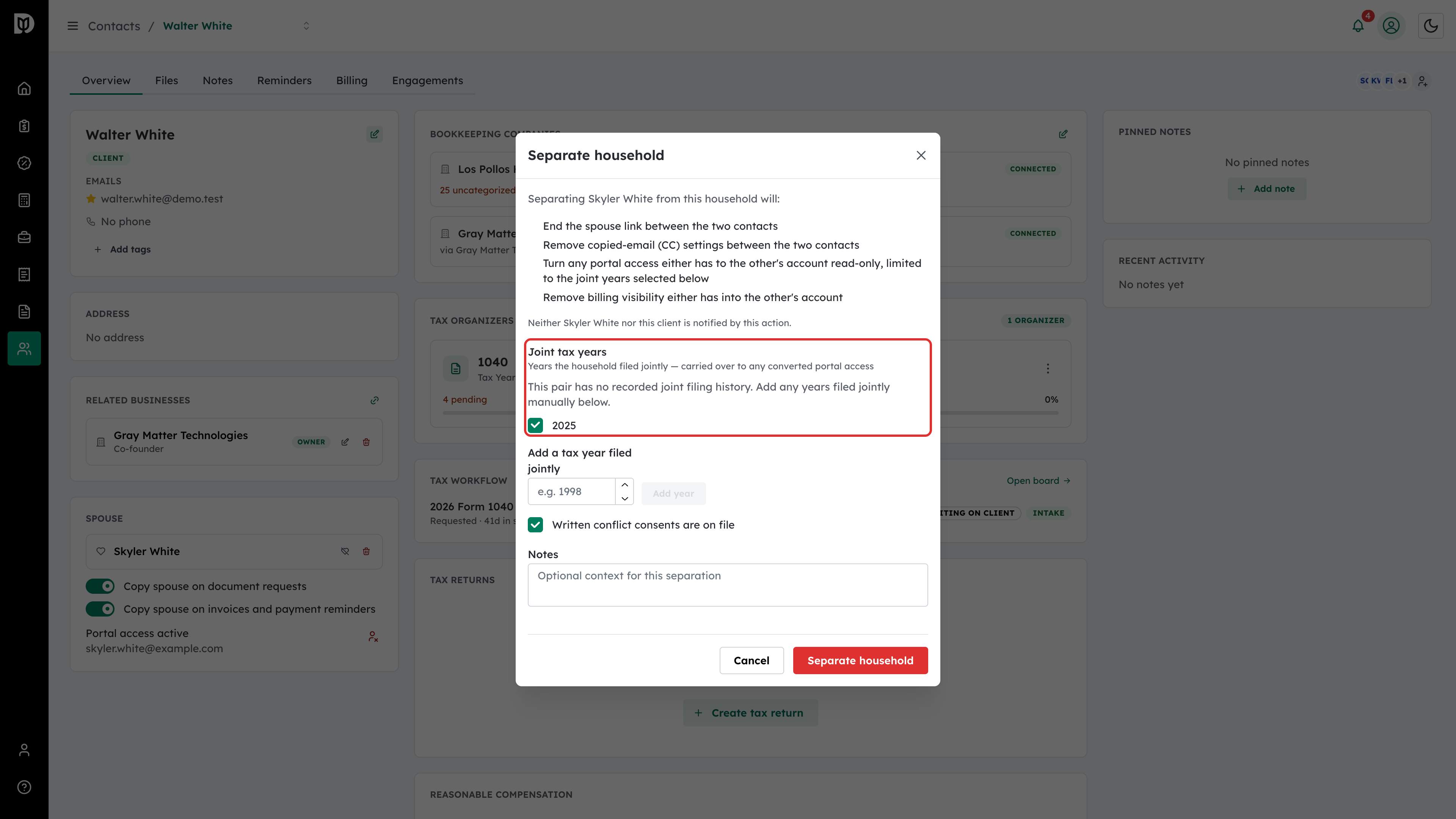
The Separate household window lists what will change. Under Joint tax years, tick the years the couple filed jointly. Use Add a tax year filed jointly and Add year for any year that isn’t listed. Tick Written conflict consents are on file if you have them, and add any Notes.
Step 9: Confirm the separation
Select Separate household. This ends the spouse link and removes the email copies between the two contacts. It also removes the billing visibility either had into the other’s account. Any portal access either has to the other’s account becomes read-only, limited to the joint years you ticked. Neither person is notified.
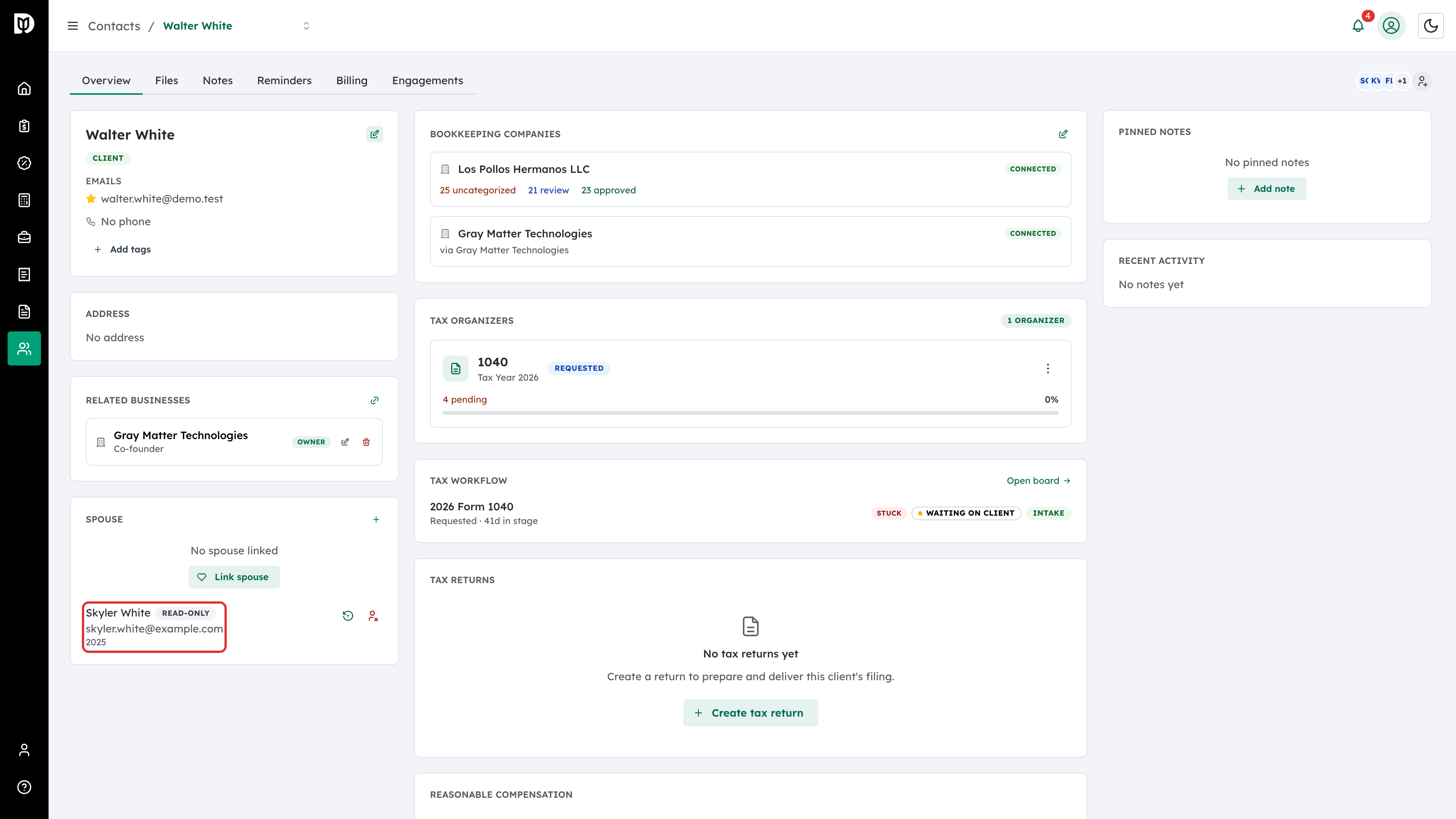
Step 10: Review read-only access
The contact page now shows the former spouse with a Read-only badge and the joint years underneath.
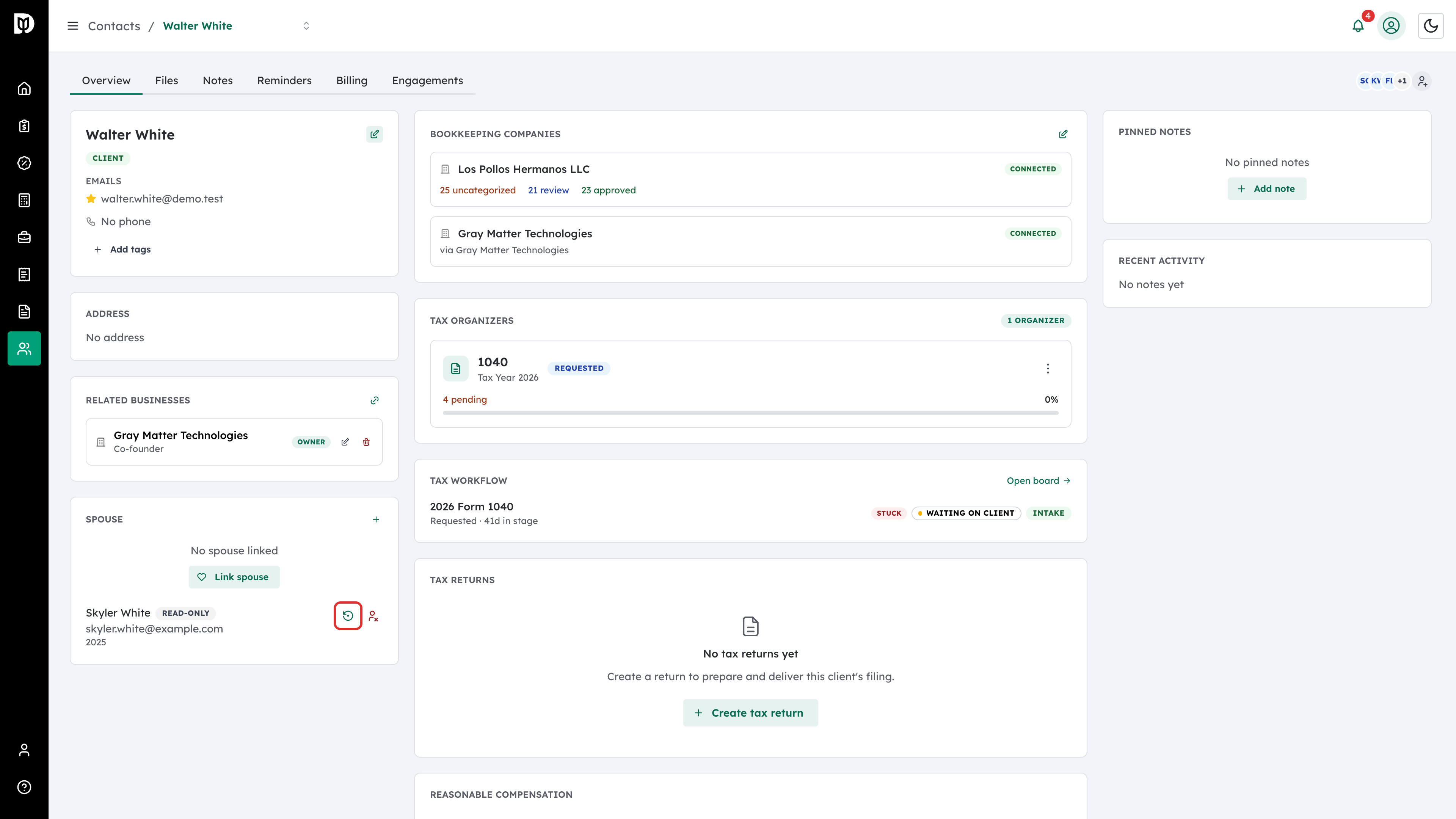
Step 11: Restore full access if needed
If the separation was recorded by mistake, or full access should continue, select the Restore full access icon on that row.
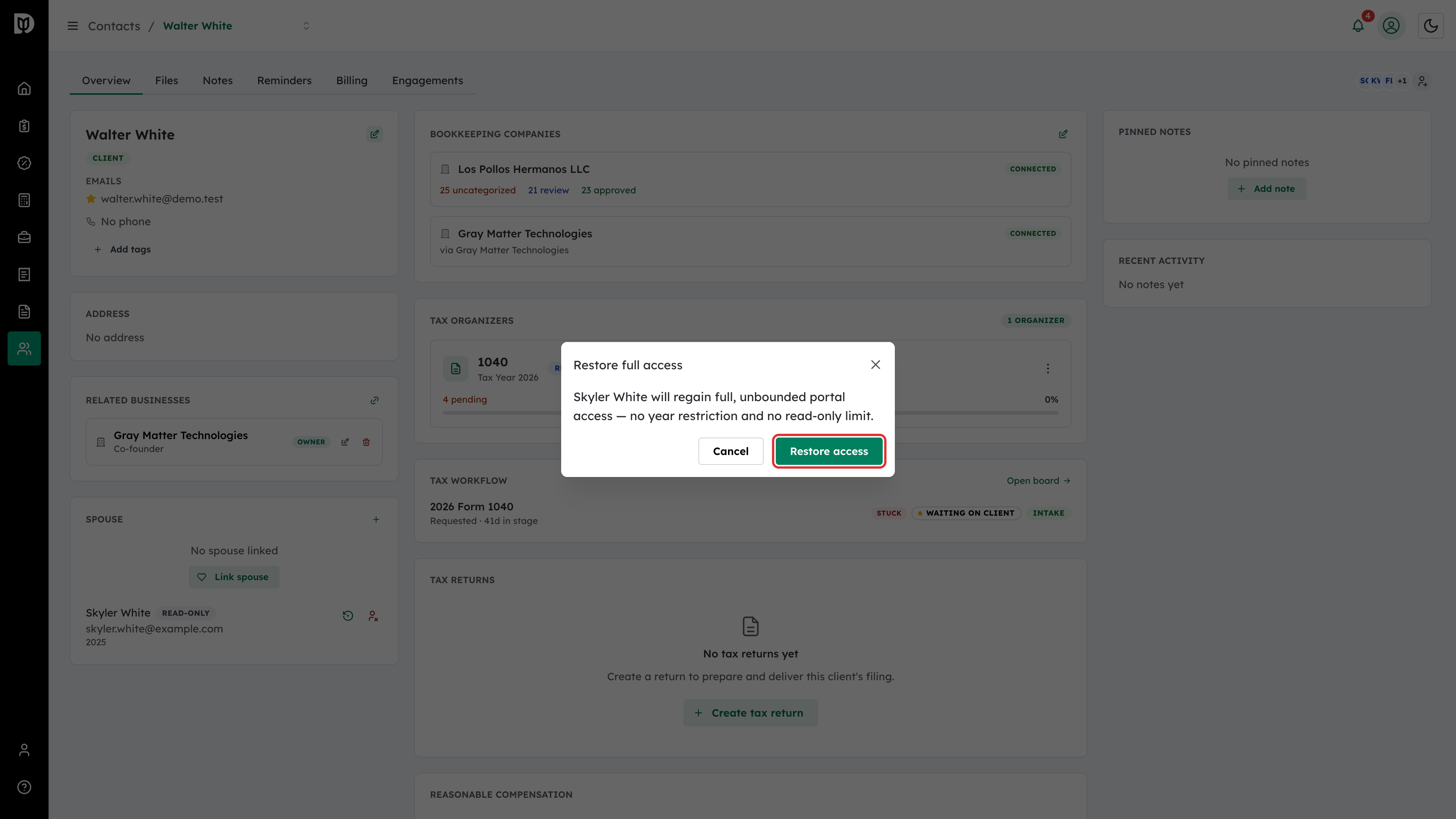
Step 12: Confirm the restore
Debits explains that the person will regain full, unbounded portal access, with no year restriction and no read-only limit. Select Restore access.
What happens next
A spouse with portal access signs in with their own email and password and sees this client’s portal alongside their own. Changes to copies and access take effect straight away. Restoring access does not re-link the spouses. If they are still a couple, select Link spouse again.
Troubleshooting
- There is no Invite to client portal button: Only owners, admins and managers can invite. The spouse also needs an email address on their contact.
- Separate household says the household has already been separated: The separation was already recorded. Manage any remaining access from the read-only row.
- The Separate household button is disabled: Tick at least one joint tax year.
- You deleted the spouse link but the spouse still has access: Deleting the link doesn’t change access. Use Revoke portal access on their row.