Who this is for: Accountants and staff who record calls, meetings, and context about a client.
What you’ll learn: How to add, pin, search, edit, and delete notes on a contact — and how to clean a note up with AI.
Before you begin
- You need access to the contact.
- Notes are internal: every staff member with access to the contact can read them. Clients cannot.
Step-by-step instructions
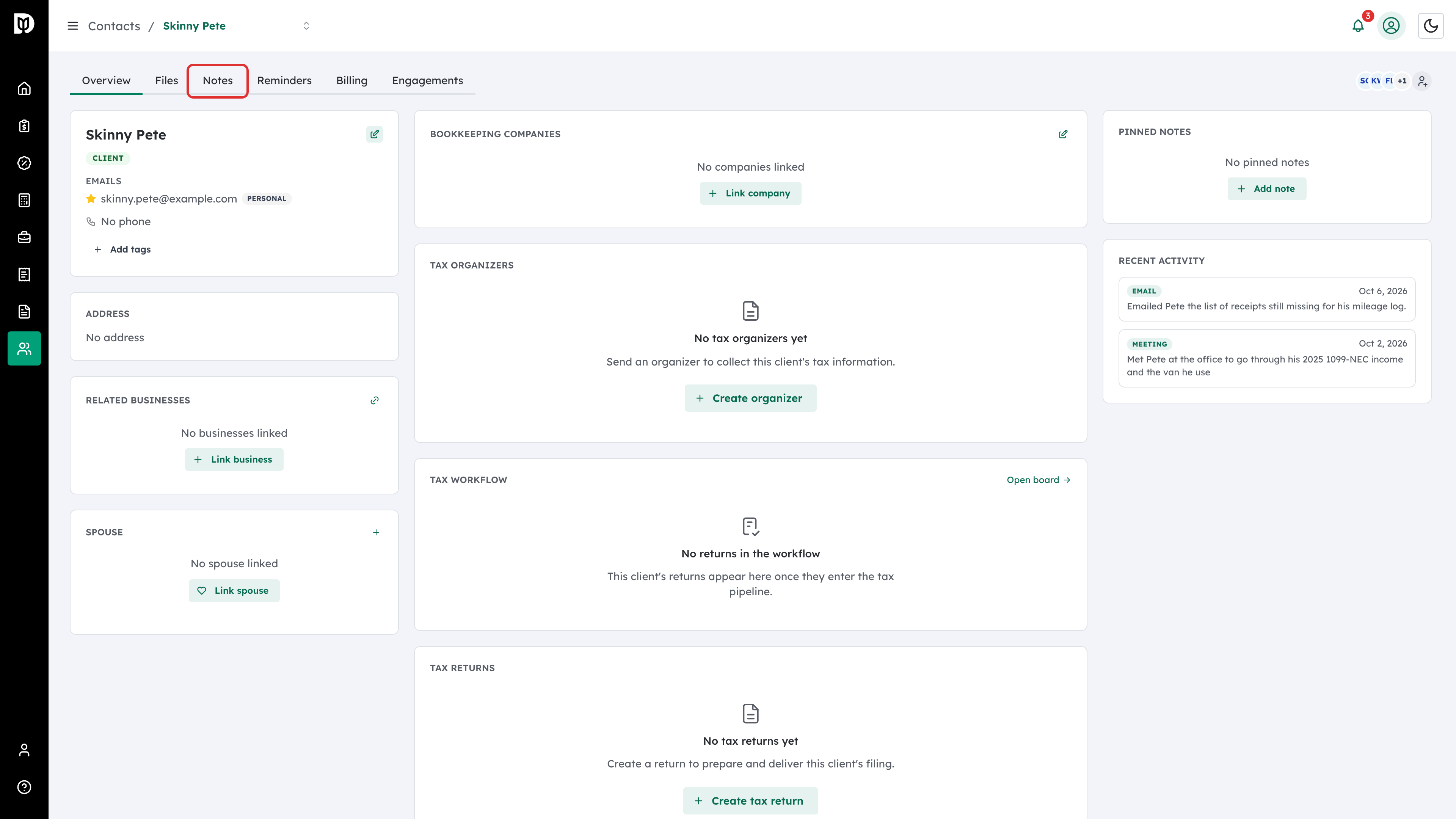
Step 1: Open the Notes tab
Open the contact and click the Notes tab.
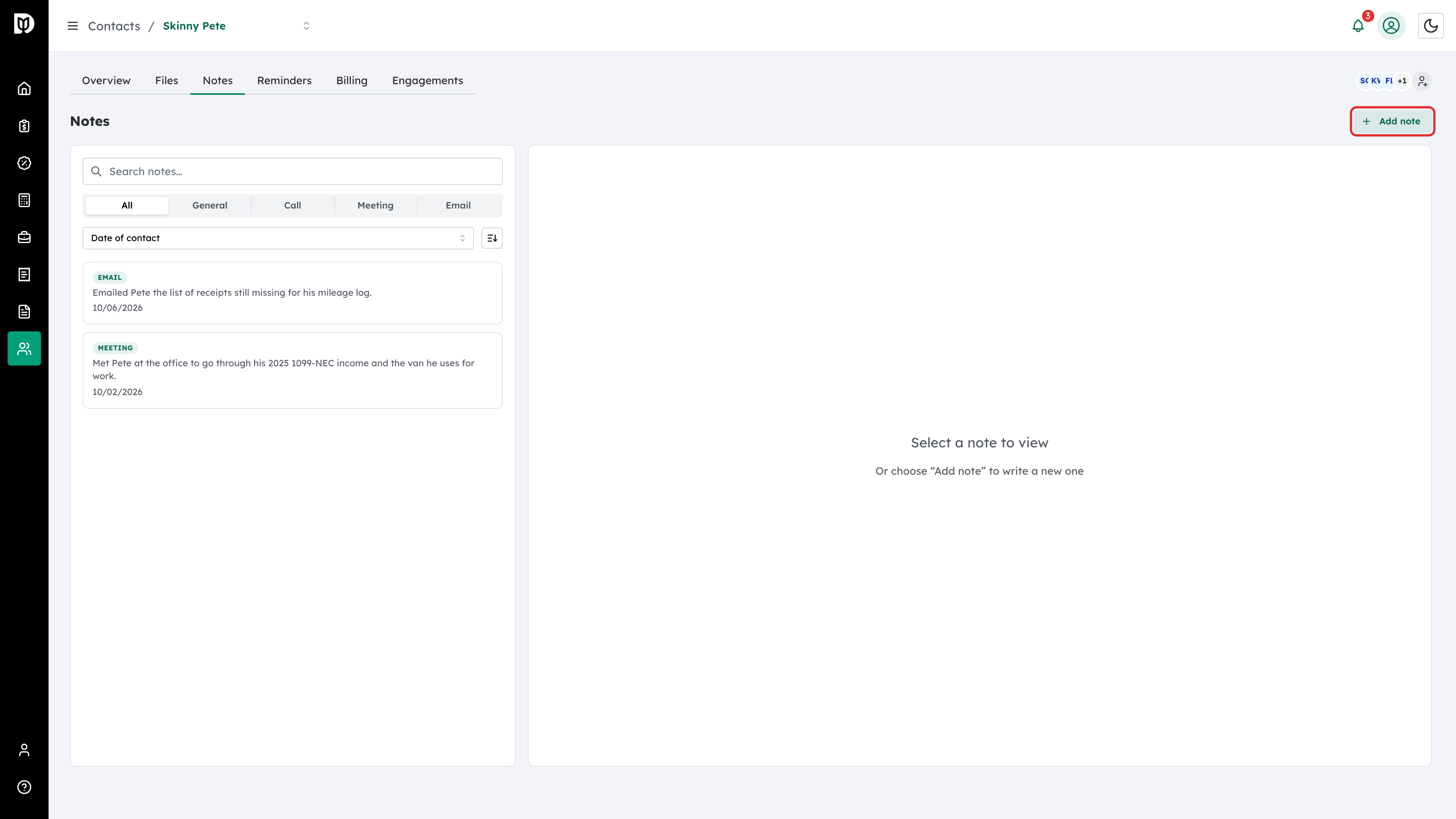
Step 2: Click Add note
Click Add note in the top-right corner.
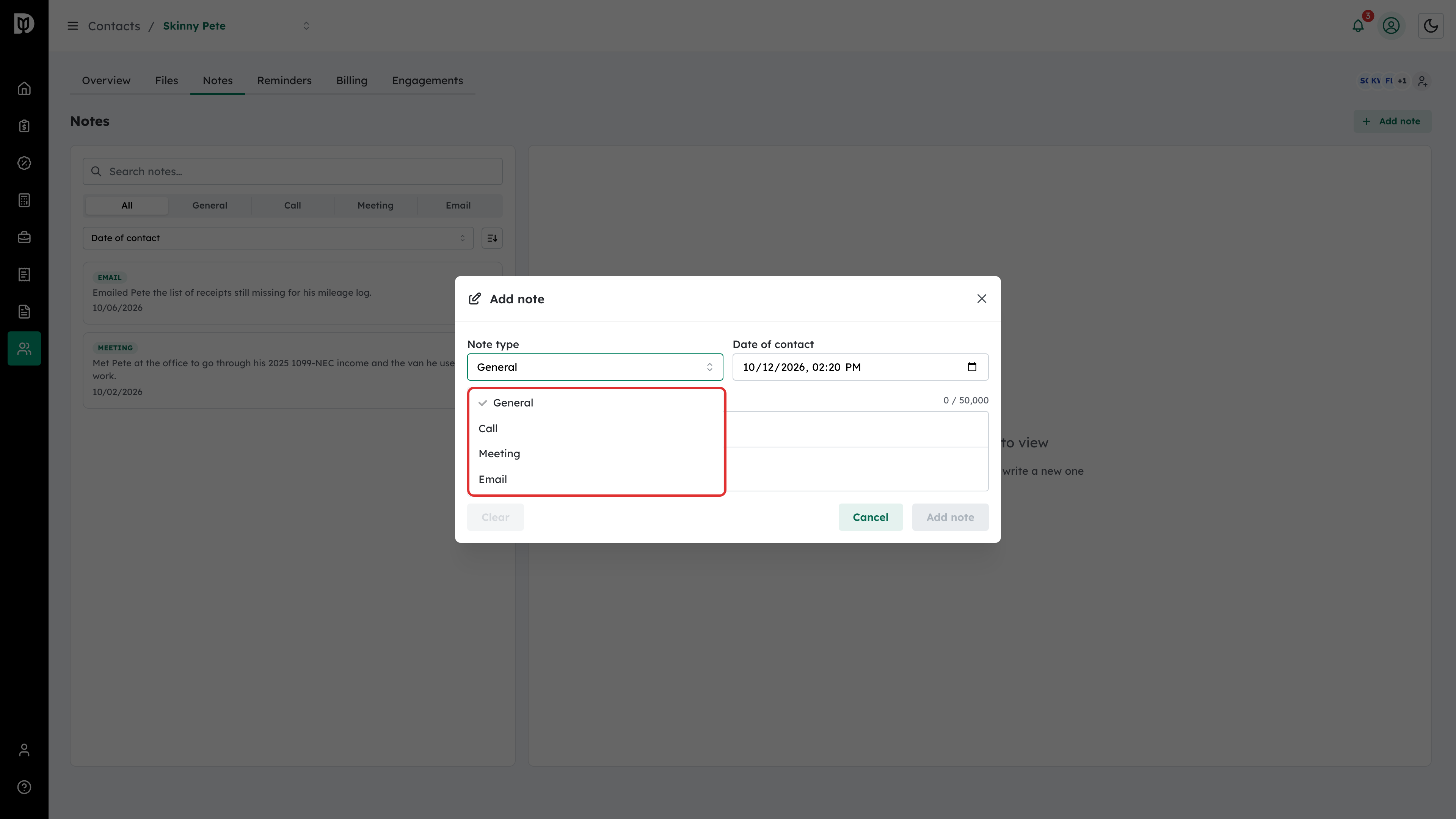
Step 3: Pick a note type
In the Add note window, choose a type so notes stay easy to scan:
- General — anything else worth recording
- Call — phone call summaries
- Meeting — meeting notes and action items
- Email — email correspondence summaries
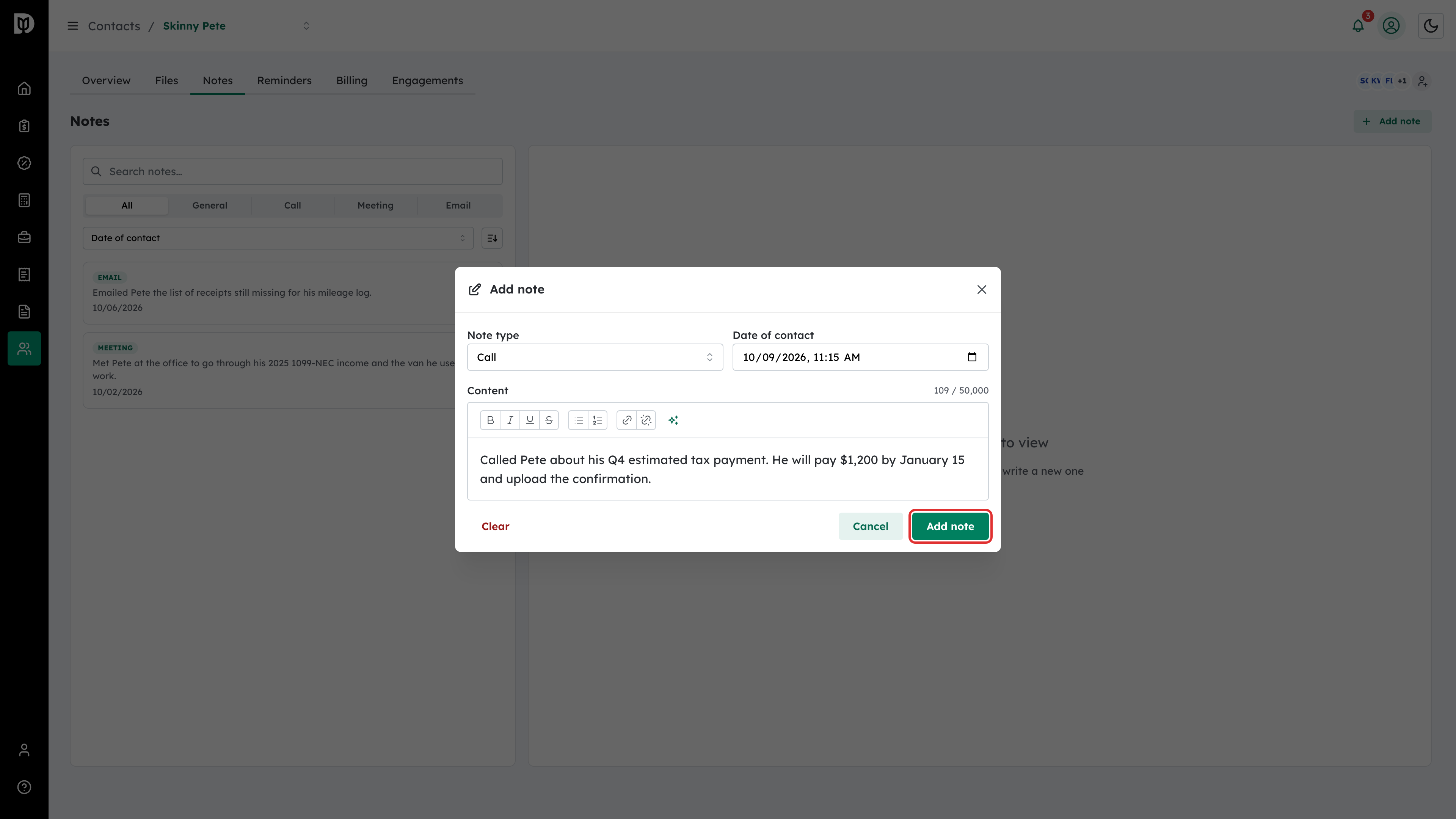
Step 4: Write the note and save
Set the Date of contact if the call or meeting happened earlier than now — it can differ from when you write the note. Then type in the Content editor. The toolbar gives you bold, italic, underline, strikethrough, lists, and links — plus a sparkles button to Enhance with AI, which tidies your draft and shows a preview first. Click Add note to save.
Step 5: Pin an important note
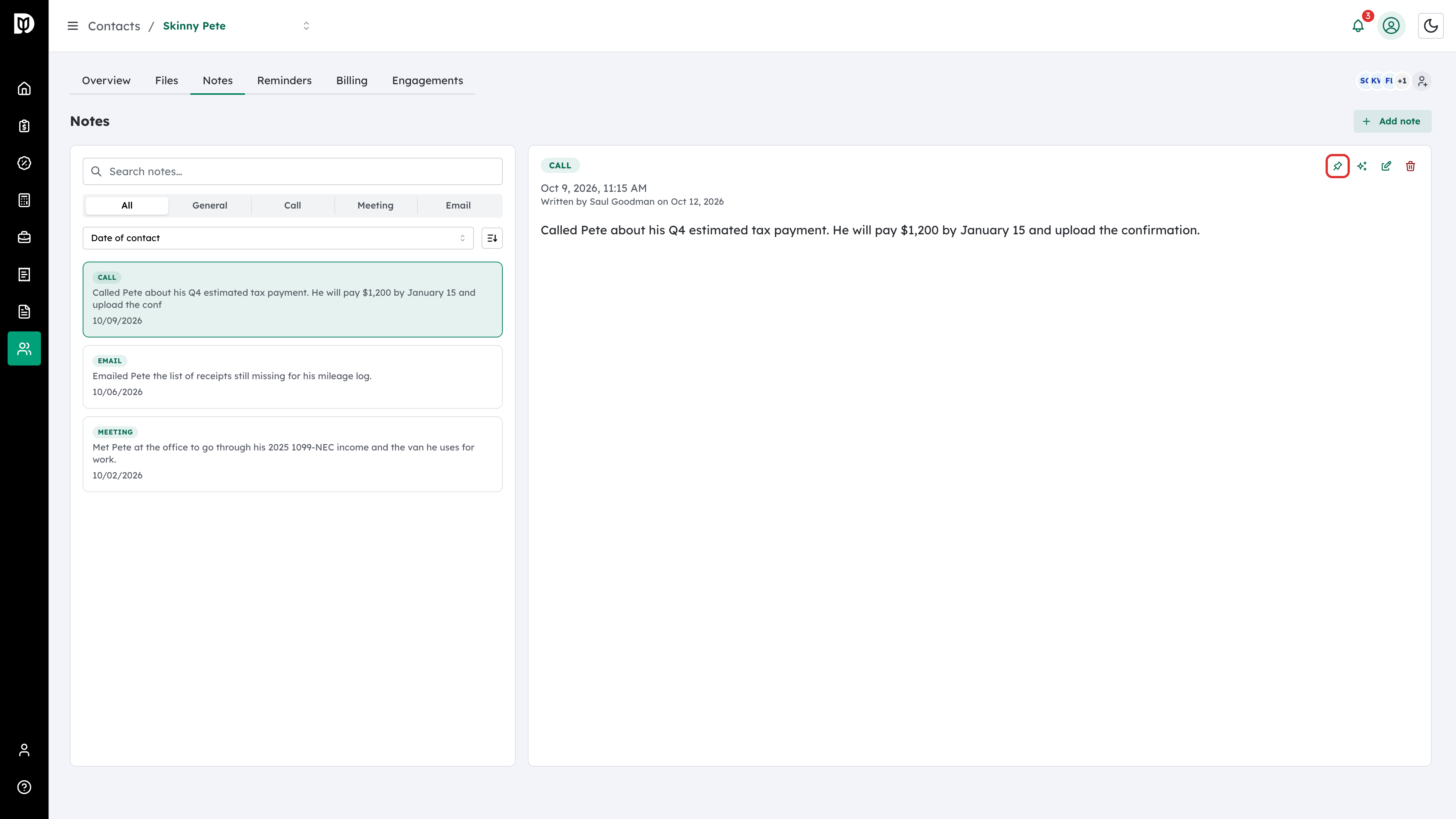
Click the note in the list to open it, then click the pin icon in its action bar. Pinned notes move to the top of the list.
Step 6: See pinned notes on the Overview
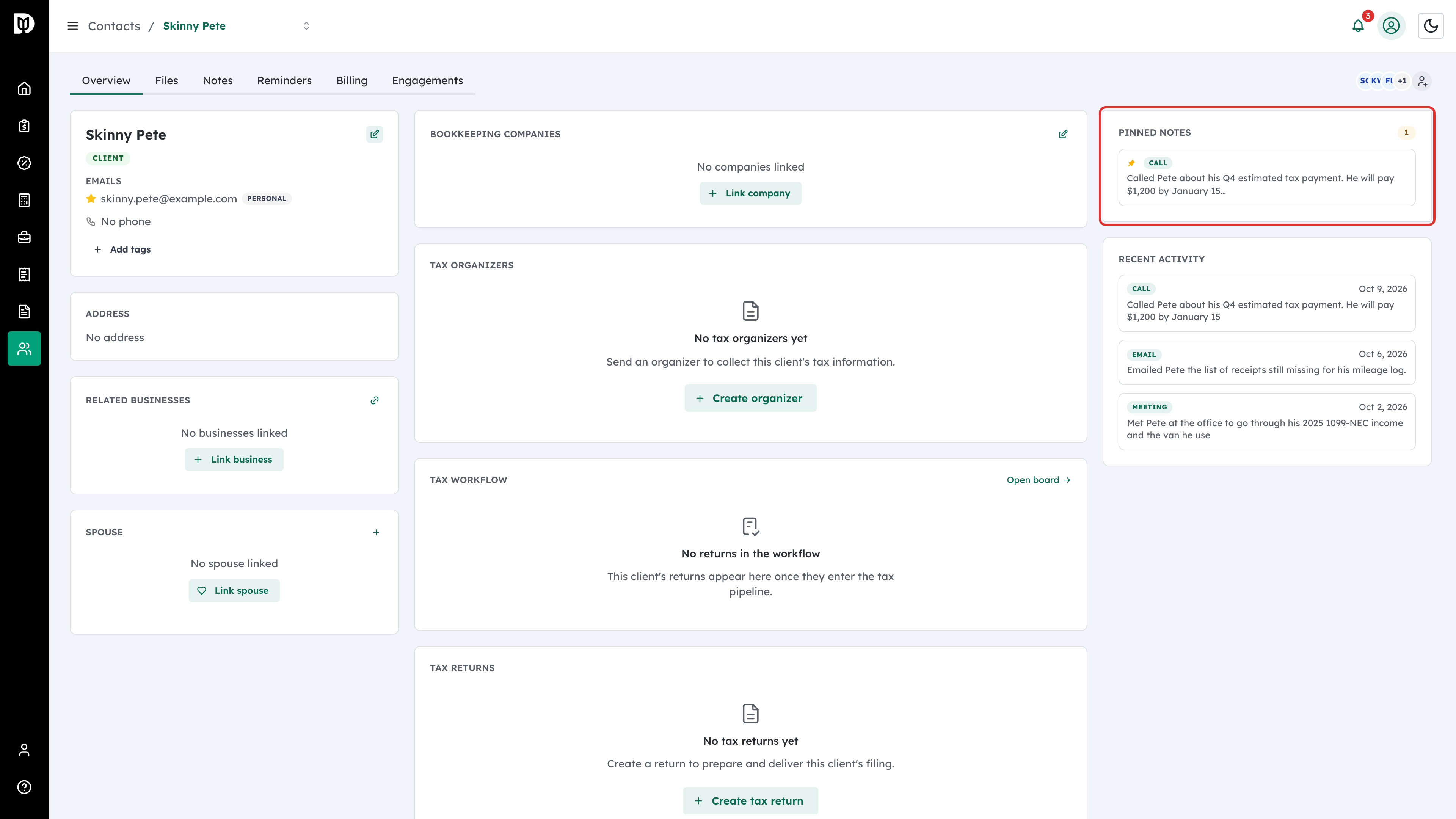
Pinned notes also appear in the Pinned Notes panel on the contact’s Overview tab, so the most important context is visible the moment you open the client. Next to it, Recent activity shows the latest notes by date of contact.
Editing and deleting notes
Select the note, then use its action bar:
- Pencil — edit the note, then click Update Note.
- Sparkles — Enhance with AI; review the suggested rewrite before applying it.
- Trash — delete the note permanently.
Searching notes
Use the Search notes… box above the list to find a note by its content, author or type. Beside it you can filter by type (All, General, Call, Meeting, Email) and sort by Date of contact, Date written or Last edited.
What happens next
Notes save with your name and the date, and every teammate with access to the contact sees them. Pinned notes stay on top until you unpin them.
Troubleshooting
- Add note is doing nothing: The note needs content — an empty note can’t be saved.
- You can’t see a contact’s notes: You may not have access to that contact. Ask your firm admin.
- An AI enhancement looks wrong: It’s only a preview — close it without applying and your original text stays.