Who this is for: Accountants who look after a business and the people behind it, or a married couple filing together.
What you’ll learn: How to link people to a business with their role and ownership share, and how those links read from the other side.
Before you begin
- Both records must already exist as contacts. Create the person before you link them.
- Links are two-way: a person linked to a business appears on the business, and the business appears on the person.
- Marking someone the primary contact says who your firm deals with. It does not change what anyone can sign in and see.
Step-by-step instructions
Step 1: Open the business and find Linked contacts
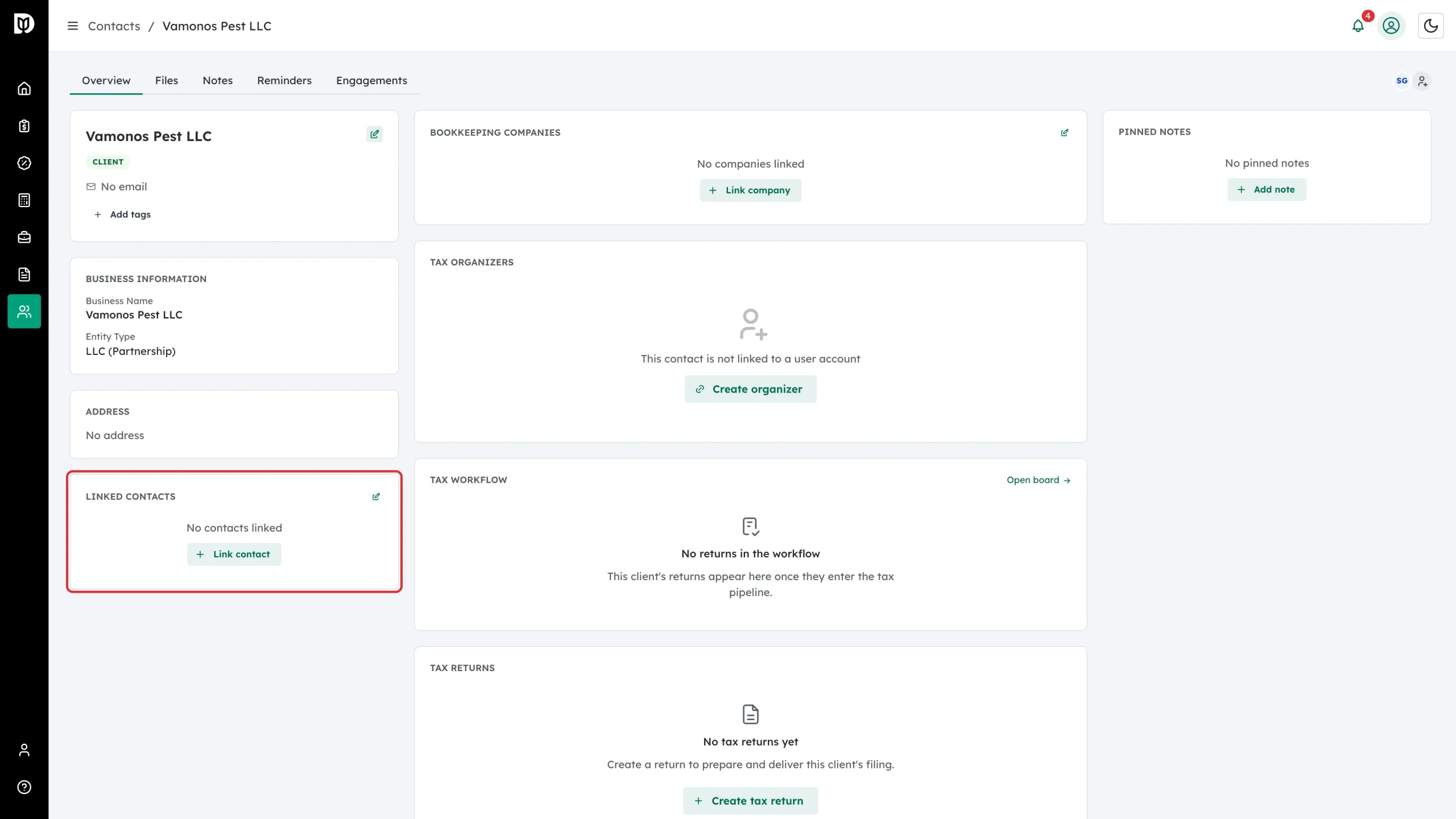
Open the business contact. The Linked contacts panel is on the left of the Overview tab.
Step 2: Start the link
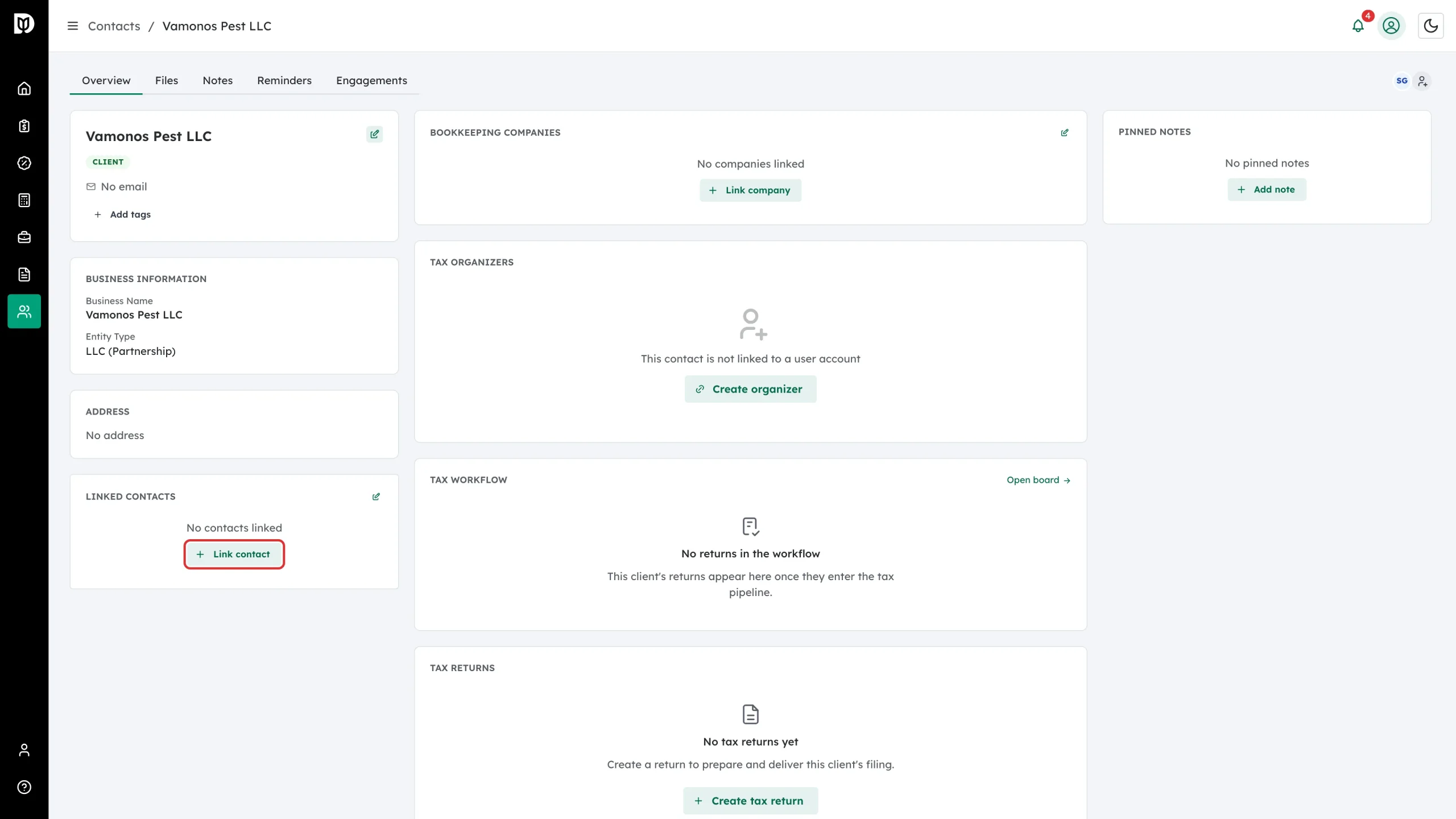
Select Link contact.
Step 3: Choose the person
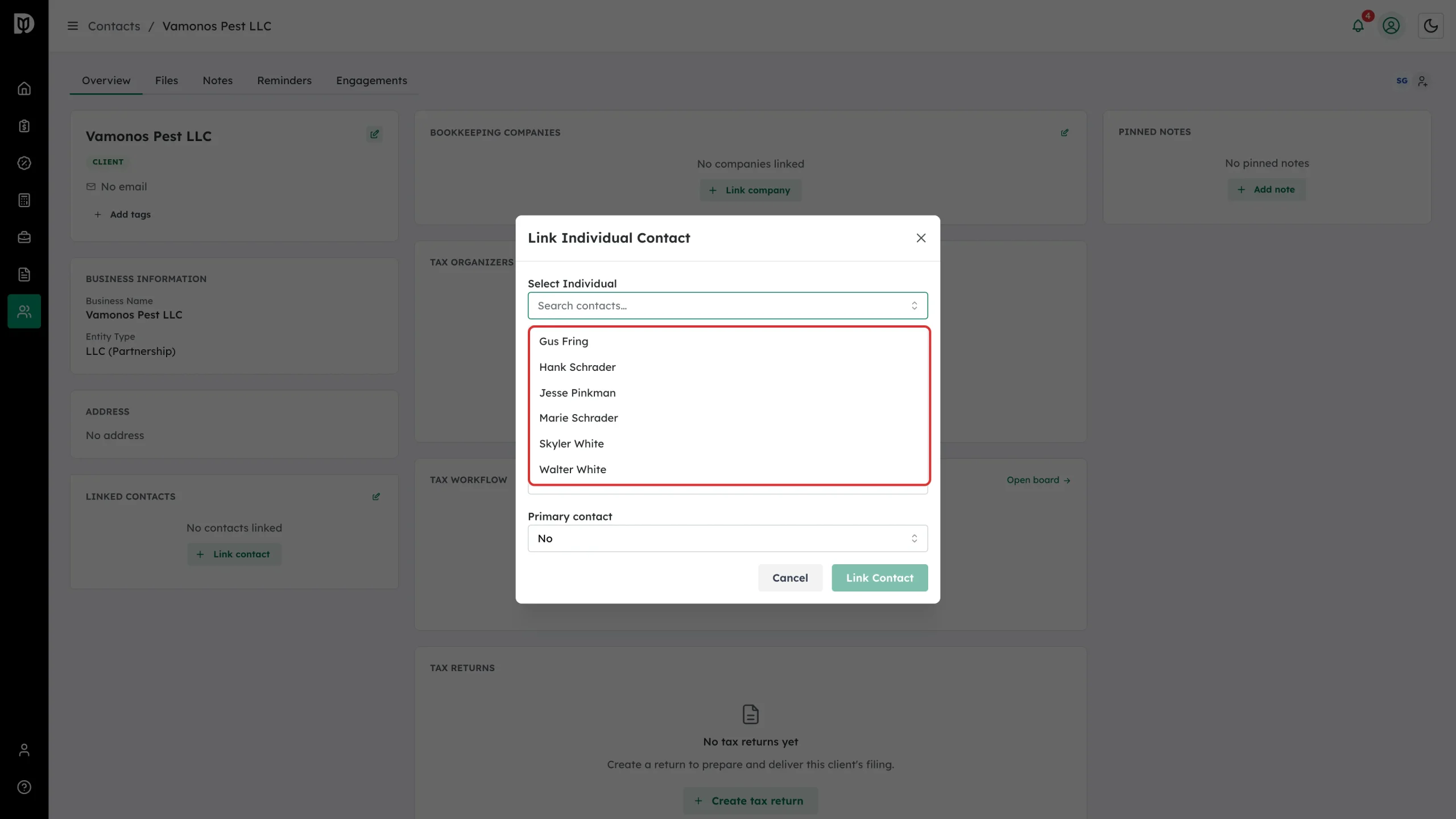
Search under Select Individual and pick them.
Step 4: Set their role
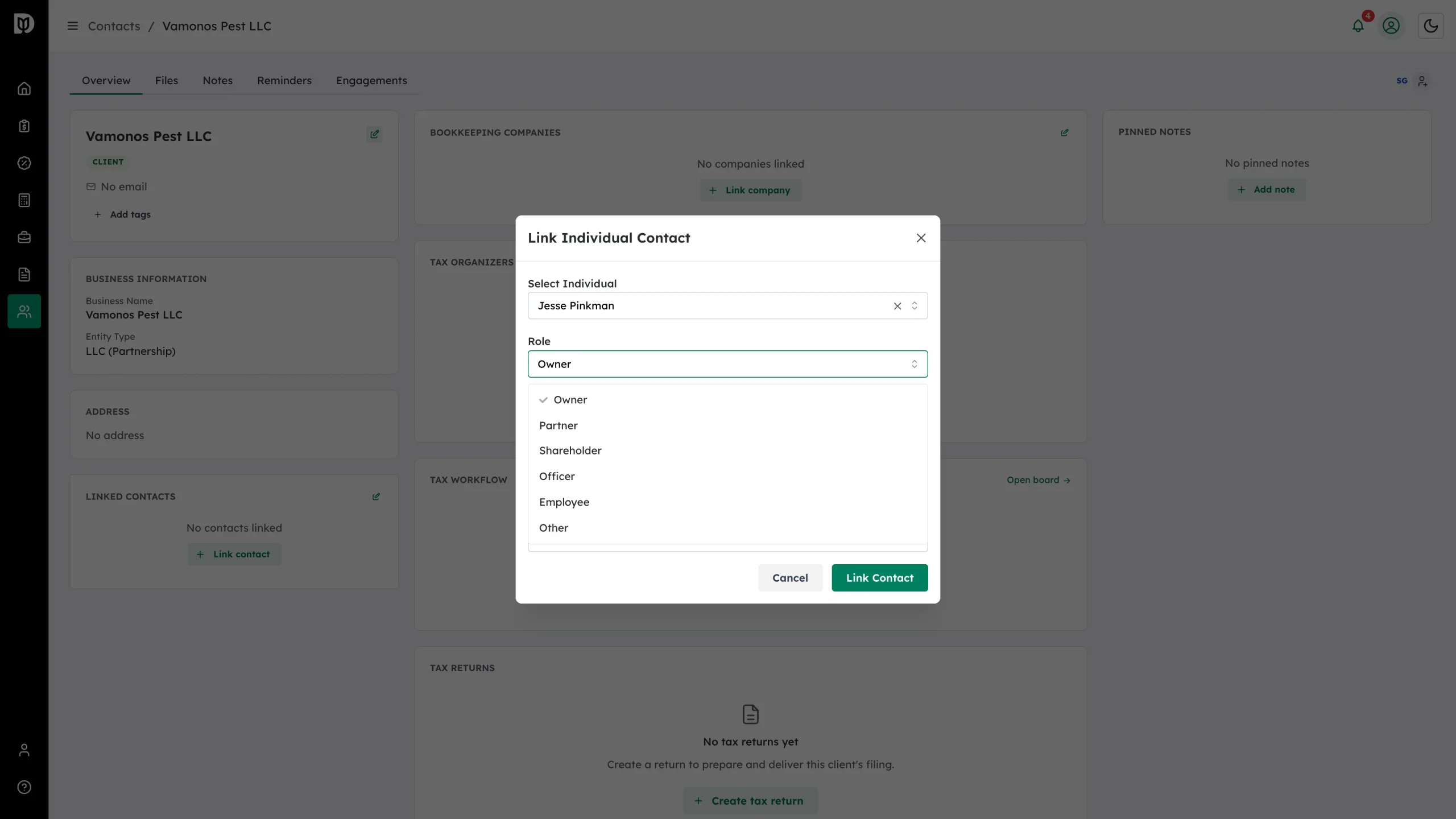
Pick a Role — Owner, Partner, Shareholder, Officer, Employee or Other. The role is what shows on the business’s row and panel.
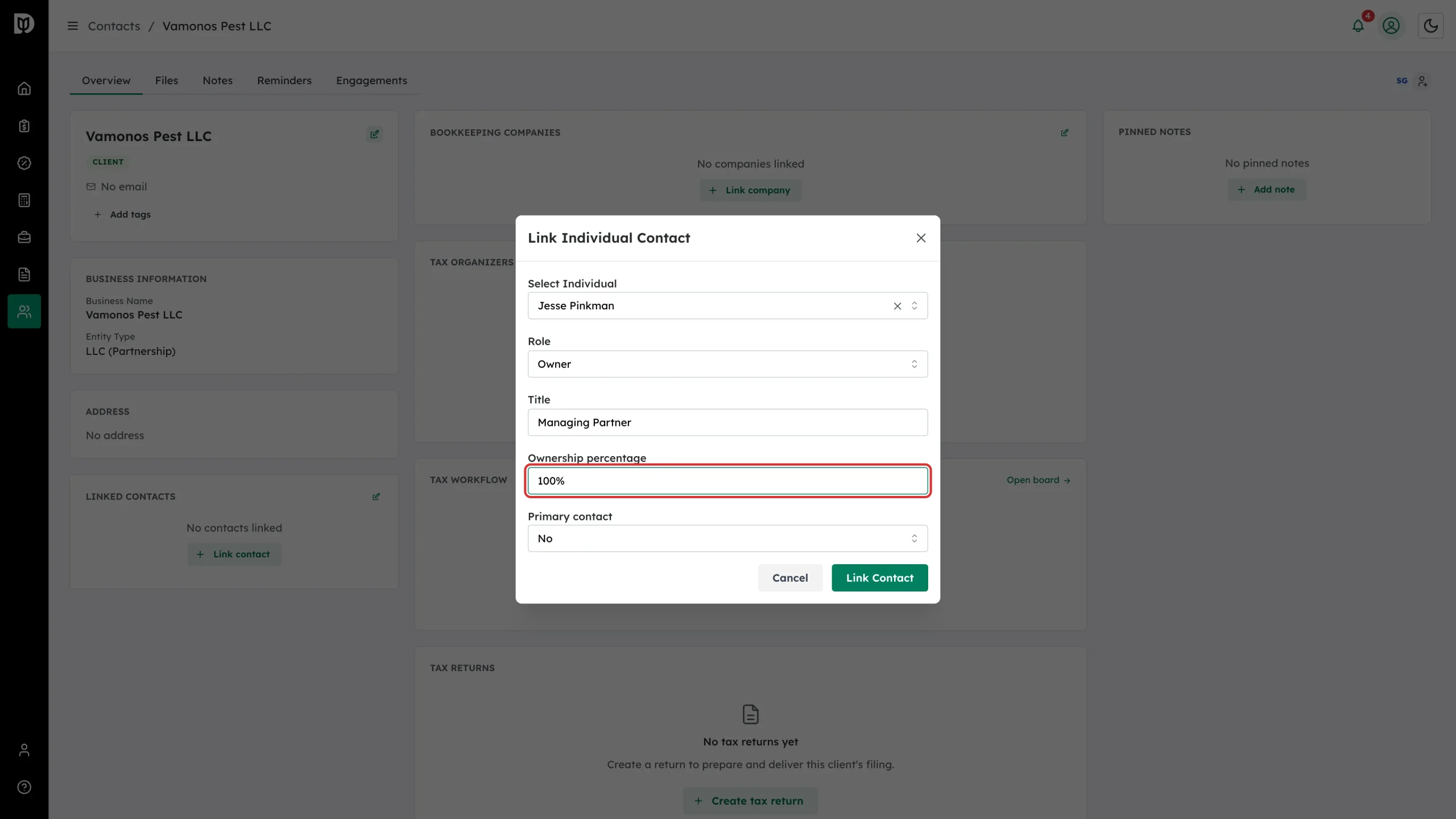
Step 5: Add the title and ownership
Title is free text, for example CEO or Managing Partner. Ownership percentage takes a number from 0 to 100 — useful for partnerships and S corporations where you need to know who owns what.
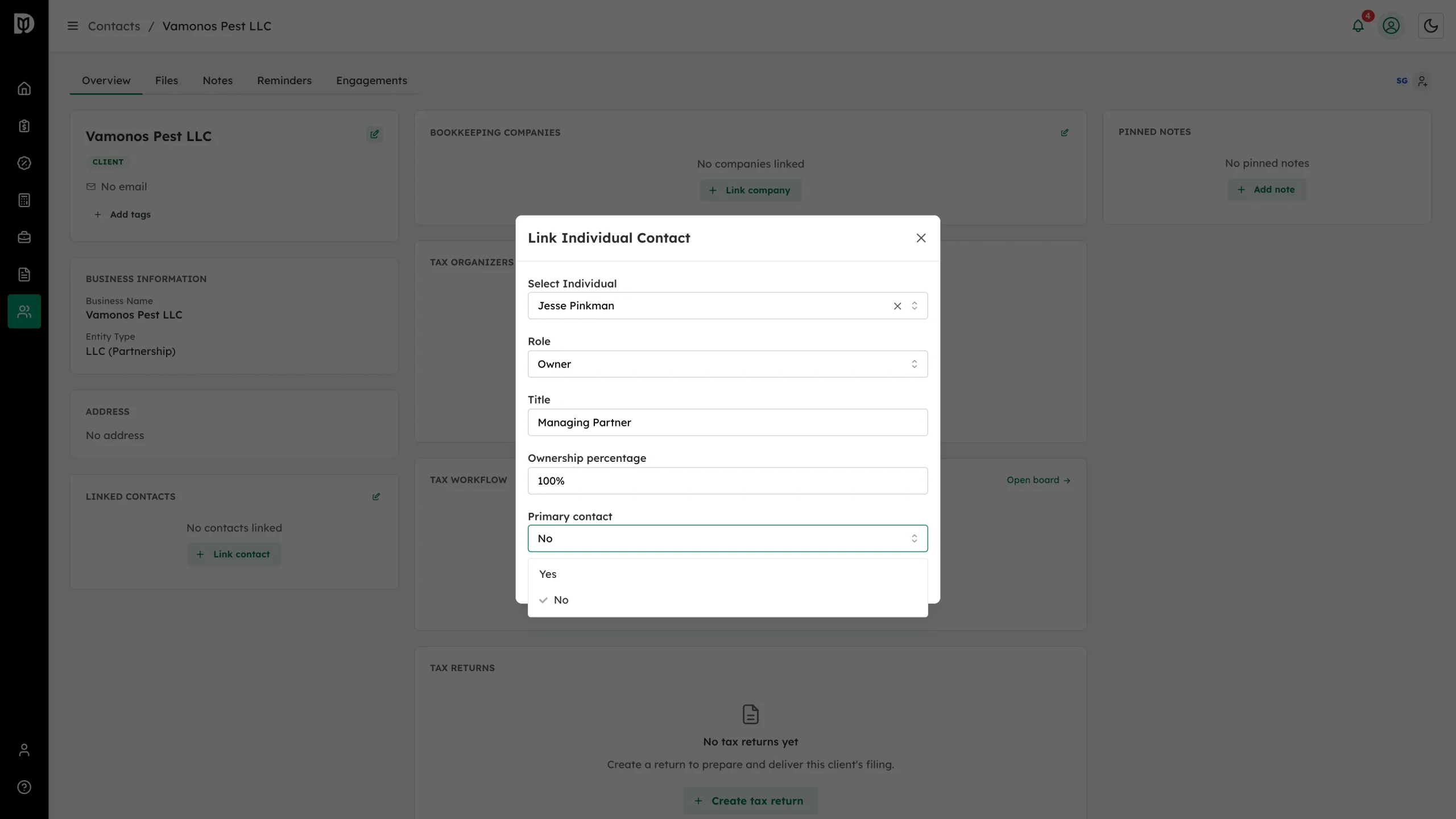
Step 6: Say who your firm deals with
Set Primary contact to Yes for the person you actually correspond with.
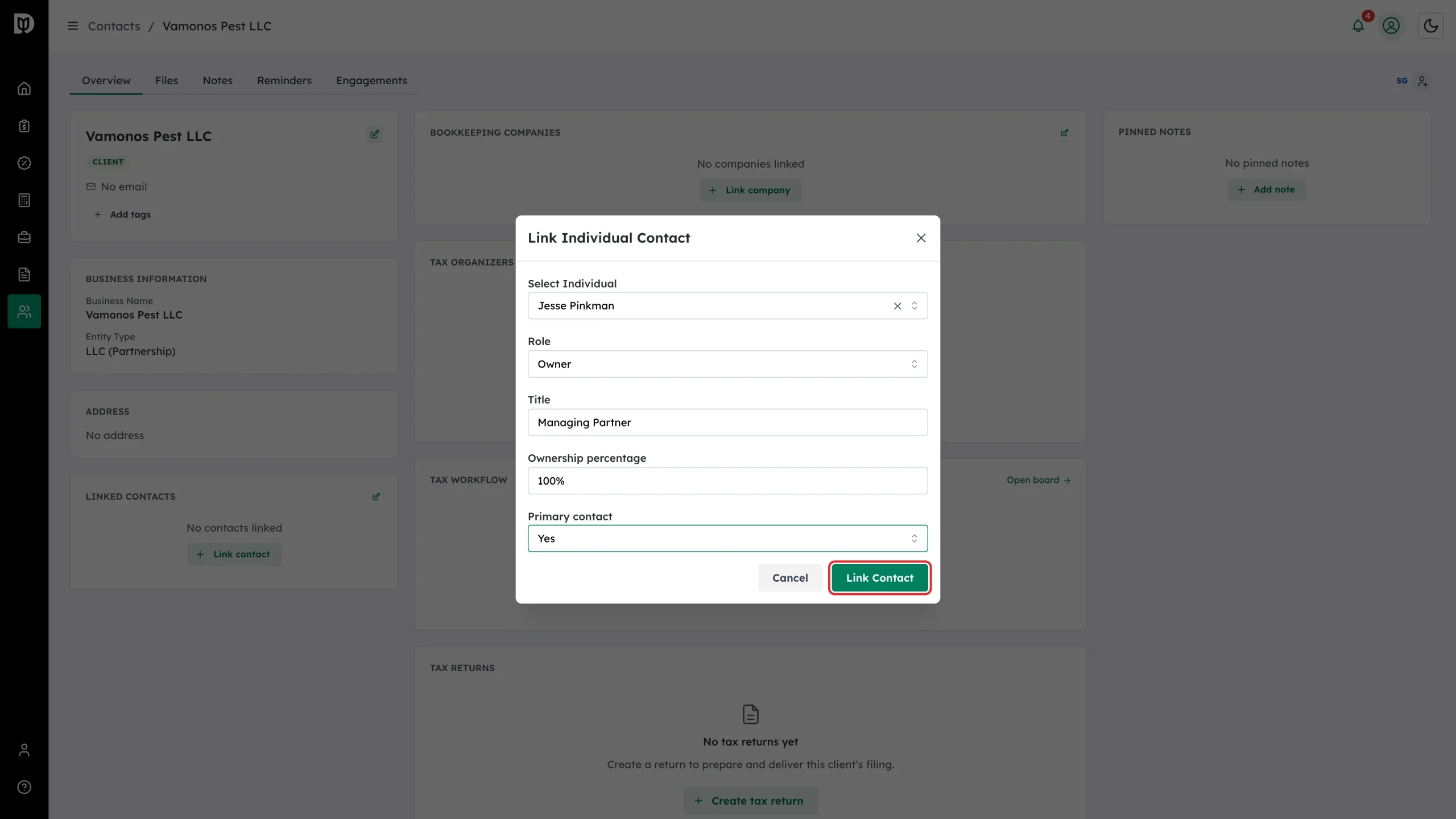
Step 7: Save the link
Select Link Contact.
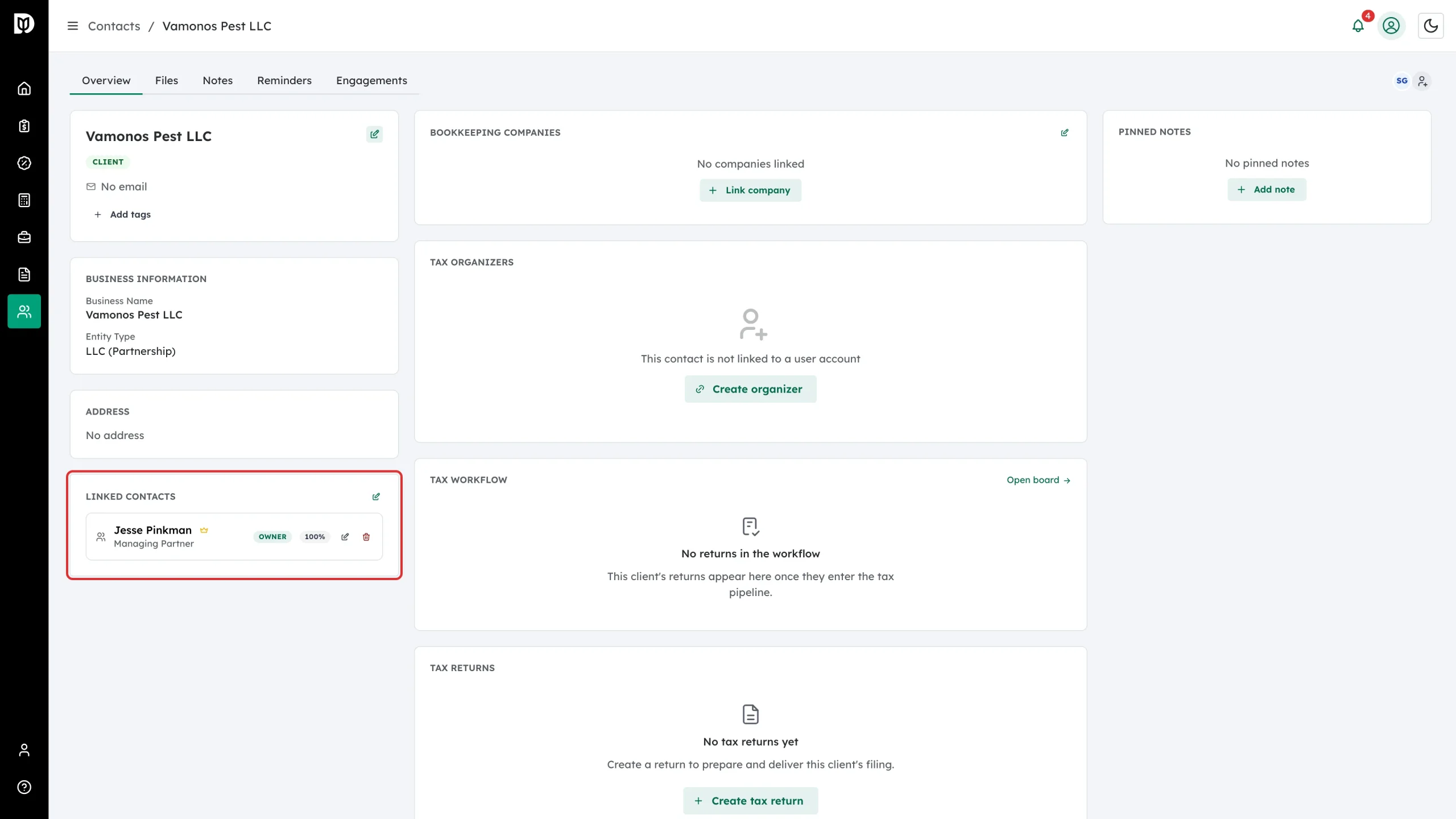
Step 8: Check the result
The person appears in Linked contacts with their title, role badge and ownership share, and a crown if they are the primary contact. The pencil edits the link and the bin removes it.
Step 9: See it from the person’s side
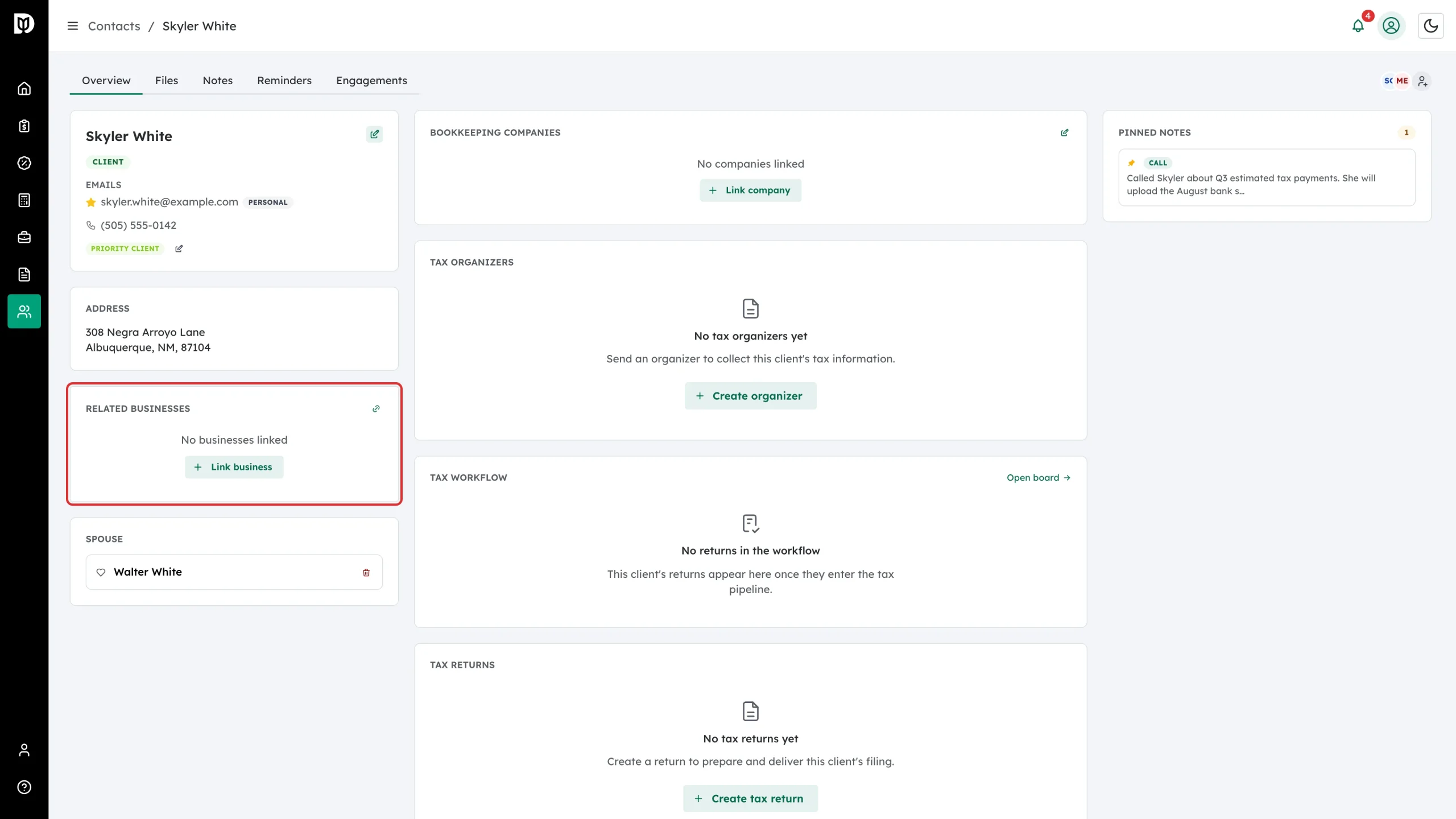
Open the individual. Related businesses lists the businesses they are attached to, and Link business creates the same kind of link from this direction.
Step 10: Record a spouse
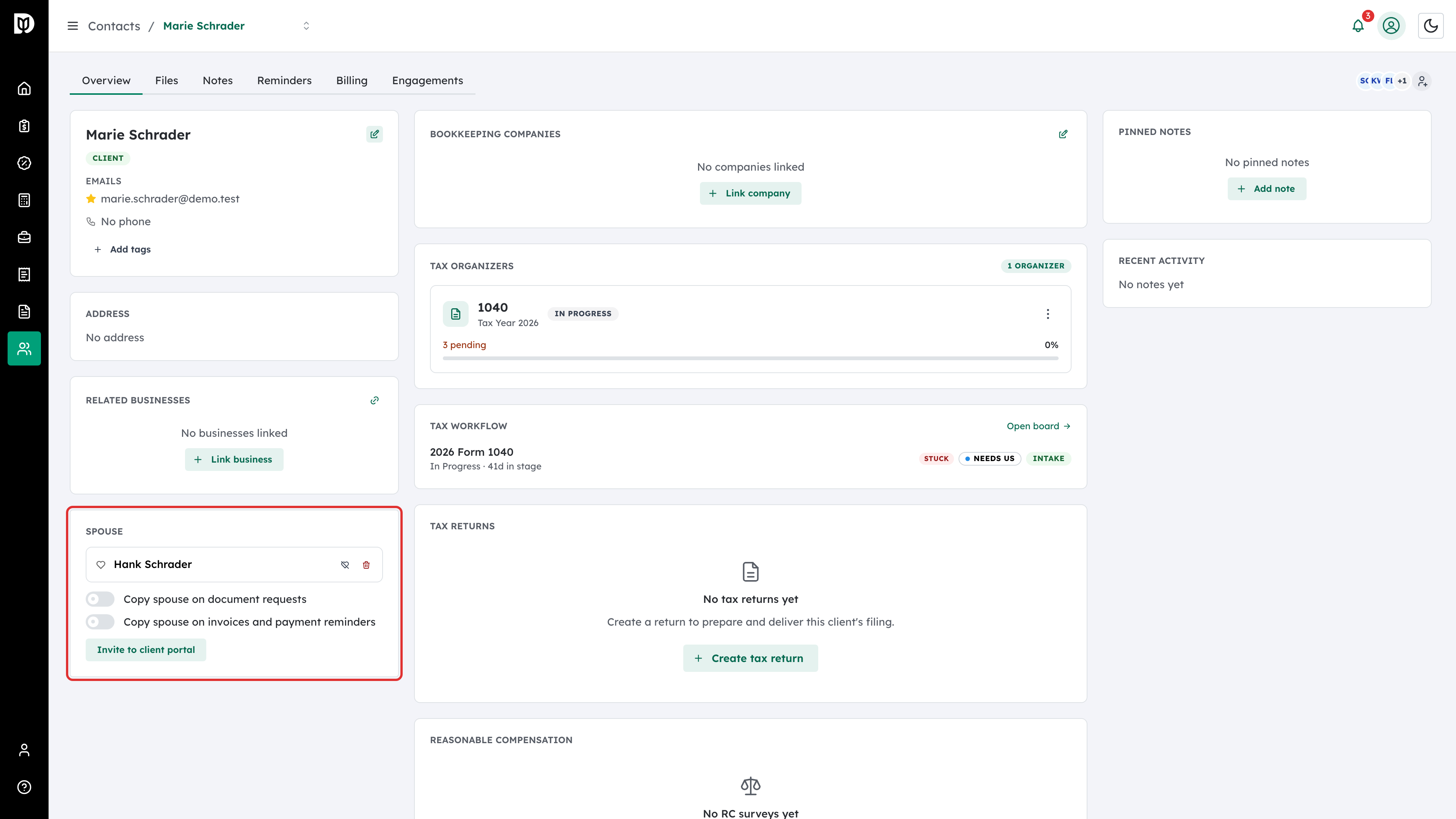
An individual also has a Spouse panel, for couples you prepare a joint return for. Use Link spouse to connect them. Once linked, the panel also lets you:
- Tick Copy spouse on document requests and Copy spouse on invoices and payment reminders so the spouse is copied on those emails.
- Click Invite to client portal to give the spouse their own portal access to the household’s organizer, files, document requests and invoices (owners and admins). Revoke portal access removes it.
- Use Separate household if the couple separates: you list the Joint tax years, and the spouse’s access becomes read-only and limited to those years. Restore full access undoes it.
What happens next
Linked people show in the expanded row for the business on the contact list, so you can see who is behind a company without opening it. The links also give you the ownership picture you need when preparing partnership and S corporation returns.
Troubleshooting
- Nobody comes back in the search. Only individual contacts can be linked to a business. Create the person as a contact first.
- The ownership figure will not save. It must be a number between 0 and 100.
- You linked the wrong person. Use the bin on their row in Linked contacts — removing a link does not delete either contact.