Who this is for: Firm owners and admins closing out a client who has left.
What you’ll learn: How to mark a client inactive, choose what that stops, and bring them back later.
Before you begin
- Deactivating is not deleting. The contact, its notes, files and history all stay.
- It does more than change a label: it can stop recurring billing and remove saved cards, void unpaid invoices, archive workflow jobs, cancel proposals, terminate engagements, archive workpaper binders and open tax organizers, and waive open document requests and revoke upload links. Read the counts before you confirm.
- An inactive client receives no email from you for anything — no invites, reminders or copies — whatever you choose to archive. Only their own sign-in and security emails still go out.
- Some of that is one-way. Voided invoices, cancelled billing, cancelled proposals and terminated engagements are not brought back when you reactivate.
Step-by-step instructions
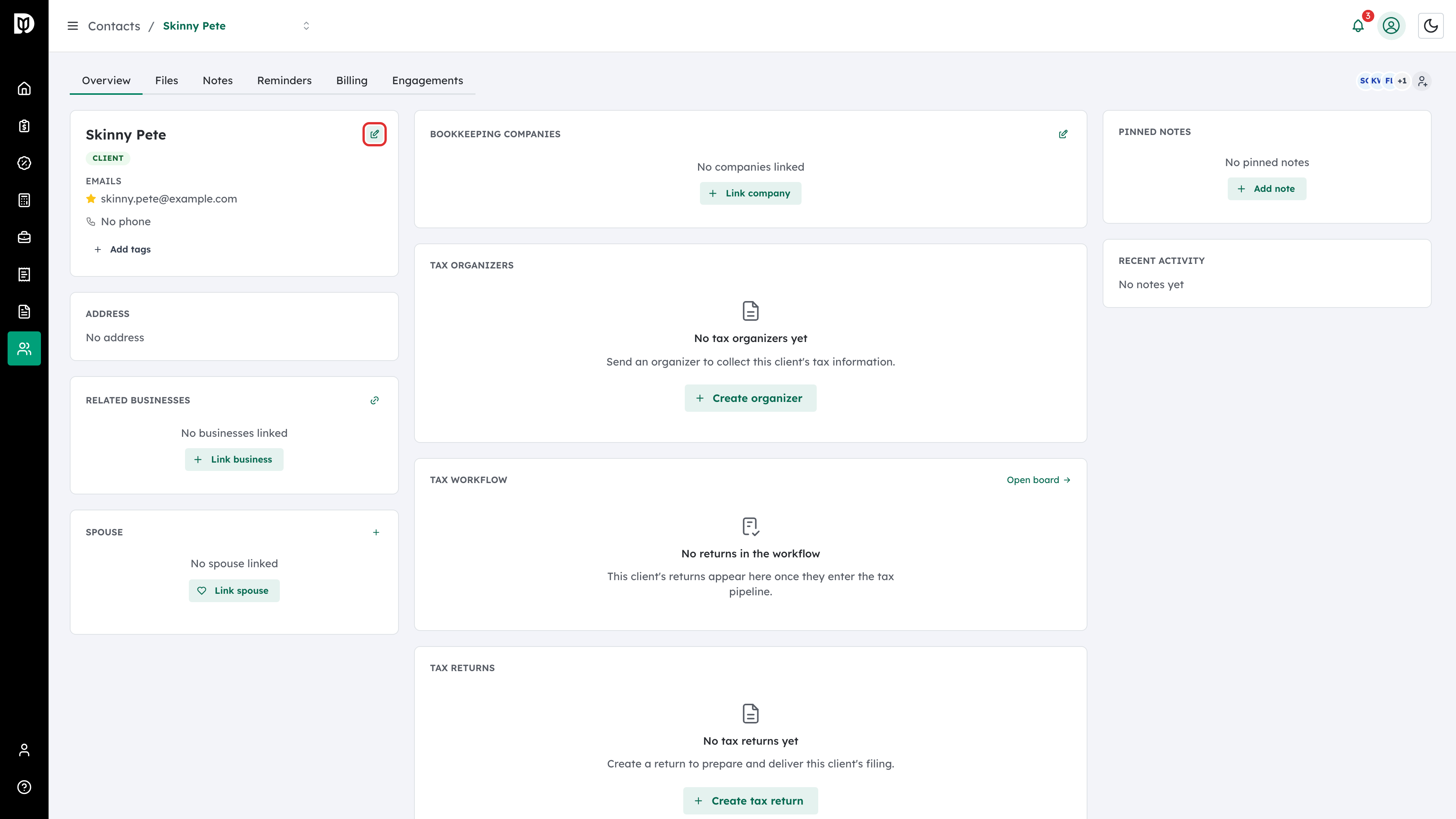
Step 1: Open the contact and edit it
Open the client and select the edit icon on the profile card.
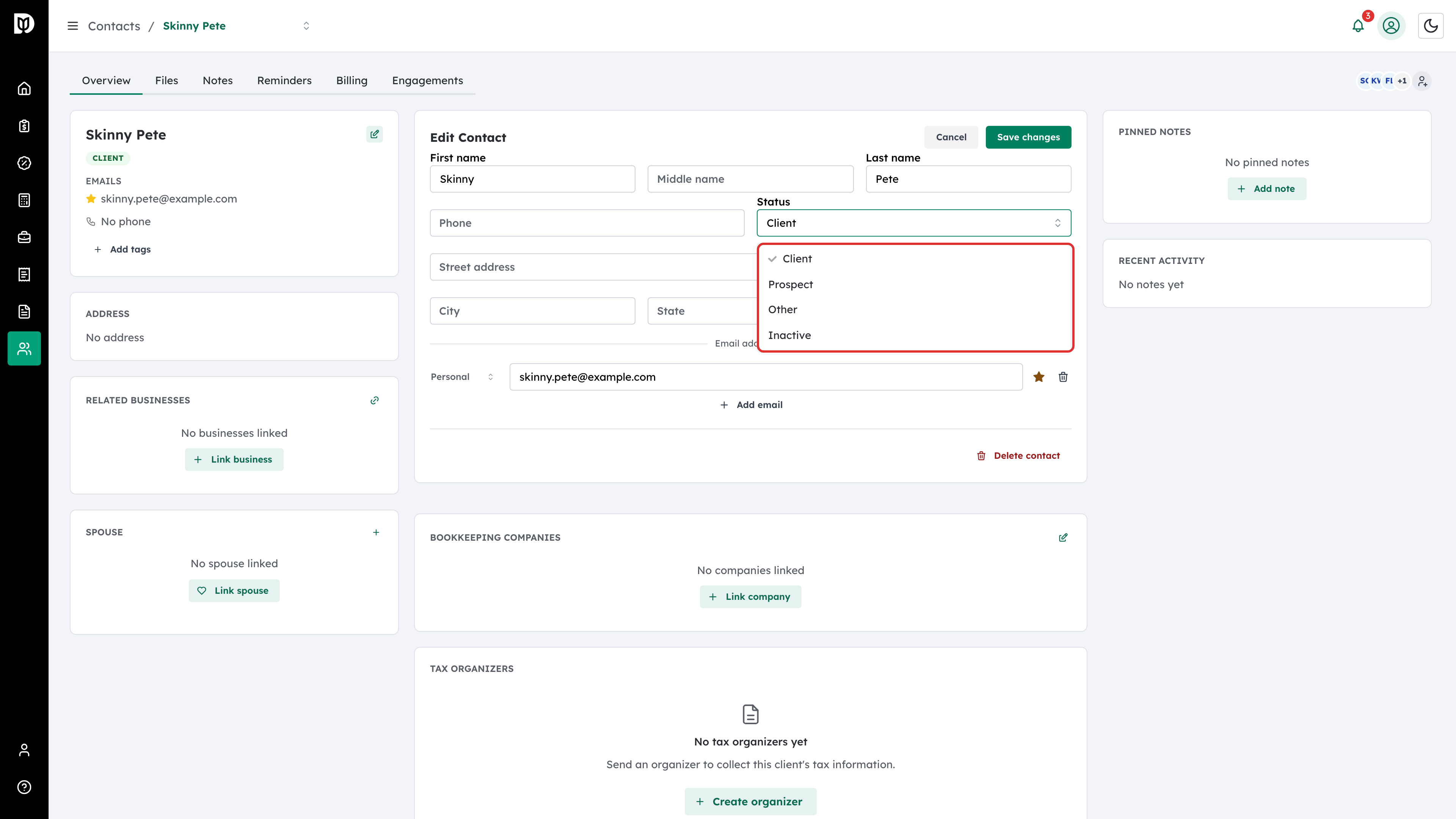
Step 2: Set the status to Inactive
In Edit Contact, set Status to Inactive.
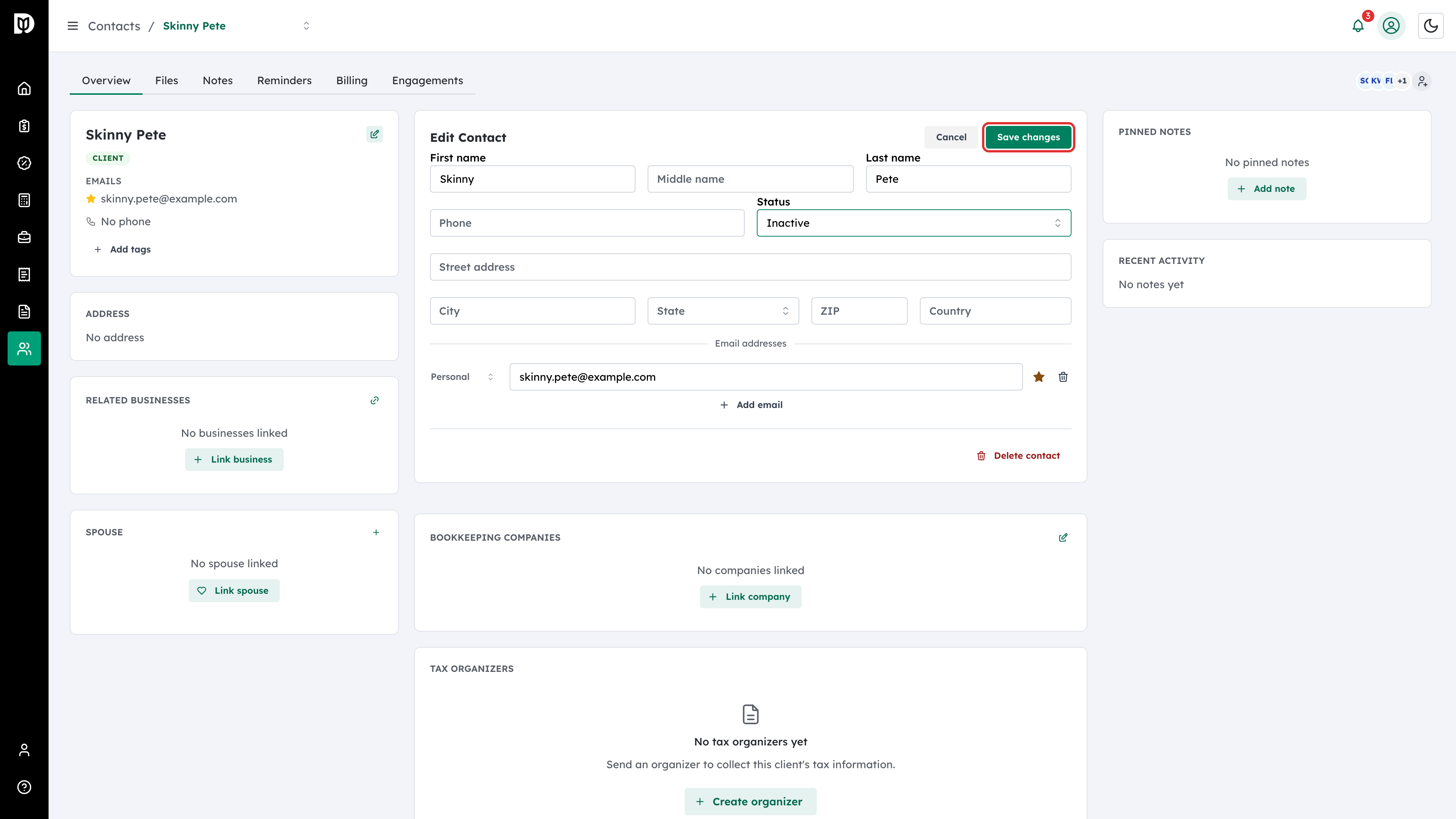
Step 3: Save
Select Save changes. Debits does not apply the change yet — it asks first.
Step 4: Read what will happen
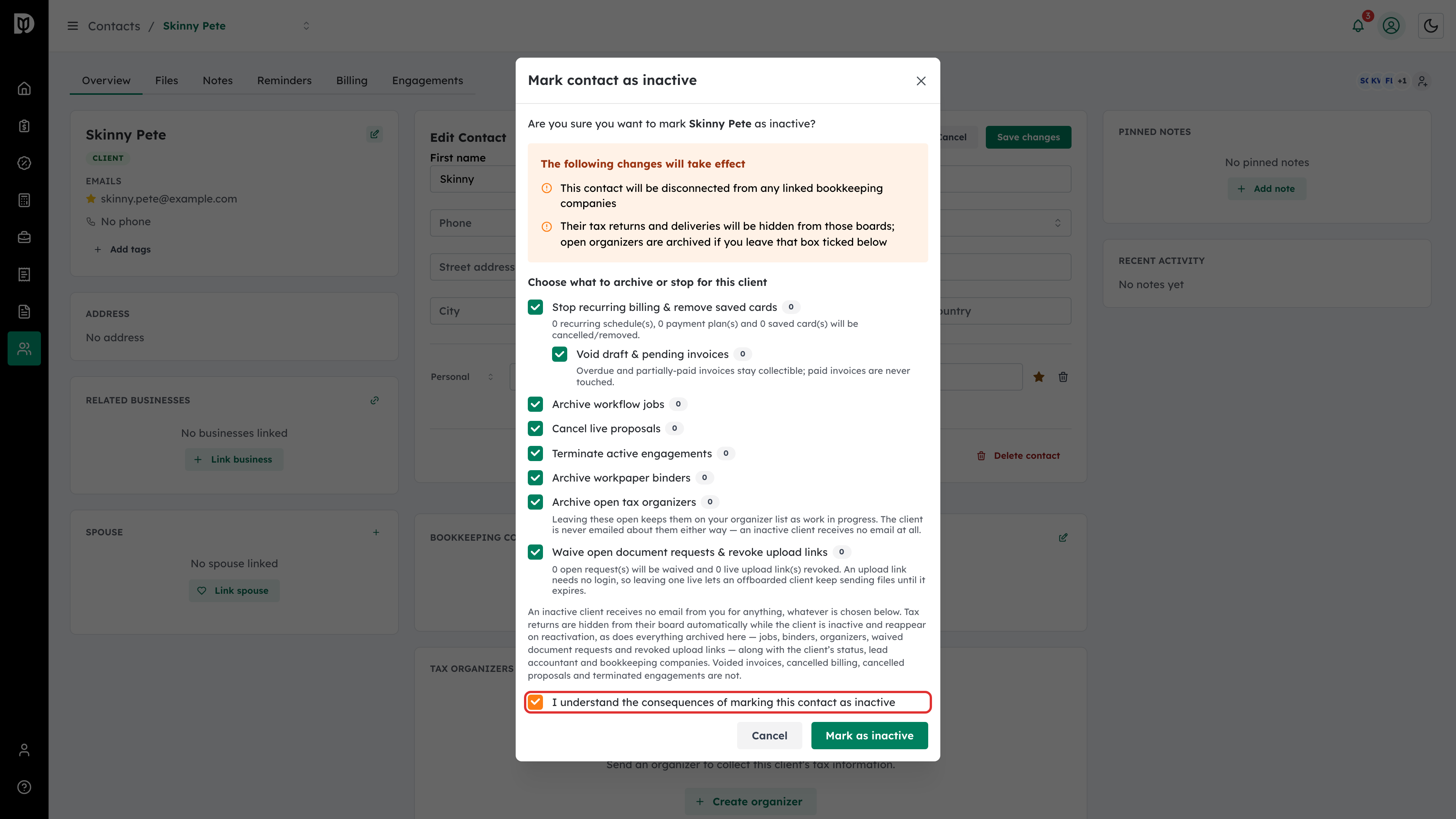
Mark contact as inactive opens. The orange panel lists what will change: the contact is disconnected from any linked bookkeeping companies, their tax returns and deliveries are hidden from those boards, and open organizers are archived if you leave that box ticked below. Below it, Choose what to archive or stop for this client lists the optional actions with a live count beside each one, so you can see exactly how many invoices, jobs, proposals, engagements, binders, organizers, document requests and upload links are involved. Revoking upload links matters: an upload link needs no login, so a live one lets an offboarded client keep sending files until it expires.
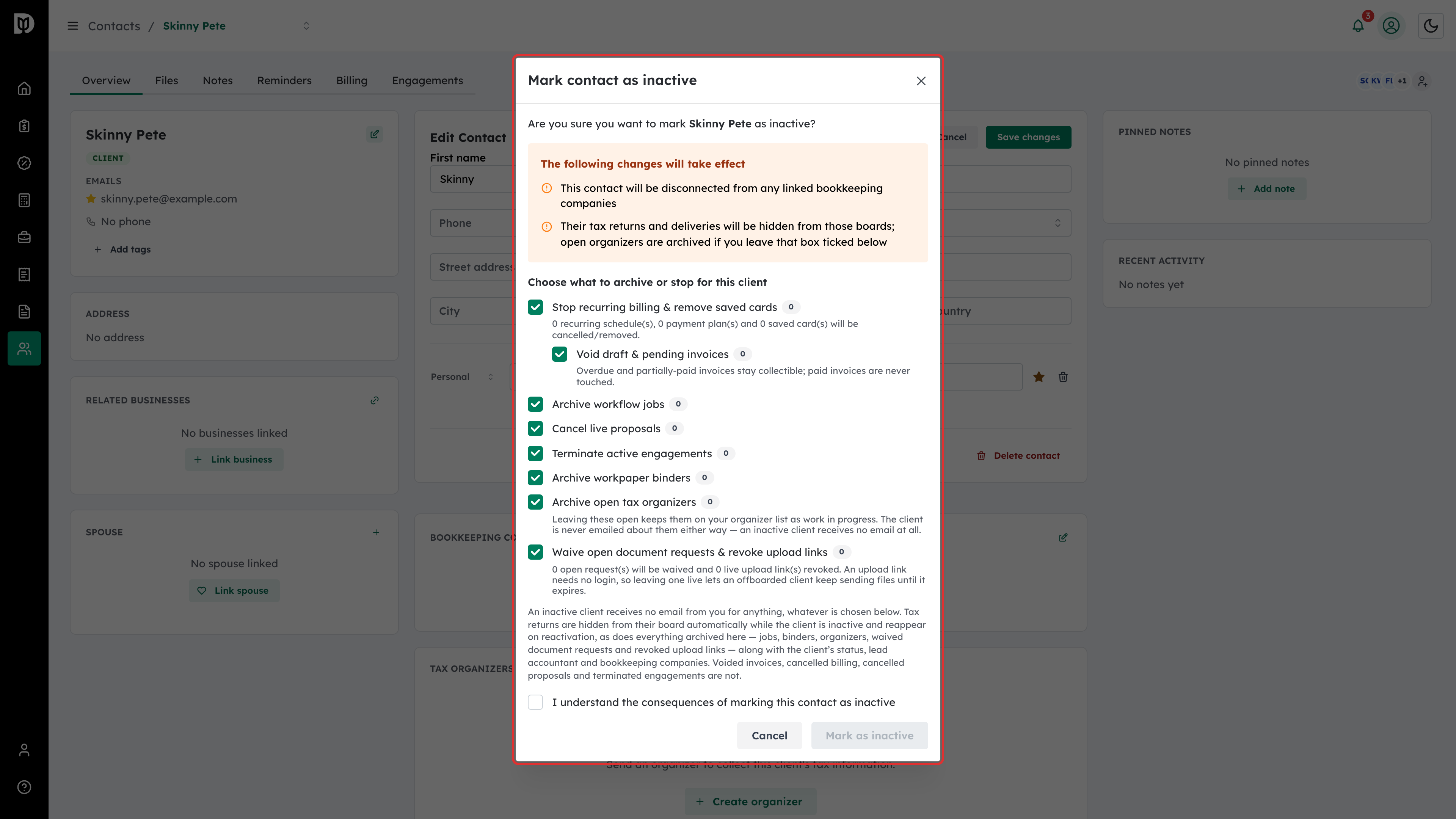
Step 5: Confirm you understand
Untick anything you do not want to happen, then tick I understand the consequences of marking this contact as inactive. The confirm button stays disabled until you do.
Step 6: Mark them inactive
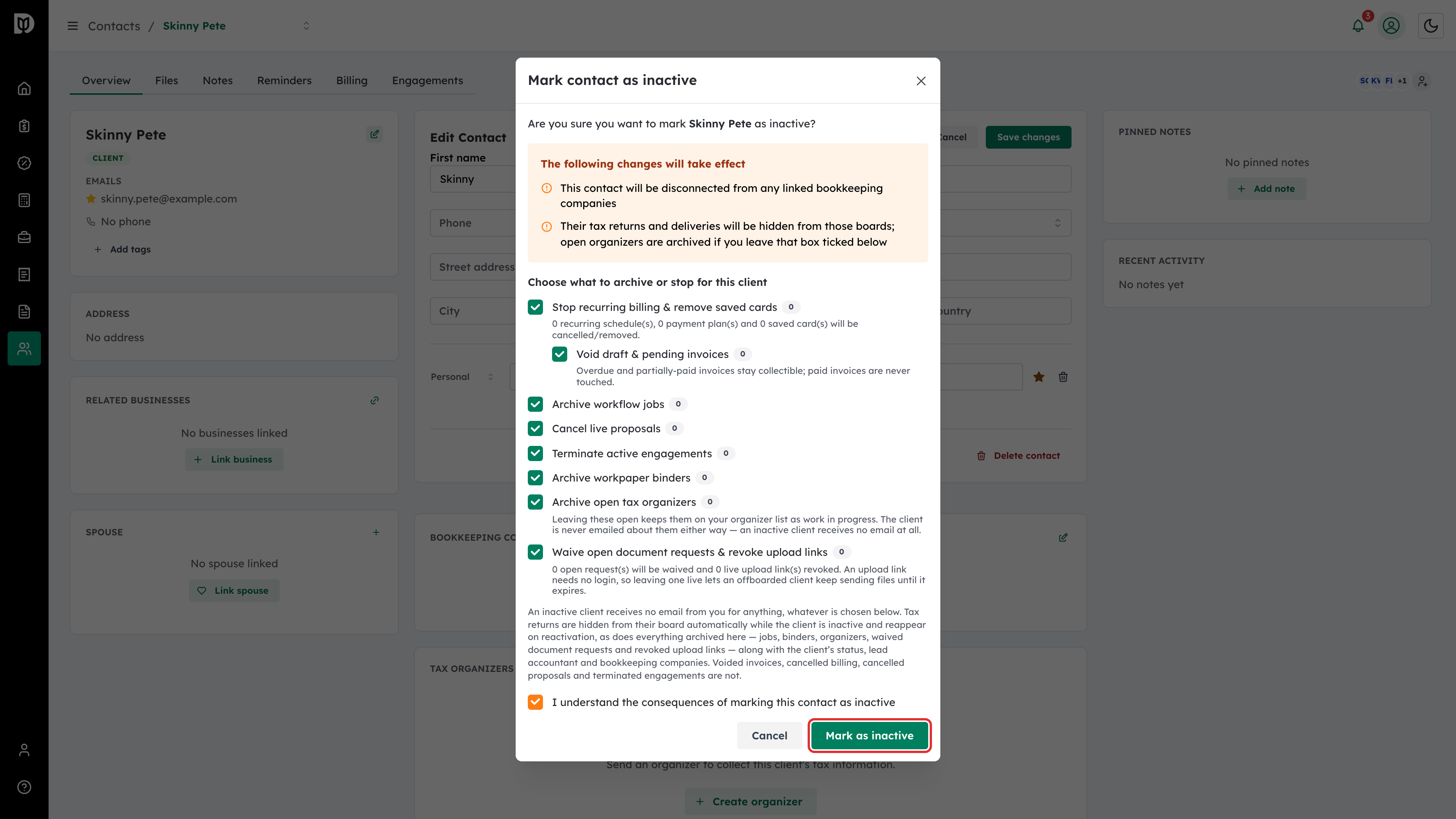
Select Mark as inactive.
Step 7: Check the result
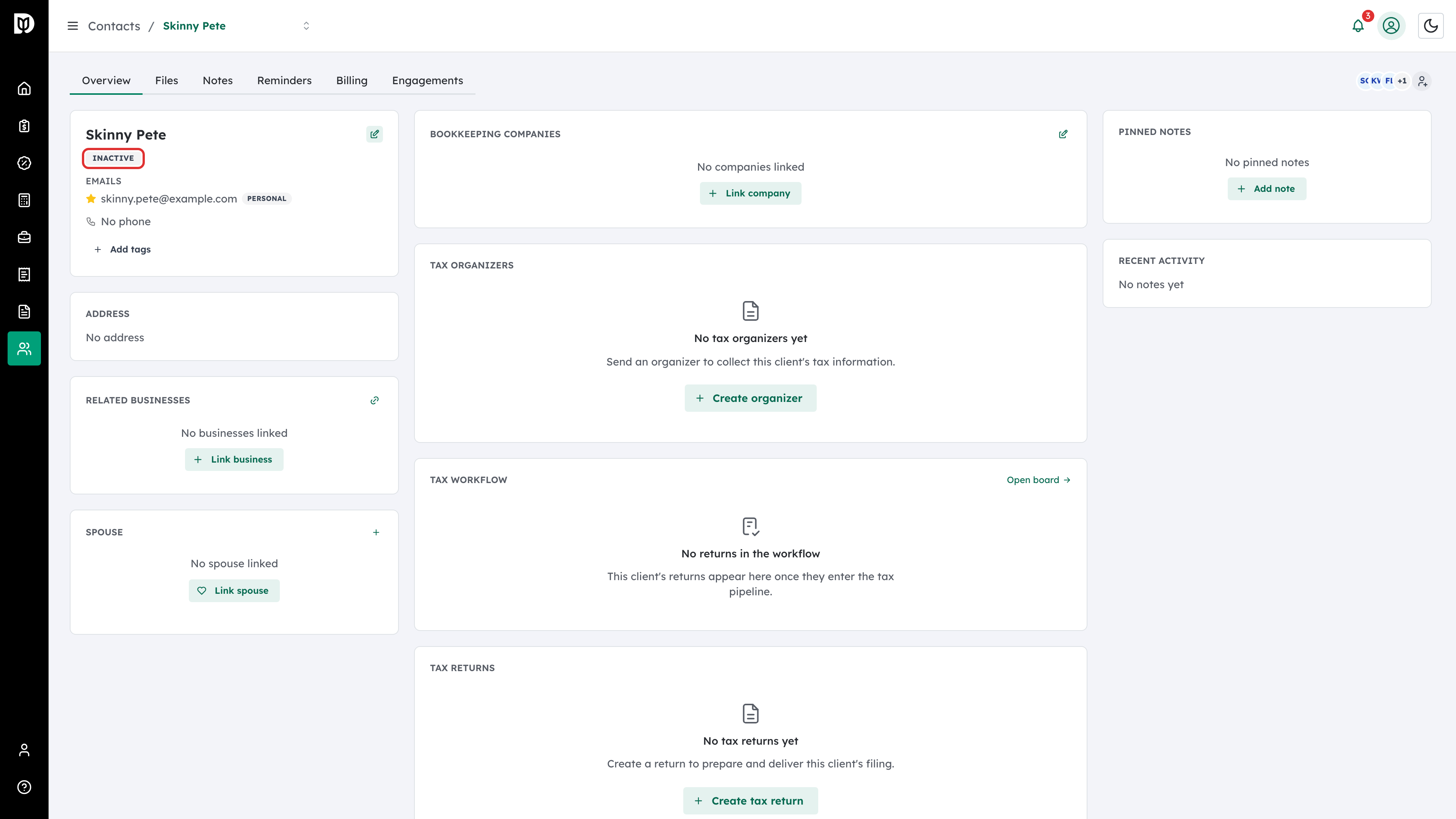
The profile card now reads INACTIVE, and the contact moves under the Inactive chip on the contact list.
Step 8: Bring the client back
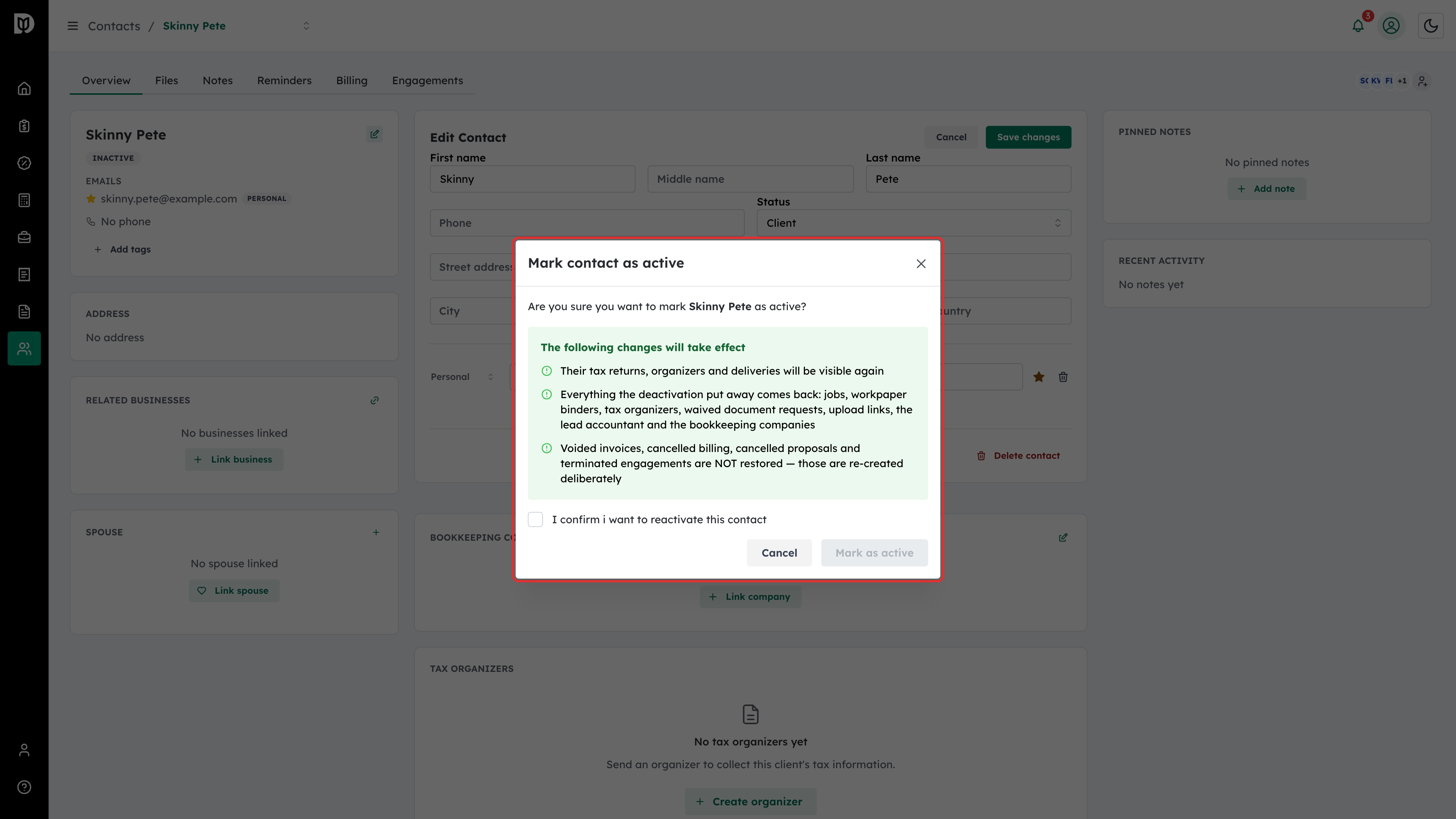
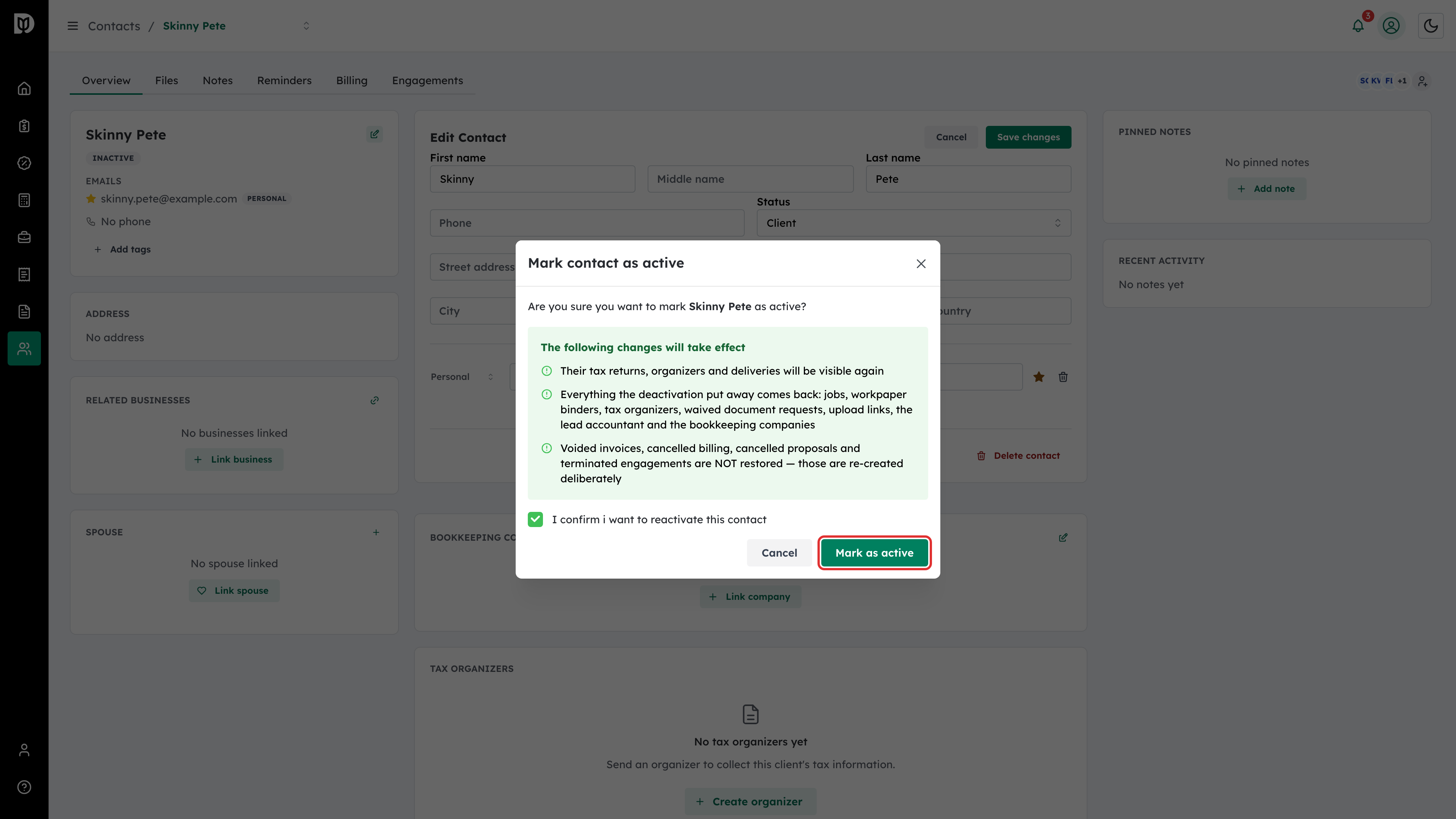
To reactivate, edit the contact again, set Status back to Client and save. Mark contact as active spells out what returns: tax returns, organizers and deliveries become visible again, and everything the deactivation put away comes back — jobs, workpaper binders, tax organizers, waived document requests, upload links, the lead accountant and the bookkeeping companies. Voided invoices, cancelled billing, cancelled proposals and terminated engagements are not restored.
Step 9: Confirm the reactivation
Tick the confirmation and select Mark as active.
What happens next
An inactive client drops out of the default contact list and off the boards, but stays fully searchable under the Inactive chip with all of its history intact. Reactivating puts the client and their work back; anything the deactivation cancelled outright has to be recreated by hand.
Troubleshooting
- The confirm button is greyed out. Tick the acknowledgement checkbox.
- A client has vanished from Contacts. They are probably inactive. Select the Inactive chip.
- Invoices disappeared. Only draft and pending invoices are voided, and only if you left that option ticked. Overdue and part-paid invoices stay collectible and paid invoices are never touched.
- You need to deactivate several clients. Tick their rows on the contact list and use the bulk status action — it asks the same questions.