Who this is for: Owners, admins, managers and staff who collect documents from clients.
What you’ll learn: How to send a document request with its secure upload link, what your client sees, where their files land, and how to repeat a request every period.
Before you begin
- A request lists the documents you need and comes with a secure upload link. Your client doesn’t need a Debits login to use it.
- The client needs at least one folder for the uploads to go into. Create one on their Files tab first if they have none.
- To send the same request every month, quarter or year, you need a recurring job for the client on the workflow board.
Step-by-step instructions
Step 1: Start a request
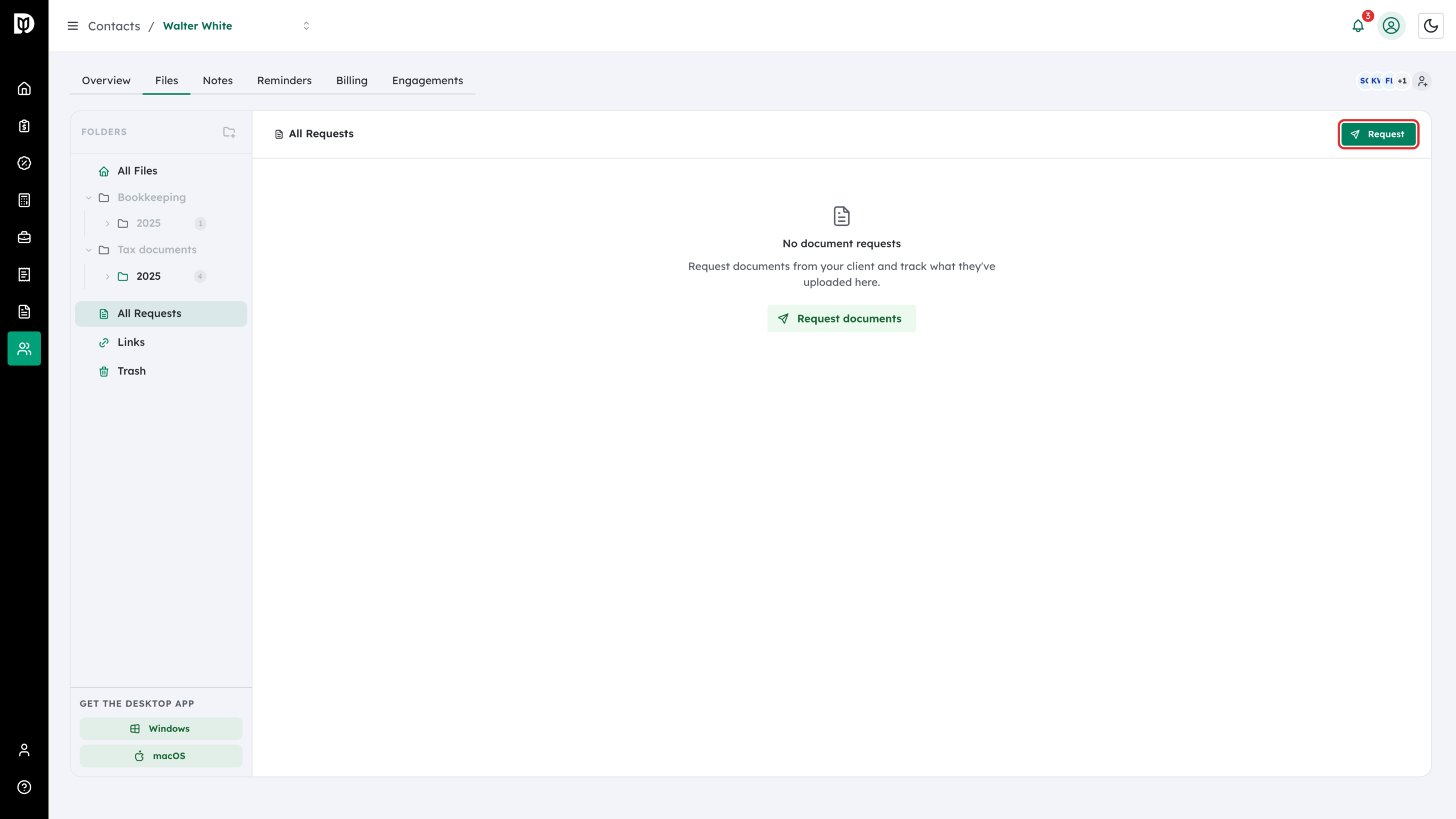
Open the client’s Files tab, select All Requests in the folder panel, then select Request. If the client has no requests yet, you can also select Request documents.
Step 2: Name it and choose where uploads go
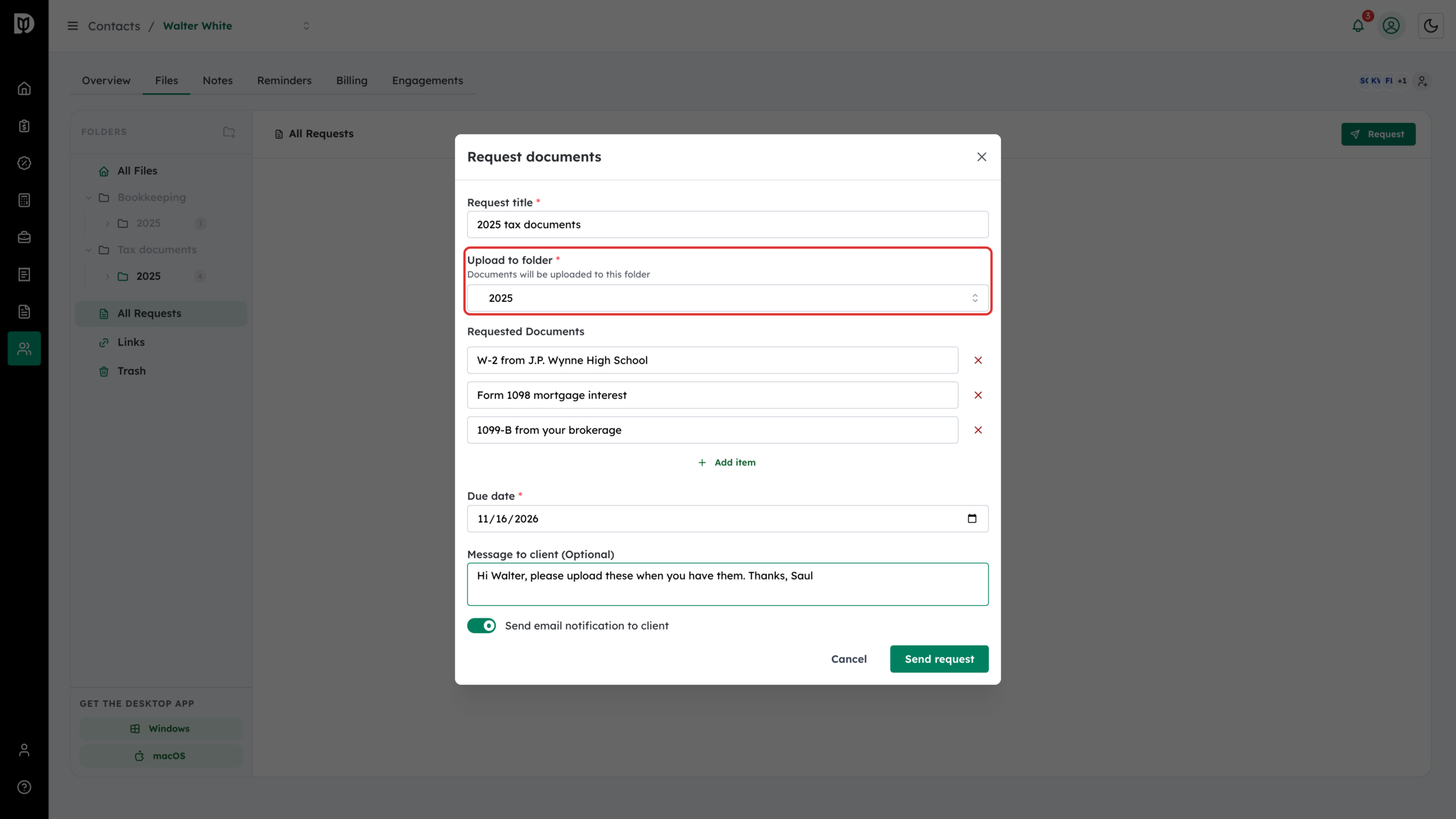
In Request documents, enter a Request title, then choose the Upload to folder. Everything the client sends for this request is filed there.
Step 3: List the documents you need
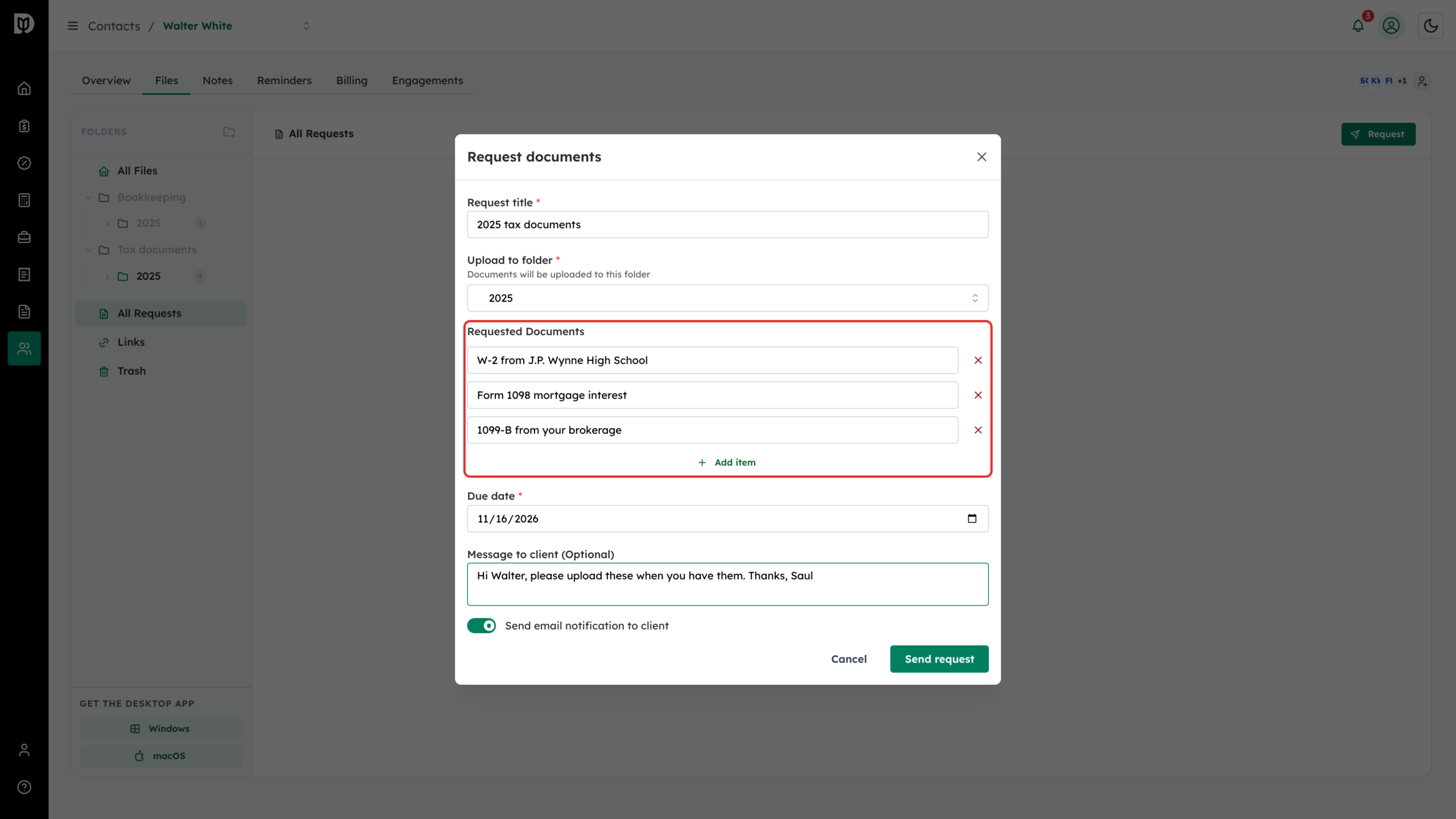
Under Requested Documents, type the first item. Select Add item for each one after that. Each item becomes a line your client can tick off.
Step 4: Set the due date and send
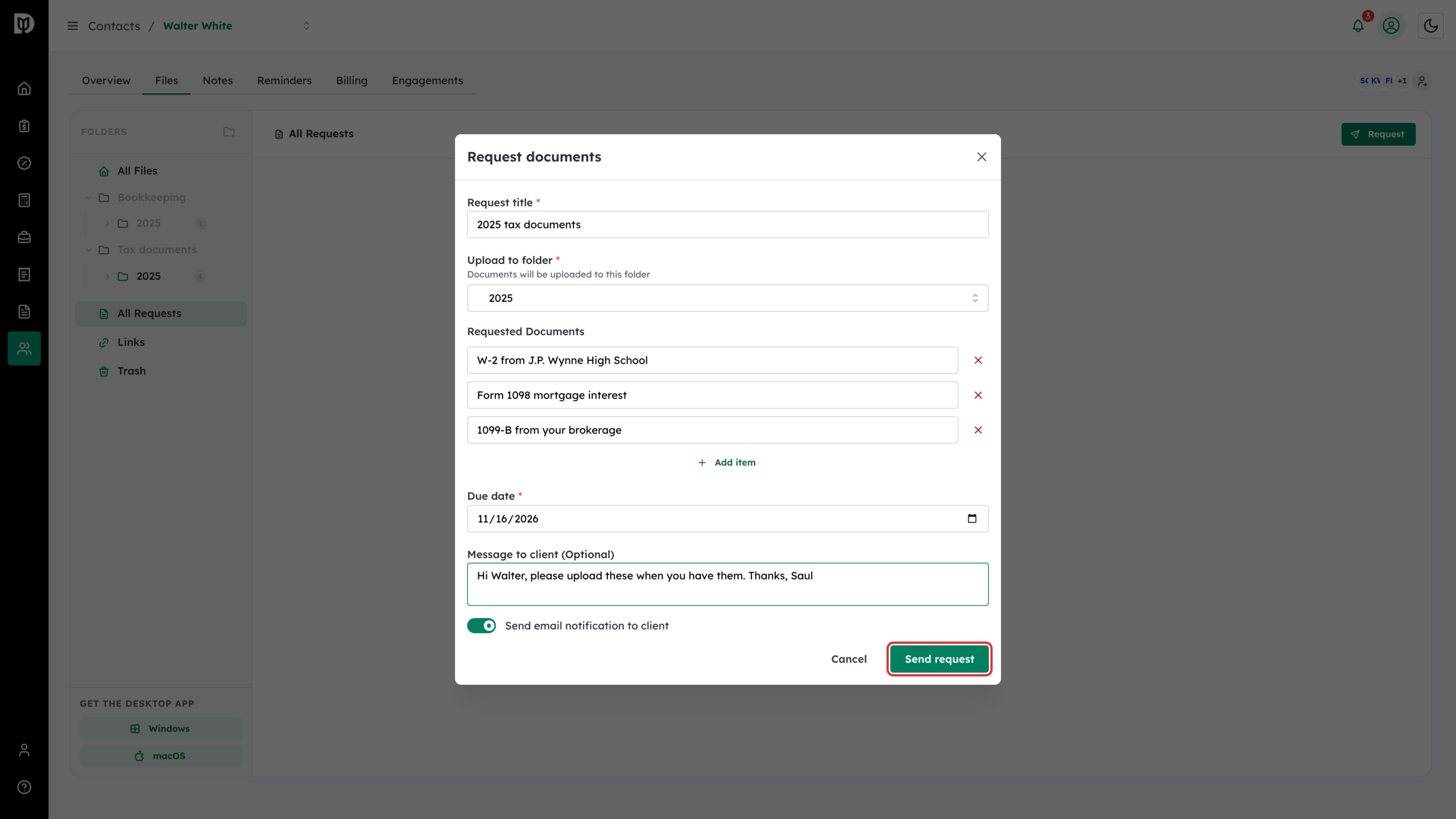
Pick a Due date, add an optional Message to client, and leave Send email notification to client on to email them the link. Select Send request.
Step 5: Track progress
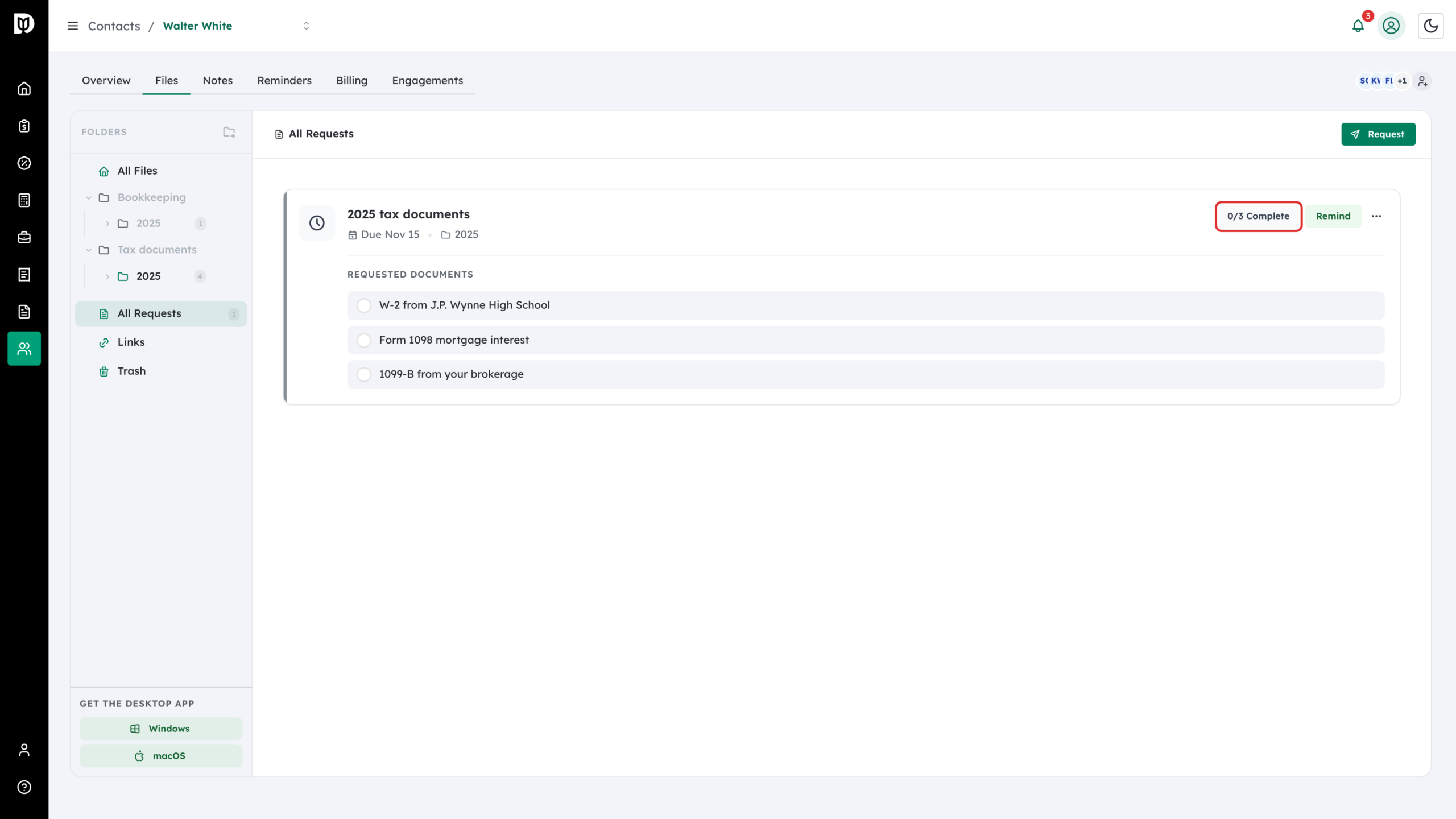
The request appears under All Requests with its due date, its folder, and a count such as 0/3 Complete. Select Remind to email the client again.
Step 6: Copy the upload link to send yourself
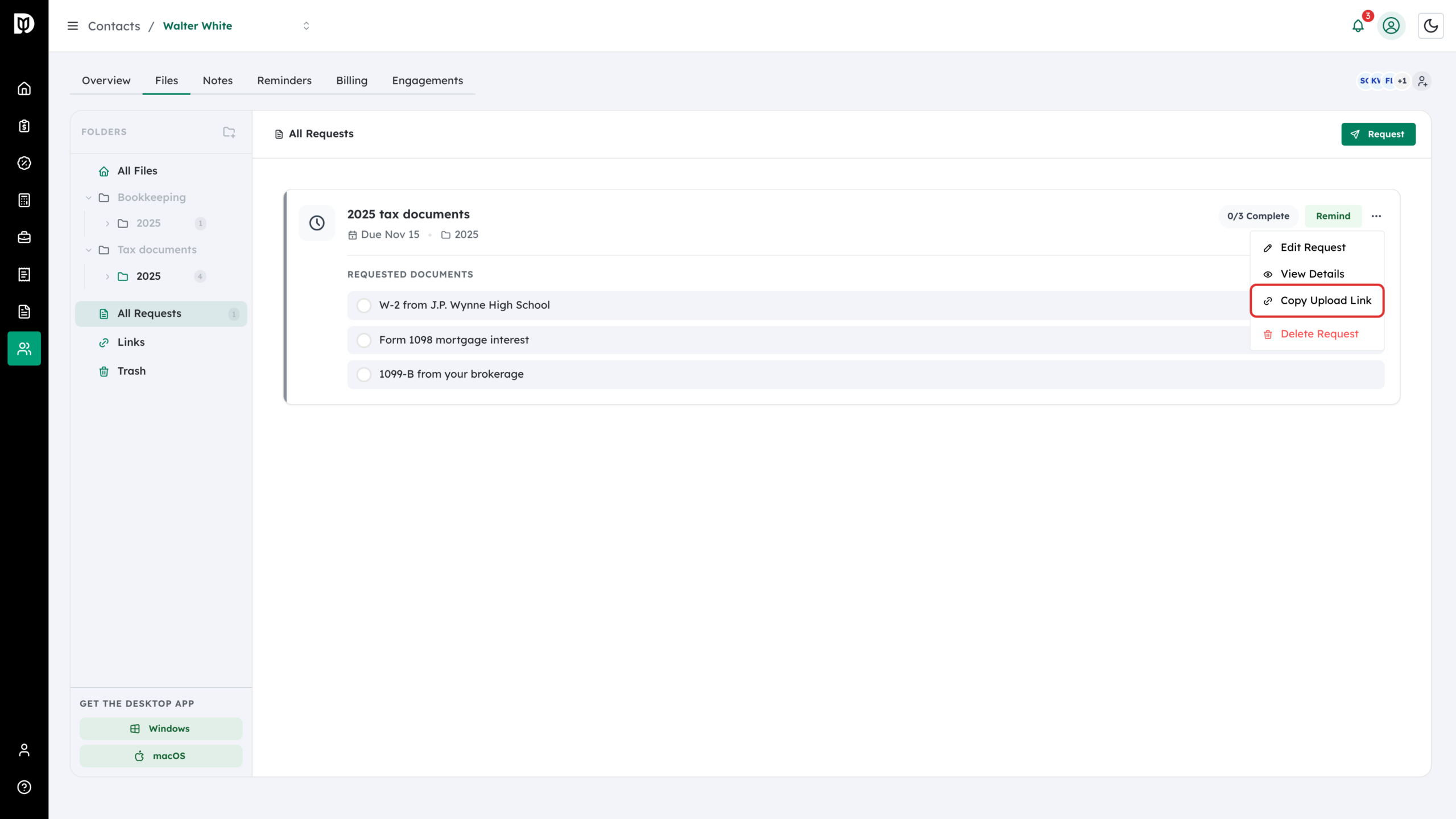
To send the link another way, such as a text message, select the three dots on the request and choose Copy Upload Link. The same menu has Edit Request, View Details and Delete Request.
Step 7: What your client sees
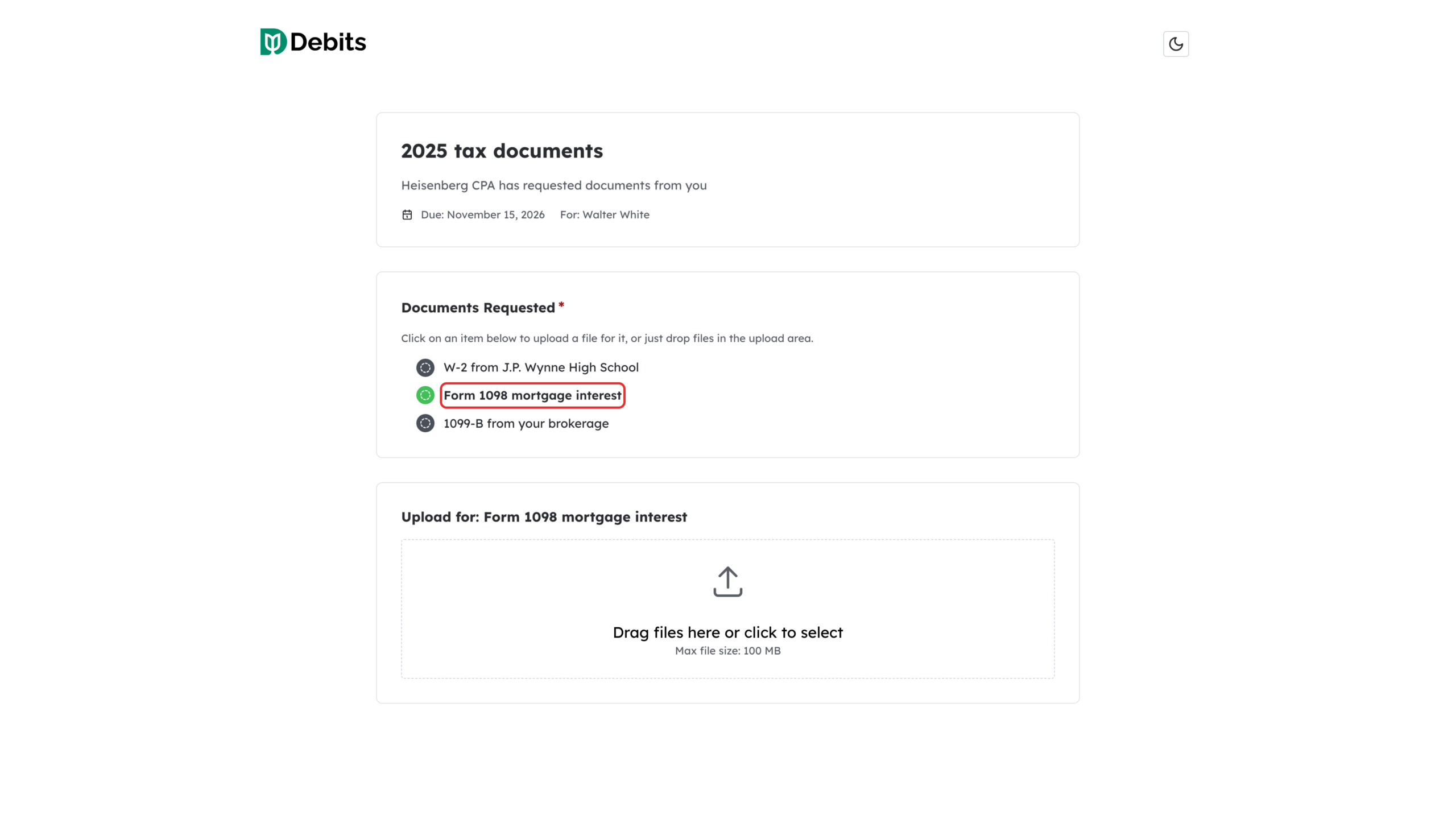
The link opens a page with your firm’s name, the due date and the documents you asked for. The client selects the item they are sending…
Step 8: The client uploads the files
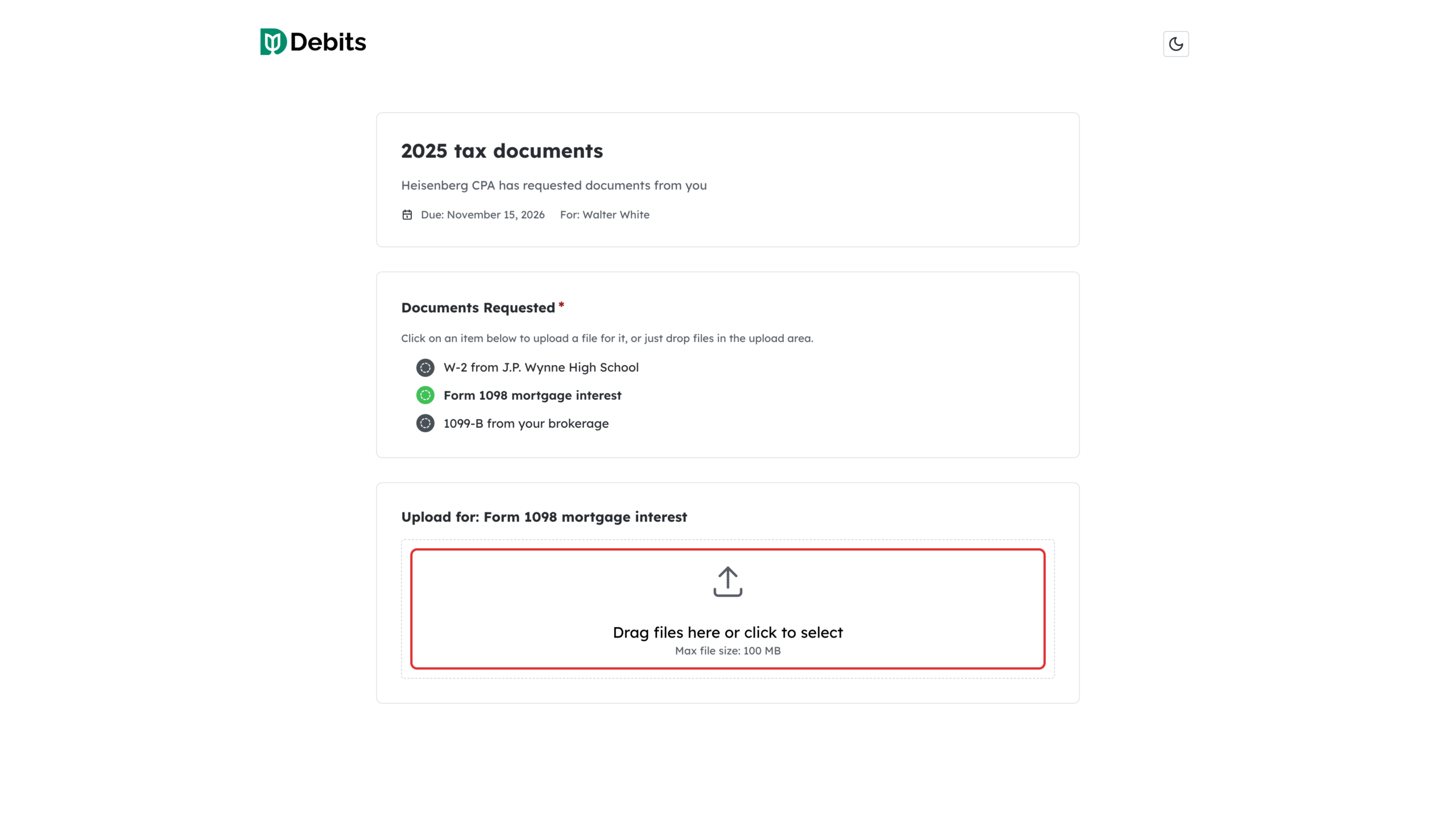
…then drops files into the upload area or clicks to choose them. Files can be up to 100 MB each, and the client can send as many as they need. If one file is refused, the others still upload, and the page lists the ones to send again by name.
Step 9: See what has arrived
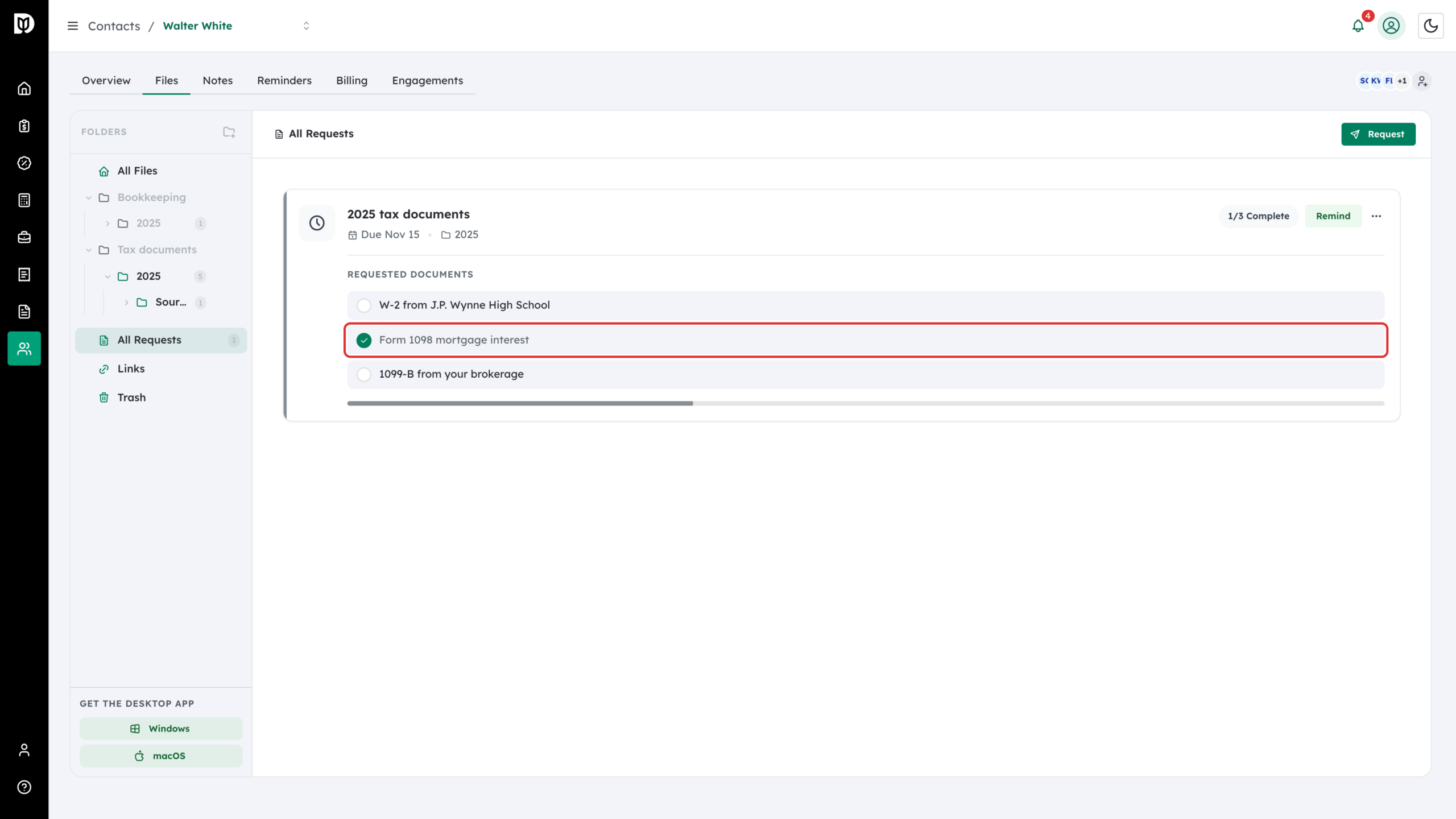
Back in All Requests, each item the client has sent gets a green tick and the count goes up.
Step 10: Find the uploaded files
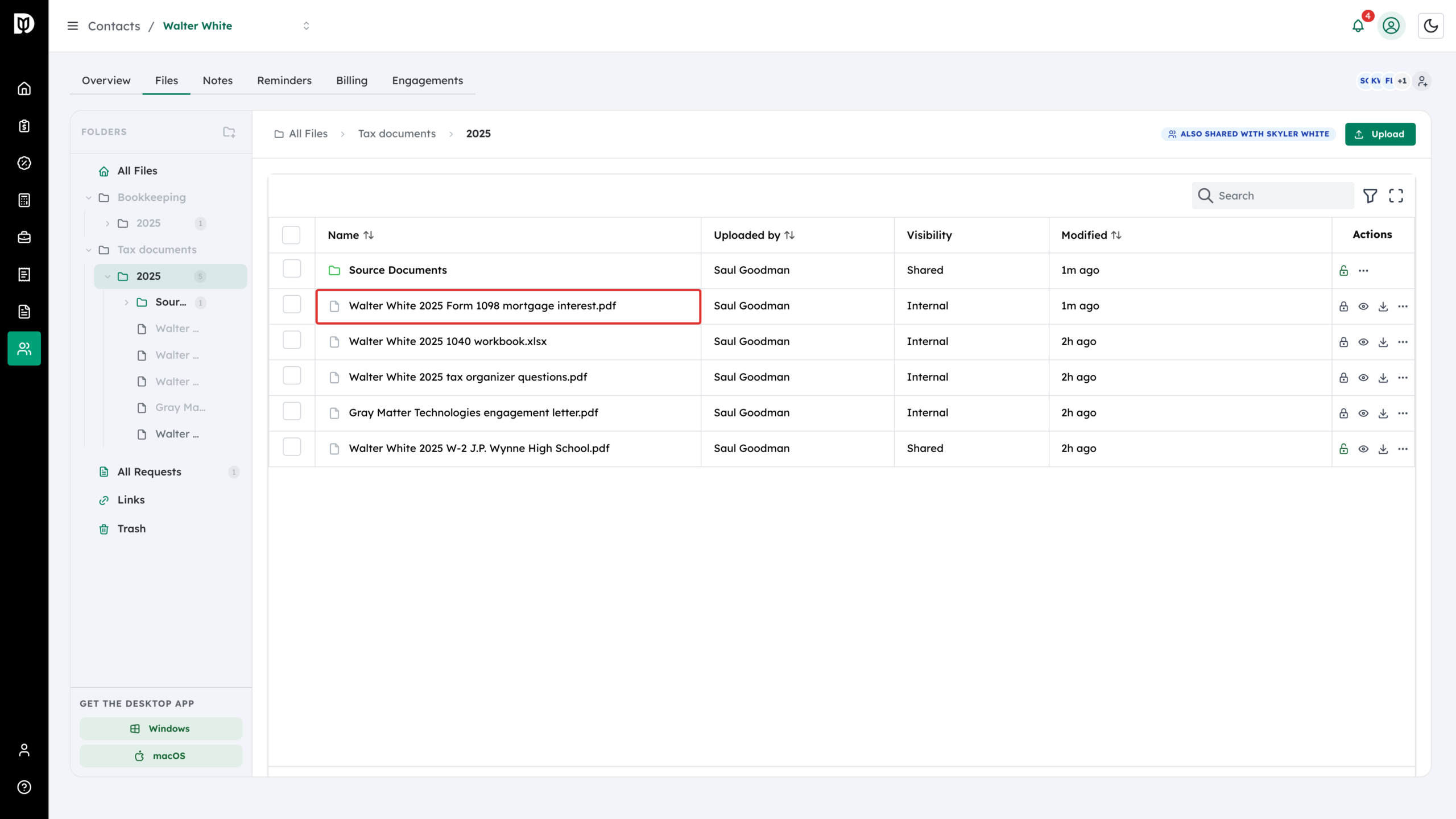
The files land in the folder you chose, marked Internal, so they are ready for you to work on. Debits also keeps an untouched copy of each upload in the client’s Source Documents folder, which the client can see. If the folder you chose has since been deleted, uploads go to Source Documents instead.
Step 11: Repeat the request every period
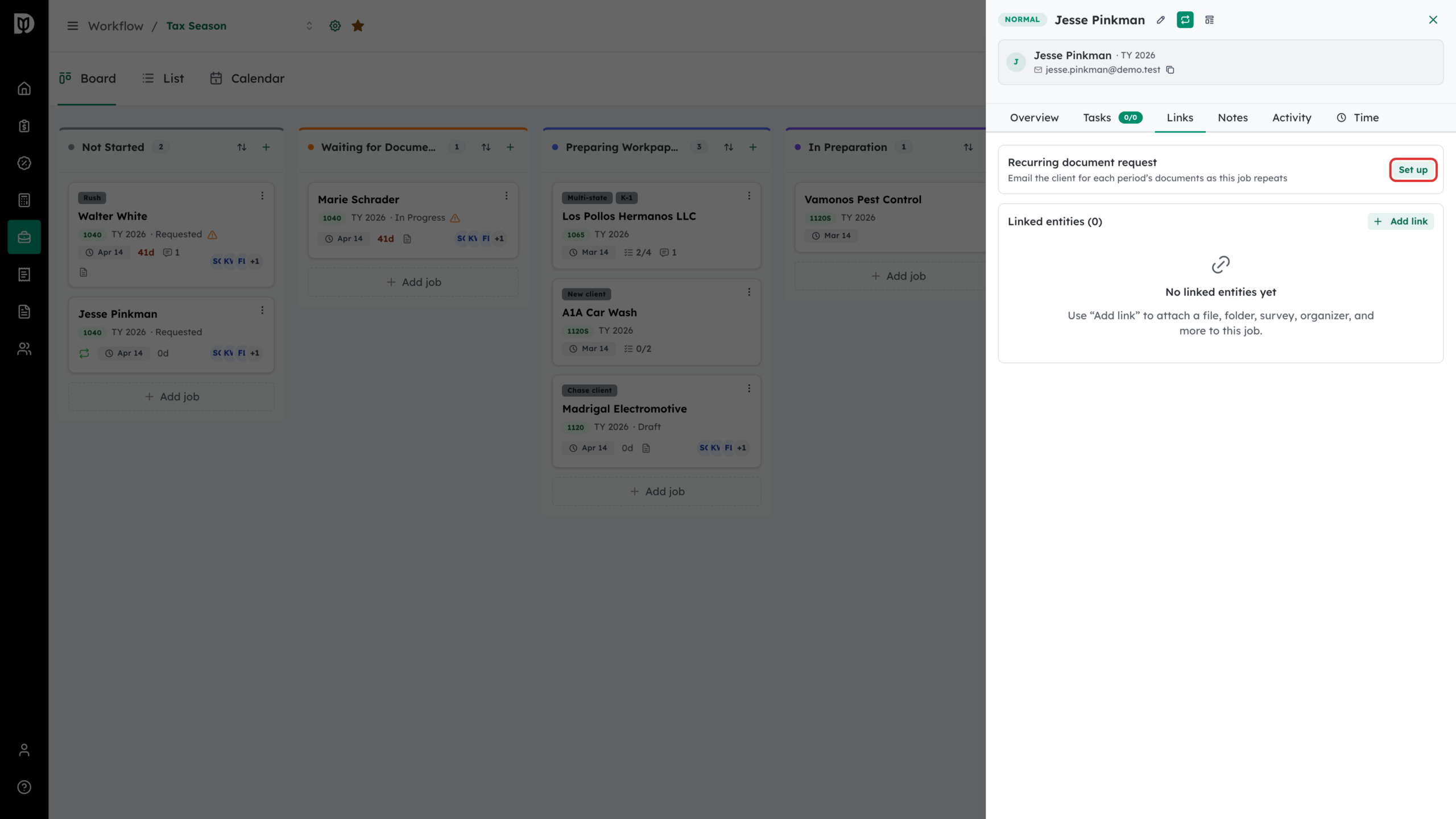
For documents you need every period, such as bank statements, open the client’s recurring job on the workflow board. On its Links tab, find Recurring document request and select Set up.
Step 12: Set the schedule and start
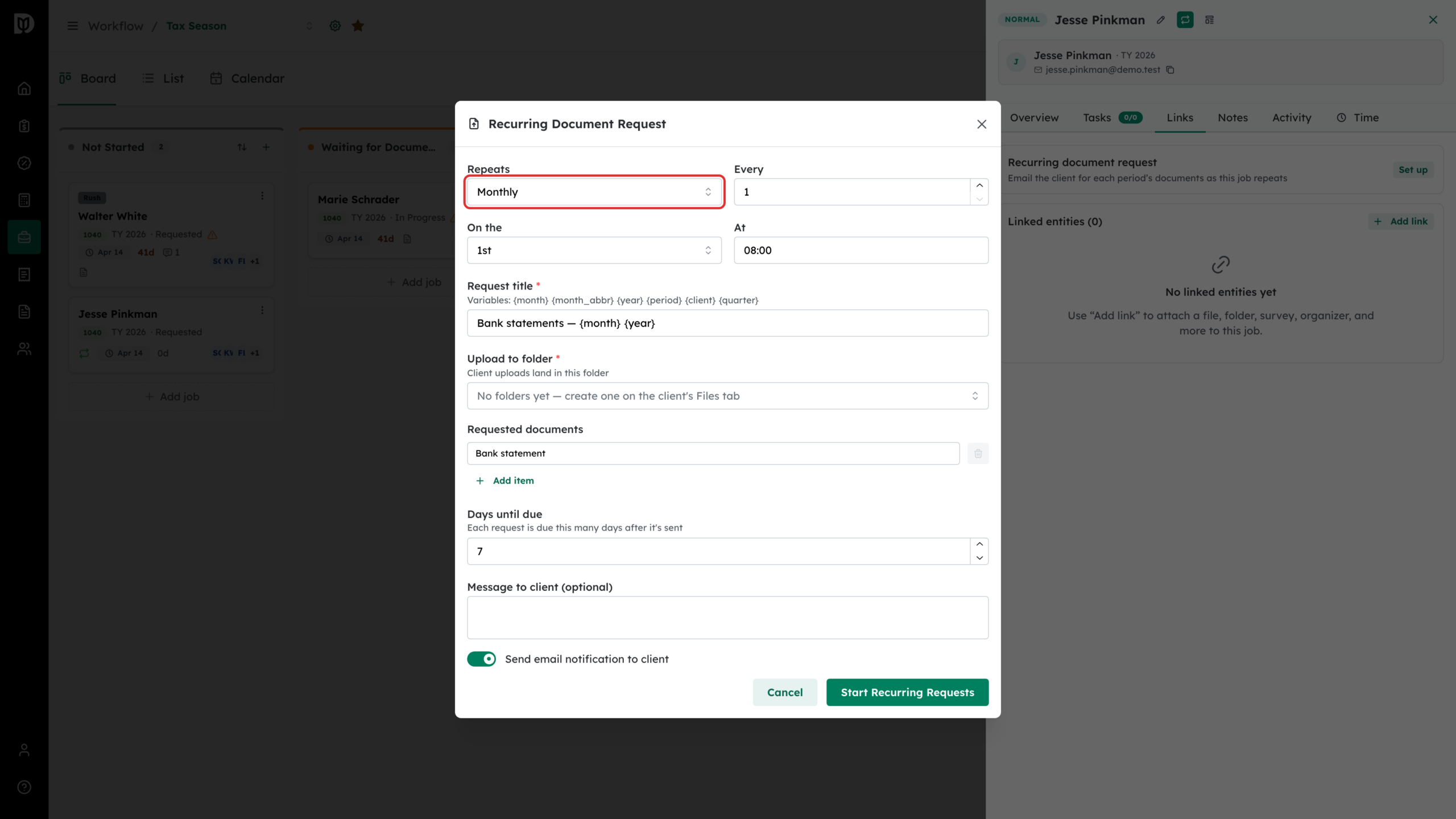
Choose how often it Repeats (weekly, monthly, quarterly or annually), Every, On the and At. The Request title can use variables such as {month} and {year}, so each request is named for its period. Choose the Upload to folder, the documents, and the Days until due, then select Start Recurring Requests. Later, select Manage on the same card to pause, resume or remove it.
What happens next
The upload link stays live, so a client who comes back with more documents can use the same link again, even after every item is ticked off. A link stops working only when:
- it expires, 30 days after the request’s due date;
- you delete the request; or
- you mark the client inactive and choose to revoke their upload links.
Troubleshooting
- Copy Upload Link is greyed out. Every item has been received. The client’s link still works until it expires. To ask for more documents, send a new request.
- Your client says the link has expired. It is more than 30 days past the due date, or the request was deleted. Send a new request.
- You can’t choose a folder. The client has no folders yet. Create one on their Files tab.
- You don’t see Recurring document request on a job. It only appears on jobs set to repeat. Turn on recurrence for the job first.