Who this is for: Bookkeepers and accountants categorizing a client’s QuickBooks transactions in Debits.
What you’ll learn: How Sales Receipts, Bills and Vendor Credits appear in Debits, how to recategorize each one, and what Debits checks before it saves a change to QuickBooks.
Before you begin
- The company must be connected to QuickBooks.
- Debits syncs six QuickBooks transaction types: Purchases (expenses, checks and card charges), Deposits, Journal Entries, Sales Receipts, Bills and Vendor Credits. They appear on the Categorize, Review and Approved tabs like any other transaction.
- Saving or approving a change writes it to the transaction in QuickBooks.
Step-by-step instructions
Step 1: Tell the transaction type apart
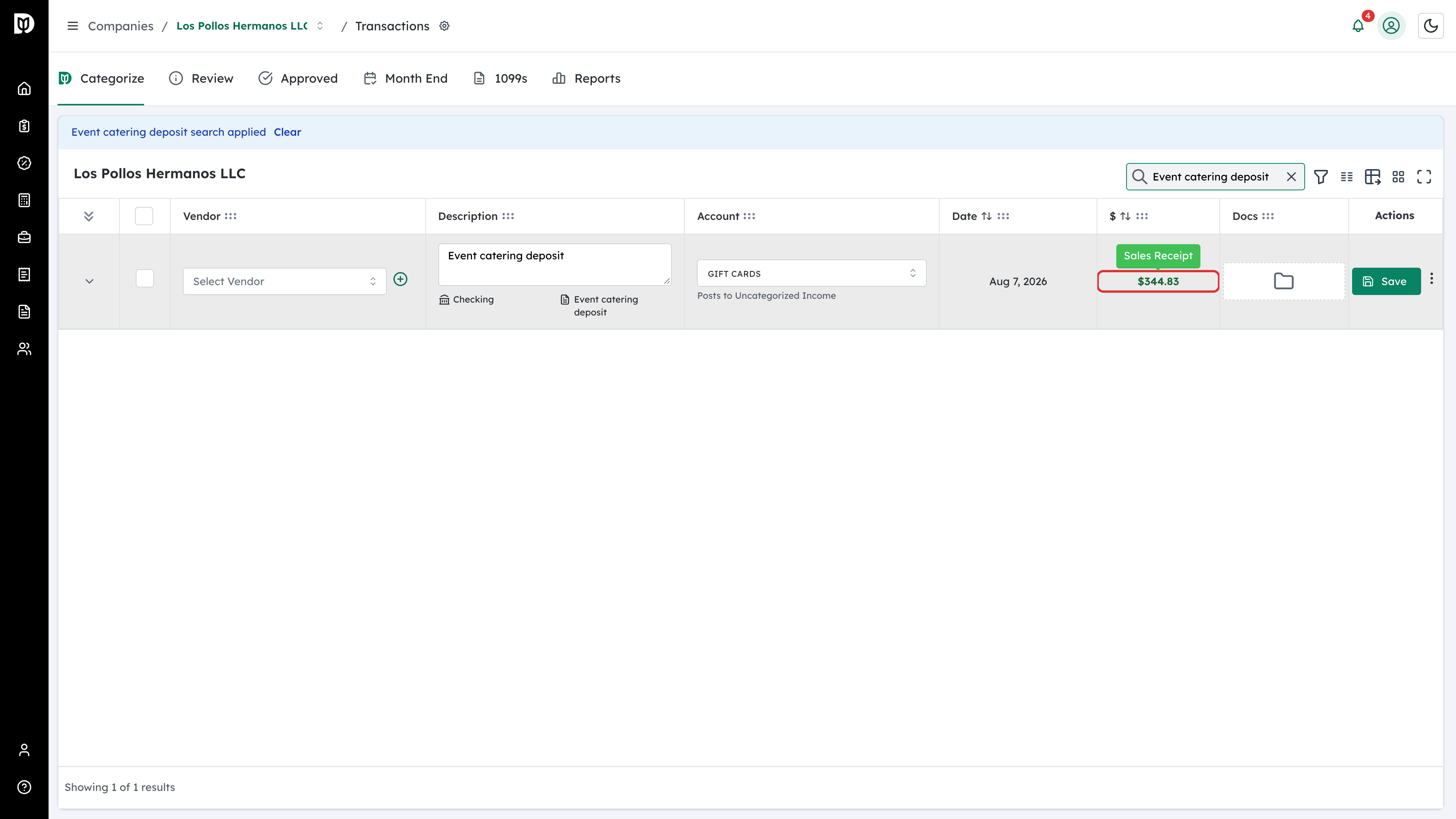
Open the company’s Categorize tab. Point to a transaction’s amount to see its type, such as Sales Receipt, Bill or Vendor Credit. Money coming in, like a Sales Receipt, is shown in green.
Step 2: Recategorize a Sales Receipt by product or service
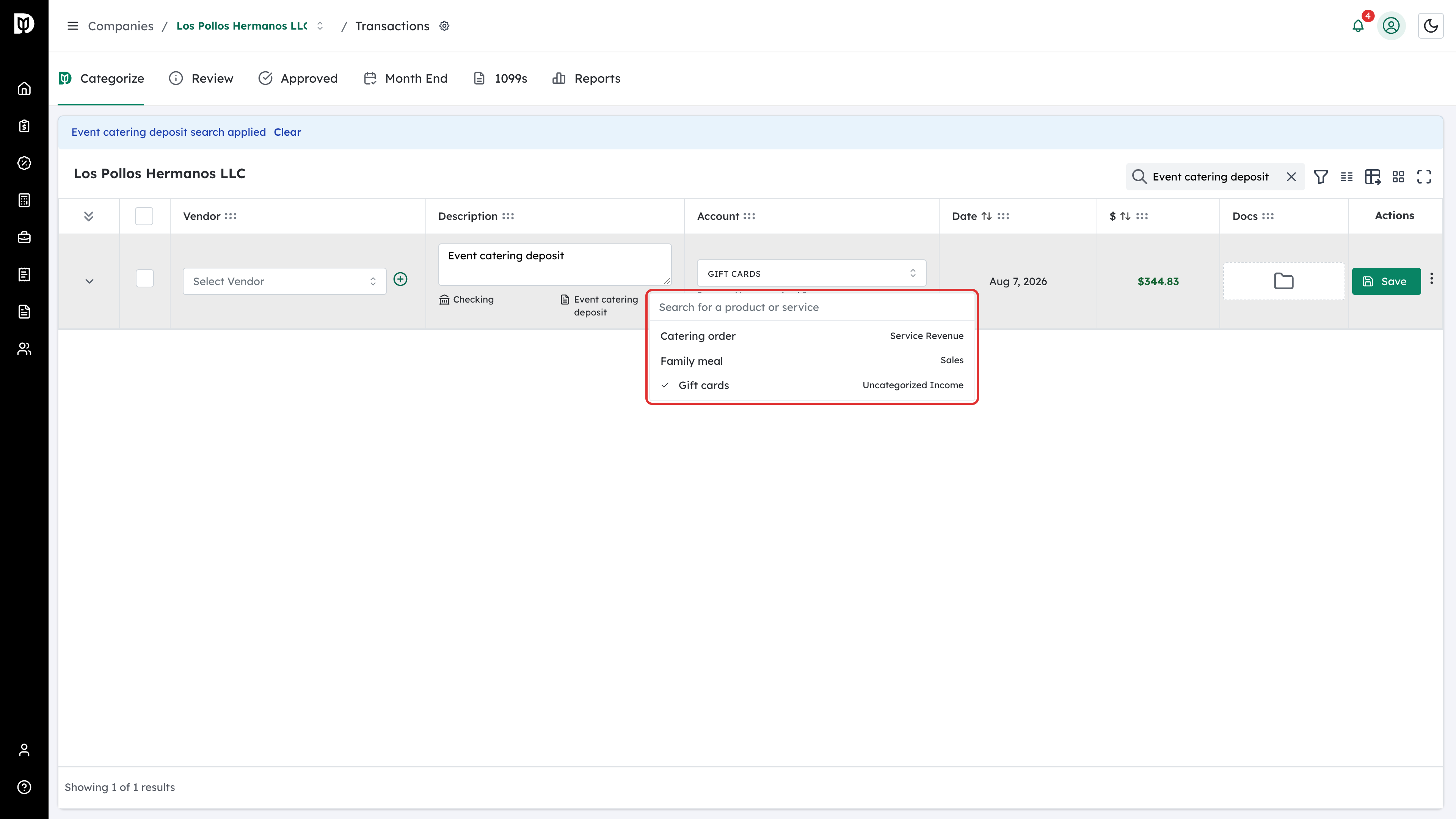
QuickBooks puts a Sales Receipt line on a product or service, not straight on an account. So in Debits you pick the product or service. Open the line’s field and choose from the list. Each option shows the income account it posts to, and the line shows Posts to that account. Then select Save.
Step 3: Know that these types cannot be split
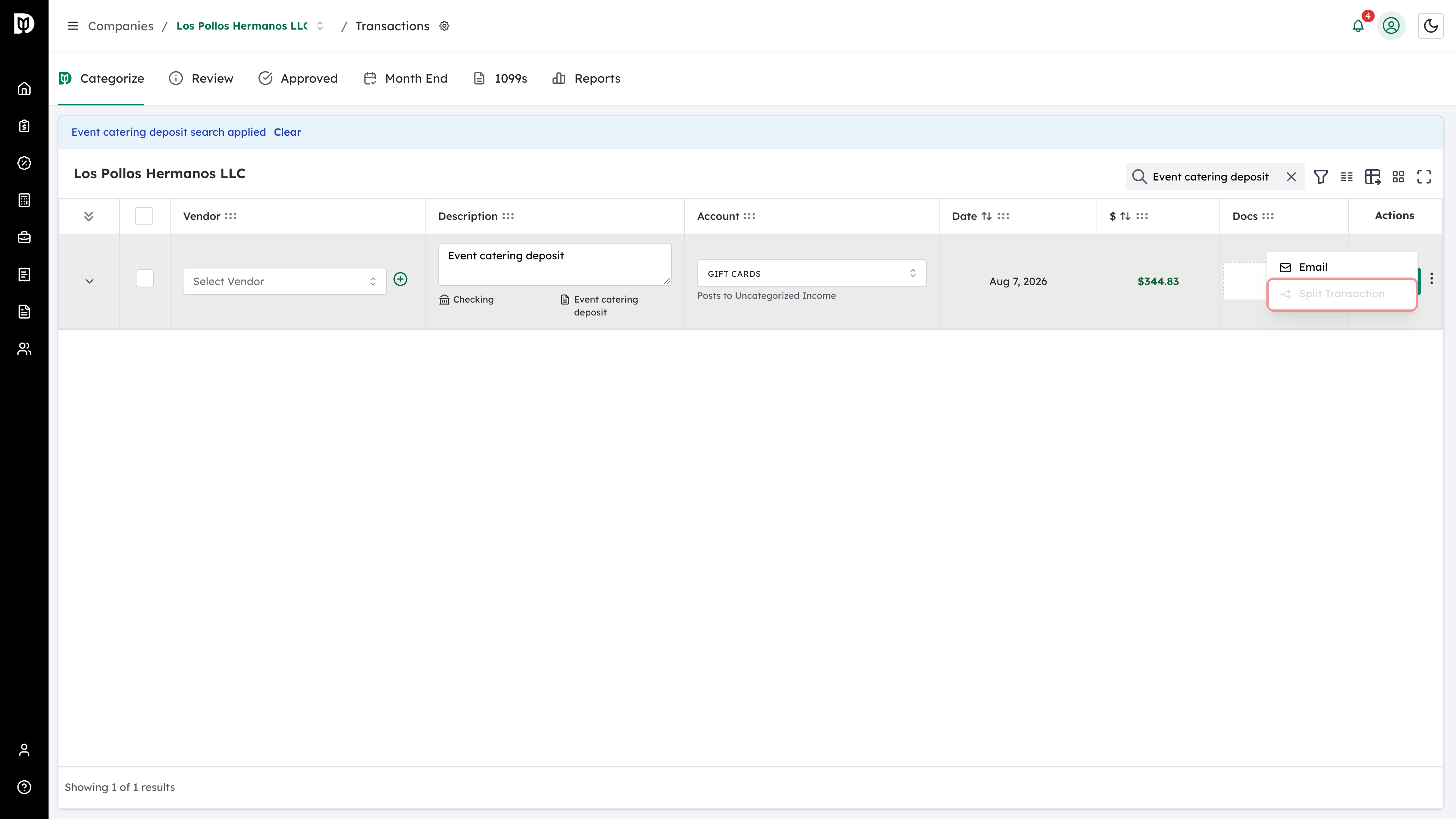
Sales Receipts, Bills and Vendor Credits are recategorized one line at a time. Split Transaction in the row’s ⋮ menu is turned off for them.
Step 4: Recategorize a Vendor Credit
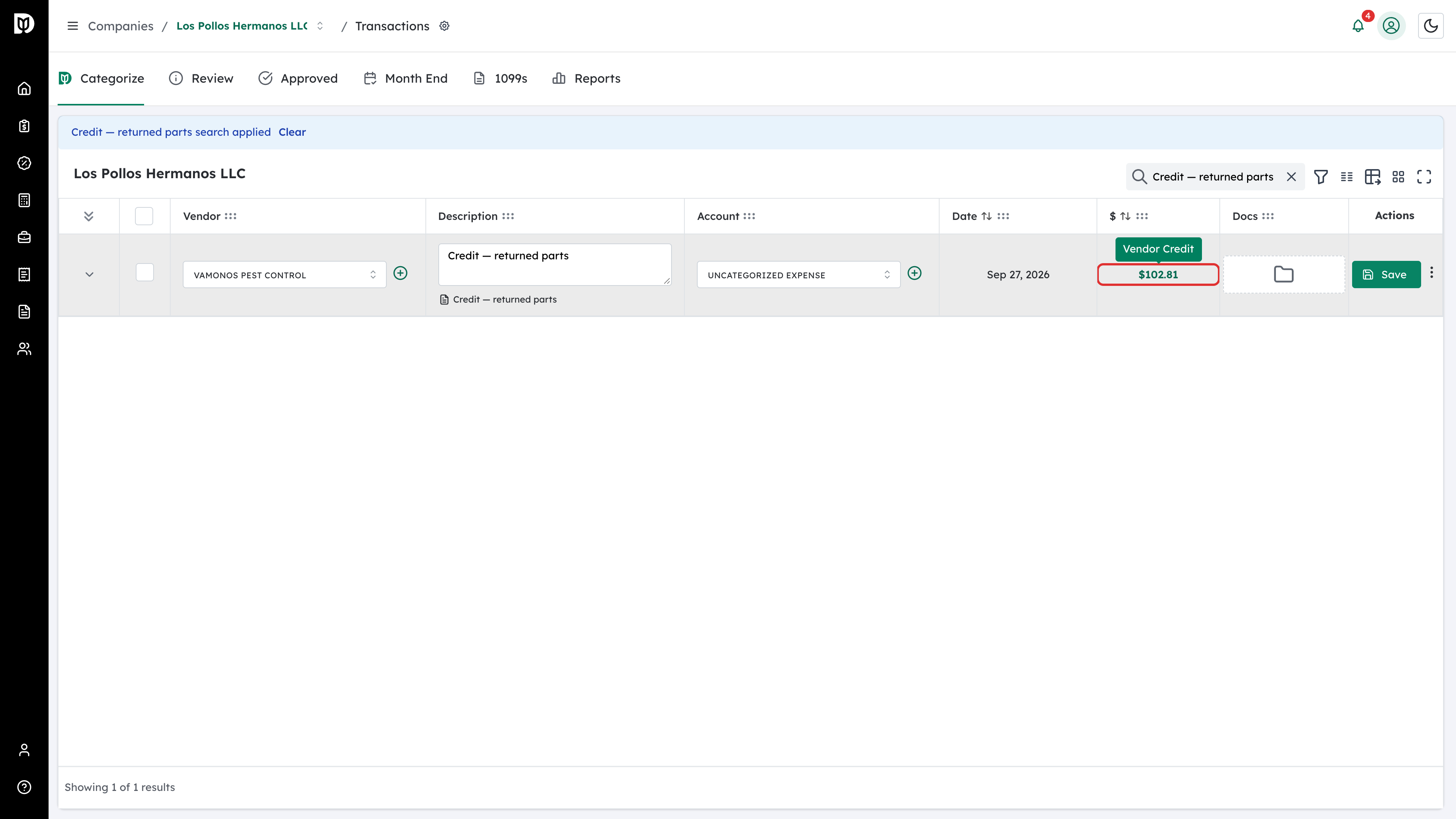
A Vendor Credit is money a vendor owes back, so Debits treats it as a credit. Point to its amount to see the Vendor Credit label. Pick the account, check the vendor, and select Save.
Step 5: Confirm before changing a paid Bill
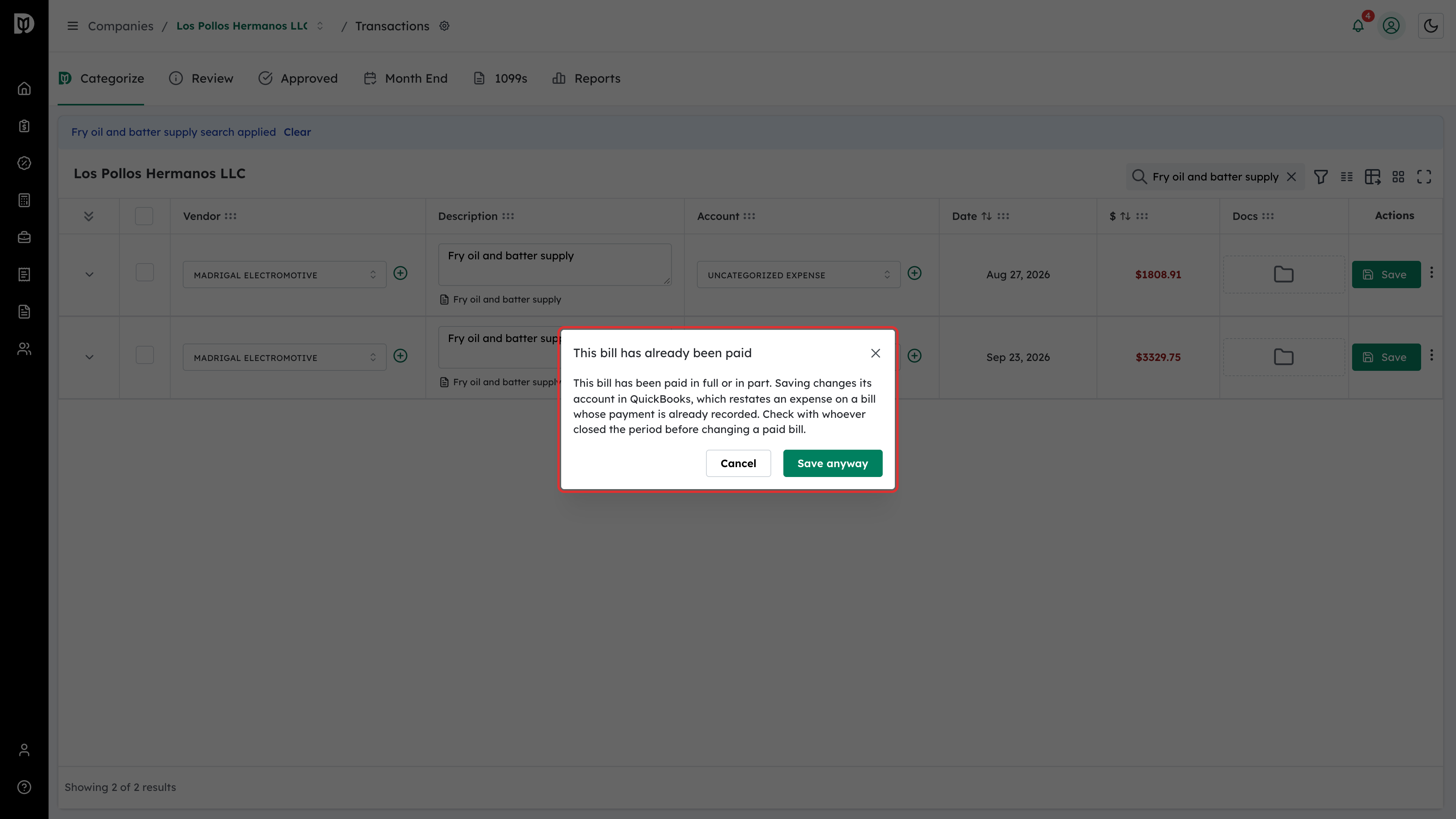
Recategorize a Bill the same way: pick the account and select Save. If the bill has already been paid in full or in part, Debits asks first with This bill has already been paid. Saving changes the account on a bill whose payment is already recorded, so check with whoever closed that period. Select Save anyway to go ahead, or Cancel to leave the bill as it is.
What happens next
- Debits changes only what you edited. Everything else on the transaction in QuickBooks stays as it was, including its other lines, tax and payment details.
- A Sales Receipt line’s own product or service is changed, never the product’s income account. Changing that account in QuickBooks would restate every sale that uses it.
- The text on a Sales Receipt line prints on the customer’s receipt, so Debits never rewrites it. Your description stays in Debits.
- A Bill or Vendor Credit can’t be saved without a vendor, because QuickBooks requires one.
Troubleshooting
- A Sales Receipt stays uncategorized after you pick the same product again. QuickBooks posts a sale by its product or service. To move the sale, pick a product or service that posts to a different account.
- A product or service is missing from the list. The list comes from the company’s QuickBooks products and services. Add it in QuickBooks, then search again.
- You can’t split a Bill. Splitting isn’t available for Sales Receipts, Bills or Vendor Credits. Change the lines in QuickBooks if the bill needs more lines.