Break one QuickBooks Online transaction into several lines so each part lands on the right account.
Before you start
- You must be on the Categorize or Review tab. Approved transactions cannot be split.
- Only expenses and deposits can be split. For journal entries, sales receipts, bills and vendor credits the menu item is greyed out.
- Unlike other row edits, saving a split writes to QuickBooks Online straight away.
Steps
-
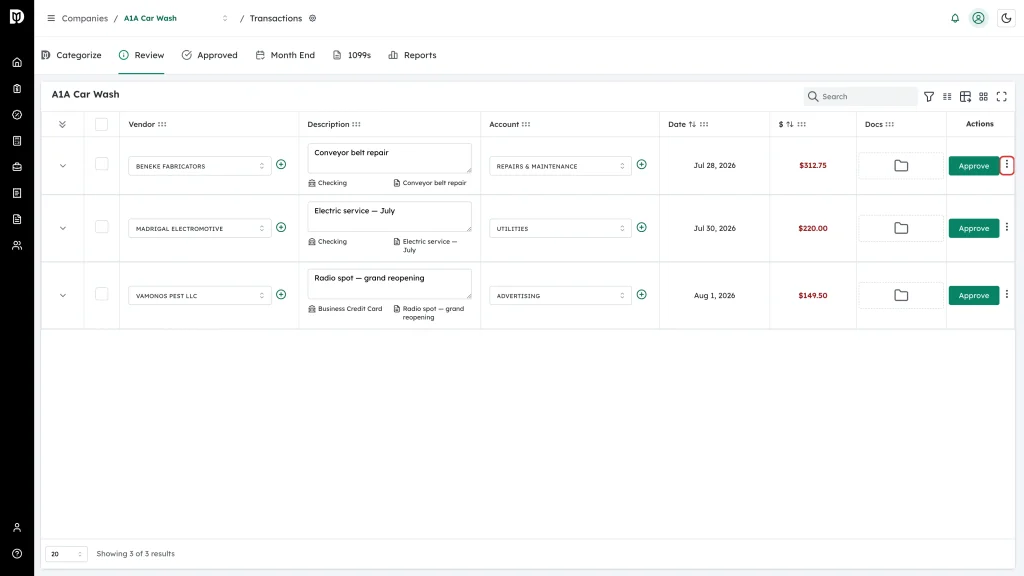
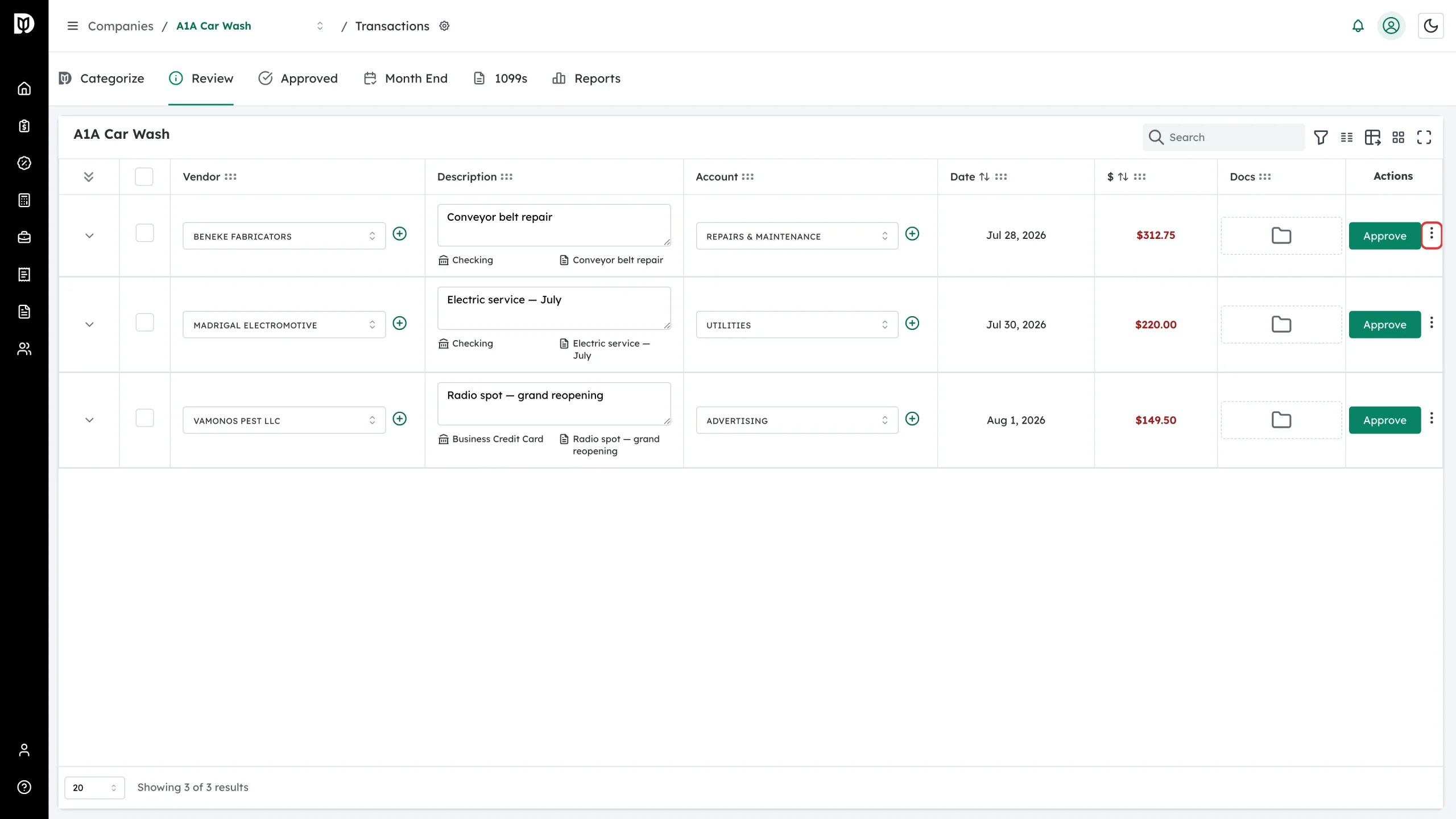
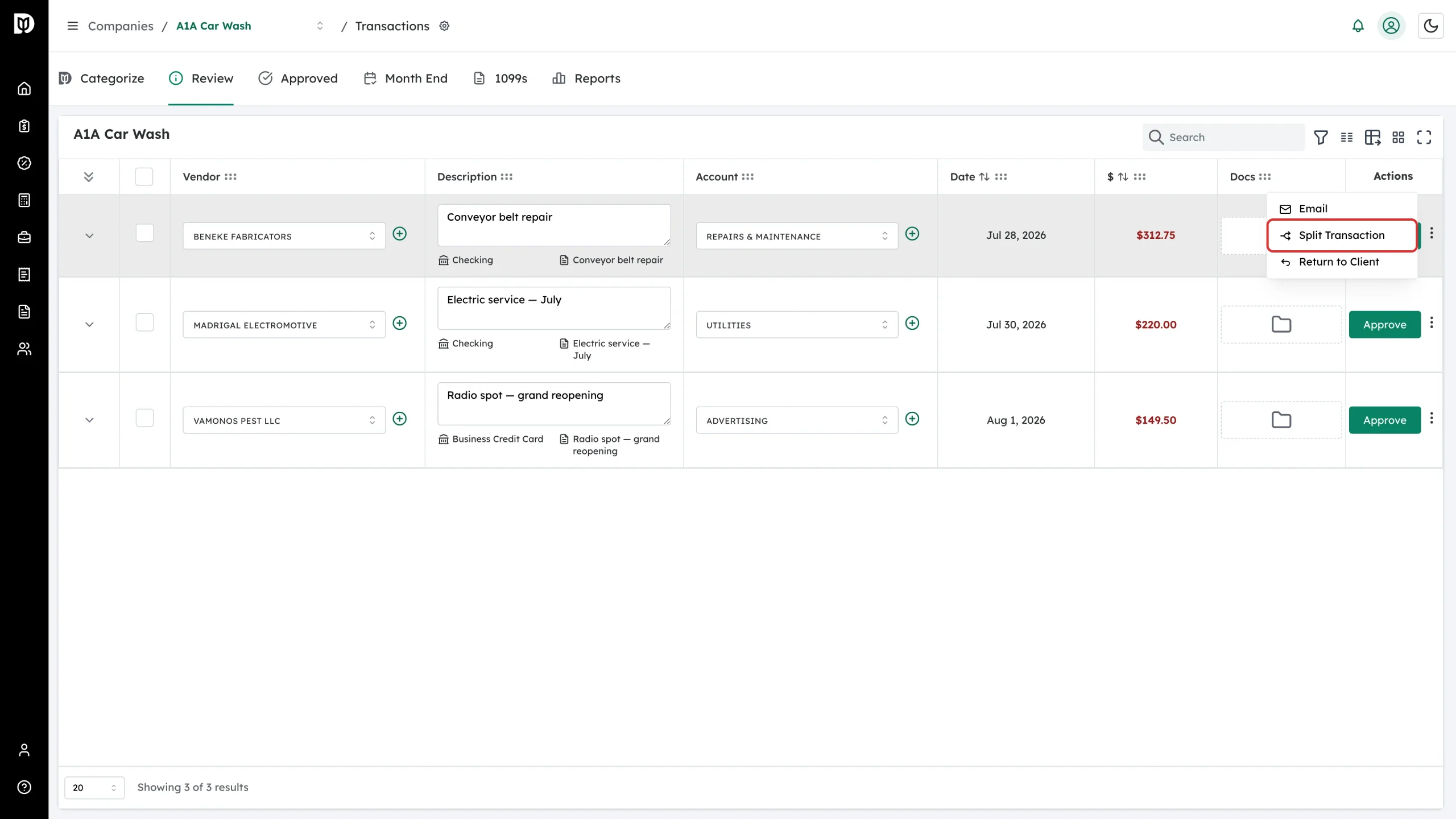
Open the company’s transactions, find the transaction, and click the three dots at the right of the row.
-
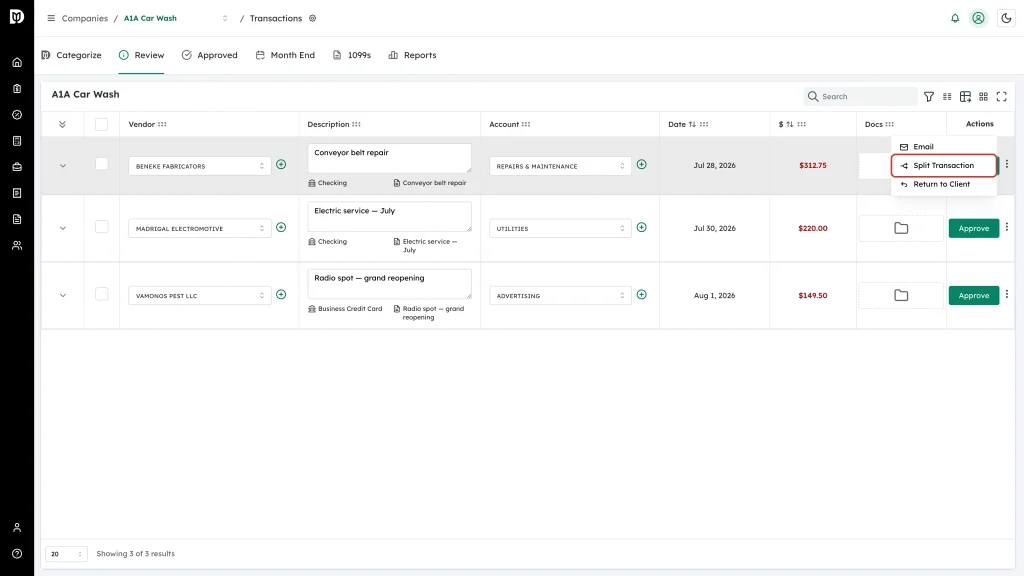
Click Split Transaction.
-
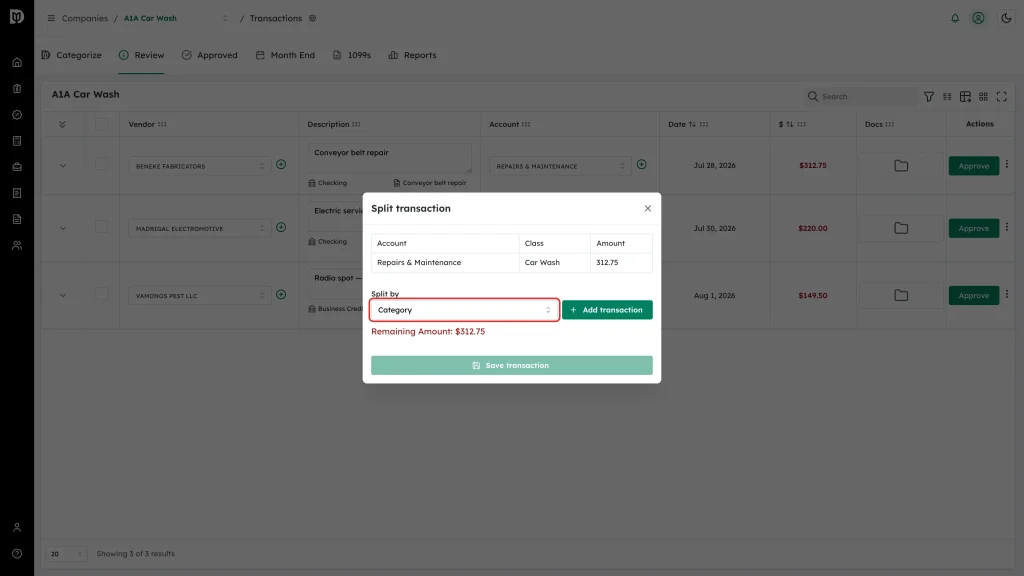
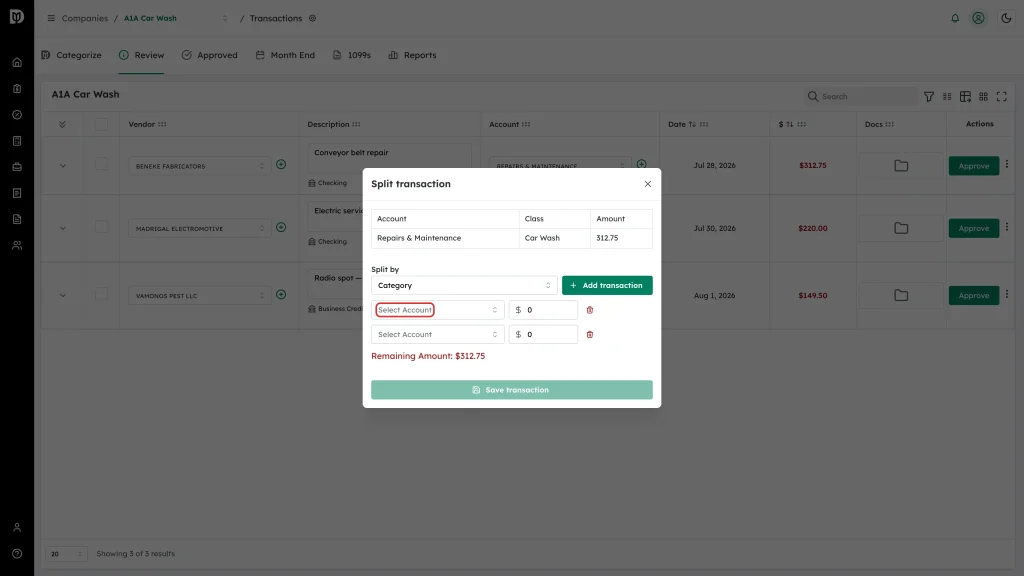
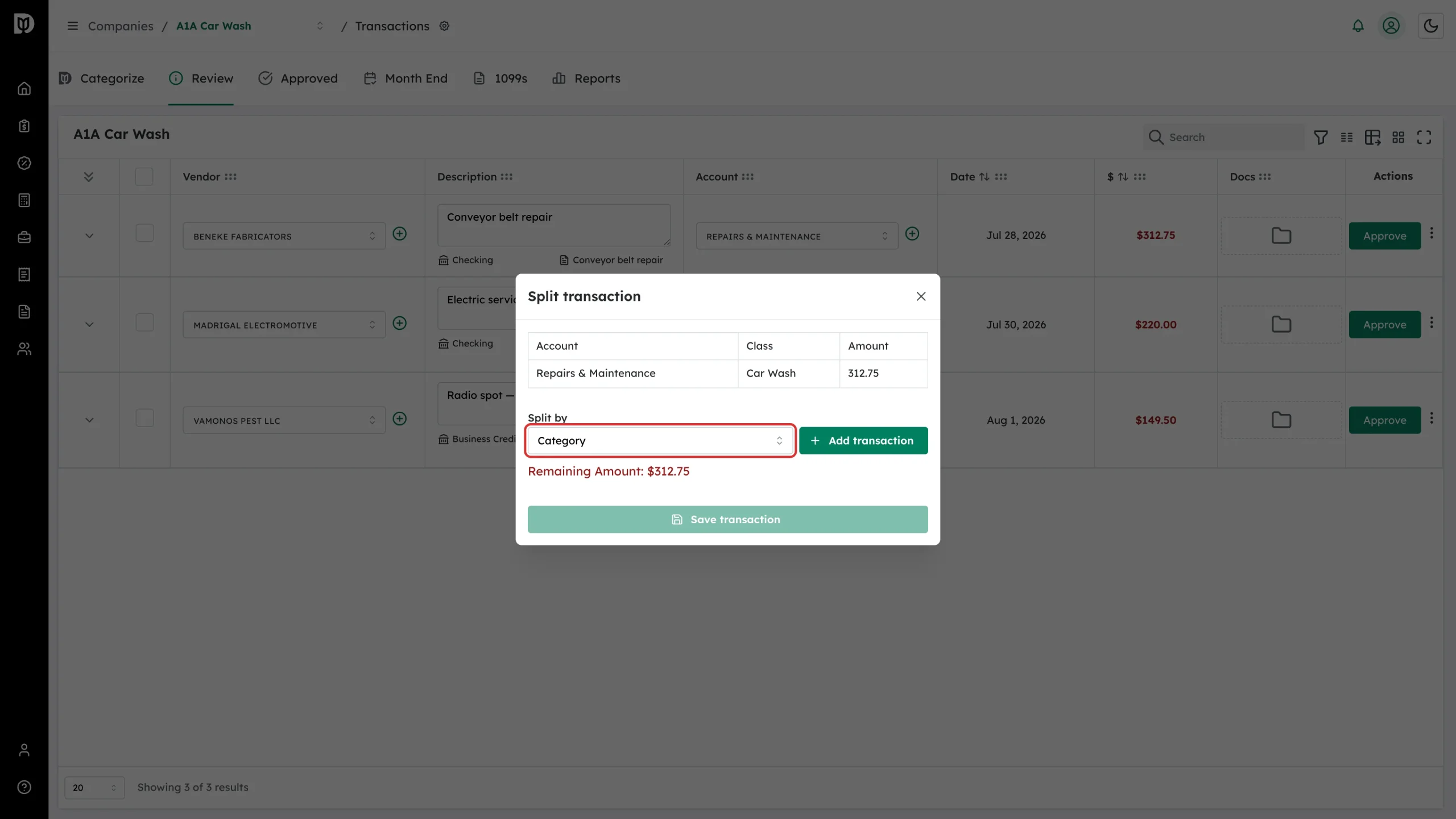
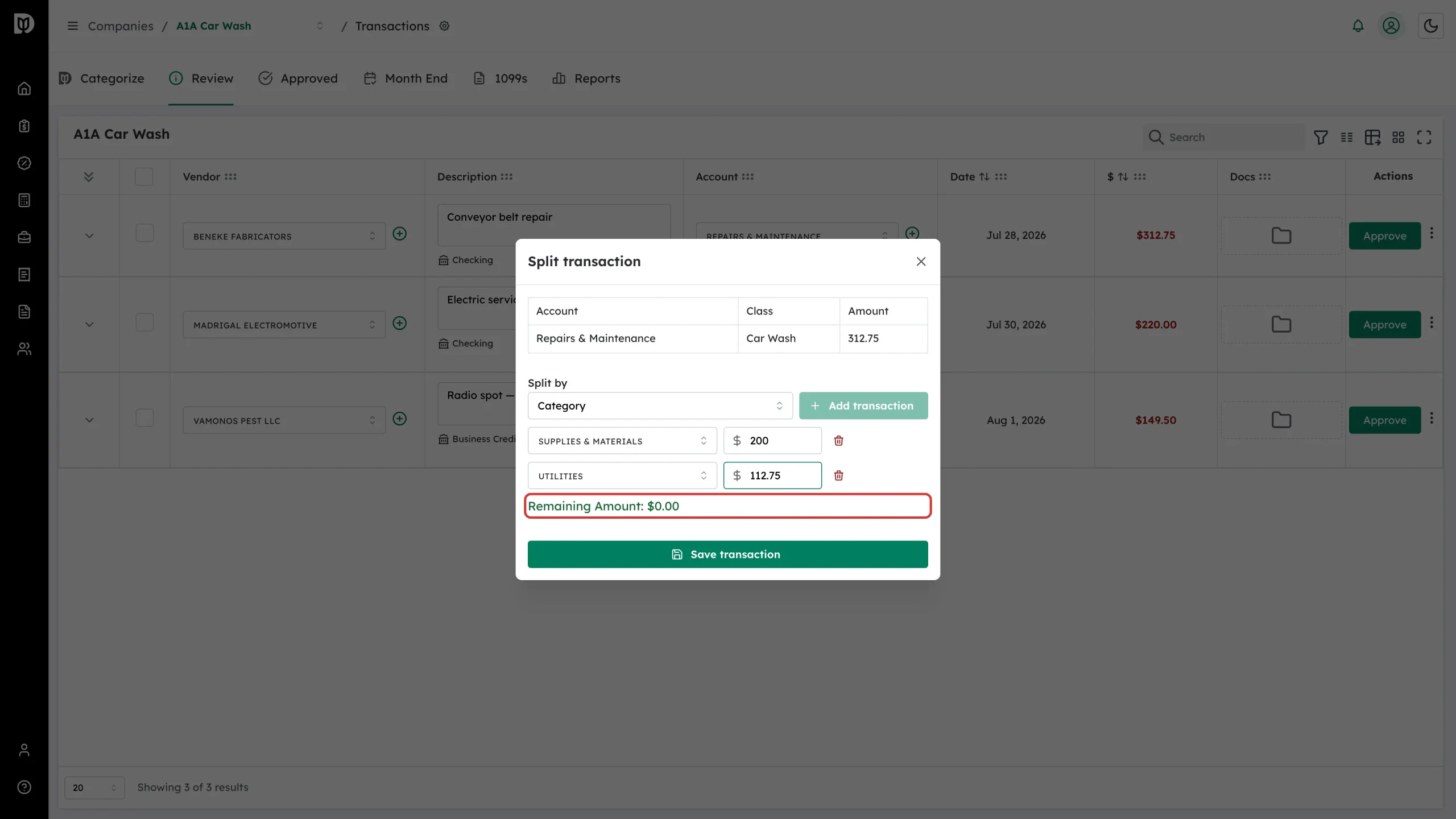
The Split transaction window opens. The table at the top shows the original Account, Class and Amount. Leave Split by on Category to split across accounts, or choose Class if the company tracks classes and this transaction already has one.
-
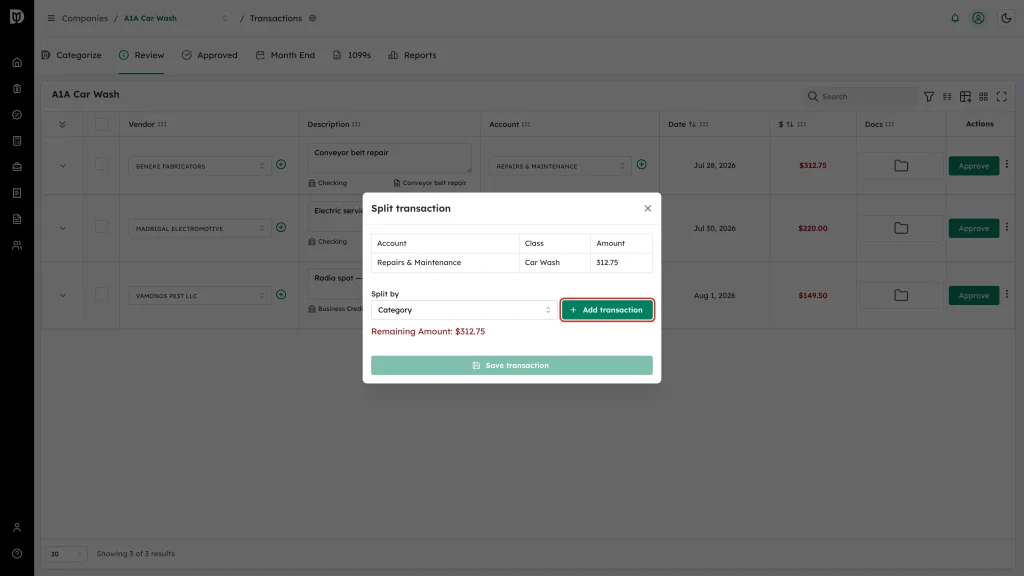
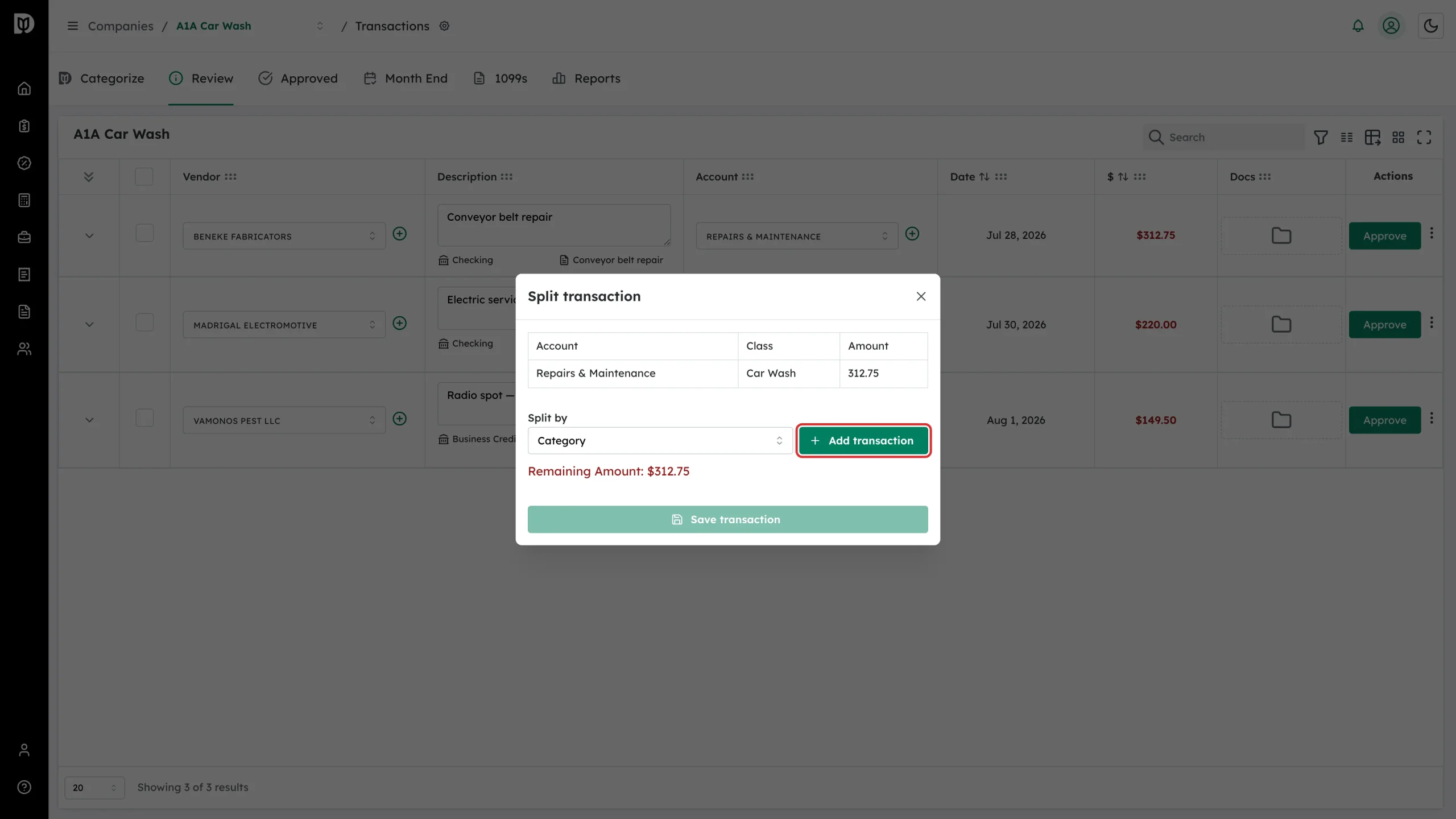
Click Add transaction once for each extra line you need.
-
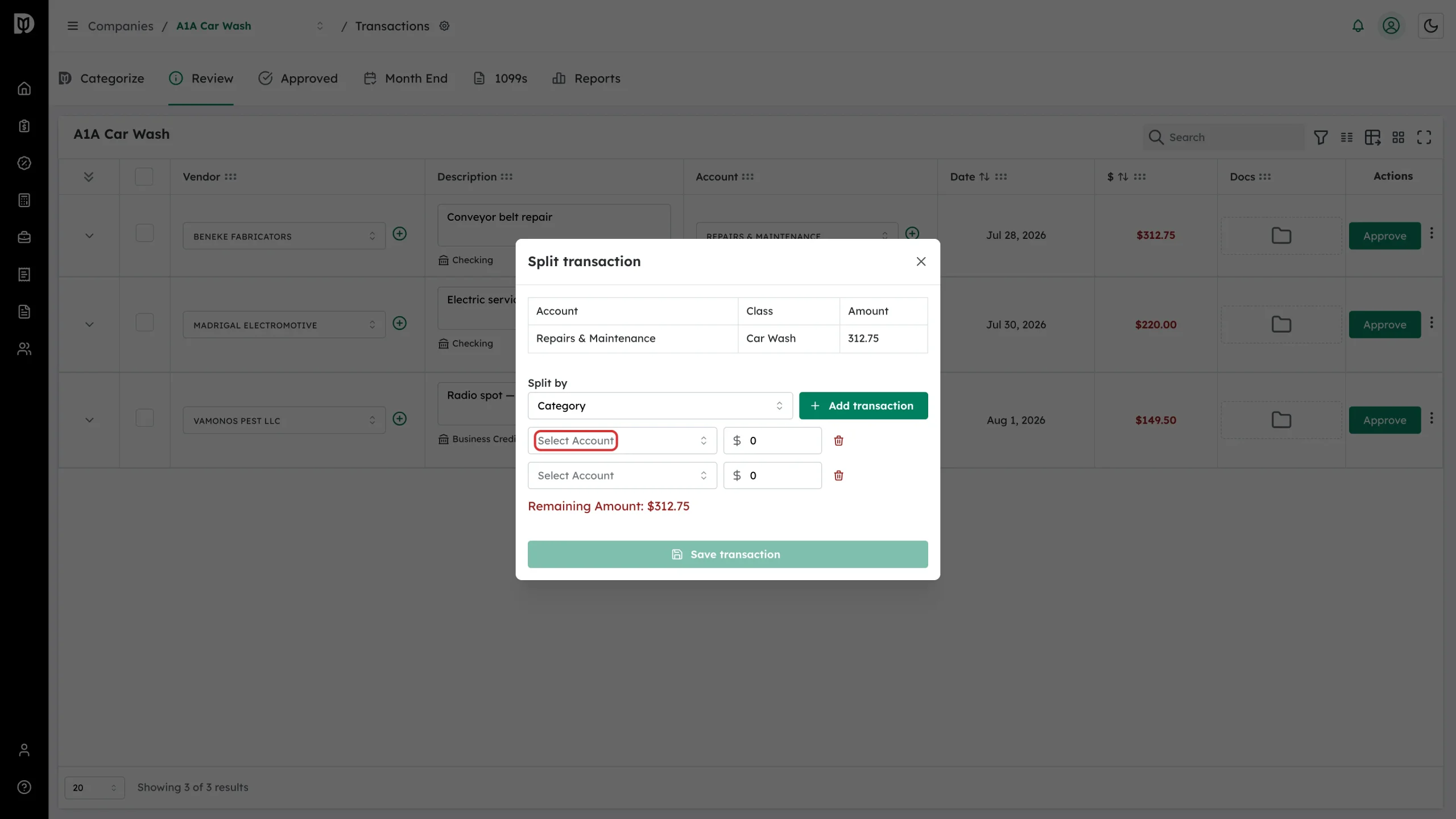
For each line, click Select Account and choose where that part of the money belongs.
-
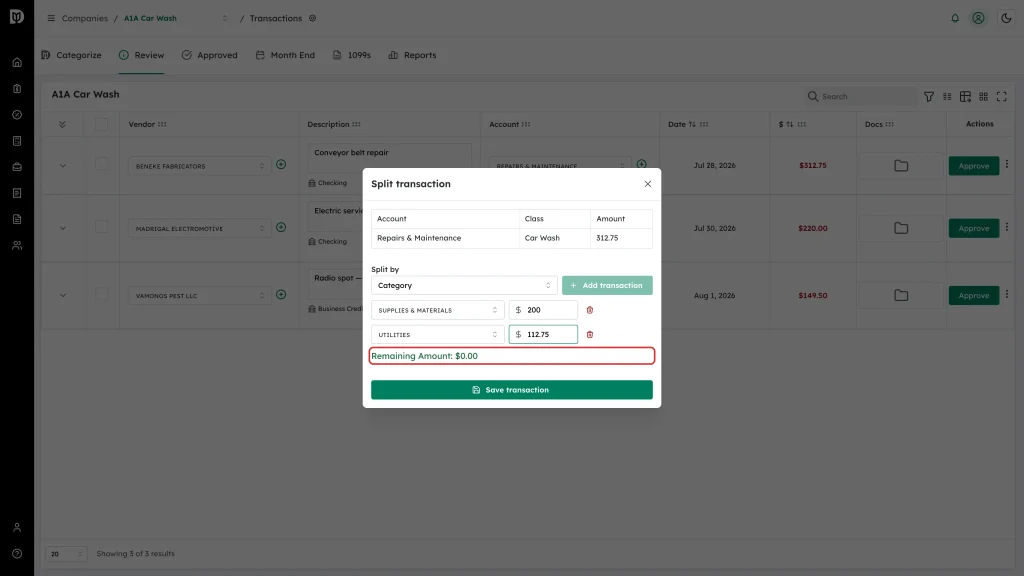
Type the amount for each line. Watch Remaining Amount under the lines — it is red until every cent is allocated, then turns green and reads $0.00.
-
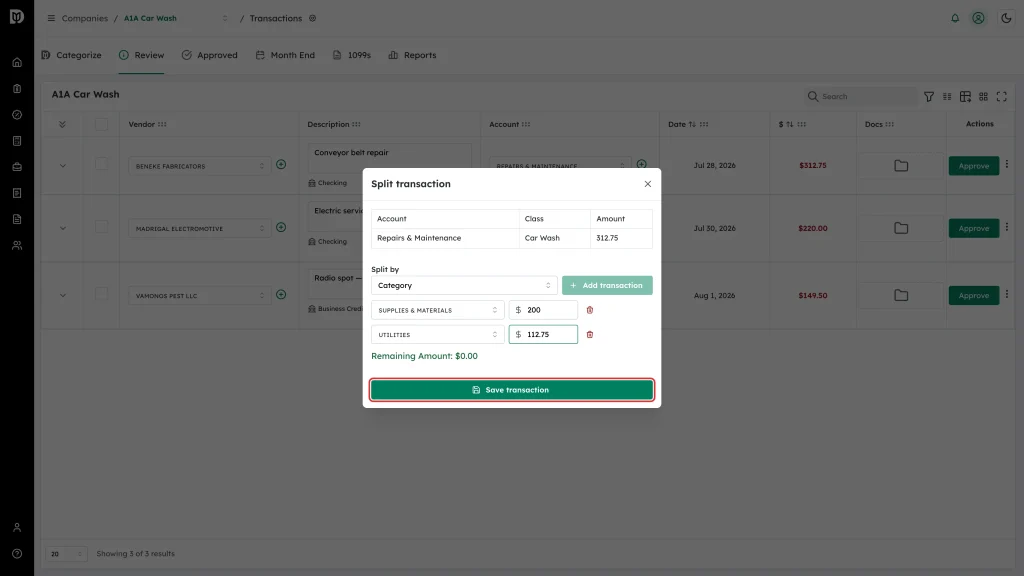
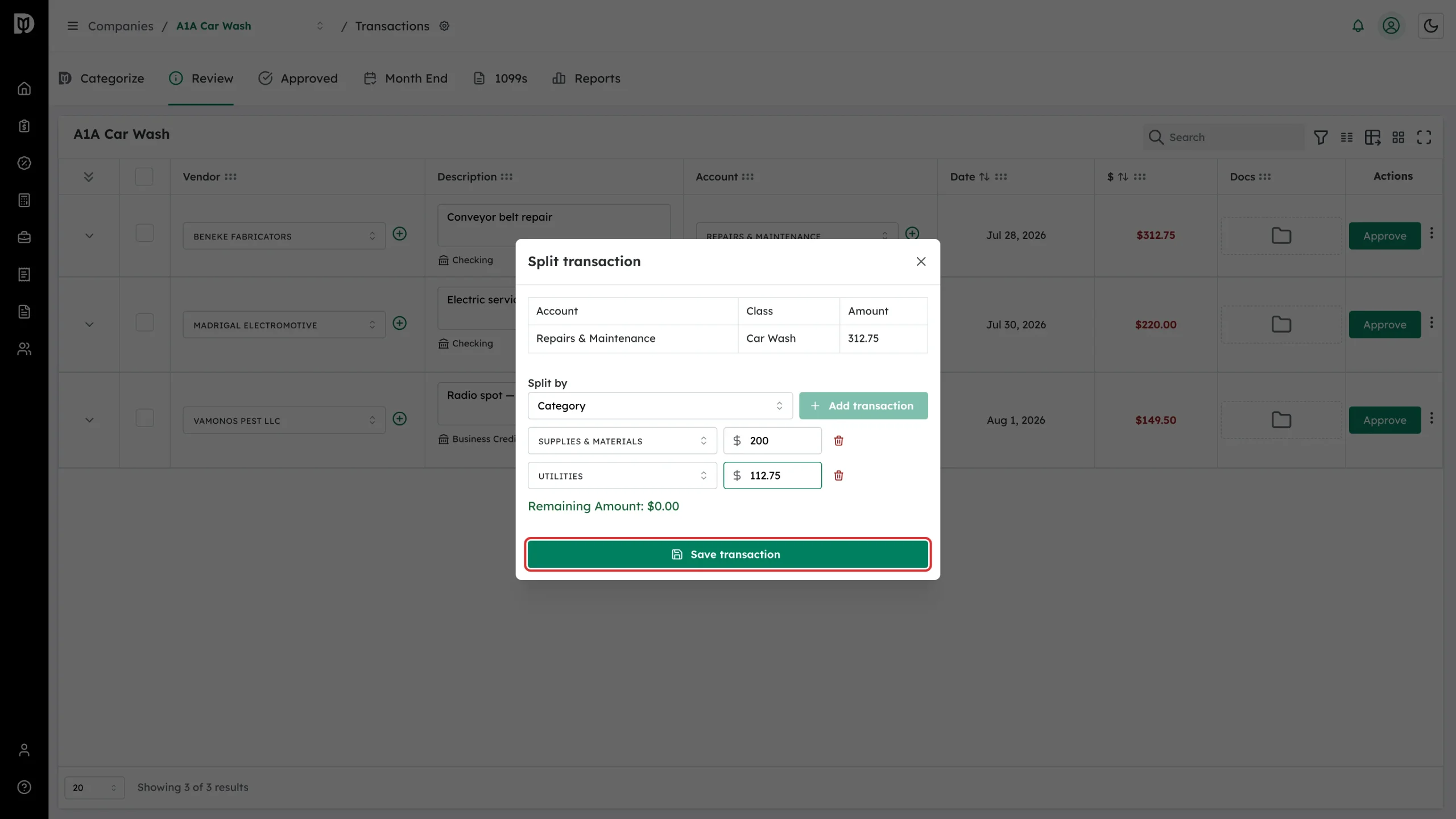
Click Save transaction.
What happens next
- Debits sends the split to QuickBooks Online. The single transaction is now recorded against several accounts.
- The split lines replace the original single line in the transactions list.
Troubleshooting
- Save transaction is greyed out. Remaining Amount is not $0.00, or one of the lines has no account chosen.
- Add transaction is greyed out. The lines you have already added add up to the full amount. Lower one of them to free up room.
- Split Transaction is greyed out in the menu. The transaction is a journal entry, sales receipt, bill or vendor credit, which cannot be split here.
- To drop a line, click the red bin icon at the end of it.